HTML Importer

Beefree App is now RGE Studio!
The email design suite you already know and love just leveled up. We’re working hard to update our help center, but you still may see some references to the old product name.
This article applies to the email builder in paid plans.
Overview
The HTML Importer allows you to transform external HTML emails into RGE Studio designs. There's no longer any need to manually recreate your email designs from scratch. This feature helps you get up and running with RGE Studio as soon as possible. You can edit anything you've built in a third-party tool (or coded from scratch) inside of RGE Studio.
We designed the HTML Importer to import HTML into a format compatible with RGE Studio. However, HTML documents (especially emails) can follow many different coding patterns. A small portion of your design may not perfectly match the original version after import. These scenarios require light manual editing in RGE Studio to complete your design.
Each RGE Studio organization has a monthly HTML import allowance based on its plan. This applies to all workspaces in that organization:
| Plan | Monthly Import Allowance |
| Professional | 4 imports per month |
| Business | 10 imports per month |
| Enterprise | Custom to fit your organization's needs |
How to Use
To use the HTML Importer, you can access this feature in multiple areas inside the platform:
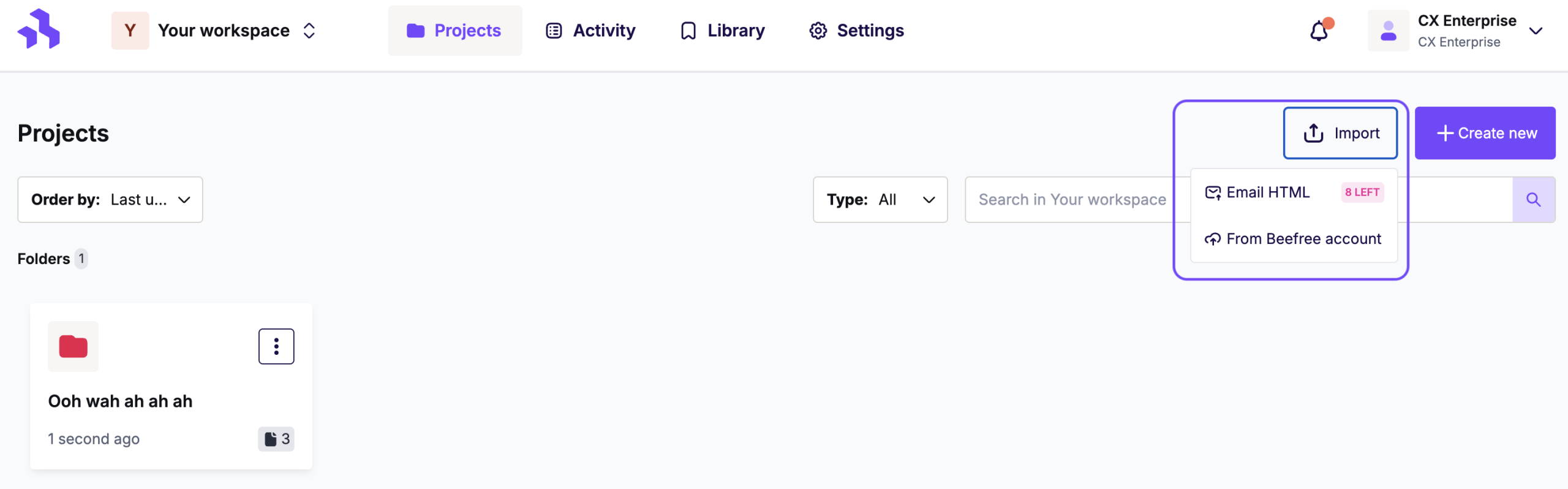
- From the Projects section, click on the Import button and choose the Email HTML option from the dropdown menu.
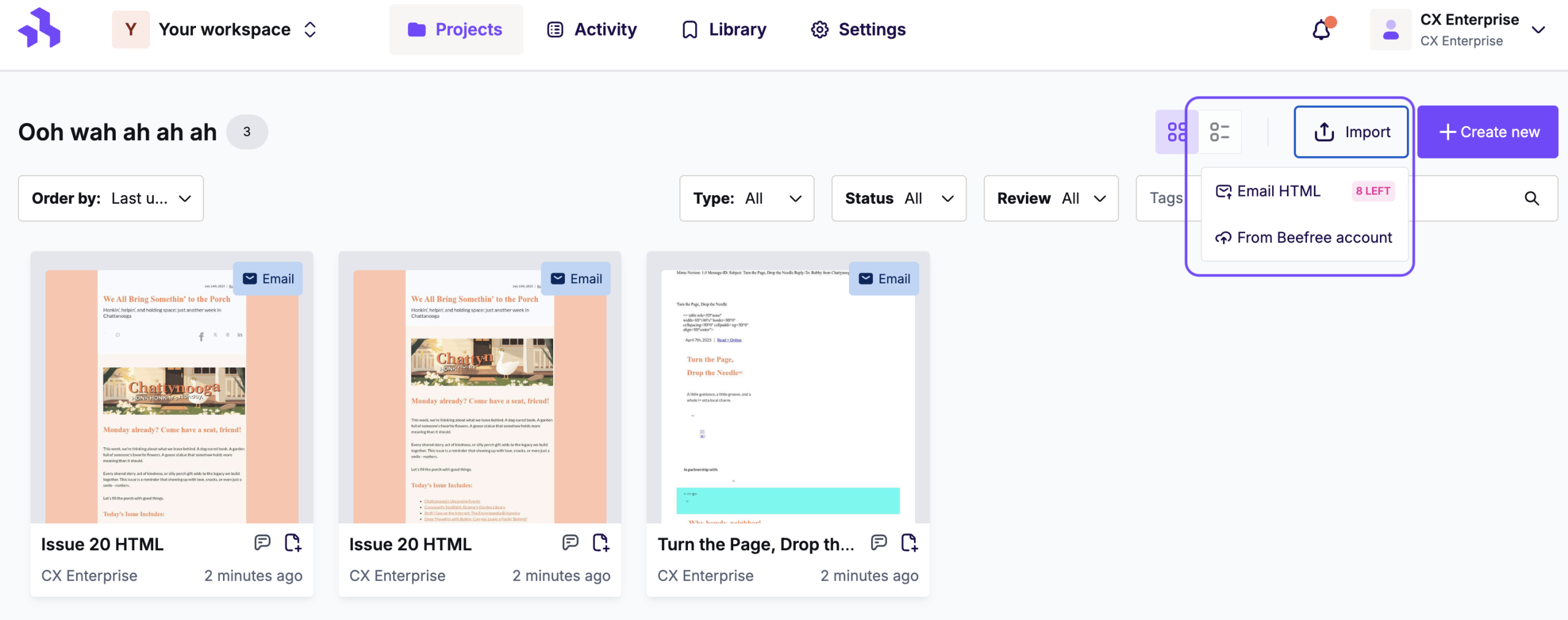
- From a Project folder, click the Import button located in the right-hand corner.
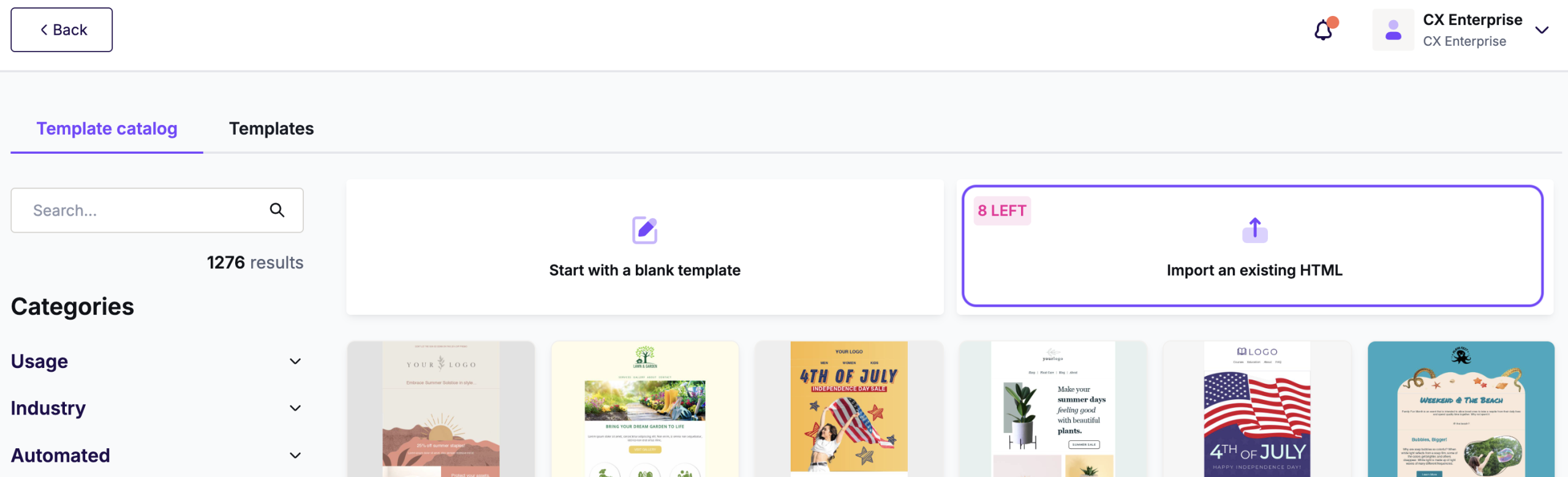
- And from the Template Catalog, by clicking the Import an existing HTML button at the top-right section of the catalog.
Once you’ve chosen the Import option, select the HTML file from your computer. RGE Studio will then begin the import process automatically.
Once the import is successful, your design will open directly in the RGE Studio builder, ready for further editing. Imported emails will take on the name of your original file (excluding the .html extension).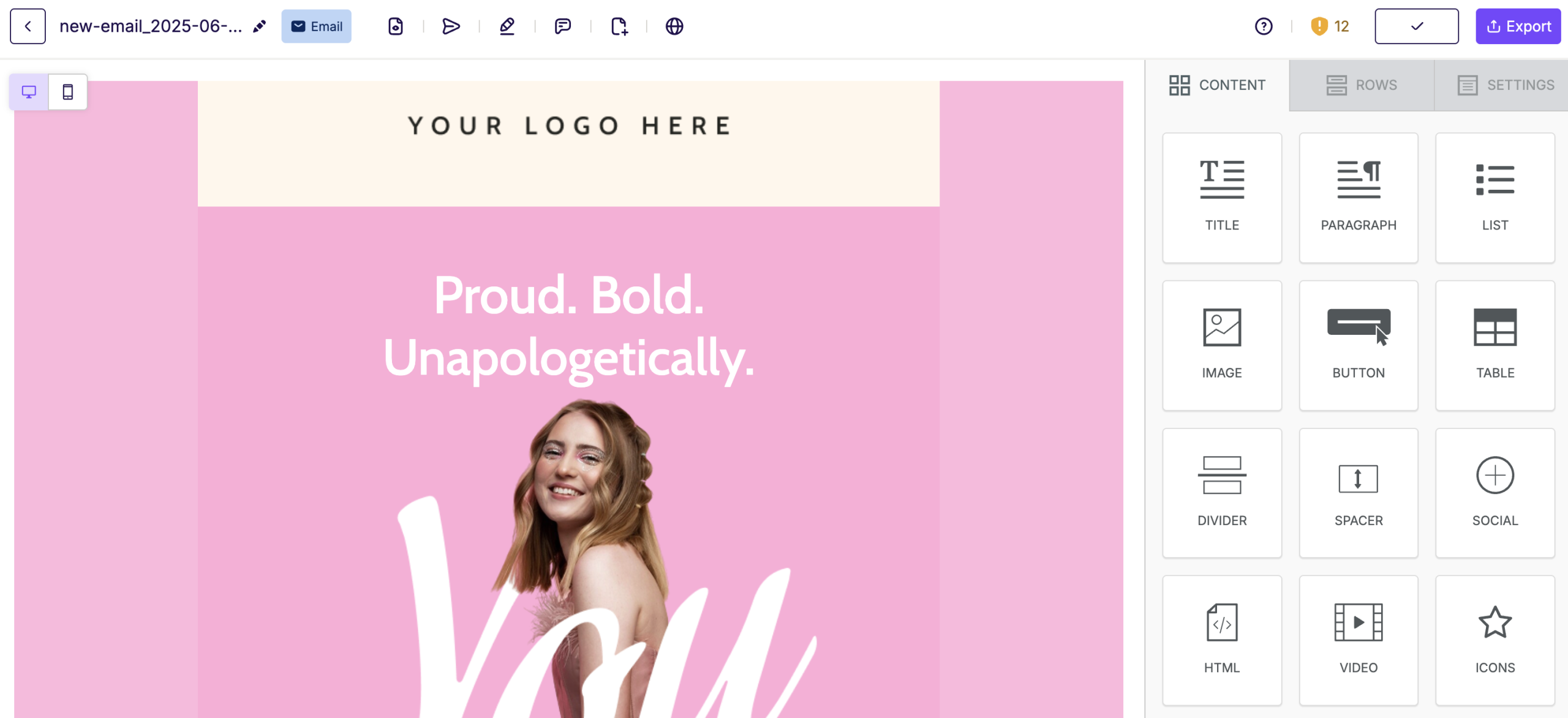
HTML Requirements
To ensure a successful import, your HTML must meet the following criteria:
-
DOCTYPE Declaration: Your HTML file must start with a valid
<!DOCTYPE html>declaration. -
Valid Structure: Your HTML must include
<html>and<body>tags. -
Character Encoding: Include
<meta charset="UTF-8">inside the<head>to prevent character issues during conversion. - Static Content Only: The importer supports static HTML and CSS. It does not support HTML created or manipulated via JavaScript.
- Public Resources: All images and linked resources must be publicly accessible online. Content hosted on private networks or behind firewalls cannot be imported successfully.
For the best results, ensure your HTML follows standard email development best practices.
Content Block Limitations
The importer supports most email elements, but some content is not yet supported. They are the following:
- Background Images
- Dividers
- Menus
All of these elements can be inserted into your design with minor editing inside RGE Studio.
Additional Considerations
Consider the following when using the HTML Importer:
- Migration vs. Perfect Reproduction: The importer is designed to migrate your HTML into a visually editable format. Regrettably, it cannot create a pixel-perfect replica of the original. Some design adjustments may be needed after importing to achieve the desired look. However, this is still significantly faster than starting from scratch.
- Consistency and Predictability: Every time you use the importer with the same HTML file, the result will be the same.
- Security and Data Usage: Imported templates are not stored by the importer service. They are processed in real-time and returned to the builder for editing. Your content remains your own.
- Supported Formats: The importer works with HTML files only. The maximum size of the file is 1 MB.
- Images: Any hosted images in your design will not be uploaded or re-hosted. They continue to reference the original URL provided in the HTML. If your file includes local images, the imported version will not include them. Instead, you'll see empty image content blocks as placeholders.
- Dynamic Content and Merge Tags: For best results, add dynamic content and merge tags within RGE Studio after import.
- Custom Fonts: Custom fonts will import with the design if there is a valid CSS URL in the HTML file. To continue using any custom fonts, you must add them to your Workspace Styles.
-
Monthly allowance: Each plan includes a set number of HTML imports that reset every month on your billing date. If you're on an annual plan, your monthly allowance still resets each month on the same day. If you reach your limit, you can wait for the next reset or upgrade your plan to get more imports right away.
FAQ
This section includes answers to the most frequently asked questions.
What happens to unsupported HTML tags?
They won’t break the import, but may not render as expected. It’s a good idea to validate your code and clean unsupported elements before importing.
Does this tool use AI?
No. The importer does not rely on AI or machine learning. It is a deterministic conversion engine designed for reliability and performance.
Can I import templates with external CSS?
External CSS may work if publicly hosted, but is not fully supported. For best results, inline your styles.
Can I import landing pages?
Technically, yes, but we don't recommend it. The HTML importer was developed specifically to work for HTML-generated emails. As a result, an imported landing page might not look exactly as you expect. This is because emails often use syntax targeting specific email clients. For example, VML (Vector Markup Language) targets Outlook clients exclusively.
If you have any questions, feel free to contact us.
Comments
0 comments
Please sign in to leave a comment.