Brand Kits

Beefree App is now RGE Studio!
The email design suite you already know and love just leveled up. We’re working hard to update our help center, but you still may see some references to the old product name.
This article applies to the Enterprise plan.
Overview
Brand Kits let Owners and Admins manage Saved Rows and styles from one central place. This feature expands on Saved Rows and Workspace Styles for Enterprise accounts. On other plans, these elements are tied to the workspace where you create them.
A Brand Kit gives your rows and styles a single home that can connect to multiple workspaces. This keeps your brand consistent across every connected workspace.
You only need to make the edit once. It applies everywhere the Brand Kit is connected.
Create a Brand Kit
Go to your account menu in the top-right corner and select Brand Kits.
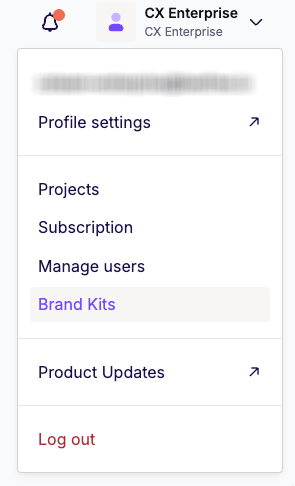
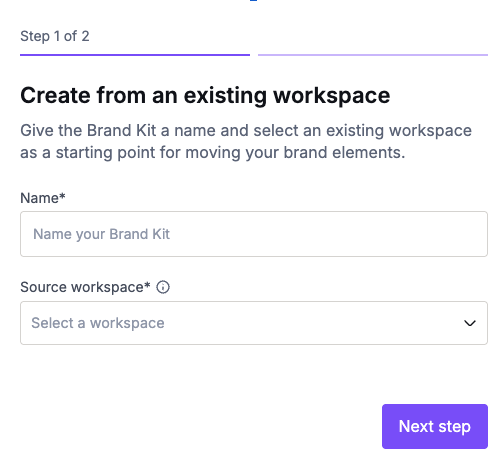
On that page, click Create a Brand Kit. Name your Brand Kit and select a source workspace.
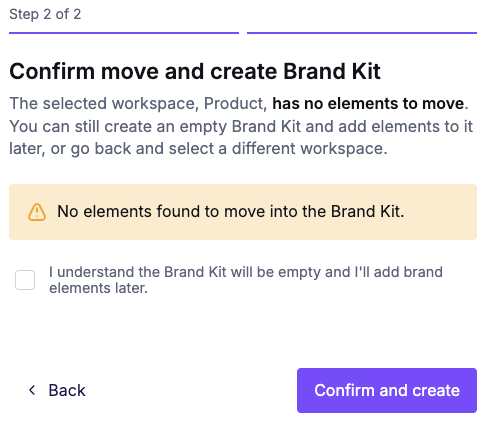
On the second screen, it will summarize the Styles and Rows found in the workspace. If your source workspace has no saved rows or styles, RGE Studio lets you know before you finish. You can add rows and styles to the Brand Kit later.
In both cases, check the box and select Confirm and create.
RGE Studio moves the source workspace's saved rows into the Brand Kit. This creates a central repository for all linked workspaces. It also copies the workspace's styles. Row imports run in the background. It may take some time depending on the number of rows. You'll get an alert in the notification center when the import finishes.
There's no limit on the number of Brand Kits you can create. Once a Brand Kit is created, you can link it to multiple workspaces in your account. However, you can only connect a workspace to one Brand Kit.
Managing Brand Kits
Owners and Admins can edit the Brand Kit at any time. Updates will impact all connected workspaces.
Brand Kit styles
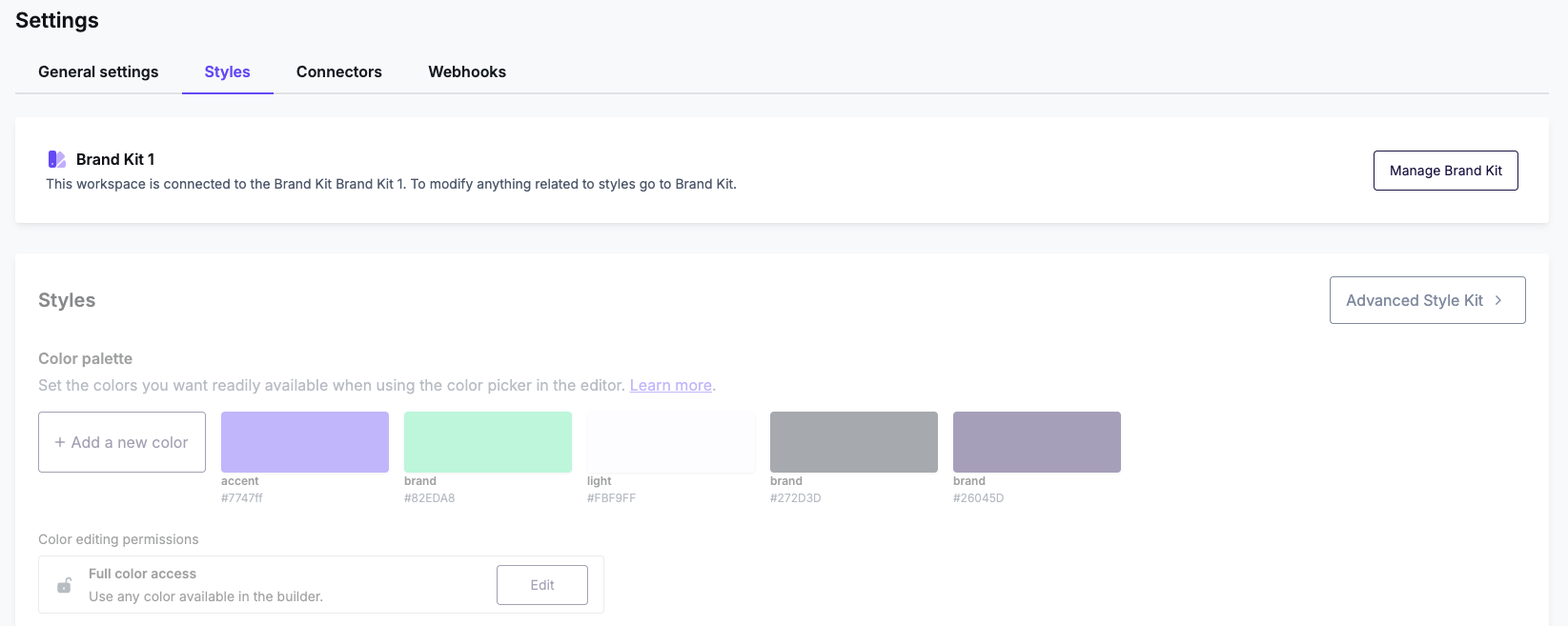
Use the Brand Kit's Styles tab to update the workspace styles. This page looks and operates like the Custom Workspace Styles page. You can also use the Advanced Style Kit from here.
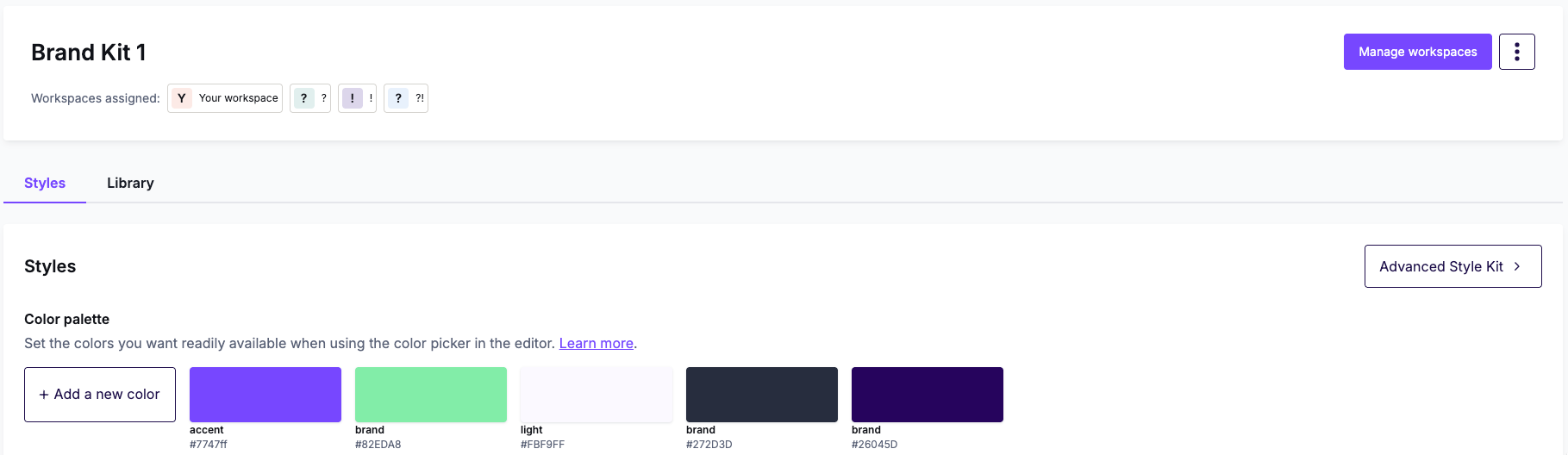
When a Brand Kit is connected, the Styles tab in Settings prompts you to edit the Brand Kit instead. Color editing permission settings are also available in the Brand Kit.
Saved rows
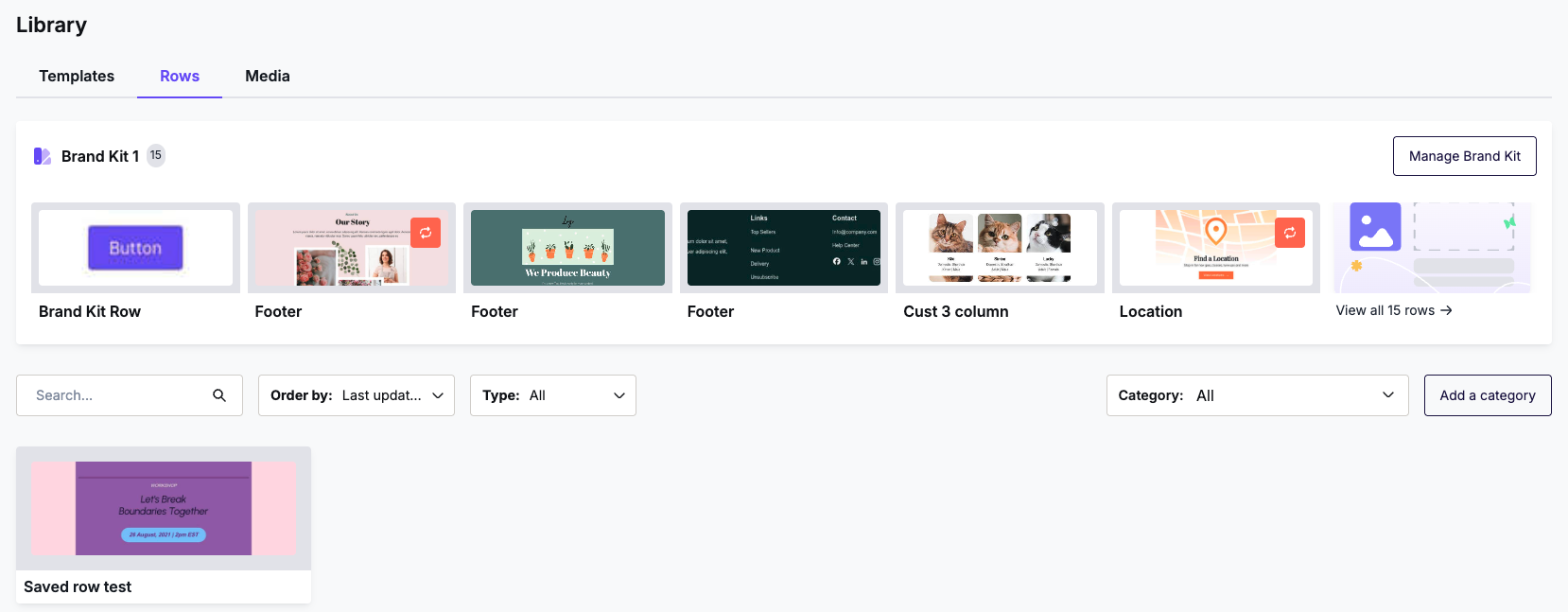
Use the Brand Kit's Library tab to update or manage the saved rows. This page looks and operates like the Rows tab in the workspace Library. From here, Owners and Admins can edit or delete rows stored in a Brand Kit. You can organize Brand Kit rows into categories using the same method used for other saved rows.
Workspaces attached to the Brand Kit will display these saved rows in their own Library. On this page, Brand Kit rows appear before other saved rows. To edit these rows, click Manage Brand Kit.
Link or unlink a workspace
You can link your Brand Kit to other workspaces at any time. Open the Brand Kit and select Manage workspaces. You can also use the three-dot menu on the Brand Kit's card.
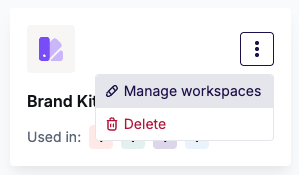
A single Brand Kit can link to as many workspaces as you want. Once you link a workspace, its Library shows rows from the Brand Kit. Linking a workspace also applies the Brand Kit's styles to it. Brand Kit styles will overwrite any existing style settings. The option to Import Your Workspace Styles is not available when a workspace has a Brand Kit linked. The option will reappear if you unlink the workspace.
To unlink a workspace, open the Brand Kit. Use the same Manage workspaces option you used to link it. Locate the workspace in question, deselect the checkbox, and click Confirm.
Unlinking a Brand Kit causes the workspace to lose access to its saved rows and styles. However, your designs are not impacted. Standard and synced rows used in designs will automatically become regular rows.
Delete a Brand Kit
Open the Brand Kit, scroll down, and select the delete option. Type the Brand Kit's name to confirm.
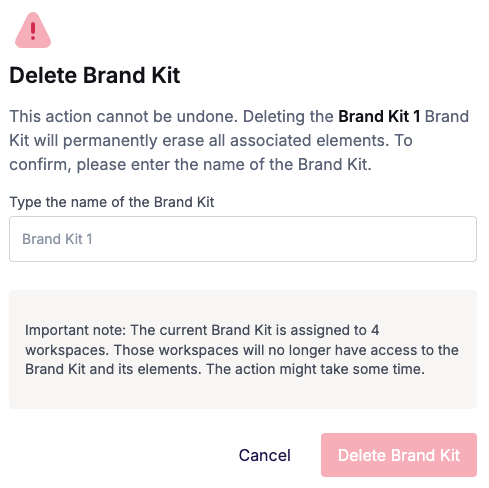
Deleting a Brand Kit also deletes all the rows and styles it contains. You will no longer be able to find the saved rows in your Library. However, your designs will not be impacted. Standard and synced rows used in designs will automatically become regular rows. This happens in every linked workspace.
Designing with Brand Kits
Once a Brand Kit is connected to your workspace, you'll see its rows and styles inside the builder. The styles will populate automatically based on content defaults.
Brand Kit Saved rows
Saved row categories inside a Brand Kit are unique to that Brand Kit. They're separate from the categories in your workspace.
In the builder's Rows tab, Brand Kit rows appear near the top of the list. These categories always include "Brand Kit" in the name.
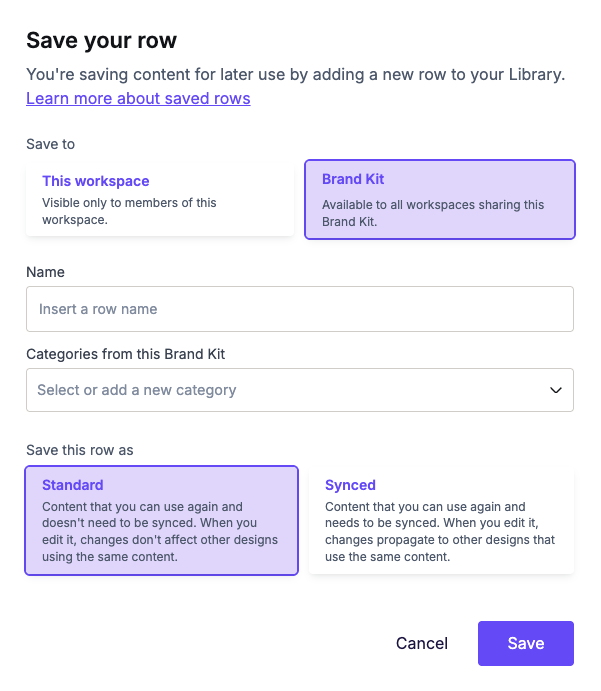
When you save a row in the builder, choose Brand Kit instead of This workspace. Select a category from the Brand Kit. Then save the row as standard or synced.
Roles and permissions
Only Owners and Admins can create, edit, or delete a Brand Kit. All other roles can use the Brand Kit rows and styles depending upon their role permissions.
Admins with Advanced Permissions turned on cannot create a Brand Kit or edit its rows.
If you downgrade
If your account moves off the Enterprise plan, Brand Kits will be deleted. Linked workspaces lose access to shared rows and style. The workspaces return to their original default styles. However, your designs will not be impacted. Standard and synced rows used in designs will automatically become regular rows.
If you have any questions, feel free to contact us.
Comments
0 comments
Please sign in to leave a comment.