Generate images using the AI Assistant

Beefree App is now RGE Studio!
The email design suite you already know and love just leveled up. We’re working hard to update our help center, but you still may see some references to the old product name.
This article applies to all plans. However, some features may be limited depending on your plan.
Overview
Use the AI image generator to create images directly in the builder. You can add them to your email or page designs without leaving RGE Studio (formerly known as Beefree).
The feature is available on all plans. Usage limits apply for Starter and Professional users:
| Plan | AI image generation |
|---|---|
| Starter | 3-image trial (lifetime limit) |
| Professional | 3-image trial (lifetime limit) |
| Business | Unlimited |
| Enterprise | Unlimited |
Regenerating an image counts toward your limit. Only the account Owner can upgrade after reaching the trial limit.
For AI-powered writing and alt text tools, see Use AI to Create Content within RGE Studio. For AI-assisted email design, see AI Co-Pilot (beta).
You can also follow along with our RGE Studio Academy tutorial for a visual walkthrough of this feature.
How to Use
Follow these steps to generate an AI image:
- Enter your design. In the builder, open the design where you want to add the image.
- Add an Image block. Drag and drop the Image content block onto the canvas.
- Create an AI image. Select the Image block on the canvas. In the Content Properties panel, click Create with AI.
-
Fill out image details. Complete the following fields in the AI modal:
- Prompt: Describe what you want the image to show.
- Negative Prompt: List any elements you do not want in the image.
- Aspect Ratio: Choose from 1:1, 4:3, 3:2, or 16:9.
- Style: Pick the visual style for your image.
-
Advanced Options (optional):
- CFG Tolerance: Controls how closely the AI follows your prompt. A higher value produces more accurate results. A lower value allows more creative freedom. Use 7–10 for most prompts, 10–15 for detailed prompts, and 16–20 for highly specific images.
- Steps: Sets the number of generation iterations. More steps produce higher-quality images. They also increase generation time. Use 25–45 steps for clear, detailed results. Values below 15 may produce blurry images.
- Generate the image. Click Generate Image. The image appears in a few seconds. You can apply it, regenerate it, or adjust your prompt and settings.
Additional Considerations
- Roles: All roles except Viewer can use this feature, even if Advanced Permissions are enabled.
- Click Regenerate Image to try again if you are not satisfied with the result.
- All generated images are saved automatically in the AI Generated Images folder in your File Manager. This includes regenerated images.
- The feature uses Stable Diffusion XL 1.0 from Stability AI.
- Prompt limit: Prompts are limited to 300 characters (approximately 77 tokens).
- Language: This feature supports English only.
- Copyright: You own the images you generate. You can use them in your marketing materials. Stability AI's Terms of Service confirm this.
- Images with text: We do not recommend generating images that include text. Results tend to be unsatisfactory. This can vary based on the Steps setting you use.
Best Practices for Prompts
Prompts are limited to 300 characters. Keep them concise and specific for the best results.
Example Prompts
The following examples show prompts and the images they generated. Use them as a starting point. Copy or modify any prompt to fit your own content.
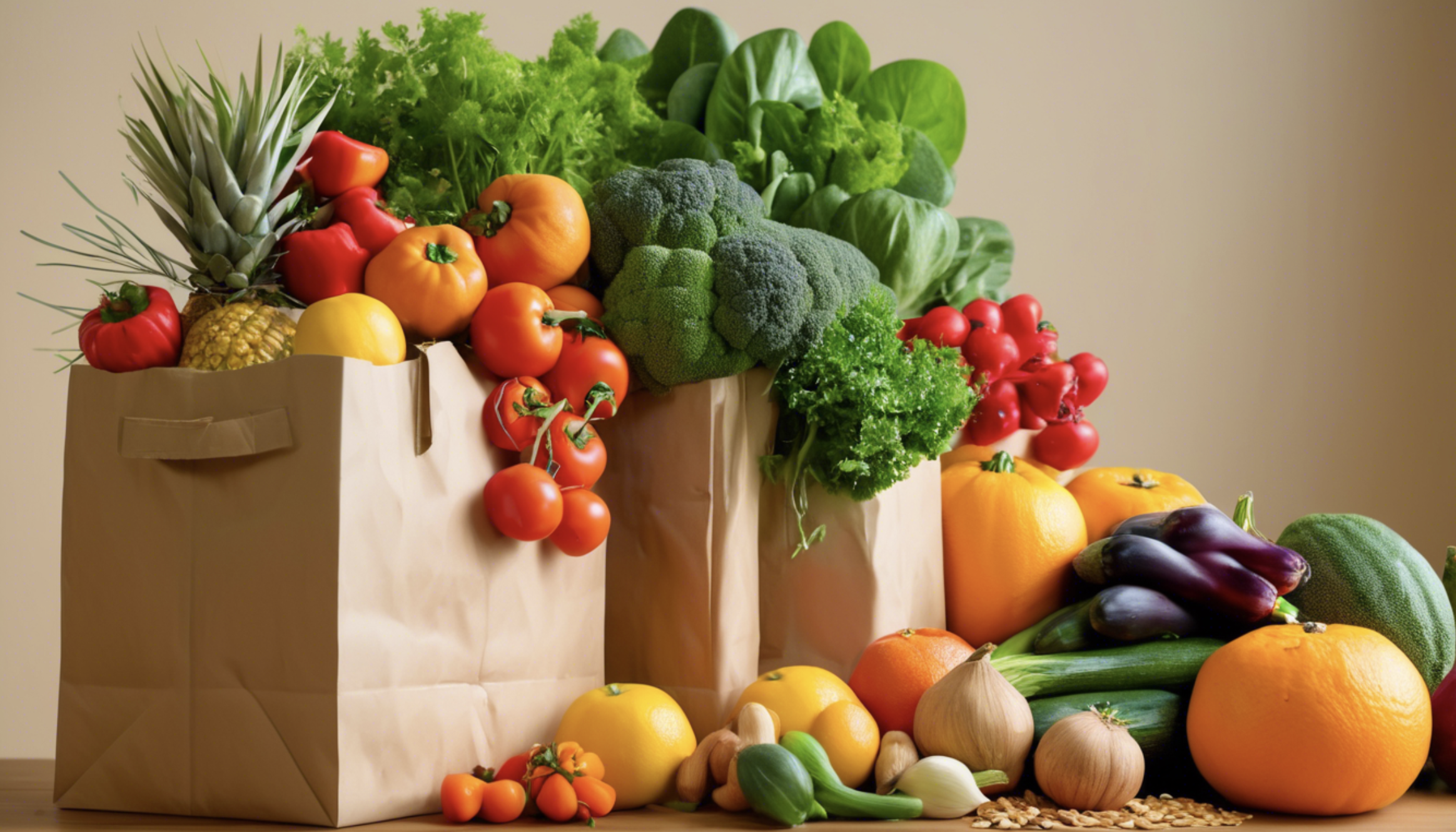
Prompt: A paper bag overflowing with fresh produce including vibrant vegetables, fruits, nuts, and cereals. The produce is colorful and healthy, with bright reds, greens, oranges, and yellows. The background is light and neutral, emphasizing the freshness and abundance of the produce.
Negative Prompt: Blurry, dark, rotten, wilted, empty bag, processed food, junk food, artificial, monochrome, cluttered background, unnatural colors.
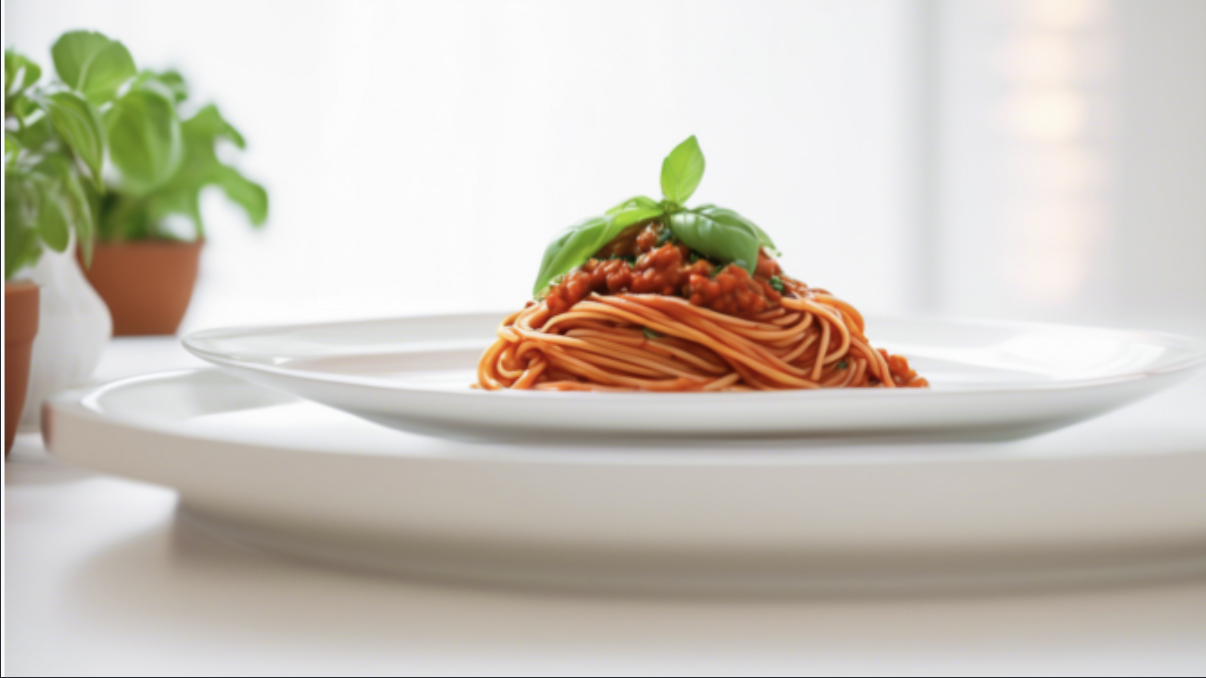
Prompt: A plate of spaghetti topped with rich, hearty vegan ragu. The sauce is made with a blend of tomatoes, vegetables, and plant-based proteins, garnished with fresh herbs like basil and parsley. The dish is presented beautifully on a white plate with a light, clean background.
Negative Prompt: Meat, cheese, dairy, seafood, unappetizing, messy, poorly plated, dark, bland, artificial, unhealthy, cluttered background.
Prompt: A professional headshot of a Black nutritionist from a diverse background, showcasing gender inclusion. The individual is smiling and wearing professional attire, with a clean, neutral background. The image highlights the nutritionist's approachable and knowledgeable demeanor, reflecting diversity.
Negative Prompt: Blurry, unprofessional, poorly lit, overly staged, lack of diversity, casual attire, cluttered background, stern, malformed, extra limbs, disfigured, ugly, gibberish, written text, weird divergent unaligned eyes, six fingers, malformed hands. Text, words, captions, labels.

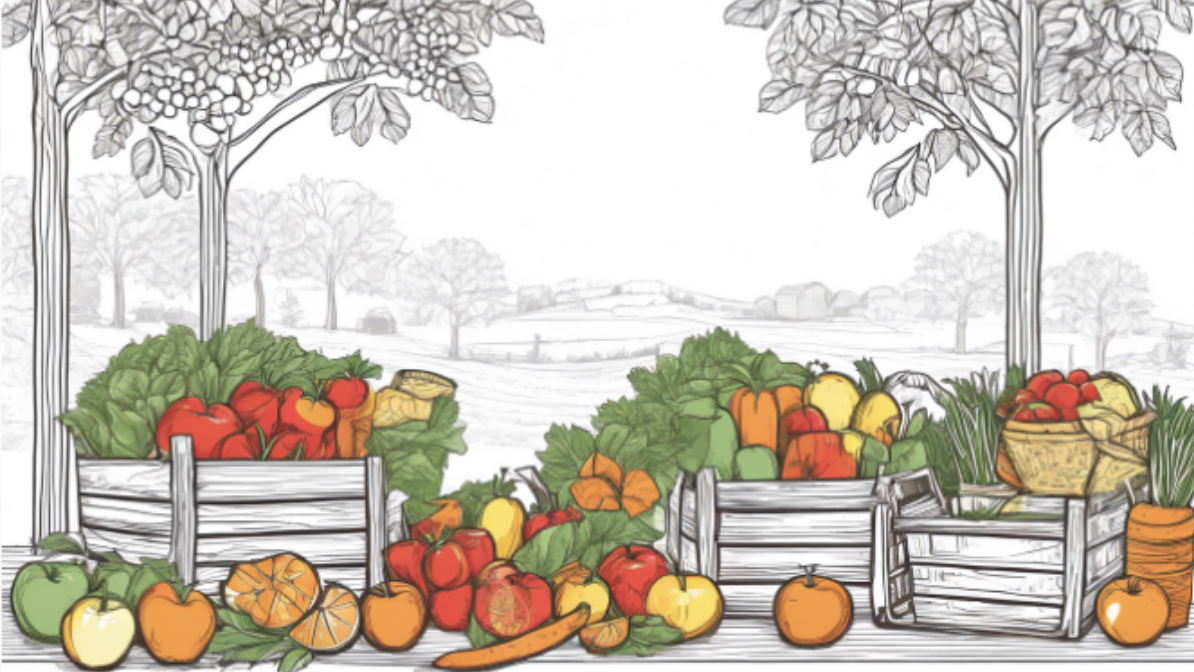
Prompt: An illustrated background featuring a diverse array of fresh produce, including colorful fruits and vegetables like apples, oranges, tomatoes, and leafy greens. The background showcases a rustic, market-style setting with baskets and crates, creating a lively and natural atmosphere.
Negative Prompt: Cartoonish elements, blurry images, low resolution, dull colors, unrealistic produce, empty spaces, overly crowded scenes, modern or futuristic elements, dark or gloomy settings.
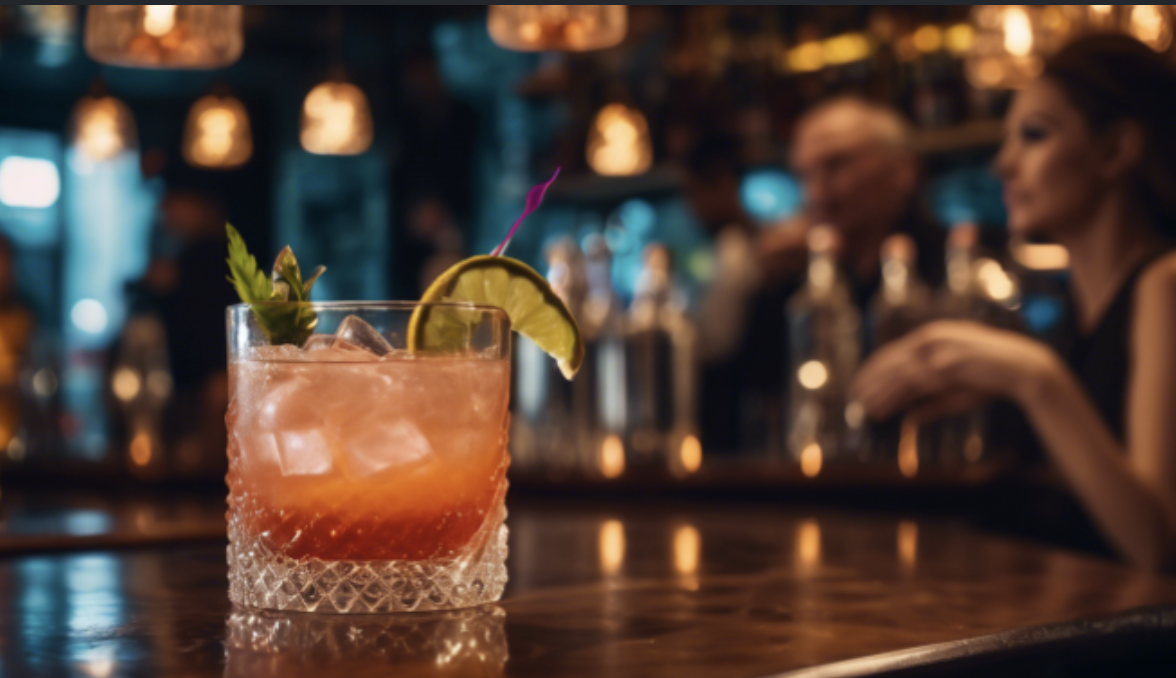
Prompt: Photograph of a cocktail bar, cocktail in the foreground, background with people, bustling, stylish, Fujifilm XT3, crystal clear, 8K UHD
Negative Prompt: Comic style, unrealistic
If you have any questions, feel free to contact us.
Comments
0 comments
Please sign in to leave a comment.