Using custom fonts in RGE Studio

Beefree App is now RGE Studio!
The email design suite you already know and love just leveled up. We’re working hard to update our help center, but you still may see some references to the old product name.
This article applies to paid plans.
Overview
RGE Studio lets you add custom fonts to your account. You can use them when designing both emails and pages. Your custom fonts must be hosted externally.
Email Client Support
Web fonts are only supported in some email clients. Based on our tests, web fonts work consistently in:
- iOS Mail
- Apple Mail
- Android (default mail client, not Gmail app)
- Outlook 2000
- Outlook.com app
Campaign Monitor has an in-depth guide to using web fonts in email if you want to learn more about this topic. Litmus has a detailed guide as well.
Two popular email clients are missing from the list above: Gmail and Outlook.
Gmail limitation
Gmail supports two specific web fonts: Google Sans and Roboto. Other web
fonts, including custom Google fonts, aren't supported.
Outlook limitation
Outlook 2007, 2010, 2013, and 2016 support traditional web-safe fonts. Other
fonts may display if they're installed directly on the recipient's computer.
Use the font stack to define a fallback font (see below).
Email clients that don't support web fonts display a fallback font instead. For more information, jump to the Font Stack section.
Adding a Custom Font
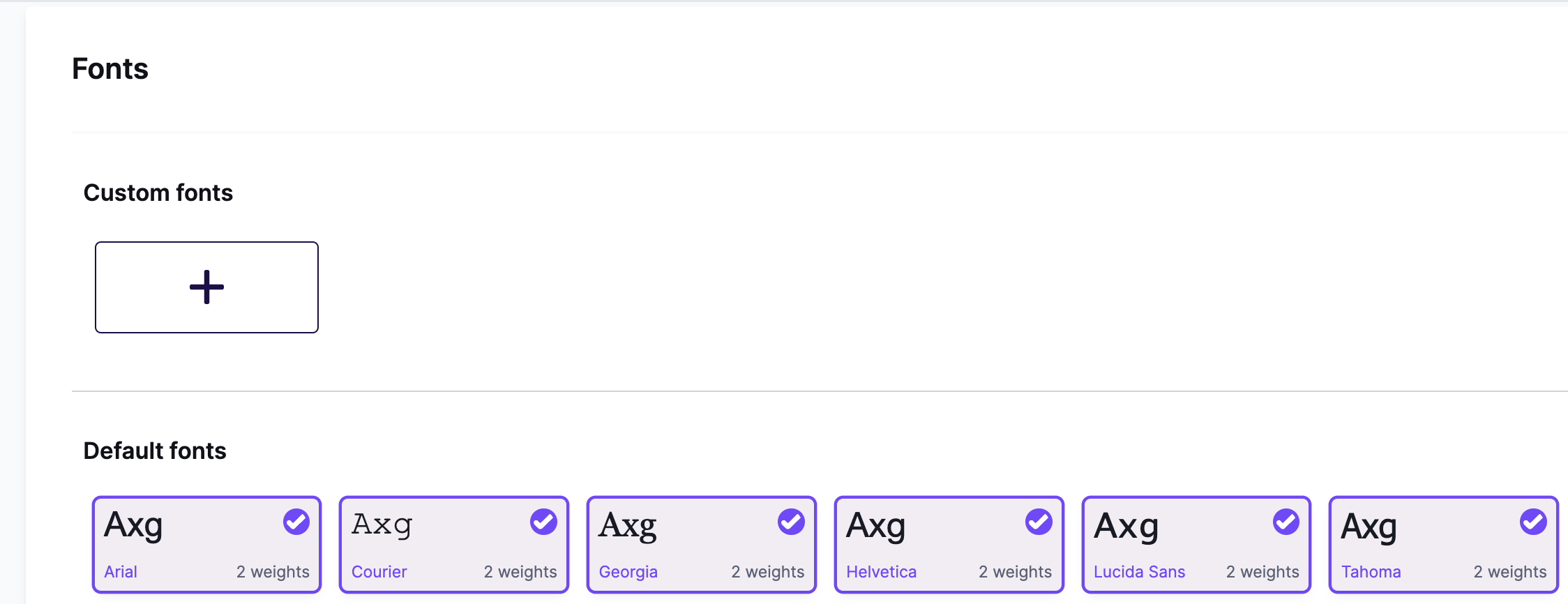
Log into your RGE Studio account and go to Settings > Styles. Scroll down to the Fonts section. Click the Add a new font button to add a custom font.
A form will open.
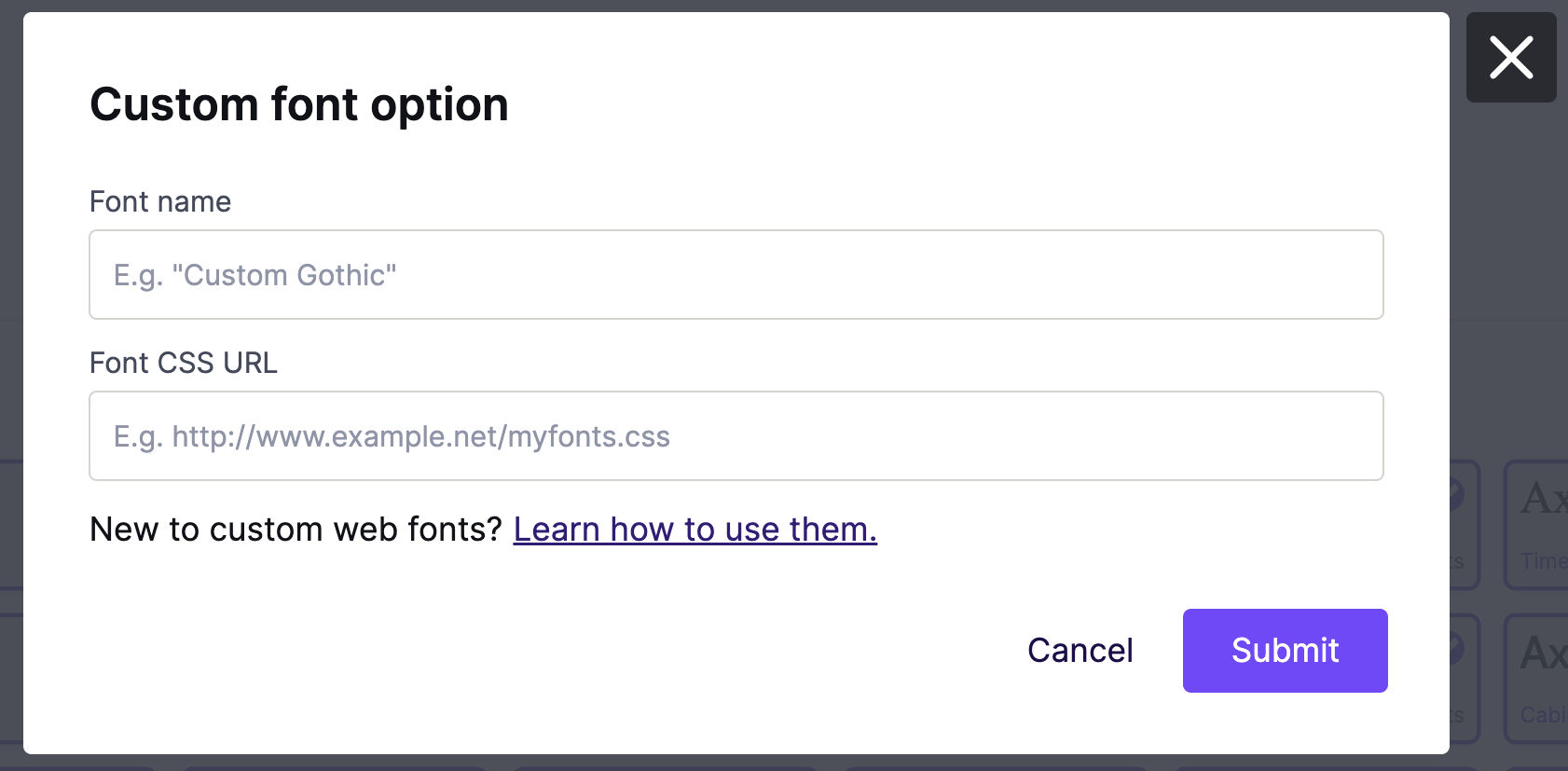
Form inputs
There are several required fields to set up a custom font.
Font name
This is the font name that will be displayed in the builder. It usually matches the font name. You can customize this in any way you would like.
Font CSS URL
This is the address of the CSS document. It embeds the font files and applies the CSS rules. For example, this is a Montserrat stylesheet generated by Google Fonts: https://fonts.googleapis.com/css?family=Montserrat.
This URL must use HTTPS with a valid SSL certificate. The host must also enable a CORS policy to deliver the font files.
Use a dedicated CSS sheet. If the CSS contains additional styles, RGE Studio may inherit them. This can cause display problems in the interface.
Google Fonts provides web fonts that work in the builder and most email clients. See Using Google Fonts below for more on this option.
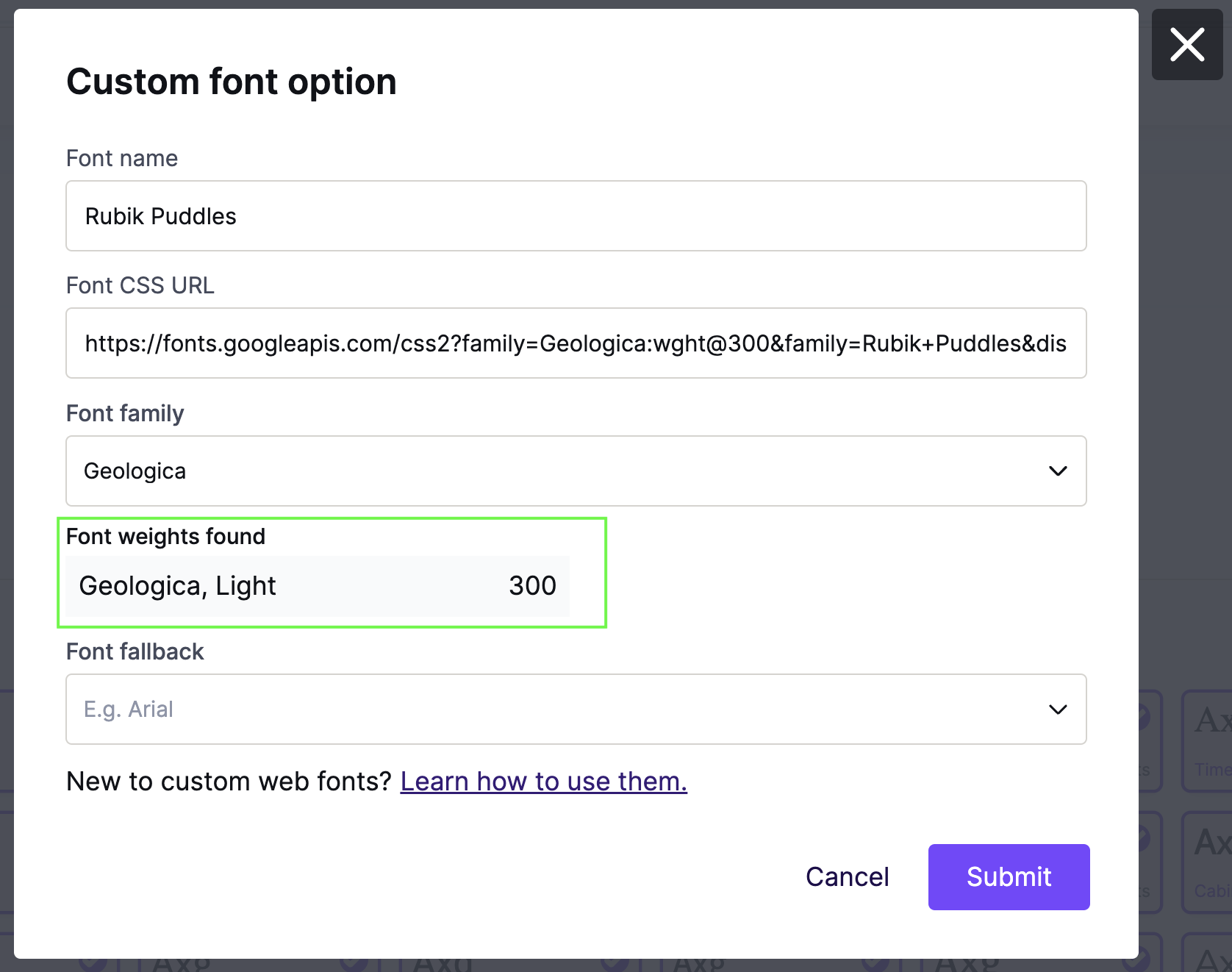
Once you enter your CSS URL, we check that it's a valid stylesheet. You'll see a message that says Checking your data... while we do this. If the stylesheet is valid, new fields populate.

Font family
Most of the time, this section is not interactive. If you enter a CSS URL referring to more than one font, then this turns into a dropdown menu. Use the dropdown to select which font you want to import. By default, we'll select the first font listed in the stylesheet.

Font weights found
This section lists all font weights found in your stylesheet. Anything listed here is available for you to use in the builder. This list is for reference only. To remove a weight, modify your stylesheet directly. RGE Studio supports standard font weights (100-950).
Font stack
This is the font-family stack (CSS syntax) applied to any text using the font. Use the dropdown menu to select a font stack from fonts already available in RGE Studio. These options are based on the default and web fonts enabled for your workspace.
Font stacks allow you to define fallback fonts. Gmail and other email clients display a fallback font instead of the web font. Include a web-safe fallback, such as Arial for sans-serif or Times New Roman for serif.
Example:
Font name: Lobster
CSS URL: https://fonts.googleapis.com/css?family=Lobster
Font Stack: 'Lobster', Georgia, Times, serif
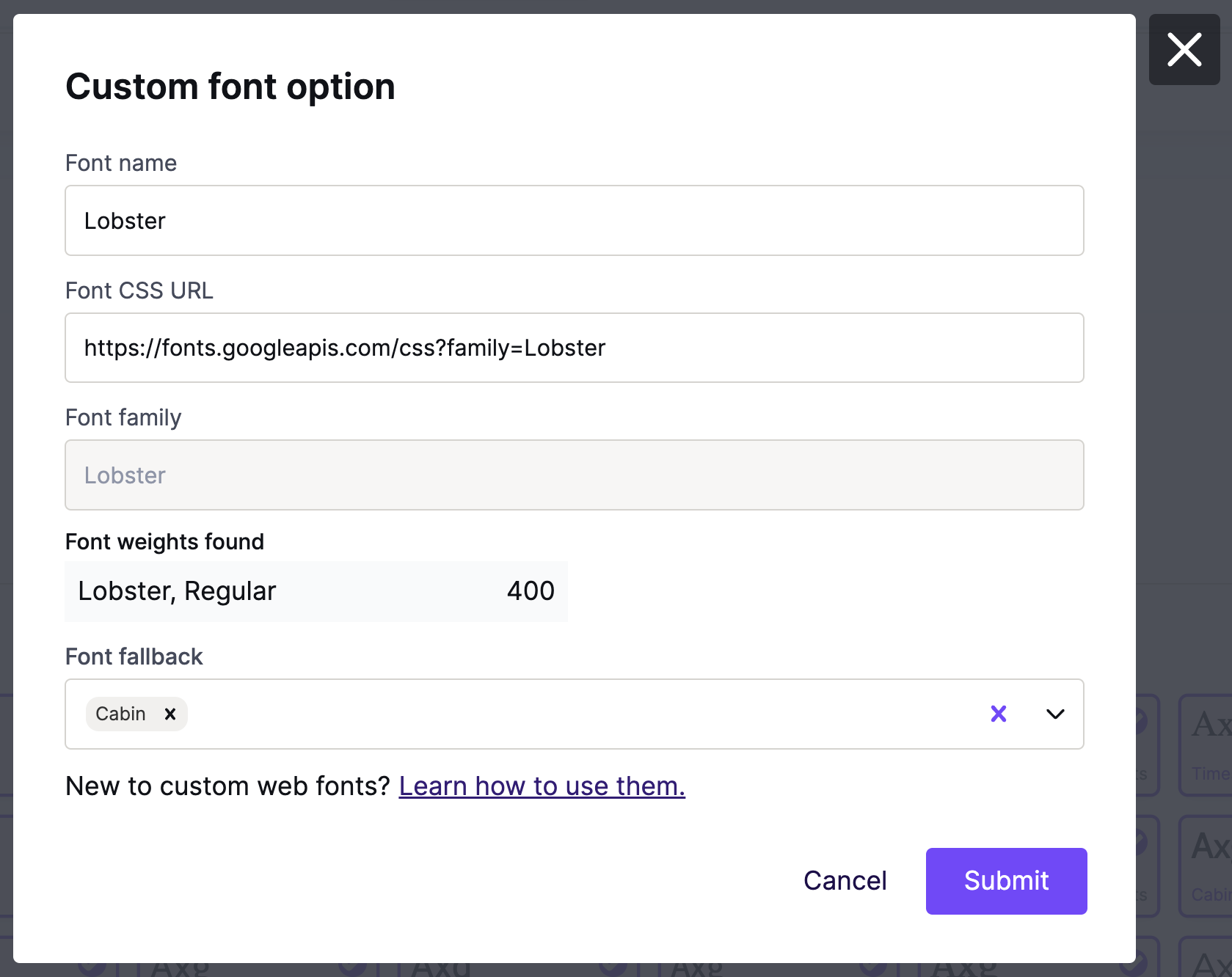
After you click Submit, your new custom font is added to the bottom of the Custom fonts section. This appears at the top of your font settings. The preview shows the number of weights included for your custom font.
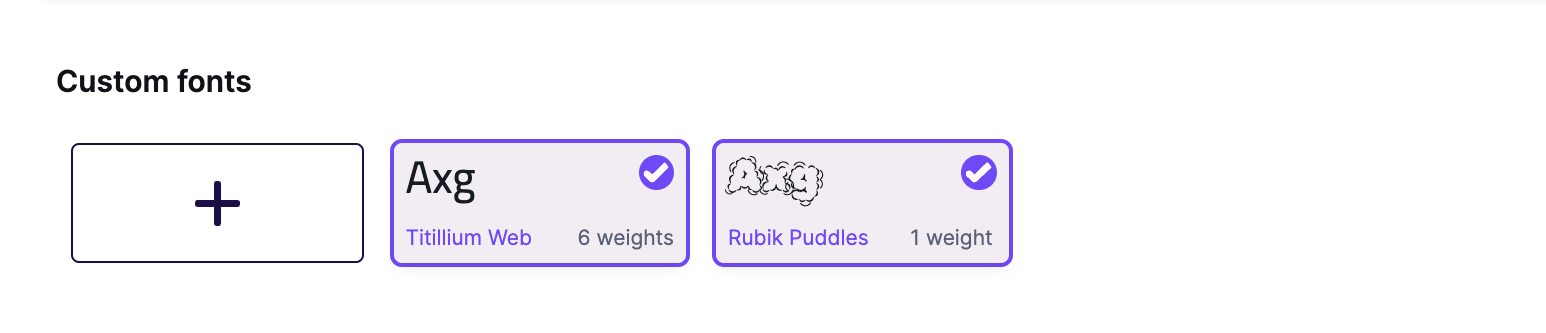
You can now use your custom font in the builder from anywhere within this workspace.
Modifying Custom Fonts
To view a custom font's existing settings, click its font card at any time. To change the settings, delete the font and then re-import it.
To delete a custom font, hover over the checkmark icon. It changes to an X to indicate the delete action.
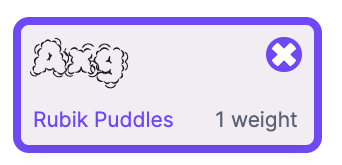
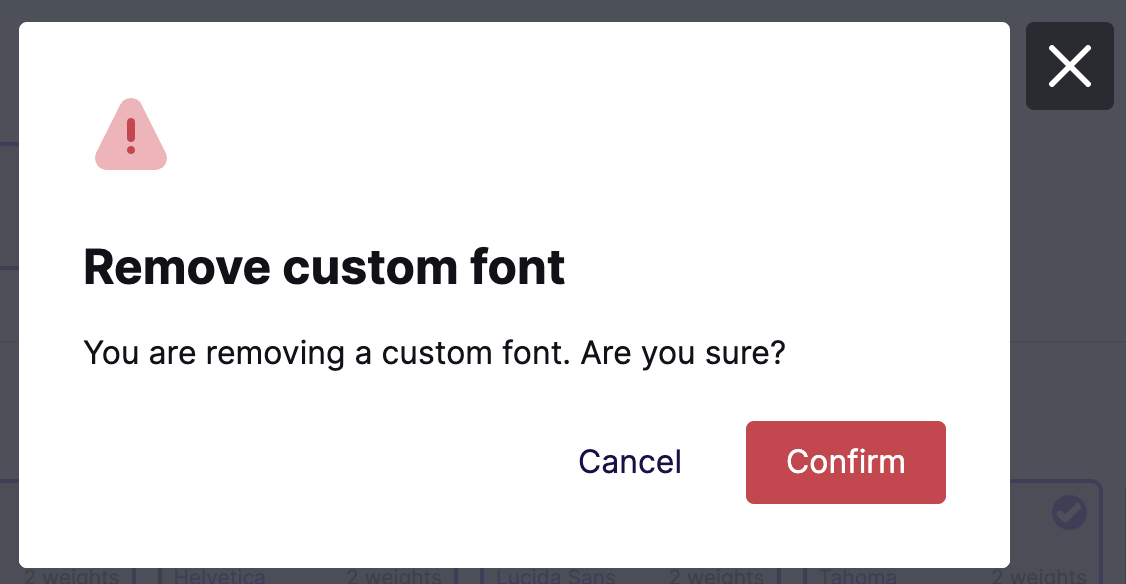
A confirmation message will display to reduce the chances of accidental deletion.
Using Google Fonts
Google Fonts provides a free catalog of ready-to-use web fonts. To use a Google Font in RGE Studio, copy the HREF content from the widget, as shown below.
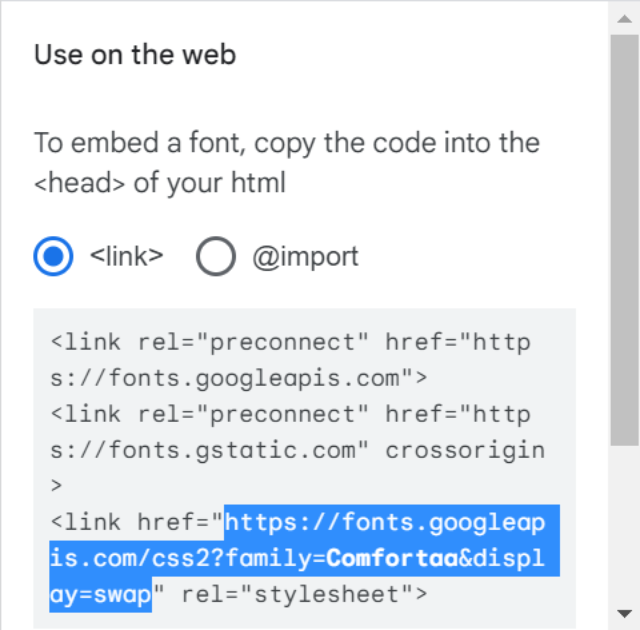
Paste this into the CSS URL field in RGE Studio. The rest of the setup happens directly in RGE Studio. You can refer to the Google Fonts recommended font stack to help build your own.
Using Adobe Fonts
To use Adobe fonts in RGE Studio, go to fonts.adobe.com (formerly Typekit) to find the font library and browse font selections.
Once you locate your preferred font, activate it.
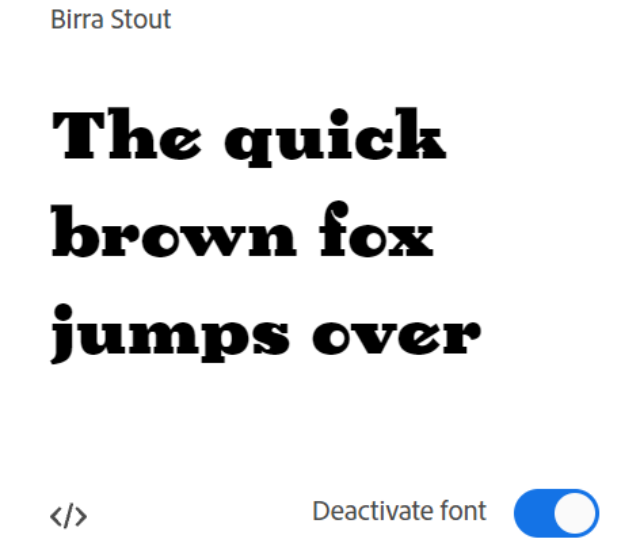
Click the </> icon. Adobe will ask you to assign the font to a Web Project before you get the CSS URL. Select or create a Web Project, then click Create or Save to get the CSS URL. You should see something like this:
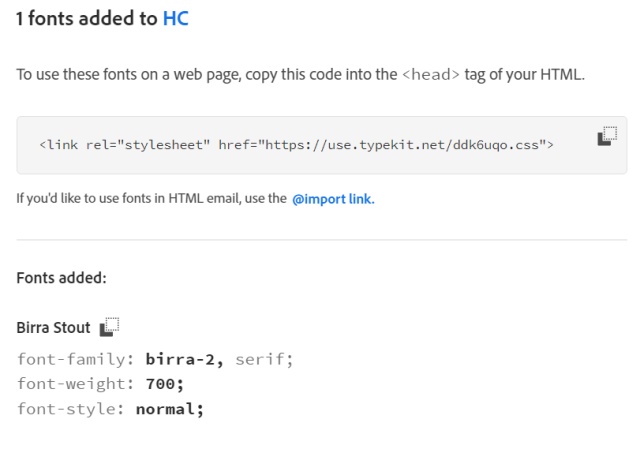
Paste this into the CSS URL field in RGE Studio. The rest of the setup happens directly in RGE Studio. You can refer to the Adobe Fonts recommended font stack to help build your own.
Default fonts in RGE Studio
Here are the default fonts available in your RGE Studio account, along with the font stacks we've built for each:
| Font Name | Font stack |
|---|---|
| Arial | Arial, 'Helvetica Neue', Helvetica, sans-serif |
| Courier | 'Courier New', Courier, 'Lucida Sans Typewriter', 'Lucida Typewriter', monospace |
| Georgia | Georgia, Times, 'Times New Roman', serif |
| Helvetica | 'Helvetica Neue', Helvetica, Arial, sans-serif |
| Lucida Sans | 'Lucida Sans Unicode', 'Lucida Grande', 'Lucida Sans', Geneva, Verdana, sans-serif |
| Tahoma | Tahoma, Verdana, Segoe, sans-serif |
| Times New Roman | TimesNewRoman, 'Times New Roman', Times, Beskerville, Georgia, serif |
| Trebuchet MS | 'Trebuchet MS', 'Lucida Grande', 'Lucida Sans Unicode', 'Lucida Sans', Tahoma, sans-serif |
| Verdana | Verdana, Geneva, sans-serif |
| ヒラギノ角ゴ Pro W3 | ヒラギノ角ゴ Pro W3, Hiragino Kaku Gothic Pro,Osaka, メイリオ, Meiryo, MS Pゴシック, MS PGothic, sans-serif |
| メイリオ | メイリオ, Meiryo, MS Pゴシック, MS PGothic, ヒラギノ角ゴ Pro W3, Hiragino Kaku Gothic Pro,Osaka, sans-serif |
| Abril Fatface | 'Abril Fatface', Arial, 'Helvetica Neue', Helvetica, sans-serif |
| Bitter | 'Bitter', Georgia, Times, 'Times New Roman', serif |
| Cabin | 'Cabin', Arial, 'Helvetica Neue', Helvetica, sans-serif |
| Droid Serif | 'Droid Serif', Georgia, Times, 'Times New Roman', serif |
| Lato | 'Lato', Tahoma, Verdana, Segoe, sans-serif |
| Open Sans | 'Open Sans', 'Helvetica Neue', Helvetica, Arial, sans-serif |
| Roboto | 'Roboto', Tahoma, Verdana, Segoe, sans-serif |
| Source Sans Pro | 'Source Sans Pro', Tahoma, Verdana, Segoe, sans-serif |
| Merriweather | 'Merriweather', 'Georgia', serif |
| Montserrat | 'Montserrat', 'Trebuchet MS', 'Lucida Grande', 'Lucida Sans Unicode', 'Lucida Sans', Tahoma, sans-serif |
| Nunito | 'Nunito', Arial, 'Helvetica Neue', Helvetica, sans-serif |
| Oswald | 'Oswald', Arial, 'Helvetica Neue', Helvetica, sans-serif |
| Oxygen | 'Oxygen', 'Trebuchet MS', 'Lucida Grande', 'Lucida Sans Unicode', 'Lucida Sans', Tahoma, sans-serif |
| Permanent Marker | 'Permanent Marker', Impact, Charcoal, sans-serif |
| Roboto Slab | 'Roboto Slab', Arial, 'Helvetica Neue', Helvetica, sans-serif |
| Ubuntu | 'Ubuntu', Tahoma, Verdana, Segoe, sans-serif |
| Alegreya | 'Alegreya', 'Trebuchet MS', Helvetica, sans-serif |
| Arvo | 'Arvo', 'Courier New', Courier, monospace |
| Catamaran | 'Catamaran', 'Lucida Sans Unicode', 'Lucida Grande', sans-serif |
| Chivo | 'Chivo', Arial, Helvetica, sans-serif |
| Cormorant Garamond | 'Cormorant Garamond', 'Times New Roman', Times, serif |
| Dosis | 'Dosis', Arial, Helvetica, sans-serif |
| Fira Sans | 'Fira Sans', 'Lucida Sans Unicode', 'Lucida Grande', sans-serif |
| Lora | 'Lora', Georgia, serif |
| Monda | 'Monda', 'Courier New', Courier, monospace |
| Noto Sans | 'Noto Sans', 'Trebuchet MS', Helvetica, sans-serif |
| Noto Serif | 'Noto Serif', Georgia, serif |
| Playfair Display | 'Playfair Display', Georgia, serif |
| Poppins | 'Poppins', Arial, Helvetica, sans-serif |
| Quattrocento | 'Quattrocento', 'Trebuchet MS', Helvetica, sans-serif |
| Quattrocento Sans | 'Quattrocento Sans', Georgia, serif |
| Questrial | 'Questrial', 'Trebuchet MS', Helvetica, sans-serif |
| Raleway | 'Raleway', 'Trebuchet MS', Helvetica, sans-serif |
| Rubik | 'Rubik', 'Trebuchet MS', Helvetica, sans-serif |
| Ruda | 'Ruda', 'Courier New', Courier, monospace |
| Shrikhand | 'Shrikhand', Impact, Charcoal, sans-serif |
| Sintony | 'Sintony', 'Courier New', Courier, monospace |
| Varela Round | 'Varela Round', 'Trebuchet MS', Helvetica, sans-serif |
| Work Sans | 'Work Sans', 'Trebuchet MS', Helvetica, sans-serif |
If you have any questions, feel free to contact us.
Comments
0 comments
Please sign in to leave a comment.