Working with icons

Beefree App is now RGE Studio!
The email design suite you already know and love just leveled up. We’re working hard to update our help center, but you still may see some references to the old product name.
This article applies to the Email and Pages builder in all plans.
Overview
The Icons content block lets you combine small images and text in a single, flexible unit. Use it to add visual interest and layout flexibility to your designs in RGE Studio.
Using Icons
To get started, drag an Icons content block into a row. A placeholder image fills the content block. Click it to open the icon options in the sidebar.
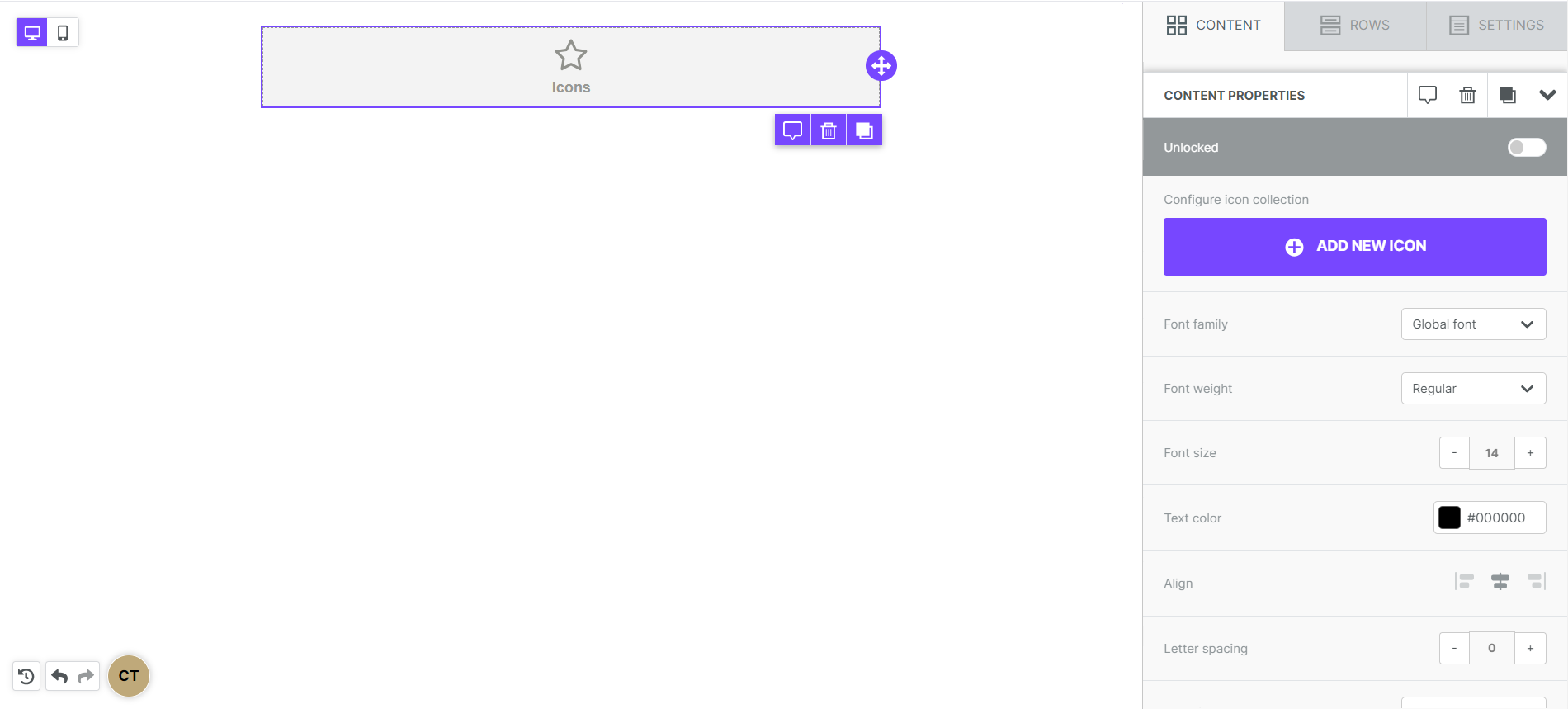
Click on Add new icon to get started. A pre-loaded icon appears on the builder stage.
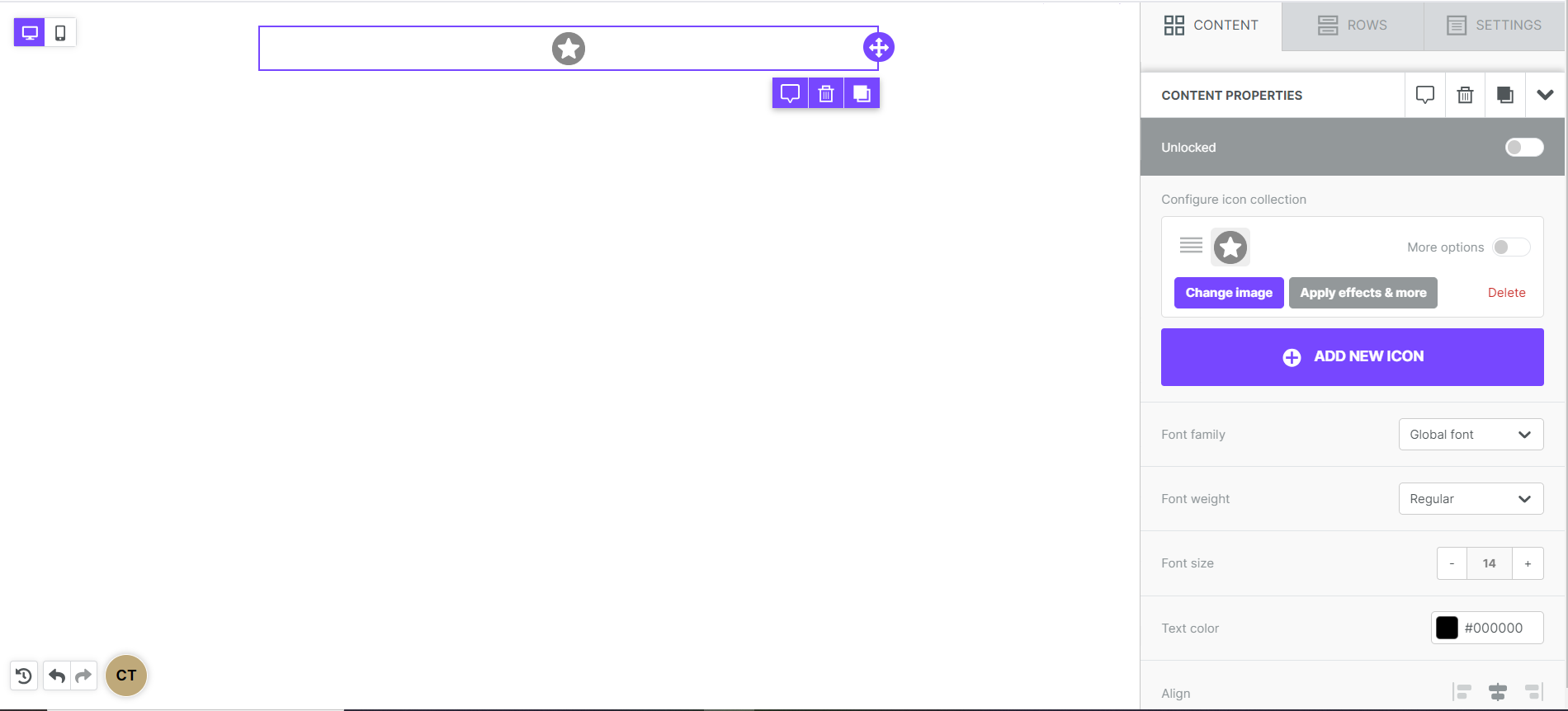
This content block works much like social icons. Use the pre-loaded icon, or click Change image to replace it. This opens the file manager. Select Apply effects & more to access the image editor.
Open More options to find additional options specific to icon content blocks.
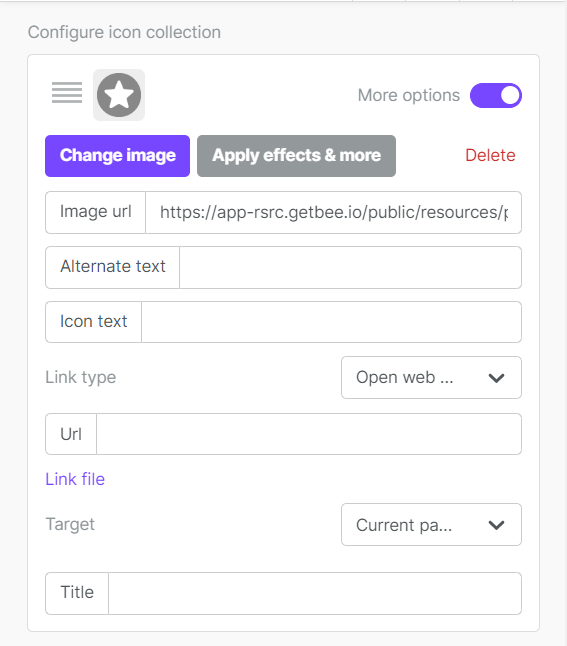
Type in the Icon text field to add text to the icon. An additional field appears in the sidebar.
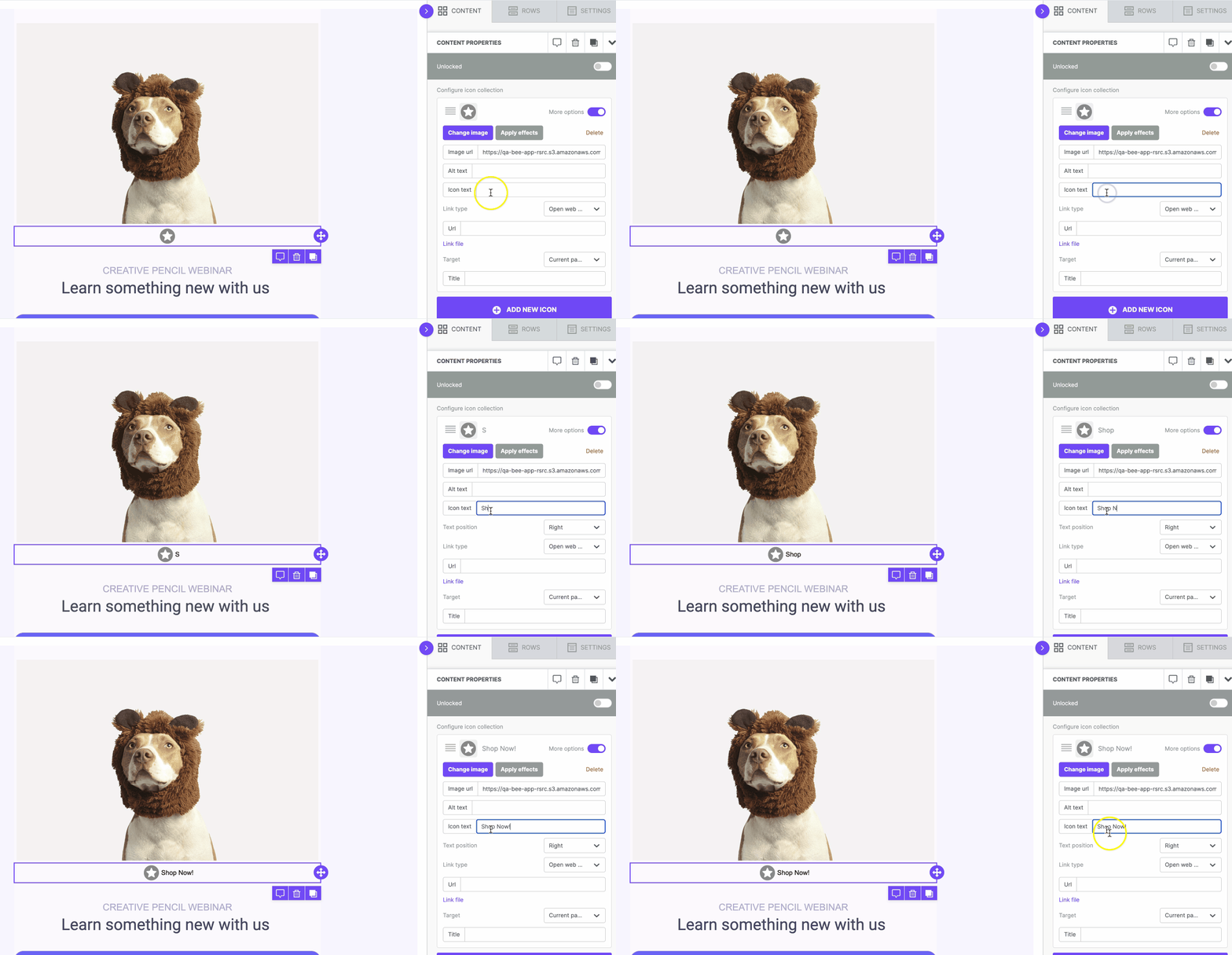
The Text position dropdown lets you place text above, below, or to either side of the icon image.
To reorder multiple icons, click and drag them. Select the icon in the upper left corner of the icon properties panel to drag it to a new position.
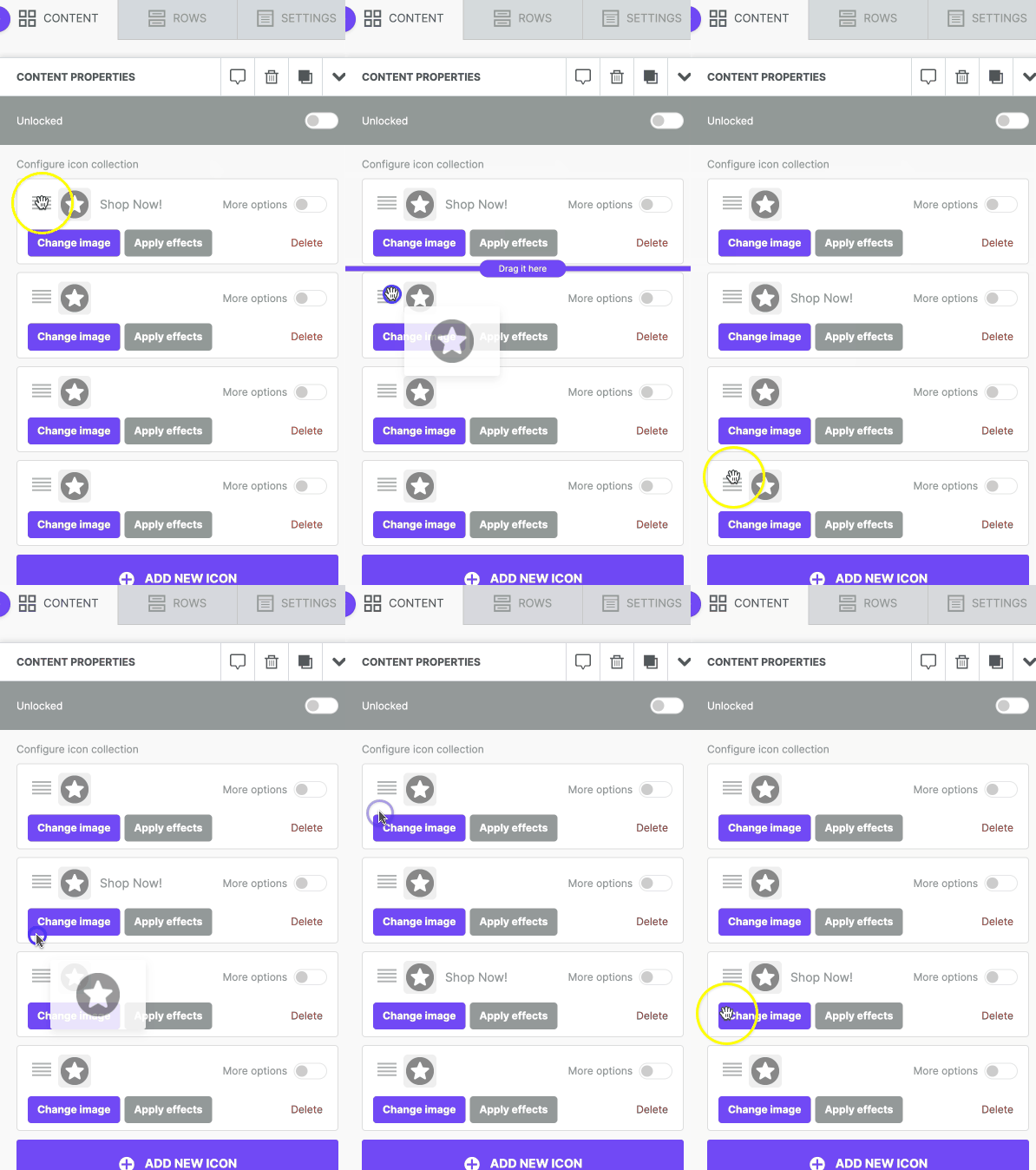
The icon content block includes a few more settings. You may already know some of these from other content blocks.
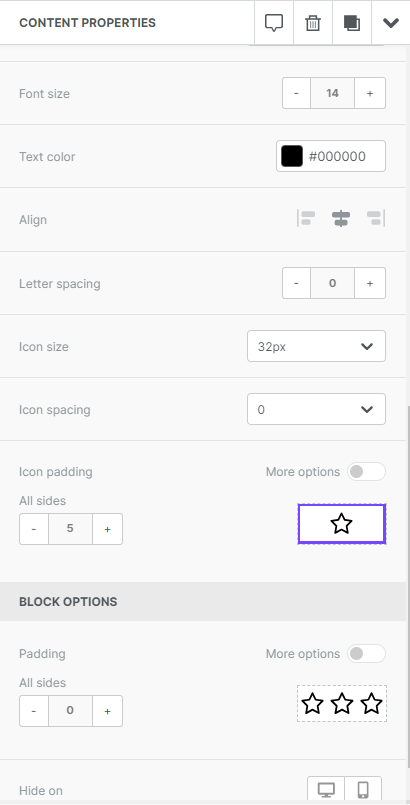
Settings specific to the icon content block:
- Icon size controls how large or small your icons appear
- Icon spacing sets the spacing between individual icons
The following properties apply to the content block as a whole:
- Padding
- Border
- Alignment
- Letter spacing
- Text formatting
- Hide on mobile/desktop
Use Cases
Here are a few ways to use icons in your designs:
- Spice up your bullet points

- Create a list of amenities
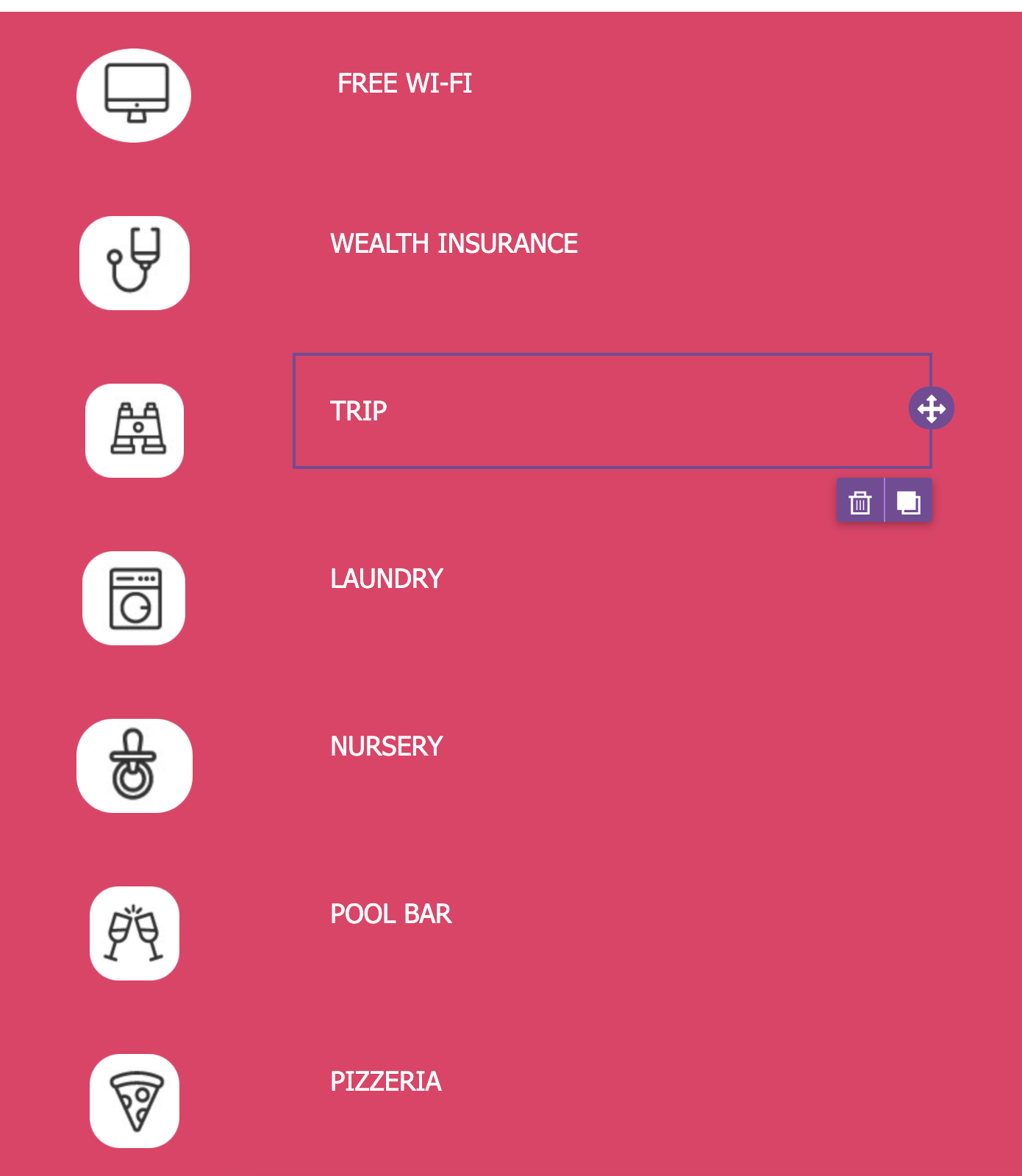
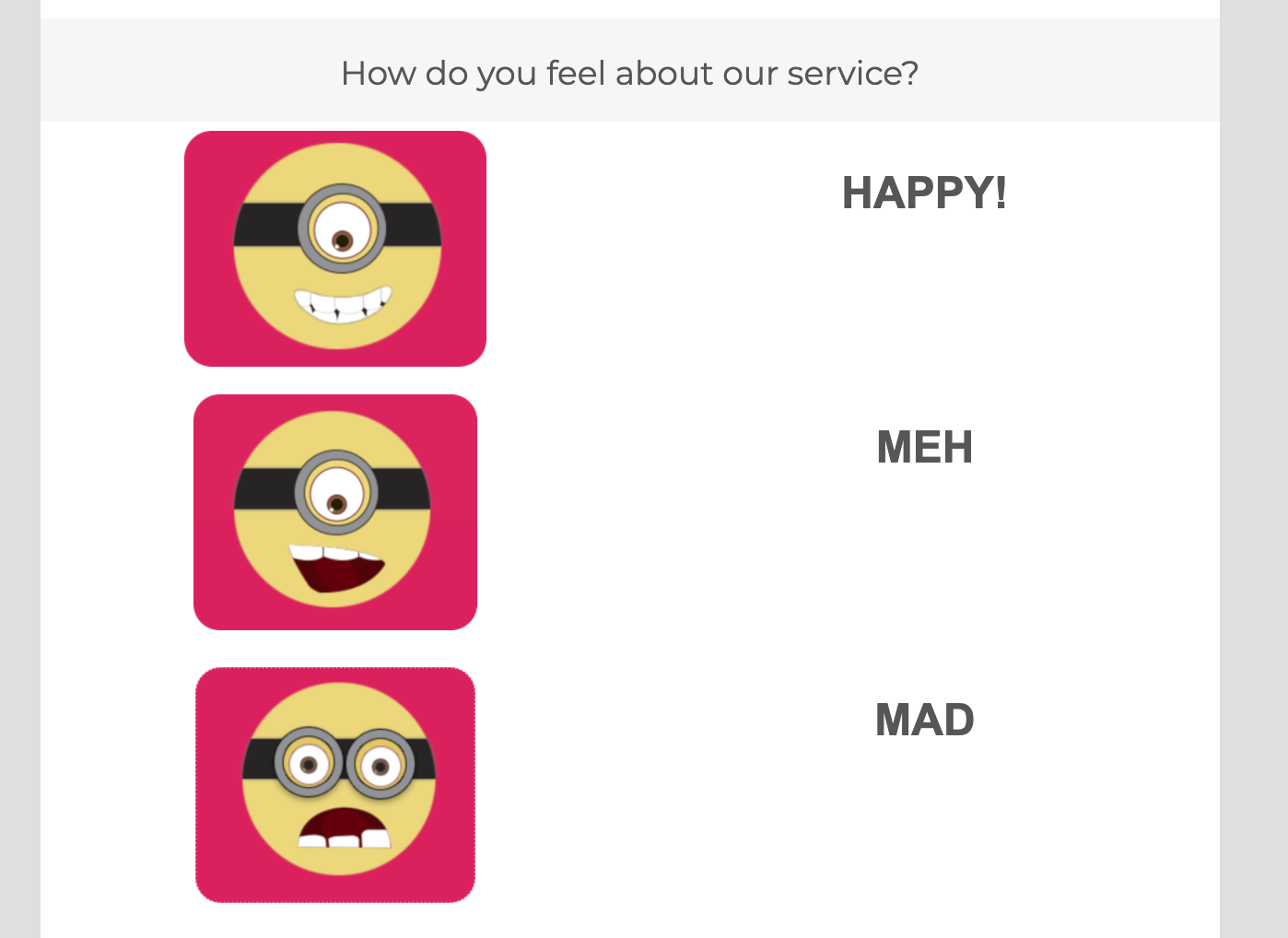
- Collect feedback
- Insert multiple logos

If you have any questions, feel free to contact us.
Comments
0 comments
Please sign in to leave a comment.