Working with the Social Content Block

Beefree App is now RGE Studio!
The email design suite you already know and love just leveled up. We’re working hard to update our help center, but you still may see some references to the old product name.
This article applies to both versions of the builder in all plans. However, some features may be limited or unavailable on the Starter plan.
Overview
The Social content block lets you link your social media profiles to your designs in RGE Studio. You can also use it to add social share buttons. The block is ready to use as soon as you sign up for an RGE Studio account and includes several icon collections and the option to add custom icons.
Using the Social Content Block
If you have used the Icon content block in RGE Studio, the Social block will feel familiar. Both include a Configure icon collection option in the sidebar. The Social block also comes with several predefined icon collections.
By default, the Social content block shows icons for the following social media platforms:
- X
-
Instagram
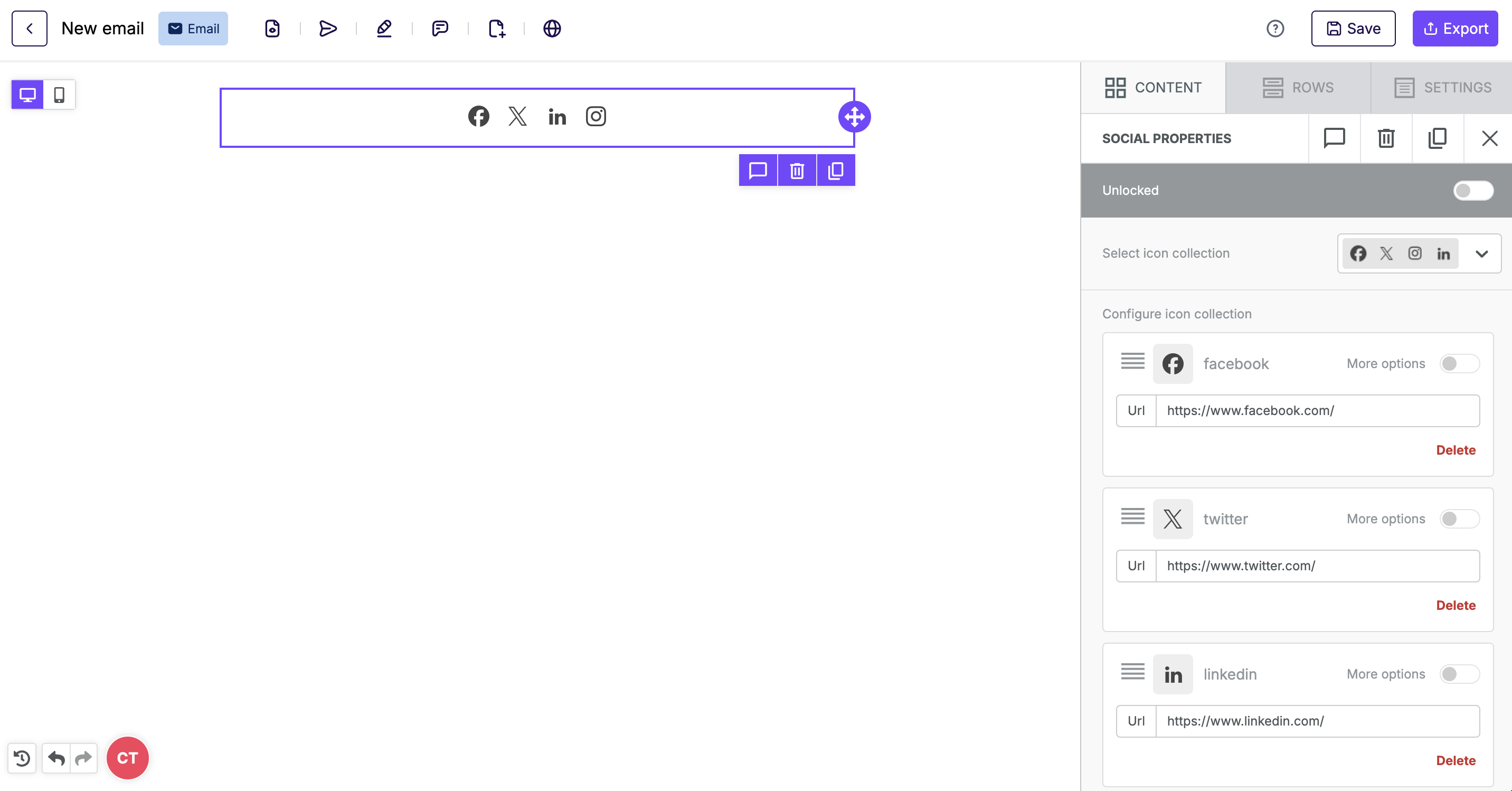
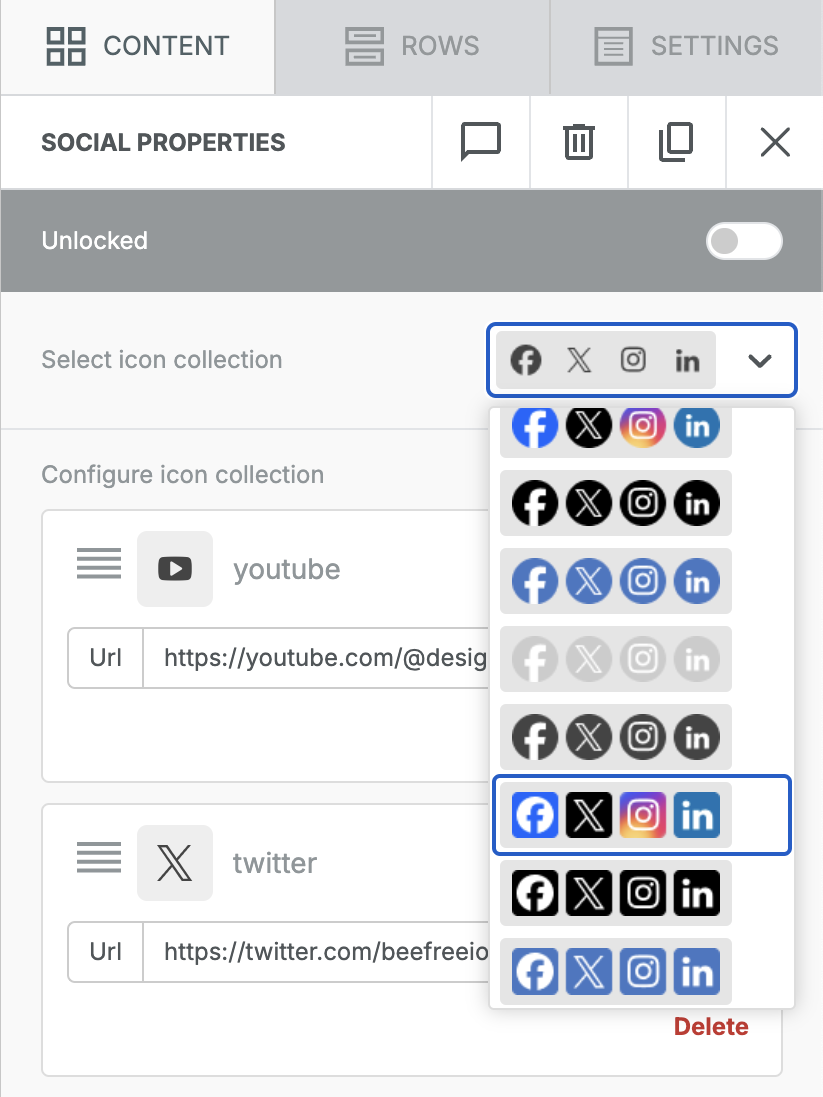
Use the Select icon collection dropdown to choose a different collection.
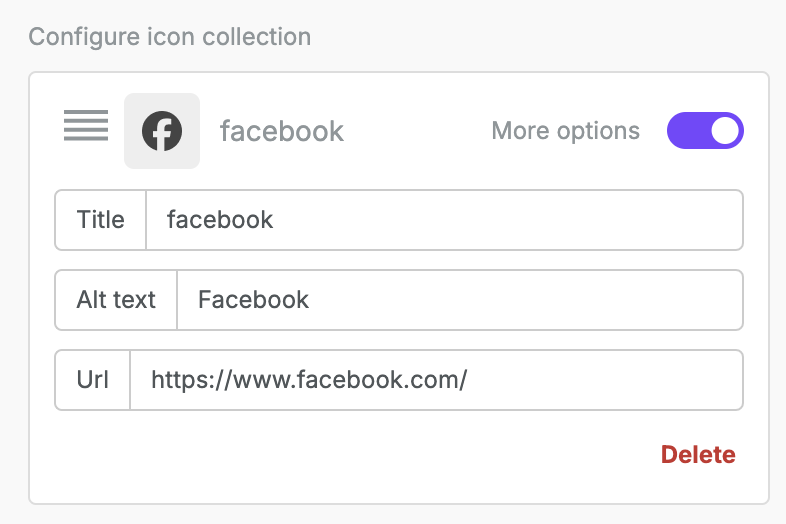
Each icon includes a URL field and a Delete option. To change the order of icons, click and drag using the four horizontal lines in the upper left corner of the icon.
Toggle on More options for any social icon to access the Title and Alt text fields. Title text appears when a recipient hovers over the icon. Alt text appears if the image fails to load.
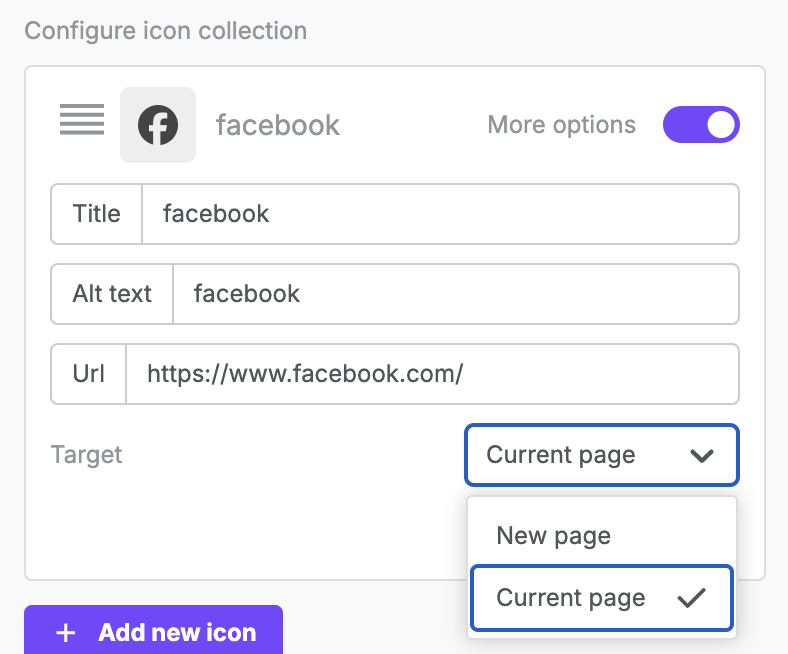
The Social block in the Page builder also includes a Target dropdown. Use it to control whether links open in the current page or a new one.
In the email builder, social icon links always open in a new page. Most email clients handle link behavior in their own environment, so this is not adjustable there.
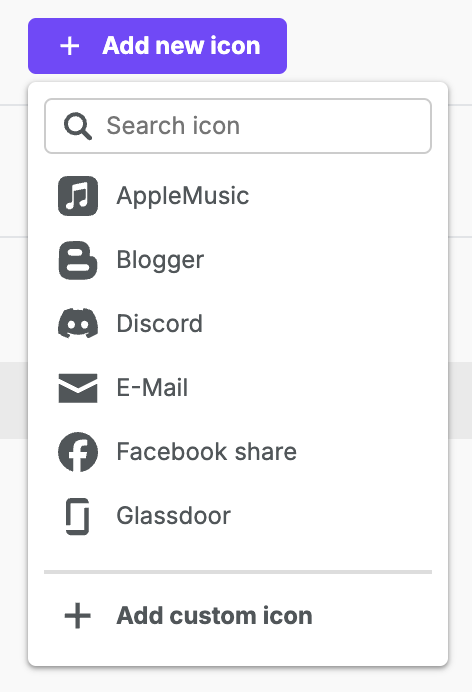
To add more icons, select Add new icon at the bottom of the sidebar. A list of options matching your selected collection appears. To use a platform not listed, select Add custom icon.
You can also adjust these settings in the sidebar:
- Alignment
- Spacing
- Padding
- Mobile optimization
Social Share Icons
In the Add new icon menu, you will also find Share options. These let your recipients share content to their own social profiles.
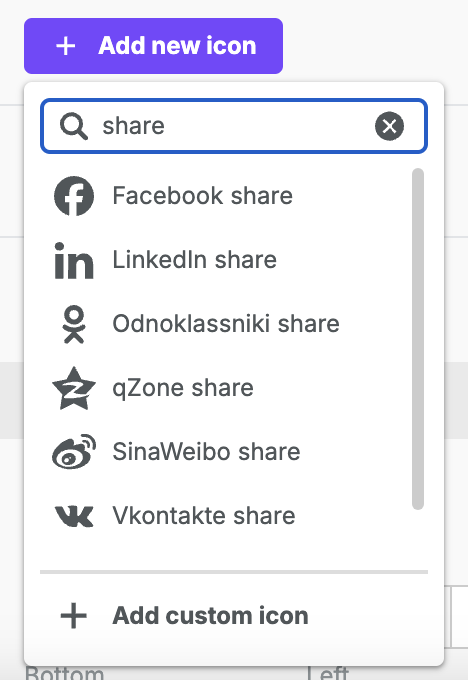
Share icons are marked with a label so you can tell them apart from standard icons. For example, the standard Facebook and Facebook share icons are both shown below:
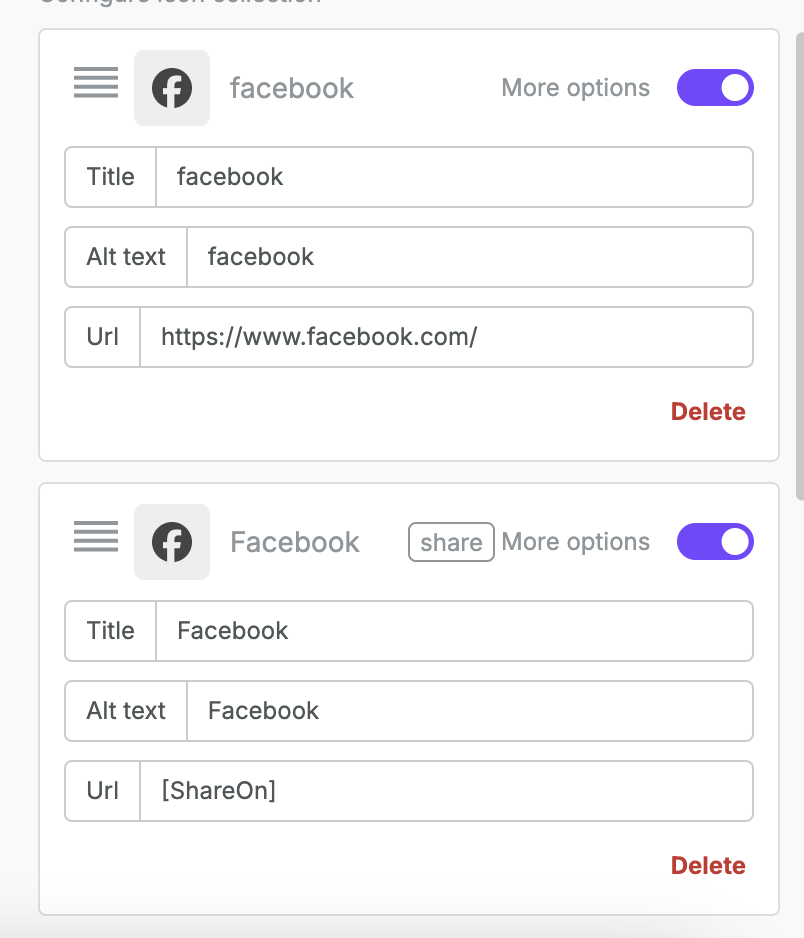
Social share icons display a placeholder URL ([ShareOn]). Replace it with the URL you want your audience to share. When you export the design, your URL is combined with the platform's sharing link. You can also use special links or merge tags in this field.
Customizing your Social Icons
This feature is not available in the Starter plan.
Customize the default settings for Social content blocks in your workspace styles. This allows you to customize the icons and links that populate each time the content block is used in the builder.

The Advanced Style Kit (available for Business and Enterprise) provides additional customization options, including the ability to add custom icons to the Social block workspace styles.
Considerations
The predefined icon collections in the Social content block do not count toward data transfer. We host these icons publicly for all RGE Studio subscribers. If you upload custom icons, they count toward your data transfer. For more information, see Hosted image delivery in RGE Studio.
Icon dimensions in the Social content block are fixed at 32x32px.
If you have any questions, feel free to contact us.
Comments
0 comments
Please sign in to leave a comment.