Commenting

Beefree App is now RGE Studio!
The email design suite you already know and love just leveled up. We’re working hard to update our help center, but you still may see some references to the old product name.
This article applies to both versions of the builder in all plans. However, some features may be limited or unavailable on the Starter plan.
Overview
Comments help your team collaborate on a design without leaving RGE Studio. Use them to share feedback, ask questions, and track open items until they're resolved.
How it works
While editing, you can add a comment on each element within the design. This option is available on individual content blocks or entire rows.
Start adding comments with the chat bubble icon. You can access this icon at any time from the builder's top navigation bar. It's also available in multiple other places within the builder, as described later in this article.
You can also use @ mentions to speed up collaboration. Mentions notify the person you tag, both inside RGE Studio and by email. For more on in-app notifications, see the Notification center article.
You can also find this icon in the Projects tab of your account. It appears on every design's preview panel, and it may also appear on a project's preview panel.
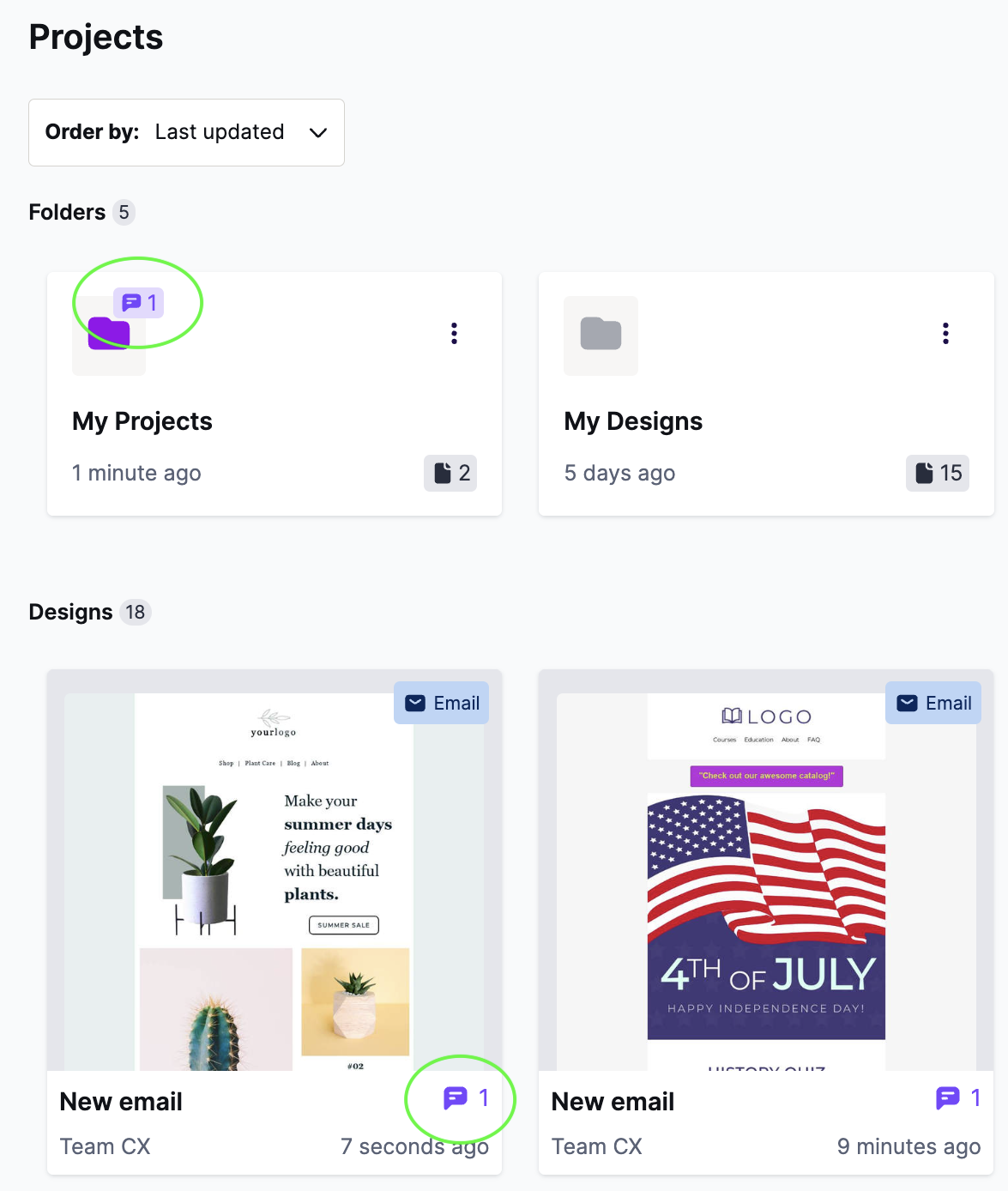
This icon only appears on a project's preview panel when there are unresolved comments.
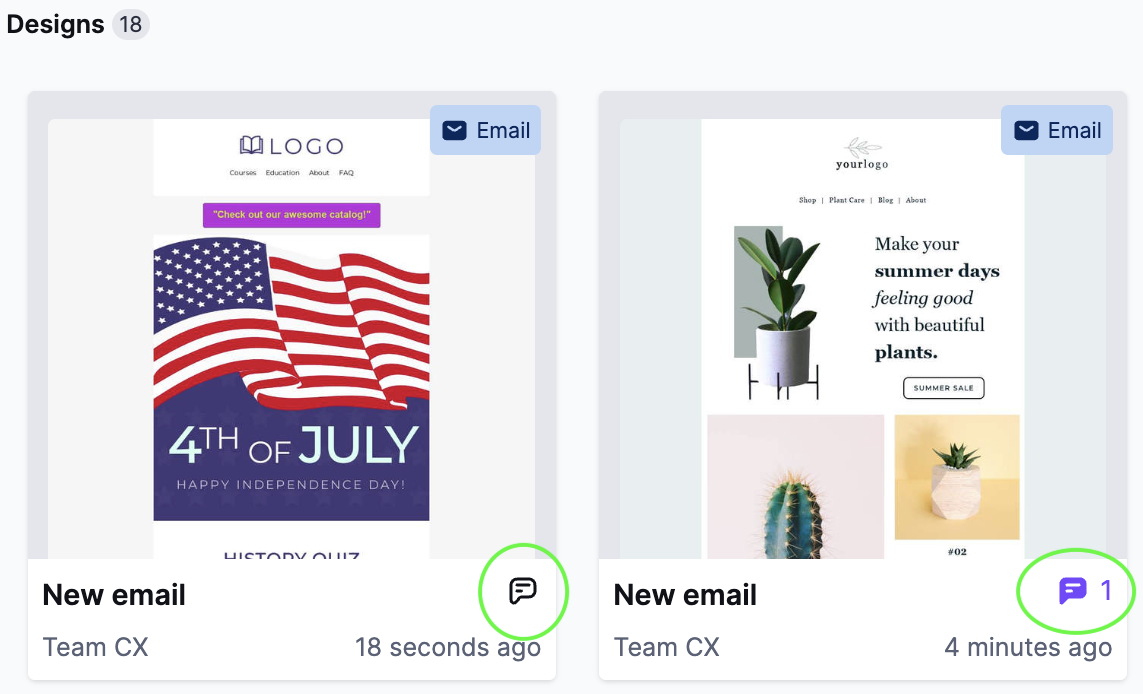
On a design's preview panel, click this icon to launch the builder and land directly in the commenting section of the sidebar. A purple icon means there are unresolved comments that need your attention. A gray icon means there are none.
Commenting on content
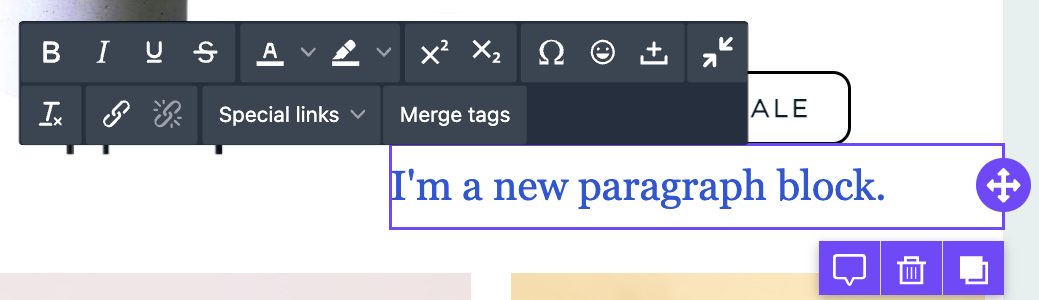
When you select a content block, the commenting icon appears immediately. Look below the lower right corner of the content outline. The icon is furthest to the left.
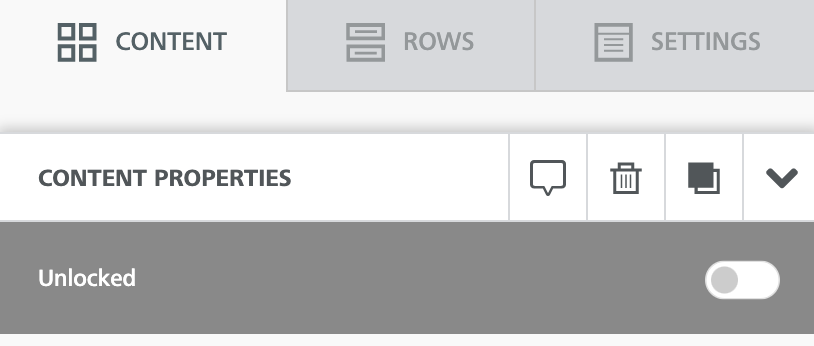
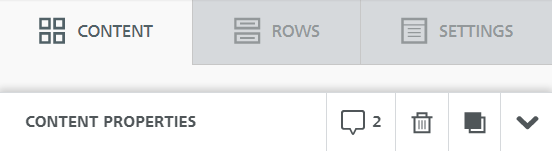
You can also access the commenting icon from the builder sidebar. The icon is available to the right of the content properties.
Commenting on rows
When you select a row, the commenting icon appears immediately. Look in the upper right corner of the row outline. The icon is furthest to the left.

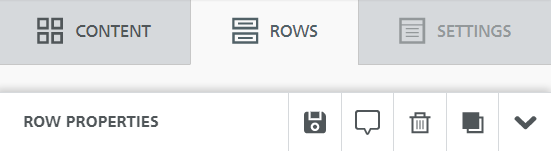
You can also access the icon from the sidebar when viewing the row properties.
Managing threads
You can find all comment threads using the All comments shortcut. This icon turns purple when there are unresolved comments. This shortcut is available in the builder's top navigation bar.

Click this icon to open all threads in the builder sidebar.
When an element has an open thread, a comment icon is visible on the builder stage. You'll find the icon in the upper left corner of the element, even if you didn't select it. If you hover over this icon, you can see a preview of the associated comments. The preview window shows only the first comment in the thread.
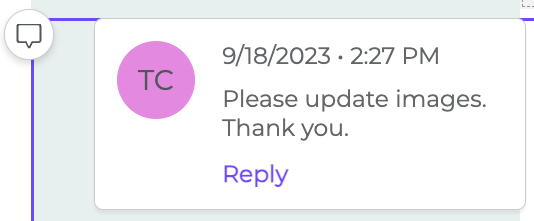
Click an icon to open its comment thread in the builder sidebar. These icons only appear for open comment threads. They disappear once a thread is resolved or deleted.
If you select an element with an open thread, the builder sidebar shows the number of new comments.
You can edit or delete your own comments. Comments left by other people stay read-only to you.
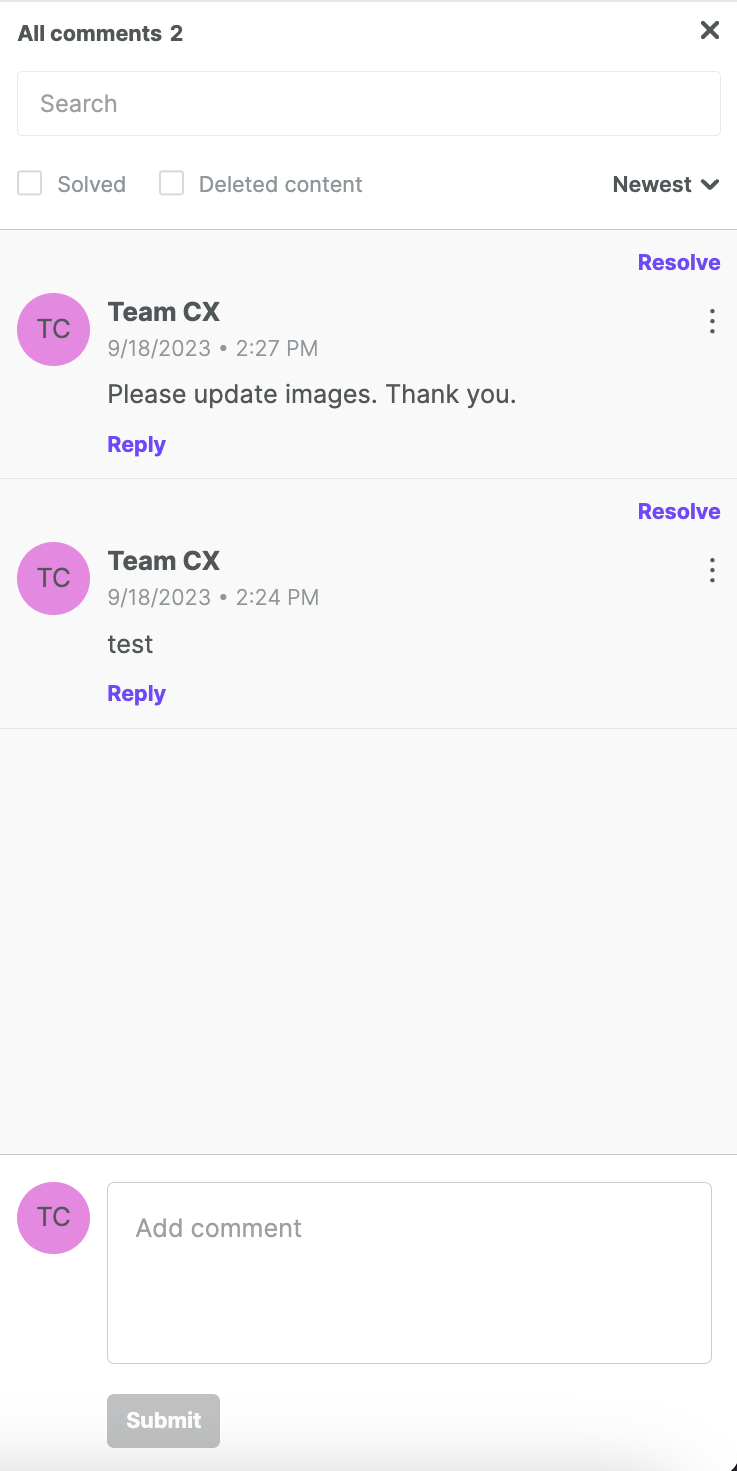
Click Resolve to close a comment thread. This removes the icon notification from the builder stage. You can reopen a resolved thread at any time by clicking Reopen, which takes the place of Resolve once the thread is closed. You can also reopen a thread by typing a new comment and clicking Submit.
The commenting sidebar always includes an All comments option, in the upper left corner. Click it to view every comment made on the design. You can also filter by solved and deleted comments. These filters are off by default. Comments display from newest to oldest by default. Use the filtering and sorting options above to change this.
Depending on a comment's status, you'll see different information:
- For unresolved comments, click the Reply link to jump to the associated content or row.
- For unresolved threads, you'll also see a link like Show all (#) replies above the Reply link.
- For resolved comments and comments on deleted content, the text appears gray. An icon in the upper left corner shows the thread's status. Click Show all (#) replies to jump to the associated element.
Additional considerations
Paid plans unlock a few additional commenting options.
- All user roles, including viewers, can use commenting. Learn more in Working with viewers.
- You can see your comment mentions in the Activity Dashboard.
- Business and Enterprise plans also include in-builder notifications for new comments. You'll only see this notification when at least one other person is co-editing the design with you.
- In Business and Enterprise, commenting is often used with the Approval Workflow.
If you have any questions, feel free to contact us.
Comments
0 comments
Please sign in to leave a comment.