Move Designs to Other Folders and Workspaces

Beefree App is now RGE Studio!
The email design suite you already know and love just leveled up. We’re working hard to update our help center, but you still may see some references to the old product name.
This article applies to paid plans.
Overview
You can move designs to a different folder. Use the options menu to move one design. To move several designs at once, select them first.
You need a role of Owner, Admin, or Manager to move designs. On Business and Enterprise plans, you can also move designs to another workspace.
To move a folder, see Managing project folders. To move or copy templates, see Managing Templates.
For a guided walkthrough, watch our RGE Studio Academy tutorial.
Move One Design
- Go to Projects.
- Hover over the design you want to move.
- Click the options menu (three dots) in the upper-right corner of the design.
- Select Move.
- Choose a destination and click Confirm. See Choose a Destination below.

Move Multiple Designs
- Go to Projects.
- Hover over a design you want to move.
- Check the box in the upper-left corner of the design.
- Repeat for each design you want to move.
- Click Move to. This button appears near the top of the page, under Create new.
- Choose a destination and click Confirm. See Choose a Destination below.

Choose a Destination
In the Move window, select the folder you want. To move a design out of a folder, select Move to the Projects page. Use the search bar to find a folder by name.
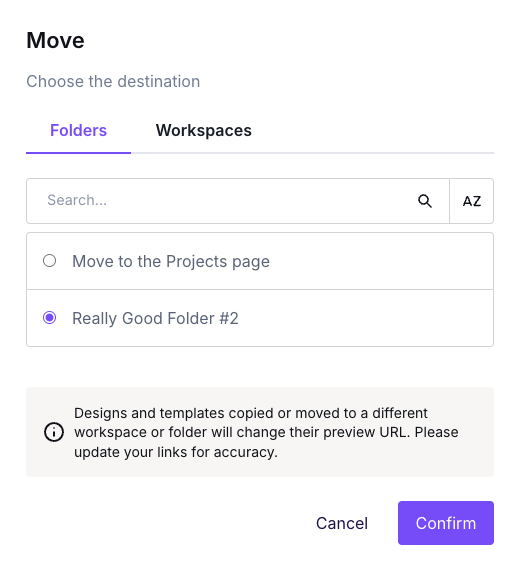
On Business and Enterprise plans, the Move window also has a Workspaces tab. Open this tab to move designs to another workspace.
Click Confirm to start the move.
Additional Considerations
- Moving a design changes its preview URL. Update any links you have shared.
- Your designs are unavailable while the move is processing.
- You get a notice in your Notification Center when you move designs. If the move fails, click the notice to see which designs moved.
- When you select designs, the filters and search bar are hidden. Clear your selection to filter or search again.
If you have any questions, feel free to contact us.
Comments
0 comments
Please sign in to leave a comment.