Using Merge Tags and Special Links

Beefree App is now RGE Studio!
The email design suite you already know and love just leveled up. We’re working hard to update our help center, but you still may see some references to the old product name.
This article applies to all plans. However, some features may be limited or unavailable on the Starter plan.
Overview
Merge tags and special links add dynamic content to your designs. You insert them into your design from the builder. Your sending platform fills them in when it sends the email.
This article describes how to add merge tags and special links to your designs. These options come from the Personalization tab of your workspace settings. To learn more, see Personalization settings: Merge Tags and Special Links.
Add Merge Tags
Take the following steps to add a merge tag to your design:
- Click a text-based content block where you want the merge tag. The text toolbar appears.
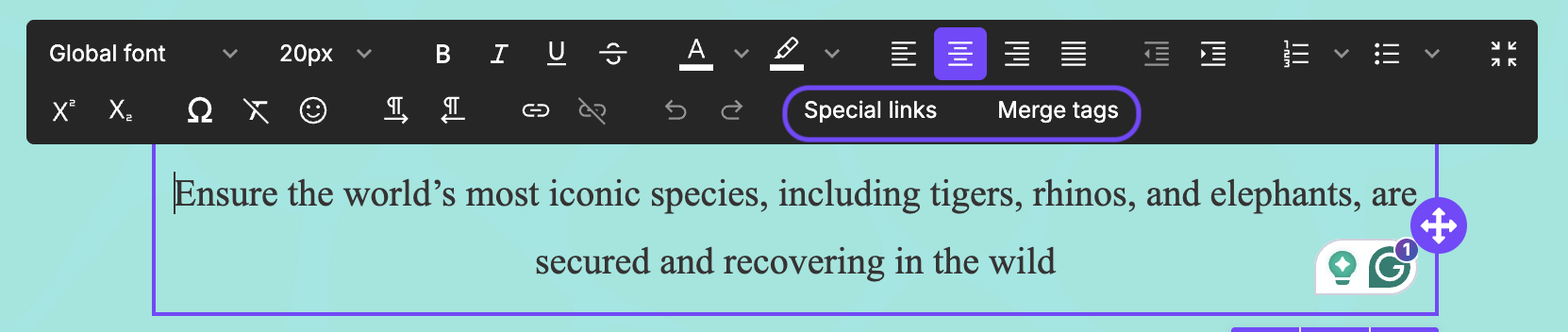
- Select Merge tags from the text toolbar. The Add merge tag modal appears.
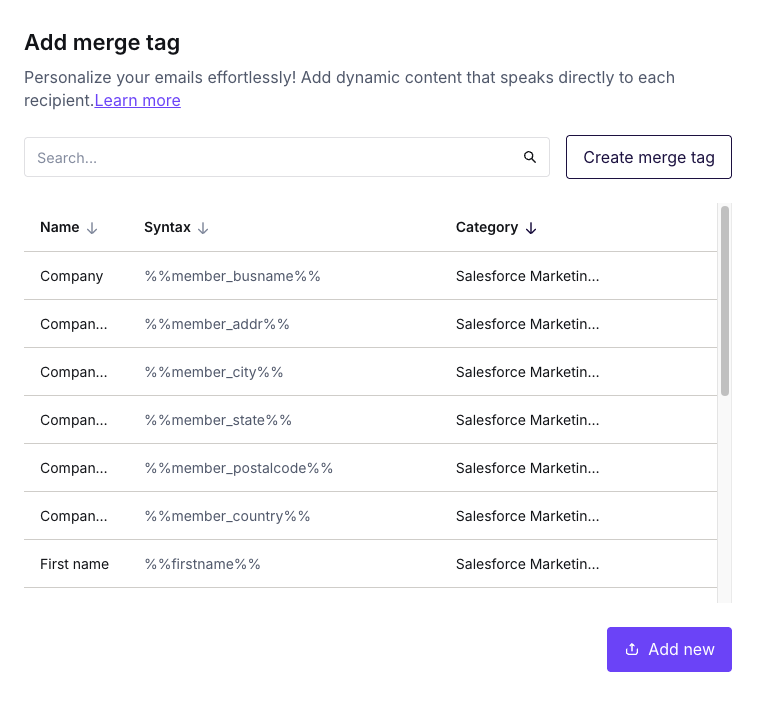
- Select your merge tag. You can also use the Search field to filter by name, syntax, or category.
- Click the merge tag to add it to the design.
To create a merge tag from here, click the Add merge tag button. Complete the fields, then click Confirm. You can also click Import to add merge tags from a preset or HubSpot. New merge tags are saved to your Personalization settings.
In the builder, tags have a dashed purple border. This shows they are placeholders, not regular text. Each merge tag displays its preview value. If it has no preview value, you see the merge tag name instead.
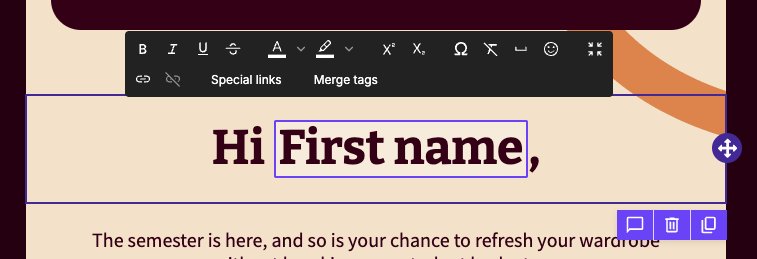
To replace a merge tag, click it in your design. The border turns solid. Select Merge tags from the text toolbar and choose a different merge tag. The new merge tag replaces the original.
Add Special Links
You can add special links in the following places:
- Paragraphs, lists, and titles: Click a text-based content block. To link existing text, highlight it. Otherwise, place your cursor where you want the link. Then select Special links from the text toolbar.
- Images and buttons: Select the content block. In the Action section, click Special links below the URL field.
The Add special link modal appears. Then take the following steps:
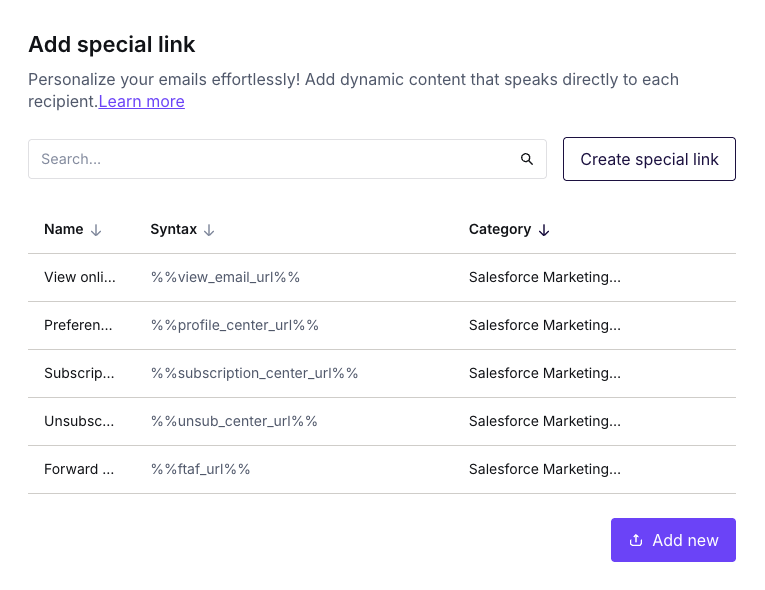
- Select your special link. You can also use the Search field to filter by name, syntax, or category.
- Click the special link to add it to the design.
Special links look like regular links in the builder.
To create a special link, click Add special link in the modal. Complete the fields, then click Confirm. You can also click Import to add special links from a preset. New special links are saved to your Personalization settings.
The syntax for special links is often a regular URL with a merge tag added to the end. Some special links, such as view in browser and unsubscribe links, may look the same as merge tag syntax. Use special links to set link styles, such as underlining and link color.
If you have any questions, feel free to contact us.
Comments
0 comments
Please sign in to leave a comment.