Using Webhooks

Beefree App is now RGE Studio!
The email design suite you already know and love just leveled up. We’re working hard to update our help center, but you still may see some references to the old product name.
This article applies to the Enterprise plan.
Overview
Many companies and agencies use RGE Studio in their design workflows. Every team has its own needs. Most teams agree that real-time notifications are essential. RGE Studio provides in-app and email notifications. But what if you're not in the app or checking your email? That's where webhooks come in.
Webhooks enable you to send information one way from one platform to another. For example, you might use a project management tool and want to push design updates and comments to Asana, Jira, ClickUp, or Monday. You can also push those comments and updates to a Slack channel.
Many of our customers already have well-established procedures. Webhooks let you integrate RGE Studio into your existing workflow. For example, you can send notifications for new comments.
Getting Started
To get started with webhooks in RGE Studio, make sure you have the following:
- An RGE Studio Enterprise plan account
- Access to workspace settings permissions and a role of Owner, Admin, or Manager
- Access to a third-party automation tool, or a tool with webhooks functionality
Zapier and Make are popular no-code automation tools. You can use any tool that best suits your company's unique use case, as long as the tool includes a webhooks feature.
Connecting a Third-Party Automation Tool
To get started with a third-party automation tool, take the following steps:
- Select the automation tool that best suits your use case.
- Create an account.
- Create a new automation workflow.
Note: These workflows have different names depending on the tool. At times they're referred to as "scenarios" or "zaps." Regardless of the name, the functionality of event trigger workflows remains the same. - Select "webhooks" as the first component in your workflow.
- Copy and save your webhook URL. You'll need to enter it into your RGE Studio webhook settings later.
- Select the notification platform you'd like to receive notifications through. Connect it to the webhook you created in the previous step.
Note: For your notification platform, you can connect to a variety of tool options. Slack and Gmail are popular options. - Follow the steps in Creating a Webhook to connect your new workflow to RGE Studio.
Automating Notifications
Webhooks in RGE Studio let you automate notifications for comments or design status changes. Webhooks are specific to the workspace where you create them. The following sections cover both event triggers in more detail.
Comments
With webhooks, you can automatically push notifications for new comments on a design. The available trigger events for comments are the following:
- New replies
- Replies
- Mentions
- Resolved comments
You can include any of the following data fields in your custom notifications.
|
Available Webhook Comment Data |
Example |
Description |
event_type
|
comment
|
The event type for comments. |
date
|
|
Date of the comment. |
design_id
|
10223612
|
Unique identifier for the design. |
design_name
|
New page
|
Name of the design. |
user_name
|
Test User
|
Name of the user who created a new comment or reply or resolved a comment. |
user_email
|
test.user@gmail.com
|
Email of the user who created a new comment or reply or resolved a comment. |
thumbnail_url
|
https://pro-bee-beepro-thumbnail.getbee.io/messages/53601/551533/2042837/10223612_medium.jpg
|
URL of a thumbnail of the asset. |
tags[]
|
A comma-separated array of tags that the design has been tagged with (they can be seen in the design details page in your RGE Studio account). | |
asset_type
|
page
|
The workspace design type. This can be “page” or “email”. |
event_sub_type
|
resolve
|
Event type. This can be one of two options: new or resolved. |
users_mentioned
|
"user_name": "Test User", "user_email": "user.test@gmail.com"
|
If applicable, any users mentioned in the comment will appear in this data field. |
comment
|
Testing comments feature
|
The comment text. |
comment_url
|
https://reallygoodemails.com/app/53601/551533/2042837/10223612/edit/page/comment/f150fef9-025b-43e6-ba49-c59983bed5b2
|
URL that directs you to the comment. |
users_in_thread
|
"user_name": "Test User", "user_email": "user.test@gmail.com"
|
Any users in the comment thread are included here. |
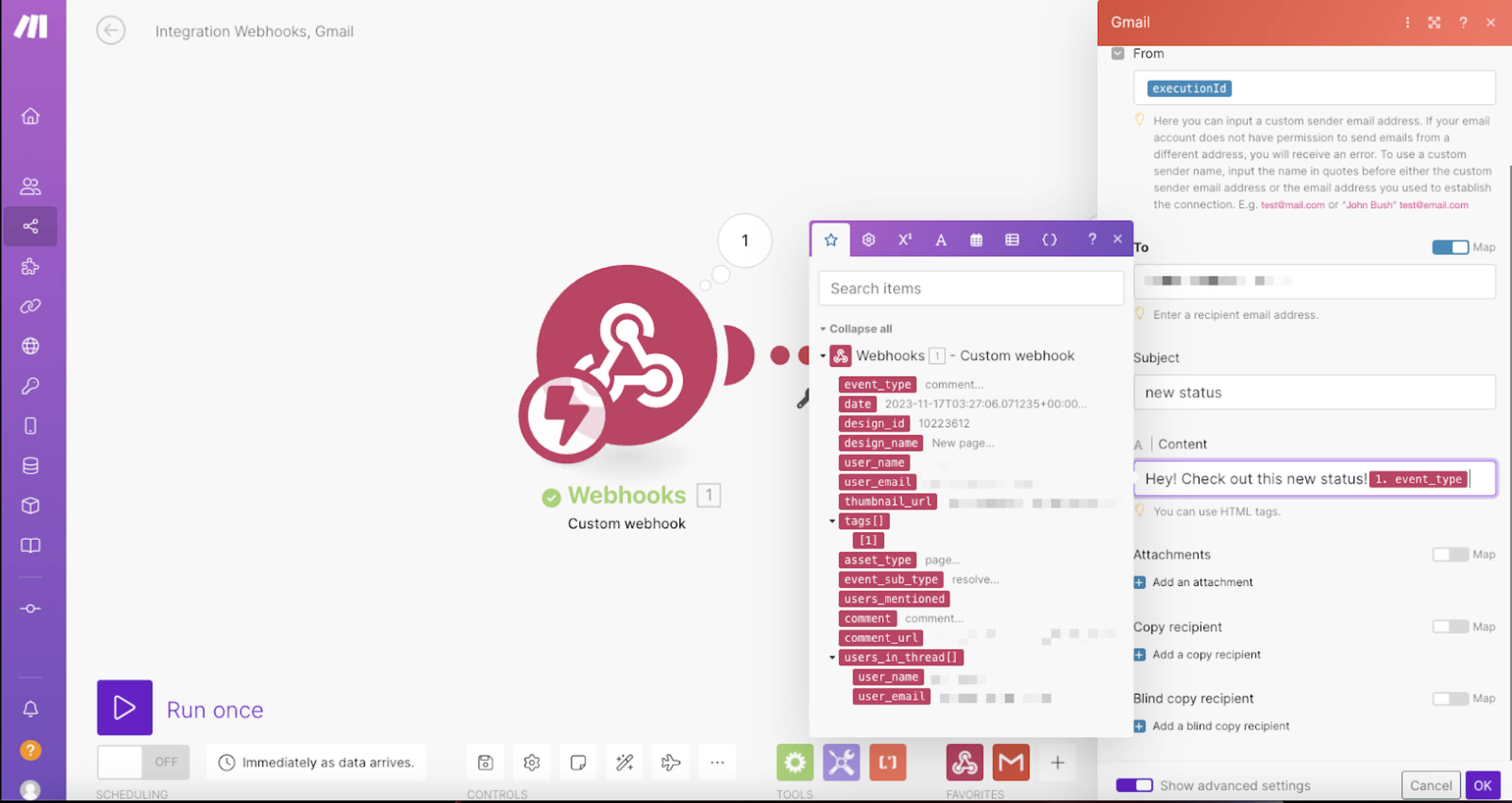
The following image shows an example of a webhook component within the tool Make. The screen shows the data details from a comment event trigger within RGE Studio, and the option to customize a notification using the RGE Studio data details.
Design Status Updates
With webhooks, you can automatically push notifications when the design status changes. The available trigger events for design status are the following:
- Draft
- In review
- Approved
The tool receiving the data lets you customize the notification format.
You can include any of the following data fields in your custom notifications.
|
Available Webhook Design Status Data |
Example |
Description |
event_type
|
status_change
|
The event type for design statuses. |
date
|
2023-11-17T19:29:1
|
Date of the status change. |
design_id
|
10228908
|
Unique identifier for the design. |
design_name
|
New page
|
Name of the design. |
user_name
|
FirstName LastName
|
Name of the user who made a qualifying change to a design status. |
user_email
|
user.test@gmail.com
|
Email of the user who made a qualifying change to a design status. |
thumbnail_url
|
https://pro-bee-beepro-thumbnail.getbee.io/messages/53601/551533/2042837/10228908_medium.jpg
|
URL of a thumbnail of the asset. |
tags[]
|
A comma-separated array of tags that the asset has been tagged with (they can be seen in the design details page in your RGE account). | |
asset_type
|
page
|
The workspace design type. This can be "email" or "page". |
status_name
|
in_review
|
Name of the current design status. |
design_url
|
https://reallygoodemails.com/app/53601/551533/2042837/10228908/edit/page
|
URL that directs you to the design. |
subject
|
Black Friday Sales
|
If applicable, this is the subject text (emails only). |
preheader
|
You must see this
|
If applicable, this is the preheader text (emails only). |
title
|
Best time of year
|
The title text (pages only). |
meta_description
|
Send this email for discounts of 40% or more
|
If applicable, this is the text for the meta description (pages only). |
Example Notification
You have many options for customizing your notifications. You can send them to almost any platform your tool supports.
The following is an example notification created with webhooks. You can see how we're using incoming data fields to create the notification.
Hi there!
User_nameadded aevent_typeondateto a workspace you manage. Check out the change they made and the new workspace activity atdesign_url. Happy designing!RGE Studio Notification
Creating a webhook
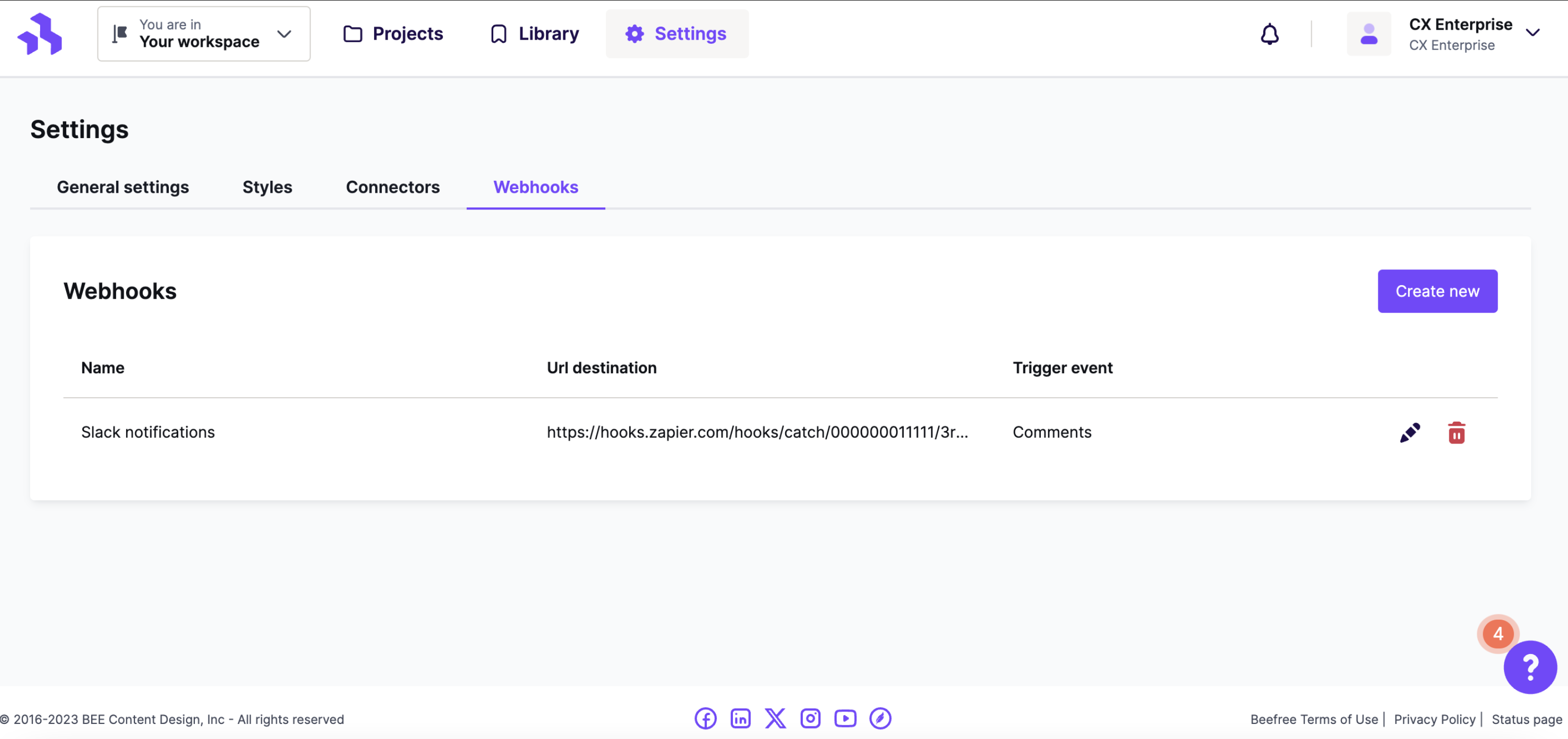
- Navigate to the Webhooks tab in your workspace settings.
-
Click Create a new webhook. If you already have a webhook set up, you'll see a button that says Create new instead.
-
Fill out all the fields in the modal.
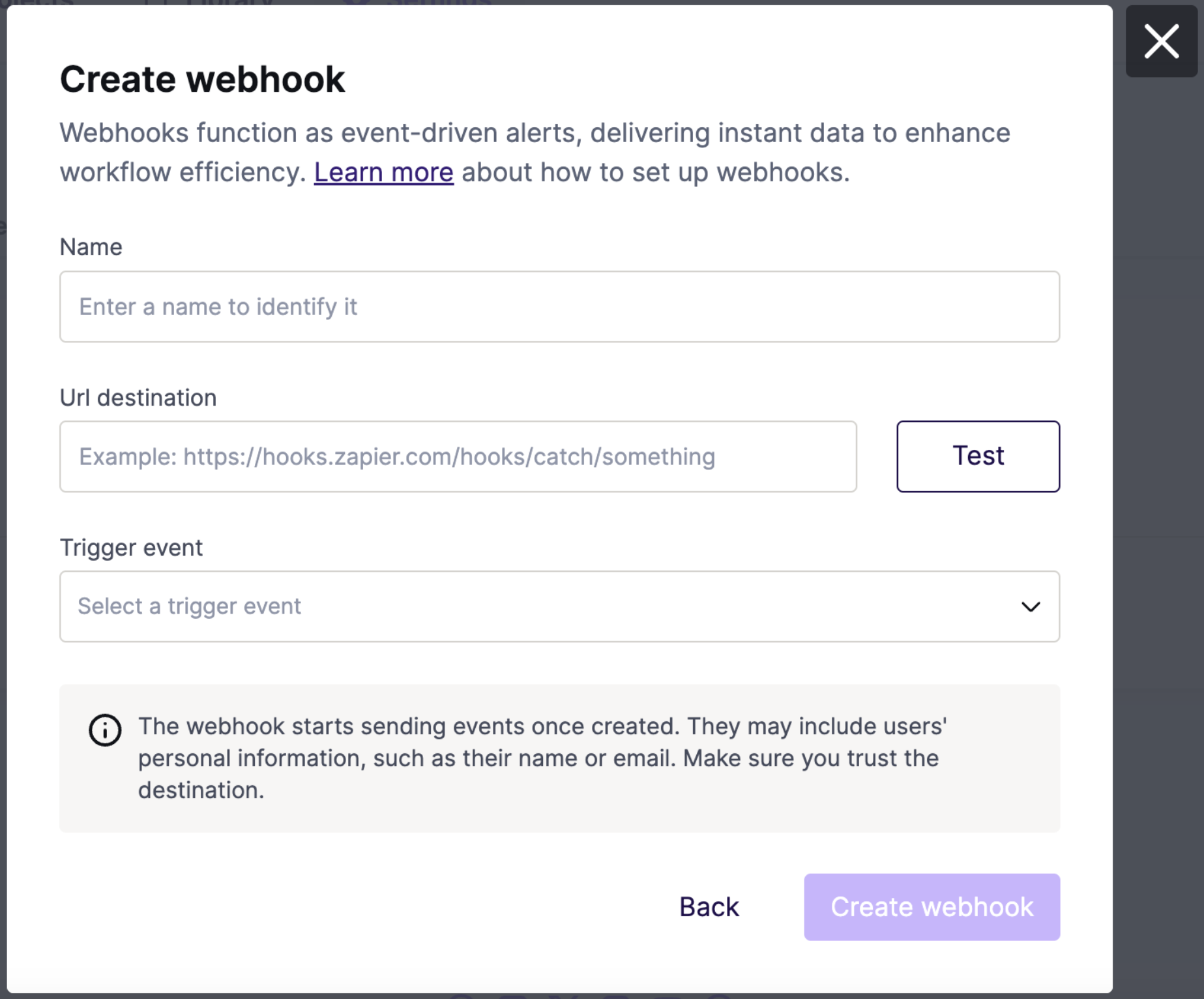
- Name - Enter whatever name you'd like to help you identify this webhook.
- URL destination - This information is provided by the third-party application. It's the URL the webhook sends requests to.
- Trigger event - Use the dropdown to select Comments or Design Status notifications.
We recommend using the Test button to make sure your external tool receives the updates. A green checkmark will appear in the textbox if the test is successful.
Once you're done, click Create webhook. You'll start receiving notifications right away.
Edit a webhook
If you need to edit an existing webhook, click the pencil icon to the right of your webhook details.

You can modify any of the fields for your webhook, or test the URL again. Click Save to save your changes.
Delete a webhook
To delete a webhook, click the red trash icon. A modal will appear, asking you to confirm the deletion.
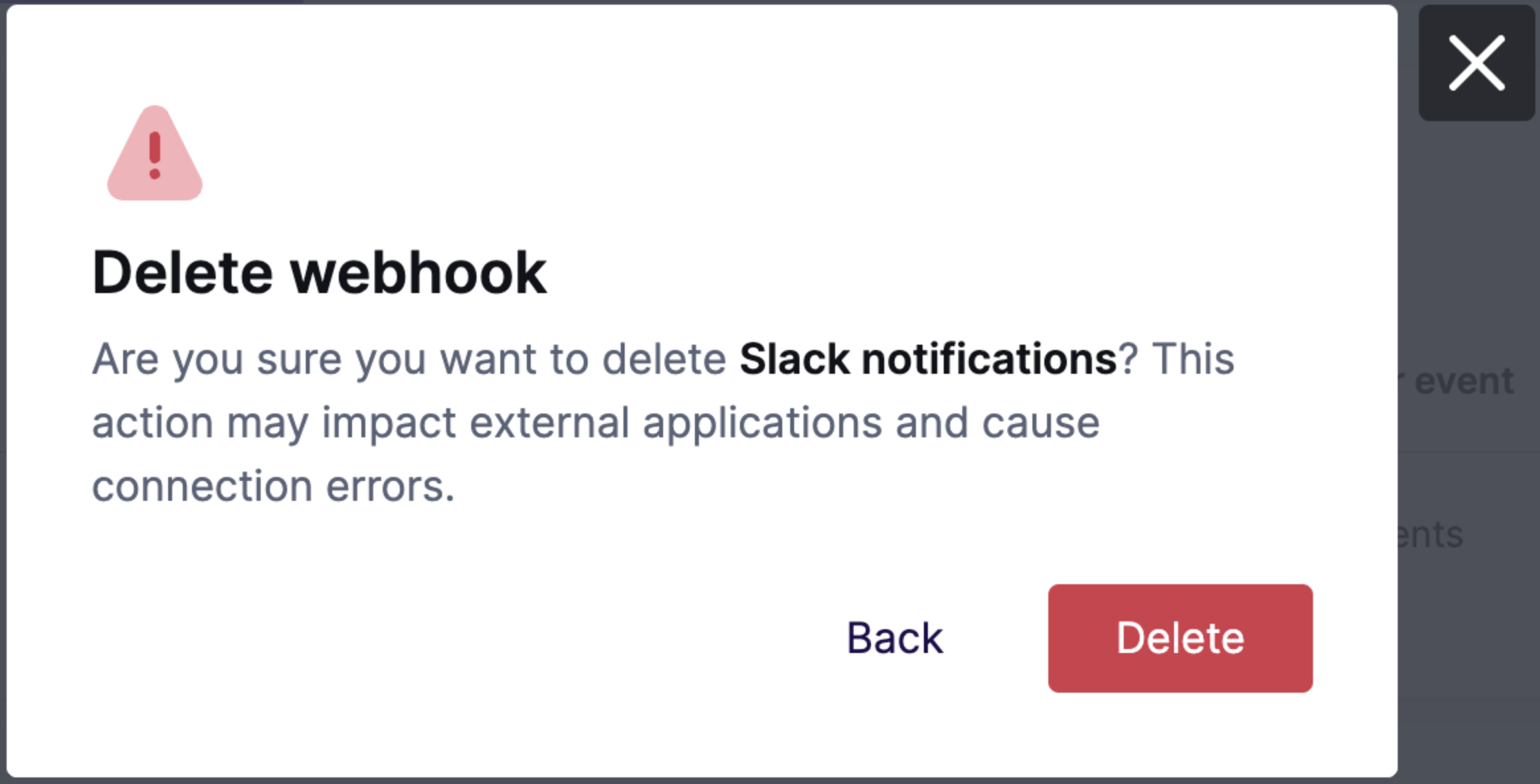
Click Delete to confirm. Deleting a webhook may affect your external workflows, so review your automations first.
If you have any questions, feel free to contact us.
Comments
0 comments
Please sign in to leave a comment.