Managing Templates

Beefree App is now RGE Studio!
The email design suite you already know and love just leveled up. We’re working hard to update our help center, but you still may see some references to the old product name.
This article applies to all plans. However, some features may be limited depending on your plan.
Overview
The Library's Templates tab is where you organize the templates you've created. Search, sort, filter, edit, copy, share, or delete templates from here. See Using Templates for how to create and design with templates.
Template Management Options
Open the Library, then select the Templates tab.
Search by keyword or tag to find a template. Sort by creation date, last update, or name. Filter by type (email or page) or by tag.
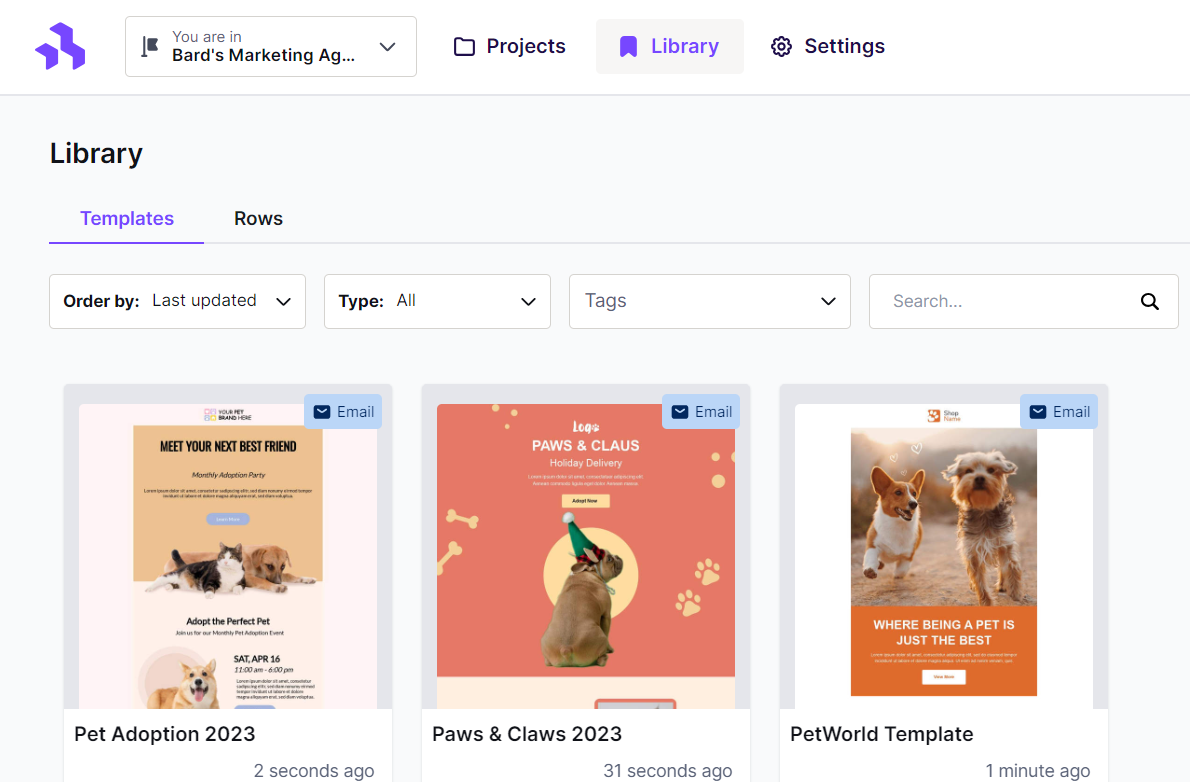
Starter plan accounts can save up to three templates at a time. You can create an unlimited number of templates in all other plans.
Hover over a template's thumbnail, then select the three-dot icon for more options.
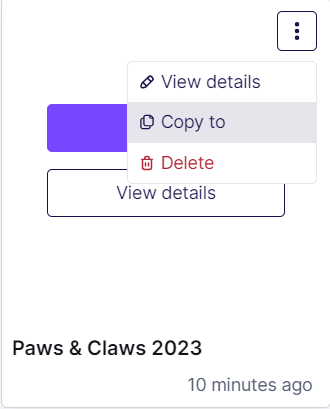
- View details: opens a larger preview and lets you edit the name, description, or tags
- Make a copy: duplicates the template
- Delete: removes the template
To copy several templates at once, select their checkboxes before choosing Make a copy. You can also copy a single template from its details page.
Managing Templates across Workspaces
The Business and Enterprise plans support multiple workspaces. which adds some options for templates. If you're using the following plans, consider the following:
- You will be prompted to select a workspace when copying templates
- When using the dropdown, you may see the option to Share to workspaces
- Dropdown options may look different for a shared template
Shared Templates
This section applies to the Business and Enterprise plans.
Share a template to sync it across workspaces, so edits to the source apply everywhere.
Owners and Admins without advanced permissions can share and edit templates across workspaces. Everyone else, including Admins with advanced permissions, can create new designs from a shared template.
Sharing a Template
- Open the Library and select the Templates tab.
- Find the template you want to share.
- Select the three-dot icon, then Share to workspaces.
- Choose the workspace or workspaces to share it with.
- Select Confirm.
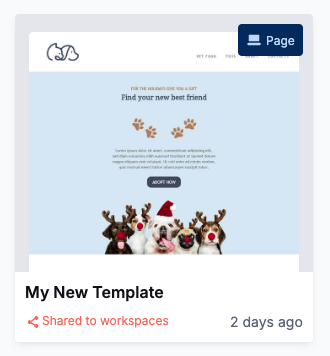
Once shared, the template shows a Shared to workspaces label in the Library.
Editing a Shared Template
If you're in the template's source workspace, edit it the same way as any other template.
If you're in a workspace the template is shared with, use Edit source to make changes:
- Open the Library and select the Templates tab.
- Find the shared template.
- Select the three-dot icon, then Edit source.
- Make your changes to the source template.
Changes sync to every workspace where the template is shared. A notification confirms the sync is in progress.
Things to Know
- Deleting the original workspace also deletes all shared versions in other workspaces.
- You need access to the original template to edit a shared version.
- If you downgrade to a Professional or Starter plan, shared templates become standard templates.
- Without access to the original workspace, you'll see a shared template in a locked state. You can't edit it or view its details.
Controlling Which Templates are Available
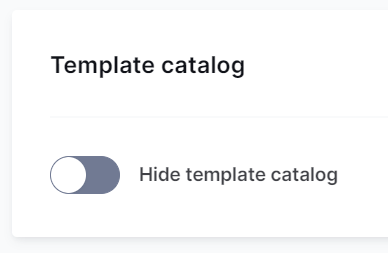
Workspace settings control which templates are available when someone starts a new design. Use this to hide the RGE Studio template catalog and limit your team to an approved set of templates.
To hide the RGE Studio template catalog, go to your workspace Settings. Scroll to the Template catalog section to find the toggle.
If you have any questions, feel free to contact us.
Comments
0 comments
Please sign in to leave a comment.