Multilingual Designs

Beefree App is now RGE Studio!
The email design suite you already know and love just leveled up. We’re working hard to update our help center, but you still may see some references to the old product name.
This article applies to paid plans.
Overview
Multilingual Designs let you add several languages to one email or page. You manage every language version inside a single design. You can add translations yourself or use AI to help. Design elements stay the same in every language. This keeps your brand consistent across all versions.
Prefer to learn by watching? See our Academy tutorial on designing emails and pages in multiple languages.
Prerequisites
To add or remove languages, you need one of these roles:
- Owner
- Admin
- Manager
- Editor
- Contributor
The number of languages you can use depends on your plan:
- Professional: One primary language and one additional language.
- Business: One primary language and three additional languages.
- Enterprise: One primary language and up to 24 additional languages.
Translatable Content
You can translate the following content in each content block:
-
Paragraph, Title, List
- Text
- URL
-
Button
- Text
- URL
-
Menu
- Text
- URL
-
Images
- Alternate text
- Image URL
-
Icon
- Icon text
- Alternate text
- Icon URL
-
Social
- Title
- Alternate text
- URL
-
Video
- Thumbnails
- Alternate text
- URL
Create a Multilingual Design
Follow these steps to set up the languages for your design:
- Log in to RGE Studio.
- Navigate to your email or page.
- Open the design in the editor.
- In the top bar, click the globe icon.
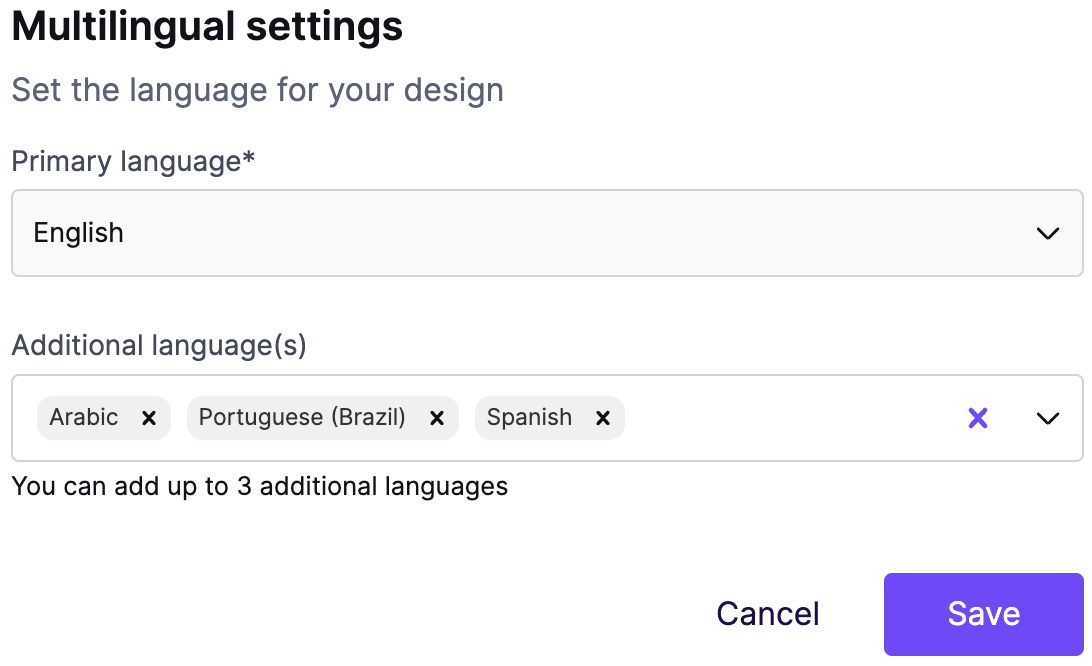
- The Multilingual Settings window opens.
- Select a Primary language from the drop-down menu.
- Select your additional languages. The number available depends on your plan.
- Click Save.

Add Translated Content
After you set up your languages, add translated content to each language version. You have two options:
- Use AI to translate your content.
- Translate your content manually in each language version.
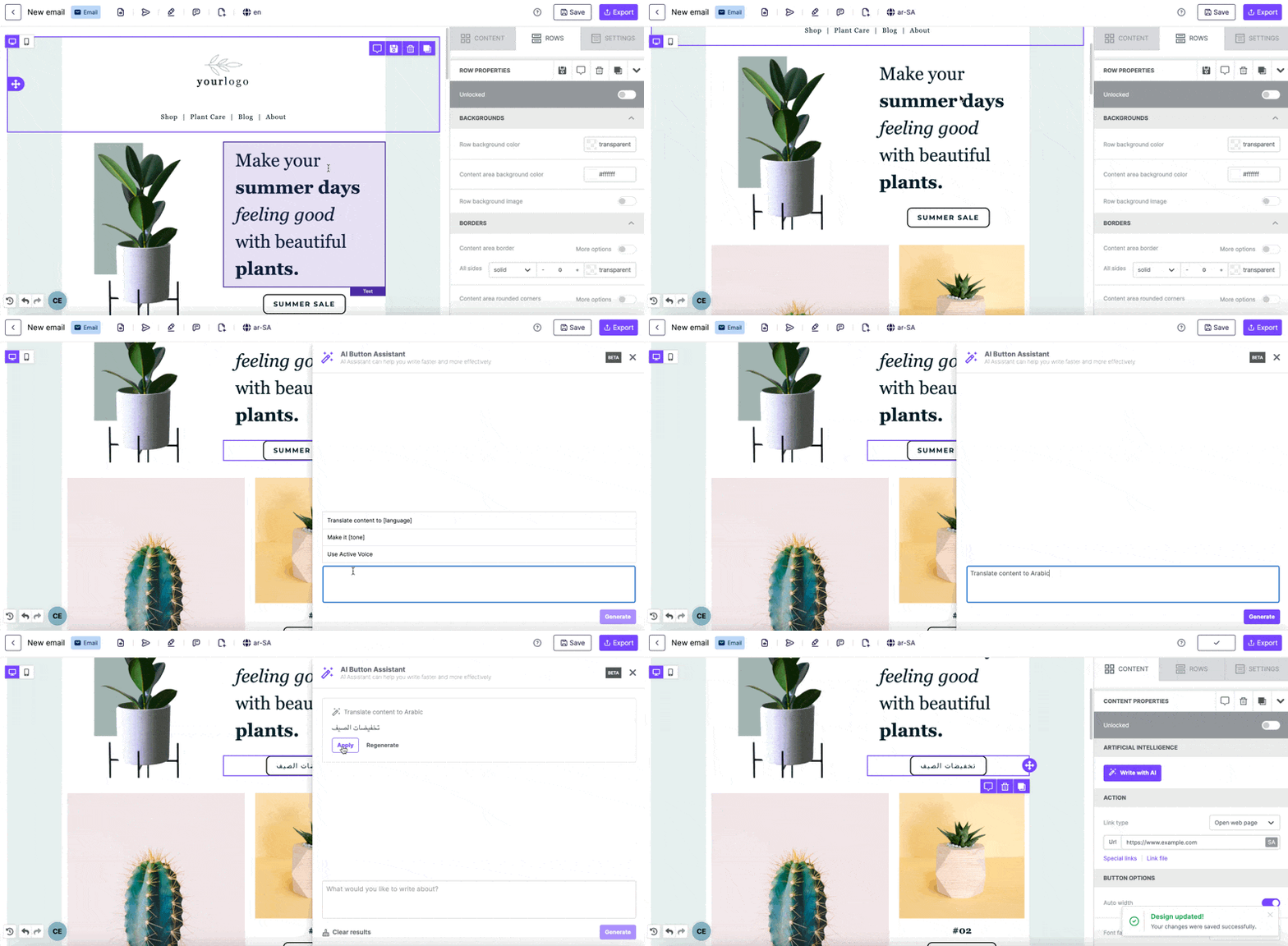
To translate your content with AI, follow these steps:
- Navigate to the language version you want to translate.
- Click the content block with the text you want to translate.
- In Content Properties, click Write with AI.
- Click the suggested prompt "Translate content to [language]."
- Replace [language] with the language you want.
- Click Generate.
- Click Apply to add the translation to the content block.
- Click Save to save your design.
Note: AI translation works with Paragraph, List, and Title blocks.
This GIF shows how to translate content from English to Arabic.
Edit Details for Each Language
Design details start in your primary language. These details include items like:
- Subject
- Preheader
- Meta description
You can translate these details for each language version. Follow these steps:
- Open the language version you want to edit.
- In the top bar, click the Edit details icon.
- Type the translated details for that language.
- Click Save.
Preview and Test Designs
Check each language version before you send or publish your design. You can preview each language in the editor. You can also send test emails in any language.
Preview Each Language
Follow these steps to preview your design in different languages:
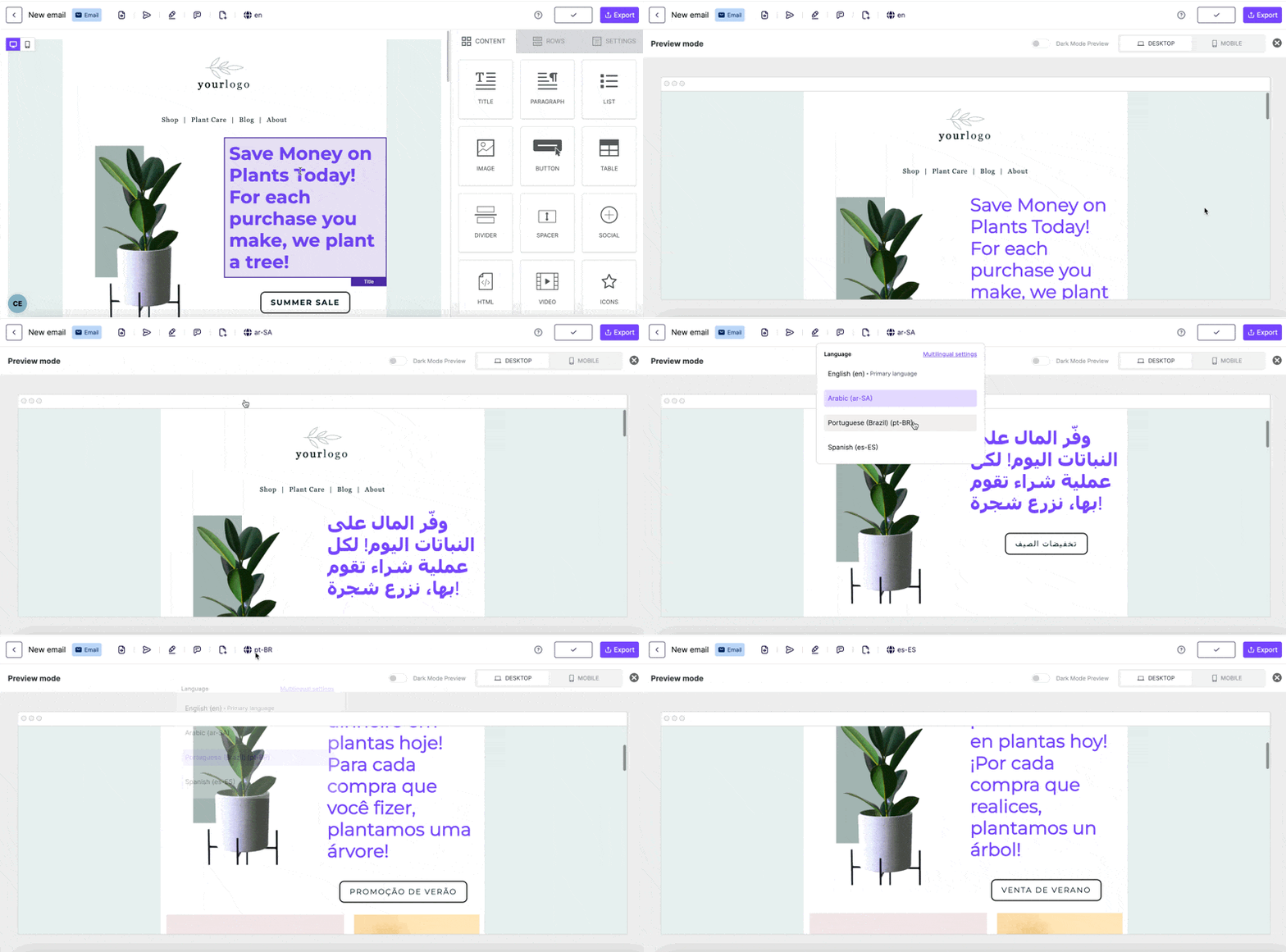
- In your email or page design, click the Preview icon in the top bar.
- The Preview page opens.
- In the top bar, click the globe icon to open the language drop-down.
- Select a language.
- Review the design in that language.
This GIF shows how to switch between languages in the preview. The design already has translations for each language. The translations were made with Write with AI.
Send a Test Email
You can choose the language of each test email. Follow these steps:
- In the top bar, click the Send test icon. A window opens with a language drop-down and an email address field.
- Select the test email language from the drop-down menu.
- Type the email address that should receive the test.
- Click Send.
- Check that inbox for your test email.
Export a Multilingual Design
When you export an email or page, you can choose which language to export. This works with all export options.
Note: These connectors export only the primary language:
- MailUp
- Acumbamail
- Contactlab
Change Language Settings
Follow these steps to change your language settings:
- In the top bar, click the globe icon.
- Select Multilingual Settings.
- Update your primary and additional languages.
Note: To change the primary language, first delete all additional languages. Each language can appear only once in your settings.
Important Considerations
Keep the following in mind when you use Multilingual Designs:
- You add translations to each language version yourself. You can type them manually or use Write with AI.
- Text direction is left-to-right (LTR) by default. For right-to-left (RTL) languages, use the Text direction option in the sidebar.
- The Details section always shows metadata from the primary language. This happens even after you translate it. It applies to these fields:
- Subject
- Preheader
- UTMs
- Your design keeps all its languages when you create an email from a page. The same is true when you create a page from an email.
- Import links include all languages in the design. The number of languages imported depends on plan limits.
- When you export with Update existing, the last edited language exports to the connector.
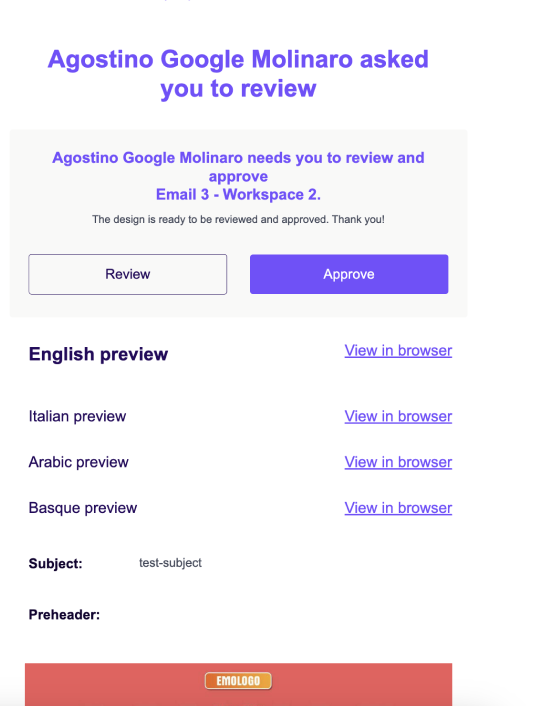
- Review requests use the primary language. The review request email includes preview links for each language.
- Copying or moving a multilingual design keeps all its languages.
Considerations for Pages
Keep the following in mind when you work with multilingual pages:
- Publishing a multilingual page publishes every language version.
- You can choose which language version to share on social networks.
If you have any questions, feel free to contact us.
Comments
3 comments
when I select the multilingual version, create the newsletter in the second language, it always exports the EN version
Hello Tim! We see you posted a ticket for this case were we are investigating the case for you.
It were to be great if we can have different alignment per language also, some languages are RTL which need to have different alignment per language.
Please sign in to leave a comment.