Multi-Step Approval Flow

Beefree App is now RGE Studio!
The email design suite you already know and love just leveled up. We’re working hard to update our help center, but you still may see some references to the old product name.
This article applies to the Enterprise plan.
Overview
The multi-step approval workflow expands the Approval Workflow. As an Enterprise user, you can add up to five sequential steps to any review. This gives you more control over multi-stakeholder and complex team workflows.
Each step can include one or more reviewers. All reviewers in a step must approve before the workflow advances.
You can customize the workflow further with Approval Management settings.
Prerequisites
Before you start a multi-step approval workflow, make sure you have:
- An RGE Studio account on the Enterprise plan
- One of the following user roles: Owner, Admin, Manager, Editor, or Contributor
Add steps to a workflow
Follow these steps to add multiple steps to your approval workflow:
- Log in to your RGE Studio account.
- Navigate to the design you want reviewed.
-
Click the Ask for review icon in the navbar. This opens a modal where you can add your reviewers. For more information on where to find this icon, see Approval Workflow.
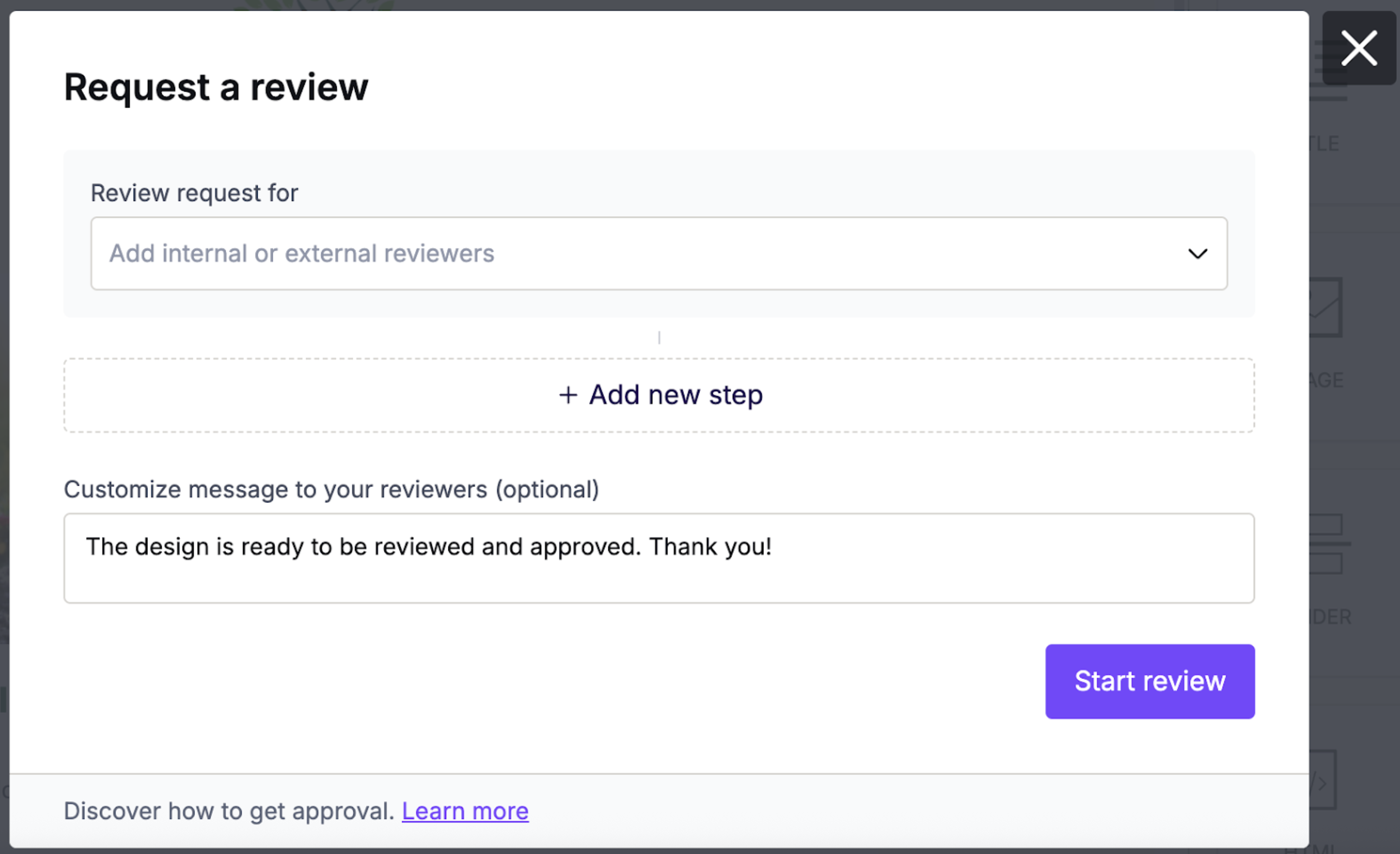
- Add internal or external reviewers to the first step. Use the drop-down menu to select users from your workspace. For information on inviting reviewers outside your workspace, see External Reviewers.
-
Click +Add new step to add another step to the workflow.
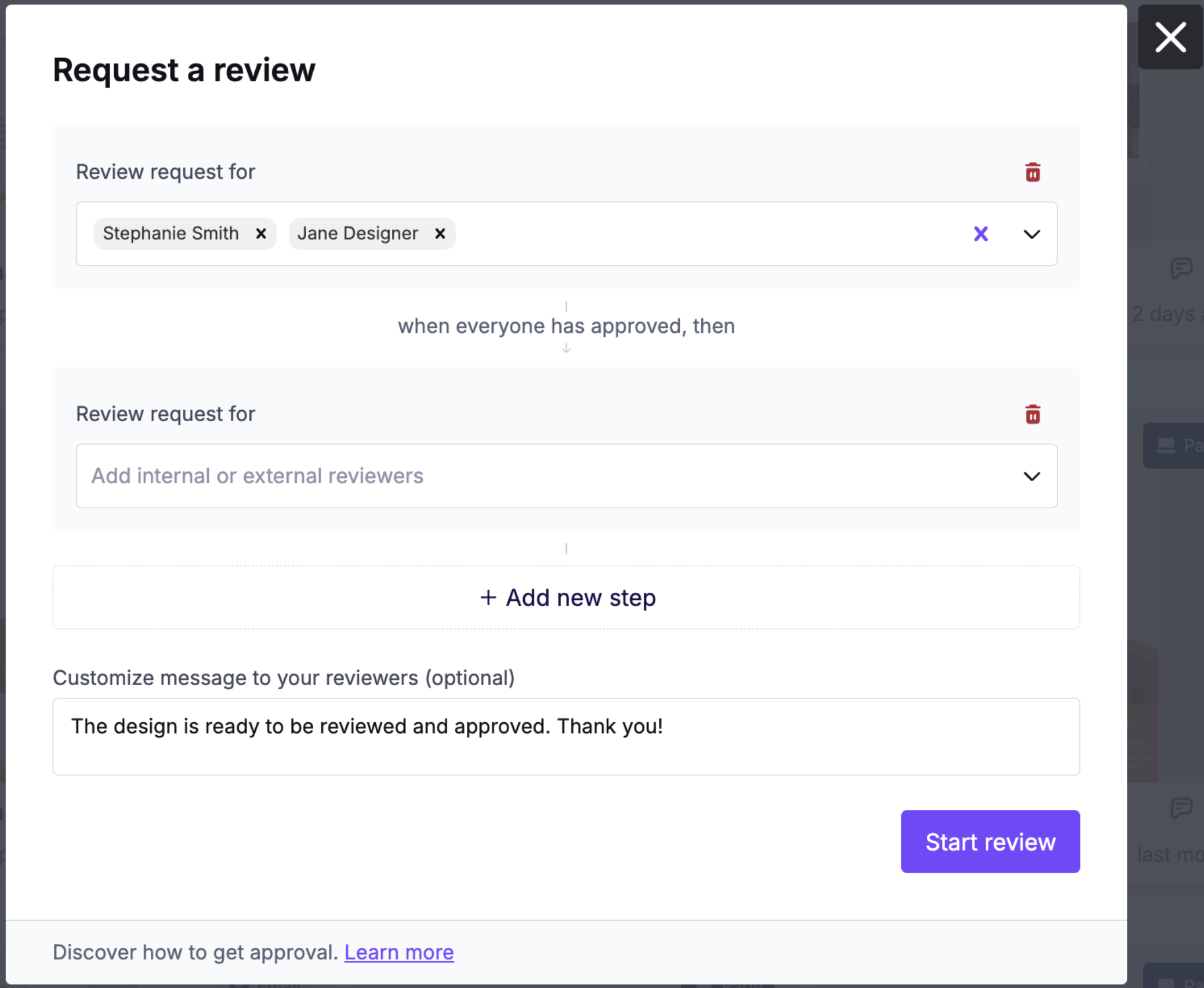
- Add reviewers to your second step.
- Repeat for any additional steps. You can create up to five steps per workflow.
- Edit the prewritten message if needed.
- Click Start review. This sends a review request to all reviewers in Step 1.
Once all Step 1 reviewers approve, the workflow advances to Step 2. Step 2 reviewers then receive a review request. This continues until all steps are complete. The design shows as Approved only when all reviewers across all steps have approved.
Review in progress
When the workflow starts, the app displays a modal with an overview of the process. You can add or remove reviewers from any pending steps. If the workflow has fewer than five steps, you can add more steps from here. You can also resend or delete the review request, or delete any steps that have not yet received approval.
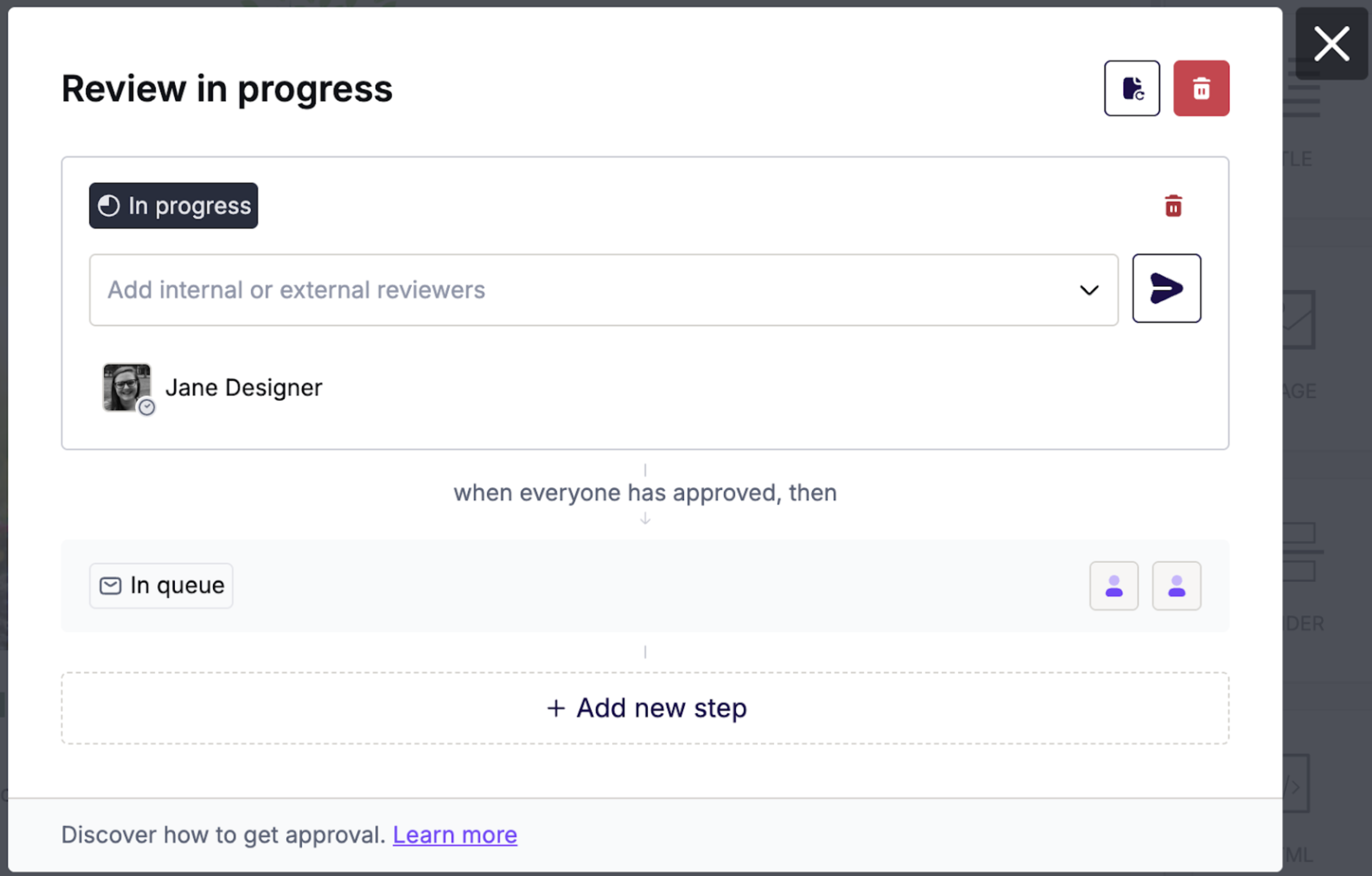
You can access this information again on the design's Details page. Switch to the Review tab to see the same information and options. Clicking the approval icon on any design awaiting approval also takes you to this page. In-app approval notifications bring you here as well.
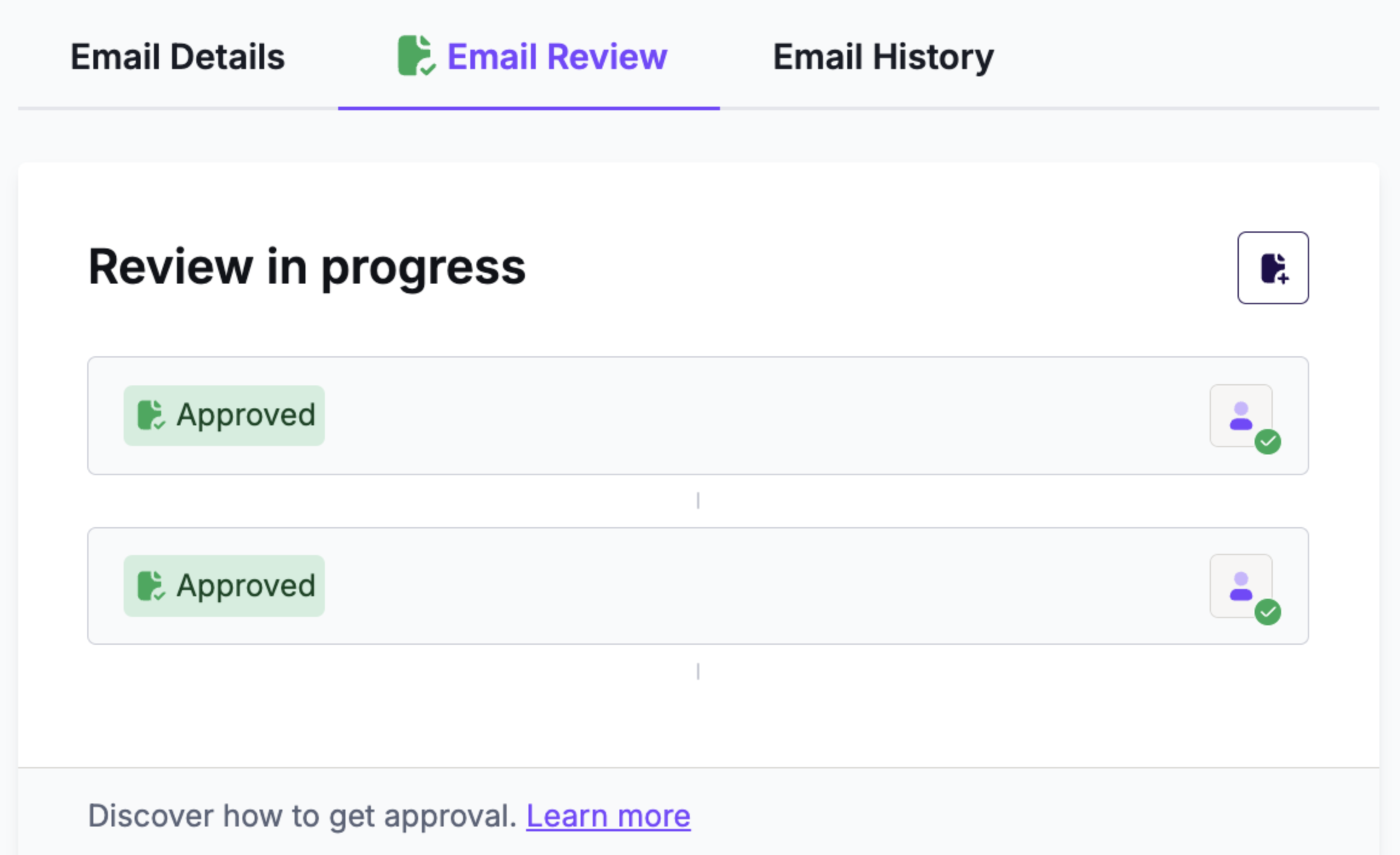
A checkmark appears next to each user icon as they approve the design. Once all reviewers in a step have approved, that step shows as Approved. The next step then displays an In progress label.
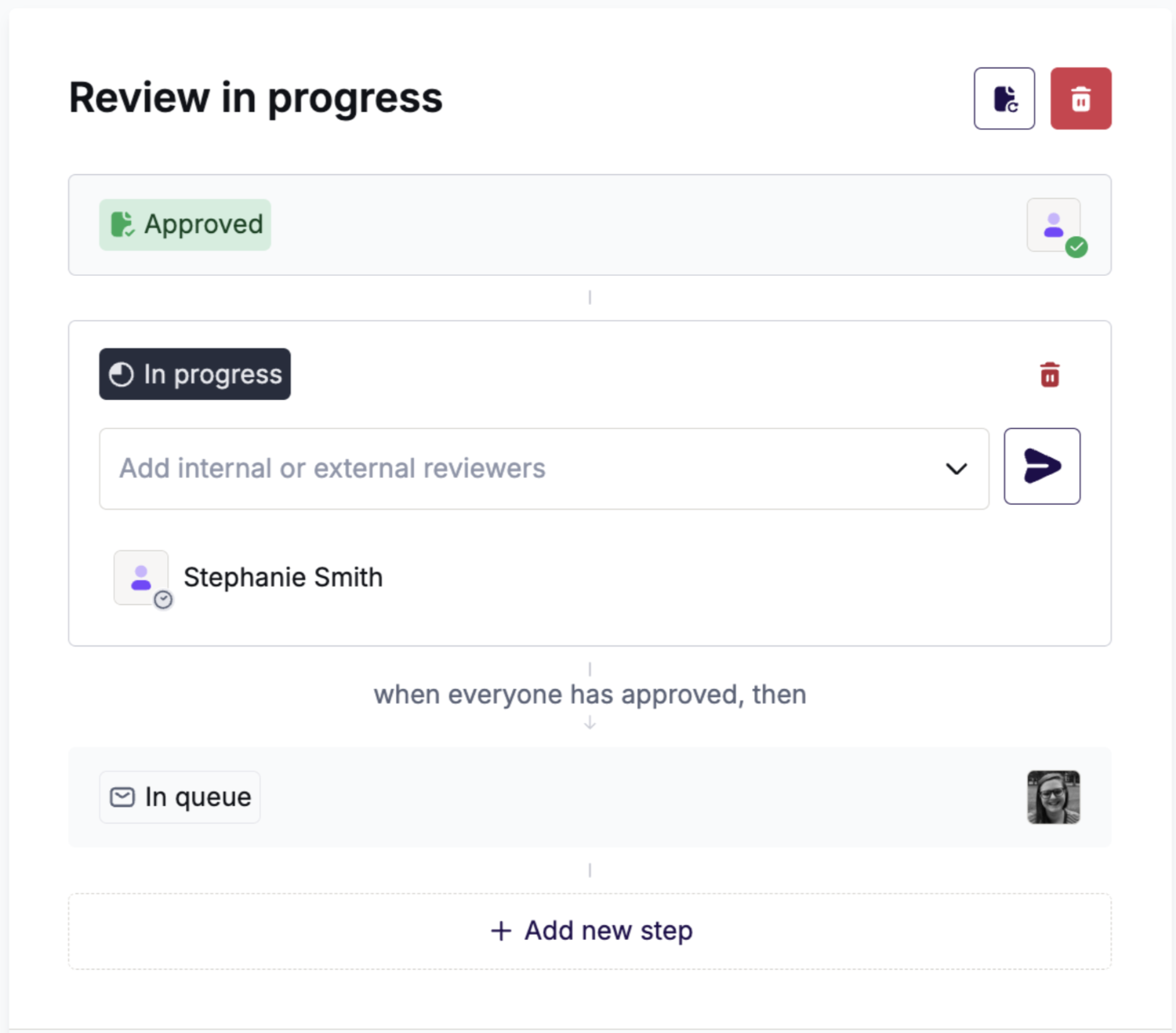
Once all steps are complete, each step shows an Approved label. You can no longer add or modify steps. Use the icon in the upper right to Start a new review.
Editing permissions
During an active approval with editing restrictions enabled, only reviewers can make edits. Editing permissions depend on the current step and its status. For details, see Approval Management.
Reviewers can edit the design while their step is pending. After a step is approved, those reviewers cannot edit the design and will see the builder blocked. Any edits made after approval return the design to draft. This also cancels the approval flow. All reviewers receive a notification, and the cancellation is recorded in the approval history.
Once all steps are complete, the design is fully locked. No one can edit it.
Additional notes
- Each reviewer can only appear in one step per workflow. The same applies to Approval Groups.
- The person who started the review receives an in-app notification for each approval. These notifications prompt you to check the review status.
- The "Awaiting your review" filter only shows active review requests. Designs in a queued step do not appear in this filter.
If you have any questions, feel free to contact us.
Comments
0 comments
Please sign in to leave a comment.