Using Metadata and Analytics in Pages

Beefree App is now RGE Studio!
The email design suite you already know and love just leveled up. We’re working hard to update our help center, but you still may see some references to the old product name.
This article applies to the Page builder in all plans. However, some features may be limited or unavailable on the Starter plan.
Overview
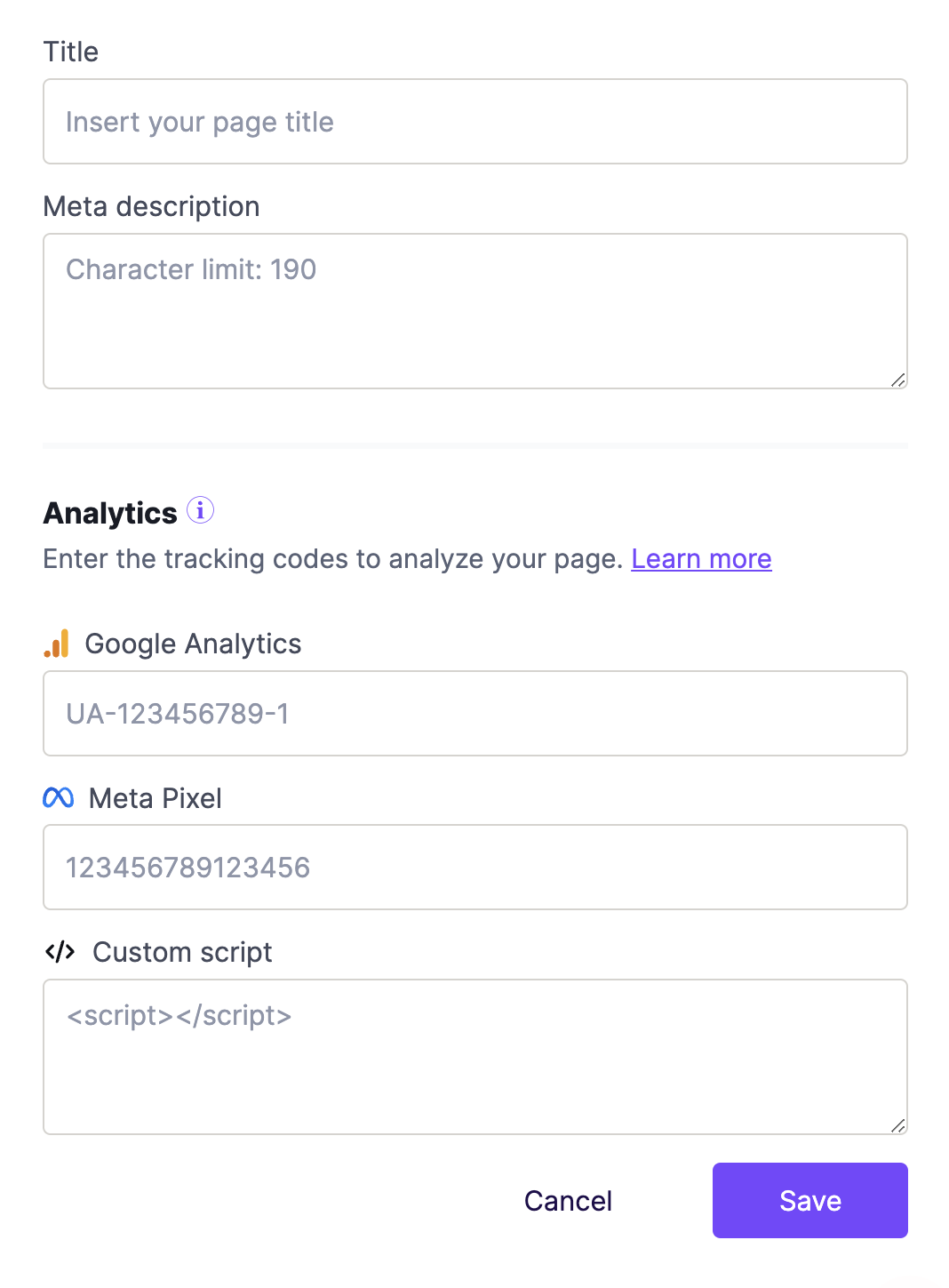
The Settings and Analytics section of Page details provides the following options:
- Metadata, such as title and description
- Tracking codes for Google Analytics or Meta Pixel
- Custom script for tracking
Metadata
This option allows you to set a title and description. This information appears when your page shows up in search engine results. Your title also populates at the end of the page URL. You'll see both the title and description in the preview if you share the page on social media.
If you want to test your metadata, we recommend using a tool such as metatags.io.
Analytics
This feature is available in paid plans.
RGE Studio offers three options for landing page analytics. RGE Studio does not record analytics for your page itself, so use one of these options to connect an external tracking tool. This lets external analytics tools track traffic on your RGE Studio page.
Before you use this option, make sure you know which analytics tool you're using. We've created specific fields for popular tracking tools like Google Analytics and Meta. If you use any other tracking tool, use the Custom script option instead.
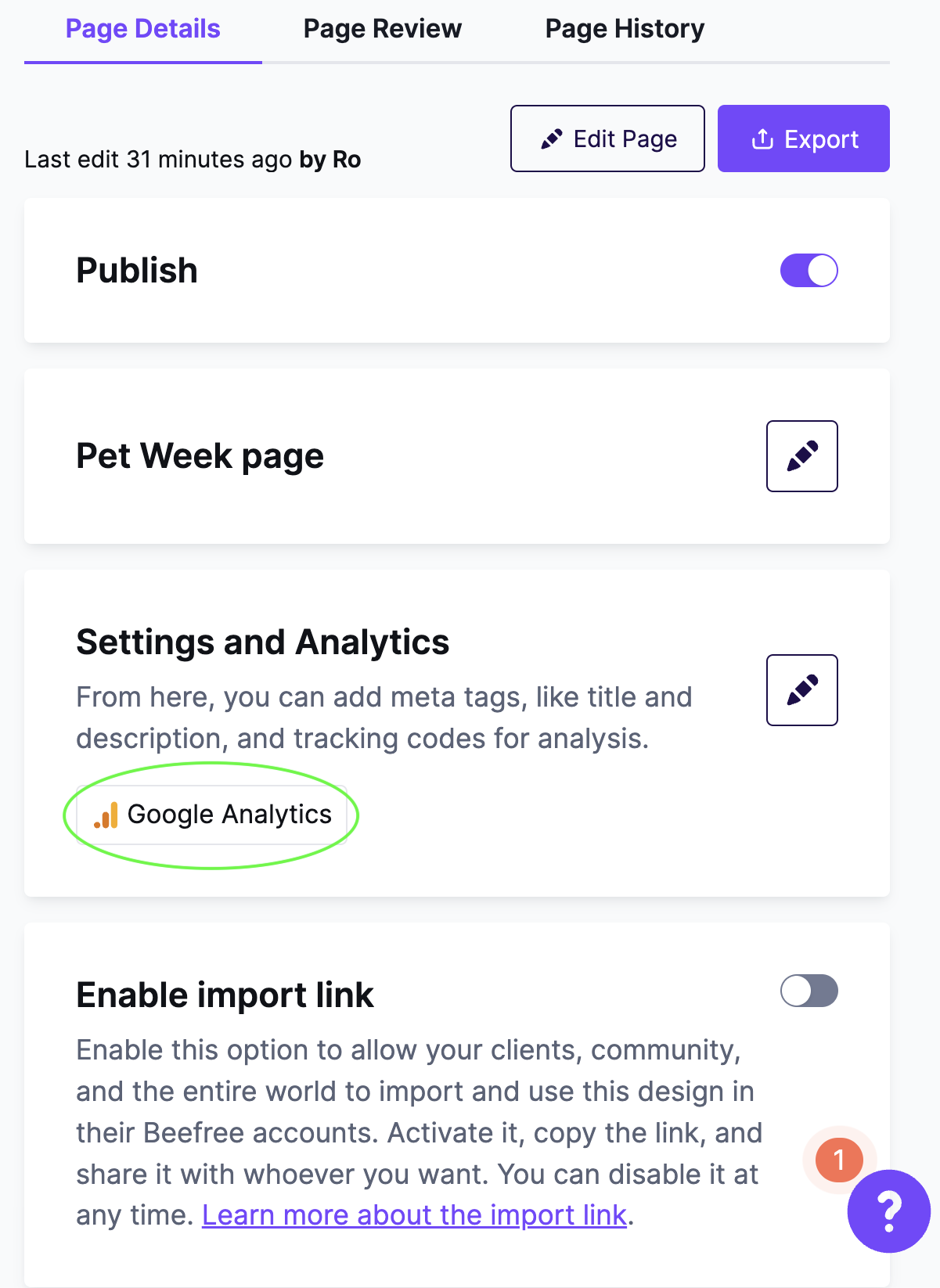
If you add a tracking code to your page, an icon appears in the details to confirm it. The tracking code is inserted directly into the HTML for your landing page.
Google Analytics
Copy and paste your Google Analytics tracking ID into the field and save. We'll insert the tracking code immediately after the tag in your landing page's HTML.
To locate your tracking code, use these resources from Google:
Meta Pixel
Copy and paste your Meta Pixel tracking ID into the appropriate field and save. We'll insert the tracking code immediately after the <head> tag in your landing page's HTML.
RGE Studio only supports the original Meta Pixel. You cannot use the Conversions API with RGE Studio.
To locate your Meta Pixel tracking code, use this resource from Meta: Meta Pixel setup help.
Custom Script
If you use a different tracking service, you can still use this feature. First, find the tracking script provided by your analytics platform. Copy and paste the code into the Custom script field.
RGE Studio keeps your syntax exactly as entered in this field, but checks it to ensure it's valid. You must have both an opening and closing <script> tag in this field to save the custom script.
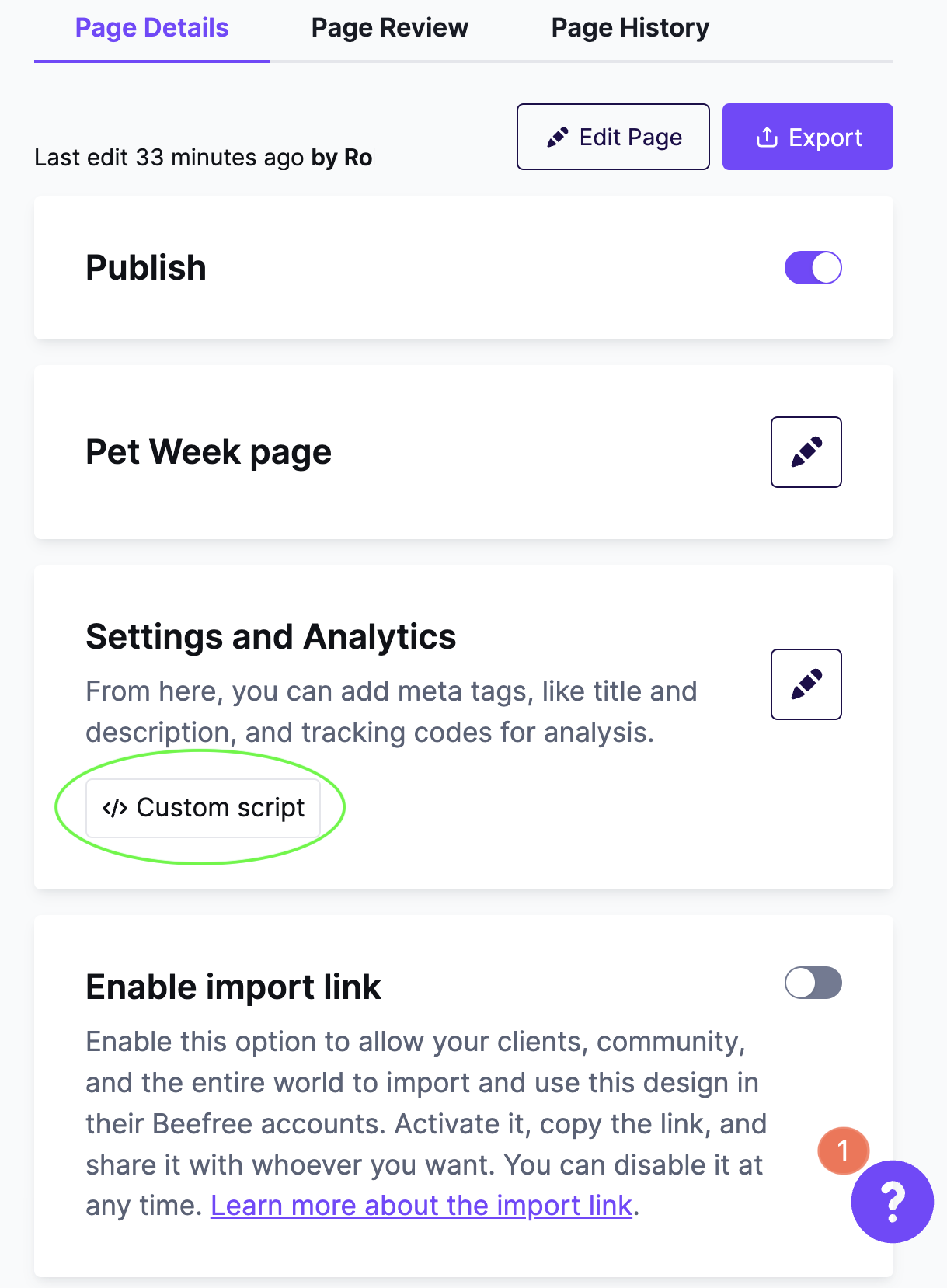
We'll insert your custom script at the bottom of the HTML immediately before the </body> tag. Please remove any comments from the Custom script field.
If you have any questions, feel free to contact us.
Comments
0 comments
Please sign in to leave a comment.