Smart Check

Beefree App is now RGE Studio!
The email design suite you already know and love just leveled up. We’re working hard to update our help center, but you still may see some references to the old product name.
This article applies to the Business and Enterprise plans.
What is Smart Check?
Smart Check is your proactive quality assurance tool for designing digital content. It's integrated into RGE Studio's email and landing page builder (formerly known as Beefree). It automatically scans your designs for common issues that could impact email and page performance, accessibility, and the overall user experience.
Benefits of Smart Check
A few of the benefits of using Smart Check within RGE Studio are:
- Accessibility compliance
- Save time: Skip the manual checks. Smart Check identifies potential issues for you.
- Improve email quality: Create polished, optimized, and accessible designs easily.
- Gain peace of mind: Follow email best practices to ensure your campaigns perform at their best.
Prerequisites
- Plan type: Smart Check is available on Business and Enterprise plans.
-
User Role type:
- You can view and fix errors if you're an Owner, Admin, Manager, Editor, or Contributor.
- You can only view errors (not fix them) if you're a Viewer or External Reviewer (comments only).
-
Feature restrictions:
- Smart Check works in the primary language of your designs.
How to Use Smart Check
Learn how to use Smart Check in this section.
Accessing Smart Check
Take the following steps to access Smart Check:
- Open your design in the RGE Studio builder.
- Find the Smart Check icon in the top bar and click it to view issues and suggestions.
Below is an example of what the Smart Check icon looks like within the RGE Studio builder.
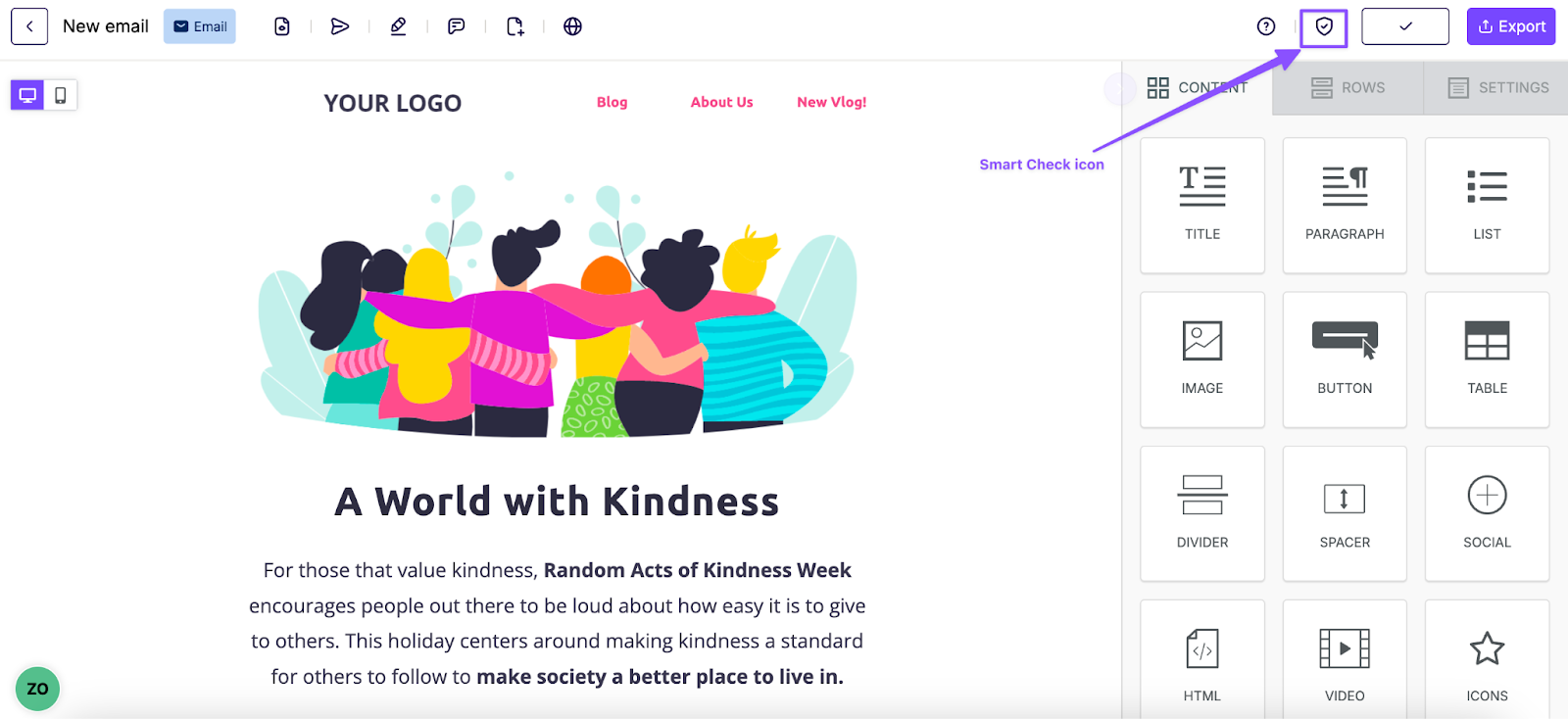
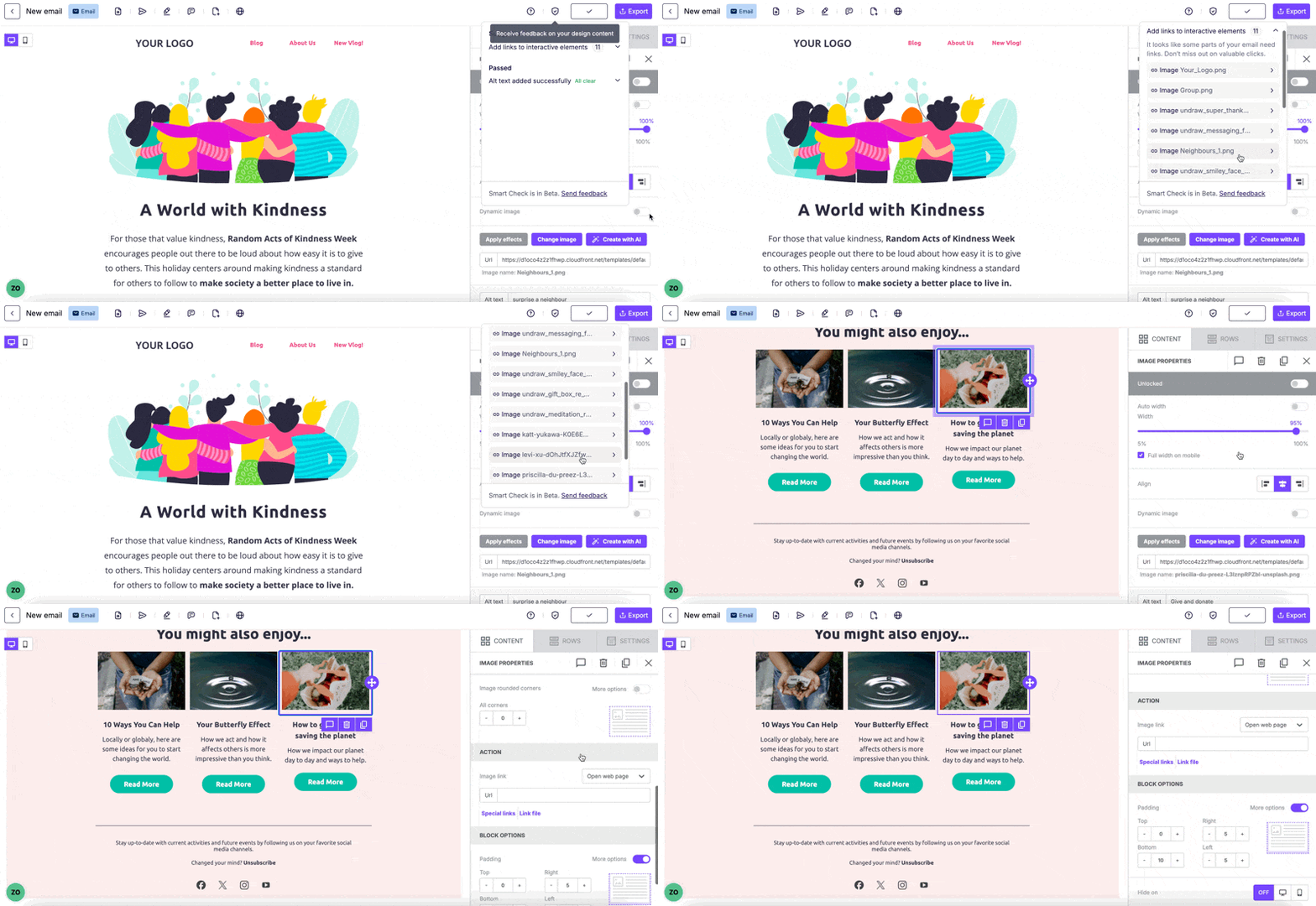
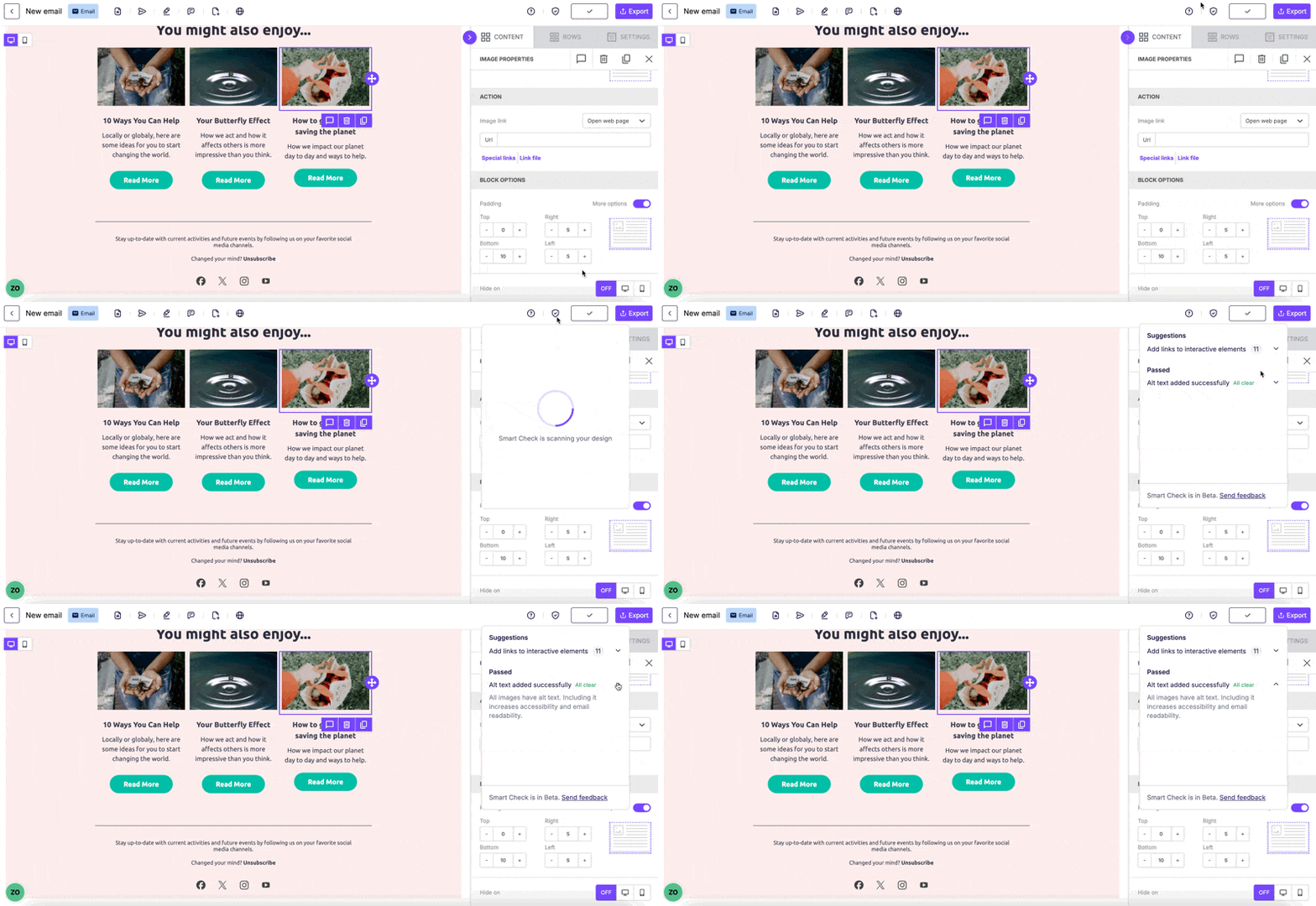
When you click on the Smart Check icon, you will see the information found by the check. This includes a list of both Warnings and Suggestions, as well as a list of elements that passed the check.
At the top of the Smart Check modal, you will see the number of warnings and suggestions related to the interactive element links in your design. Interactive elements in a RGE Studio design include buttons, images, menus, social content blocks, icons, stickers, and GIFs. When clicking this information, the Link Management section will open.
You can scroll through the list of Warnings and Suggestions. If you hover over any of them, it will redirect you to the related section. This way, you can apply the suggested change and resolve the notification.
You can also view all the elements that passed the check in the Passed section.
Settings
You can access the Smart Check Settings directly from the upper-right corner of the Smart Check modal. Note that all checks are turned on by default. Users can disable any of the Smart Check warnings or suggestions in this menu.
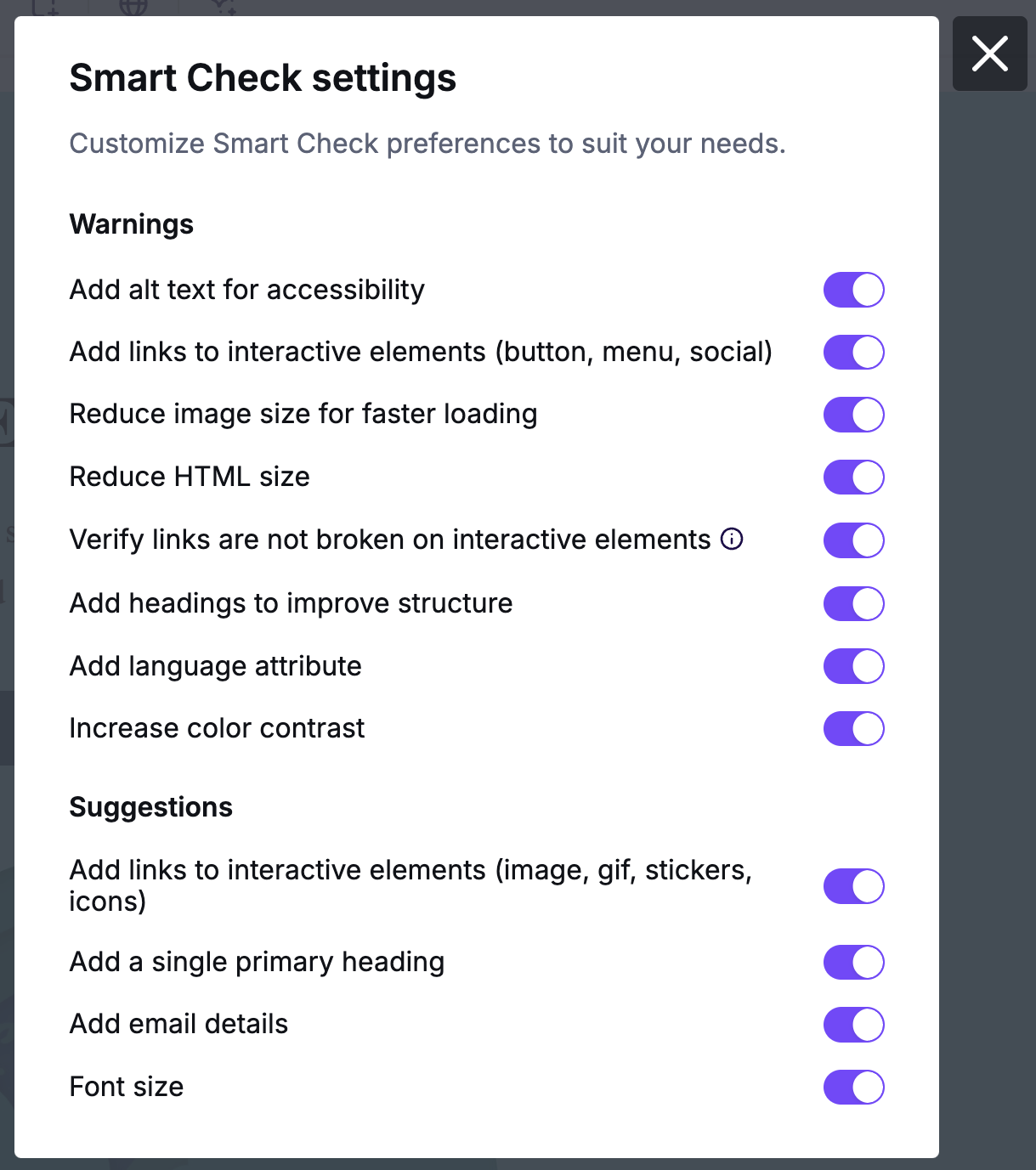
The settings are specific to the user. These settings are also specific to the type of design you're working on. They can change depending on whether you are working on an email, a page, a template, or a saved row. If you modify settings in an email, for example, the settings apply to all RGE Studio emails.
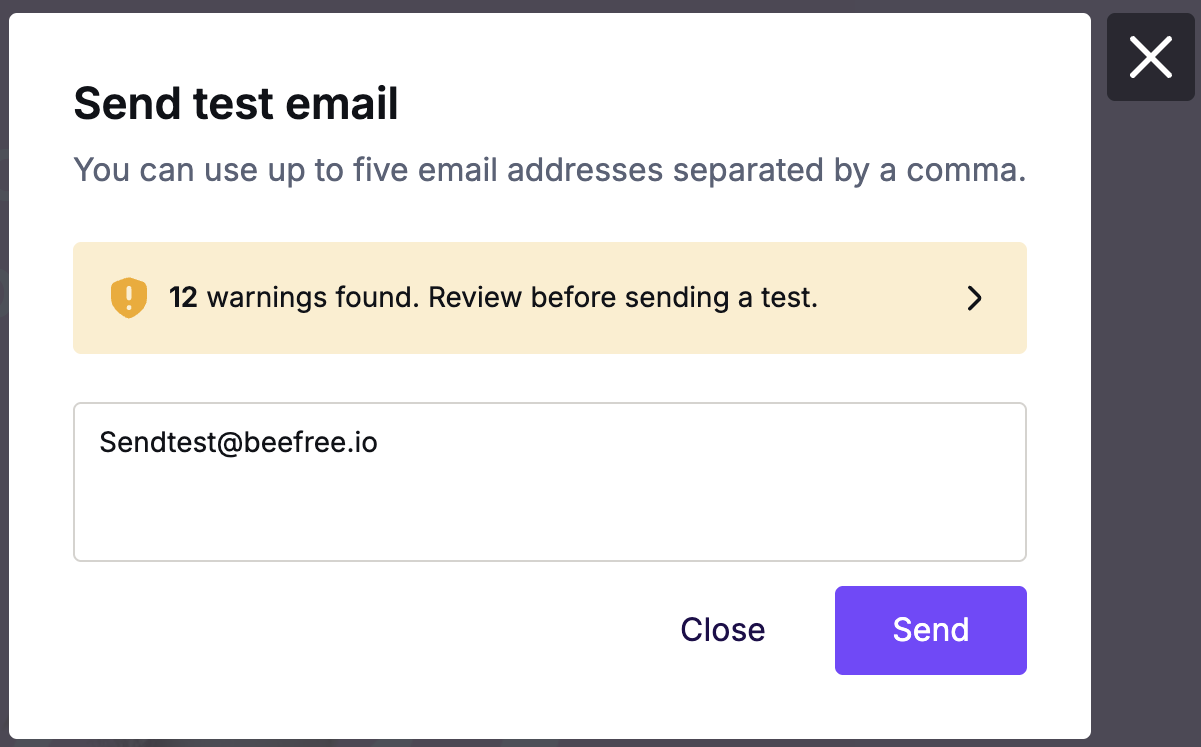
You can also see warnings from Smart Check in the following areas:
- The export section
- In the send test modal
- When you ask for a review
Warnings and Suggestions
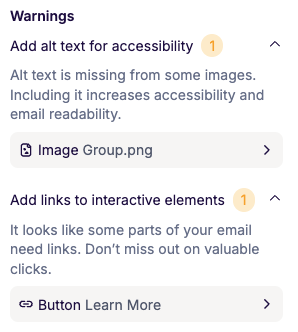
Smart Check performs different types of checks on your design. These checks can result in Warnings or Suggestions.
A Warning occurs when a critical issue needs to be addressed prior to exporting your design.
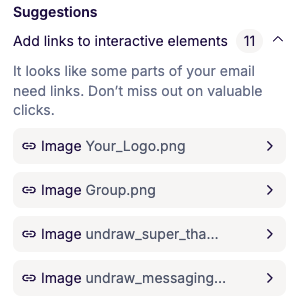
A Suggestion occurs when a non-critical issue should be addressed before export.
Types of Checks
The following tables outline the various types of checks that Smart Check performs. Each table indicates whether the check can result in a Warning or a Suggestion.
Accessibility
Smart Check performs several different types of accessibility checks based on AA accessibility standards. The following table lists all the checks that Smart Check performs along with their corresponding Warnings and Suggestions.
| Elements Checked | Related Warnings | Related Suggestions |
|
|
|
Upon exporting an email, Smart Check will also insert the subject within the <title> tags in the HTML output.
Link Management
The following table lists the checks that Smart Check performs on interactive element links and their corresponding Warnings and Suggestions.
| Elements Checked | Related Warnings | Related Suggestions |
|
All interactive elements: buttons, images, menus, social icons, icons, stickers, and GIFs. Other elements: titles, paragraphs, lists, and tables. |
|
|
*Smart Check now prompts users to verify the URLs without HTTP or HTTPS protocols. These URLs are aggregated within the All section under the label Not monitored.
We've created an allow list so social media links always pass the Smart Check. This includes links for X/Twitter, LinkedIn, Instagram, and Facebook. These platforms respond to our automated link checks in a way that results in an error, even for valid links. We recommend double-checking your social links.
Image Weight
The following table lists the image weight checks that Smart Check performs and their corresponding Warnings and Suggestions.
| Elements Checked | Related Warnings | Related Suggestions |
| Images, Icons, Stickers, GIFs, and Social Icons |
Smart Check issues a warning when an image exceeds the following weight limits:
The Smart Check receives the "All Clear" status when you solve the warnings. |
Suggestions are not applicable. |
Design Details
The following table lists the subject and preheader checks that Smart Check performs and their corresponding Warnings and Suggestions.
| Elements Checked | Related Warnings | Related Suggestions |
| Subject and Preheader Fields | Warnings are not applicable. | Suggestions will appear when either field is left empty. By clicking one or the other, you'll be able to fill out each field. |
HTML Weight
The following table lists the HTML weight checks that Smart Check performs and their corresponding Warnings and Suggestions.
| Elements Checked | Related Warnings | Related Suggestions |
| The email HTML weight. This does not include Pages designs or templates | Smart Check evaluates your email's total HTML weight to ensure it stays within the recommended limits and prevents issues like Gmail clipping. It will always inform you of your email's HTML weight, even if it meets the recommended guidelines. If your email's HTML exceeds 80 KB, Smart Check displays a warning, highlightning the exact size of your current HTML. You can click on the provided Learn more link for additional best practices. |
Suggestions are not applicable. |
Important Considerations
This section outlines important considerations to keep in mind when using Smart Check.
Synced Rows
When using Synced Rows and Smart Check, consider the following:
- Smart Check refreshes and updates when you edit Synced Rows and reopen it.
- Bulk changes like alt text updates won’t apply to synced rows unless you edit them directly in the Synced Row builder.
Feature Limitations
Consider the following feature limitations:
- Smart Check isn’t compatible with multilingual design alternatives.
- It doesn’t validate form links in landing pages.
- External Reviewers and Viewers will see a tooltip saying they can’t access the Subject and Preheader modal, as they don’t have permission to edit these fields. However, they can leave a comment to notify others if these fields are missing.
- For color contrast checks, Smart Check will test against the background set on the content, column, and row levels. It cannot check the color contrast ratio if a background image is used.
Best Practices
Consider the following best practice when using Smart Check:
- While linking images is optional, Smart Check flags missing links to raise your awareness.
Smart Check simplifies your email and page optimization. It provides actionable feedback on common issues, ensuring your campaigns are accessible, high-performing, and visually polished. With its time-saving automation, you can focus on creativity and strategy while letting Smart Check handle the micro-level details.
If you have any questions, feel free to contact us.
Comments
3 comments
Thanks, beefree! Another great feature of the platform. So happy to see this APP is getting better and better for years. The alt text is one of easy missing elements.
However, like to point out one thing which is not related with smart check, the one of my wishing list submitted years ago: non-wrap on copy (for special brand name required stay in one line all the time). Hope this function can be added in this wonderful platform.
Hi Shi! Thanks for your comment. We are glad that you appreciate our new feature! About the Alt text, it's something we've already implemented (see this article), but maybe you are referring to something different? I also opened a ticket on your behalf to track your request so we can forward it to the Product Team. Cheers.
This is a very useful feature, tested it yesterday and found a missing link on a button that our user forgot to assign. It would be nice if there was an option to automatically run Smart Check whenever a design was saved or exported vs. manually having to remember to do it.
Please sign in to leave a comment.