Working with viewers

Beefree App is now RGE Studio!
The email design suite you already know and love just leveled up. We’re working hard to update our help center, but you still may see some references to the old product name.
This article applies to paid plans.
Overview
Do you need to give someone view-only access to your RGE Studio account? You can invite them as a viewer. Viewers are useful when you need approval or feedback from a client or manager.
Viewers can see designs and use a few collaboration features. Account owners and admins manage viewers. Professional and Business provide a set number of viewers. In Enterprise accounts, you can customize the number of viewers.
Viewer permissions
In RGE Studio, viewers can:
- comment
- send a test email
- open the preview in a browser
- see the design history of emails and pages
- access and edit the My profile section
Viewers have direct access to these features only. RGE Studio looks different for viewers than for other users. The sections below show what viewers see.
Find emails and pages
Viewers land on the Projects page when they log in. In accounts with multiple workspaces, viewers land on the All workspaces page. Both pages list the project folders and designs the viewer can access.
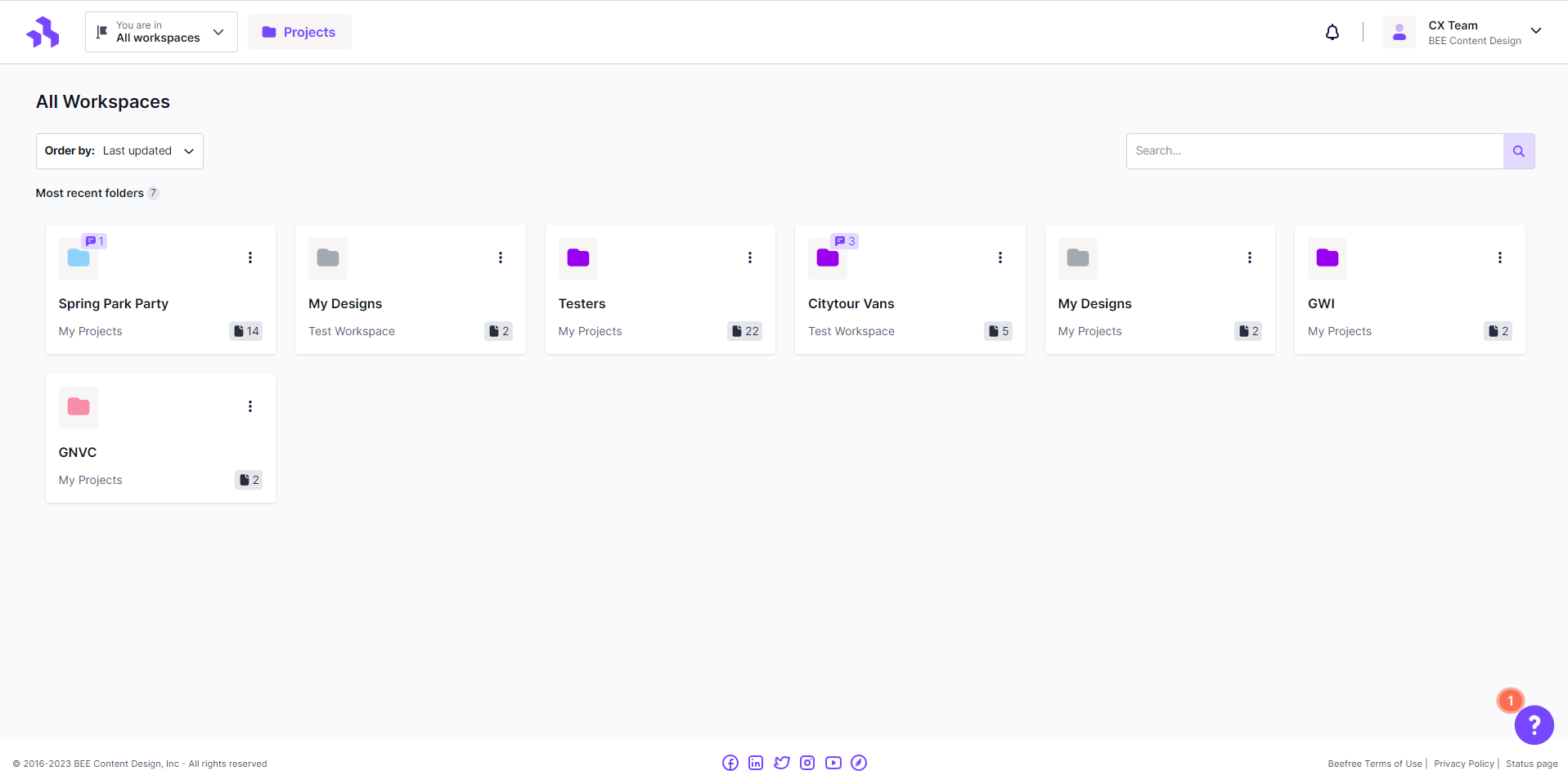
Viewers can use the Order by dropdown or search to find designs. When they hover over a project or design, they see the option to Open or View details. Additional options, such as send test, are available using the icon in the top right.
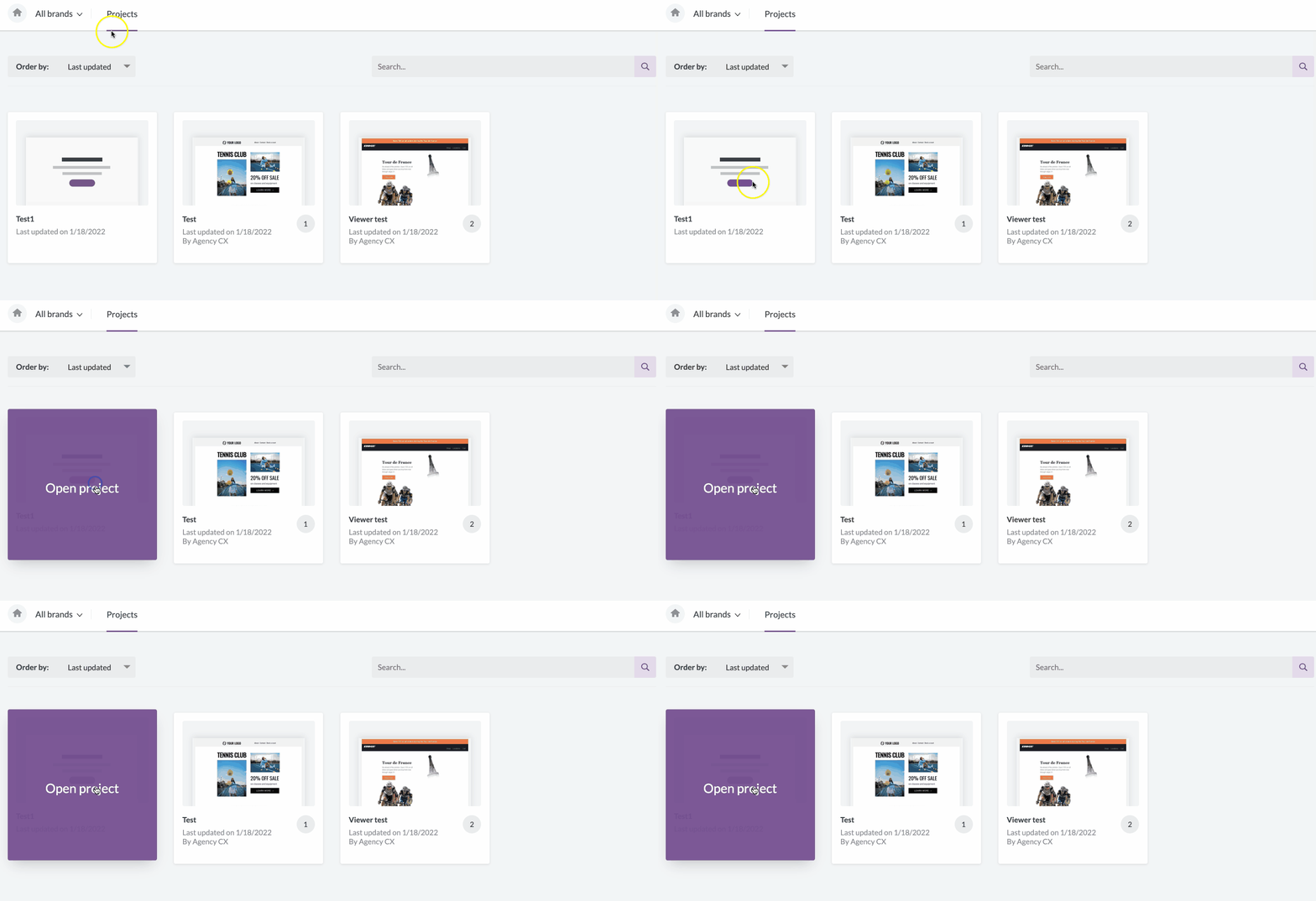
Projects and Activity are the only tabs available to viewers. The Library and Settings tabs are hidden for viewers.
Inside the builder
Opening a design takes viewers to a view-only version of the builder. This version hides the sidebar. The builder stage and all design and content settings are read-only.
Viewers can click a content block to open the commenting sidebar. Commenting works the same way for viewers as for other users.
Viewers can also use the options in the banner above the builder:
- preview the email on desktop and mobile devices
- send a test email from inside the builder (emails only)
- show or hide structure
- view all comments
Viewers can also switch between desktop and mobile views in the upper-left corner.
Details page
Viewers can open the Details page from the design actions or by exiting a design. Most options on this page are grayed out for viewers. For a full overview of this page, see Using the Email Details page or Using the Page Details page.
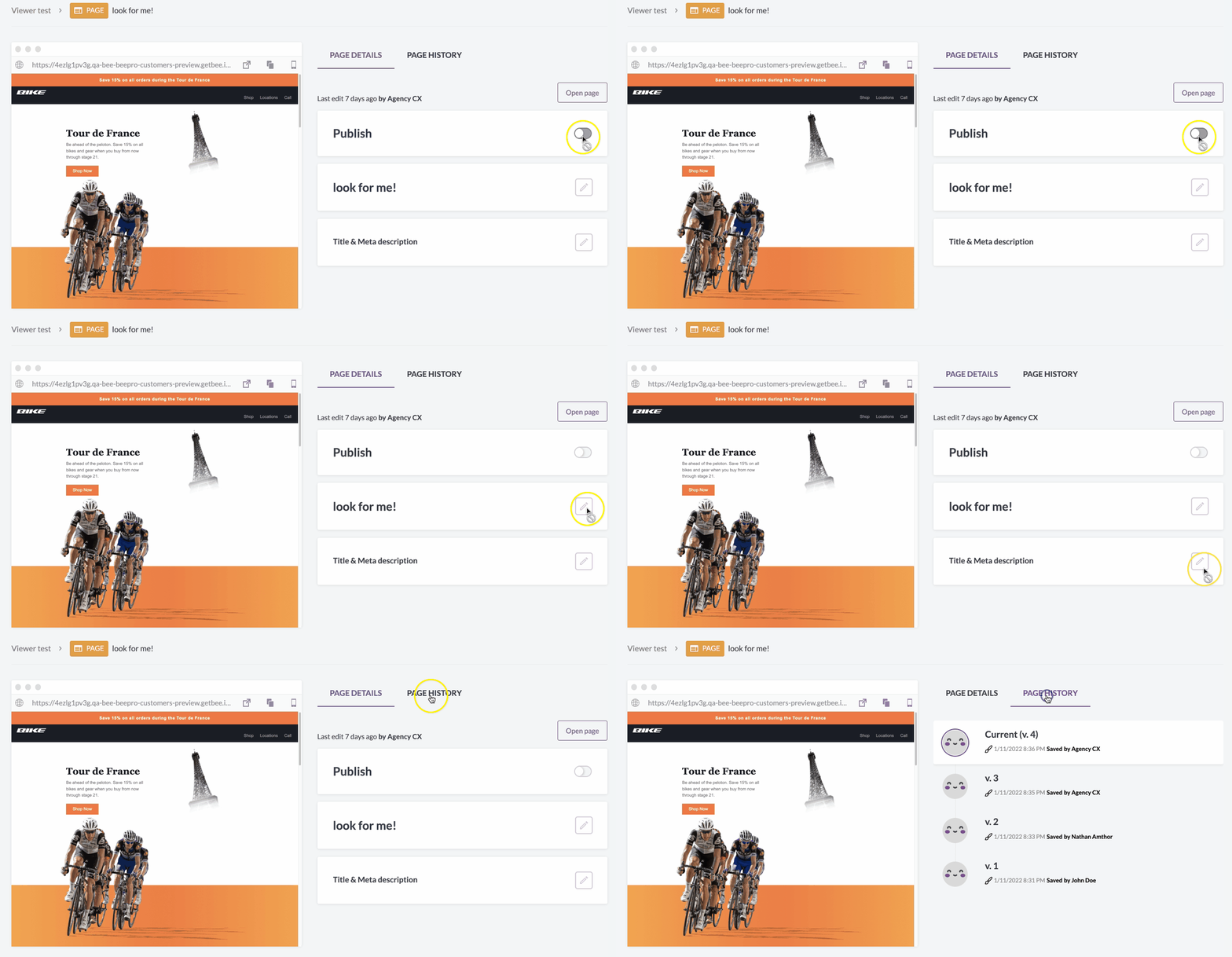
Viewers can also use the preview options above the design thumbnail:
- Open in a new tab
- Copy URL
- Open on your smartphone
For emails, viewers can also send a test from this page.
Inviting viewers
You must be an owner or admin to invite viewers. You can invite viewers from the Manage users page or from Commenting.
From the Manage users page
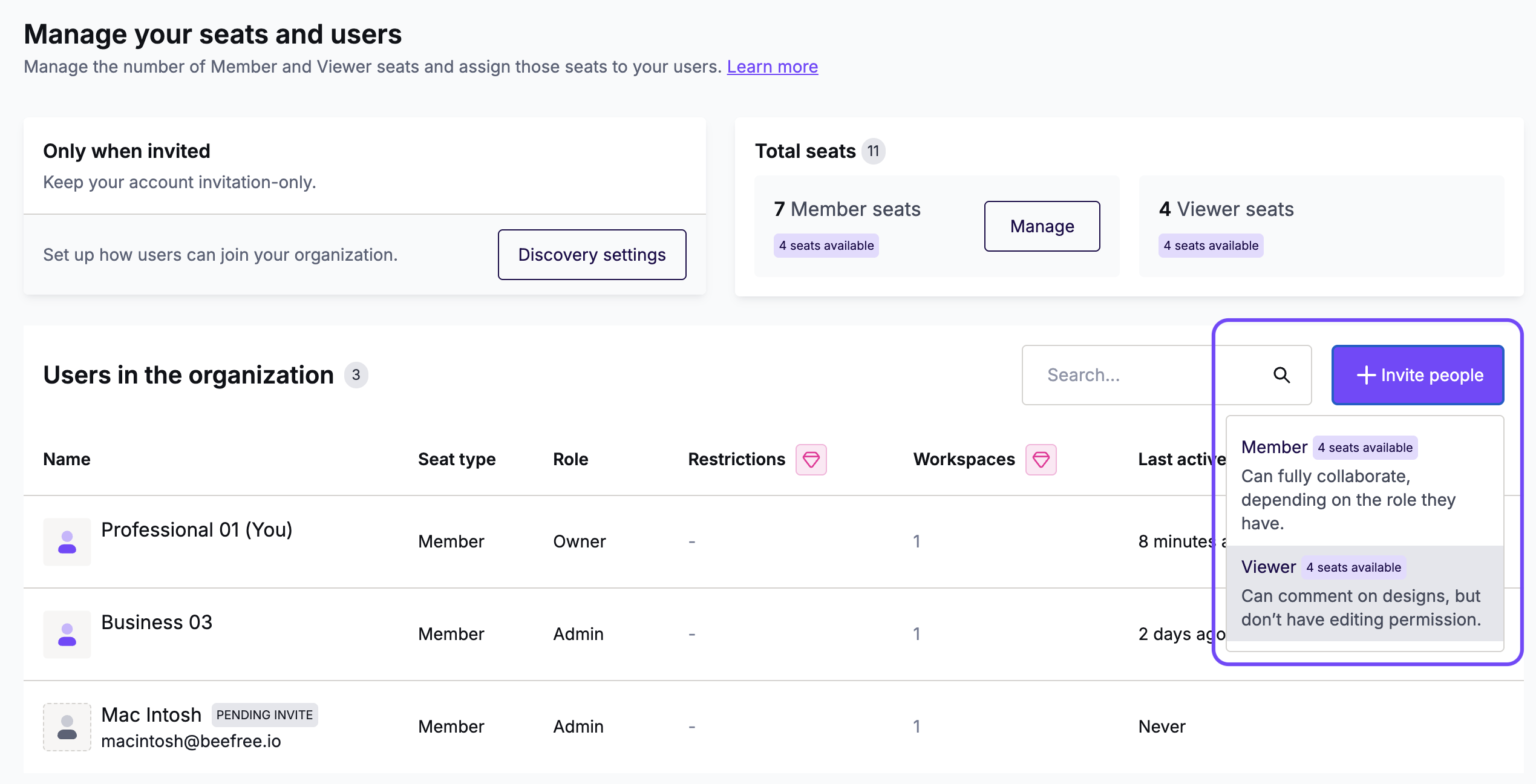
The Manage users page shows how many viewers you have available. Click Invite people to open a dropdown. Select Viewer.
On the invite form, enter the viewer's name and email address. In multi-workspace accounts, you can also select the workspaces they can access.
The viewer role is fixed for viewers. To give a viewer a different role, upgrade them to a member.
Click Invite to send the invitation. The viewer receives an email with a sign-up link. If needed, you can resend the invitation.
From commenting
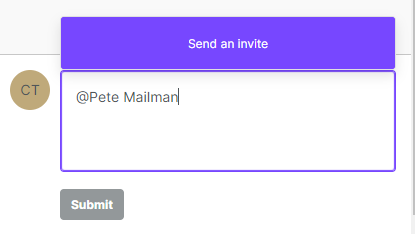
Type the @ symbol in a comment to see a list of available users. Click Send an invite at the bottom of the list.
Enter the email address of the viewer you want to invite. Click Verify to continue. Verification fails if the email address already has a pending invitation.
After verification, enter the viewer's first and last name. Click Invite to send the invitation email. In Business and Enterprise accounts, you can also invite the viewer to a new workspace.
Revoking a viewer's access
To revoke a viewer's access, go to the Manage users page. Hover over the viewer's details and click the red icon.
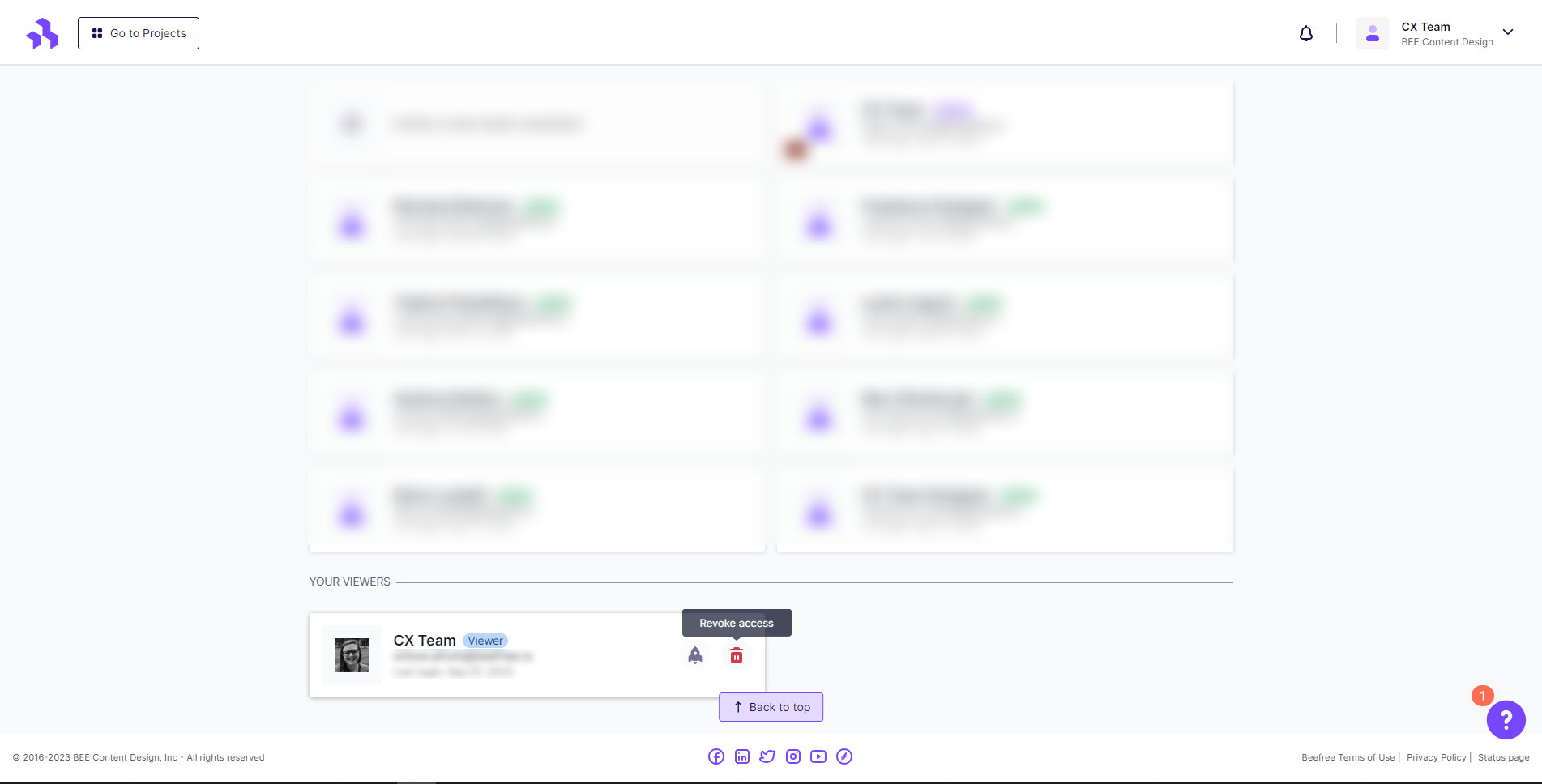
A warning message asks you to confirm. Click Revoke access. The page reloads. You can now use the open viewer spot to invite someone else.
Your plan's number of viewers stays fixed. Viewers are included in your base subscription fee.
Upgrading viewers to members
You can upgrade a viewer to a member (a paid user). On the Manage users page, hover over the viewer's details. Click the Promote icon to upgrade the viewer.
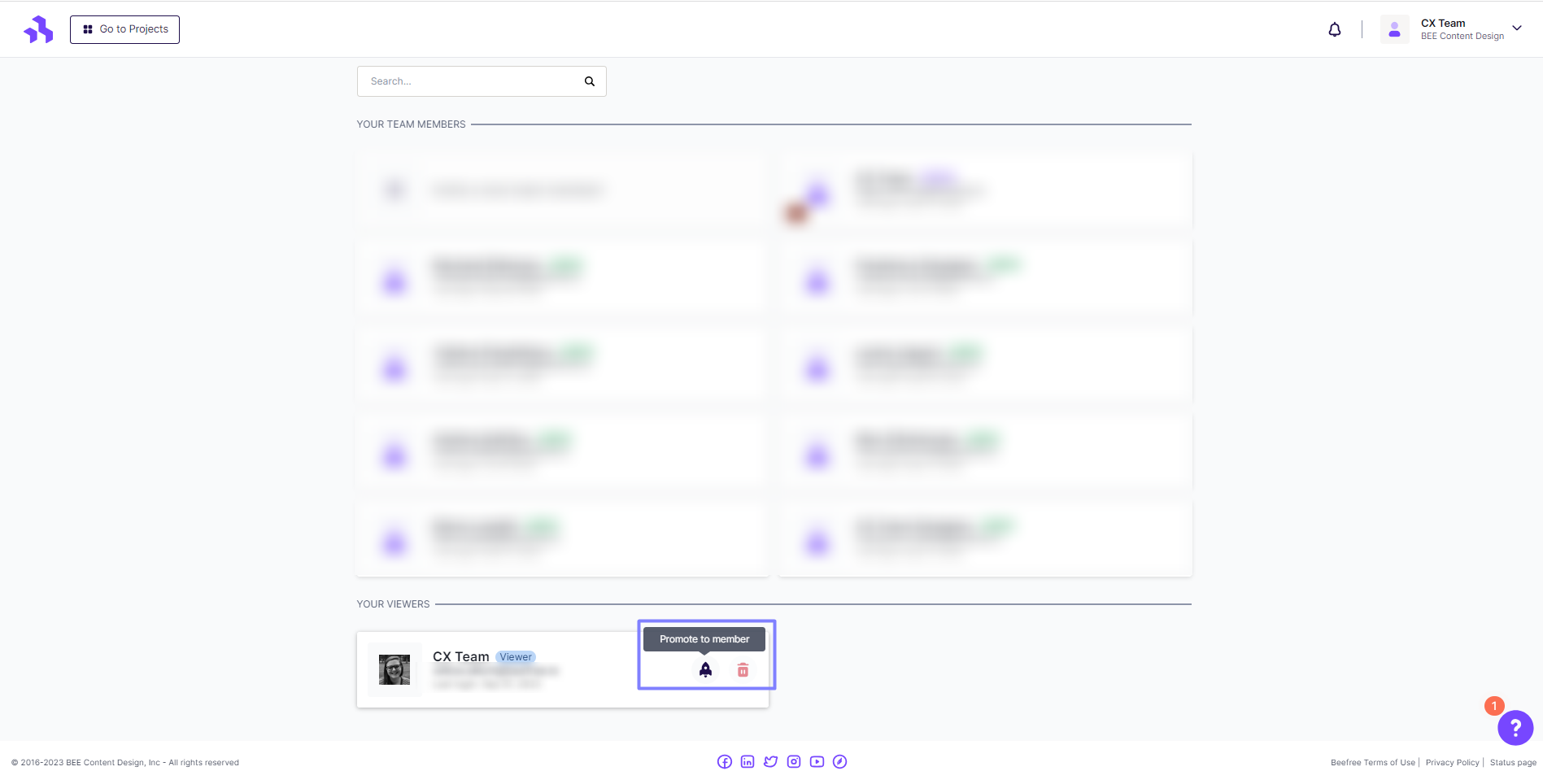
If you have available seats, you can assign a role right away. To learn about each role, see User roles & permissions. If you have no available seats, RGE Studio prompts you to purchase one.
Billing
Viewer seats are included in your base subscription fee. Your plan determines how many viewers are available. You can purchase additional viewers on the Enterprise plan. For more info, see Plans Comparison.
| Plan | Viewer seats |
| Professional | 4 viewers |
| Business | 10 viewers |
| Enterprise | Custom |
If you have any questions, feel free to contact us.
Comments
0 comments
Please sign in to leave a comment.