Export Emails to Marketo

Beefree App is now RGE Studio!
The email design suite you already know and love just leveled up. We’re working hard to update our help center, but you still may see some references to the old product name.
This article applies to the Email builder in all plans.
RGE Studio now offers a Marketo connector, allowing you to easily export email designs from RGE Studio directly to your Marketo Engage account. This integration simplifies the workflow for teams in industries like digital marketing, design, and education who rely on both RGE Studio for design and Marketo for omnichannel campaigns.
The Marketo Engage connector simplifies the process of exporting email templates, eliminating the need for manual HTML downloads and imports. With just a few clicks, you can send emails from RGE Studio to Marketo, enabling faster and more efficient email campaign management.
Continue reading this article to learn more about how to connect Marketo Engage to RGE Studio.
For a quicker integration with Marketo, follow the steps below or the video tutorial.
How to Connect to the Marketo Engage Connector
Marketo Engage Connector Settings
There are prerequisites to complete before linking your RGE Studio account to the connector. First, you have to be an Admin of your Marketo Engage account. You can follow these steps inside Marketo and follow our step-by-step guide in the following video.
- Create an API-only user role: from the Admin area, go to Users & Roles, in the Roles tab, create a new one. Add a name and check the permissions Access API (more information on this article).
- Assign the API user to the role created (first, you have to create an API only user from the Admin area, Users Roles and Users tab.)
- As a last step, create a custom launchpoint using the API-only user.
Once you've completed these steps, you're ready to set up the connector in RGE Studio.
RGE Studio Workspace Settings
Now it's the time to connect your RGE Studio account to Marketo either through your Workspace settings or directly through the email Export options. Follow these steps to connect through your Workspace settings:
- Log in to your RGE Studio account.
- Navigate to your workspace Settings.
- Click the Connectors tab.
- Find the Marketo Engage connector in the list and click Connect.
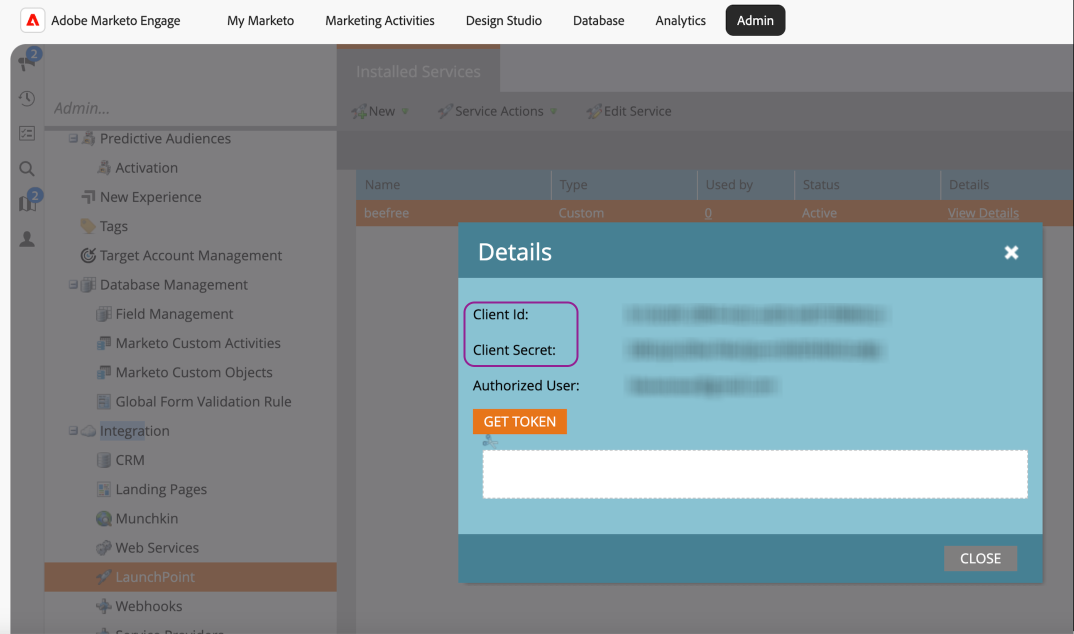
- You will be prompted to enter your Client ID, Client Secret and your subdomain. Once entered, you’ll see a confirmation that the connection was successful.
- Client ID and Client Secret: Alphanumeric codes that authorize RGE Studio to perform the export to your Marketo Engage account.
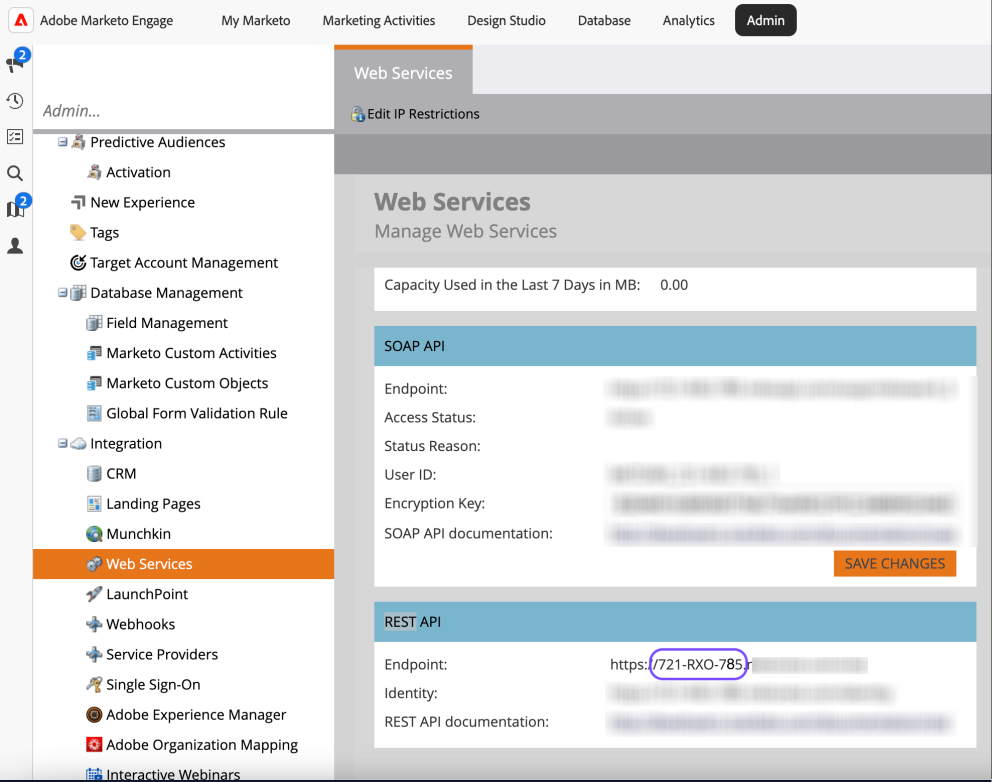
- Subdomain: The address of your Marketo Engage account.
Only users with an Admin role in Marketo Engage can see the Client ID, Client Secret, and the subdomain.
- You can find Client ID and Client Secret in Admin > Integration > LaunchPoint. Select the custom service and click View Details to see them.
- You can find the subdomain in Admin > Integration > Web Services > REST API.
Export Button
You can also connect to Marketo Engage directly from your email design:
- Log in to your RGE Studio account and open the email design you wish to export.
- After making any necessary changes, click Export on the upper-right side of the screen.
- Select Integrations from the popup options.
- Choose the Marketo Engage connector from the list.
- If it’s your first time connecting, you will be prompted to enter your Client ID, Client Secret, and subdomain. After this, a confirmation message will appear, indicating that your RGE Studio account is now connected to Marketo Engage.
After you've successfully connected your Marketo Engage account to your RGE Studio, you can begin exporting your emails to Marketo. The following section provides steps on how to achieve this.
How to Export Emails to Marketo Engage
Once your RGE Studio account is connected to Marketo Engage, exporting your emails is quick and easy:
- Open the email design in RGE Studio that you’d like to export.
- After making and saving any final adjustments, click Export.
- Select Integrations and choose the Marketo Engage connector.
- If applicable, select a Marketo Engage template folder from the dropdown. If you don't select a folder, RGE Studio will export the design to the default Marketo folder.
- Confirm the export by clicking the Create button. You’ll receive a message that the email has been successfully exported to Marketo.
- Click the redirect link in the export modal to access your email in Marketo Engage instantly.
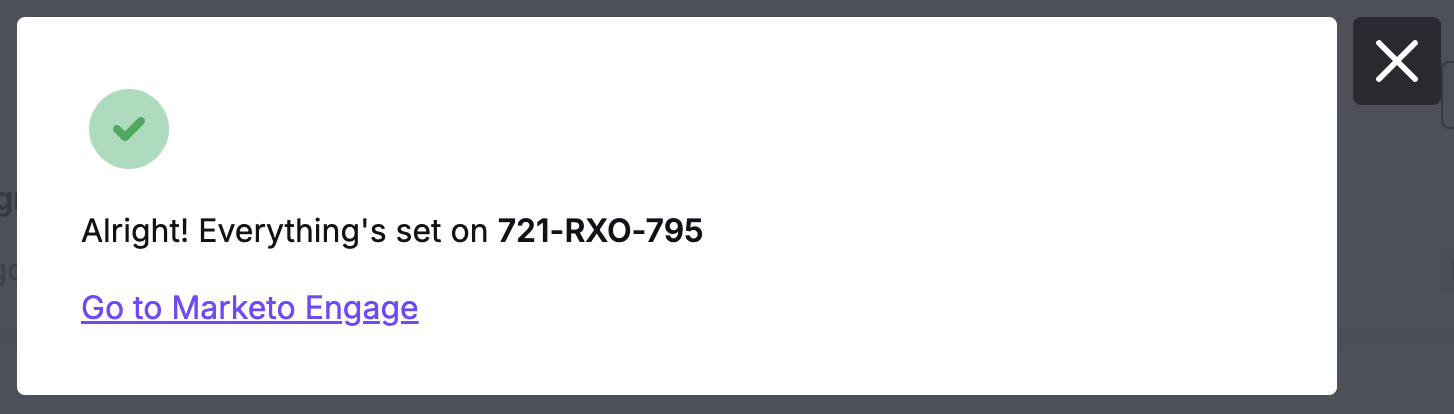
The following image displays the confirmation message to export your email design to Marketo.
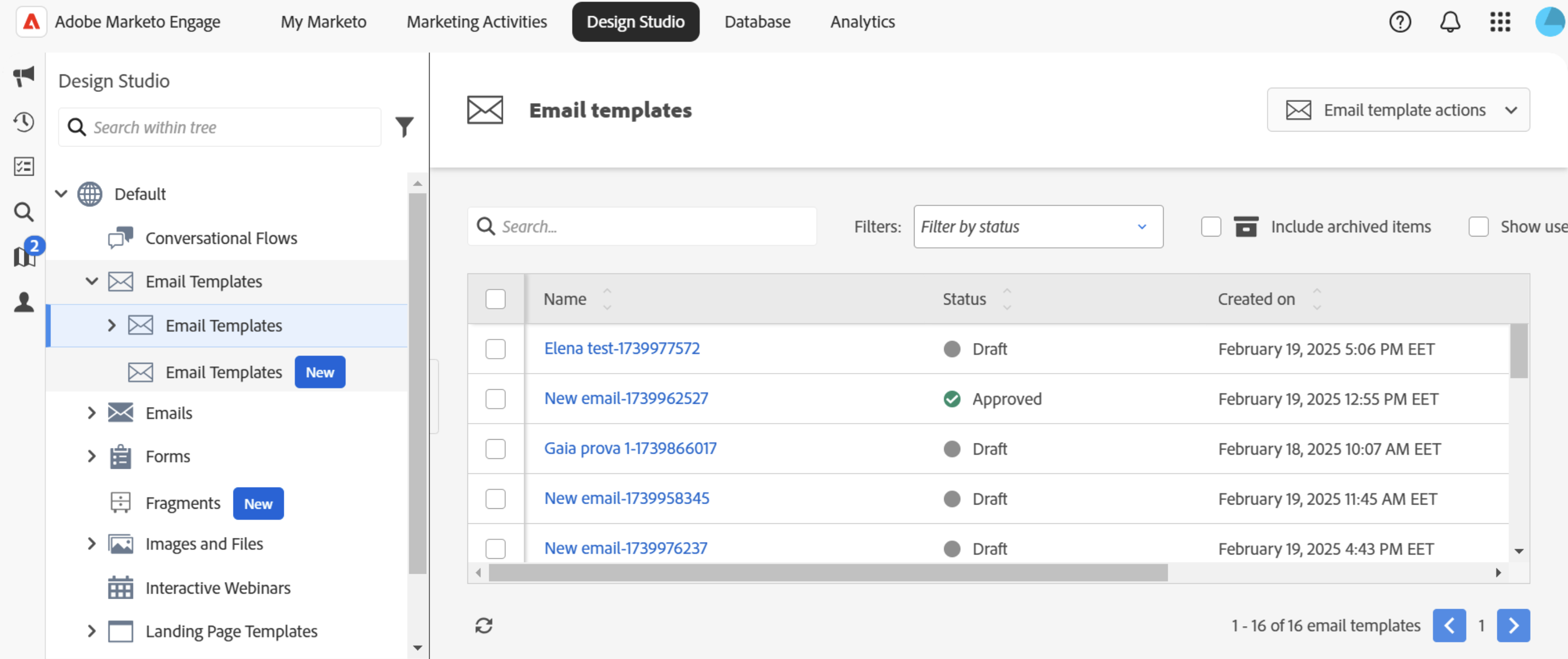
Once you export your email to Marketo Engage, you will be redirected to your design within the Marketo Engage Design Studio, in the Email Templates folder. You can preview your exported design within the Marketo Engage interface.
When exporting an email, you can create a Marketo campaign at the same time as the email template.
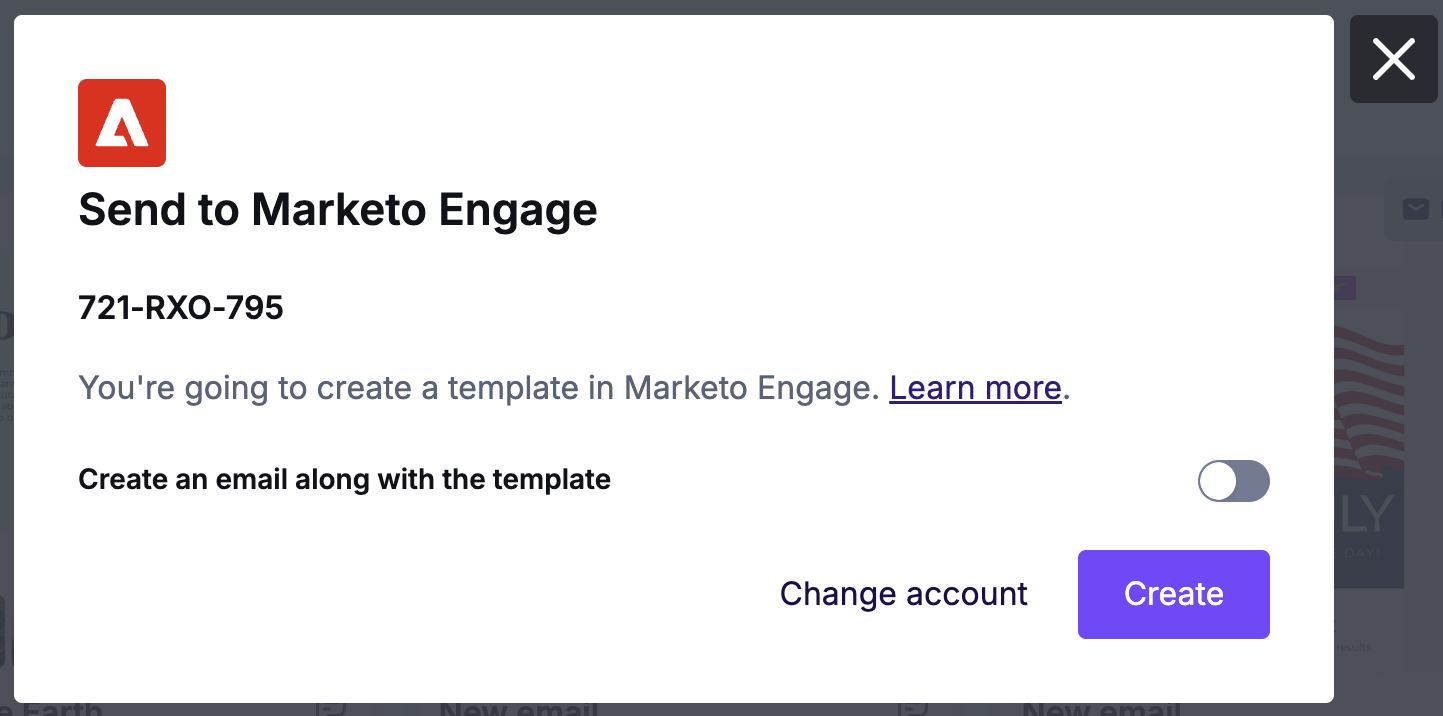
Toggle this option to on so that it is ready to send immediately upon export. When you choose to create a campaign, you are redirected to the Email Overview in the Marketo Design Studio. A version is still exported to your Email Templates folder. This export option will also include any subject set in RGE Studio.
Update Existing Emails
RGE Studio also allows users to update existing email templates in Marketo Engage. Follow these steps to re-export and update an existing email template:
- Open the email design in RGE Studio that you wish to update.
- After making your changes, click Export.
- Select the Update Existing option to overwrite the previous version of the email template in Marketo Engage.
The updated email will retain any changes you made, including HTML and email name.
Revisiting your email template within the RGE Studio allows you to update it as needed over time without the hassle of editing it inside the Marketo Engage HTML code editor. This method of maintaining and updating your email templates provides you with the continued benefit of a no-code approach to email creation. Use this feature to update your email templates quickly and without hard coding your changes.
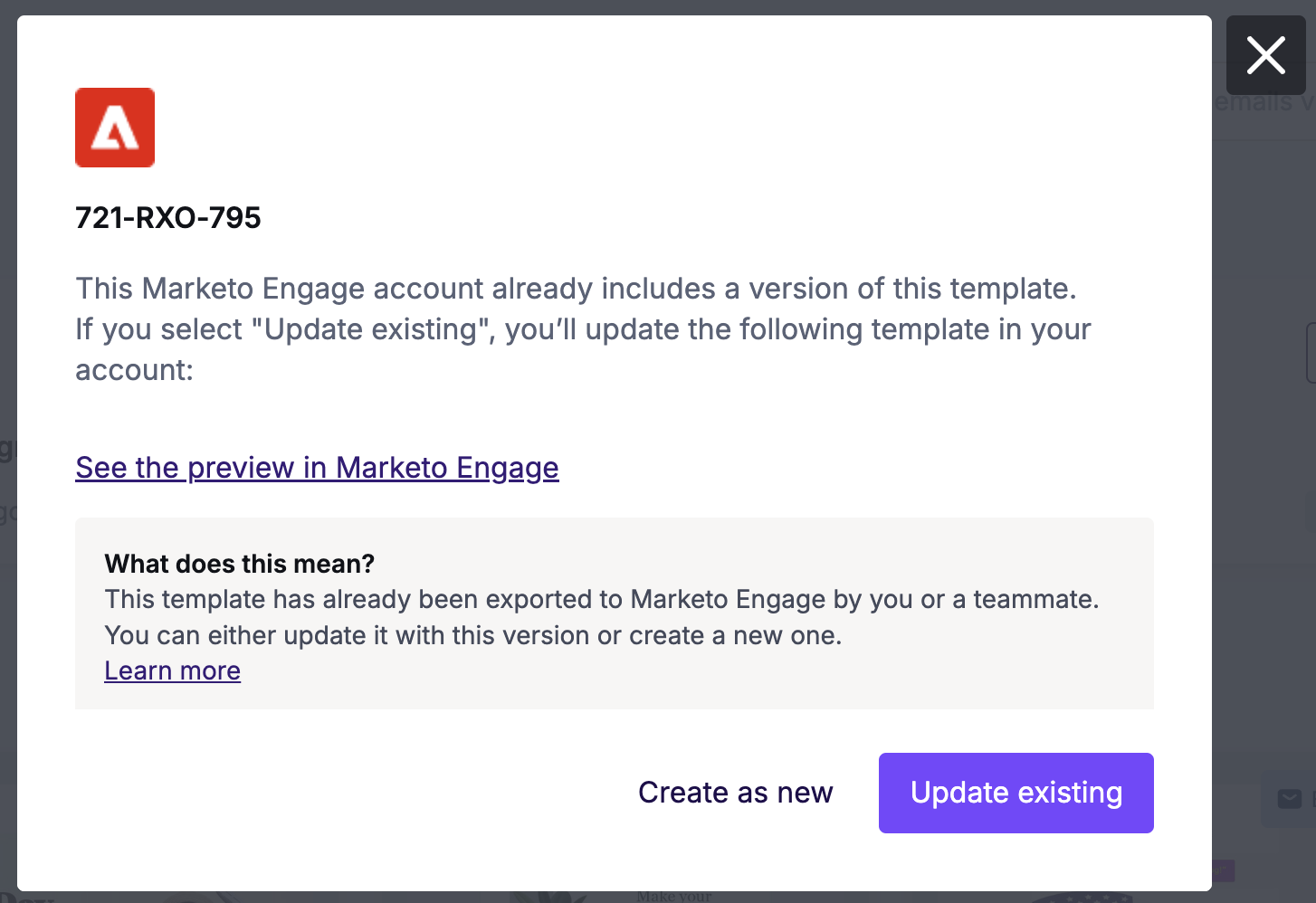
The Update existing option can update both email templates and any emails created with the associated template in Marketo.
Important Considerations
Consider the following when using the Marketo connector:
- To access the Email Preview and Email Editor sections in Marketo Engage, you may need to enable pop-ups in your browser.
- Marketo does not support charset emojis. Including an emoji in your email content would result in an error. To avoid this, RGE Studio replaces unsupported emojis with [missing-emoji]. placeholder. For more information on this behavior, check the Marketo documentation on emojis.
- The email name in RGE Studio is exported with a timestamp. You can edit this information in Marketo.
- We recommend setting a subject before the first export. If you try to add this later through the Update existing option, the subject will not be passed to Marketo.
- The preheader is exported through the HTML code. This is not visible in Marketo.
- If you see duplicate preheader text, you may need to deselect the Preheader box for the email settings inside Marketo.
If you have any questions, feel free to contact us.
Comments
0 comments
Please sign in to leave a comment.