Using Slate with RGE Studio

Beefree App is now RGE Studio!
The email design suite you already know and love just leveled up. We’re working hard to update our help center, but you still may see some references to the old product name.
Level up your emails in Slate
This article applies to the Email builder in all plans.
Are you a higher education institution using Slate to send emails? Now you can use RGE Studio to design compelling emails for your audience. Once your design is complete, you can bring them into Slate with a few clicks!
RGE Studio does not currently have a connector that exports directly into Slate. You can watch the video or follow the steps below to achieve the same result.
RGE Studio is a Silver Partner of Slate CRM.
Exporting your Design
Step 1
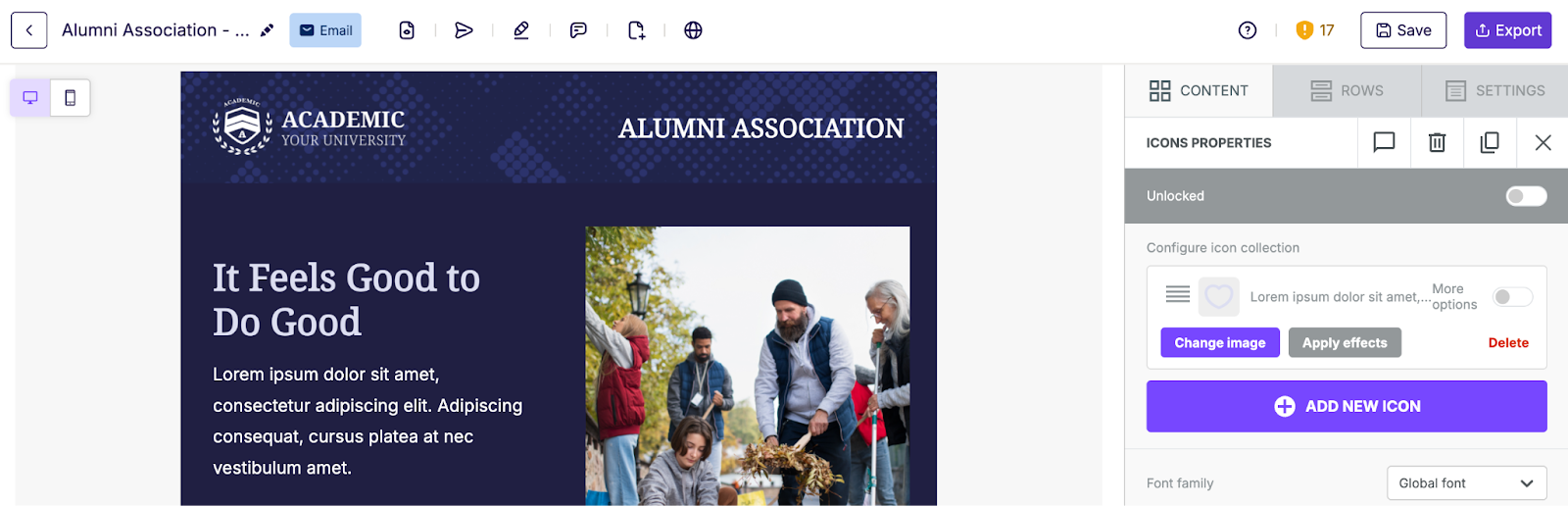
Create your email design.
Step 2
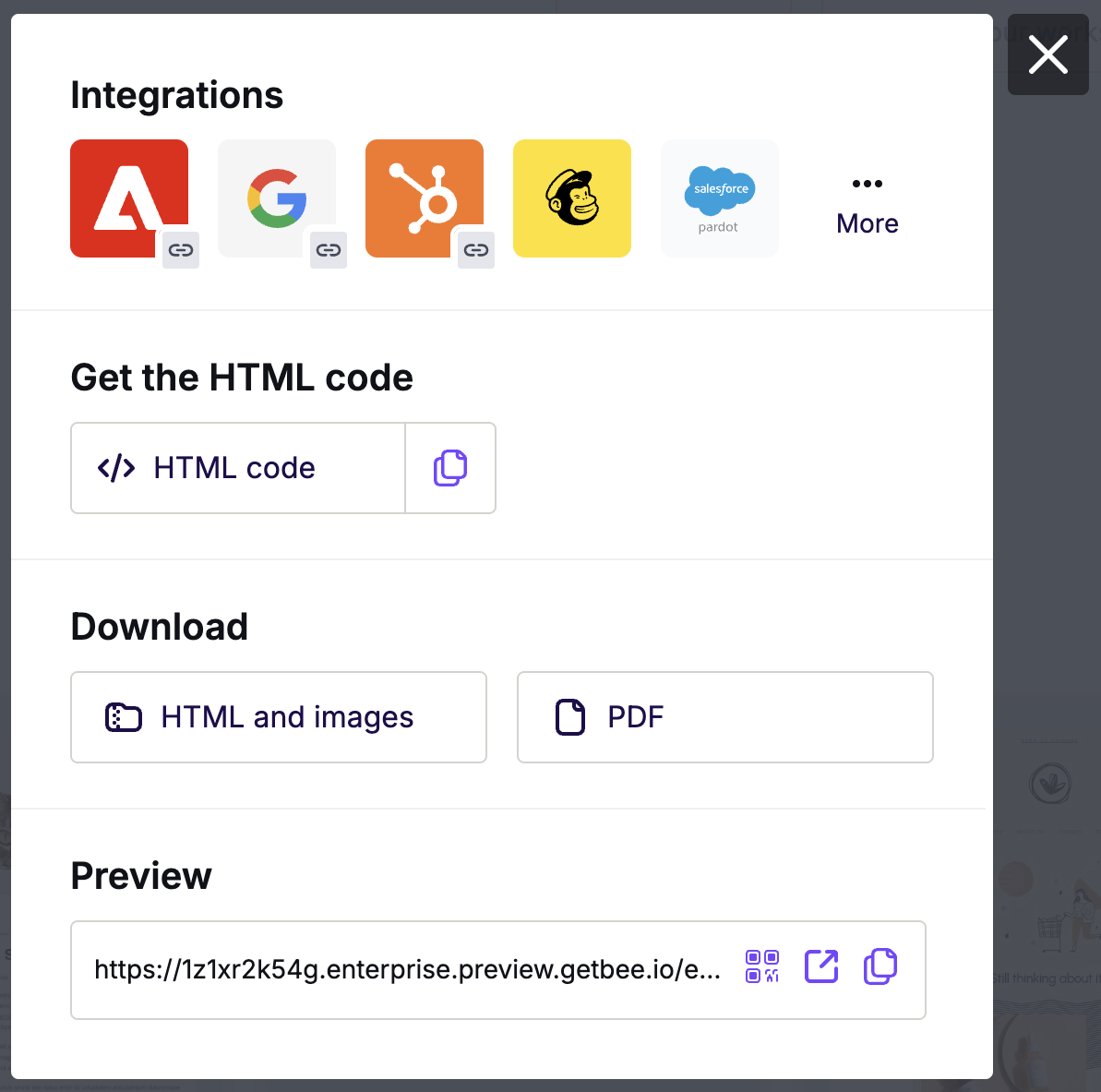
Click on the Export button in the upper right corner. A pop-up window will appear with a few options for export.
Step 3
In the Get the HTML code section, click the icon to copy the code. A checkmark will appear once the code is completely copied. You will also see a confirmation message in the lower right-hand corner.

Step 4
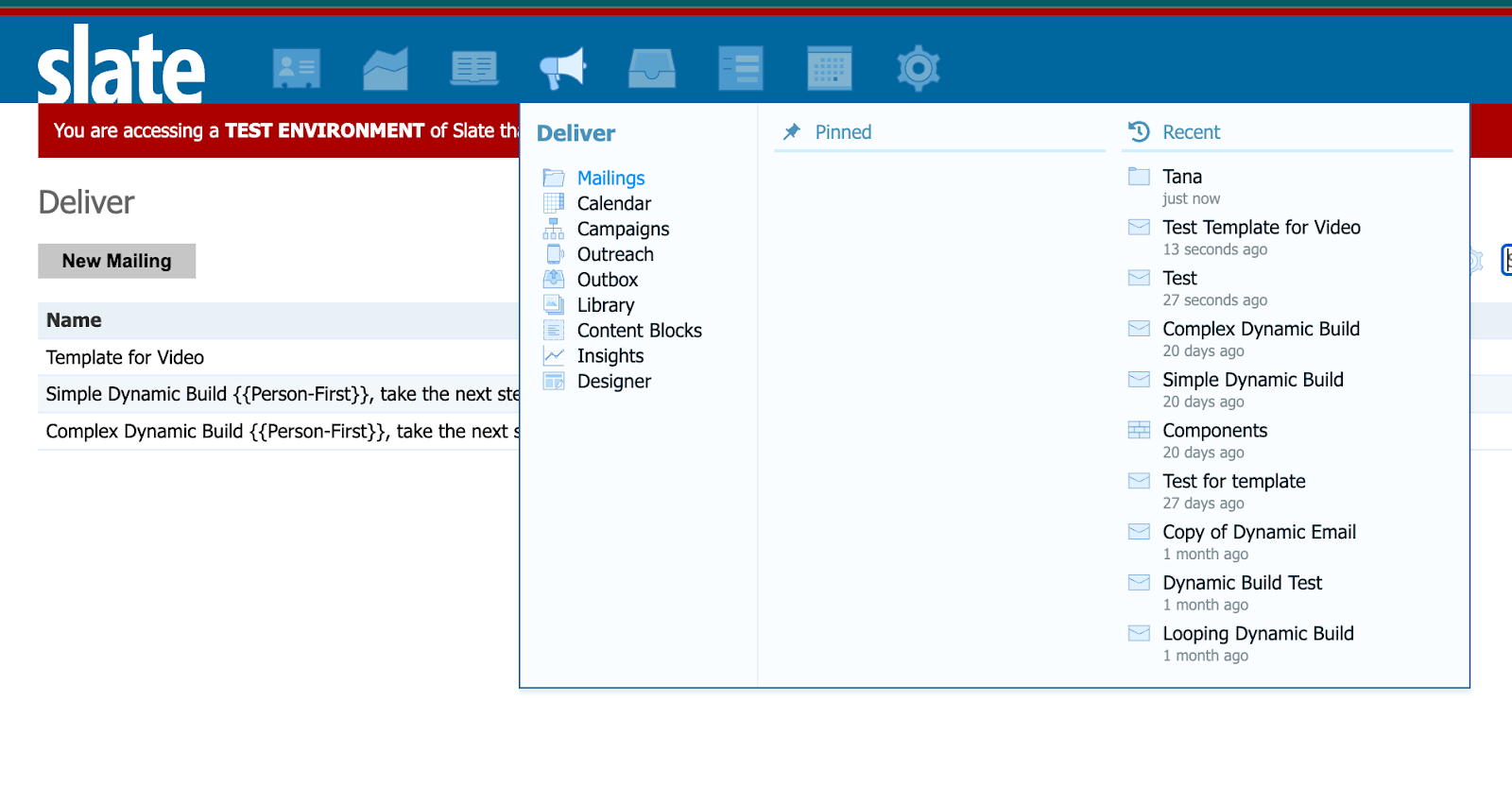
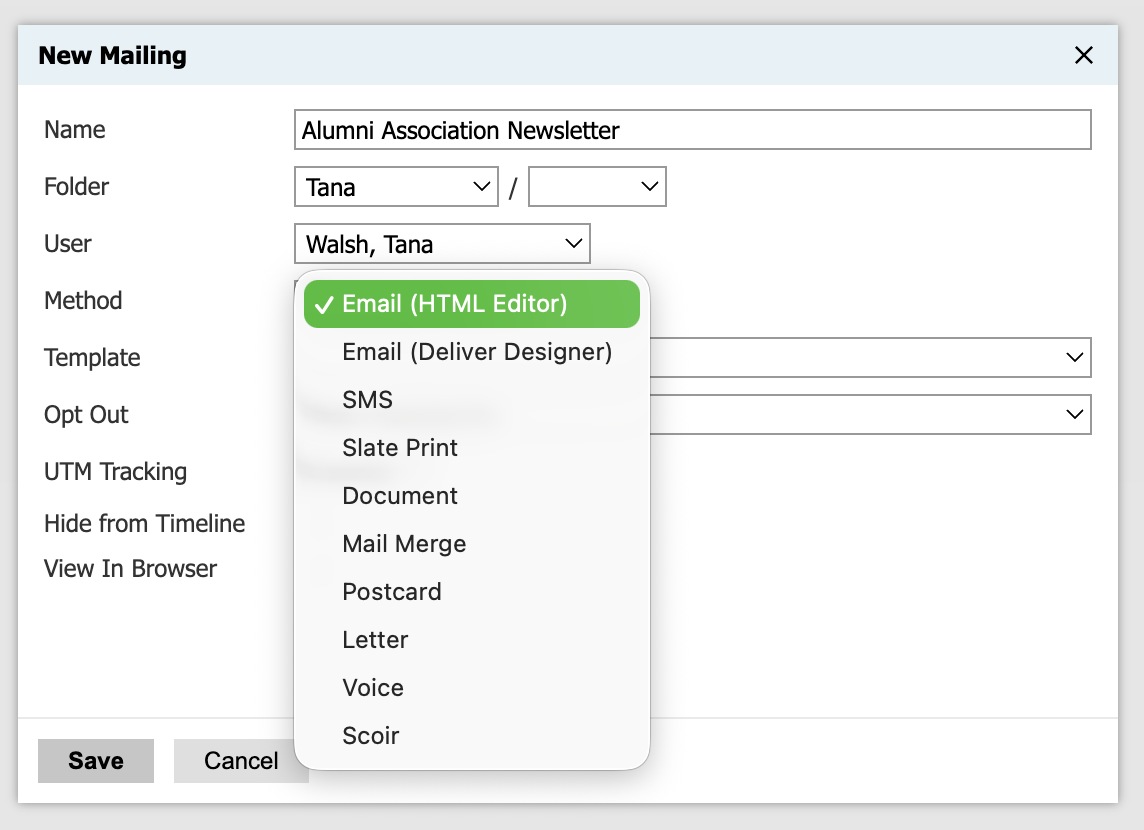
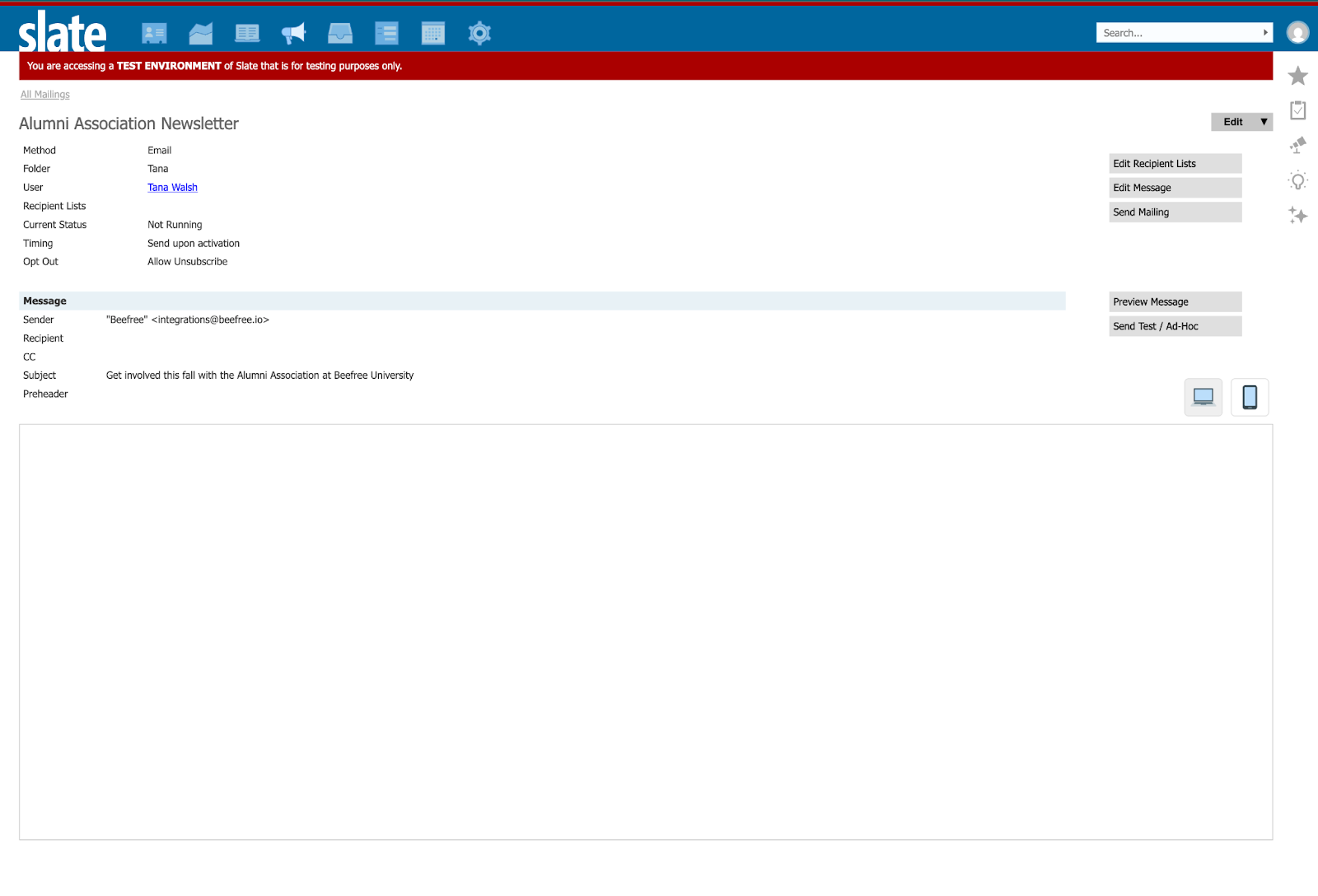
Navigate to your Slate account and create a New Mailing. By default, Email (HTML Editor) is selected. keep this as-is and update the other fields/values as needed. When you’ve made all necessary changes, click Save.
Step 5
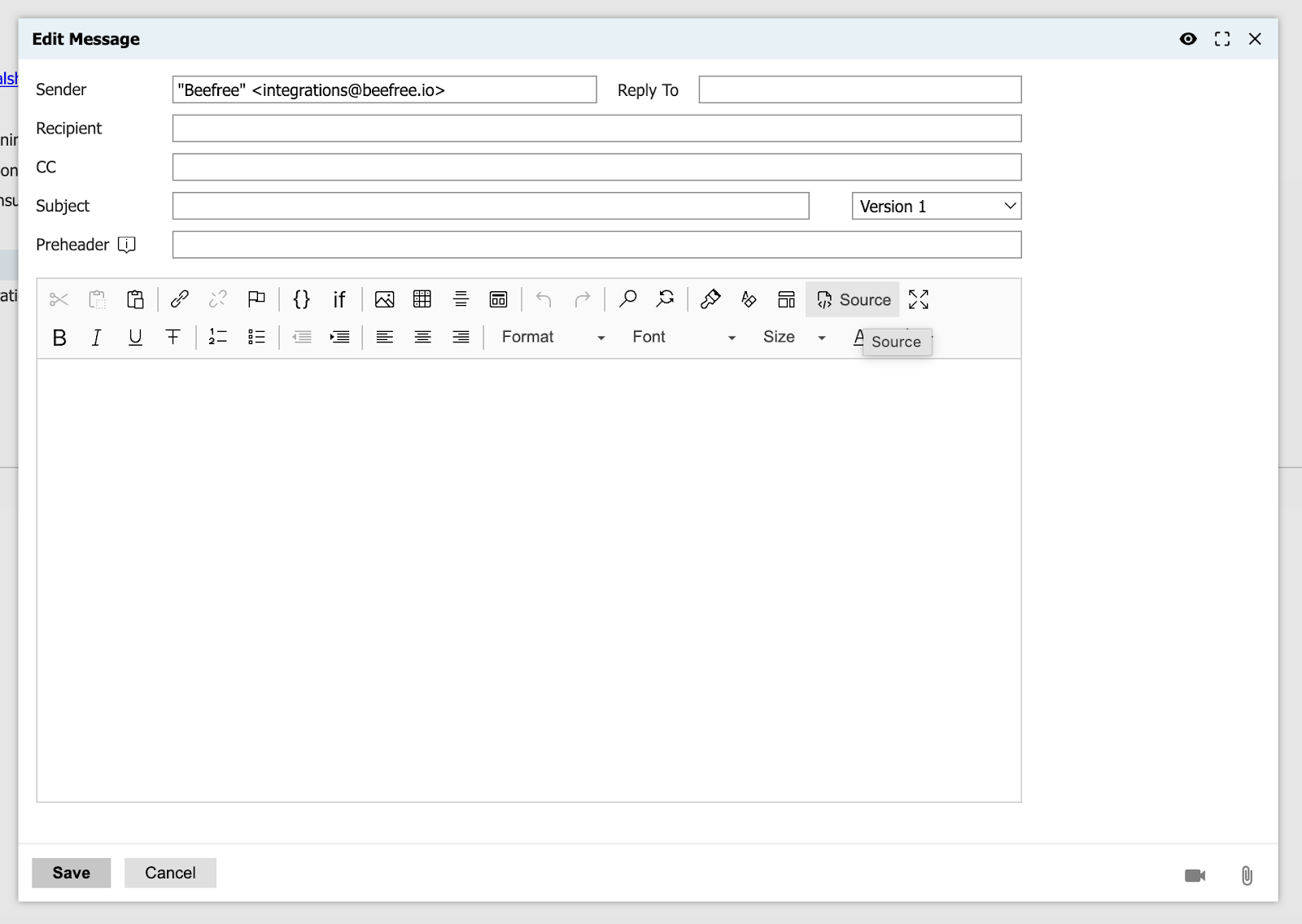
Click on the Edit Message button on the far right-hand side of the screen. Once the editor opens, make sure to add a subject line (even if it’s just ‘Test’ for now) and click the Source button within the editor.
Step 6
Select the HTML within Slate and delete it. Then paste your copied HTML from RGE Studio in its place. Save your work to see the result!
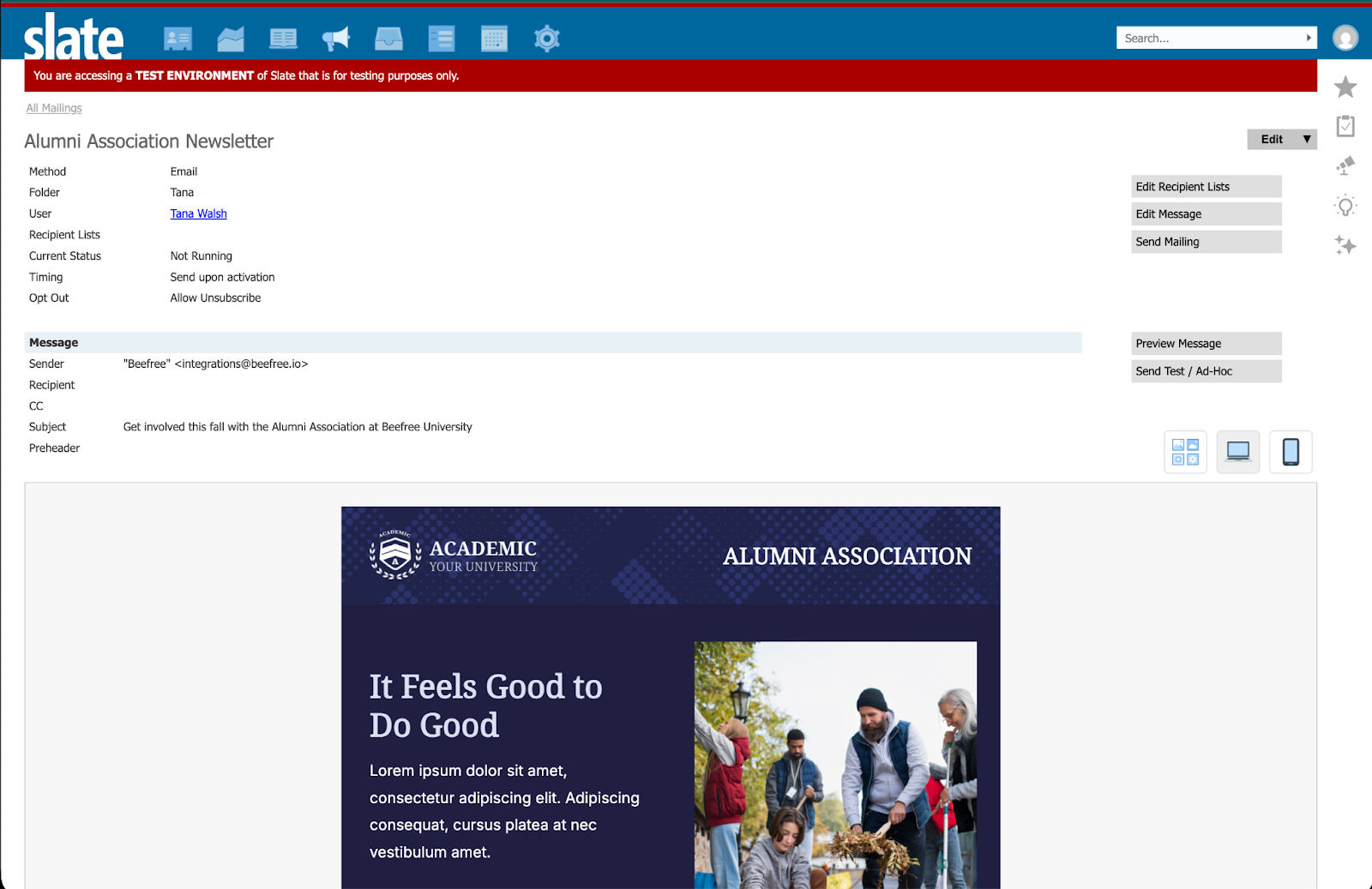
Ta-da!
Once your email has been added to Slate, feel free to add in additional merge tags, snippets, and a recipient list. You can even update the email with the editor within Slate by clicking on Edit Message. This will bring up the editor where you can make small tweaks to copy or images.
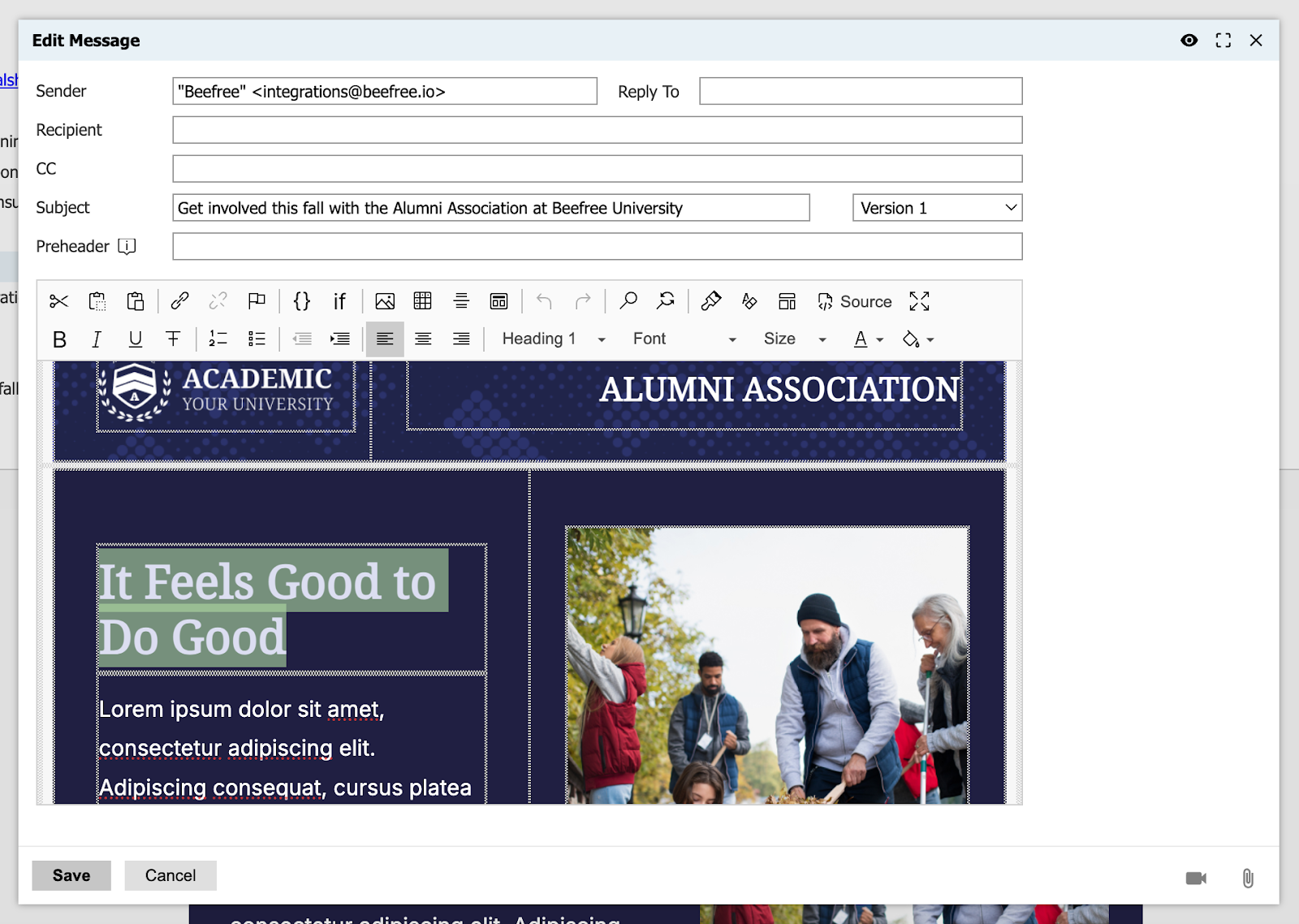
If you need to make structural changes to your email, we recommend updating the design in RGE Studio. You’ll need to re-export the HTML to ensure everything renders as intended.
Creating Dynamic Content for Slate
Dynamic content in emails is created through syntax we call merge tags and special links. This can allow you to customize your email for the recipient. Slate refers to this type of content as Merge Fields. Reference Slate’s documentation on Merge fields and Content Blocks to learn more.
For Slate, the syntax for merge tags and special links looks similar. This can make it hard to distinguish which option to use. From a RGE Studio perspective, the difference is as follows:
- Merge tags will display as plaintext.
- Special links will display as hyperlinks.
When deciding which option to use, consider what you want the final result to look like in Slate.
Merge Tags
Merge tags are used in email as placeholders that are replaced with real values at the time the email is sent. They could be recipient-specific (e.g. student name, email, or counselor name, etc.) or system-wide (e.g. today's date, sender's name, etc.). Slate refers to this as Merge fields. RGE Studio does not include these by default, but you can add Slate tags to your workspace settings.
To add and manage Merge tags through your workspace Settings, click on the Settings page. You will see an area of the page entitled Merge tags under your General settings. While creating a merge tag, you'll be prompted to assign it to a category. You can create a category for Slate to keep things organized.
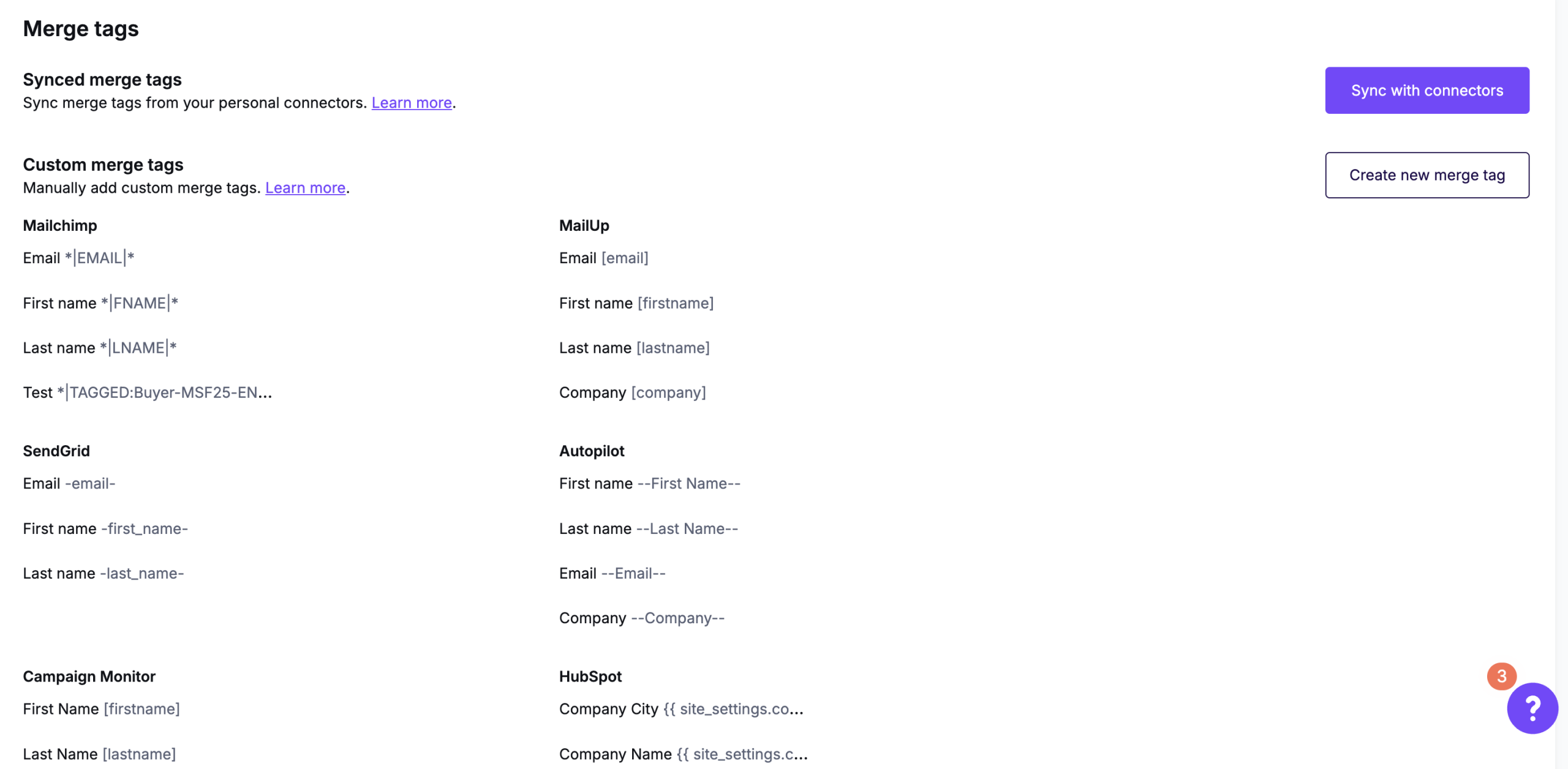
In some cases, you might not realize you need a merge tag until you're already in the builder. Not to worry! You can use the text toolbar in-builder to create new merge tags while you're designing. For full details on this feature, check out our Merge Tags and Special Links Settings article.
You can also use merge tags to insert Slate Content Blocks into your design. Slate Content Blocks are like RGE Studio Saved Rows, but the content is stored within Slate. As a result, you’ll only see the merge tag placeholder inside RGE Studio. The content will render properly once it’s used in Slate. There, you can also preview the design output using Slate’s Message preview feature.
Special Links
Special links are used in email as placeholders for URLs that are unique to the recipient. Common examples of this include unsubscribe links, web versions, and updating messaging preferences. Slate also refers to this as Merge fields, but some documentation refers to Merge fields in links.
Setting up a Special link is similar to setting up a merge tag. You can do this in the Workspace Settings or the builder.
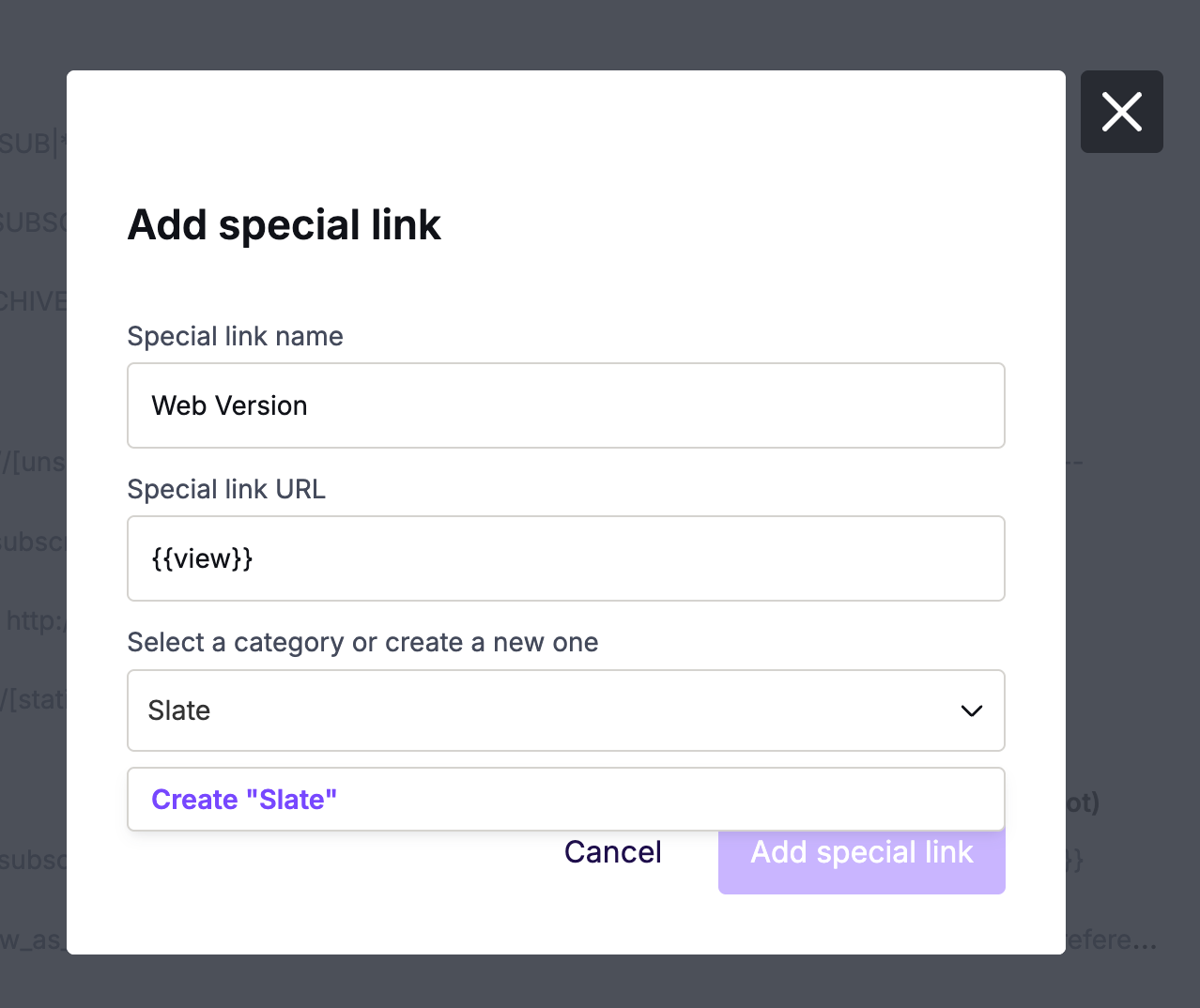
Once you’ve created a new category for Slate, you’ll find your new special links listed as well:
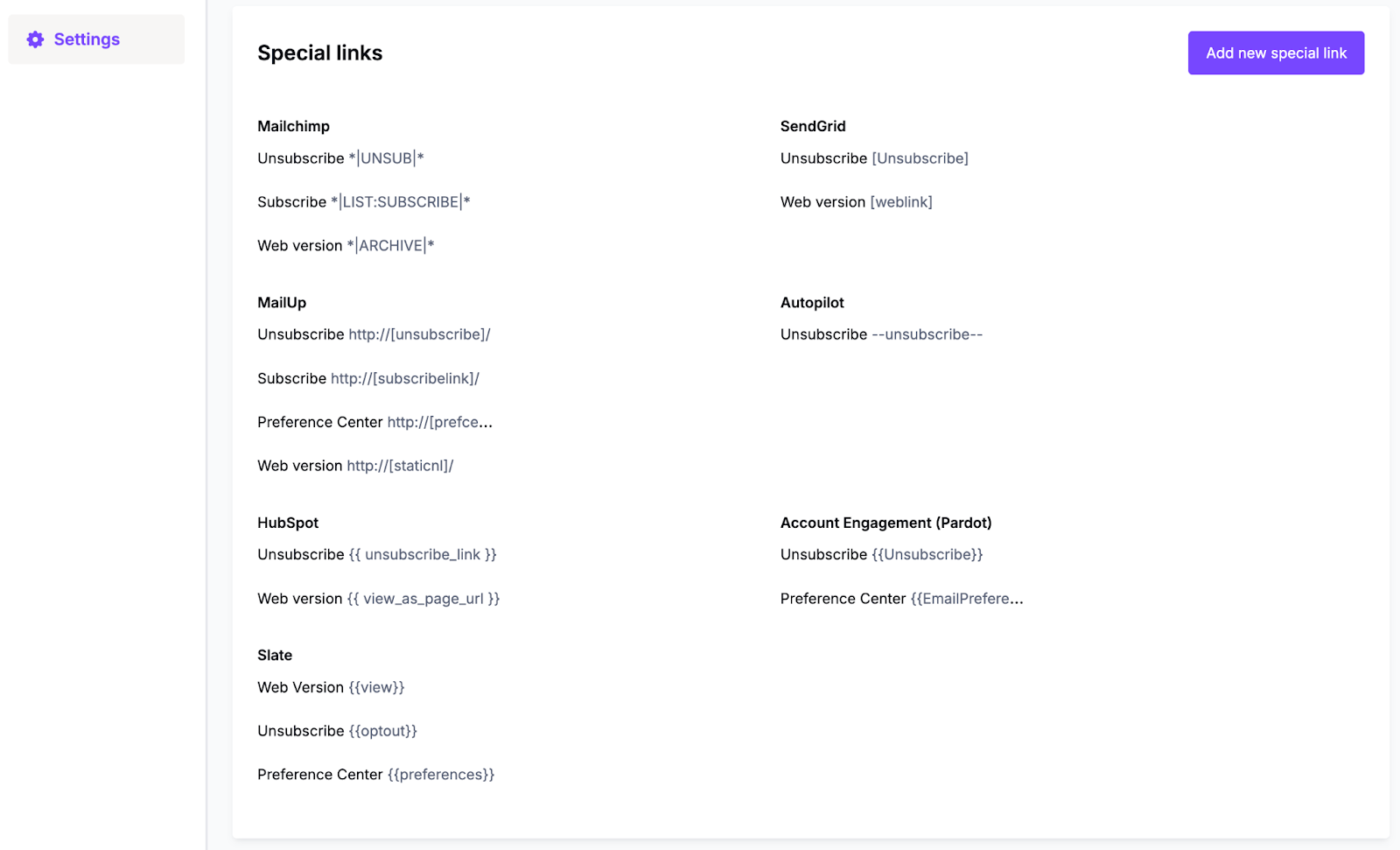
Slate allows you to link personalized URLs and other important sites within an email. Before getting started, ensure you’ve configured your setup according to their documentation. Once set up, you can add these merge fields to your RGE Studio workspace as well!
Keep in mind that the special links that appear in RGE Studio are placeholders. The link will populate properly once it’s used in Slate and a recipient is identified. You can preview these links with Slate’s Link previews feature.
If you have any questions, feel free to contact us.
Comments
0 comments
Please sign in to leave a comment.