Working with paragraph and list content blocks

Beefree App is now RGE Studio!
The email design suite you already know and love just leveled up. We’re working hard to update our help center, but you still may see some references to the old product name.
This article applies to the Email and Pages builder in all plans.
Overview
Use the Paragraph and List blocks to add and format text content in your emails and pages.
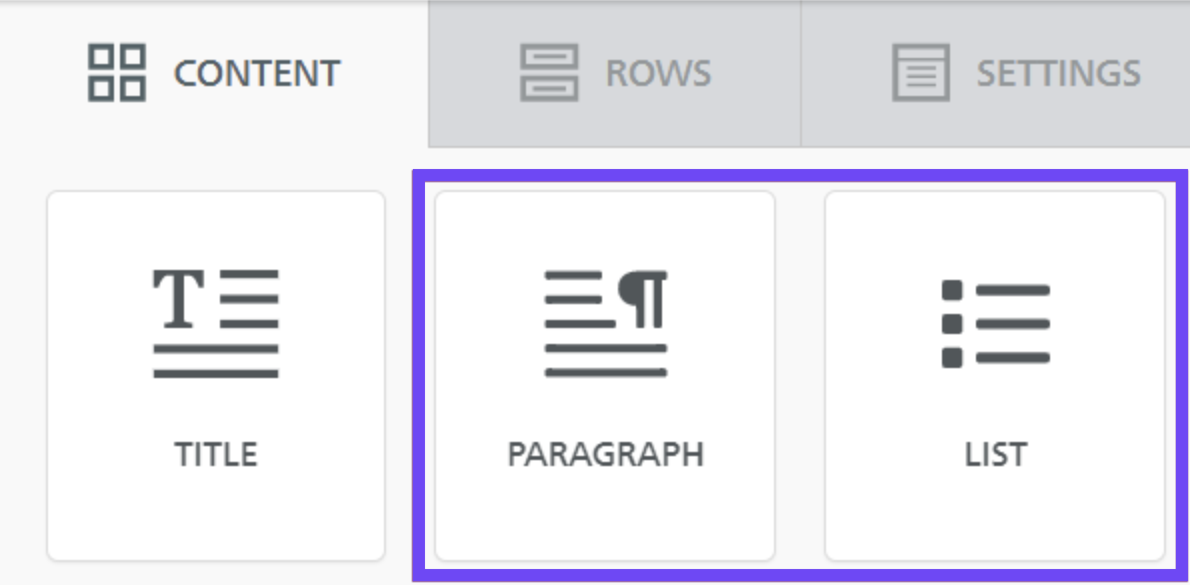
They share many formatting options with other text-based blocks, including:
Paragraph block
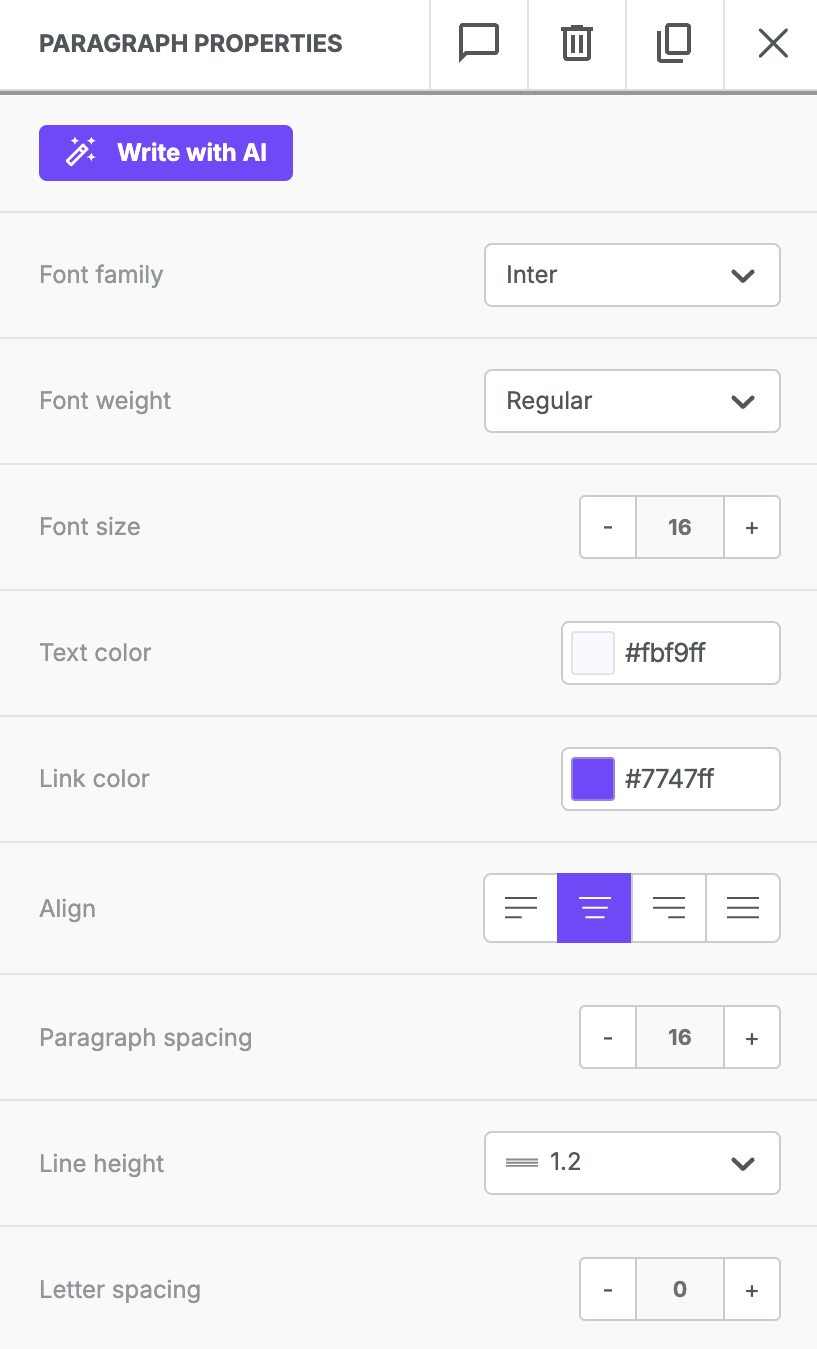
The Paragraph block includes typography options in the Content Properties sidebar: font family, weight, size, color, alignment, text direction, line height, and letter and paragraph spacing.
Toolbar
The toolbar includes a non-breaking space button next to the emoticon button. Use it to insert non-breaking spaces quickly when adding content.
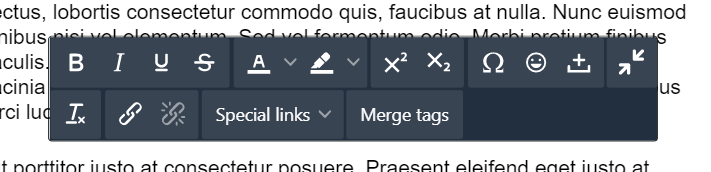
Use the text toolbar to format individual words or strings of text. Available options include:
- Rich text formatting: Apply bold, italics, underline, or strikethrough.
- Colors: Change text color or background (highlight) color.
- Superscript/subscript: Shift text slightly above or below the line.
- Special characters: Insert special characters, an emoji, or a non-breaking space.
- Clear formatting: Remove formatting from existing text, including text pasted from another tool.
- Links: Insert or remove hyperlinks. Control link underlining in the Insert link modal.
- Special links and merge tags: See our help center documentation for details.
AI Assistant
Use the AI assistant to help create content. Locate the Write with AI button in the sidebar. This feature works with Paragraph, Title, List, and Button blocks. For tips on using AI to write content, check out this article.
List block
The List block shares formatting options with the Paragraph block. It also includes list-specific features, such as:
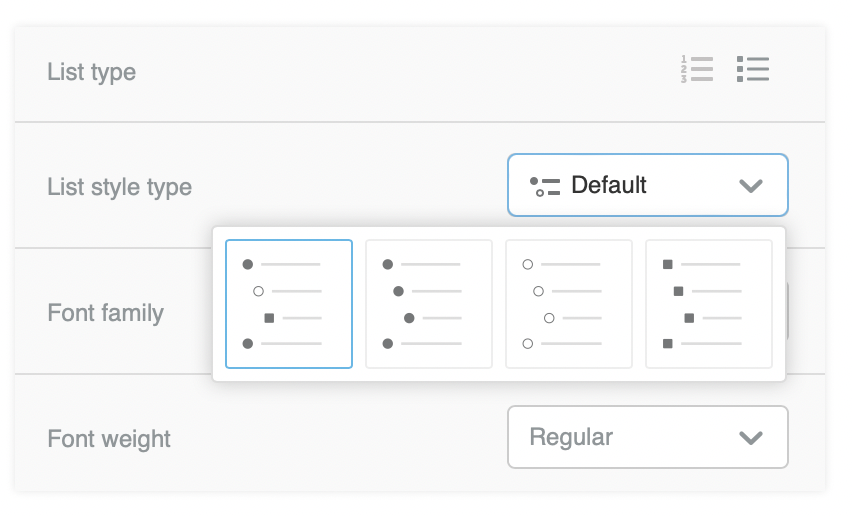
- List type: Choose an ordered or unordered list.
- List style type: Choose a basic style for your list.
- Start list from: Set a custom starting number for ordered lists.
- List items spacing: Adjust the space between list items.
- List items indent: Control how far subitems indent within your list.
Letter and paragraph spacing
Letter spacing and paragraph spacing help you fine-tune the readability of your text. You'll find both options in the sidebar for text-based content blocks.
Letter spacing
By default, letter spacing is set to 0 pixels. Use the - and + symbols in the sidebar to adjust it. You can also type a value directly.
Letter spacing values can be positive or negative. Use a positive value to increase the space between letters. Use a negative value to decrease it.
Paragraph spacing
Paragraph spacing applies only to the Paragraph block. By default, it's set to 16 pixels. This creates double-spaced paragraphs.
Use the - and + symbols in the sidebar to adjust it. You can also type a value directly.
Additional considerations
- Letter spacing ranges from -99 to 99.
- Paragraph spacing ranges from 0 to 99.
- Letter spacing and paragraph spacing rendering can vary across browsers and devices.
Existing text content blocks
The Paragraph and List blocks replaced the original Text content block in 2022. Some RGE Studio templates and saved rows still include the Text content block. This block keeps its original toolbar, sidebar, and formatting options.
You can keep using the Text content block anywhere it already exists, including in saved rows. To create new text content, use the Paragraph and List blocks on the Content tab.
If you have any questions, feel free to contact us.
Comments
40 comments
Working with separate paragraph vs. list content blocks is one of the most frustrating and counterintuitive aspects of designing in BEE. Nested lists often produce unpredictable results.
Hello Kyle, I'm sorry you had a bad experience with our feature. Thank you for your feedback, it is important to us and I will pass it on to our product team.
Not just me, our users have similar feedback. It's time consuming to insert separate paragraph and list elements, format them, and try to get the spacing right. Other editors are similar to the previous version in BEE where you could add paragraph text and lists within on element. One of the reasons that were given for making this change was "To create a better user experience by providing enhanced text formatting options" but I'm not seeing it. A colleague of mine spent a couple hours in Dreamweaver last week reordering the DIV tags in BEE because his lists weren't rendering properly, especially when you nest.
Hello Kyle. We understand the frustration this can cause and we are sorry. We will make sure to pass feedback on this to our product team.
As per the nested lists, there is a bug we are aware of which our developers are actively working on to find a fix to release.
Hey! We just wanted to let everyone know that a fix was released today for the List block bug. Happy designing!
Hello regarding this : "The new paragraph and list content blocks do not allow the use of multiple font sizes within the same block. If you need to use multiple text sizes, we recommend using multiple paragraph or list blocks. The same applies if you are trying to apply multiple colors to your text content."
please bring back the inner paragraph formating, this is the worst change i have ever seen while the overall product is getting better.
Hi Philippe, thanks for your honest feedback. I'll share your request with our Product team.
Is there anyway to add a list into the paragraph block itself without having to add and format a completely new list block? I can do it here, in this comment:
But it seems the paragraph block in the email designer does not allow for a list to be added into the text? Is this true? If so, please change this!
Hi Priscilla, I can confirm that it's currently not possible to apply list formatting in a Paragraph block. I'm letting our Product team know about your feedback. We'll keep this in mind for future improvements!
@Priscilla, if you read through previous comments, the change was made years ago to separate paragraph from list blocks, however Bee never explained why it was done. We have designs going back this far that allowed you do add lists within a paragraph so some of our users will copy them vs. having to use separate blocks.
Please sign in to leave a comment.