Using Import Links in RGE Studio

Beefree App is now RGE Studio!
The email design suite you already know and love just leveled up. We’re working hard to update our help center, but you still may see some references to the old product name.
This article applies to all plans.
Overview
Import links allow you to easily share designs with other RGE Studio customers. Import links allow anyone to import an editable version of your design to their own RGE Studio account. This works by effectively creating a copy of a design in a separate account.
This option is great if:
- You are consolidating the assets of several RGE Studio accounts.
- You are a marketing agency working with a client, and you both have your own, separate RGE Studio accounts.
All it takes is a few clicks. Let's take a look at how to use import links.
Creating Import Links
You can create an import link for any email or page design in RGE Studio.
On the details page of your design, there's a toggle to Enable import link.
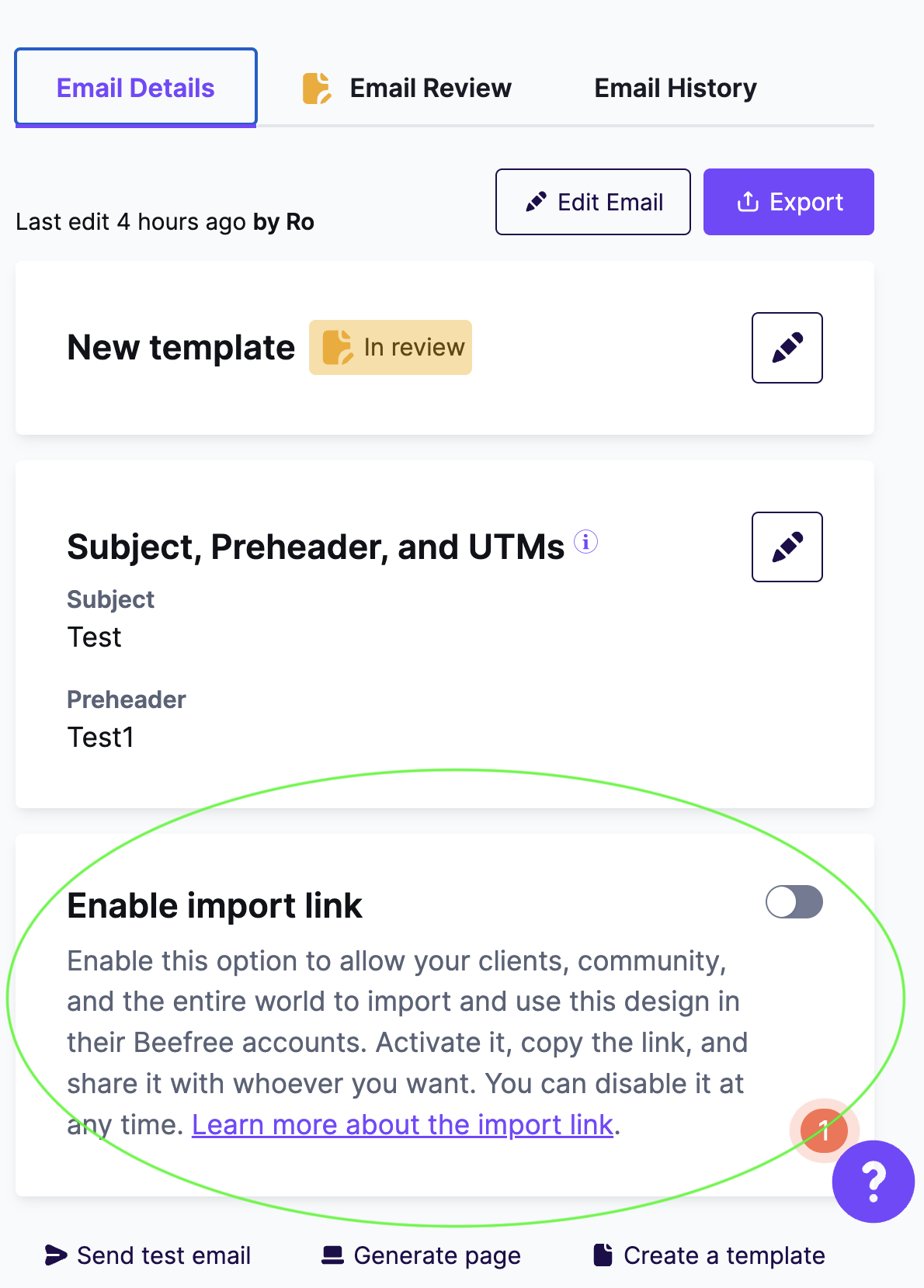
Use the toggle to enable the import link. When enabled, the toggle turns purple, and a URL will populate. Click the copy icon to the right of the URL to easily copy and share your import link.
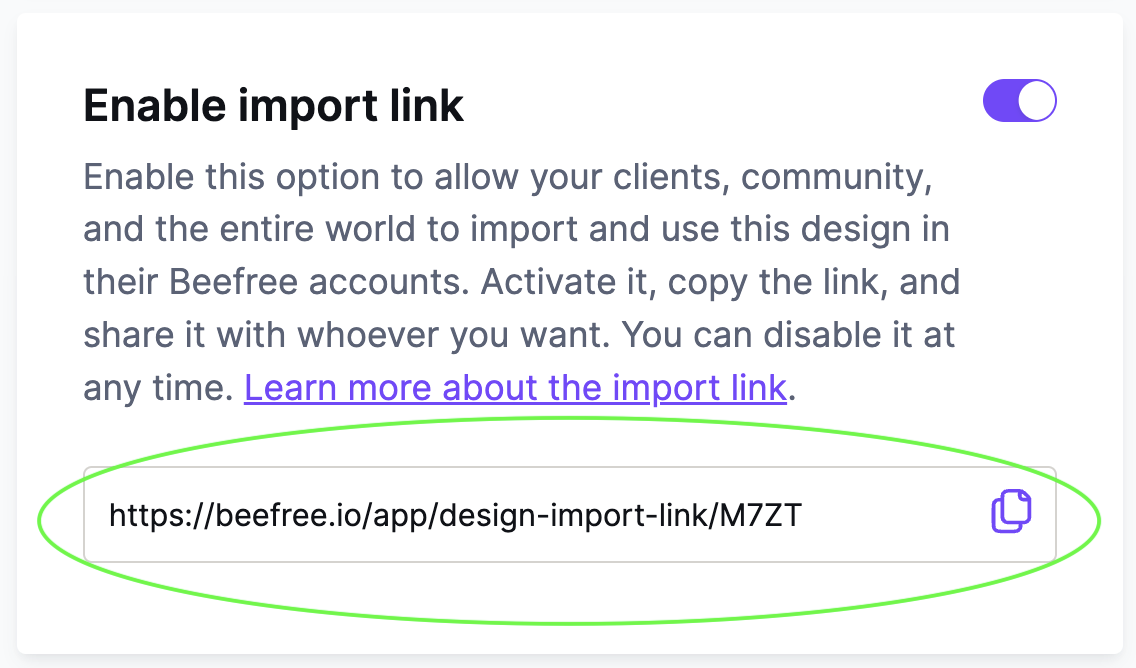
You decide who to share your import link with. Keep in mind that anyone with the link can use it to import a copy of your email or page into their own account.
Notes
- Custom scripts of Page analytics are not copied when using import links.
- Import links will return a 404 error if the original design is no longer available.
- Fonts are included in imported designs, but you can't import font settings. If you want to add the font to your account, you must manually do so in Settings > Styles. This also applies to default or web fonts you may have disabled in your workspace settings.
- Synced rows will become regular rows in imported designs.
- Import options are not available to Contributors or Viewers.
Importing Designs
There are a couple of different ways you can use an import link. Let's take a look at the options.
Using the link
Anyone can interact with an import link, even if they don't have a RGE Studio account yet. By following an import link and opening it in a browser, you'll land on something that resembles a details page.
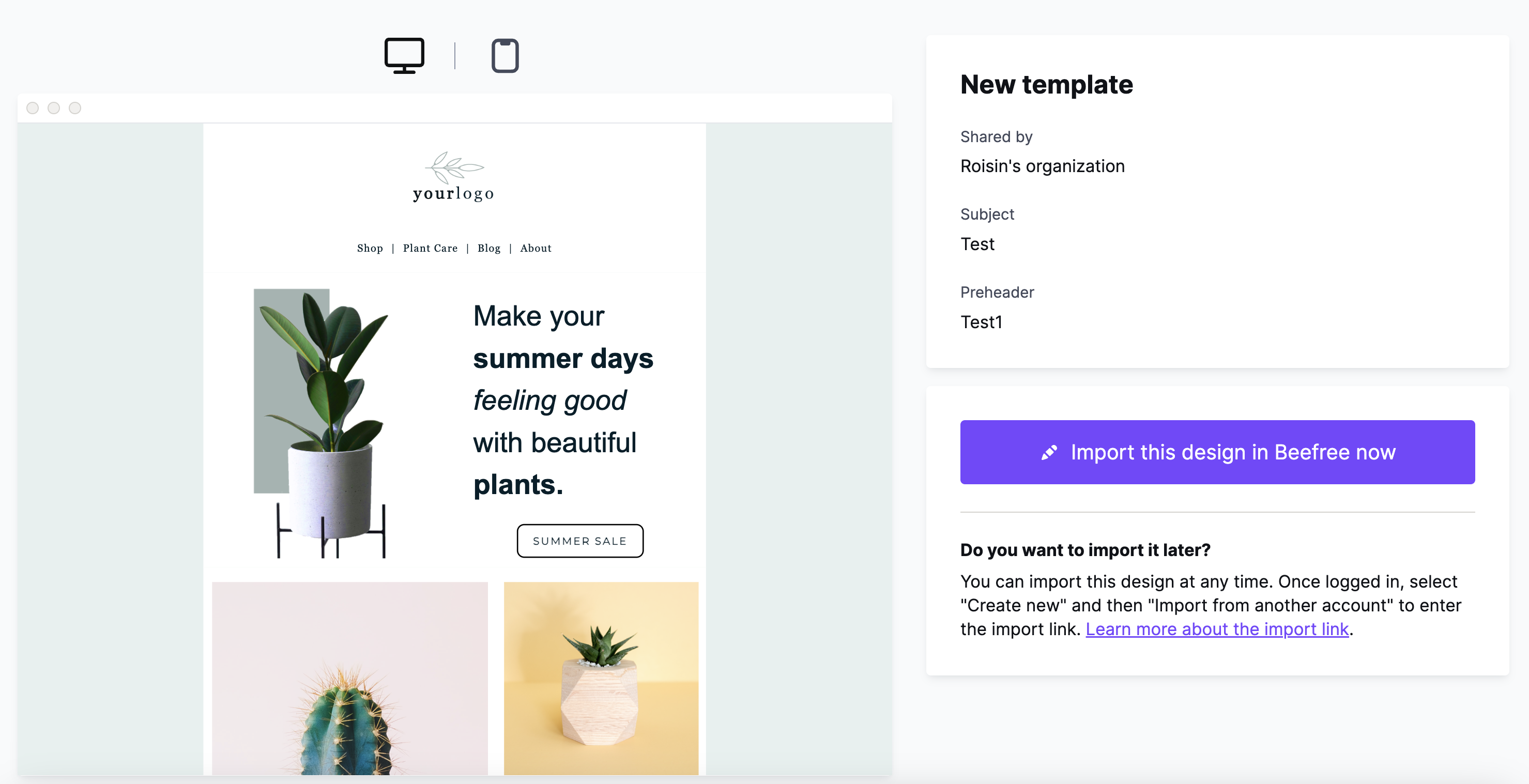
On the left, you see a thumbnail preview of the design. You can toggle between a desktop and mobile preview. On the right side, you'll see a summary of the design details. This always tells you who shared the design originally. It might also include other shared details, such as:
- Subject*
- Preheader*
- UTM Parameters*
- Title**
- Meta description**
*Emails
**Pages
Use the Import this Design in RGE Studio Now button to get started. If you're already logged into your account, the import will begin immediately. A modal asks you to select an organization or a workspace if you have these options in your account. Make your preferred selections and confirm by clicking the Import button. You will receive a confirmation message. Click Go to RGE Studio to open your account. If your designs are sorted by "Last updated", you'll see the imported design at the top of the list.
If you're not logged in, the modal will first prompt you to do so. If you don't have an account, you can sign up from this modal.
Using the Import button
You can also use an import link by clicking the Import button from the Project Overview, next to the Create new button, and selecting the From RGE Studio account option.
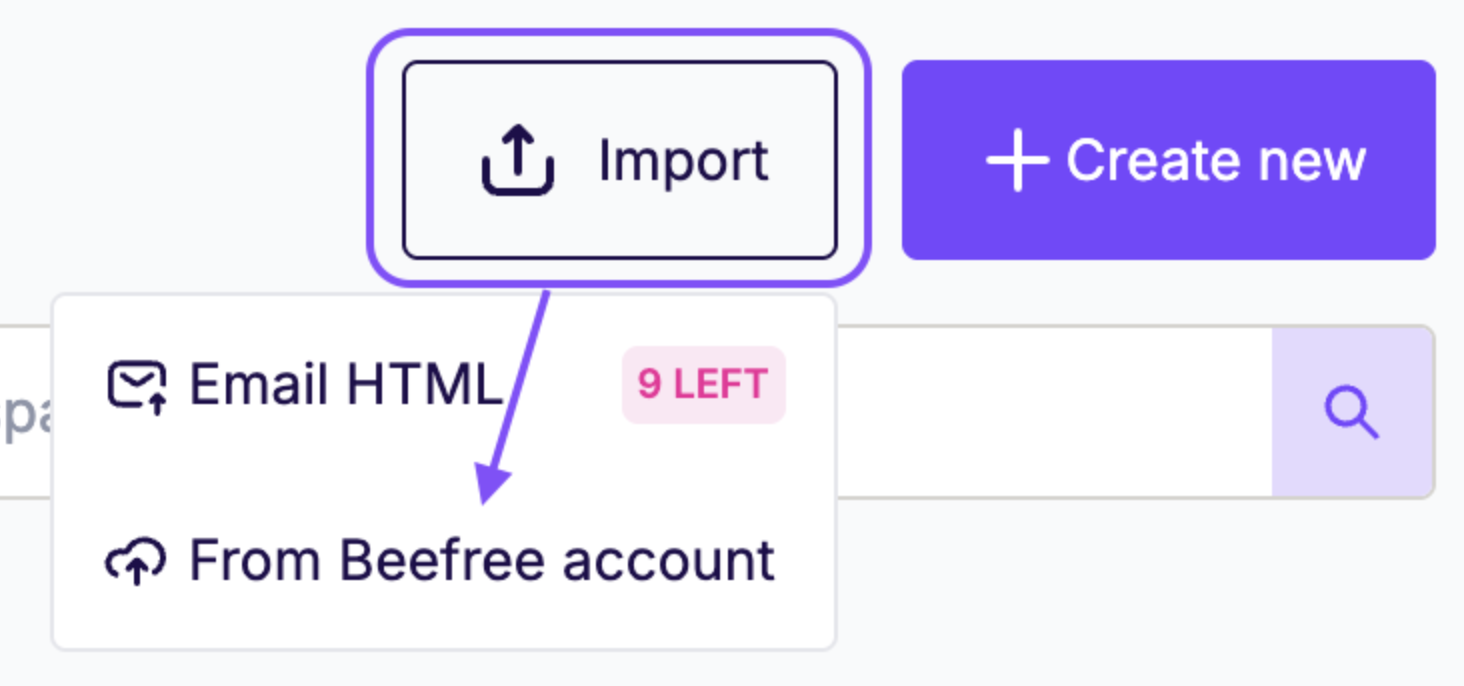
In the modal that appears, enter your import link and click on the Import button to start the import. You can import a design using an import link as many times as you want.
Imported files
Imported designs may include images or other files hosted in the file manager. If you're importing a design with these types of assets, they are copied to your own account as well. To manage your potential CDN usage, we recommend checking the size of any imported files.
The first time you import a design including hosted files using an import link, we create a file folder. You can locate this in your file manager; the folder is titled imported.
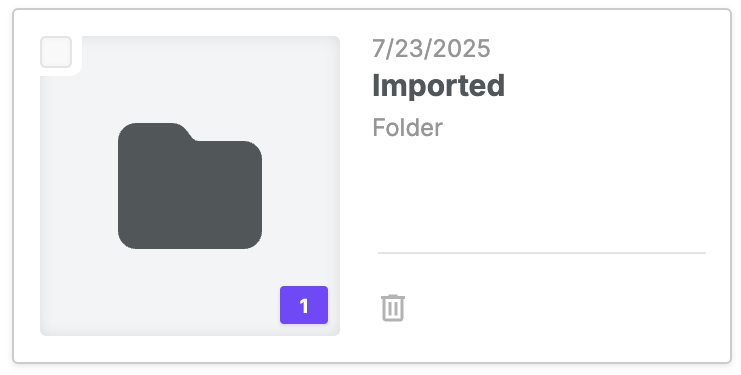
For every individual imported design, we create a subfolder within the imported folder. For your convenience, this folder will be titled "imported design ID-date-time." These folders cannot be renamed.

If you import the same design twice, this will not overwrite any imported files. We'll create a new file manager subfolder for every import you perform.
If you have any questions, feel free to contact us.
Comments
0 comments
Please sign in to leave a comment.