Approval Workflow

Beefree App is now RGE Studio!
The email design suite you already know and love just leveled up. We’re working hard to update our help center, but you still may see some references to the old product name.
This article applies to the Business and Enterprise plans.
Overview
Working in a team is important, but it can be time-consuming. This is especially true when working with many tools. Wouldn't it be easier to keep track of deadlines, assign tasks, and monitor progress all in one place? If you're using a Business or Enterprise account, our Approval Workflow can help!
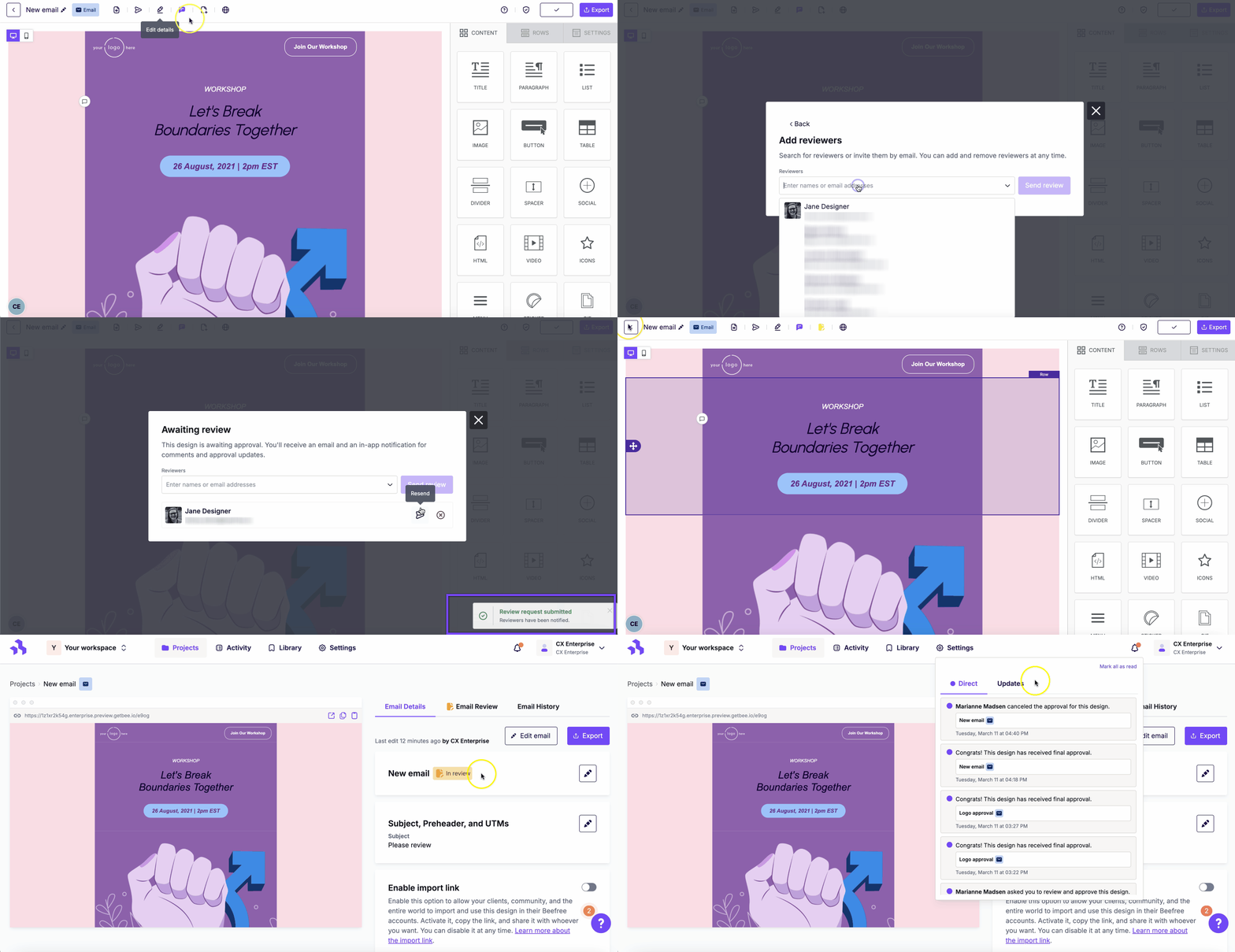
The Approval feature sends requests to collaborators and clients to review the design. The reviewers can open the email or page to preview, comment, and approve the design. Both RGE Studio users and external stakeholders can be included in the review process. Any user role can participate in the approval process, but a team member must initiate the workflow.
Enterprise users also have the option to create multi-step approval workflows. For more information, please refer to our help center article.
Let's take a look at how you can use this feature to improve collaboration in your team!
Requesting Review
After you finish designing, you may want to ask team members for approval. Start by accessing the Approval Workflow feature from anywhere in RGE Studio. It's available in 3 places:
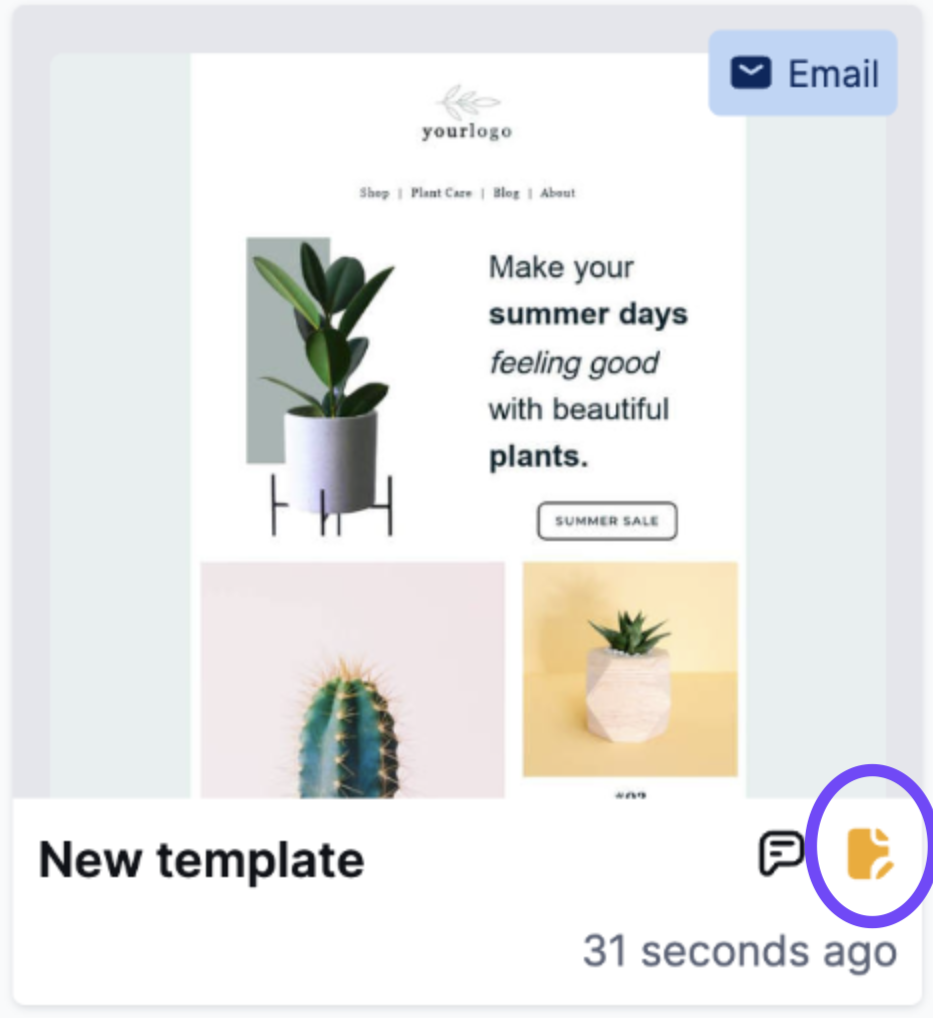
- From the Projects tab, you can find an icon on any design's thumbnail.
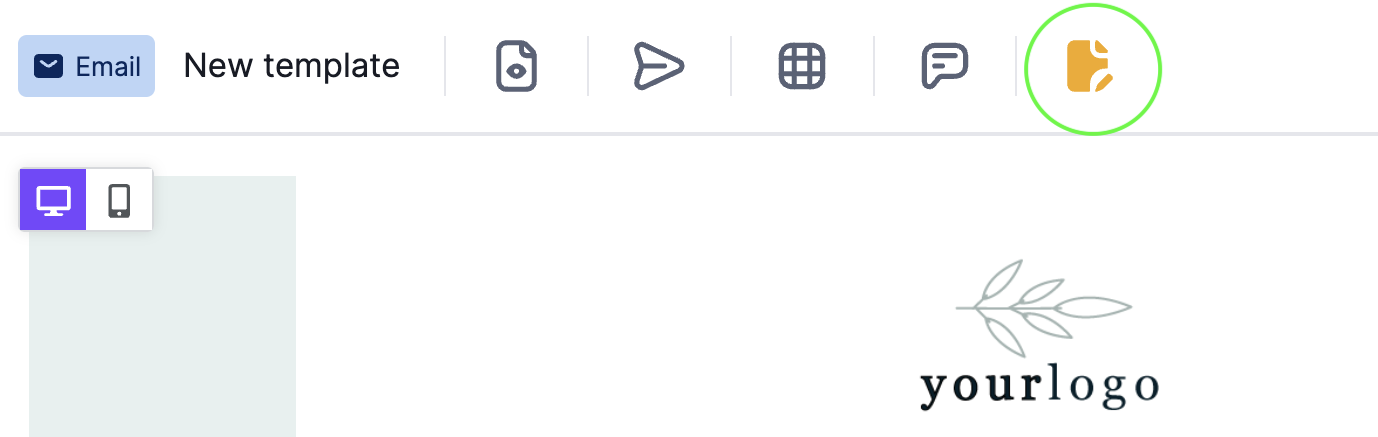
- The same icon is available in the top left of the navbar while designing a page or email in the builder.
- The details page for your emails and pages also includes a Review tab.
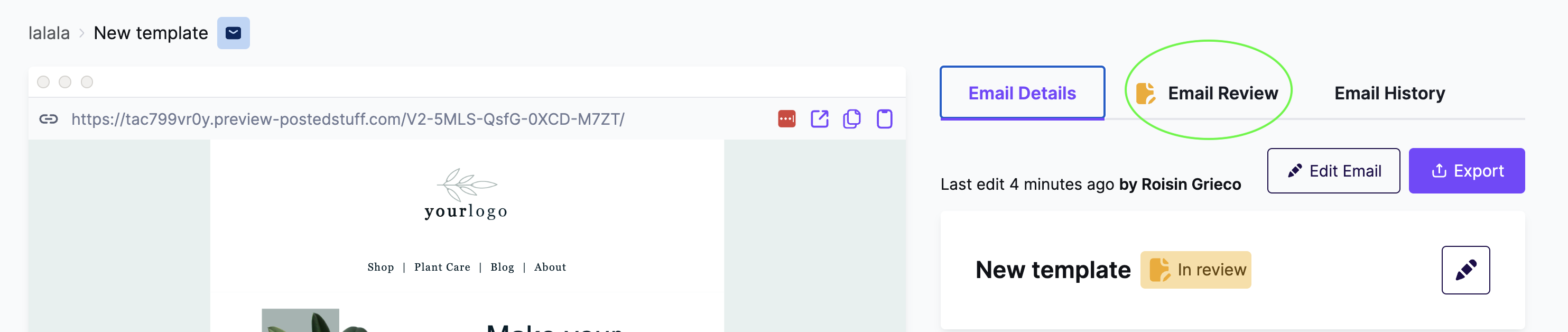
Note the approval workflow icon utilizes existing RGE Studio design statuses. The icon changes shape and color automatically depending on approval status.
Follow the prompts in Request a review modal. You can choose the reviewers from a list of workspace users from a drop-down list, or you can type an email address. Note that Enterprise users have the option to create multi-step reviews at this point.
You can also include a customized review request message. For emails, you can include a subject and preheader. For pages, you can include a title and meta description.
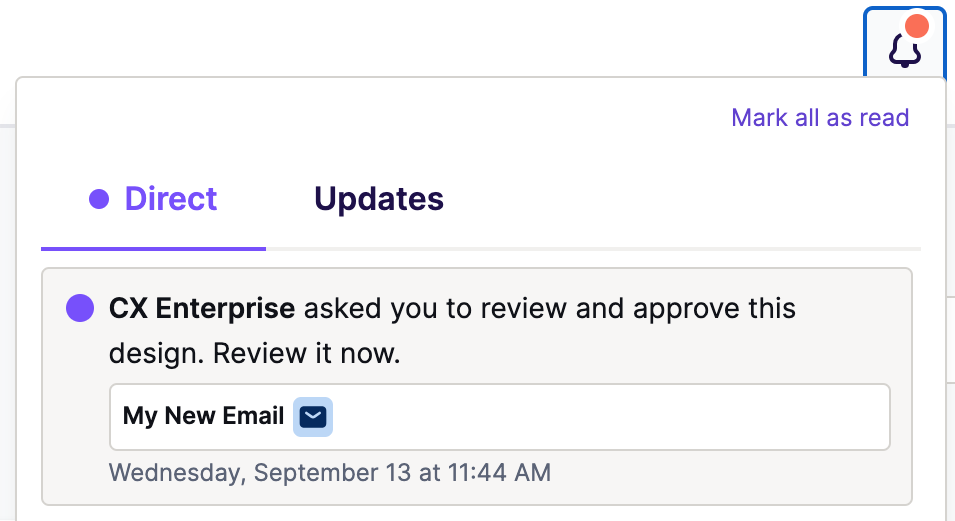
When you click Send review request, reviewers receive notifications in-app and via email.
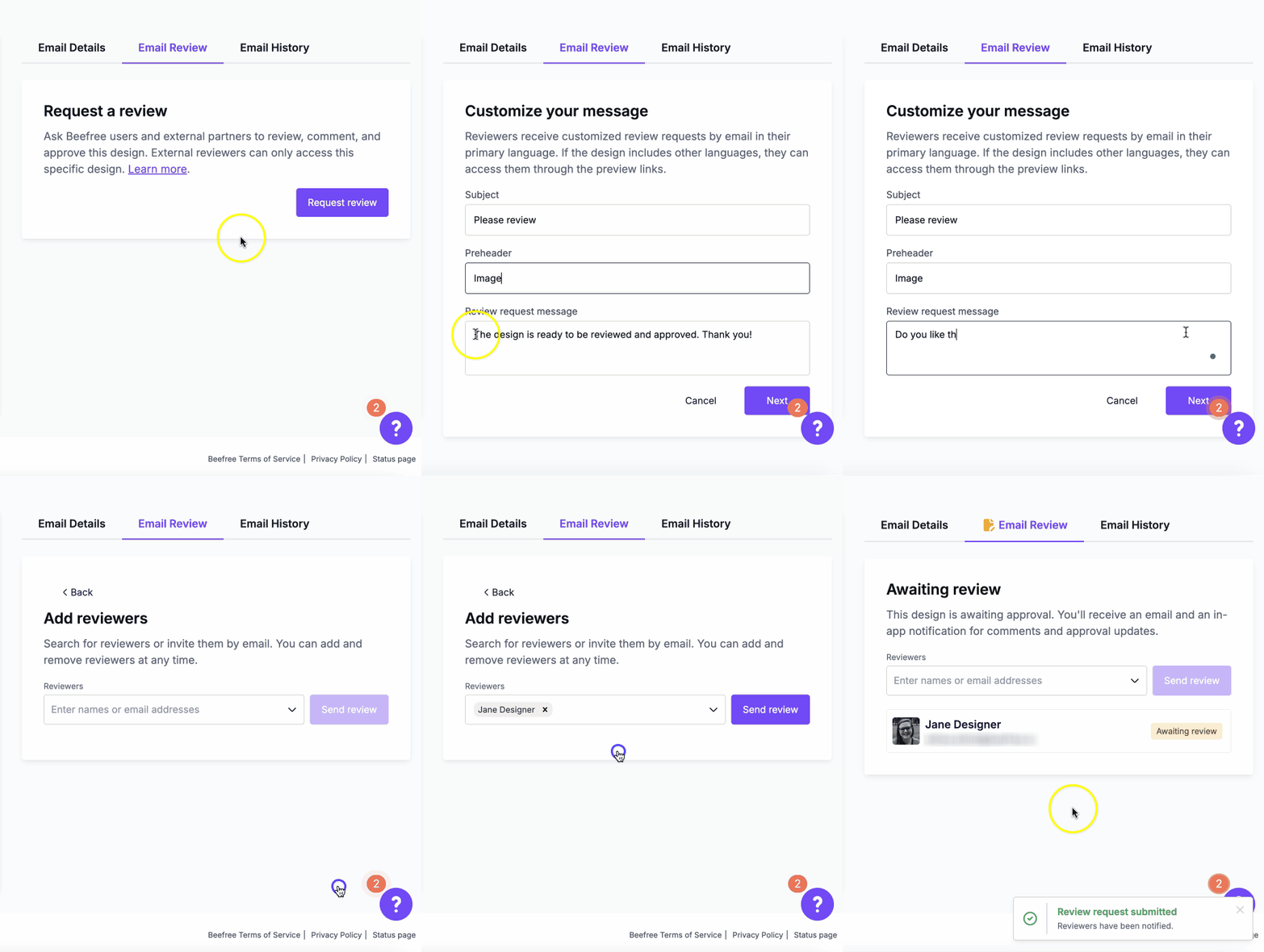
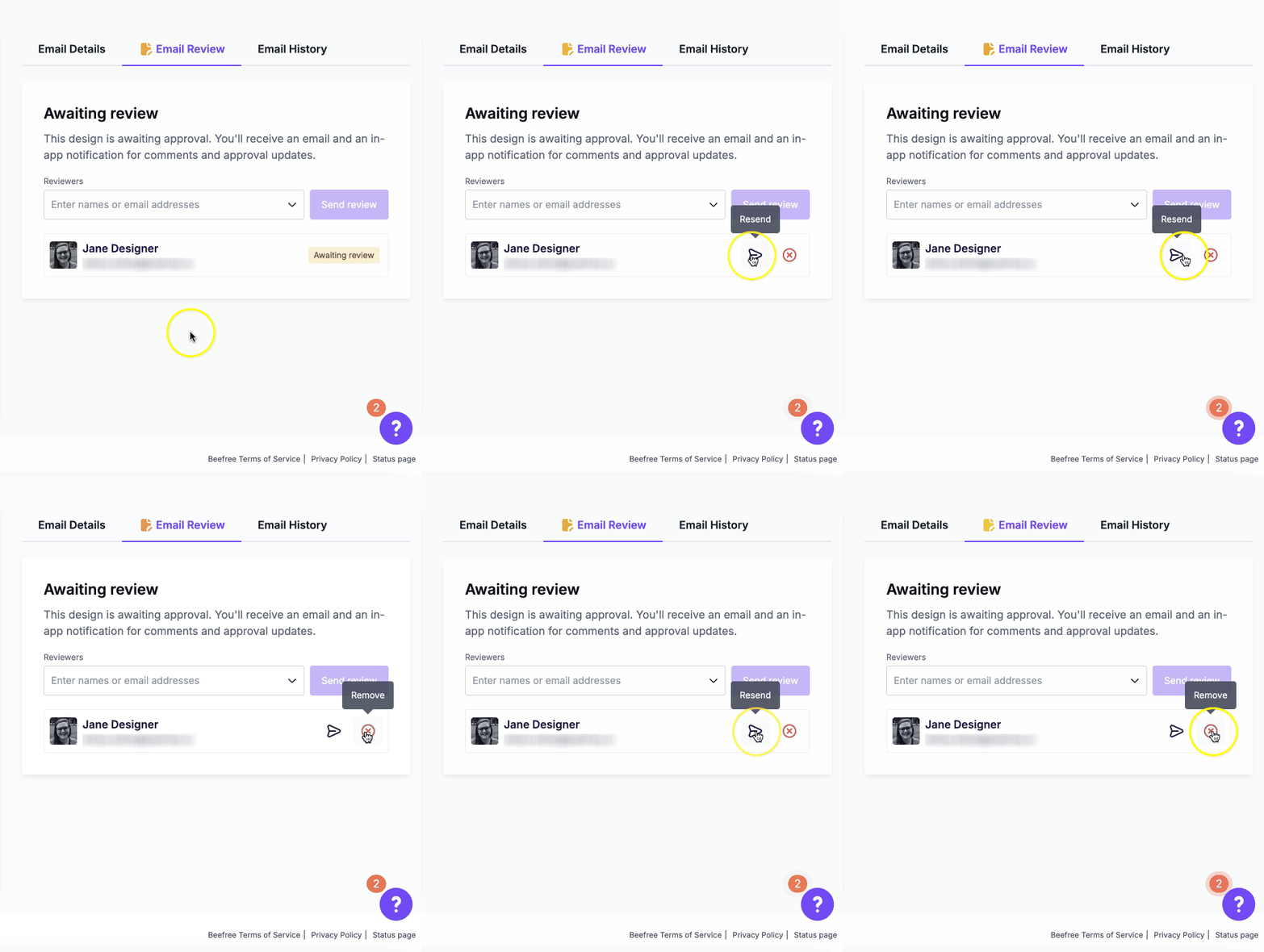
You can request approval for an email or page as many times as you need. For individual reviewers, you can also remove or re-send the request.
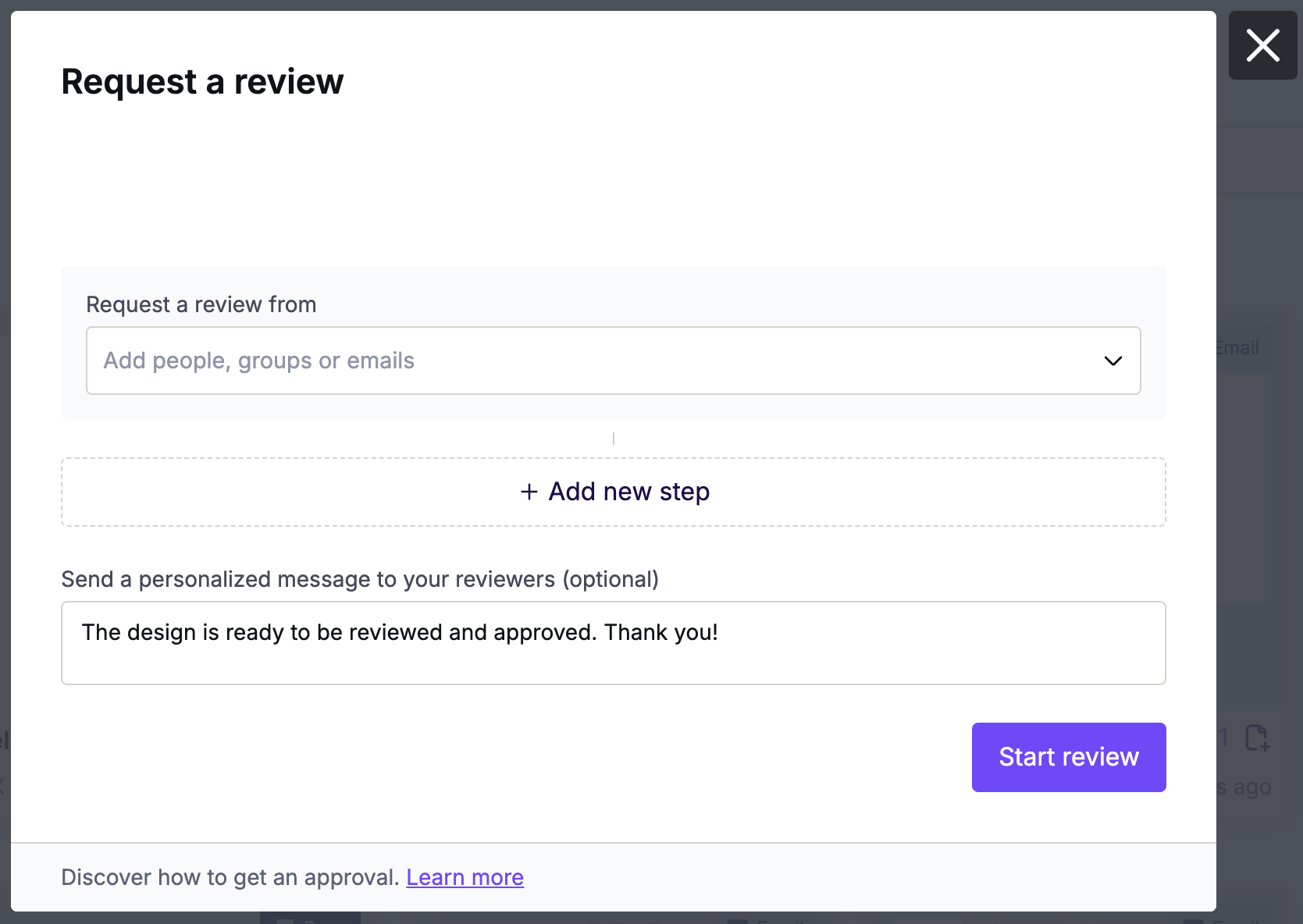
Approval Groups
This option is for teams that manage high-volume approval processes. Approval Groups offer a streamlined way to assign many reviewers at once. Creating groups reduces manual steps and improves efficiency.
Instead of adding individual users one by one, you can now select a saved group of reviewers with a single click. These groups are based on past review requests sent within the workspace.
When you add two or more users from the same workspace to a review, RGE Studio saves them as a group. That group shows up in the reviewer drop-down the next time you send a review for that workspace.
Groups are dynamic and based on usage. They update over time and help reduce repetitive entry for common approval flows.
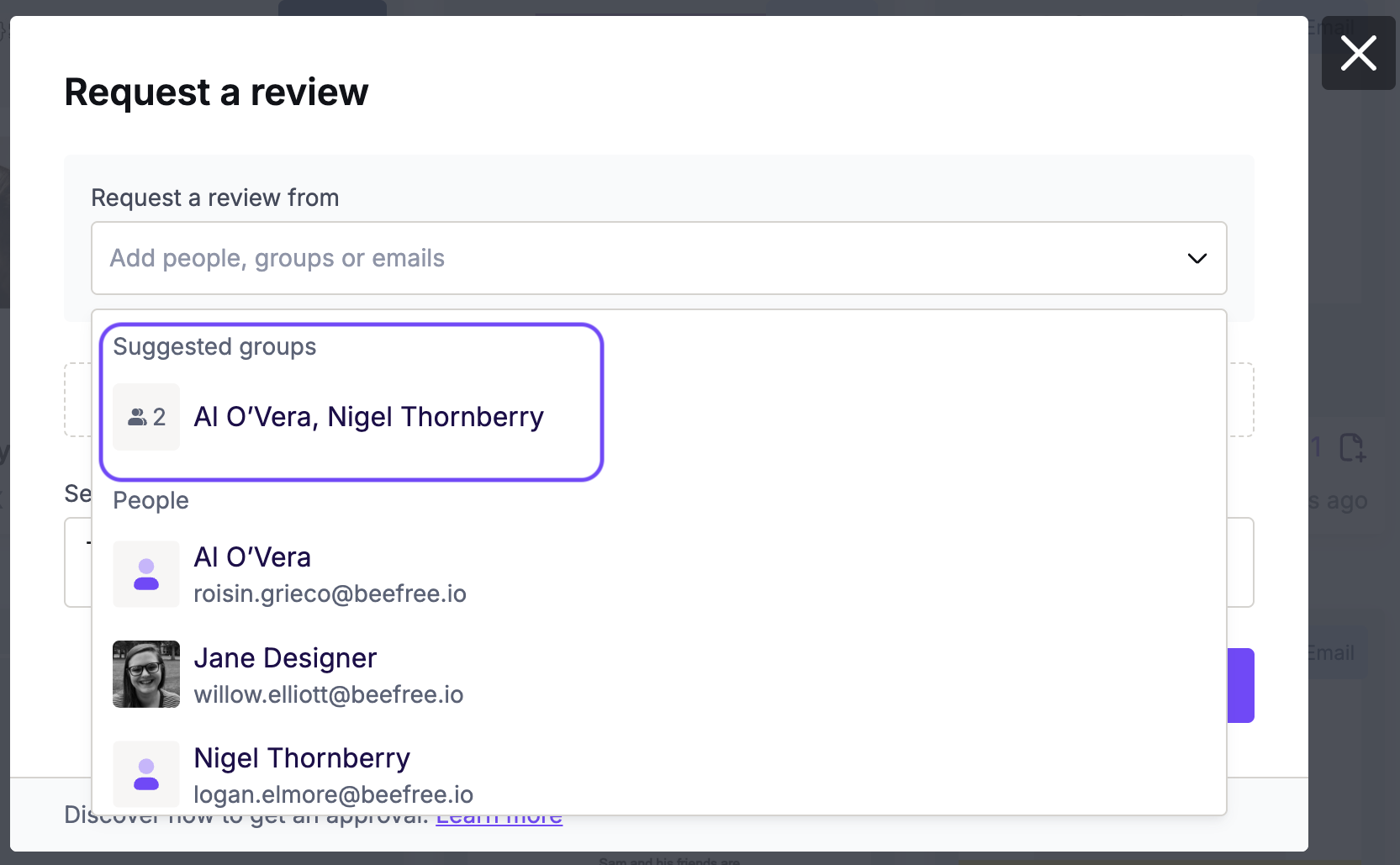
When adding reviewers, you’ll see the familiar drop-down menu with two sections:
- Groups - These show first in the list, with the most recently used at the top. If you start typing a name, RGE Studio will also surface up to three groups that include that user.
- Internal users - This section stays the same and lists all workspace members.
When you pick a group, RGE Studio shows everyone in it, so you know who's included. Groups, like individual users, can only show up once per step and won't show again in other steps of the same review. Please note that when adding external reviewers, RGE Studio does not create a group.
Reviewing designs
The reviewer's email notification provides several options. There are buttons the reviewer can use to:
- Comment, which directs them to the builder with the comment panel open in the sidebar.
- Approve, which directs them to the details page and approves the design.
Below these options, the reviewer can view the design directly in their inbox. Note that the design preview for these notifications is a screenshot. As a result, GIFs will display as static in the review request email notification.
The in-app notification redirects reviewers to the design inside the builder. The comment panel is open by default in the sidebar. Reviewers can click on the review icon in the builder banner to approve the design.
Filtering Options
You can use the Review dropdown in any project folder to filter designs based on review status. This allows you to easily identify which designs still require approval. The filter options include:
- Awaiting my review, which shows any designs requiring your approval.
- Asked by me, which shows any designs where you initiated the approval workflow.
These options are useful if you want to filter based on review workflows you're a part of. However, you may need to filter based on review requests where you aren't involved. In that case, use the Status dropdown to filter based on the following design statuses:
- 🔘 Draft
- 🟡 In review
- 🟢 Approved
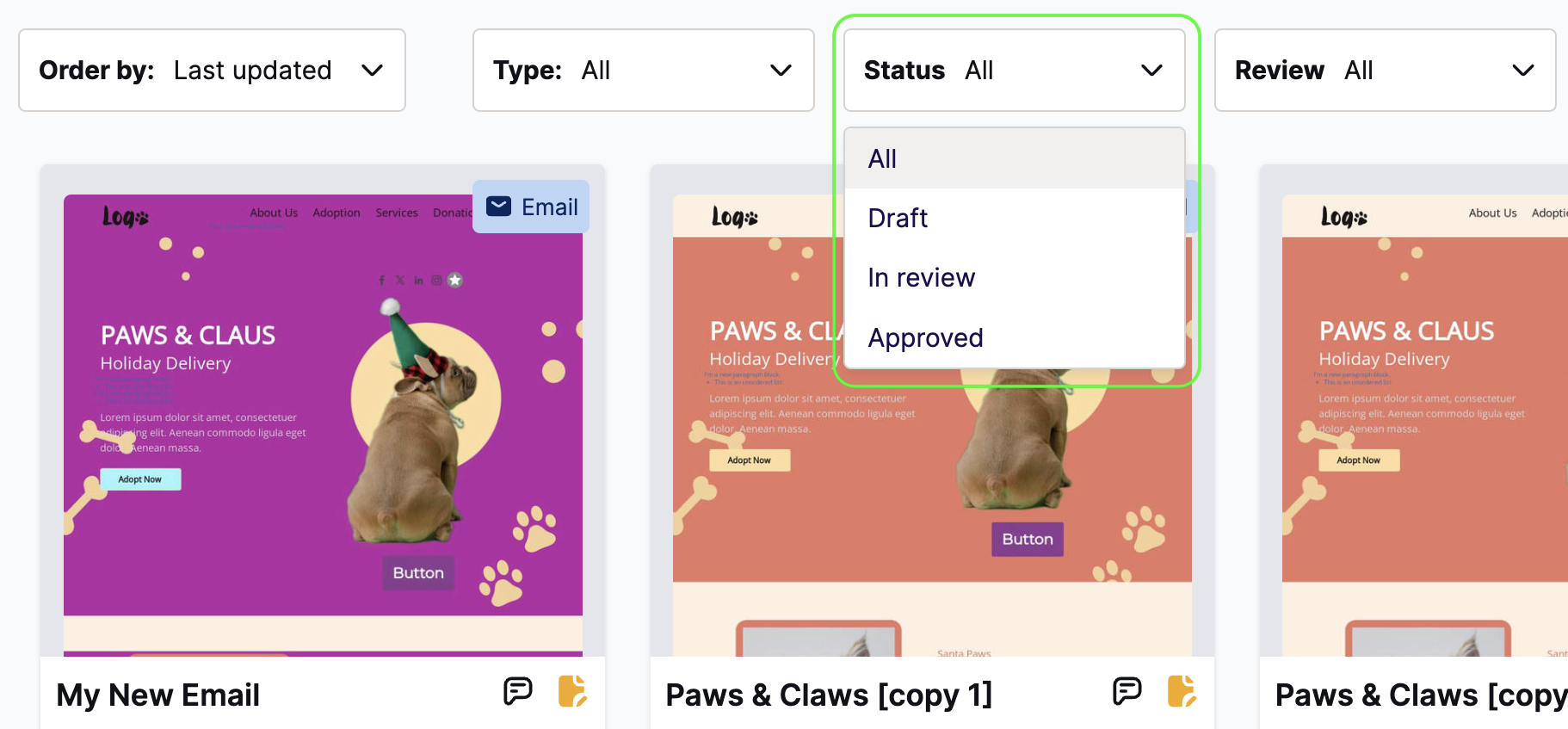
You can use these filters in tandem with the Type and Tags filters to further narrow your search.
Approval Management Options
In your workspace's General Settings, there are options to manage your approval workflow. These settings can provide stricter control over the approval process.

You can use these options to:
- Display manual statuses: This applies to the design statuses of Draft, In review, and Approved, and is turned on by default. If it’s toggled off, users can only modify the design’s status by using the in-app approval process.
- Restrict editing during approval: This feature is toggled off by default. Once toggled on, when a design is approved, only its approvers can make edits. If you are not a reviewer and you make edits, the rest of the team will be notified of the changes.
For more information on these options, see our article on Approval Management.
If you have any questions, feel free to contact us.
Comments
0 comments
Please sign in to leave a comment.