Setting up Okta SSO for your organization

Beefree App is now RGE Studio!
The email design suite you already know and love just leveled up. We’re working hard to update our help center, but you still may see some references to the old product name.
This article applies to the Enterprise plan.
Overview
If you own an Enterprise account, you can require all account users to sign in with Okta SSO.
Before You Begin
To enable Okta SSO, contact your account manager or sales representative. They'll walk you through the process. Before you reach out, gather the following information:
-
Email domain:
This is the domain name used in your organization's email addresses. RGE Studio uses it to verify and match users from your organization for SSO.
Example:yourcompany.com(if your email isjane.doe@yourcompany.com) -
Okta app for RGE Studio domain/URL:
The URL where your RGE Studio Okta integration is hosted. This is typically your sign-in URL or the environment your Okta app redirects to. Reference the Okta documentation for more details. -
Okta app for RGE Studio Client ID:
A unique identifier for the Okta app you create to integrate with RGE Studio. Your Okta dashboard generates this when you create a new app integration.
Example:0oab123xyzABCDeFG0h7 -
Okta app for RGE Studio Client Secret:
A confidential string that your Okta app and RGE Studio use to authenticate the integration securely. Store this securely and never share it publicly.
Example:t9XvW2Gp7kJQeMnyxP5Q8kFgJXZ1bI8lRZqcdR9H
Create Your Okta Application
Okta SSO requires actions on both sides. This section covers the steps you take to create a new Okta application.
- Create a new Okta app for RGE Studio.
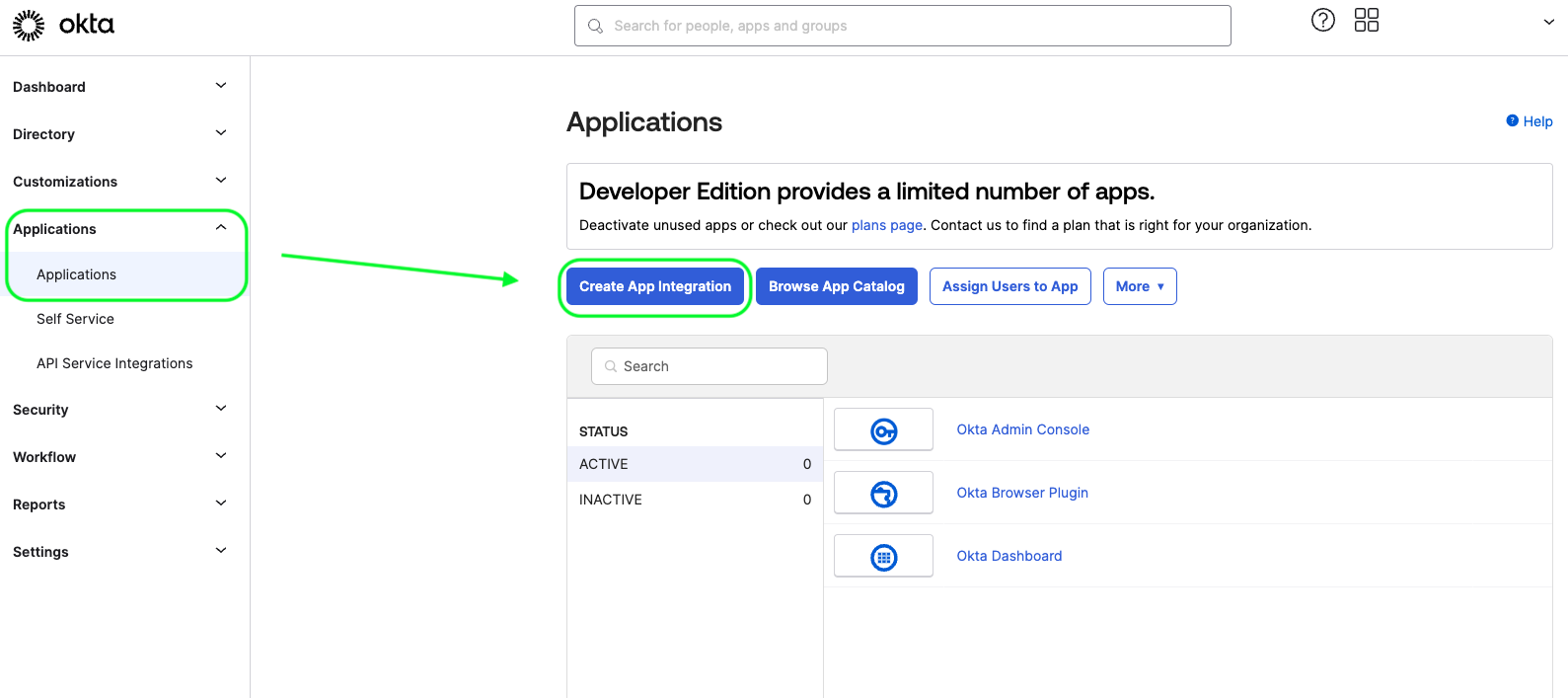
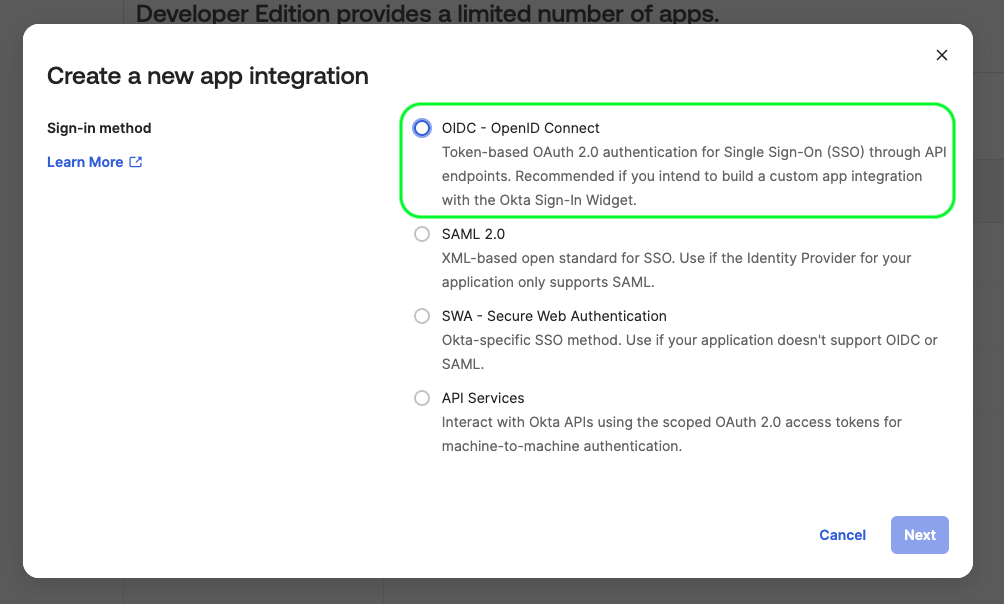
- For Sign-in method, select OIDC - OpenID Connect.
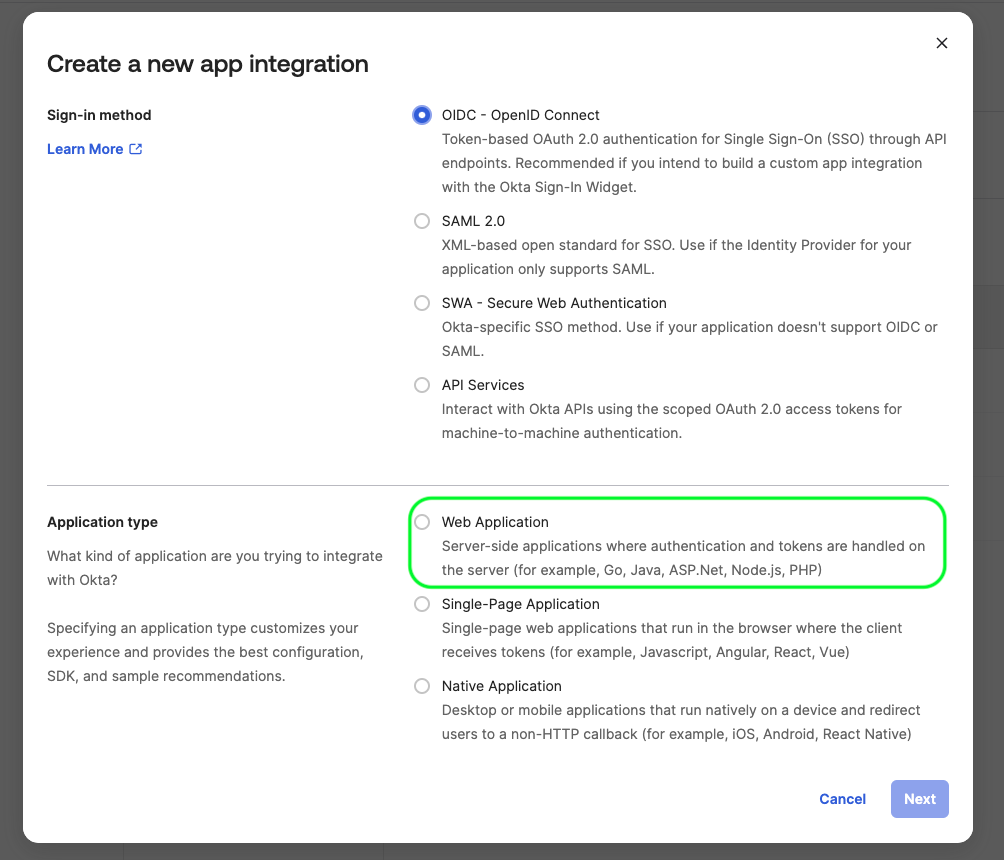
- For Application type, select Web application.
- Click Save.
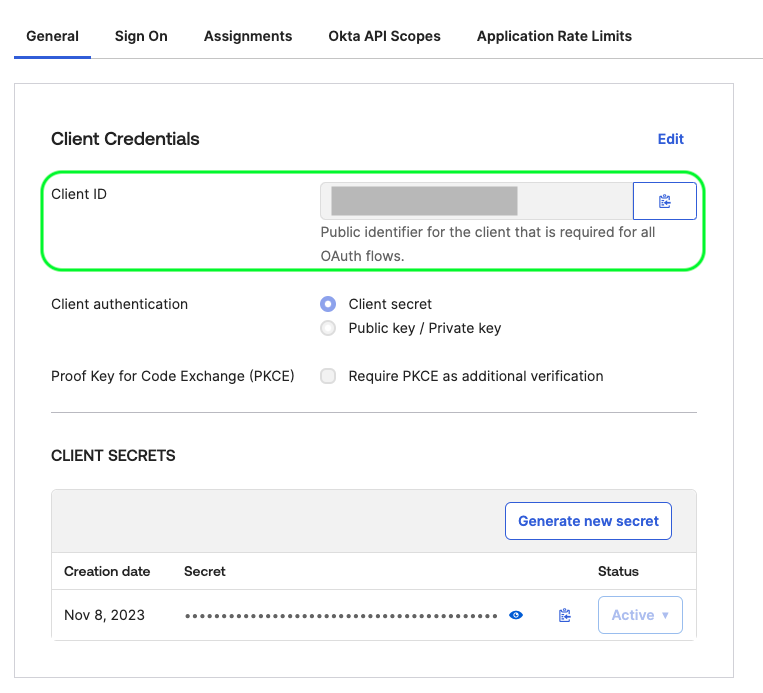
- Copy the Client ID and Client Secret. Send them to your account manager.
- Your account manager will give you our callback URL. Paste it into the Sign-in redirect URLs field in Okta.
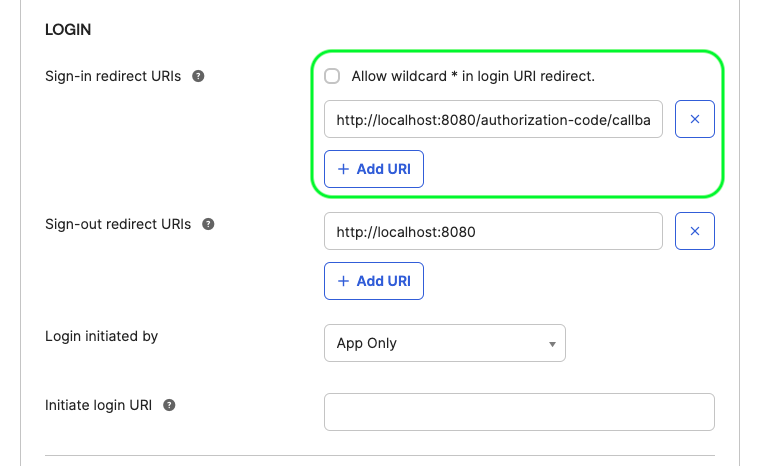
- Click Save. You're all set!
Next Steps
After you complete these steps, your IT team can add users to the Okta application. Our developers also complete some internal actions to finish the setup.
If you have questions or concerns, please contact your account manager.
Comments
0 comments
Please sign in to leave a comment.