Advanced User Permissions

Beefree App is now RGE Studio!
The email design suite you already know and love just leveled up. We’re working hard to update our help center, but you still may see some references to the old product name.
This article applies to the Business and Enterprise plans.
Overview
As a Business or Enterprise user, you likely have many people with access to your account. Roles and permissions help you manage this access. Advanced permissions let you further customize what each user can do.
Advanced permissions can be applied to any RGE Studio user except the owner. Advanced permissions restrict a user from editing workspace styles or adding new content. A user with advanced permissions enabled can only edit elements of existing content. They cannot drag and drop new content blocks. They can drag and drop approved saved rows.
For a video walkthrough, see our Academy tutorial on inviting teammates and setting user roles and permissions.
Advanced User Permissions
Advanced permissions can restrict users from several editing options. However, these users have full visibility within RGE Studio according to their role. Unavailable features will often appear locked rather than hidden.
For example, say you have two admins in your account. One admin has advanced permissions enabled. The other doesn't. The admin with advanced permissions will not see all the same options.
The following sections explain what admins with advanced permissions see in RGE Studio. For information about other roles, jump to User roles & advanced permissions.
Projects
Advanced permissions apply very few limits to the Projects tab itself. These users can interact with any feature that exists here. They may not notice any differences until they open the builder.
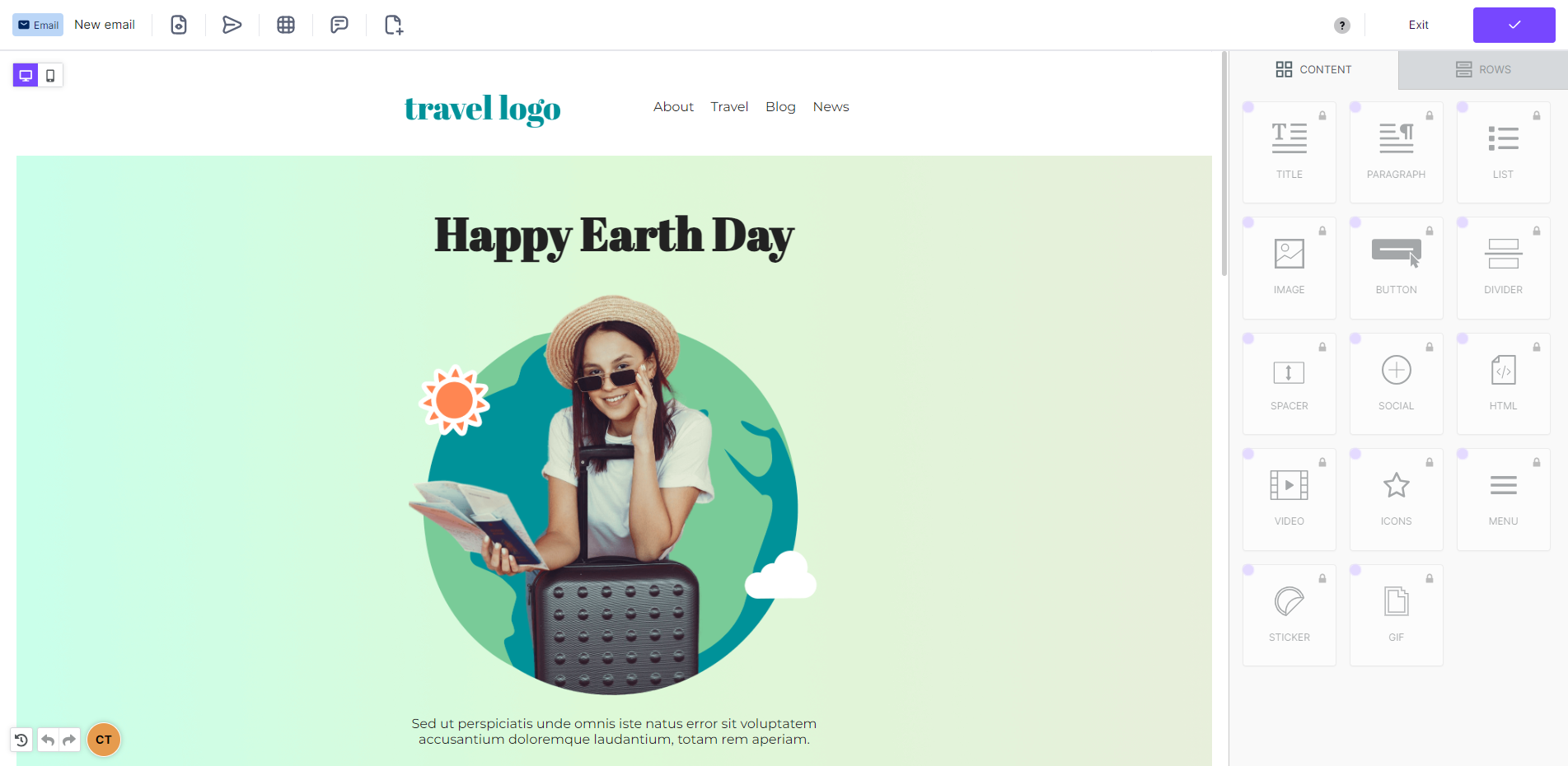
Users with advanced permissions enabled cannot drag and drop content blocks. As a result, all tiles in the sidebar will appear locked. Additionally, the settings tab is notably missing from the builder. This omission is intended to prevent them from making large changes to the design. These users still have limited access to the Content and Rows tabs.
They can edit these types of existing content:
- Paragraph, List, and Title (includes legacy Text blocks)
- Edit text directly on the builder stage
- Image, GIF, and Sticker
- Edit image URLs
- Upload new images
- Use the built-in image editor (image block only)
- Edit action URL
- Button
- Edit action URL
- Video
- Edit video URL
- Change video type (in Page builder only)
- Form
- Set up the form
- Manage form fields
- Icon
- Add new icons
- Edit existing icon image, text, title, and action for existing icons
- Menu
- Add new menu items
- Edit text, URL, and title for existing menu items
Properties they can't edit appear translucent in the builder sidebar. They can't interact with these features.
When a user selects a content block, fewer icons appear on the builder stage. They cannot see icons to delete, duplicate, or move an existing content block. However, they will always have the option to comment.
These users can drag and drop approved saved rows from the rows tab. (You can manage this by hiding categories you don't want these users to access.)
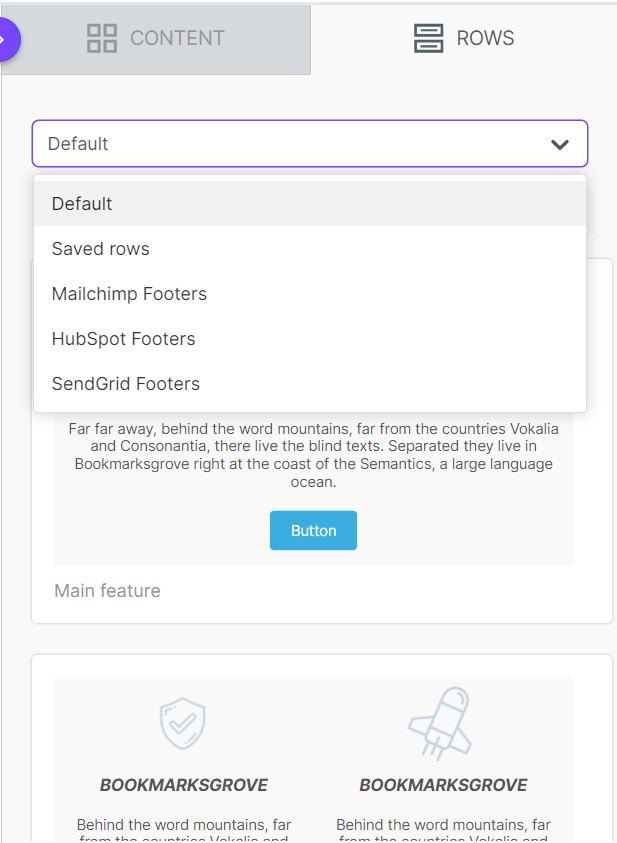
They can save updates to existing saved rows. They cannot create new saved rows.
Library
Only Admins and Managers can see the Library tab.
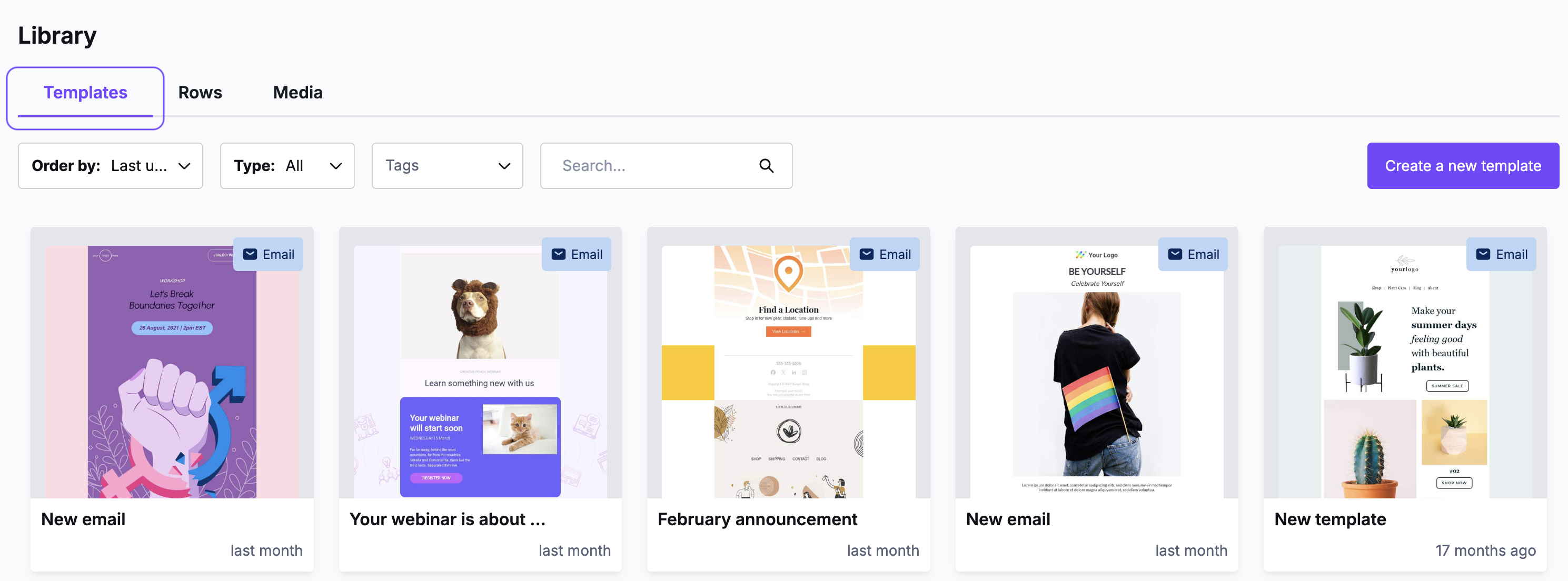
Advanced permissions give a user view-only access to the Library. They can see all templates stored in the Templates area. They can't edit them. Their only option is to view the details page.
The same limitation applies in the Rows area. These users cannot see the category dropdown menu or the Add category button either.
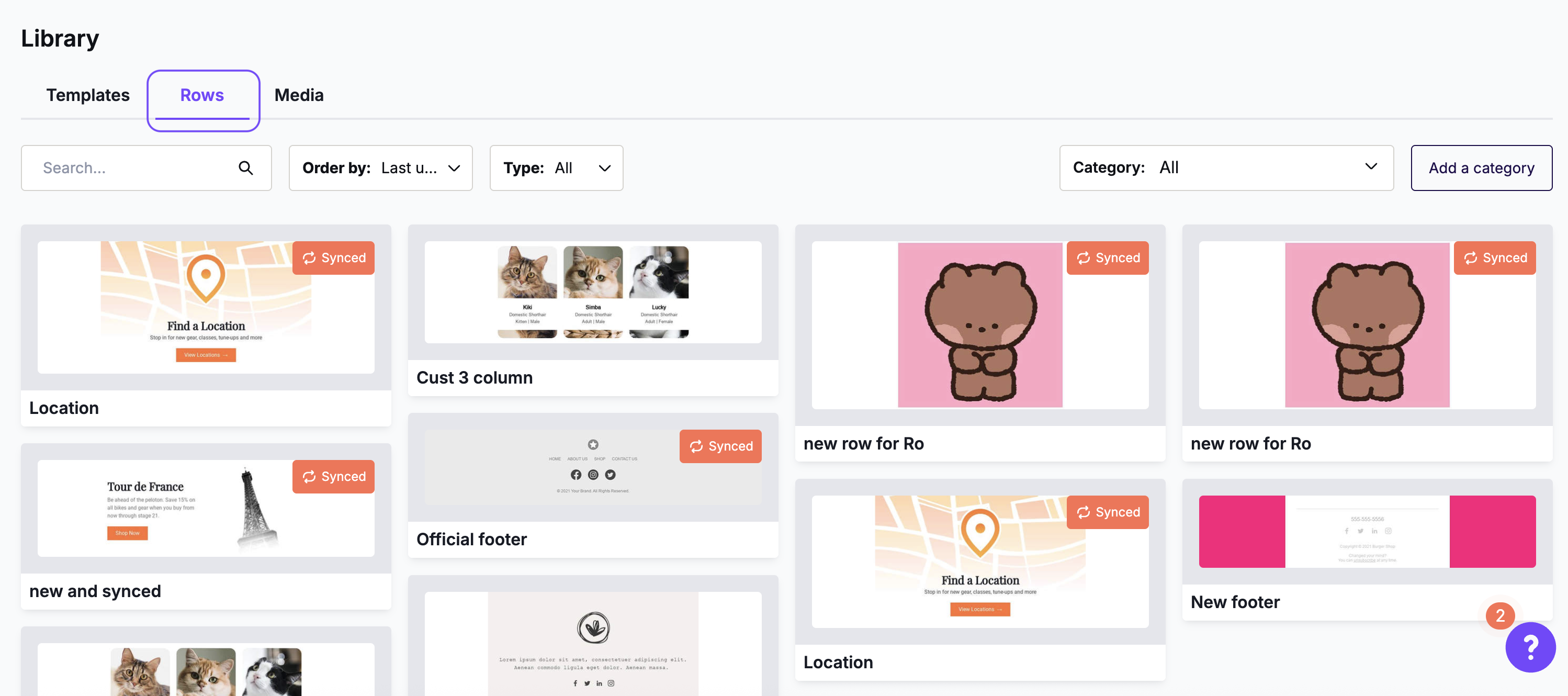
In both sections, the user sees a message explaining their limited permissions.
Settings
Only Admins and Managers can see the Settings tab.
What someone can see in the Settings tab largely depends on their assigned user role. Advanced permissions also make some settings unavailable, regardless of role.
For example, these users will never see the Row categories order on the General settings area. Additionally, they have view-only permissions on the entire Styles area of settings.
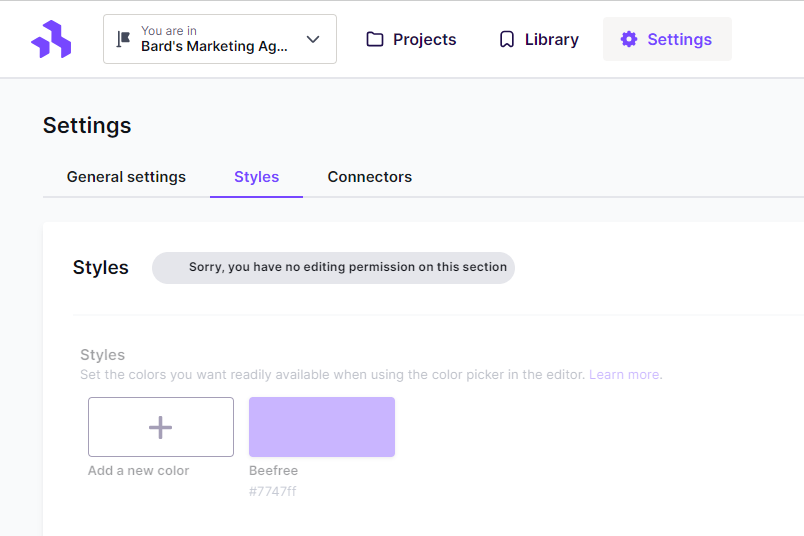
A user with advanced permissions enabled has full access to the Connectors area.
User roles & advanced permissions
Advanced permissions affect each user role differently. This chart is based on the one in our User roles & permissions article, so you can see how each permission affects each role.
| Permission | Admin | Manager | Editor | Contributor |
| Invite/edit/revoke users |  |
|||
| Add/remove workspaces | |
|||
| Edit workspace assignments | |
|||
| Manage workspace settings |
* |
* |
||
| Create/edit folders | |
|
||
| Export/download designs | |
|
|
|
| Edit design content |
* |
* |
* |
* |
| Use saved rows | |
|
|
|
| Send test email | |
|
|
|
| Comment | |
|
|
|
* Indicates that there may be limitations as described in this article.
Applying advanced permissions to users
You can apply advanced permissions to your users at any time. You can apply them when inviting a new user, or by editing an existing user's details.
Advanced permissions appear as a dropdown to the right of the Role field. This dropdown appears in all paid RGE Studio plans. Only Business and Enterprise users can select Restrictions on layouts and styles. If inviting a new user, click Invite to save. If editing an existing user, click Save to continue. The advanced permissions will apply immediately.
You can also change any of your users back to No restrictions at any time.
If you have any questions, feel free to contact us.
Comments
0 comments
Please sign in to leave a comment.