User roles & permissions

Beefree App is now RGE Studio!
The email design suite you already know and love just leveled up. We’re working hard to update our help center, but you still may see some references to the old product name.
This article applies to paid plans.
Overview
RGE Studio helps you improve your email creation workflow by letting you add multiple users. You can also configure what they can and cannot do.
For example, you can use roles and permissions to stop a junior editor from changing important content, or to limit a new employee's access to certain projects or clients.
RGE Studio has two types of users: members and viewers. You can assign members one of several user roles. A viewer's role is built into their user type and can't be reassigned the same way.
Enterprise subscribers can also use Advanced Permissions to limit a user's editing permissions.
For a visual walkthrough, see the RGE Studio Academy tutorial on inviting team members and setting roles and permissions.
Setting access levels for members
Roles determine what users can or cannot do in RGE Studio.
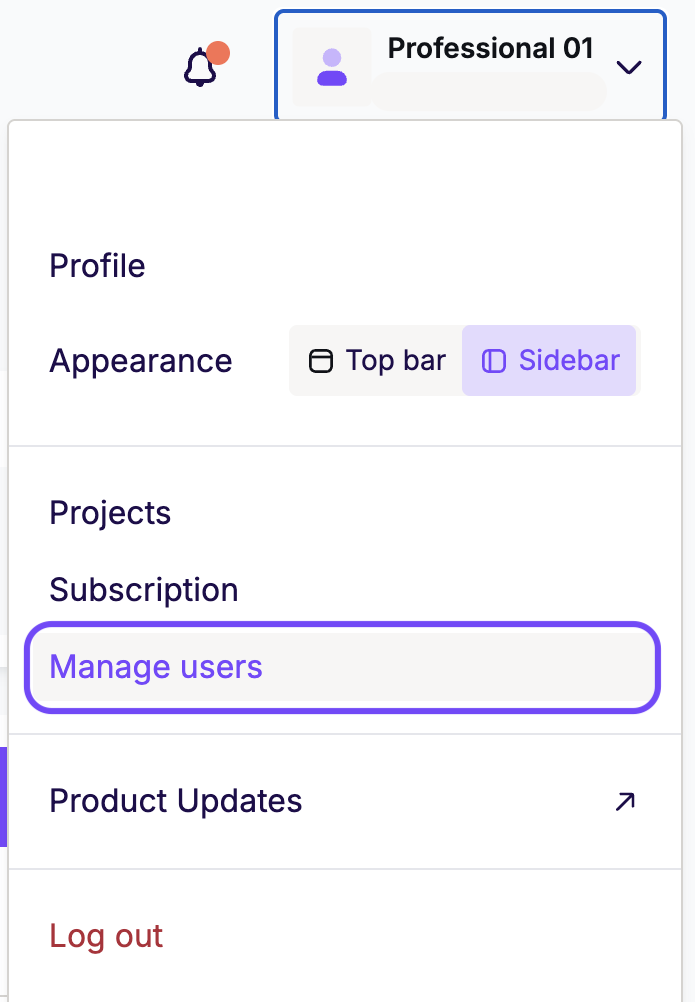
To assign roles to your members, go to the Manage users section of your account, available from the top-right drop-down menu. Only owners and admins can access this section.
Click on the member that you want to edit.
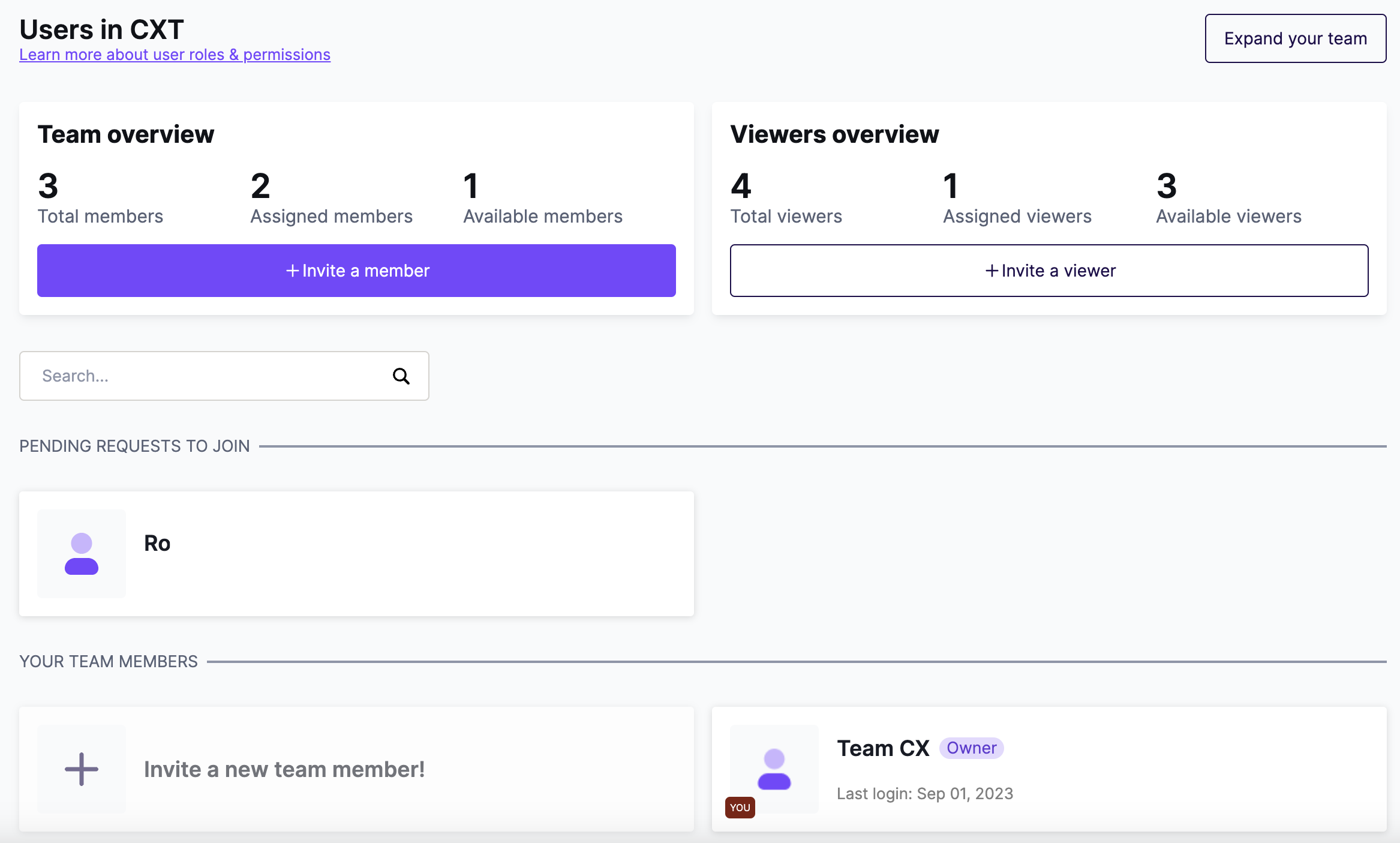
The Role column shows the role assigned to that member. You can set the role when you create a new member or when you edit an existing one.
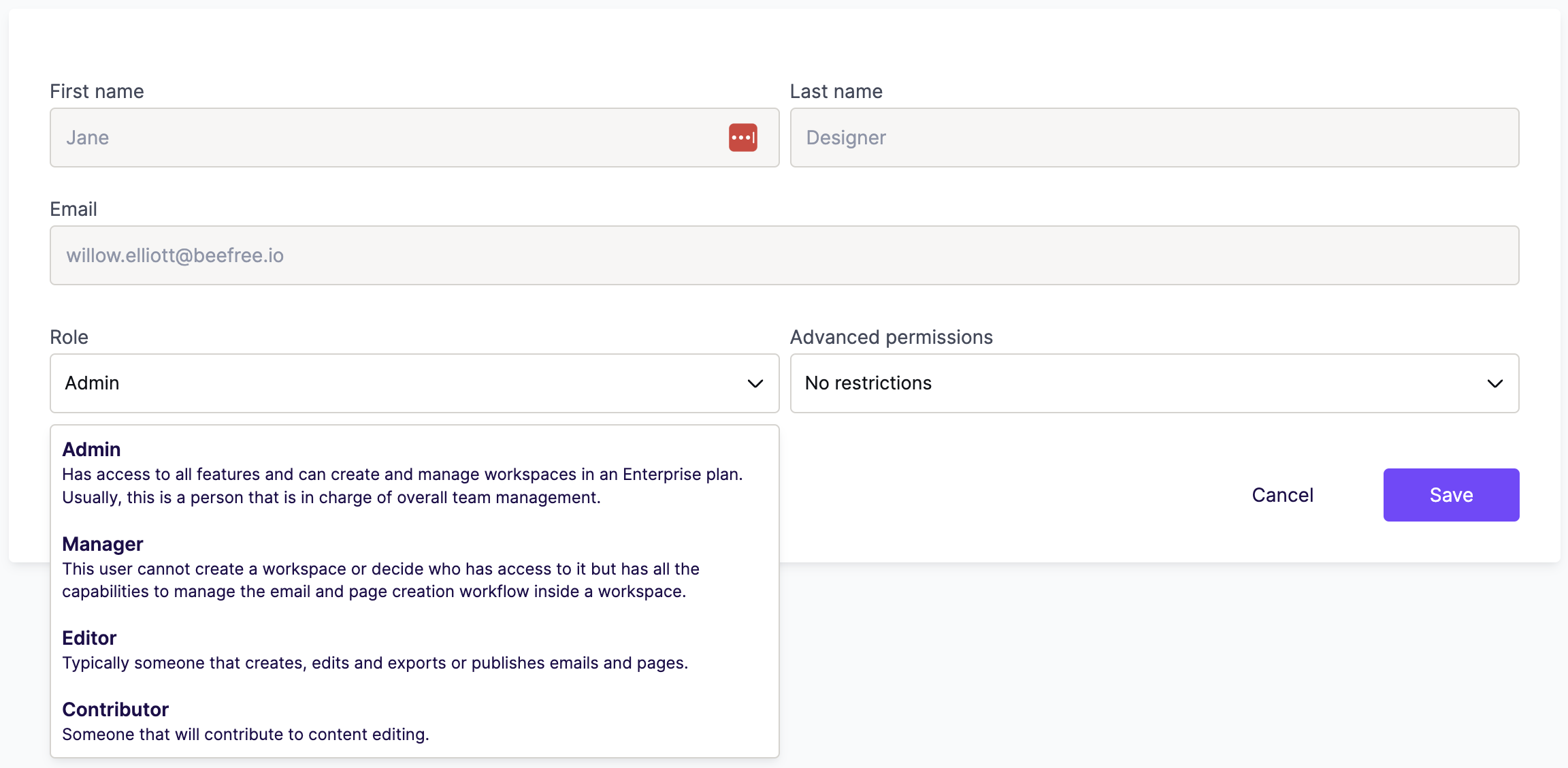
Assigning roles to new members
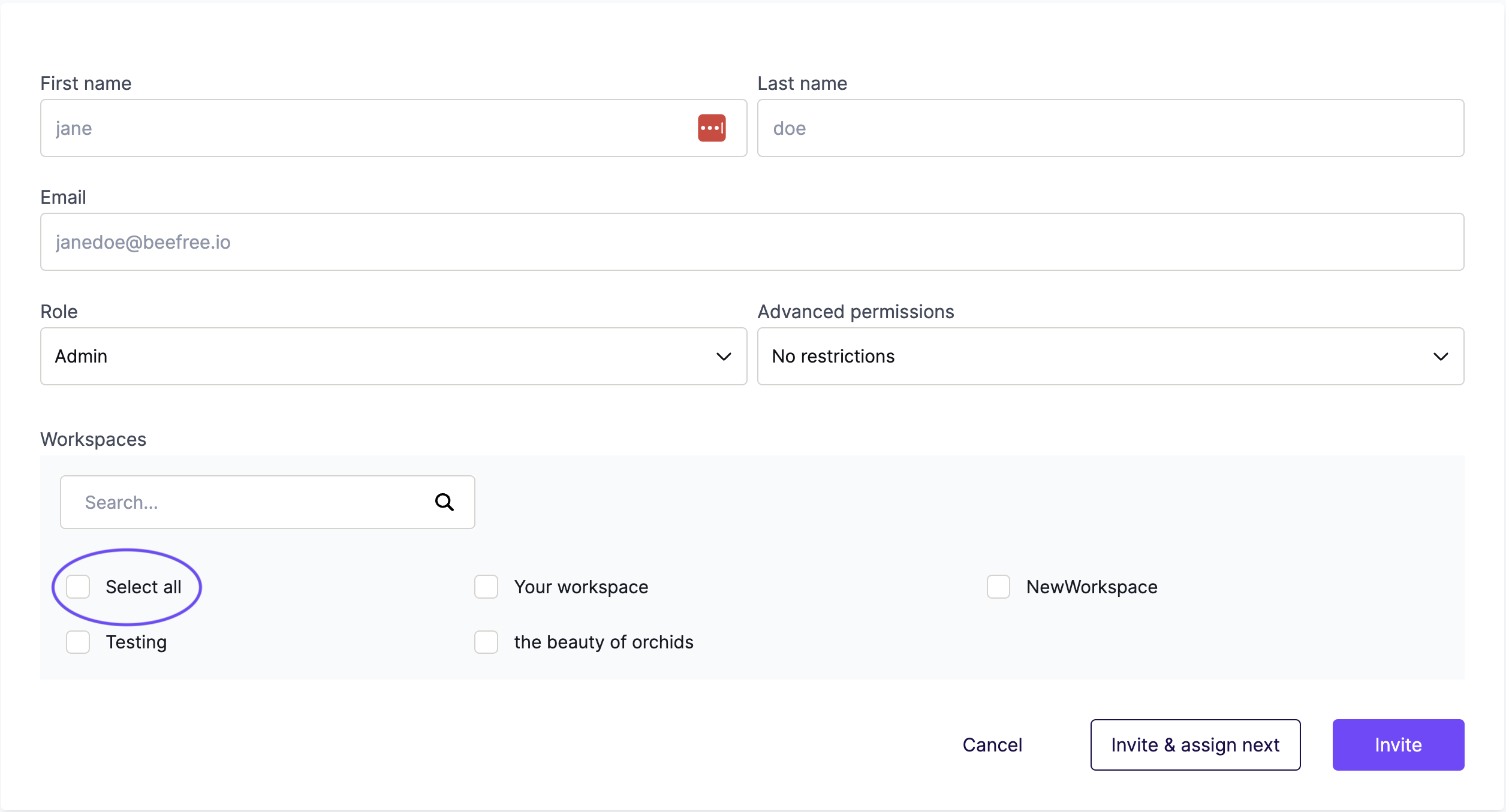
To add a new member to your team, click Invite people.
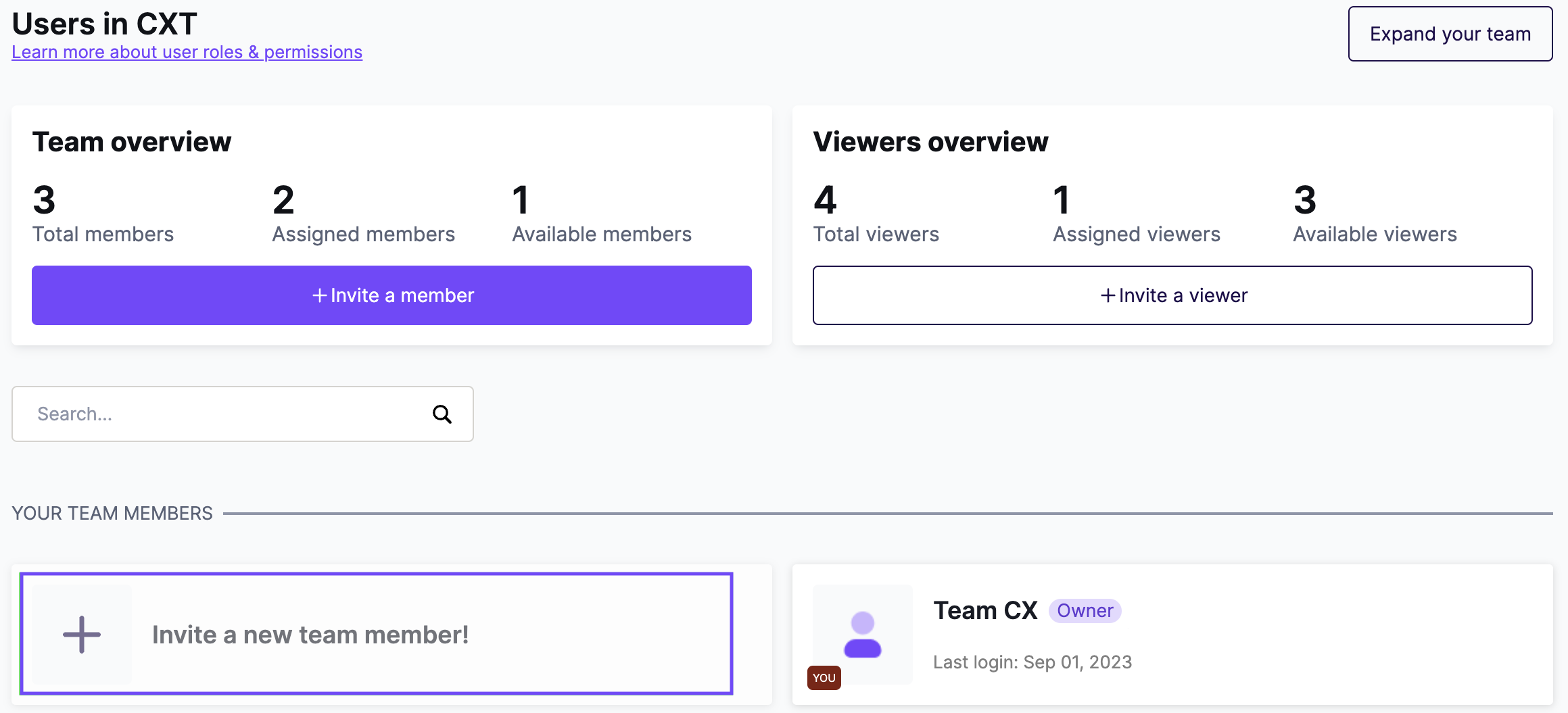
Fill in the form to choose which workspaces they can access. When you're finished, click Invite to send the invitation. To invite another member right away, click Invite & assign next instead.
Viewers
The viewer is unique because the role is tied directly to the user type.
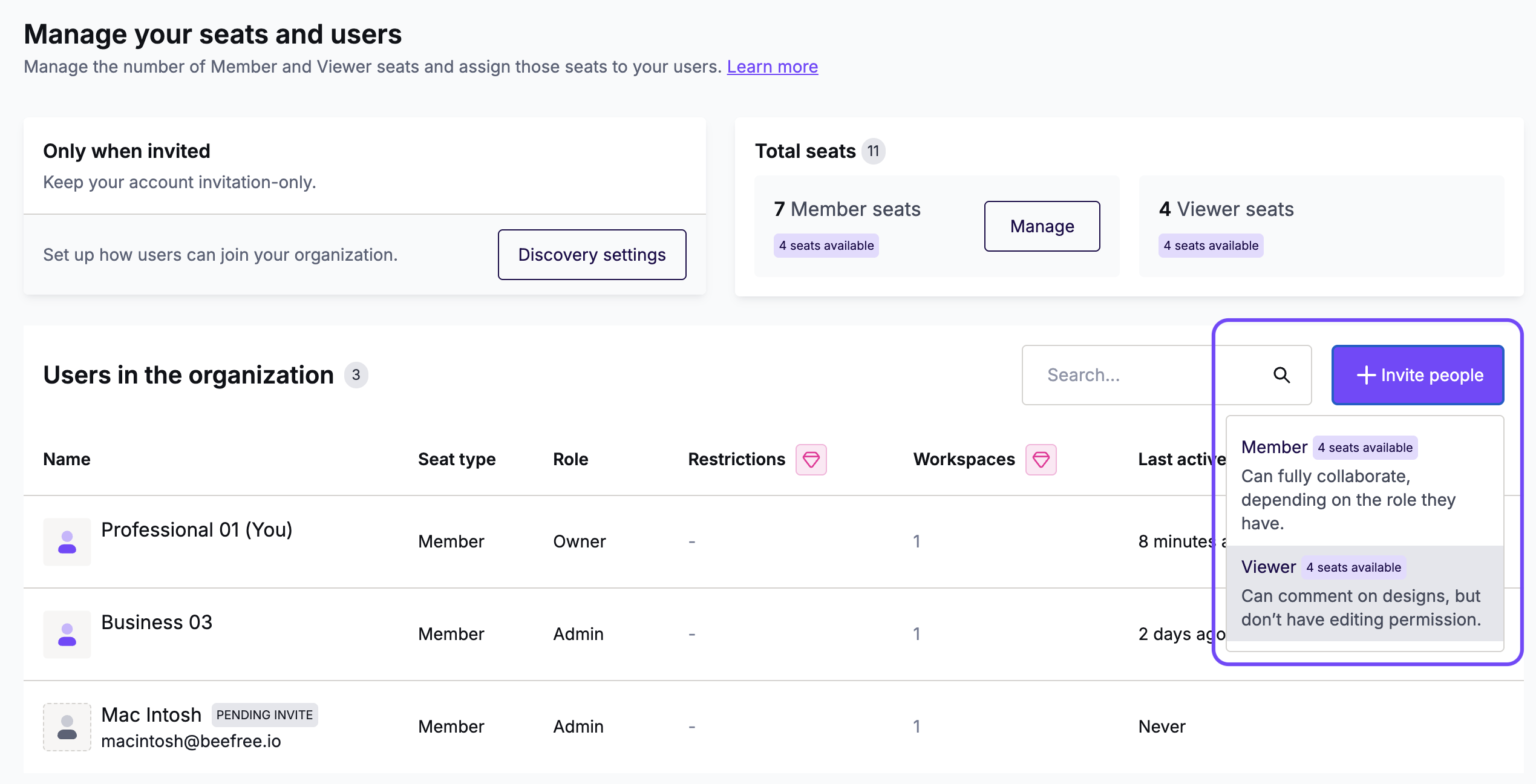
Invite viewers using the Invite people button. Then select Viewer from the dropdown menu.
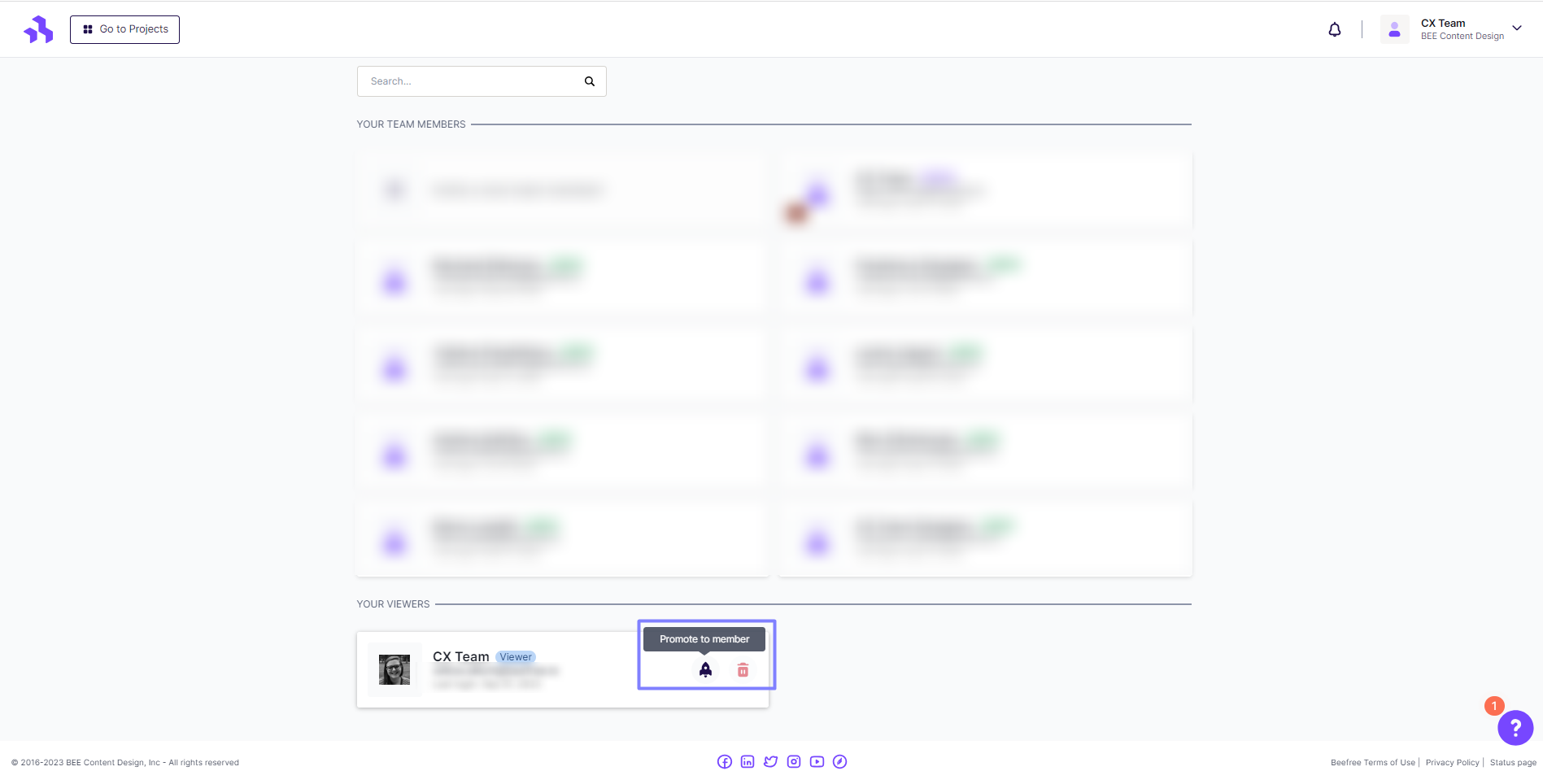
To change a viewer's role, upgrade them to a member.
For more on viewers, see Working with Viewers in RGE Studio.
Understanding the Different Roles
Each role has a default set of permissions that define what they can or cannot do in RGE Studio.
Available roles
Owner
This user manages the RGE Studio subscription. This is the only user who can upgrade the plan or cancel the subscription.
Admin
Usually, this is a person who is in charge of overall team management. They can also purchase additional users.
Manager
This user has all the capabilities to manage the design creation workflow inside a workspace.
Editor
This user is someone who creates, edits, and exports designs.
Contributor
This user contributes to content editing (e.g., text optimization).
Viewer
This is a collaborative user limited to commenting on designs created in RGE Studio.
Permissions details
| Permission | Owner | Admin | Manager | Editor | Contributor | Viewer |
| View/edit billing information |
 |
|||||
| Cancel the subscription | |
|||||
| Purchase/remove additional users | |
|||||
| Invite/edit/revoke users | |
|
||||
| Add/remove workspaces | |
|
||||
| Edit workspace assignments | |
|
||||
| Add/copy/remove templates | |
|
|
|||
| Save rows | |
|
|
|||
| Manage workspace settings | |
|
|
|||
| Create/edit/remove folders | |
|
|
|||
| Lock content/edit locked content | |
|
|
|||
| Edit display condition |
|
|
|
|||
| Add/copy/move/remove emails and pages | |
|
|
|
||
| Export/download designs | |
|
|
|
||
| Edit design content | |
|
|
|
|
|
| Edit design settings | |
|
|
|
|
|
| Use saved rows | |
|
|
|
|
|
| Comment | |
|
|
|
|
|
| Send test email | |
|
|
|
|
|
If you have any questions, feel free to contact us.
Comments
1 comment
Nice feature, à la WordPress.
Please sign in to leave a comment.