Join your Organization in RGE Studio

Beefree App is now RGE Studio!
The email design suite you already know and love just leveled up. We’re working hard to update our help center, but you still may see some references to the old product name.
This article applies to all plans.
Overview
RGE Studio automatically helps you find teammates who are already using the platform. When you sign up with your company email, we check for other accounts on the same domain (e.g., @yourcompany.com). If there's a match, you may see a notification when you sign in. You can join or request to join an existing team account.
Setting up your organization
Account Owners and Admins manage whether users on the same email domain can see the organization. You'll be prompted to set this up when you first sign up for RGE Studio. You can access these settings on the Manage users page. Here, you'll find a Discovery settings button at the top of the page, as shown below.
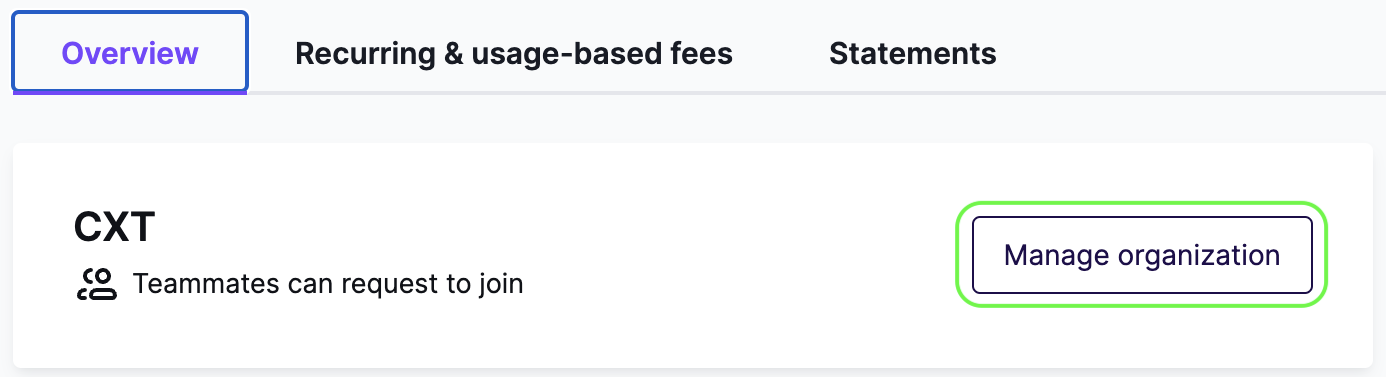
The discovery settings determine whether external users with the same domain can see your account. They also determine how those users can join or request to join your account. The following options are available:
- Teammates can join — Allows anyone with the same domain to join your account immediately.*
- Teammates can request — Allows anyone with the same domain to see that your account exists. They'll need to send a request and be approved to join your organization.
- Only when invited — Prevents anyone from seeing your account, even if they share your domain.
*This option is only available for the Starter plan.
By default, most accounts are set to Teammates can request. For those on the Enterprise plan, the default is Only when invited. You can change this setting at any time.
Managing requests
If you enable Teammates can request, you may receive join requests from external users wanting to join your account. Both Account Owners and Admins can manage these. The notification center will inform you of any new requests.
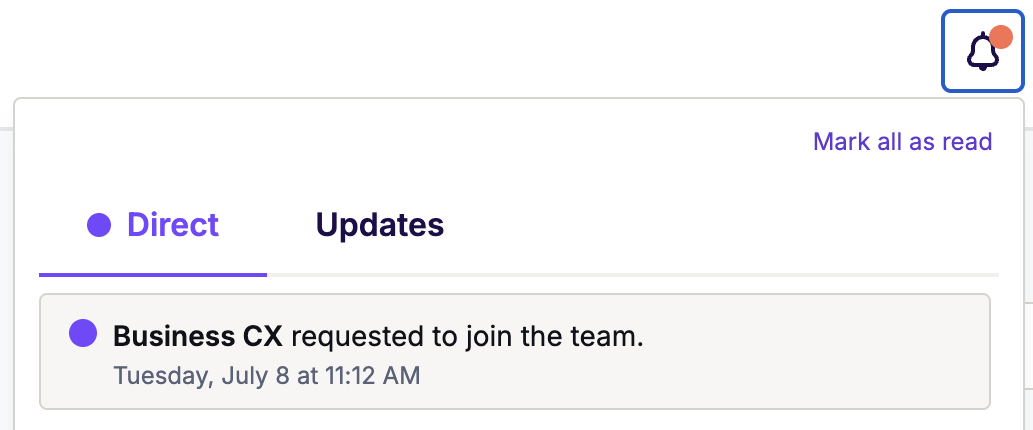
You can review any pending join requests on the Manage Users page. They'll populate just above the Discovery settings.
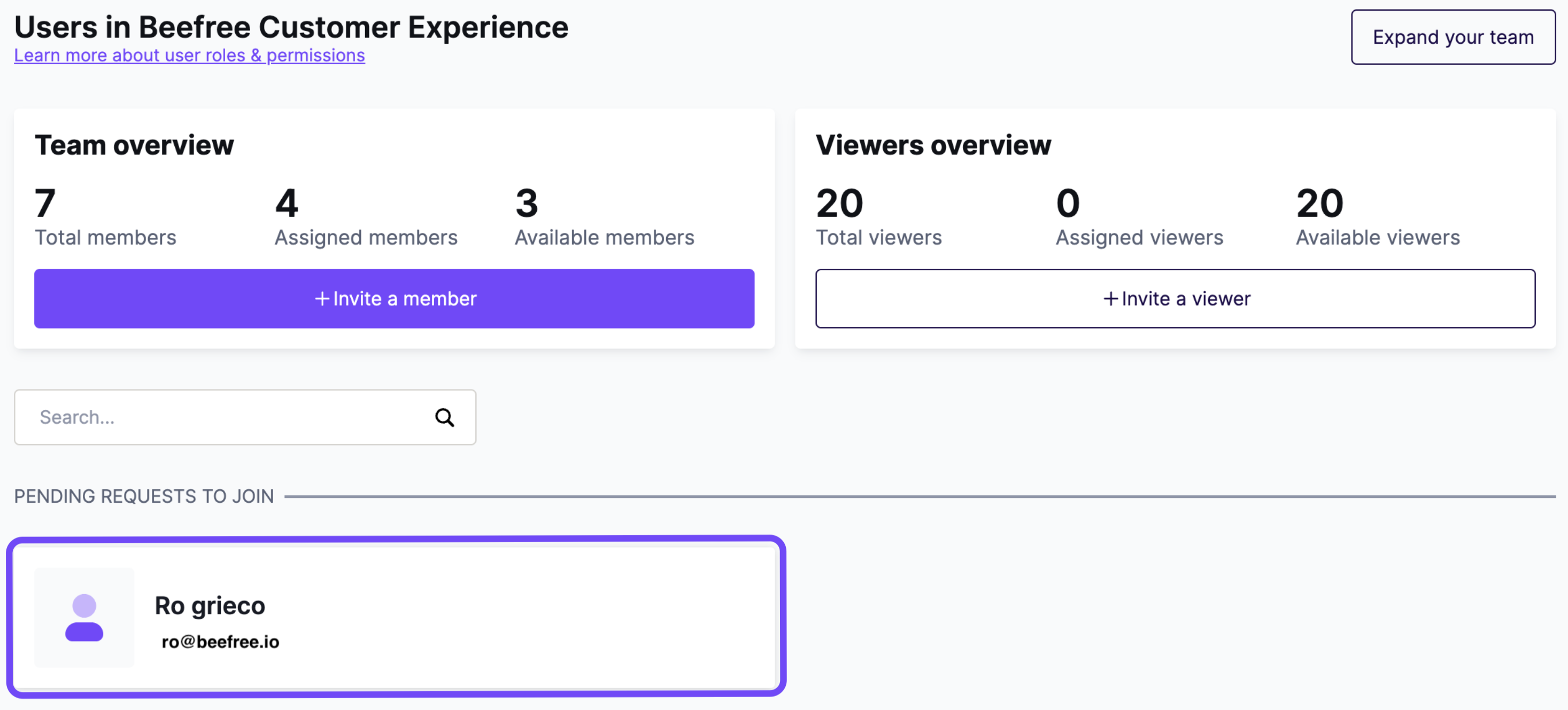
Use the icons to either accept or reject the seat request.
If you accept the request, the platform redirects you to a page where you can set the user's role. You can approve the user as either a member or a viewer. If you approve them as a member, you can also select their user role. For more information, see User roles & permissions.
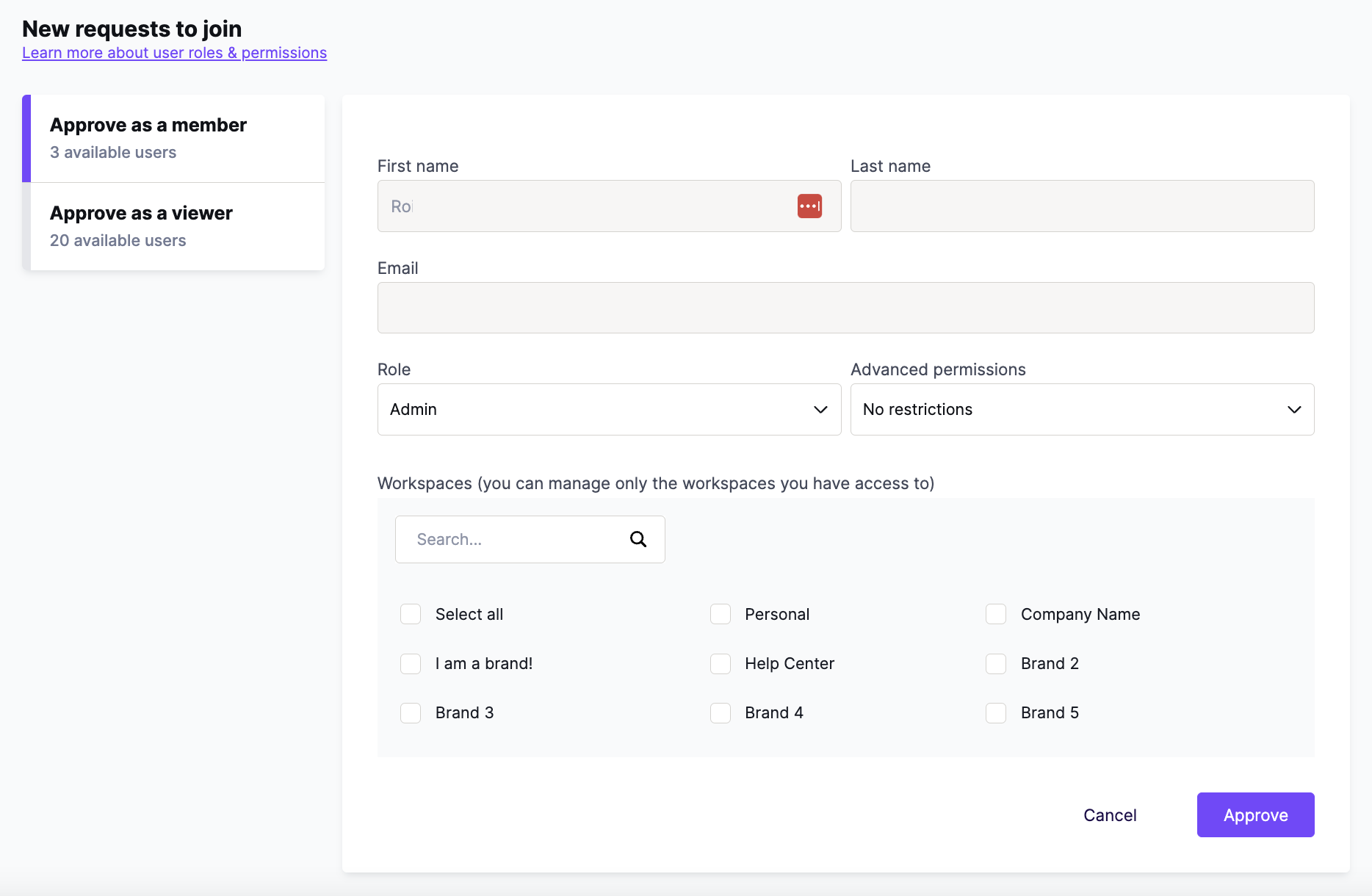
If you're an Admin, your account must have available members to accept a join request. If your account is full, you'll see an error. Contact the account owner to expand your team. For Enterprise accounts: if there are no available members, the Owner or an Admin can contact Sales via the form. They can request additional users this way.
If you deny a join request, the requester cannot send another request. You can always invite them directly if you change your mind.
Once you address the join request, the user will receive an email notification. It will let them know whether their request was accepted or denied.
Joining your team's organization
You can find and join your team's organization any time you log into the platform. This option is in the drop-down menu in the upper-right corner. Click on your name to expand the menu. You'll see a Join a team option at the bottom. This option only appears if applicable RGE Studio accounts exist.
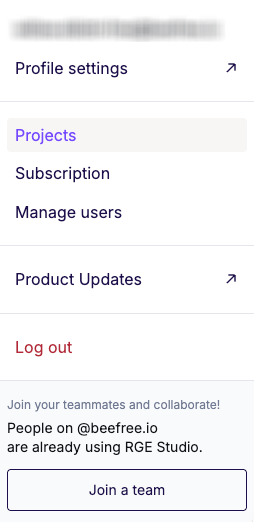
In the Join your teammates modal, you may see the following options:
- Join
- Send request
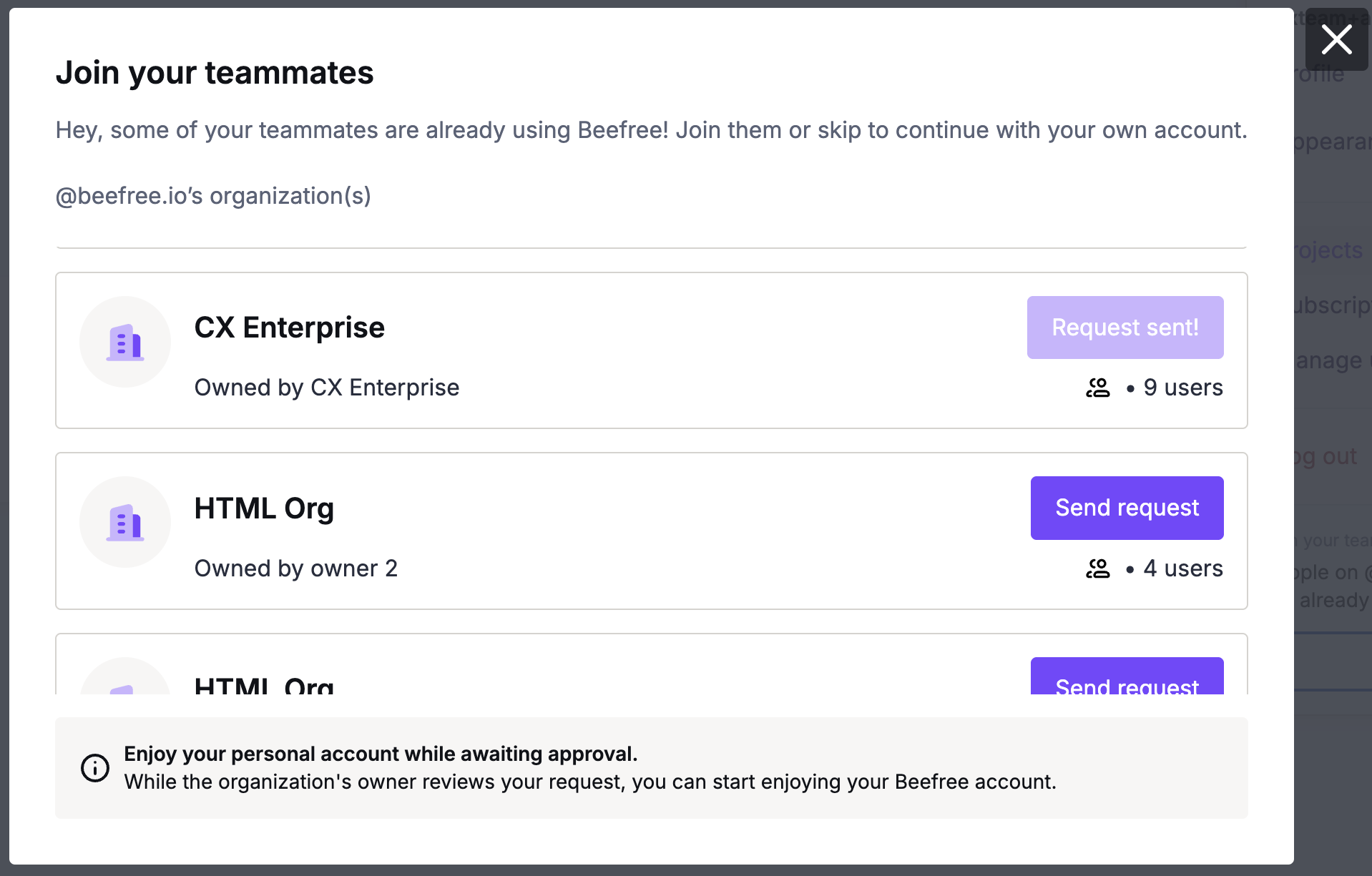
Note that you may not see all accounts associated with your organization. Owners and Admins may choose not to make their account visible to external users. You will only see accounts with visibility enabled.
The Join button gives you immediate access to the requested account. The Send request button notifies the account's Owner and Admins of your request. They must accept your request before you can join the account. You'll receive an email when your request is accepted or denied.
After joining an account, you'll still have access to your personal account. Switch between accounts from the drop-down menu in the upper-right corner. Click on your name and select Switch organization to see an overview of your accounts. Select the account you want to access.
If you have any questions, feel free to contact us.
Comments
0 comments
Please sign in to leave a comment.