Import Your Workspace Styles

Beefree App is now RGE Studio!
The email design suite you already know and love just leveled up. We’re working hard to update our help center, but you still may see some references to the old product name.
This article applies to all plans. However, some features may be limited or unavailable on the Starter plan.
Overview
The Import Your Workspace Styles feature lets you bring your brand styles into RGE Studio automatically. With this feature, you can import:
- Colors
- Fonts
- Social media links
RGE Studio retrieves this information directly from your website using the BrandFetch API. Enter your website's URL to import your brand styles. See our RGE Studio Academy for a video walkthrough.
Imported styles also apply to the default rows in your builder's Rows tab. For more information, see Designing with Workspace Styles.
Prerequisites
To get started, ensure you meet the following requirements for your RGE Studio plan:
- Starter: RGE Studio may automatically import your brand styles during account setup based on your email domain. This applies only to company email addresses. Public email domains (such as gmail.com, yahoo.com, or outlook.com) are not eligible. Starter accounts cannot access this feature from Settings.
- Professional, Business, or Enterprise: You must be the account Owner. Import styles during onboarding or afterward in the Styles tab in Settings. An Owner, Admin, or Manager can add brand styles after onboarding.
- Professional or Business Trial: You must be the account Owner and signed up for the Professional trial. During your trial, you have the same access as a Professional or Business account.
- For all plans: ensure you have a public-facing URL with your brand styles.
Note: This feature requires the account Owner to have a valid business email. It will not appear if the Owner's email uses a public domain (such as gmail.com, yahoo.com, or outlook.com).
Import your styles
This section explains how ti import your brand styles in Settings.
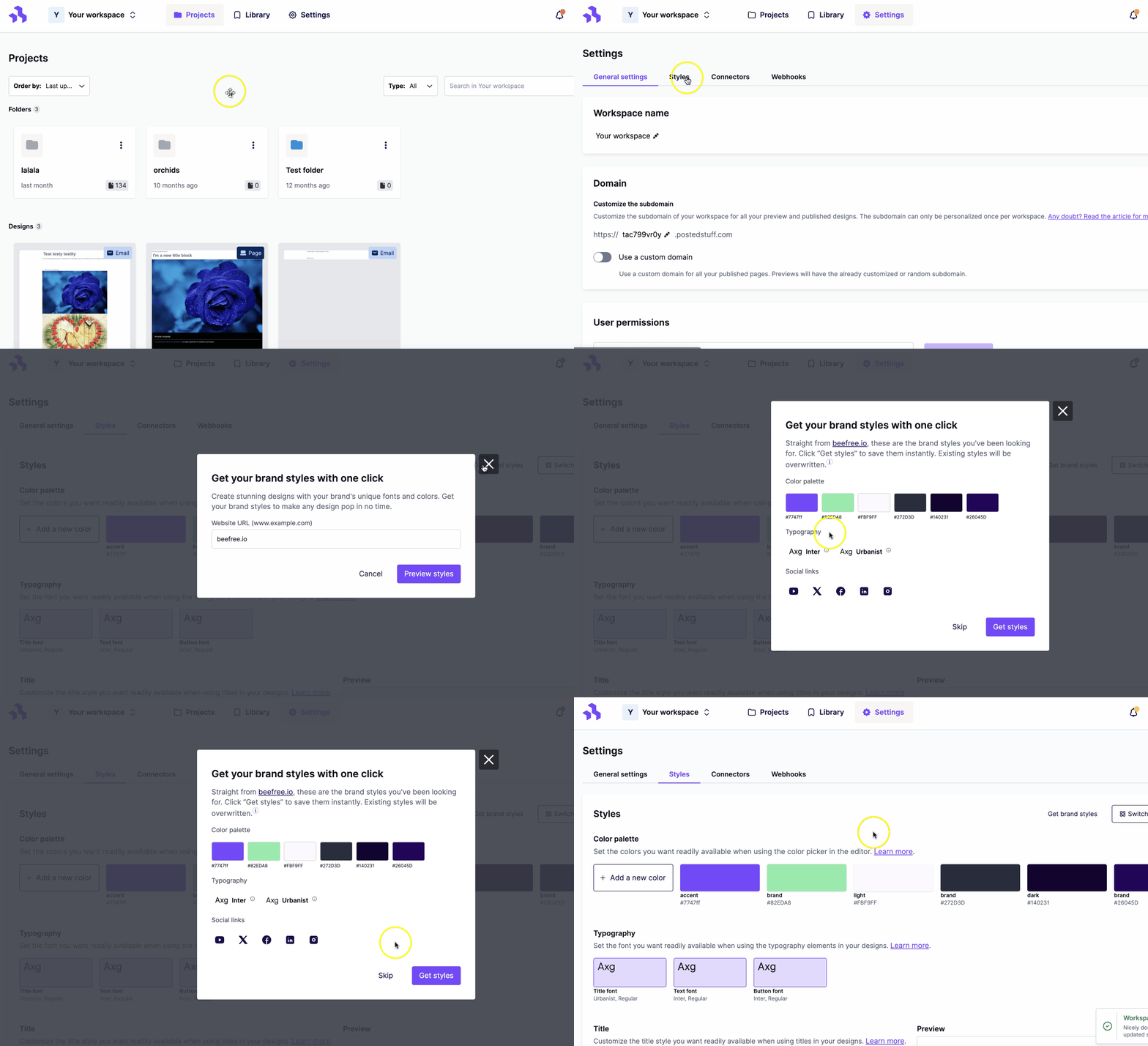
- Log into your RGE Studio account. If you manage multiple workspaces, select the workspace you want to update.
- Select Settings.
- Navigate to the Styles tab.
- Click Import from website in the upper right.
- Type your website URL in the Website URL field.
- Click Preview styles.
- Review the preview and click Get styles to confirm the import.
Note: The BrandFetch API is limited to top-level domain (TLD) URLs. You can only import styles from your root domain.
Edit imported styles
This section explains how to edit the styles you imported.
Colors
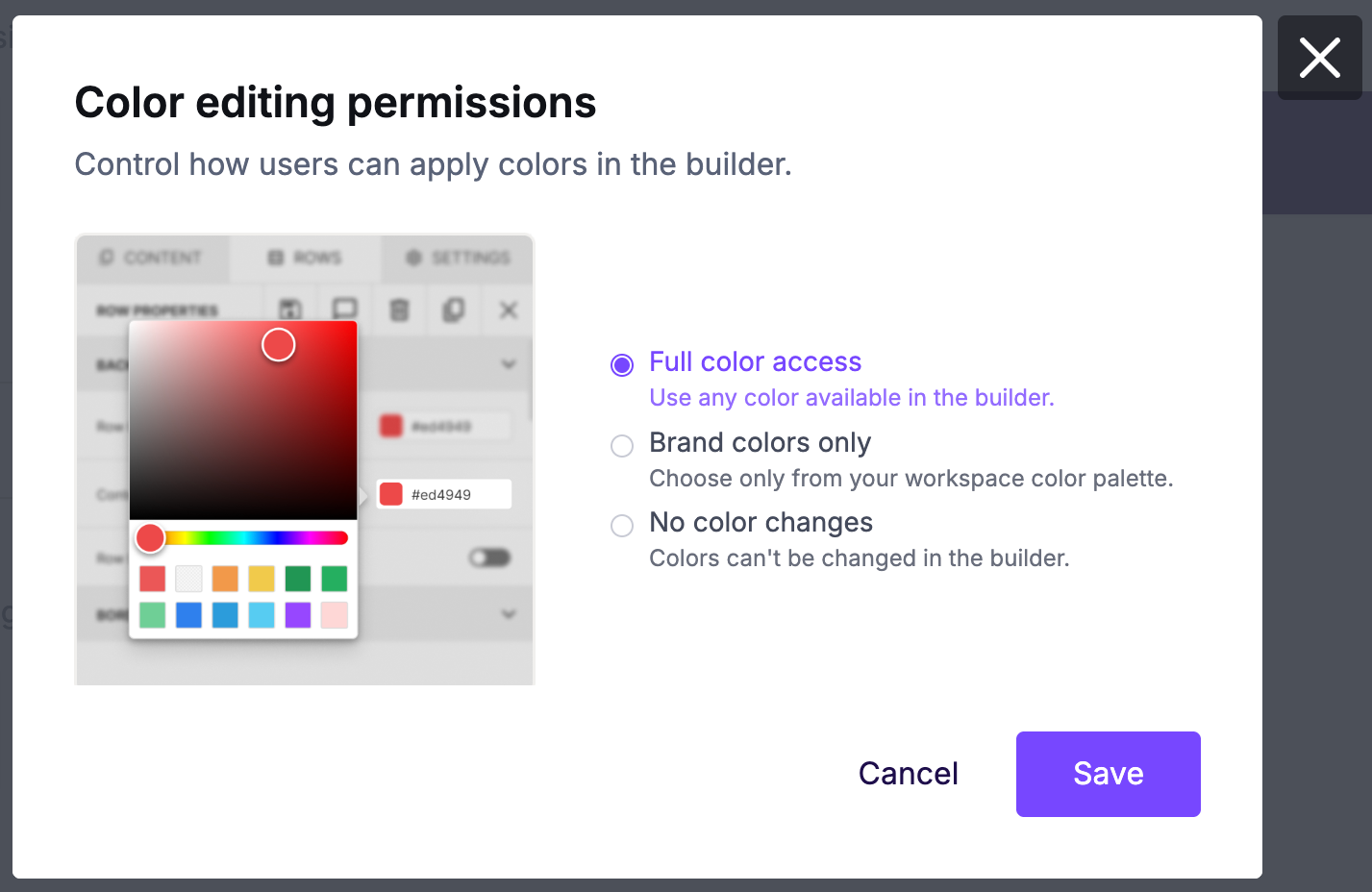
Your brand colors are available in your workspace Settings under Styles. Find imported colors in the Color palette sub-section. On Business and Enterprise plans, you can also edit color palette permissions from this section. For more information, see Color Palette Control in Custom Workspace Styles.
Fonts
Your brand fonts are available in your workspace Settings under Styles. Find them in the Typography sub-section.
Custom fonts
You can add custom fonts in Settings under Styles.
Google Fonts
If your Google font isn't in RGE Studio's font list, RGE Studio imports it as a custom font. These fonts appear in the custom fonts section of Settings > Styles and cannot be edited. Google fonts set up as custom fonts have one font-weight in RGE Studio.
Arial is the fallback font for Google fonts under custom fonts.
System Fonts and Font Weights
If your system font is not in RGE Studio's font list, RGE Studio will ask you to set it up as a custom font.
RGE Studio uses the following font weights for each block type:
- Title: weight 700
- Text and Button: Regular
RGE Studio applies default fonts when the BrandFetch API returns no fonts.
Social media links
Your social media links are available in your workspace Settings under Styles. Find them in the Social links sub-section.
You can edit social media links in Settings > Styles > Social links. A paid plan is required to edit them.
Important considerations
- Importing styles overwrites any brand styles you previously added. This includes styles from the Advanced Style Kit and manual settings. A tooltip warns you before importing.
- Some domains are not compatible with the BrandFetch API. If your domain is not compatible, the import will not retrieve styles. We are exploring solutions for this.
- The BrandFetch API may retrieve only some elements (colors, fonts, or social links), or a combination, depending on how your website is configured.
If you have any questions, feel free to contact us.
Comments
0 comments
Please sign in to leave a comment.