Designing with Workspace Styles

Beefree App is now RGE Studio!
The email design suite you already know and love just leveled up. We’re working hard to update our help center, but you still may see some references to the old product name.
This article applies to all plans. However, some features may be limited or unavailable on the Starter plan.
Overview
This article explains how workspace styles appear in the RGE Studio builder. To set up your workspace styles first, see Custom Workspace Styles.
Workspace styles do not overwrite existing template settings. You may not see your custom styles when using a template from the catalog or a custom template.
Workspace Colors
Your custom workspace color palette is available in every version of the RGE Studio builder. Find it anywhere a color picker exists, including pickers in the sidebar and on text toolbars.
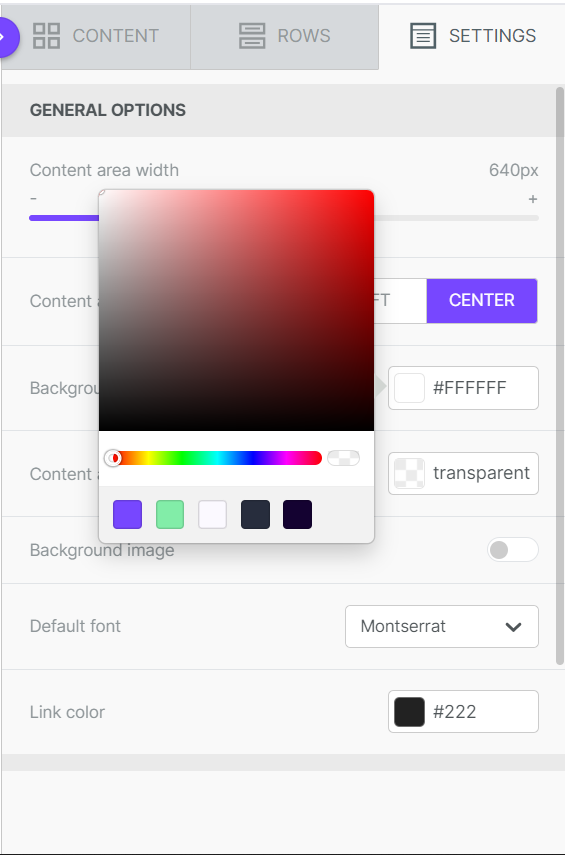
Color editing permissions are only available on Business and Enterprise plans. When enabled, they apply to all users working in the builder.
If permissions are set to Brand colors only, you can only see approved colors while designing. This applies to all color pickers in the sidebar and on text toolbars. All hex-input options are disabled.
If permissions are set to No color changes, all in-builder color pickers are disabled. Colors are applied based on your Workspace Styles settings.
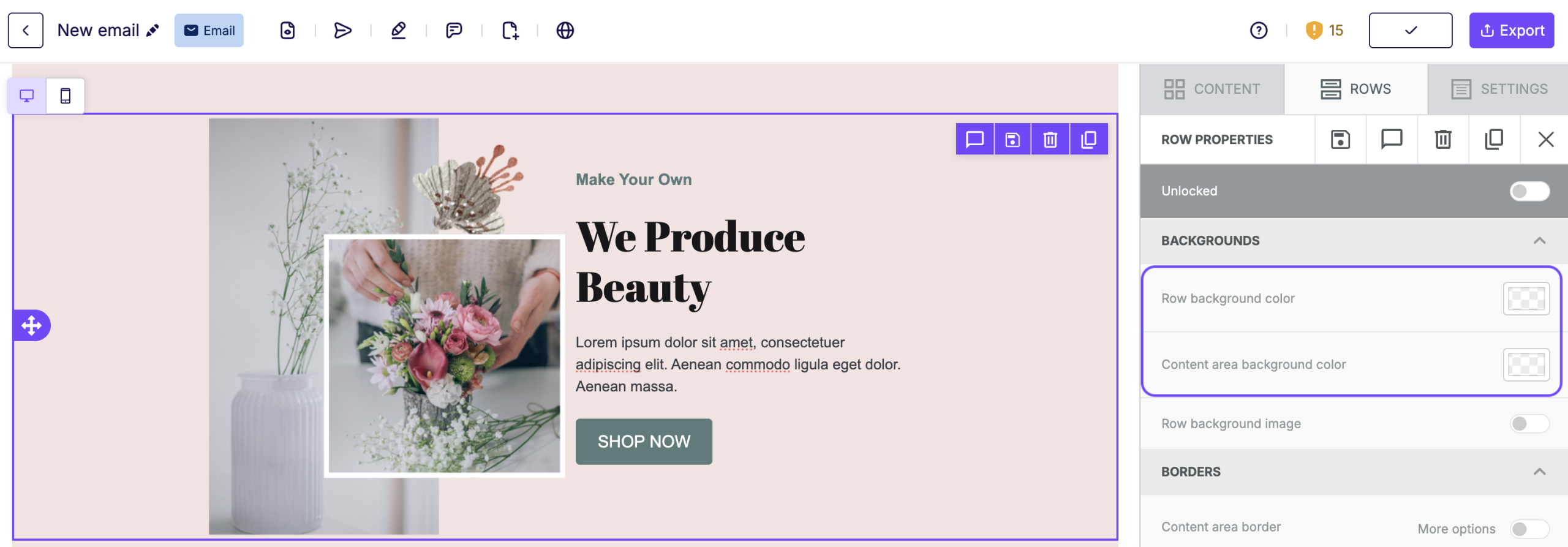
Owners, Admins, and Managers can modify color editing permissions in the Workspace Styles tab of Settings. For more information, see Custom Workspace Styles.
Workspace Content Widths
The features described in the rest of this article are not available in the Starter plan.
Your workspace content width applies any time you use Start from Scratch. If you use a template, the template's content area width overrides your setting.
Workspace Content Block styles
Your workspace styles populate automatically when designing with certain content blocks.
Text settings
Workspace styles apply text settings to the following content blocks:
- Title
- Paragraph
- List
- Button
This includes text and link colors (where applicable) and the font set in the Typography section. If you use a template, your custom font overrides the default font in the Settings tab.
Button settings
Your button text settings apply to any new button block. Your button background color setting also applies. Add your button text and action URL to finish.
Social settings
When you add a new social block, your social style settings populate automatically. This includes platform icons, URLs, and titles. You may still need to select the icon style you want to use.
Default rows
When you set up workspace styles, the default rows in the builder's Rows tab automatically adopt those styles. Colors, fonts, and other styles from your workspace settings apply to the default rows.
Default rows update automatically whenever you change your workspace styles. When you open the builder after updating your styles, the default rows reflect those changes immediately.
If no workspace styles are configured, non-branded default rows display instead.
Previous: Custom Workspace Styles
If you have any questions, feel free to contact us.
Comments
0 comments
Please sign in to leave a comment.