Exporting to Outlook App

Beefree App is now RGE Studio!
The email design suite you already know and love just leveled up. We’re working hard to update our help center, but you still may see some references to the old product name.
This article applies to the Email builder in all plans.
Overview
The Outlook App connector works with the desktop version of Outlook. Unlike most other connectors, it doesn't connect directly to the Outlook application on your computer. Instead, it generates OFT and EMLTPL files, special export formats that only Outlook uses. You then upload these files into Outlook App yourself.
If you want to export directly to Outlook Web instead, see our Exporting to Outlook Web article. Unlike the Outlook App connector, the Outlook Web connector connects directly to your account.
You can set up the Outlook App connector from two places:
- Workspace settings
- Export Options
You can also watch our RGE Studio Academy tutorial on connecting and exporting with the Outlook App connector.
1. Set up from Workspace Settings
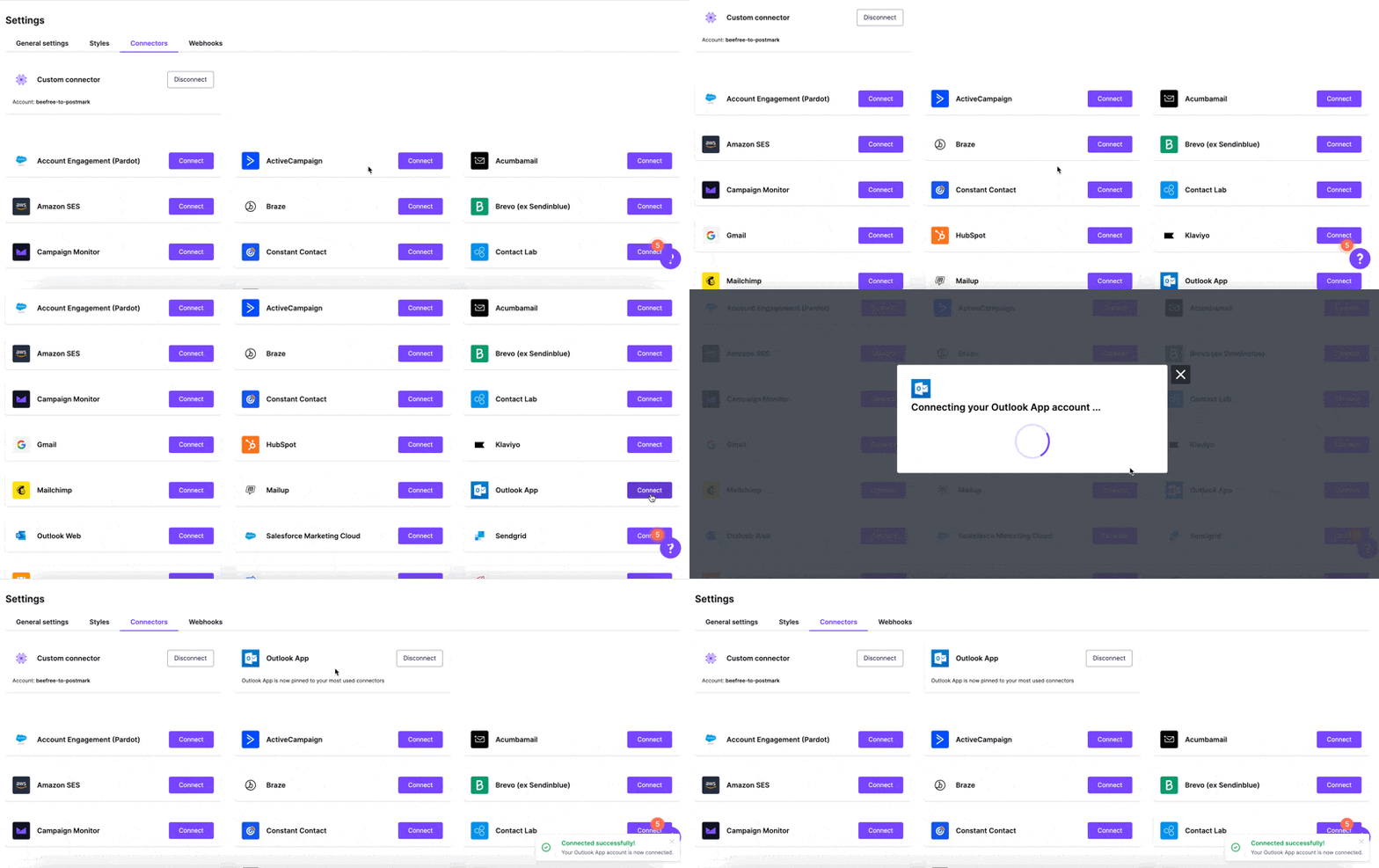
- Go to Settings > Connectors.
- Click the Connect button for Outlook App.
- Click Connect in the modal that opens.
You will receive a confirmation message that you connected successfully to the Outlook App.
2. Set up from Export
When your email is ready, click the Export button on the Email Details page. You can also access this from the actions menu and inside the builder.
- Select Integrations from the pop-up.
- Click the Outlook App connector from the list.
- If you haven't connected your account yet, click Connect when prompted.
- Choose Download for Windows for an OFT file, or Download for macOS for an EMLTPL file.
If you've already connected your account, you'll skip the Connect step. The GIF below shows this: after you select the Outlook App connector, the download options appear right away.
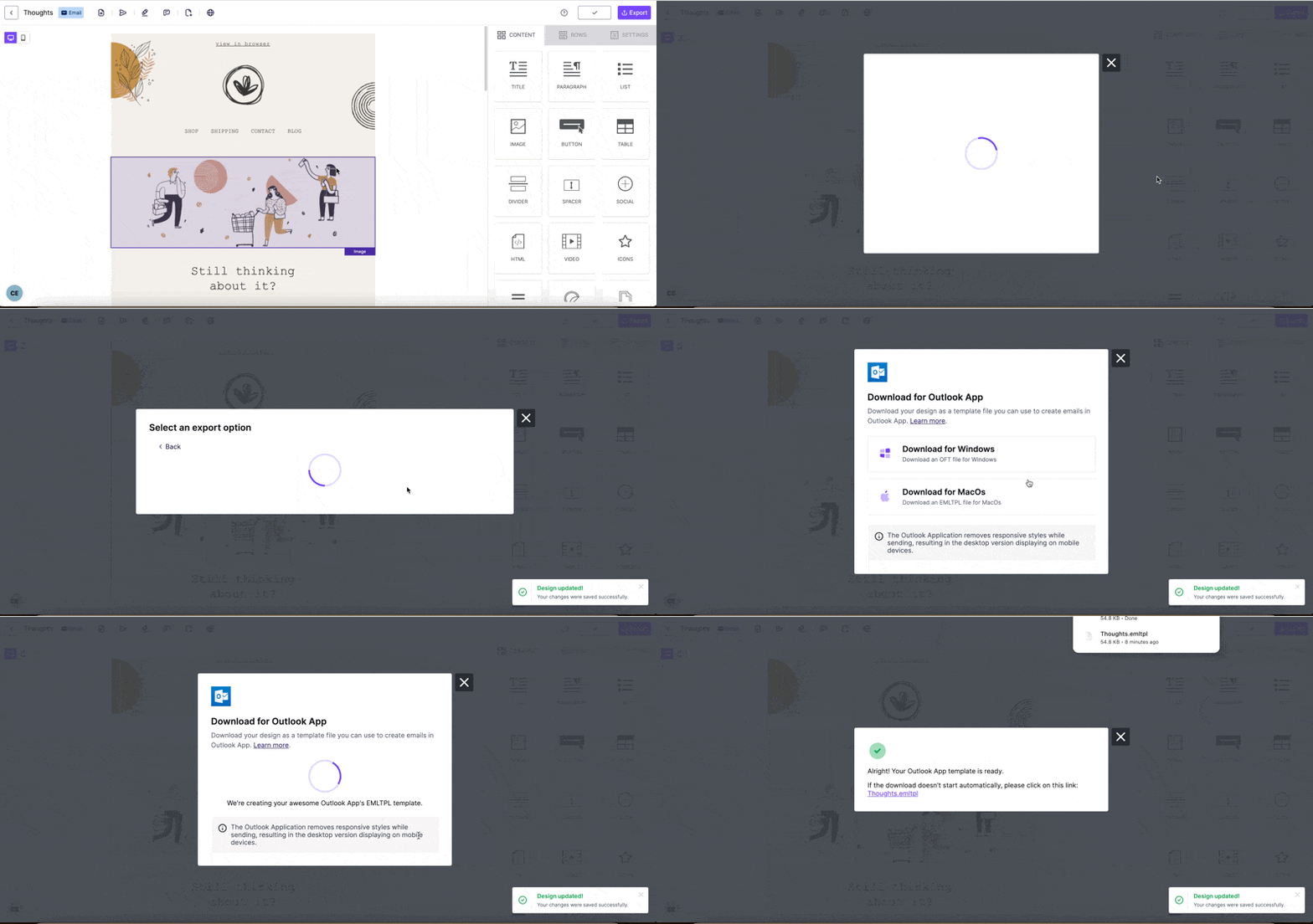
You will receive a confirmation message that your downloaded template file is ready. Once the download completes, the Outlook App on your computer automatically opens with your template.
Outlook Rendering Considerations
If sending your emails through Outlook, we recommend designing simple, single-column designs. Outlook has some limitations when used to send HTML emails. Outlook is an email client, not a sending platform. As a result, it may ignore, remove, or alter HTML elements from our code. This can cause rendering issues that we can't resolve. For more information about this, check out our Outlook Web connector article.
That said, the Outlook App connector generates emails using OFT or EMLTPL formats. These are coding languages specific to Outlook. This may cause your email to behave differently from an HTML version. As a result, there are some rendering behaviors unique to the Outlook App connector. Please consider the following:
- GIFs rendering with a play icon in Outlook App.
- Additional spaces may appear in the layout. Our tests indicate this is most common when these emails are viewed in Gmail.
-
Icon elements may not perform as expected.
- Icons stack on top of each other.
- Icon blocks with labels cannot be centered.
- Links are underlined in Outlook App.
- Random lines in the email templates appear when those are not designed in RGE Studio.
- Mobile responsiveness will not work. The desktop version of your email design will also display on mobile devices.
Some rendering limitations apply to Outlook regardless of how you send your email. See Additional Considerations below.
Additional Considerations
- Most Outlook clients apply a fallback font when your design uses a web font or custom font. For more information, please see Using Web Fonts.
- Most Outlook clients display a background color instead of a background image. We recommend setting a background color similar to your background image, so your design still works if the image doesn't load. For more information, please see Adding a Background Image to your Designs.
- Make sure links attached to your buttons include an HTTP or HTTPS prefix. Otherwise, your button may function as text.
- The following metadata also exports with your design from RGE Studio to Outlook App:
- Name of the email if you did not add a subject line.
- Email subject line, if you added that metadata to your RGE Studio design.
- Preheader and UTMs.
Looking for a different sending platform? You can check our complete list of connectors — or request a new one!
If you have any questions, feel free to contact us.
Comments
0 comments
Please sign in to leave a comment.