Exporting your emails to Iterable

Beefree App is now RGE Studio!
The email design suite you already know and love just leveled up. We’re working hard to update our help center, but you still may see some references to the old product name.
This article applies to the Email builder in all plans.
Overview of the Iterable Connector for Emails
RGE Studio offers an Iterable connector, letting you export email designs to your Iterable account. It removes the need for manual HTML downloads and imports.
For a video walkthrough, visit the RGE Studio Academy.
Prerequisites
Before connecting, make sure you have:
- An RGE Studio account with a completed email design.
- An Iterable account with an active API key.
Create an API key
- Go to Settings and select API Keys.
- Click Server-side keys and follow the instructions to create a new key.
- Copy the key immediately and store it somewhere secure.
The API key is only visible when first created. If you lose it, you'll need to generate a new one.
For more information, see the Iterable documentation on API Keys and server-side keys.
Note: Be sure to always copy and store your key securely right after creation.
Connect to Iterable
You can connect your RGE Studio account to Iterable through your Workspace settings or through the Export options.
Workspace settings
- Log in to your RGE Studio account.
- Go to Settings from the top bar or sidebar, depending on your layout.
- Click the Connectors tab.
- Find the Iterable connector in the list and click Connect.
-
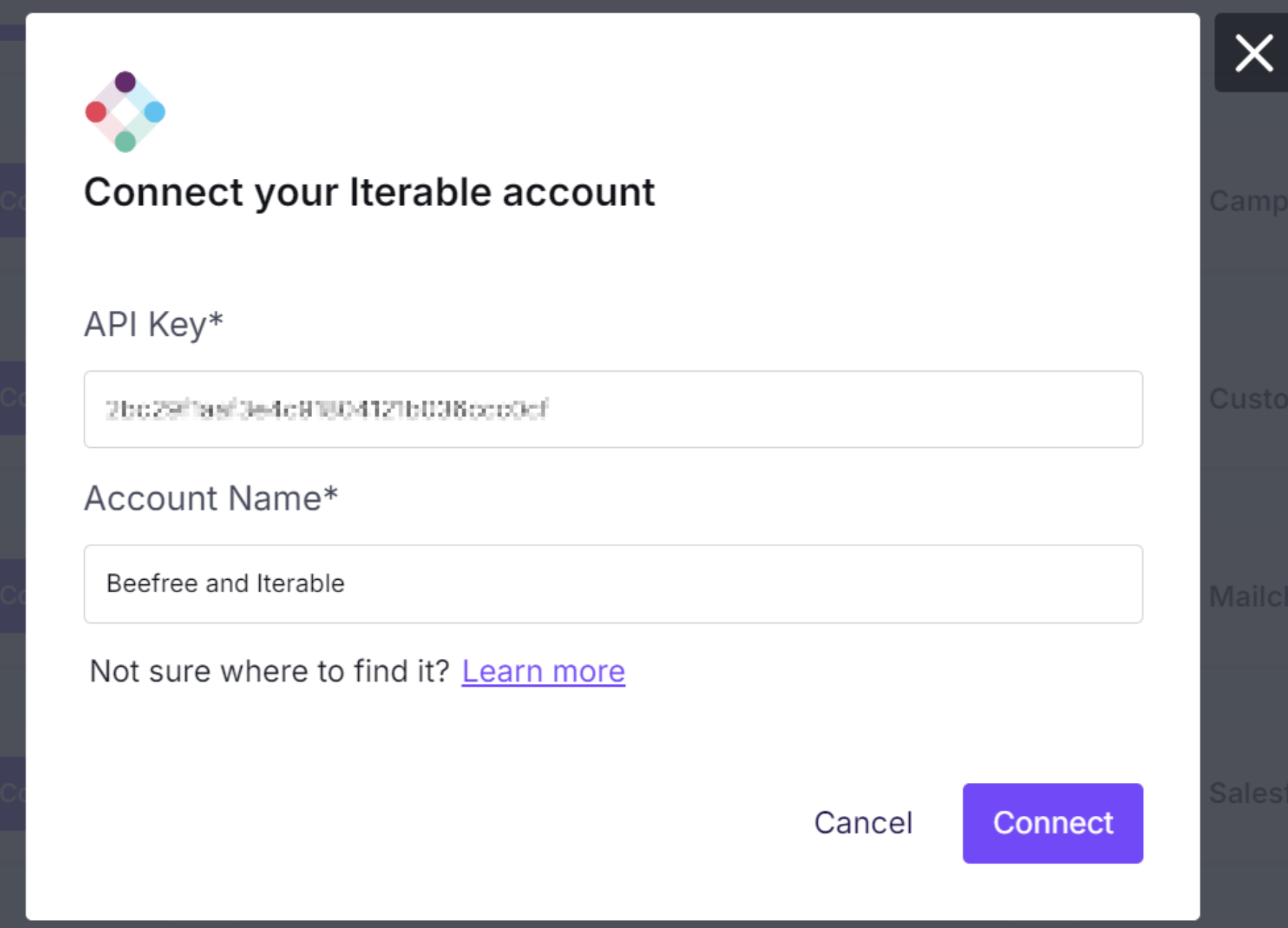
Enter your Iterable API Key when prompted. A confirmation message appears once connected.
Export button
You can also connect from within an email design:
- Open the email design you want to export.
- Click Export in the upper right.
- Select Integrations from the popup.
- Choose the Iterable connector from the list.
- If prompted, enter your Iterable API Key. A confirmation message appears once connected.
Once connected, you can start exporting your emails to Iterable.
Export emails to Iterable
Once connected, follow these steps to export an email:
- Open the email design you want to export.
- Click Export when ready.
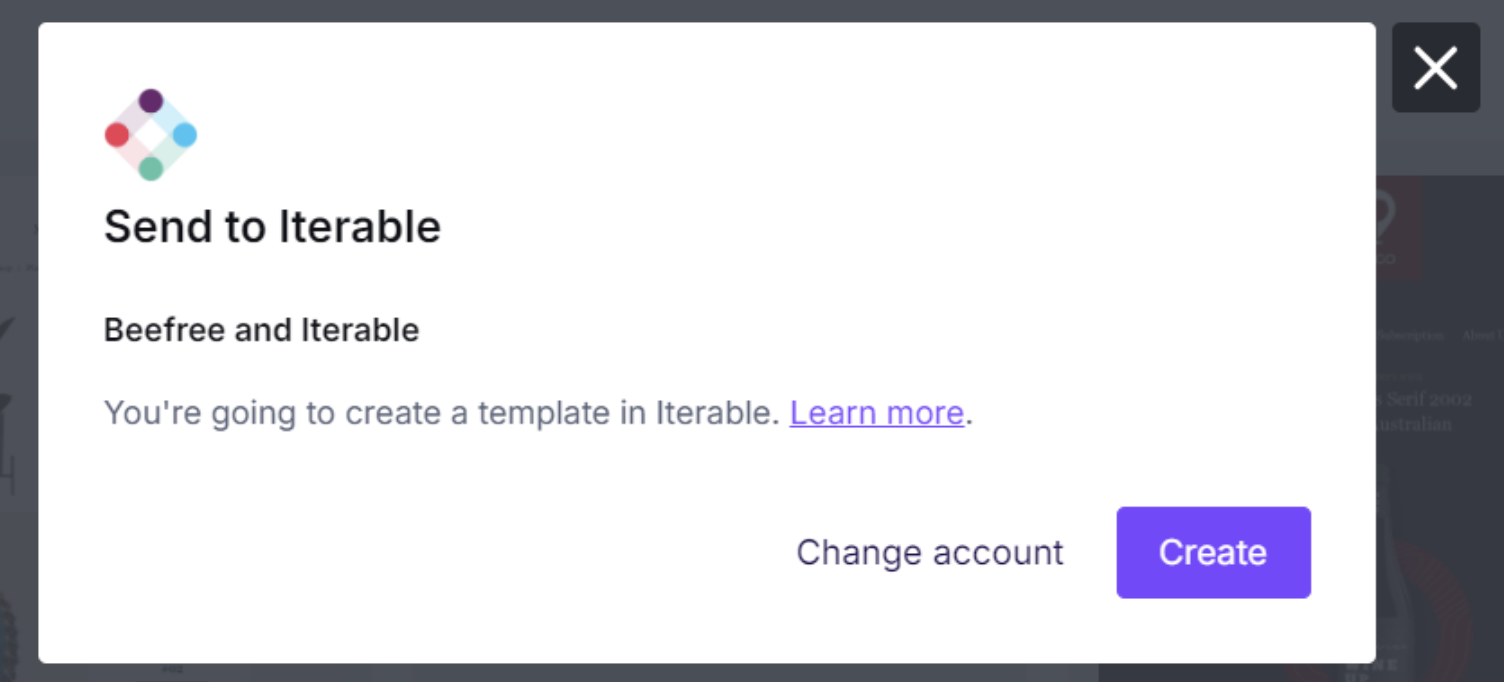
- Select Integrations and choose the Iterable connector.
- Confirm the export. A success message appears once the email reaches Iterable.
-
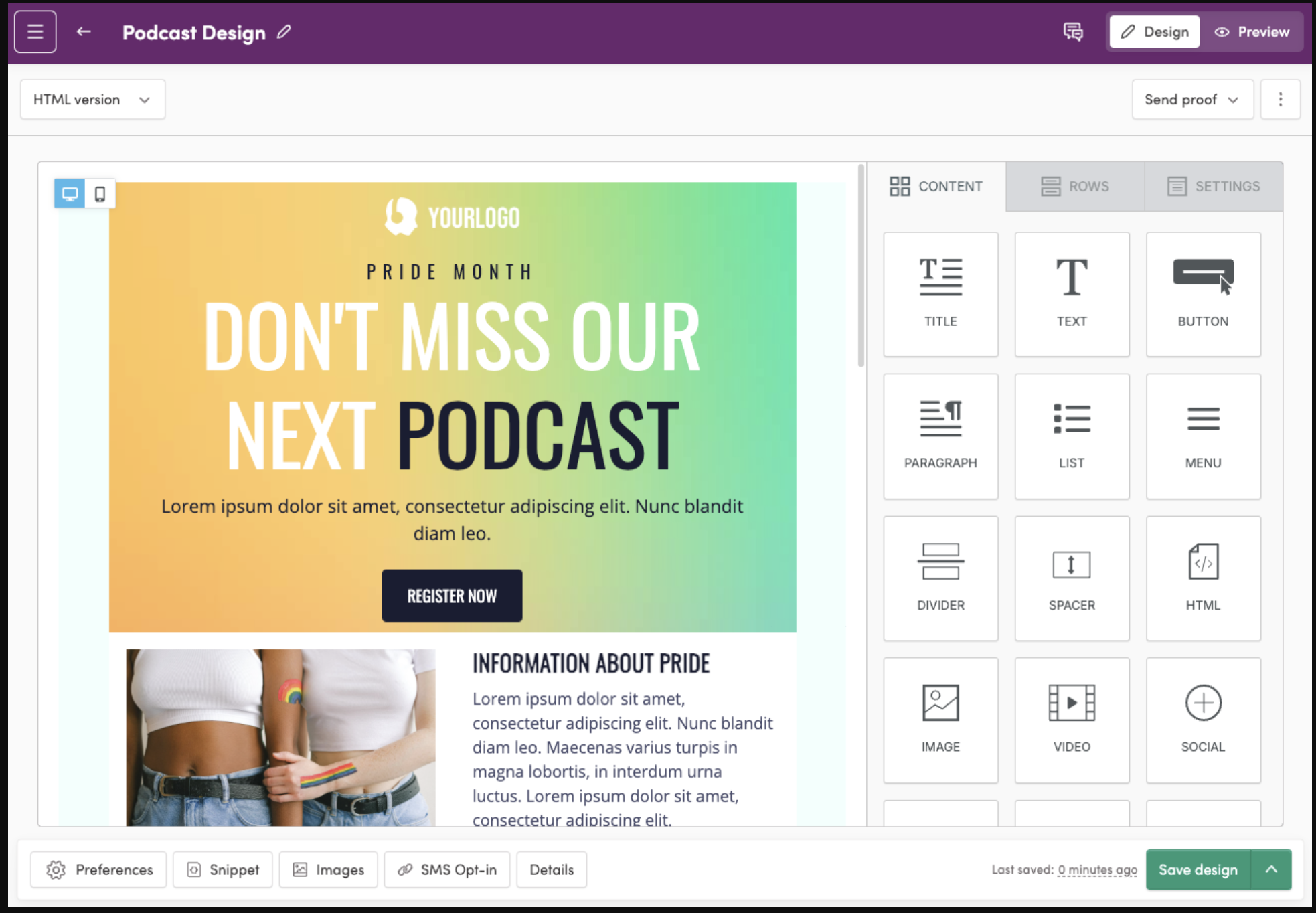
Click the link in the export modal to open your email in Iterable's editor.
RGE Studio redirects you to your design in Iterable's builder. You can edit and save your design directly in Iterable.
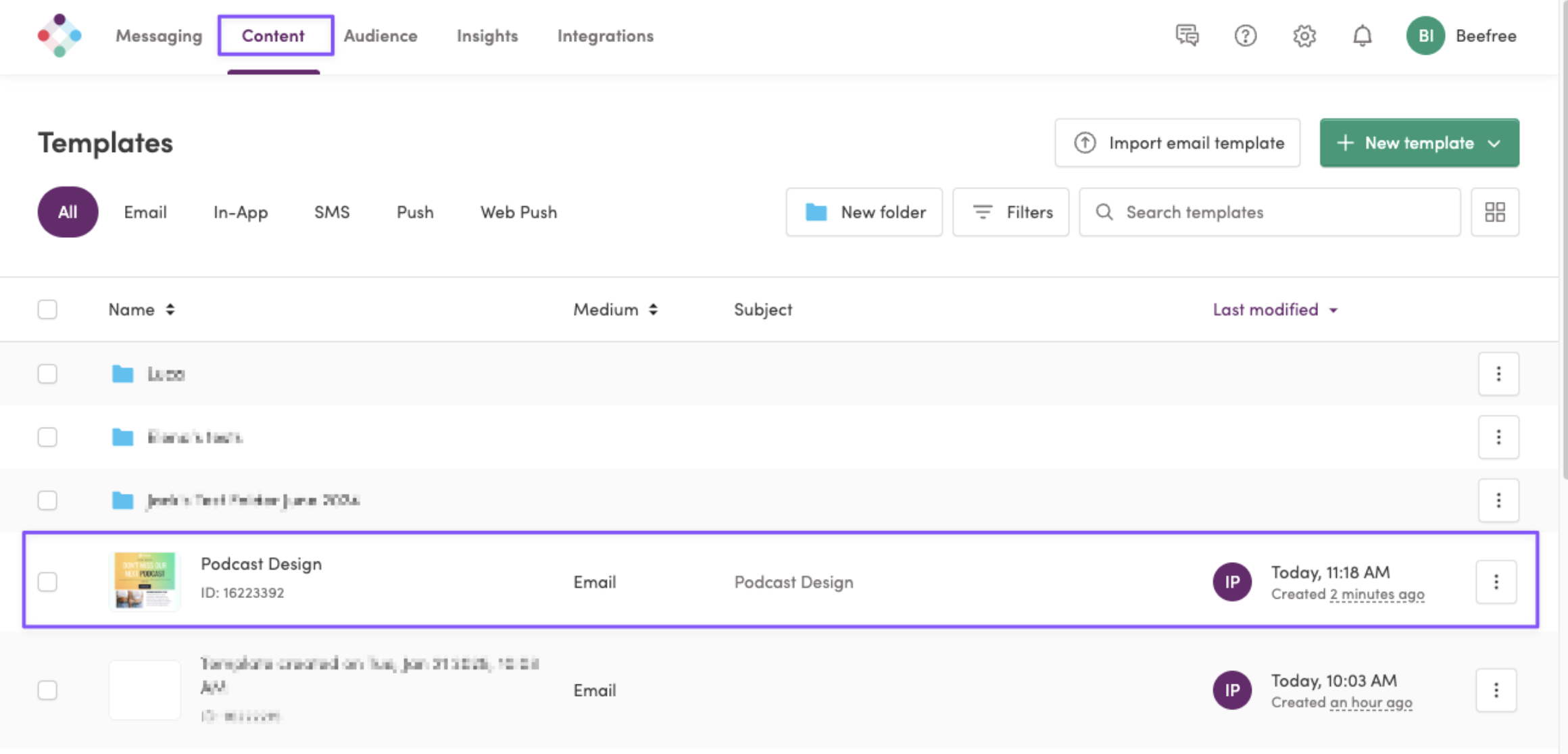
Your exported emails appear in Iterable under Content > Templates.
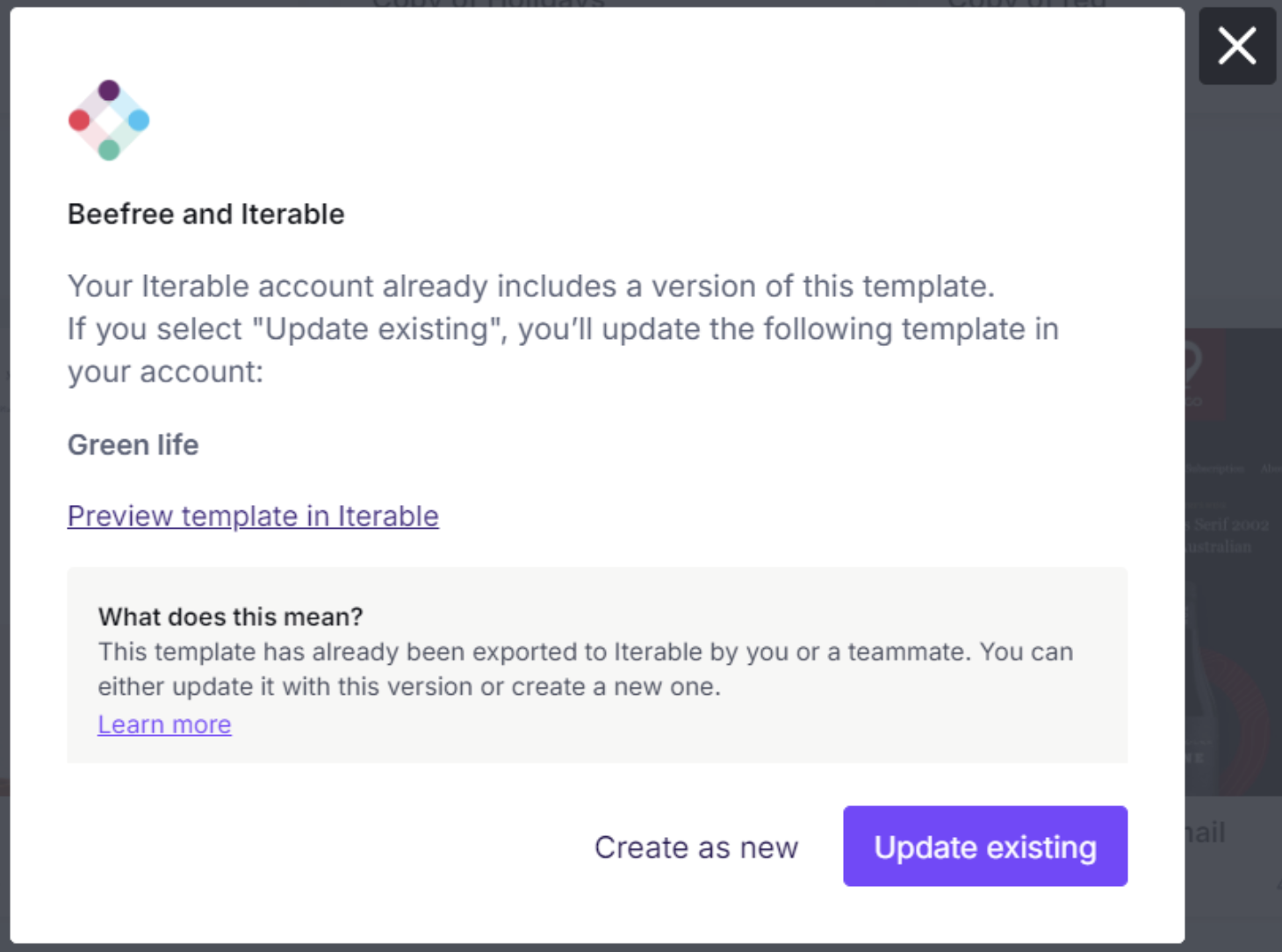
Update Existing Emails
You can also update existing email templates in Iterable. Follow these steps:
- Open the email design you want to update.
- After making your changes, click Export.
- Select Update Existing to overwrite the previous version in Iterable.
The updated email retains your changes, including:
- HTML
- Subject line
- Preheader
- UTMs
Important Considerations
- Iterable requires every email to include certain mandatory fields, such as an unsubscribe link. If any fields are missing, RGE Studio shows an error before you can export.
- After exporting, you can edit your email in Iterable's Drag and Drop editor.
If you have any questions, feel free to contact us.
Comments
0 comments
Please sign in to leave a comment.