Canva Integration

Beefree App is now RGE Studio!
The email design suite you already know and love just leveled up. We’re working hard to update our help center, but you still may see some references to the old product name.
This article applies to the Email and Pages builder in all plans.
Overview
The Canva integration lets you import designs you've created in Canva into your workspace's File Manager to use in your RGE Studio emails and pages. This integration streamlines your workflows, eliminating the need to download visuals manually from Canva and re-upload them into RGE Studio.
Follow the steps below, or watch our video tutorial.
Connecting your Canva Account
To use the Canva integration:
-
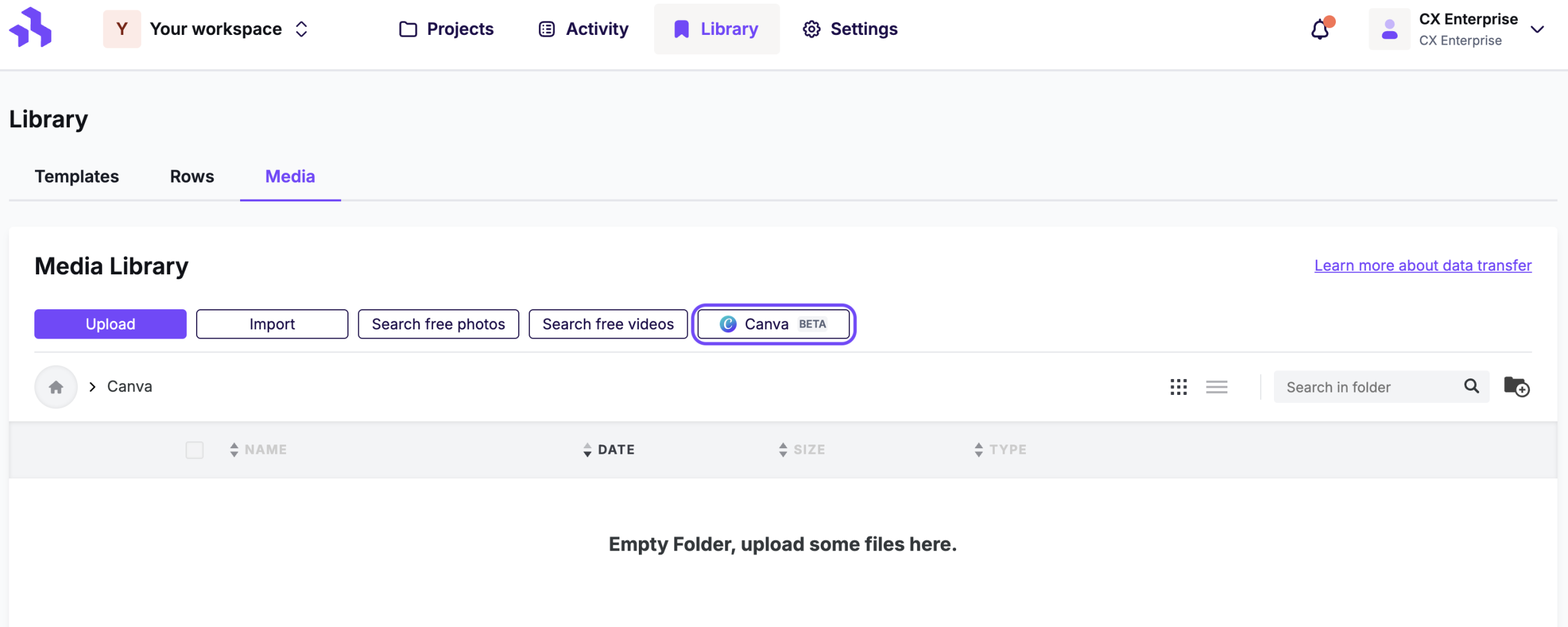
Open the RGE Studio builder, or go directly to your workspace's Library, under the Media category.
-
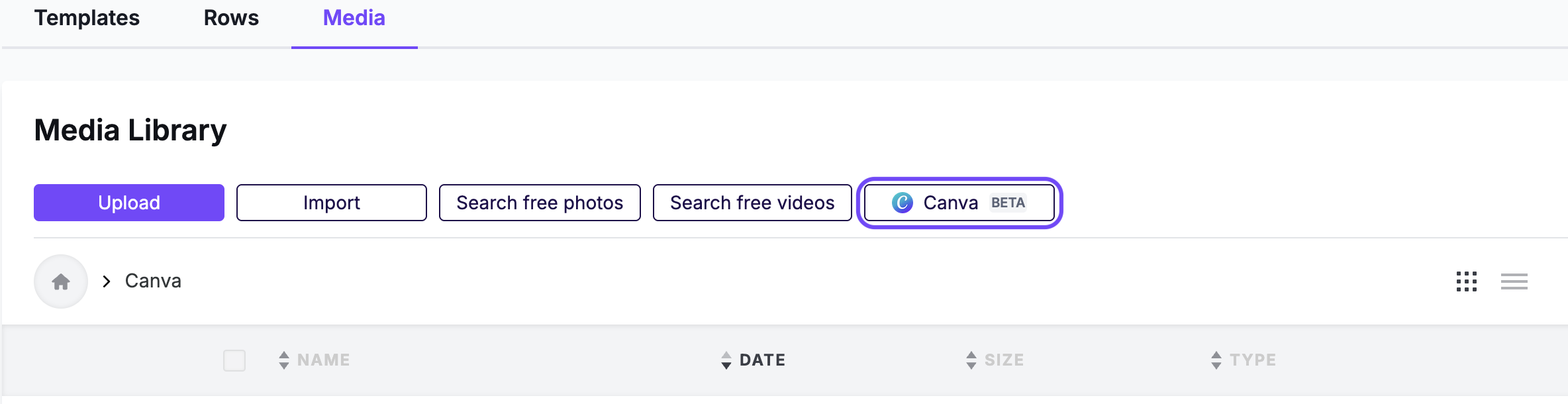
Select the Canva button to begin the connection process.
-
Log in to your Canva account and grant RGE Studio access permissions.
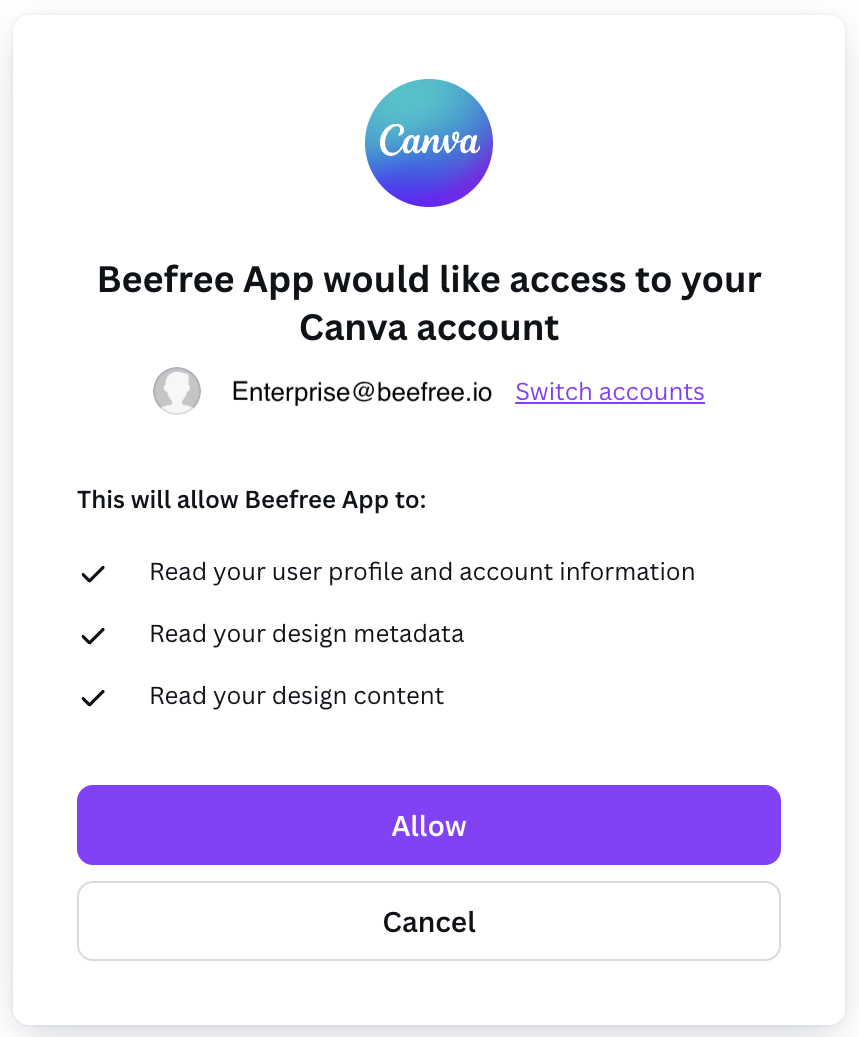
The Canva login is workspace-specific. If multiple Canva teams exist on your account, select the team you want to connect during setup.
Adding Canva Visuals to Your Design
From the RGE Studio Builder
-
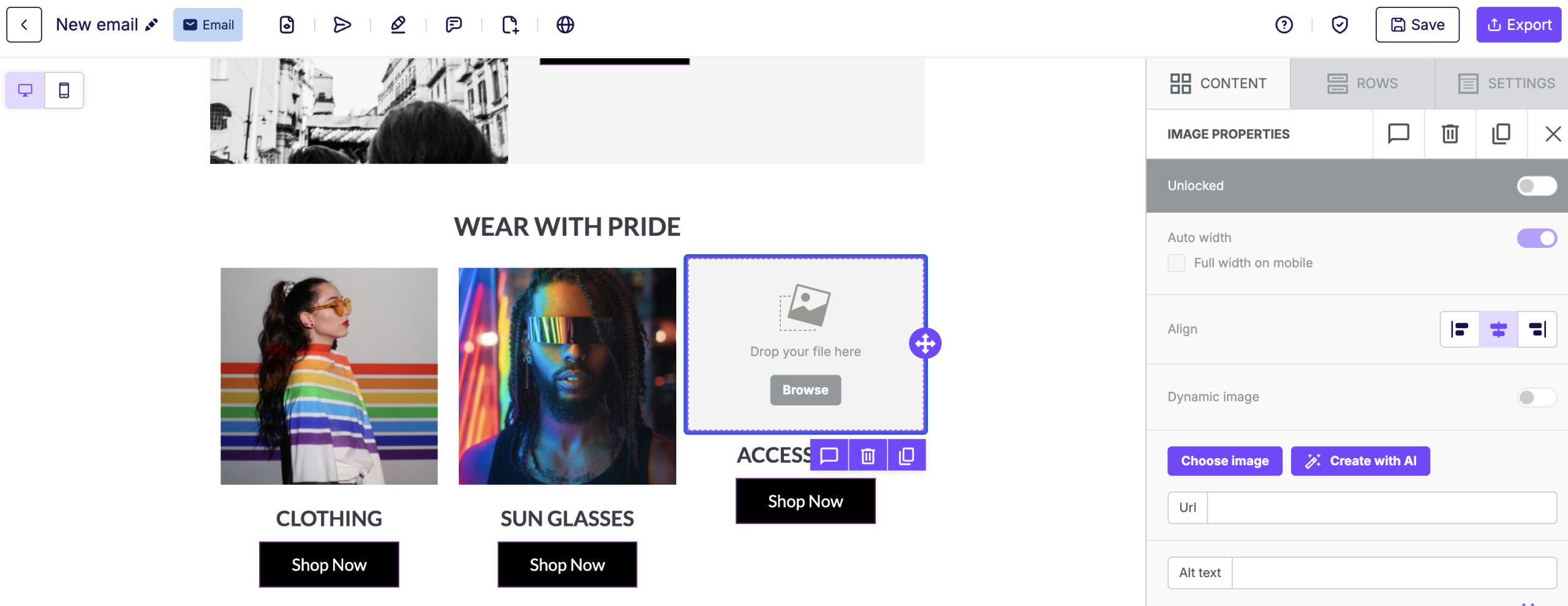
From your RGE Studio design, select the image, icon, or row background image you want to edit or replace. For this example, we'll add a Canva design to an Image content block.
-
Click Choose Image (or Change Image if an image is already present) to open the File Manager. Click the Canva button to open a list of your Canva designs.
-
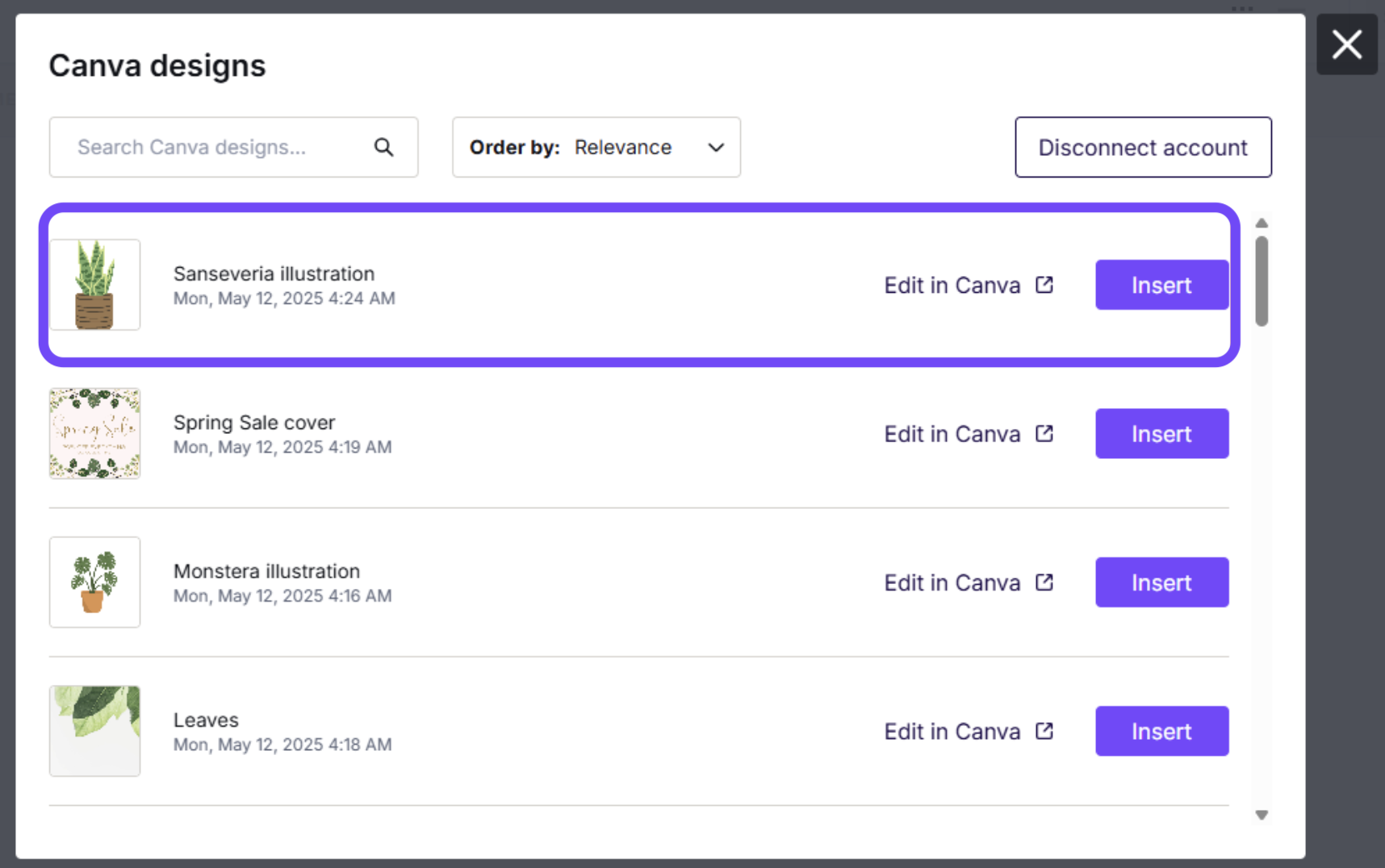
Choose your preferred design by clicking the Insert button.
-
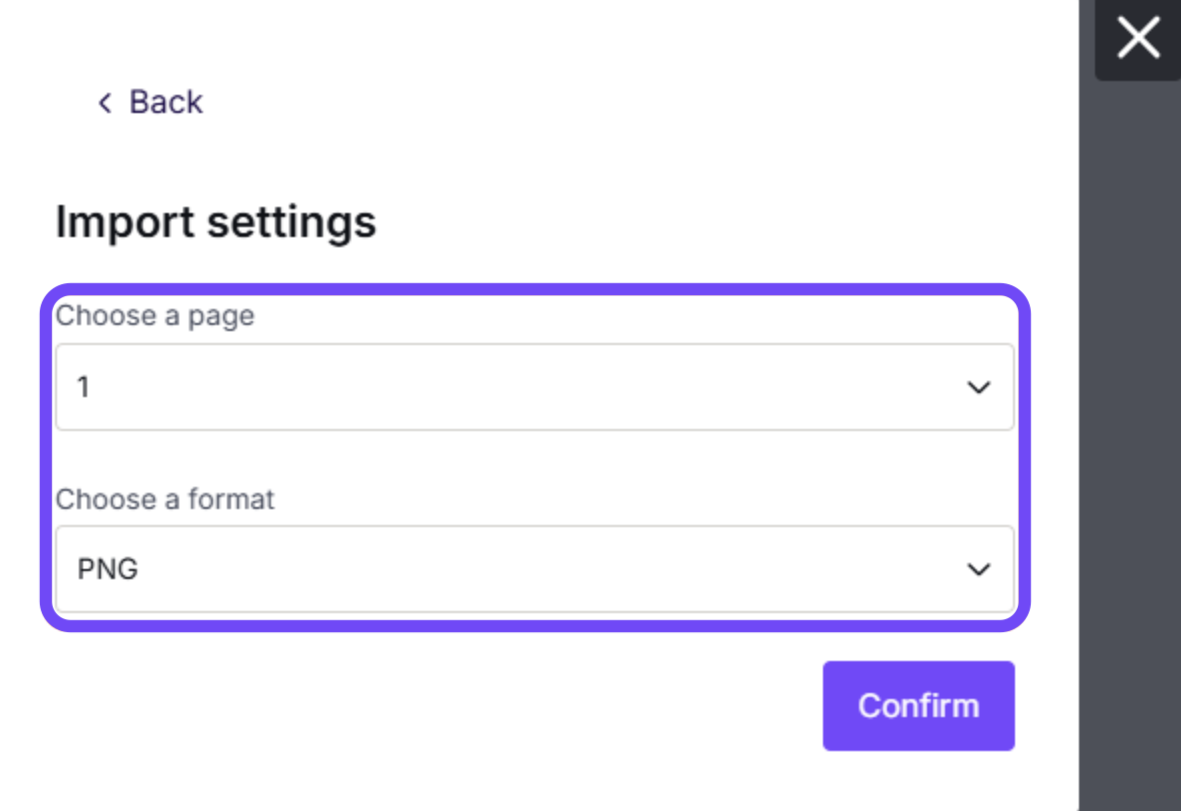
Once selected, a final window opens so you can confirm your import settings. If your Canva design has multiple pages, choose the specific page you want to import and the file format before clicking Confirm.
-
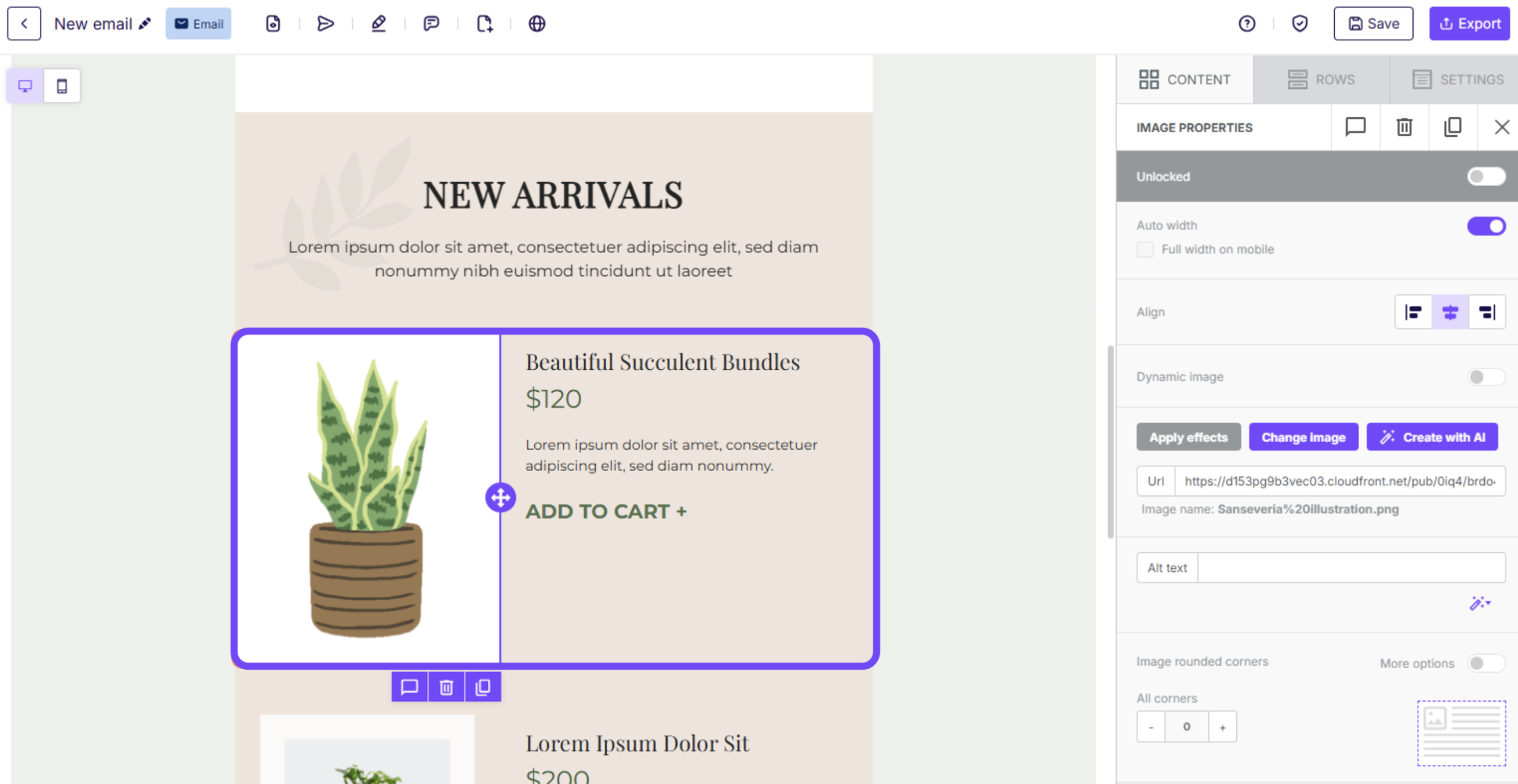
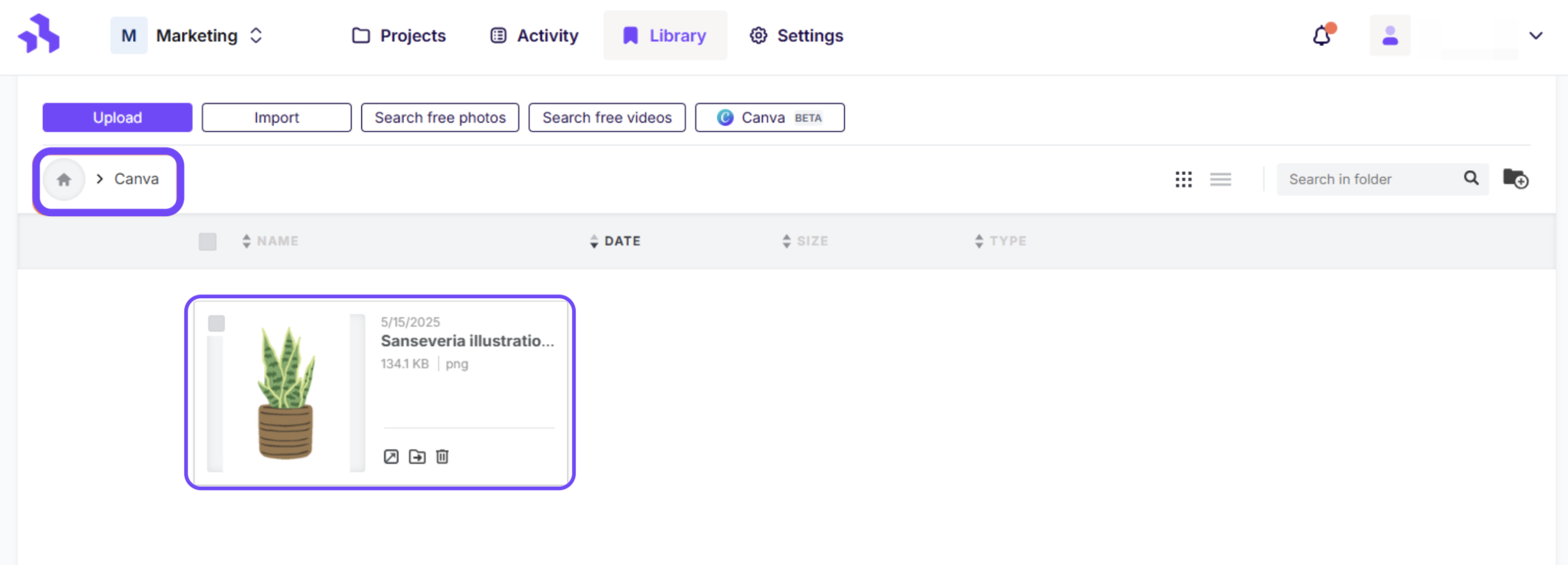
RGE Studio automatically inserts your Canva design and stores it in the Canva folder in the Media Library for future use.
From the Media Library
-
Navigate to the Media category of the Library, and select the Canva button.
-
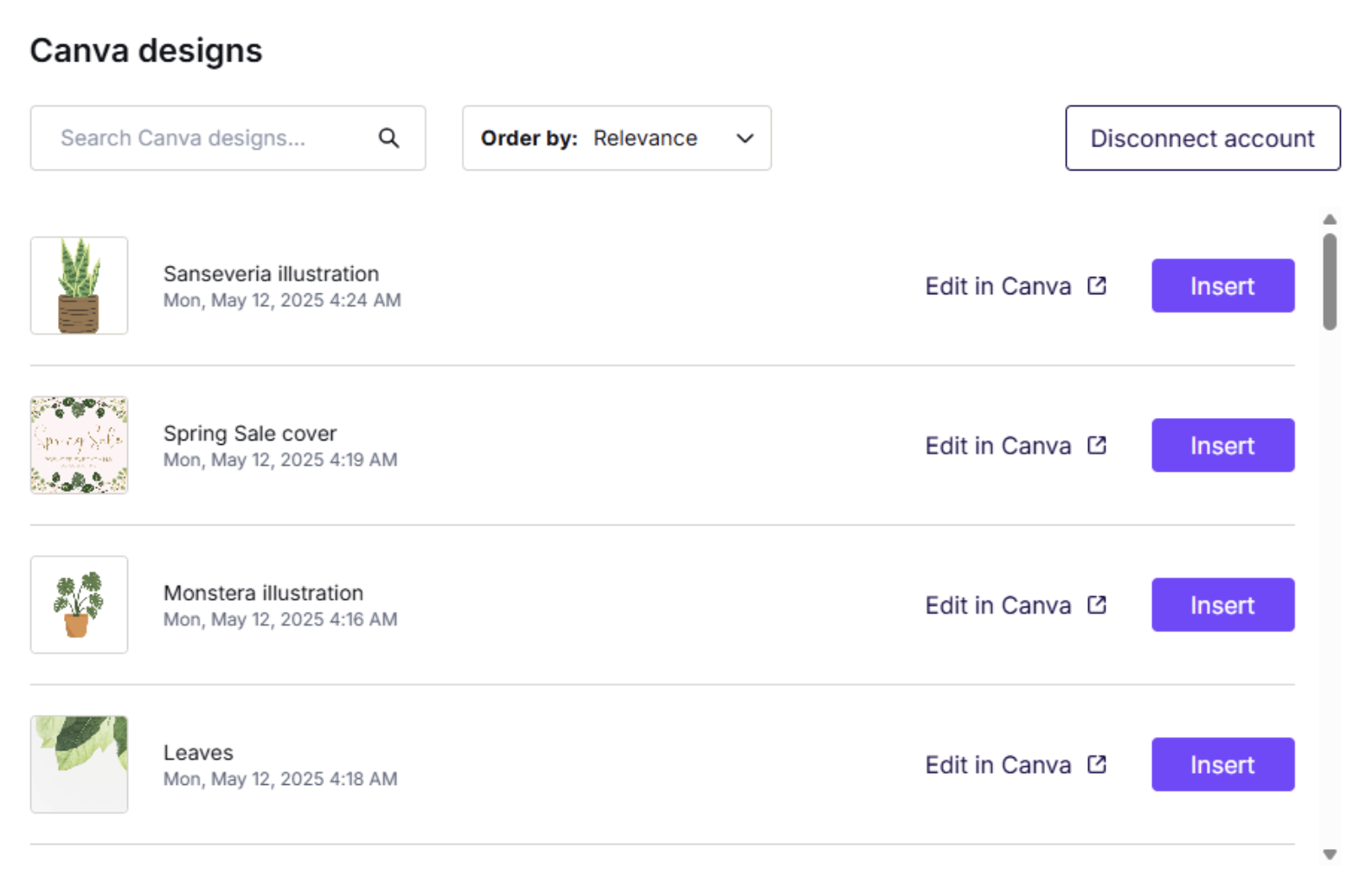
A new window appears with a list of your Canva assets. Click the Insert button to choose the design you'd like to import into RGE Studio.
-
Once selected, a final window opens so you can confirm your import settings. If your Canva design has multiple pages, choose the specific page you want to import and the file format before clicking Confirm.
-
Your Canva design appears in your RGE Studio Media Library, in the Canva folder.
Supported and Unsupported Canva Formats
Due to compatibility considerations, some Canva formats can't be imported into RGE Studio. Here is a list of supported and unsupported formats for reference:
| Compatible Formats ✅ | Incompatible Formats ❌ |
| JPEG | |
| PNG | PPTX |
| GIF | MP4 |
Troubleshooting
RGE Studio may display an error if:
- The image is too large: Images larger than 20 MB can't be imported. Reduce the file size and try once more.
- You've imported a file with the same file name and suffix more than 50 times: The error message for this case is "Resource already present". To resolve this, change the original file name in Canva or rename the previously imported files in the RGE Studio media library before attempting the import again. Alternatively, you can delete all or some of the existing files with the same name in the RGE Studio Media Library before trying again.
- Connectivity Issues: If you're experiencing import errors due to network connectivity issues, please try importing again after the connection has been restored.
- General upload failure: Refresh your browser and attempt the import once more.
Additional Considerations
- Bulk importing from Canva isn't supported. You'll need to import designs individually.
- Changes made to designs in Canva usually appear in the list of visuals available in RGE Studio within a few seconds. Previously imported visuals in RGE Studio designs don't update automatically.
- Your Canva folders aren't imported. All imported visuals go directly to the Canva folder in the file manager.
- The Canva folder in your file manager populates automatically after your first import.
- Imported images from Canva are always saved in your file manager. This is because Canva doesn't provide a direct image URL. RGE Studio needs a hosted version of the file to support it within your design.
If you have any questions, feel free to contact us.
Comments
0 comments
Please sign in to leave a comment.