Using the Image Content Block

Beefree App is now RGE Studio!
The email design suite you already know and love just leveled up. We’re working hard to update our help center, but you still may see some references to the old product name.
This article applies to the Email and Pages builder in all plans.
Overview
Each content block in your design has its own settings. These settings control how your content looks and behaves. This article explains how to add an image to your design. It also covers the settings for the Image content block.
Adding an image
Drag and drop an Image content block into your design. Then use one of these options to add an image:
- Click Add image to open the File Manager. You can upload or import an image there. You can also choose an image you already uploaded.
- Click the wand icon next to Add image to create an image with AI. Learn more about generating images with AI.
- Paste an external image URL into the URL field. Learn more about external images.
Image properties
After adding your image, the sidebar on the right then shows Image properties. It lists the settings you can change for that image. To find these settings again, select any Image content block on the builder stage.
Image properties include these settings:
- Replace: Opens the File Manager. You can choose a different image there. Before you add an image, this button shows Add image instead.
- Apply effects: Opens the image editor. Use it to resize the image or add visual effects. This button appears after you add an image. Learn more about the image editor.
- Wand icon: Creates a new image with AI. Learn more about generating images with AI.
- URL: Shows where the image is stored. You can also paste an external URL to load an image. The image file name appears below this field.
- Dynamic image: Turn this on if your image is dynamic. Learn more about dynamic images.
- Auto width: Makes the image fill its content area. RGE Studio turns this on for images larger than the content area. Turn it off to set a custom width. See Setting a custom width.
- Full width on mobile: Makes the image fill the width of its column on mobile devices. Rows stack on mobile by default. In a stacked row, the image fills the width of the screen. Learn more about stacking on mobile.
- Align: Changes the horizontal position of the image.
- Alt text: Adds text that describes the image. Some email clients block images by default. Alt text shows in place of a blocked image. It also makes your images more accessible. To write alt text with AI, click the wand icon below the field. Learn more about AI alt text.
- Image title: Adds text that shows when someone hovers over the image. Like alt text, a title can make your image more accessible.
- Image rounded corners: Rounds the corners of the image. Use All corners to round every corner equally. Turn on More options to round each corner separately. Emails opened in Outlook show square corners instead.
Action
Use the Action section to link your image. Choose an option from the Image link drop-down:
- Open web page: Opens a URL.
- Send email: Opens a new email in the reader's email client.
- Make call: Calls a phone number.
- Send SMS: Starts a text message to a phone number.
You can also link the image to a file you uploaded to the File Manager.
Block options
Use Block options to change the padding and visibility of the image. You can set the same padding on All sides. You can also set the padding for each side separately.
Use the Hide on setting to hide the image on desktop or mobile. Learn more about mobile optimization options.
Setting a custom width
Turn off Auto width to control the size and shape of your image. Two more settings then appear below the toggle.
-
Aspect ratio: Crops the image to the shape you choose. Original shows the full image without cropping. You can also choose one of these options:
- Square (1:1)
- Portrait (4:5)
- Standard (4:3)
- Wide (16:9)
- Banner (2:1)
- Column coverage: Sets how much of the column width the image fills. Drag the slider to choose a value from 5% to 100%.
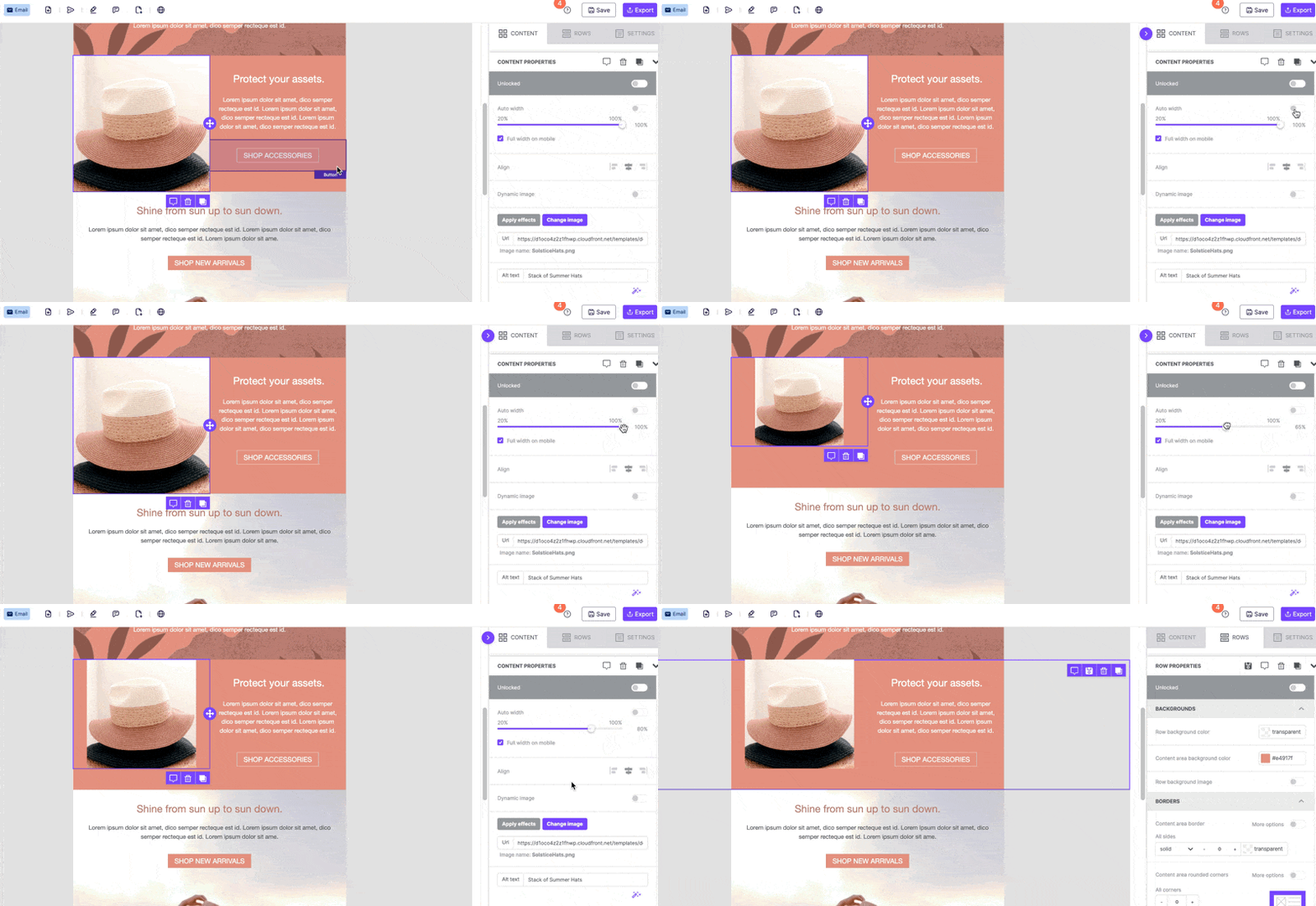
Additional considerations
- Vertical alignment: This row setting controls where an image sits next to taller content in another column. For example, you can center an image next to a long block of text. Learn more about vertical alignment.
- Dynamic images: When Dynamic image is on, the image in the builder is a placeholder. The settings you apply to the placeholder also apply to the dynamic image. We recommend using the same dimensions for both images.
- Image hosting: Images hosted in RGE Studio count toward your monthly data transfer allowance. This applies when you send emails or share pages that use them. If you go over your allowance, charges or limits may apply, depending on your plan. Learn more about hosted image delivery. To host images elsewhere, see How to use external images in your design.
If you have any questions, feel free to contact us.
Comments
12 comments
Hi there- when I upload a file from my computer into the file manager. Then use that file in my message, it will display as normal when editing. However, when I save and get the HTML doc, the image doesn't render. Any idea what might be going on?
Hi Kindra, notice that when you download the message it's a zip file that contains the HTML file and an image folder. You need to import or link those images to the HTML file depending on whether you've opened the HTML file in a program like Dreamweaver or imported the HTML file into your emailing software. We explain this in more detail on https://support.beefree.io/hc/en-us/articles/360004496232-How-to-use-external-images-in-your-message. Hope this clarifies things!
Hi, Is it possible to add custom functions along with existing toolbar like Copy, Copy from Word etc. ?
Hi Saranya, this is not possible at this time.
Hi Massimo,
Thanks for your reply. We are just plan to get Bee free silver plan. But we need some more functionalities like conditional block.
The conditional block means that text in the email content will display based on condition such as if the email id starts with 'aa', then display some content else don't display.
E.g.: [[IF ([!Email!] IS 'aa')]]everywhere [[ELSE]] [[END IF]].
1. If we are giving this as a change request to you after get the paid plan, is it possible for you to do it?
2. If yes, then ETA please???
3. And also we have some set of feature need to implement to the existing behaviour.
Is it possible for a paid user to add any custom function to Merge Tags, etc..
4. Is each change request is payable?
5. Also, is it possible to create custom template in HTML??
Hi Saranya, please contact us to discuss. Conditional statements is a feature that we are working on "as we speak", so you are catching us at a good time. With regard to everything else, let's discuss. https://beefree.io/contact-us/
Hi there, are you able to resize image containers less than the default 120px?
Hi there, thank you for your comment. It is not possible to resize the image containers under 120 pixels. You can customize more your message by inserting an HTML block -using your own code may affect how the message is rendered. Make sure to use correct and responsive HTML.
Is there a way we can either add html code before our export or within the image setting that will add right click protection. It's extremely necessary for what I'm using the templates for.
Hello Ashanti. We are sorry but it's not possible to add HTML code before exporting the message with those options.
Hello. The animation on this page shows a tooltip containing image width in pixels when adjusting image width manually. That does not seem to appear in email editor. Is that feature gone or is it possible to enable it somehow? Are there other ways to display dimensions of image as in what size are they going to appear in email?
Hello Ville, and thank you for your comment.
This is in fact incorrect behaviour and it seems like a regression.
Our developers are working on a fix to make sure the tooltip shows.
Please sign in to leave a comment.