Using the GIF and Sticker Content Blocks

Beefree App is now RGE Studio!
The email design suite you already know and love just leveled up. We’re working hard to update our help center, but you still may see some references to the old product name.
This article applies to the Email and Pages builder in all plans.
Overview
You can add GIF animations and stickers to your emails and pages using the GIPHY integration. GIFs and stickers are sourced from GIPHY.
How It Works
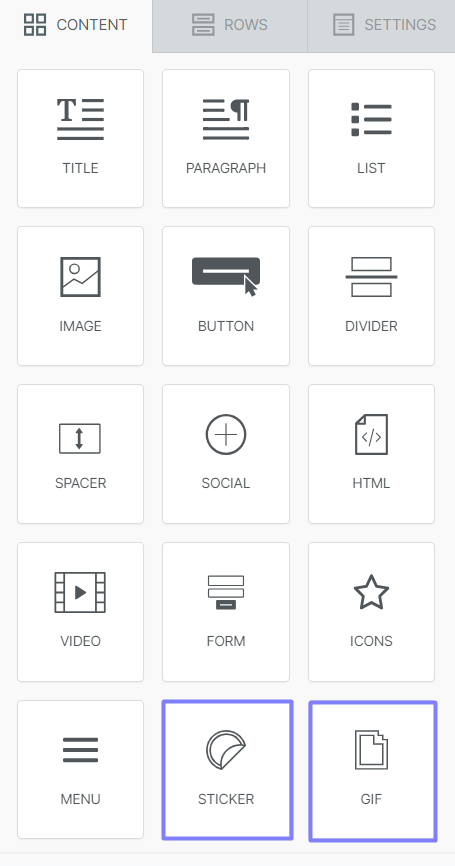
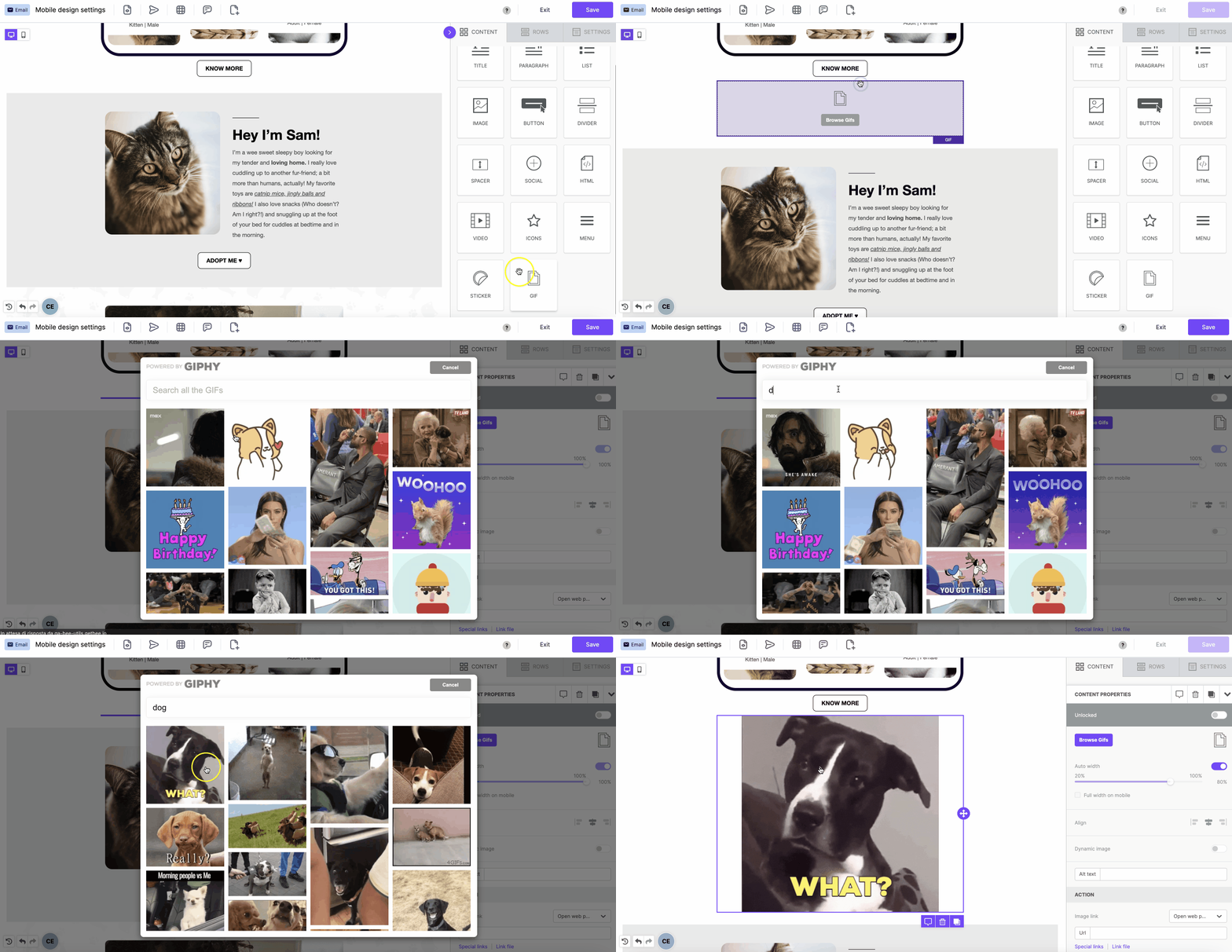
Drag the GIF or Sticker content block into your design.
Click Browse GIFs or Browse Stickers.

A search modal opens above the builder. Find the animation you want and select it to add it to your design.
To use your own GIFs, upload them through the image content block. Charges may apply.
If you have any questions, feel free to contact us.
Comments
4 comments
I want to add a .gif without using GIPHY
Hey Terry,
This is possible. If you use a GIF from a different platform that allows you to create GIFs or simply pull from their library, it would usually be shareable with a link. You can add that link in the URL field of the image content block within the Beefree Builder. You can also upload a GIF into your file manager as you would a regular image.
https://support.beefree.io/hc/en-us/articles/360004496232-How-to-use-external-images-in-your-design
Hello AC.
The GIF content block can only be used with GIfs uploaded to GIPHY.
If your GIF has already been uploaded to your file manager, you can set it in an image block, and it will be rendered as a GIF.
Hi Orlando,
How do I insert a GIF that I created (& that I have already uploaded into the file manager) into the email template. When I drag and drop a GIF content block onto the page, click the box, and then link the file under the action tab, the GIF content block remains blank with 'browse GIFS' still written across it.
Please sign in to leave a comment.