How to read a statement

Beefree App is now RGE Studio!
The email design suite you already know and love just leveled up. We’re working hard to update our help center, but you still may see some references to the old product name.
Overview
In this article, we will walk you through the details behind your billing statements. Reading an invoice doesn't have to be a stressful experience, so we're here to go through each section, breaking down what every part means in a simple and straightforward way. This way, you feel fully informed and in control of your billing.
Below you can find the description of each section:
Section breakdown
Billing information
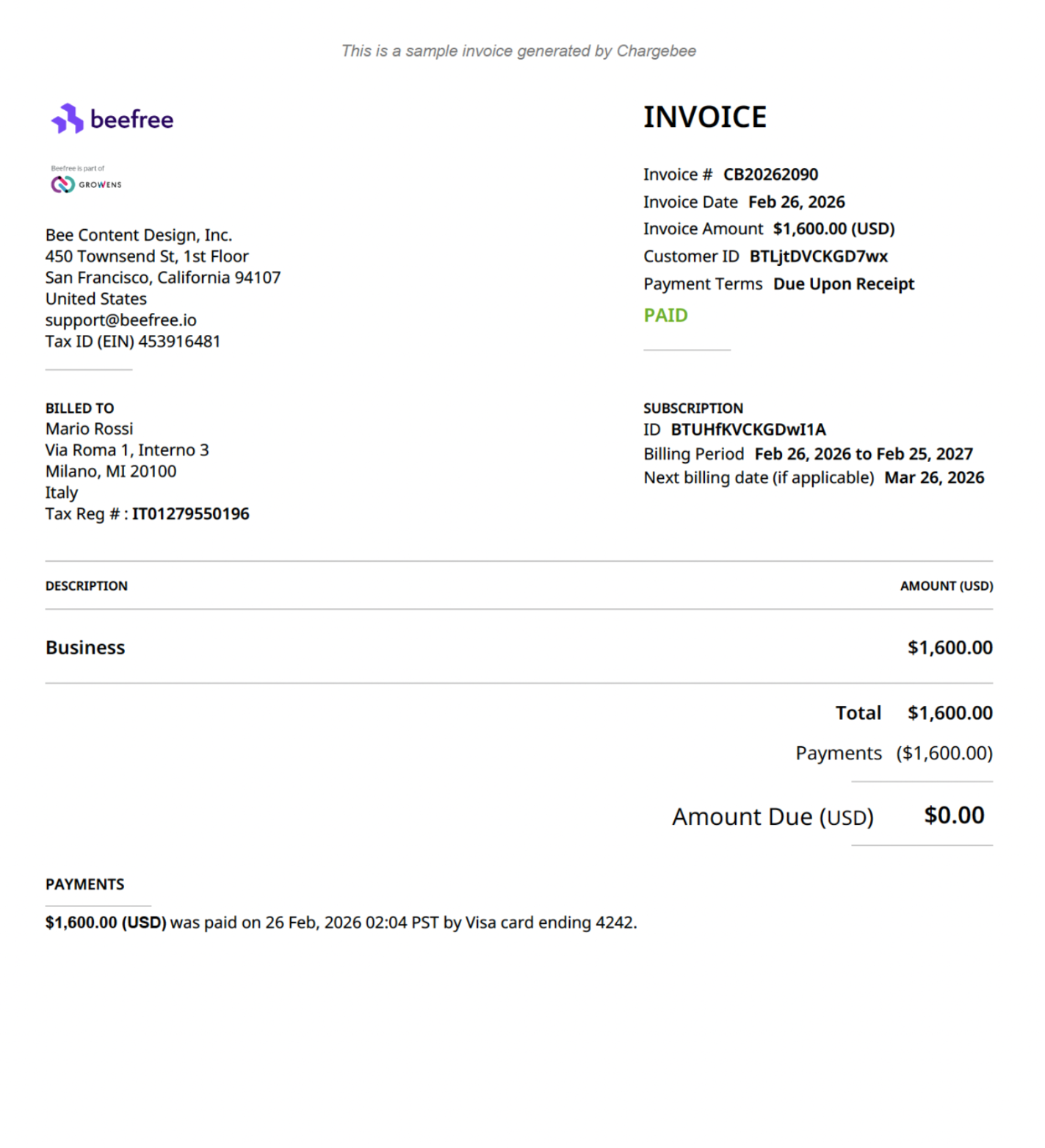
Let’s start our deep-dive from the top left part of the statement. In order, you can find:
- The RGE Studio billing information
- Your billing information
Moving to the right top part, you can refer to:
- The invoice number with invoice date (when the invoice has been issued)
- the invoice amount (total due payment)
- your customer ID (use it when you contact RGE Studio Support)
- the payment terms are due upon receipt (this means that the payment is due as soon as the invoice is received)
- the status of the invoice: it can be Paid or Unpaid.
In the right part you have: the subscription ID (use it when you contact RGE Studio Support), the billing period (the timeframe during which the invoice is applied) and the next billing date (next time that we issue the invoice and the payment will fire automatically).
Line items
The most important information on the invoice is in the center. Each line item on your invoice includes the following:
- Description: it shows the RGE Studio plan currently purchased (if you need more information on your plan, check our pricing page).
- The amount: it’s the price of the plan described above (in USD) and the total. If you have multiple items, it shows the total of the invoice.
- Additional users: how many users are included in your plan, plus any extra users you've added.
- CDN Data Traffic fees: find more information in this article
- Prorated fees: this can apply to additional users if you are on a yearly plan.
- Payments: their status (autopay is enabled by default for most RGE Studio subscriptions)
- The amount due: if it’s 0, the payment was successful. If the payment failed, you will see the total due here.
Payments
Here you can find the details of the payment such as the paid amount, the timestamp and the last four digits of the credit card charged.
Frequently Asked Questions
Below we've provided some answers to frequently asked questions. If you have any further questions or concerns, use the resource center inside RGE Studio to contact us.
What is a CDN charge?
You may see a CDN charge on your statement. This indicates that your data transfer during the previous billing period exceeded the data limit included with your RGE Studio plan.

These limits are as follows:
- Starter - 20 GB per month
- Professional - 250 GB per month
- Business - 1TB per month
- Enterprise - Custom
CDN usage is always billed monthly, even if you have an annual subscription. Annual subscribers will continue to receive monthly statements for CDN usage. More on this below!
Learn more about hosted image delivery in RGE Studio.
I'm on a yearly plan; why was I charged again?
To allow annual subscribers to monitor their CDN usage, annual customers will receive monthly statements to reflect their CDN data usage. CDN overages will be displayed as a "CDN Data Traffic - Hosted Images" line item on your statement.
What is the "additional users" charge?
Every paid plan includes at least one additional user in the base subscription. However, if you add more users beyond those already included in your plan, you'll find another line item on your statement that reflects this. 
Refer to the units column to determine how many additional users you are being charged for. You will also have the details of the unit price and the amount in USD: the unit price column reflects the cost per user and the amount column calculates the total cost for all additional users. At the end of the invoice, you will see the total for one or more additional users.
If you have any questions, feel free to contact us.
Comments
0 comments
Article is closed for comments.