Working with padding

Beefree App is now RGE Studio!
The email design suite you already know and love just leveled up. We’re working hard to update our help center, but you still may see some references to the old product name.
This article applies to the Email and Pages builder in all plans.
Overview
Most design elements within the RGE Studio builder include padding settings. By default, padding applies to all sides of an element at the same time. For more granular control, toggle on More options. This allows you to apply padding individually for each side.

Rows
On rows, you can apply padding on the column level, under Customize Columns. You'll find this option at the bottom of the sidebar. In multi-column rows, we encourage using the same padding values on all your columns. However, you can apply unique padding values to each column if you prefer.

Rows also include padding for the whole content area. Learn how to adjust it in Content Area Padding.
Content blocks
Every content block (except for spacers) includes padding options as well. You'll find the most common padding option under Block options in the sidebar. These padding values apply to the content block as a whole.
Some content blocks offer additional content padding options. These padding options apply to specific elements in the content block. The following content blocks include unique padding options.
Buttons
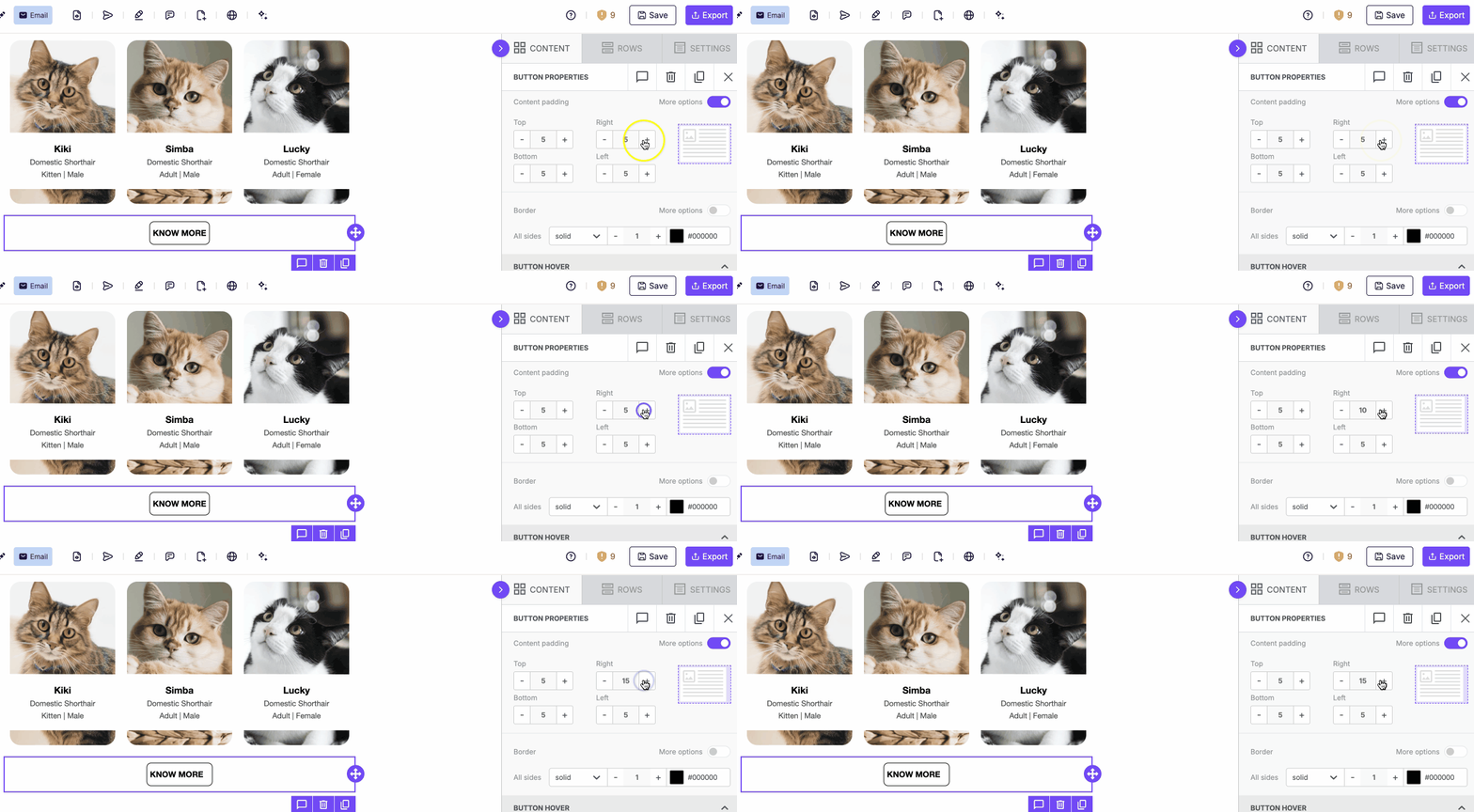
Buttons include content padding options. This type of padding applies to the text within your button. Use it to customize the size of your button. You can also change where your text sits within the button.
Icons
Icons include icon padding options. Remember that icons allow the use of images and text within the same content block. This padding applies to the icon images within the content block.

Menus
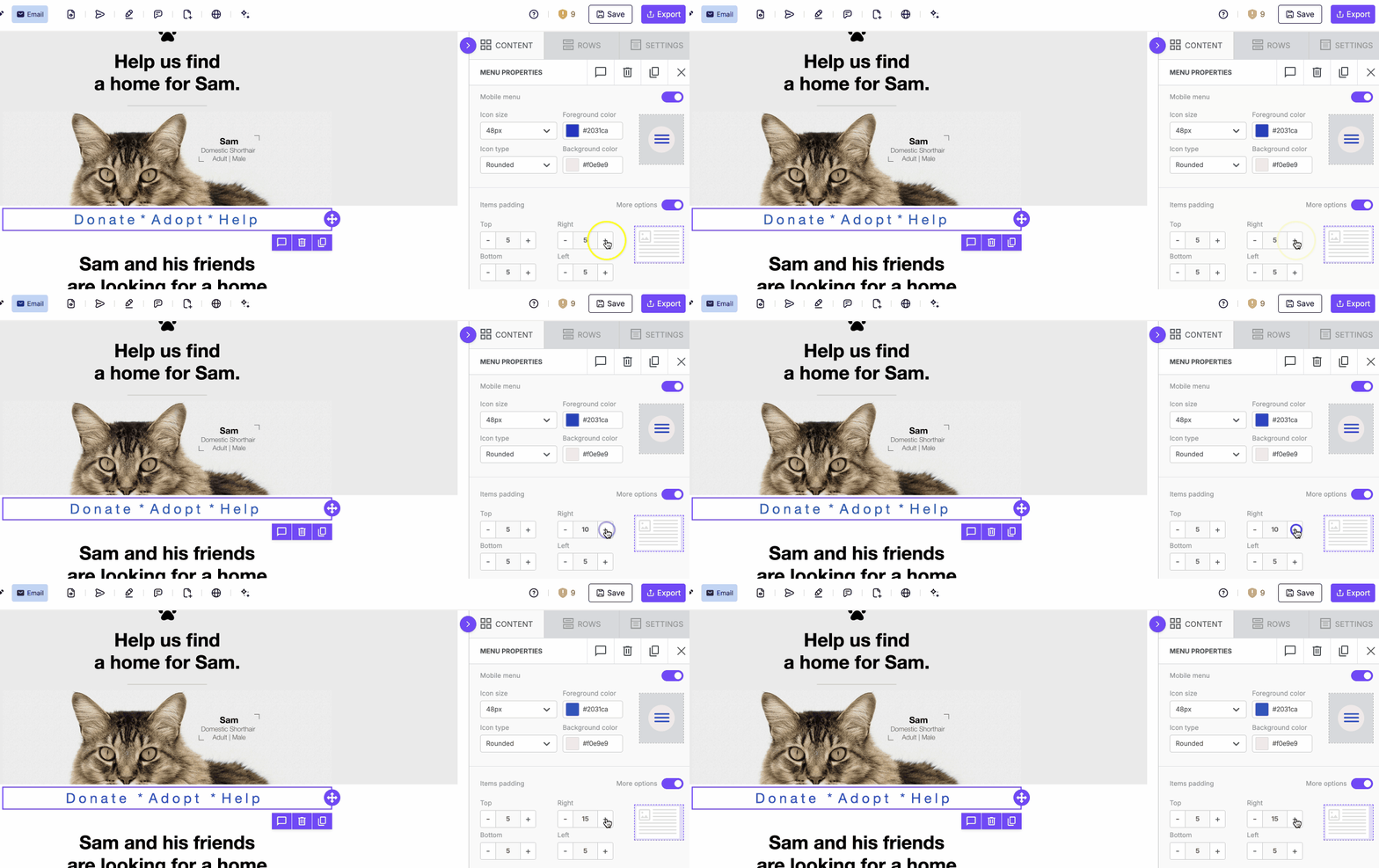
Menus include menu padding options. This is similar to spacing options you might see in other content blocks. It allows you to apply padding in between each menu item.
Forms
Forms are a Page builder feature. This type of content includes two additional content padding options. Use Field options to apply content padding to the text fields your visitors fill out.
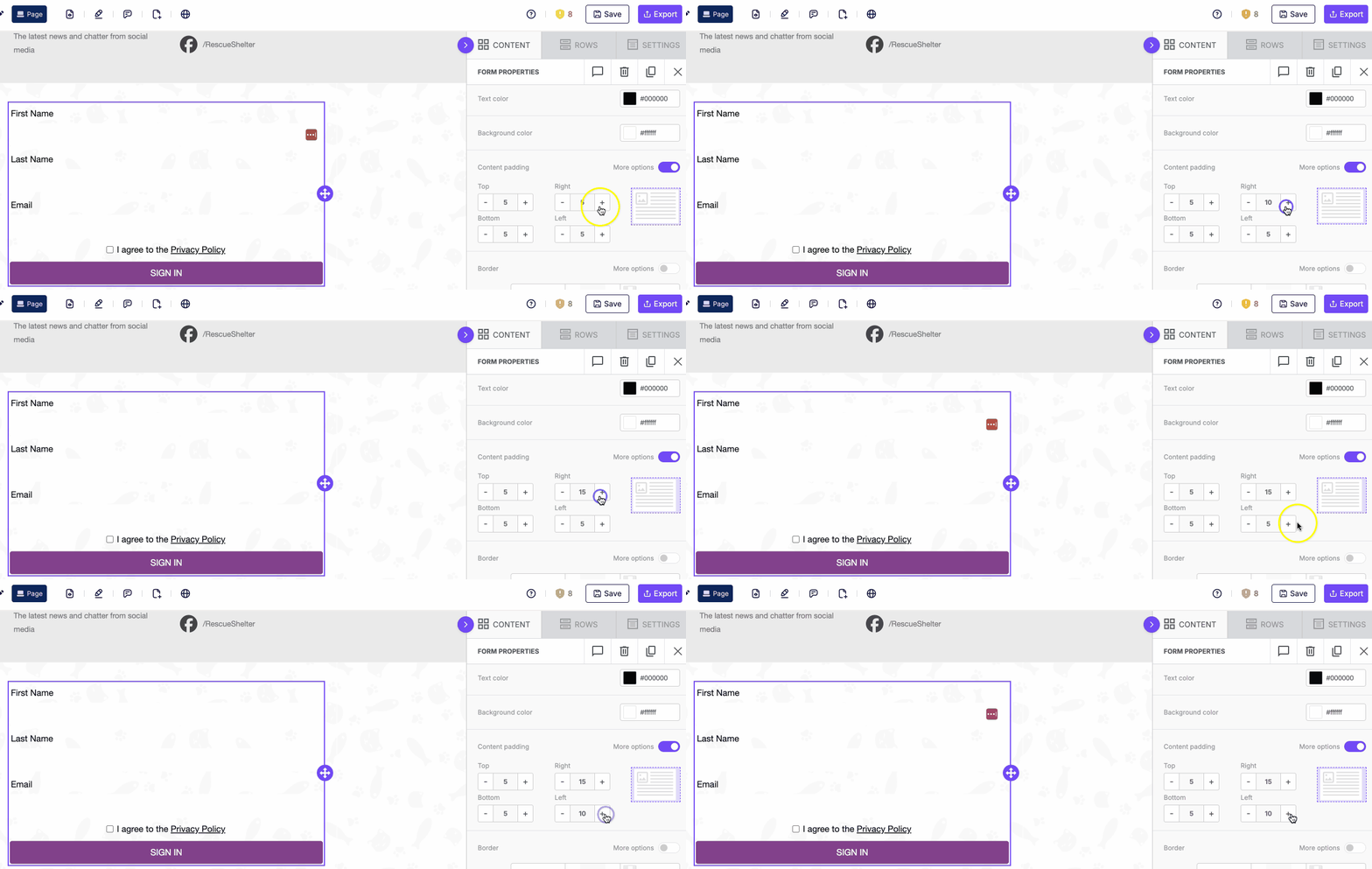
You can also apply padding in the Button options. These options match the content padding for buttons.
Mobile padding
In Mobile Design Mode, you can apply padding that affects only the mobile version of your design. Mobile padding is available for these elements:
- Content blocks, under Block options
- Rows
- Columns
Use the Mobile icon in the sidebar to identify elements supporting mobile padding.
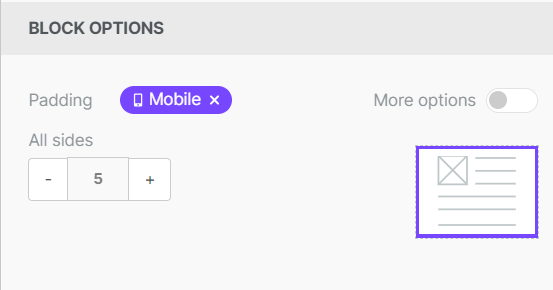
You can find full details on mobile styles in our Mobile Design Mode documentation. We also talk about this feature in Mobile Optimization Options.
If you have any questions, feel free to contact us.
Comments
0 comments
Please sign in to leave a comment.