Working with borders

Beefree App is now RGE Studio!
The email design suite you already know and love just leveled up. We’re working hard to update our help center, but you still may see some references to the old product name.
This article applies to the Email and Pages builder in all plans.
Overview
Border settings are available in the row properties of any design. You can apply borders to all sides at once or to each side individually.
For any border, you can customize:
- Style (solid, dotted, or dashed)
- Width (0–30px)
- Color
Row borders
When you select a row on the builder stage, you'll see border options in two places in the sidebar:
- Under Row Properties, you'll find Content area border
- Under Columns Structure, you'll find another Border option
Content area borders
A content area border applies to the entire row, including all columns.
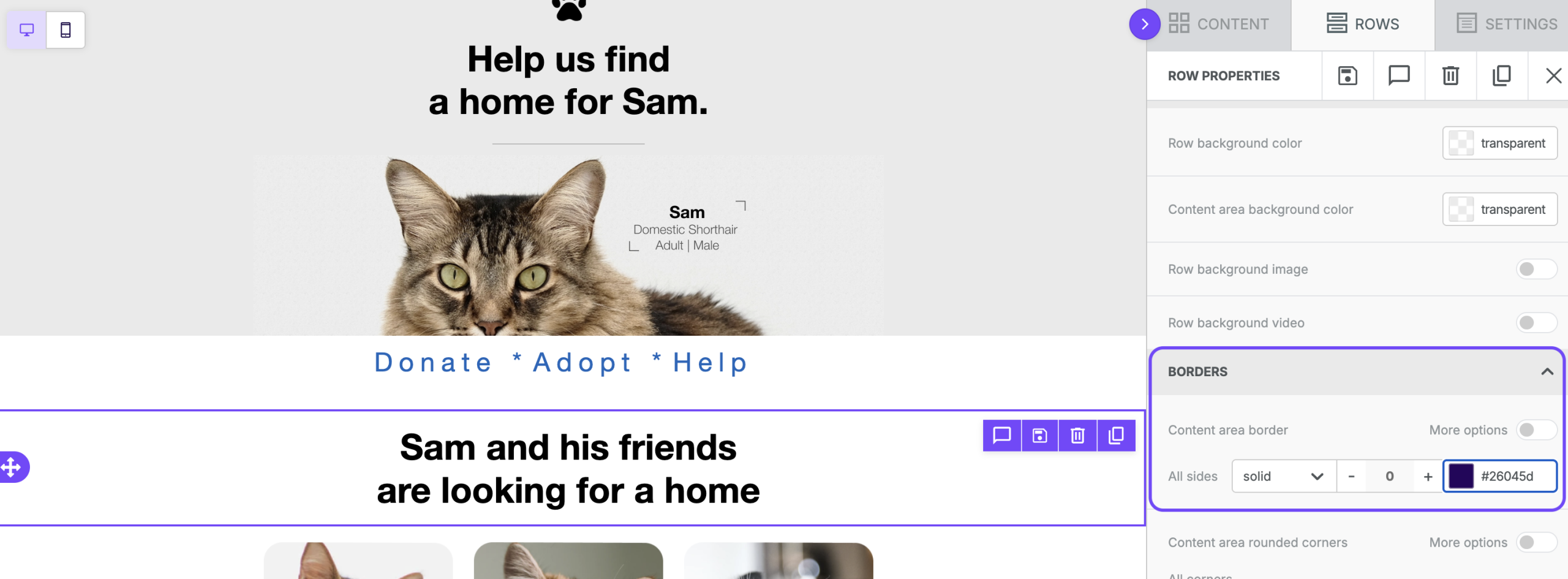
To apply a content area border:
- Select the row on the builder stage.
- Go to Content area border under Row Properties in the sidebar.
- Set a border style, width, and color.
The border applies to the entire content area width, regardless of how many columns the row has. It remains consistent even when content stacks on mobile.
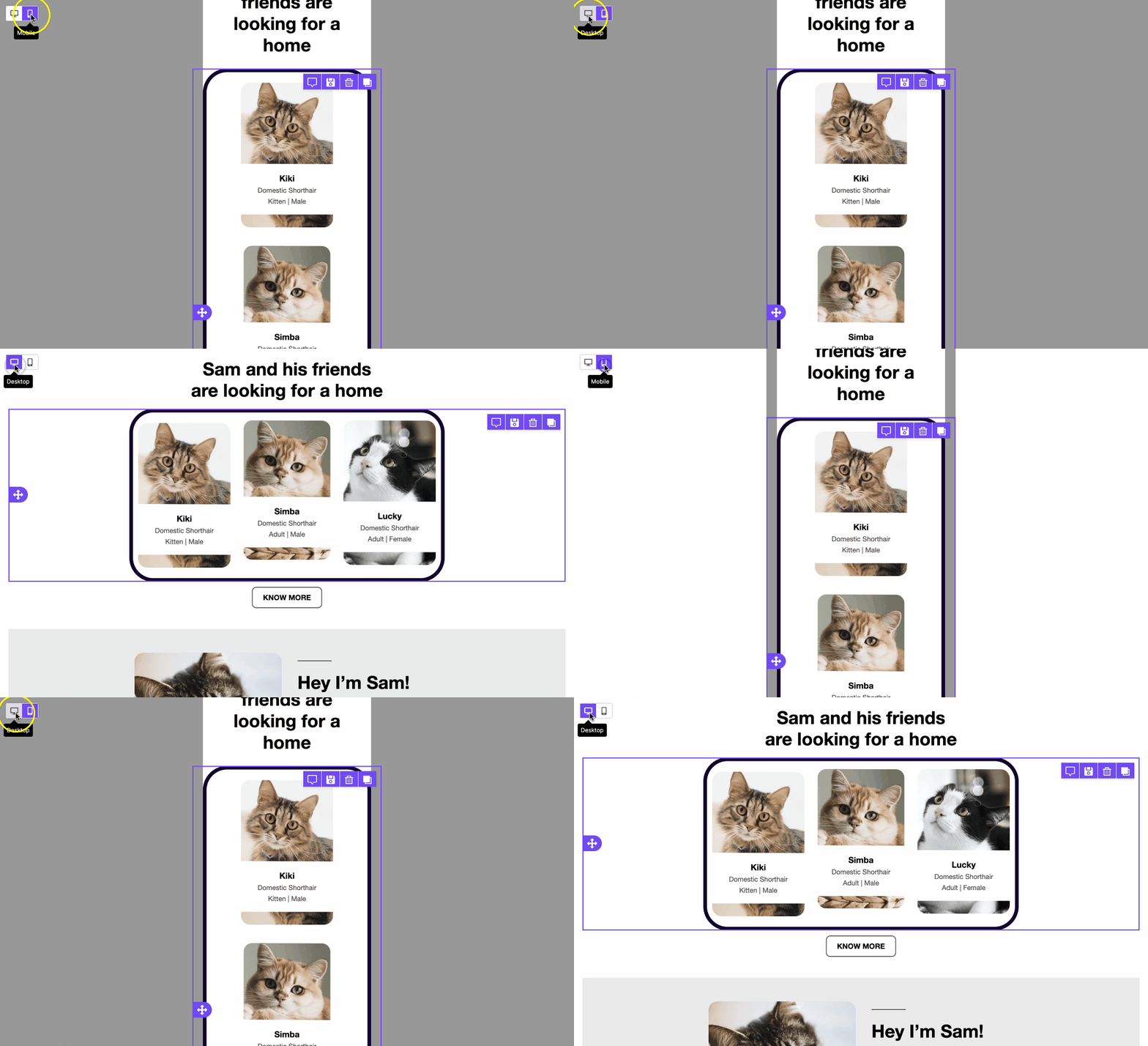
Use the More options toggle to set different border values for each side of your row.
Column borders
To apply borders to individual columns, use the Border option in the Columns Structure section. This option applies to the selected column only.
To apply a column border:
-
Select the row on the builder stage. In the sidebar, scroll to Columns Structure to see the column structure.
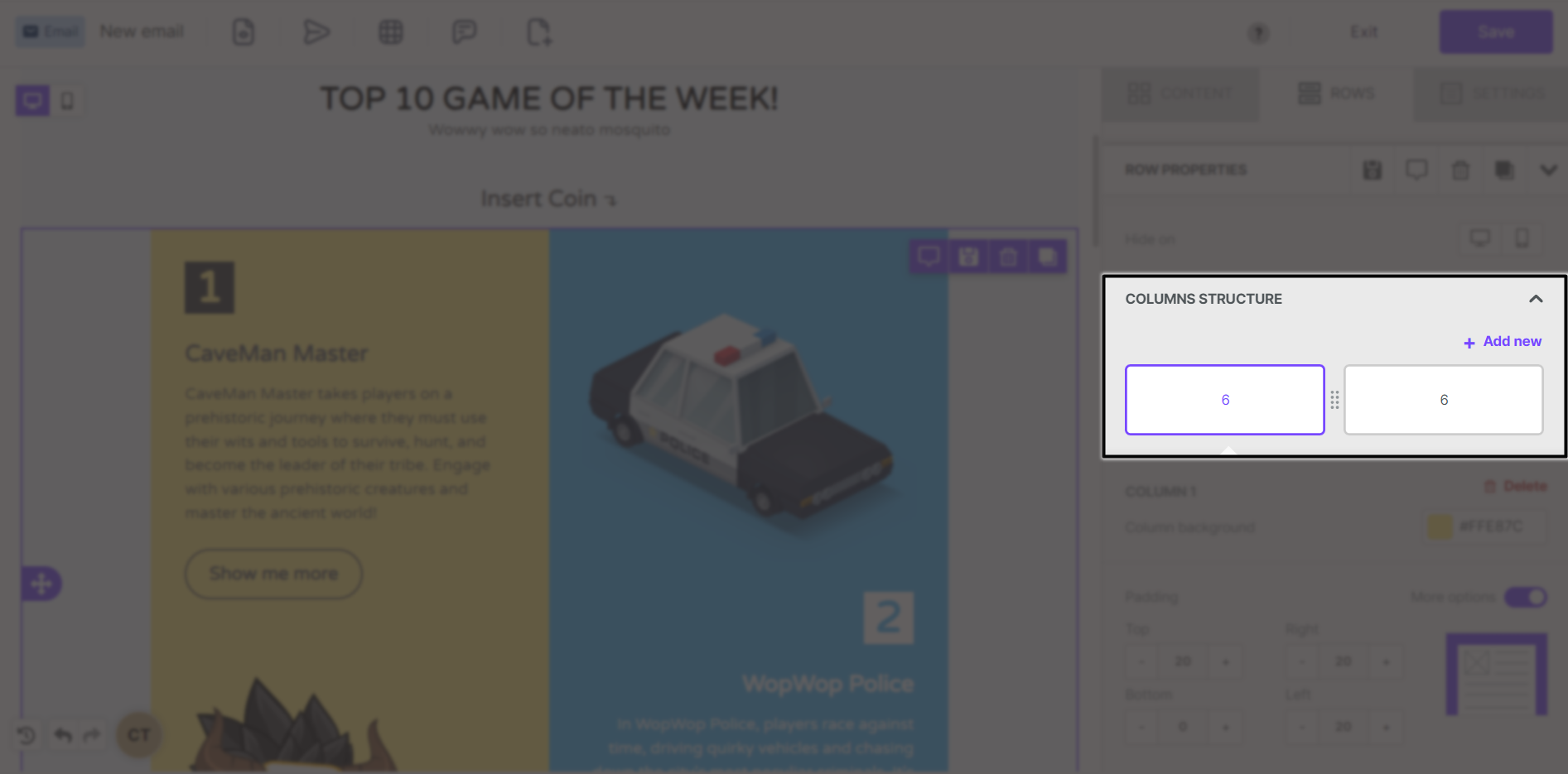
- Click Column 1 to edit its properties.
- Set a border style, width, and color.
- Repeat for each column as needed.
Use the More options toggle to set different border values for each side of a column. You can select other columns in the row to apply unique border values to each one.
Rounded corners
You can apply rounded corners to any row. This works with or without a border. In either case, rounded corners create a softer edge for your row.
The Content area rounded corners option is in the row properties sidebar, above the content area border option.
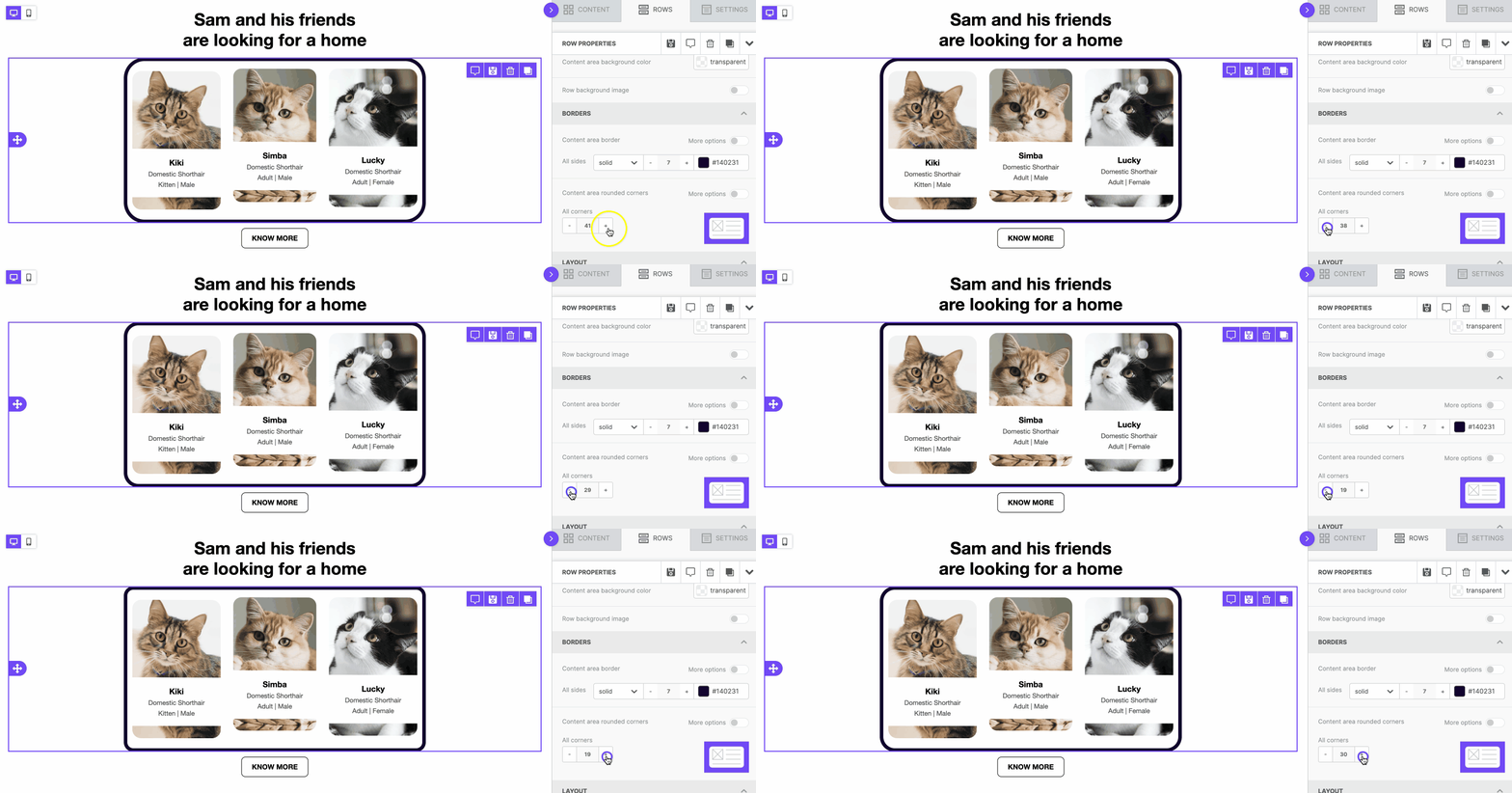
By default, rounded corners apply to all four corners of the row. Use the More options toggle to customize which corners are rounded.
You can also round corners without a border. For the effect to be visible, the content area background color must differ from the row background color.
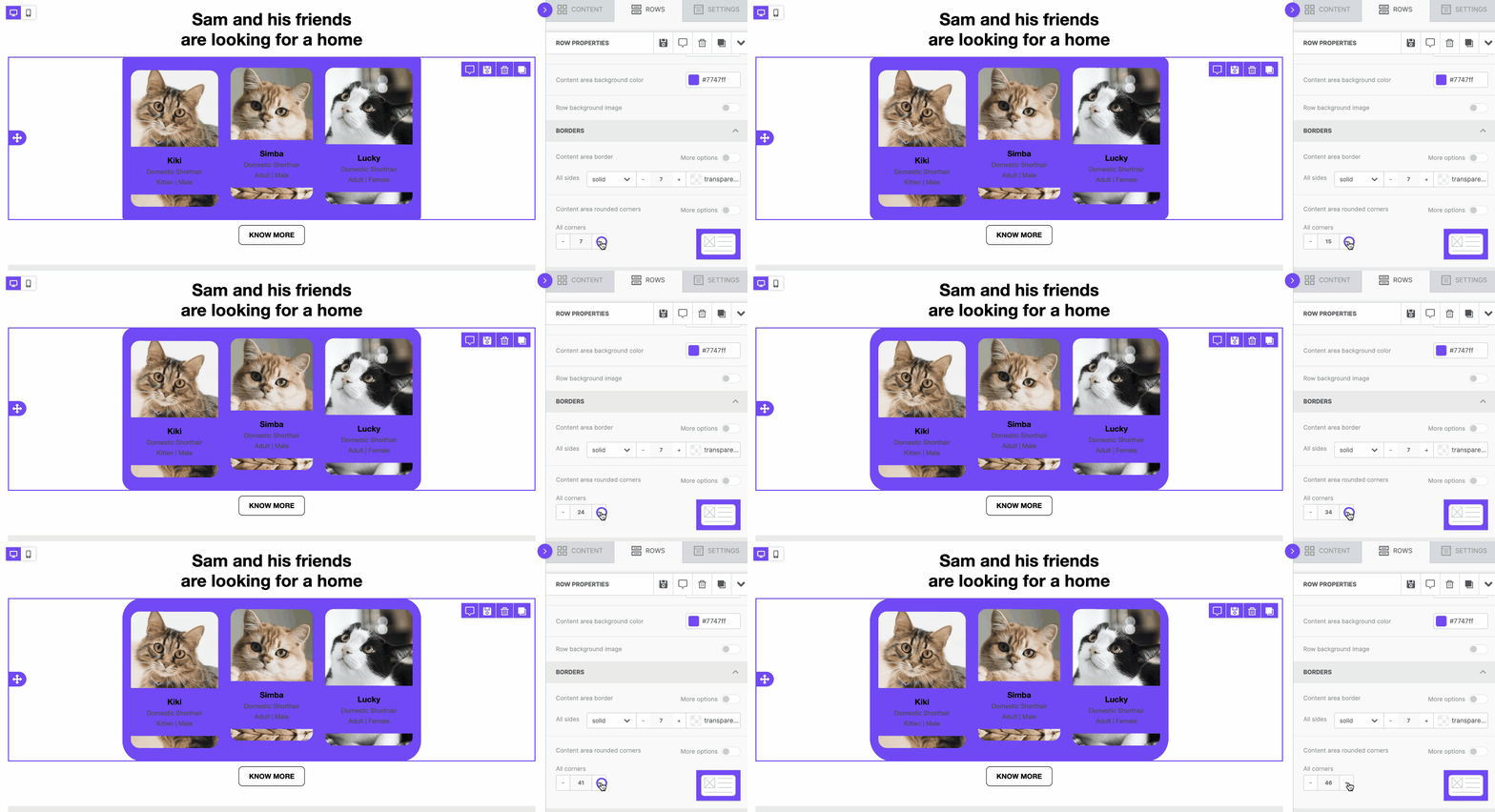
You can also use rounded corners with background images.
If you have any questions, feel free to contact us.
Comments
9 comments
Hi Massimo, we have a bug with borders, is this a good place to report it?
On a multi-column layout (2-4 columns) when setting Borders on the different columns they end up being different heights because the inner-content of each "box" is different.
Would it be possible to either
1) Make it so that border on "column 1" and "column 2" are same height
OR
2) Have a separate "structure border" setting?
Our use case is that we want to have a single nice border around the whole email, but email is made up of 1- and 2-column structures. So the TOP structure gets a LEFT, TOP, RIGHT border, the BOTTOM structure gets a LEFT, BOTTOM, MIDDLE border, and all middle structures only get LEFT and RIGHT borders. and this works great if they are All 1-column structures. This all breaks down when it's a multi-column structure.
Hope that makes sense.
Thank you!
[ Paid BEE Plugin user and really loving it! ]
Hi Vadimb, thank you for the kind words about the editor. We see what you mean. We'll discuss it internally and see what we can do. Thanks again for your feedback.
Was this issue solved?
Hey @Massimo, can you please update how we can resolve this multicolumn border issue?
While using multi-columns row, if the content of sibling columns differs from each other then the borders around the columns do not match the height of parent row. This results in different borders around different columns in a single row.
Hi Raviraj, thanks for reaching out. Borders in a multi-column row will only extend as far as the content entered in each column. which can cause border alignment issues when the columns have different lengths. To prevent this issue, we recommend using content that is all the same size in multi-column rows (i.e. all images have the same dimensions). With that being said, I'm happy to pass along your feedback about this to our Product team for consideration as well!
Hi, are there any developments on this front? Same-sized content in a row is not always possible, and columns stacking on mobile is a further problem. (I have the same use case as Vadim above)
Hi Gabriel, thanks for your comment. We are going to open a ticket so we can analyze better your case. Best.
I have a row with background colour and an image in the middle. I want a border underneath the entire row, not just the image block. None of the options available offer this. I don't want to mess around with css as the whole point of using an editor is to have this capability within it. Am i doing something wrong or is this indeed a limitation and if so you might want to modify your article to be more explicit. Thx
Hi Ian,
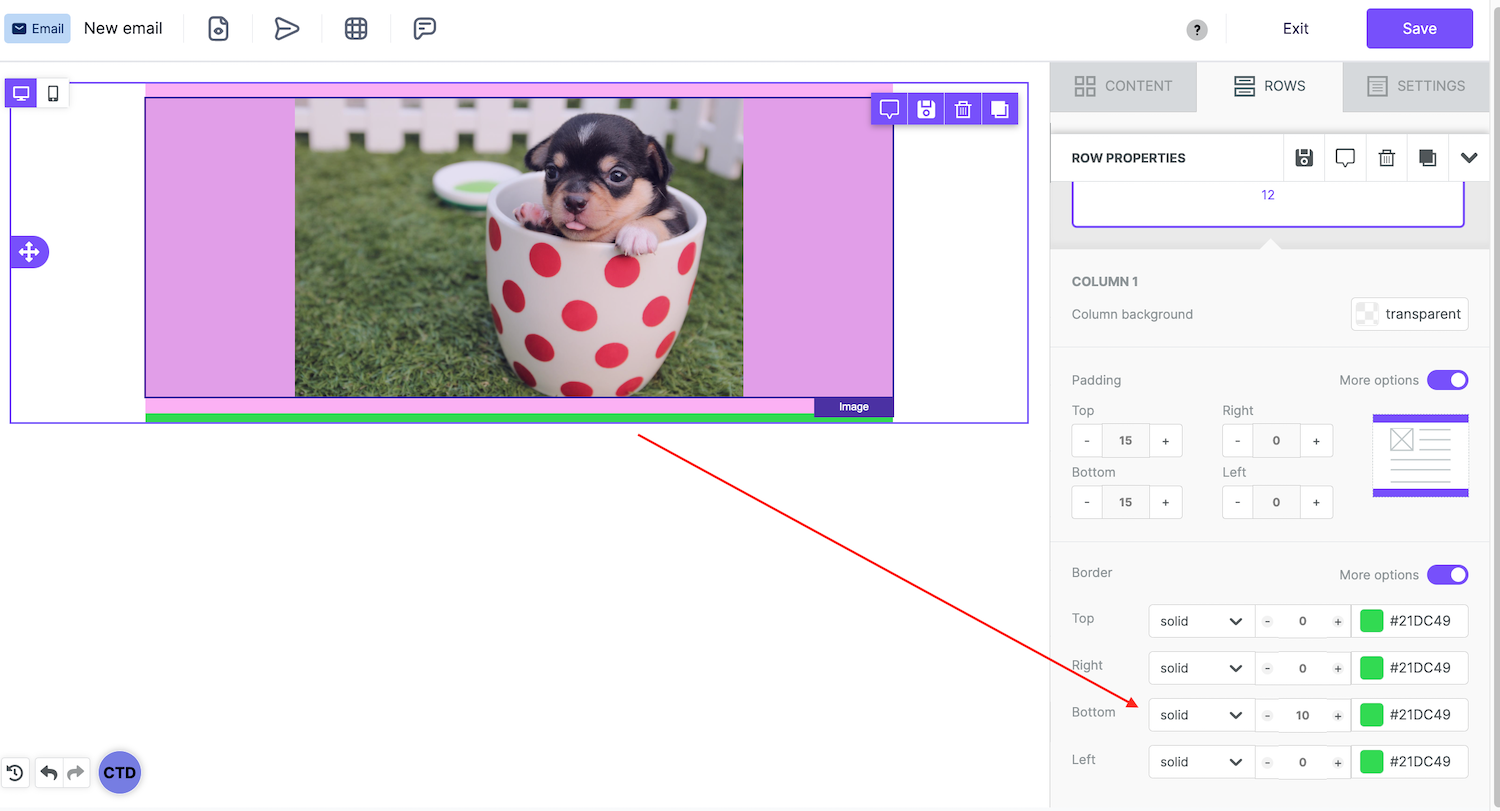
I tried recreating your design type below with a row with a background color, an image in the middle, and a border at the bottom of the row. If this scenario is not what you were looking for, could you please share some more details or a screenshot of what you're trying to achieve?
It's possible to insert a border on only the bottom part of a row - first, select the row and then scroll to the bottom of the side panel to the right to locate the "Border" section. Click the "More options" toggle to see the various options for adding your border (left, right, top, bottom).
Please let me know if I misunderstood your request or if you have any further questions about this - thanks!
Please sign in to leave a comment.