Adding a background image to your designs

Beefree App is now RGE Studio!
The email design suite you already know and love just leveled up. We’re working hard to update our help center, but you still may see some references to the old product name.
This article applies to the Email and Pages builder in all plans.
Overview
You can add background images to your emails and landing pages. To learn more, watch our RGE Studio Academy tutorial on adding a background image or GIF to your email.
Pages created in RGE Studio can also include video backgrounds. For more information, see Adding video to your page.
Where to find it
You can apply your background image to an individual row or to your entire design. Add content blocks on top of background images to layer your content.
Row background images
Use this option to apply a background image to part of your design.
Start by selecting a row within your design. You will see a Row background image section in the sidebar.
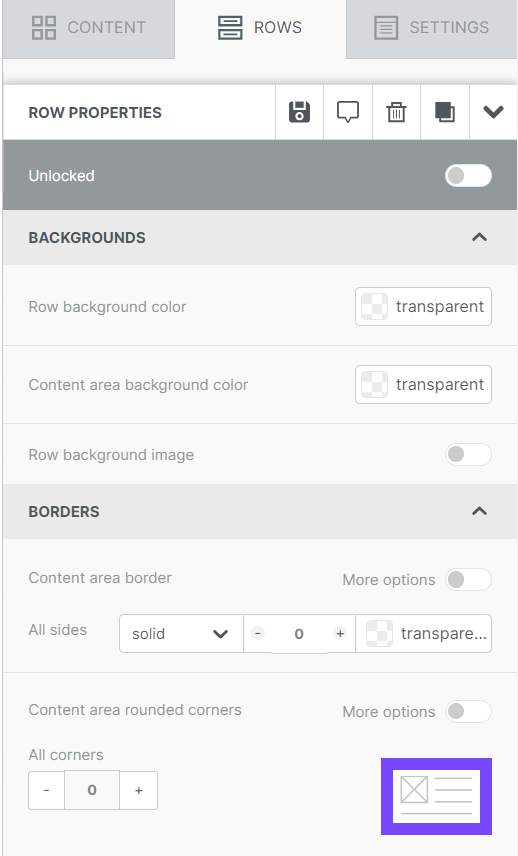
Design background images
Use this option if you want to apply a background image to your entire design.
Start by selecting the settings tab in the builder sidebar. You will see a background image section in the sidebar.
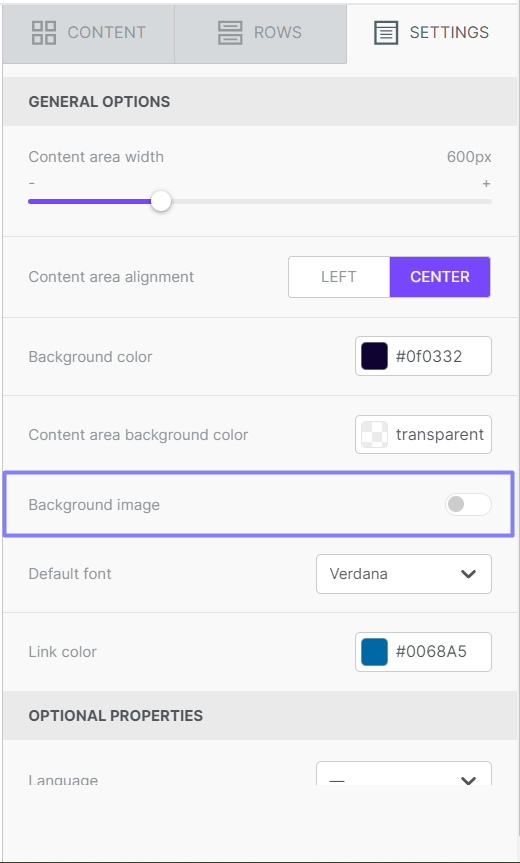
In both options, a toggle controls the background image. The toggle is off by default. When you turn it on, additional options appear.
Background image settings explained
There are some settings unique to background images. You will see different options depending on the type of background image.
Selecting the image
Once enabled, you can upload an image for your background via the file manager. As with other image-based content, use the Change image button to get started. To use an image hosted elsewhere, paste its URL into the field.
Applying the image
After selecting your background image, you can choose how to apply it. Row background images can apply to the background image to the content area, or the entire row. If you select content area, the image displays within the content area width. If you select row, the background image can extend beyond the content area.
Design background images apply to the entire row. Use the display options described below to customize its appearance.
For a mobile responsive image, use a content block instead of a background image. Learn more in Working with multimedia.
Fit to background, repeat, and center
After you apply your image, you can adjust how it displays.
Fit to background
Use this option to resize your image to fit the background.
When you select the fit to background checkbox, your image resizes to fit the container.
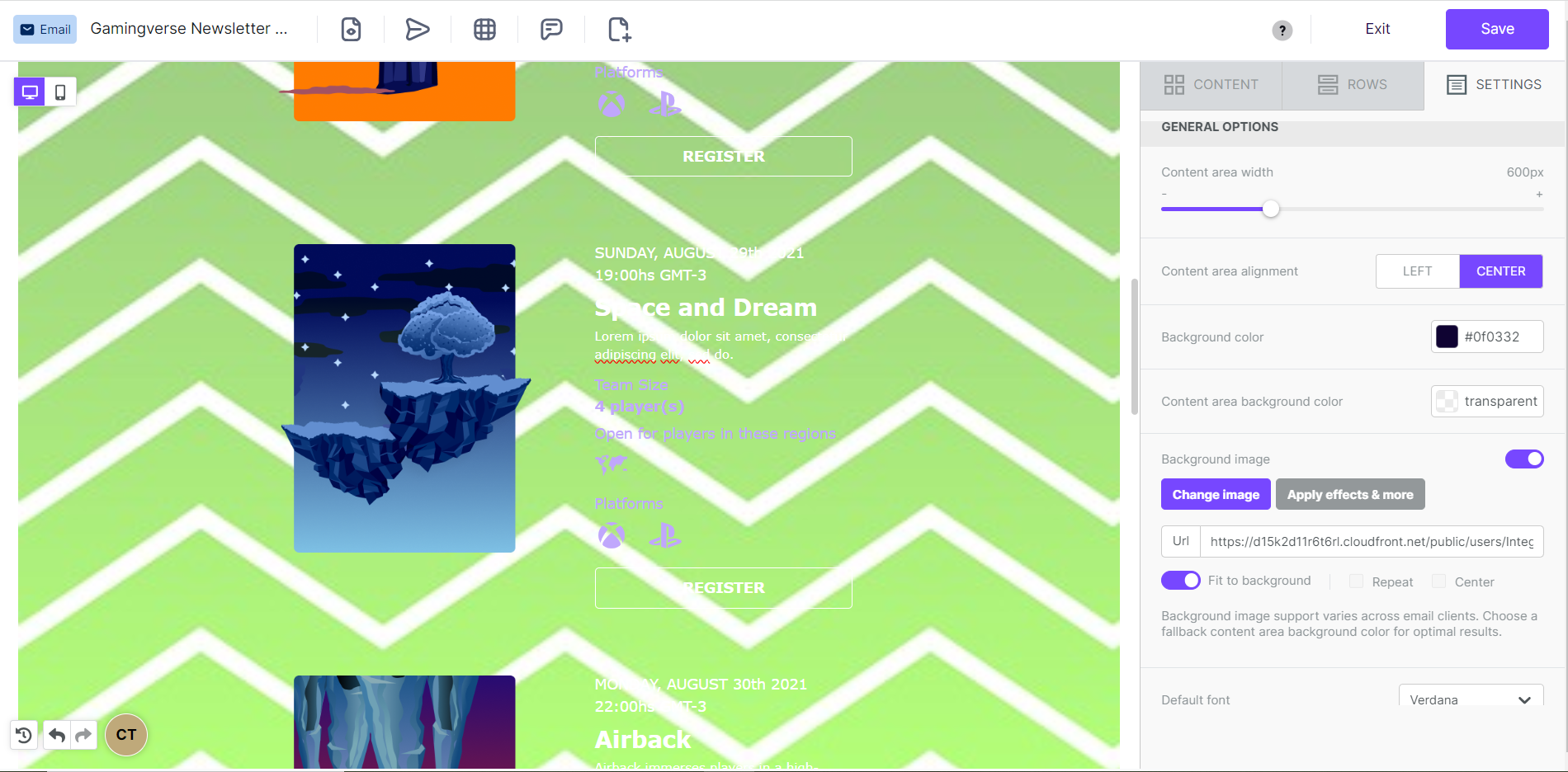
When fit to background is enabled, the other options are unavailable. When you disable it, your image displays at its original dimensions.
Repeat
This option repeats your image. It works well with smaller images or symmetrical patterns.
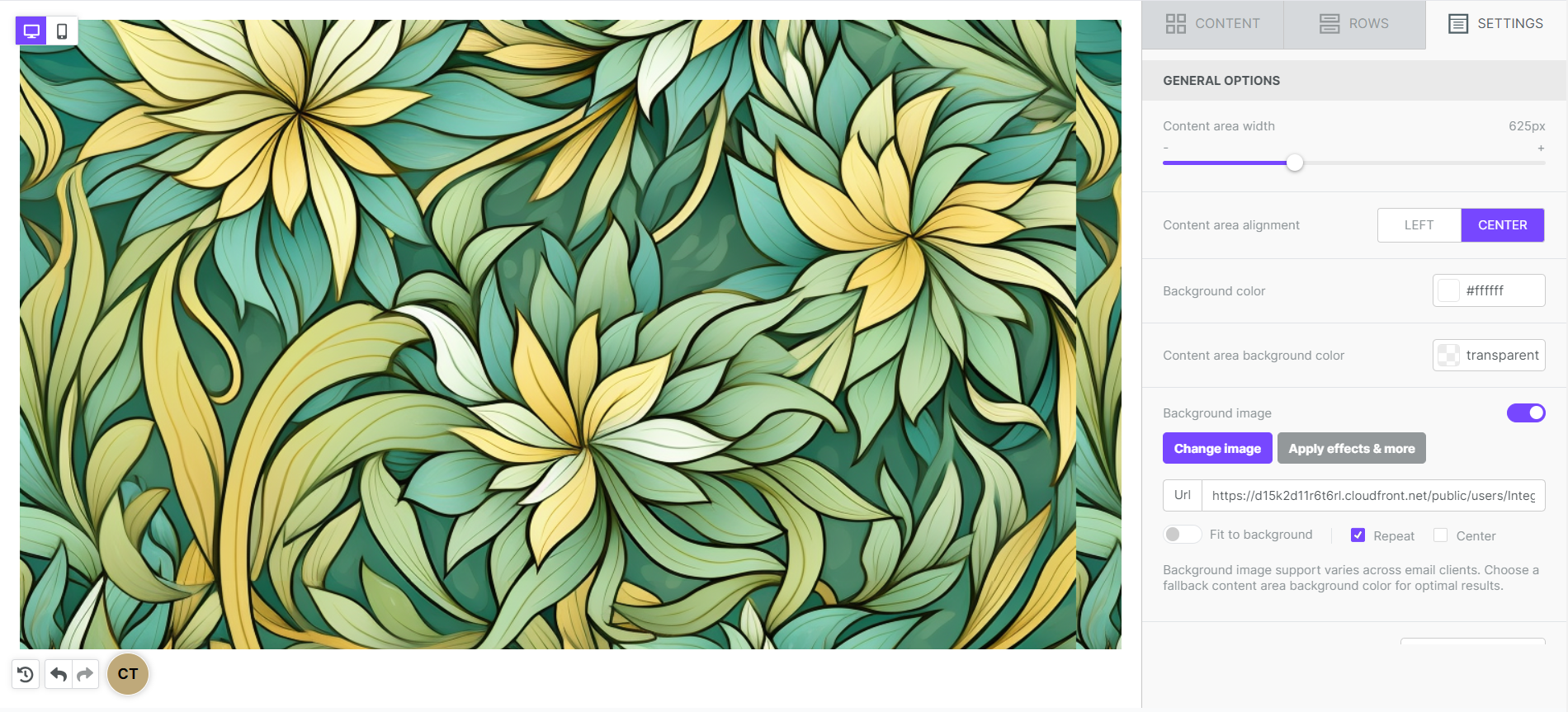
Center
This option centers your background image.
If you use Repeat and Center simultaneously, the effect is similar to Fit to background. With these two options selected, the background image will repeat rather than resize. For example, say you created a background image specifically for one design. The dimensions may be important to the integrity of your overall design. If this is the case, consider using this combination of settings.
Email client compatibility
This section applies to emails. Background images are compatible with all popular browsers. However, we recommend setting a background color similar to your background image. That way, your design still works if the image fails to display.
RGE Studio uses techniques that help background images render in most email clients. In some situations, background images may not show.
According to our tests, the following clients do not support background images:
- Outlook desktop on Windows (background images work on Outlook 2011 and Outlook 2016 on OS X, and on outlook.com)
- Lotus Notes 7
- free.fr email client
- T-Online.de email client
- Xfinity / Comcast email client
If you have any questions, feel free to contact us.
Comments
4 comments
Is there a way to change the opacity of the content background color? I want a grey content background, but I want to adjust the opacity to still see the image behind.
Not work on gmail also. Please help check on this.
Hi Nik, do you have a chance to try with a different browser?
I tested with Chrome on Desktop and Mobile, both did not not work. What browser is good for testing this?
Please sign in to leave a comment.