Using Templates in RGE Studio

Beefree App is now RGE Studio!
The email design suite you already know and love just leveled up. We’re working hard to update our help center, but you still may see some references to the old product name.
This article applies to all plans. However, some features may be limited or unavailable on the Starter plan.
Overview
Templates are stored in your Library. They act as a starting point for a new design.
You can create your own, or choose from over 1,000 templates in the RGE Studio catalog. See Managing Templates to learn how to organize the templates you save.
Creating a Template
You can create templates for emails and for pages.
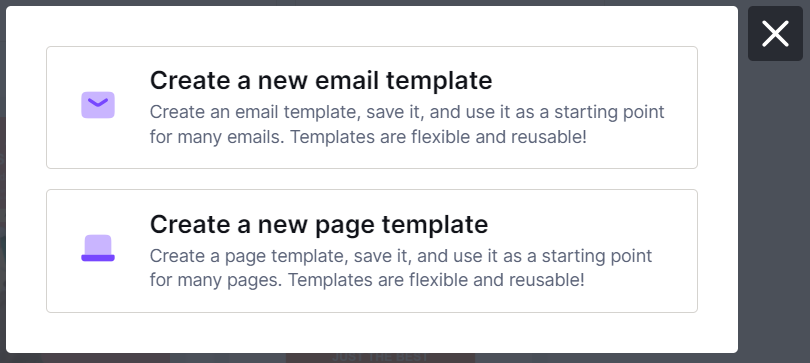
To create a new template, open the Library and select the Templates tab. Select Create new, then choose Email or Page.
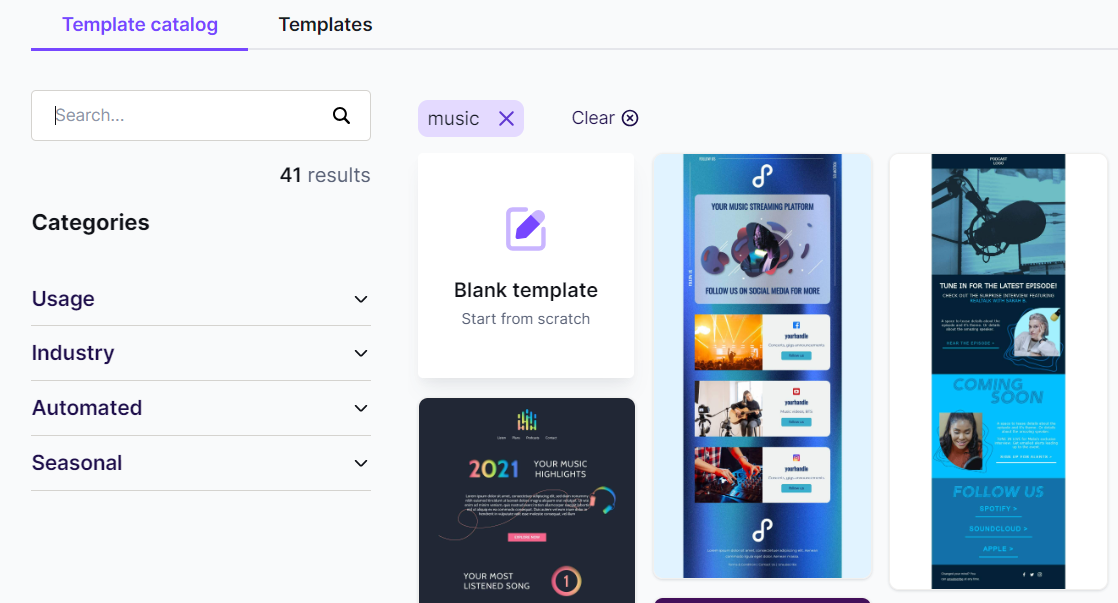
Start from scratch, or select a ready-made template from the catalog. Use the keyword search or expand a category to narrow your options.
To turn an existing email into a template, open the email's Details page and select Create a template. This option works with emails only.
Template Details Page
Every template has its own Details page. Open it by selecting View details from the Library, or by exiting the builder while editing a template.
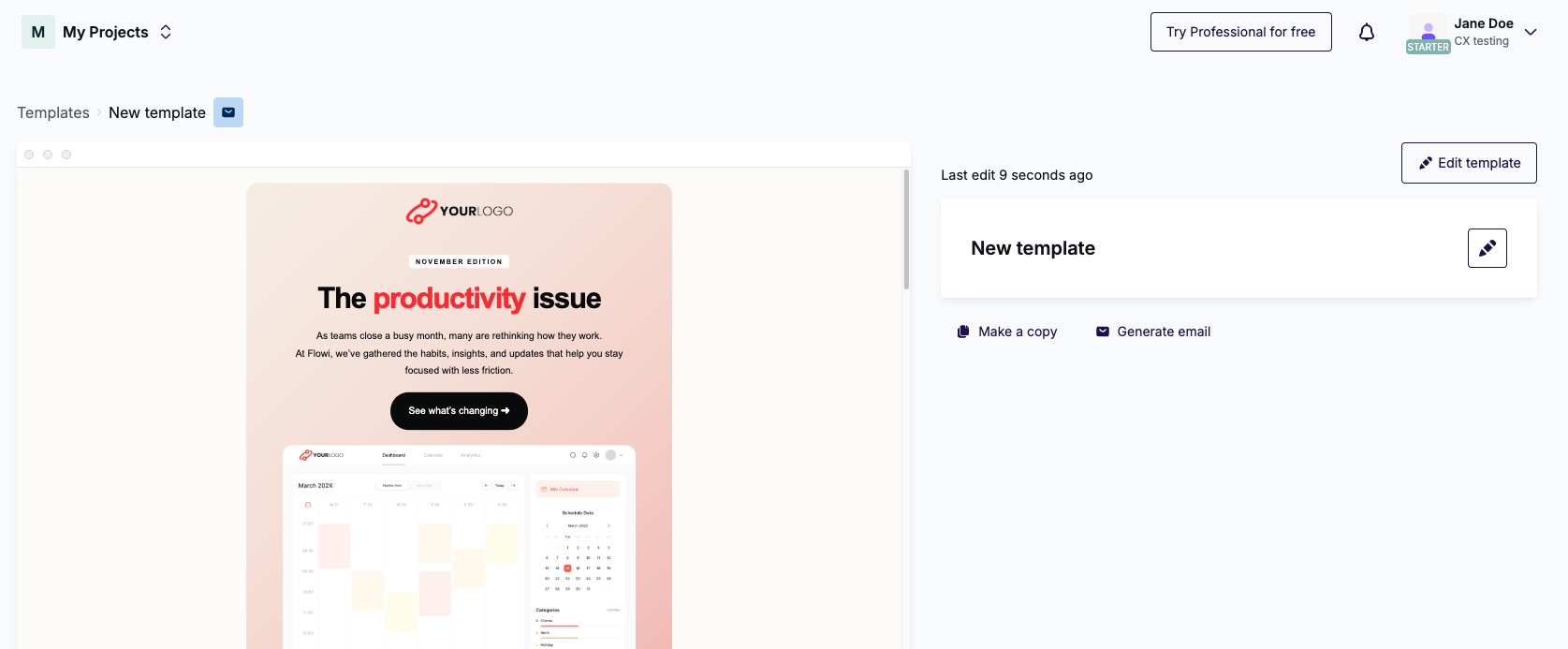
From here, you can:
- Preview the template, copy its URL, or generate a QR code*
- Select Edit template to open the template in the builder
- Update the template's name, description, or tags
- Make a copy of the template*
- Select Generate email or Generate page to create a new design from the template
* These options are limited or unavailable in the Starter plan.
Generate an email or page from the template when you're ready to export your design. See Testing and exporting your emails with RGE Studio for export options.
Controlling Which Templates are Available
This feature is not available in the Starter plan.
Workspace settings control which templates are available when you start a new design. Use this to hide the RGE Studio template catalog and limit your team to an approved set of templates.
For more information on how this works, see Managing Templates.
If you have any questions, feel free to contact us.
Comments
6 comments
Where is the navigaton BELOW my image to the bottom of my TEMPLATE? UX ELEMENTOR BUILDER is intuitive.
Hi David, thanks for your comment! Can you please provide more information about your concern?
How do you find the code for your templates?
Let me just briefly explain the issue that you likely ran into: you can export messages in many ways (here is a summary), but not templates... until they become a message.
This is because templates in BEE Pro are meant to act as models/layouts to start from & speed up the creation of a new email, not as "ready-to-export" emails.
We certainly understand that this can be confusing because you might actually be creating a "template" for your own use (e.g. a template to use in a CRM system, or an email marketing platform, etc.). So... we may very well change this in the future. For now, the workflow to export a template from BEE Pro is as follows:
1. navigate to a Project
2. click to create a new message
3. select any template to start from
4. edit the message, if needed
5. save it
you now have a "message" that was created from that "template"
now you can export it in a variety of ways, as described here
Sorry again for the confusing user experience.
Hi Team Bee Pro,
I loved the concept & enjoy using it.
But I found a big blunder that may cost me my reputation.
I have created a template for my weekly mailer in the organization, where there is a change of content & image. I loved the flexibility of the design by Beepro.
Recently, I noticed that if I change the content & design in the template for this week. My last week's email had an issue (not only in my sent box but my colleagues' inboxes also); it showed the new image. Obviously, the text & image mismatch.
If it is not available on free version, I should be prompted for it.
Request immediate help!
Regards!
Hi Public Relations Officer IITH,
Without more information about your current situation, it's hard to determine precisely what happened here. Here is some information about how the file manager in BEE Pro works that could be helpful:
Please note that if you delete an image from your file manager that is being used in designs that have been sent, and you then upload a new image in the file manager in the same location and with exactly the same file name, this new image will now have the same image URL as your previous image. As a result, it will be displayed also where the previous image was displayed.
If you use the practice of deleting images from the file manager even if they are used in previous designs (and sent emails), we recommend uploading your images with a new unique file name to avoid this behavior. Alternatively, use a folder structure in your BEE Pro file manager to give your images a new location when uploading them.
We’re sorry for any confusion and inconvenience this caused!
Please sign in to leave a comment.