Testing and exporting your emails with RGE Studio

Beefree App is now RGE Studio!
The email design suite you already know and love just leveled up. We’re working hard to update our help center, but you still may see some references to the old product name.
This article applies to the Email builder in all plans. However, some features may be limited or unavailable on the Starter plan.
Overview
You can test and export from several places in RGE Studio. These options are available insid the builder, on the details page, and in design lists. This article uses the details page as a frame of reference to describe these options.
For pages, see our Pages documentation.
Once you save an email and exit the builder, you see the Email details page. You can also return to this page by clicking on View details in your design list.
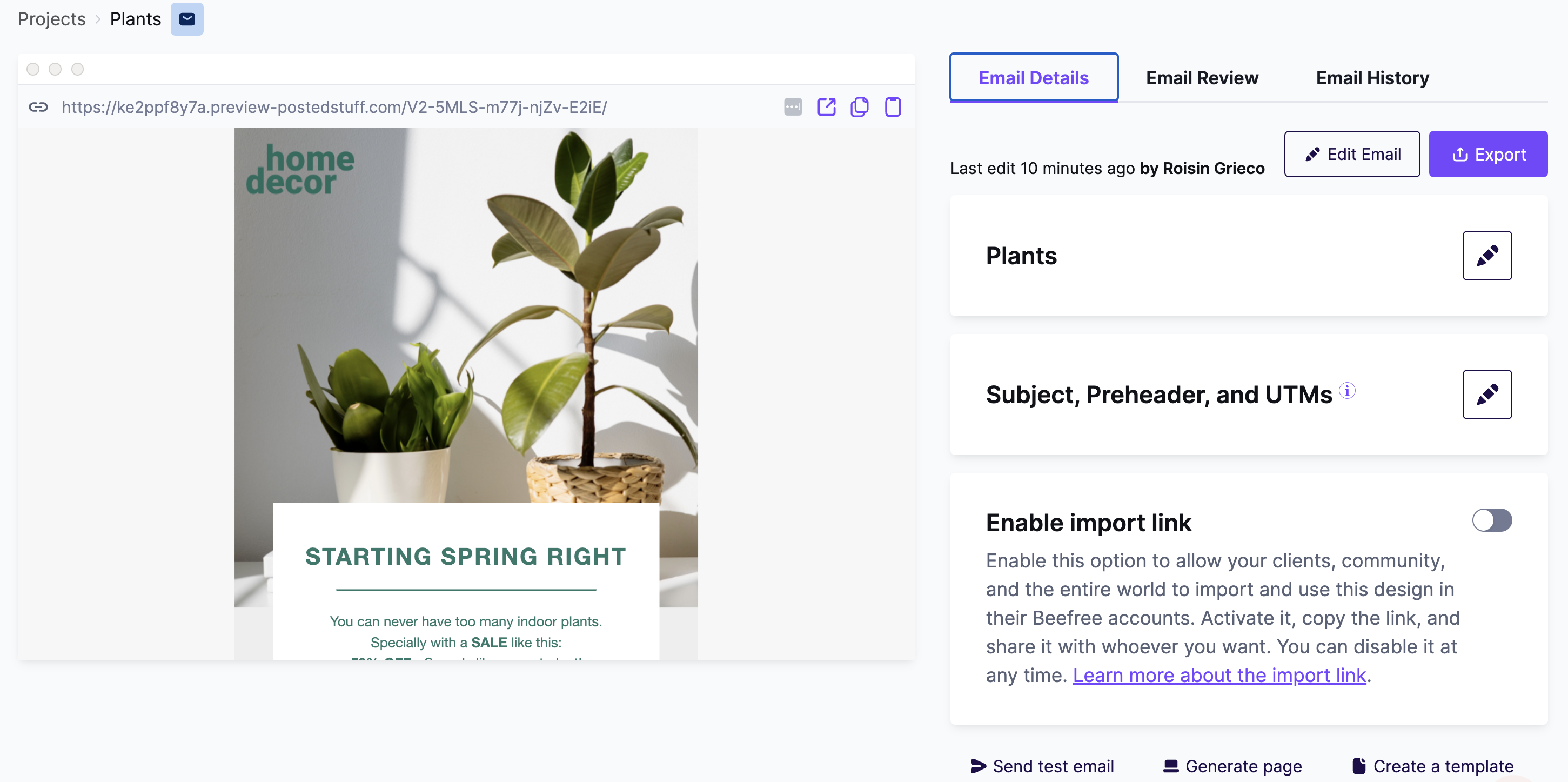
If you're working with a template, this page has fewer options. You can generate an email from the template, then export the generated email.
Prefer a video? Watch this overview of the exporting options. Jump to any topic using the timestamps below:
- 00:00 Introduction to Exporting Emails
- 00:34 Understanding Clean and Semantic HTML
- 01:25 How RGE Studio Ensures Clean Semantic HTML
- 02:25 Step-by-Step Guide to Exporting Emails
- 03:30 Advanced Exporting Options and Integrations
Send a Test Email
Use Send test to send a test version of the email to yourself, colleagues, or clients. You can use this option to see what your email looks like in different email clients. This option is also available in the builder navbar.
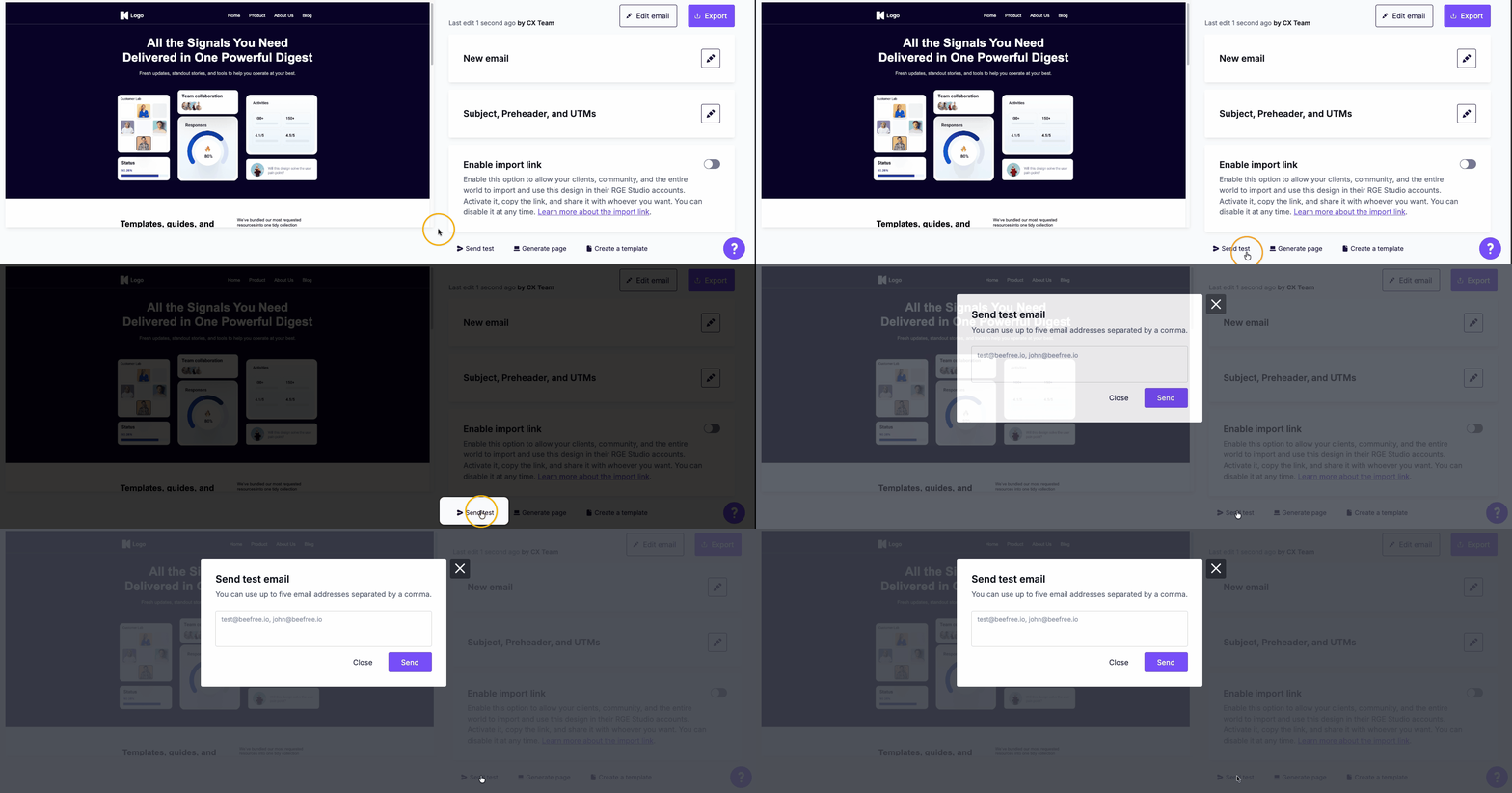
Each email address can be up to 100 characters long.
Export Options
Click Export to see the following options:
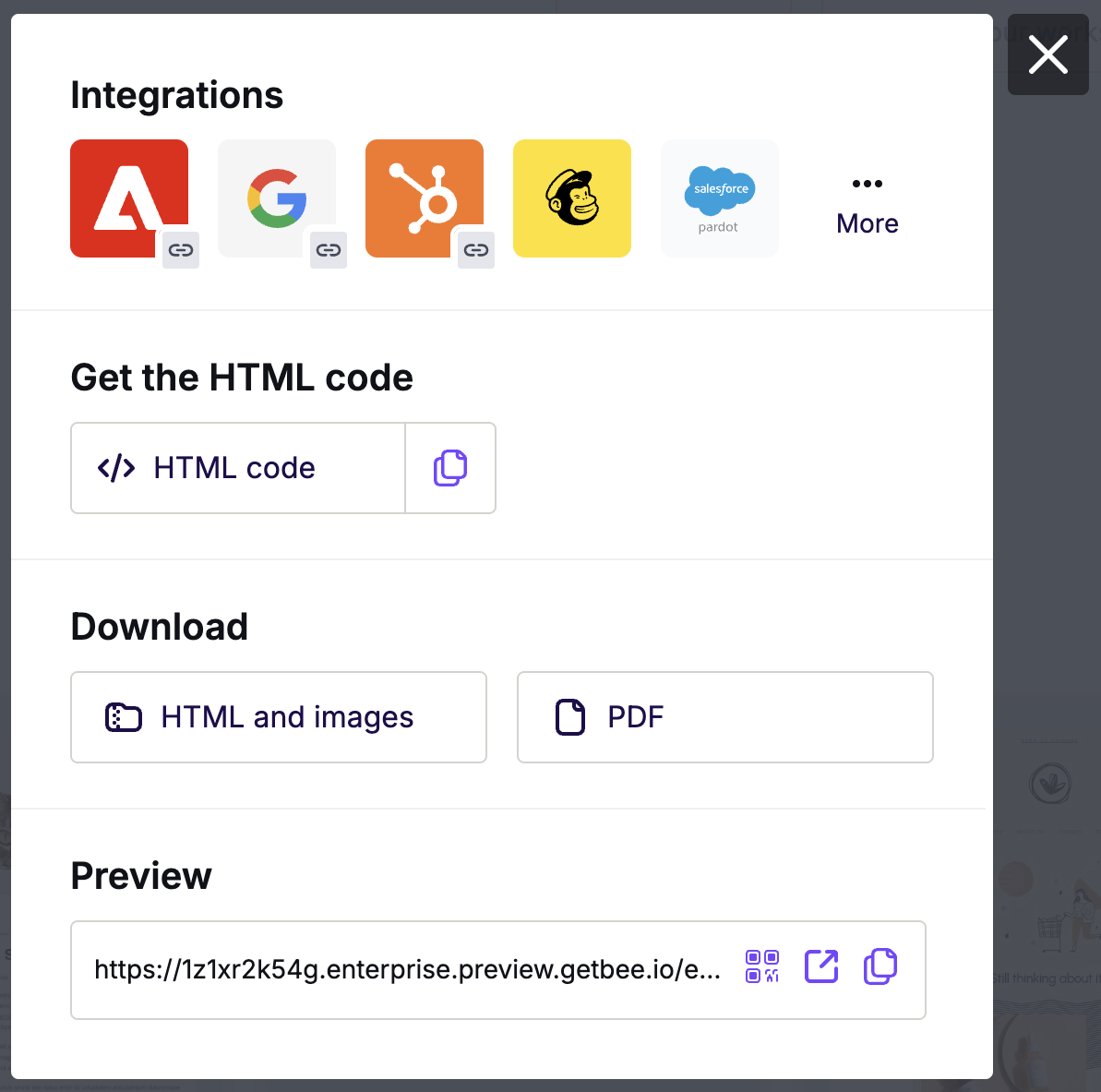
These options are also available in the builder navbar.
Integrations
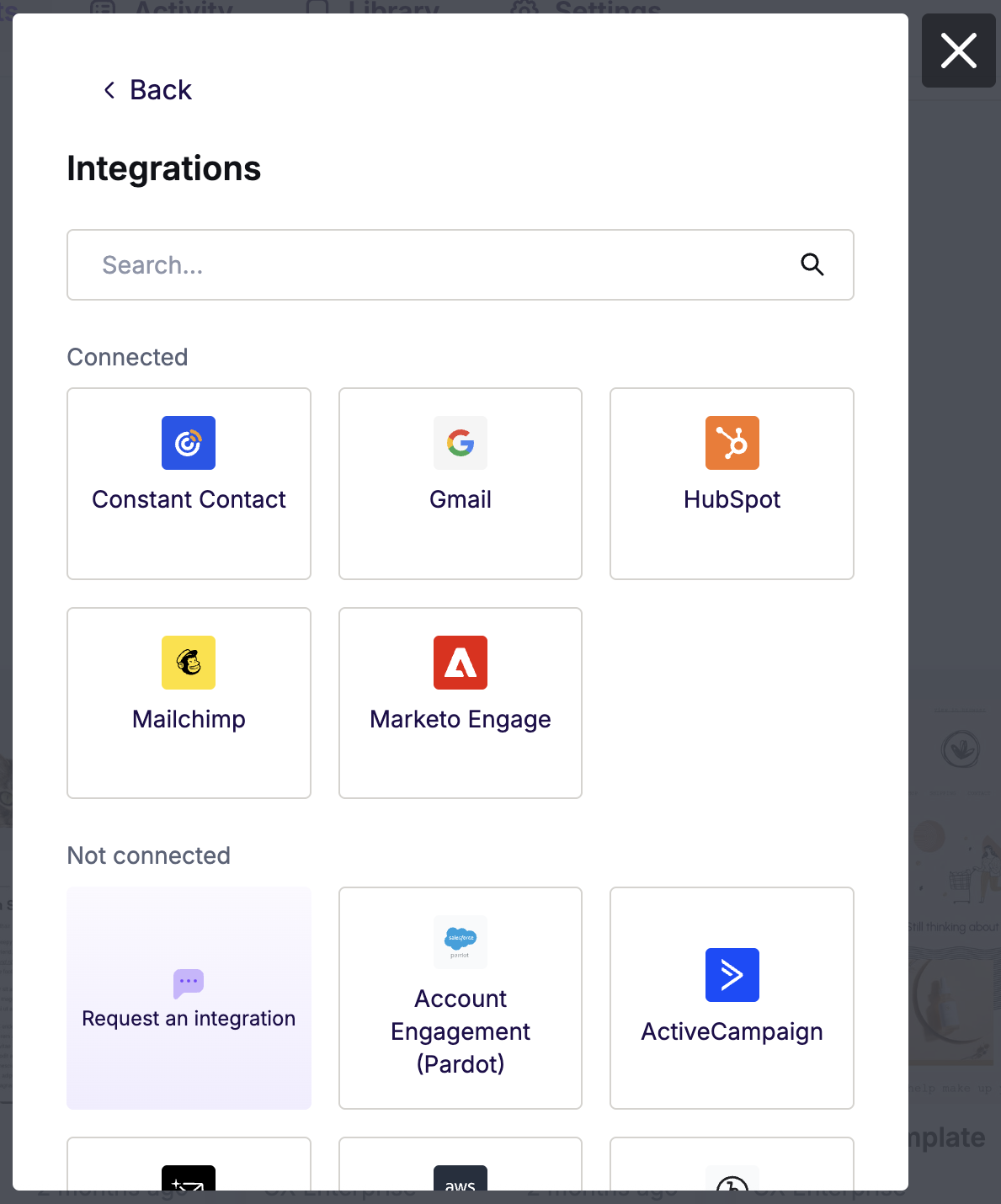
With this option, you can connect RGE Studio to your sending app or ESP. Select the application where you want to export the email and follow the instructions. For more information on this export option, see Using connectors in RGE Studio.
This option keeps your images hosted in RGE Studio. Images are delivered through the CloudFront content delivery network for fast loading. Charges may apply if you exceed your data transfer allowance in a billing period. For more information, see Hosted image delivery in RGE Studio.
Get the HTML Code
This option allows you to copy or download the HTML of the email. For a one-click export option, use the copy icon next to HTML Code in the main modal. Click HTML Code to see buttons for downloading or copying the HTML. This screen also includes a calculated HTML size. Business and Enterprise accounts can also use a toggle to Minify the HTML Code.
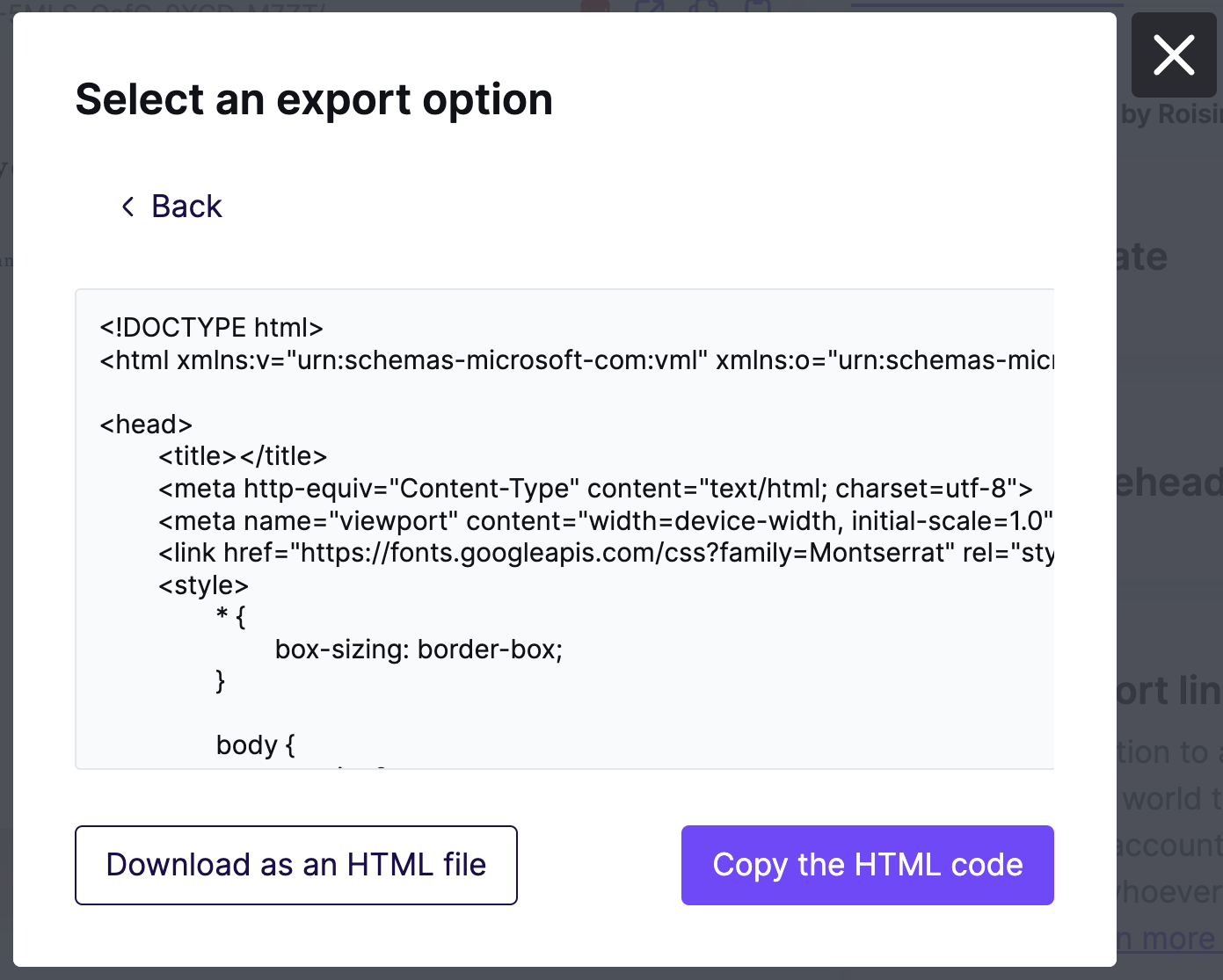
This option keeps your images hosted in RGE Studio. Images are delivered through the CloudFront content delivery network for fast loading. Charges may apply if you exceed your data transfer allowance in a billing period. For more information, see Hosted image delivery in RGE Studio.
Download HTML and Images
With this option, you can download a ZIP file containing two separate folders for the HTML and images. You can use this with any service that supports ZIP imports, like MailUp and Mailchimp.
Click HTML and images to use this export option. The modal displays the calculated HTML size before export. Business and Enterprise accounts can also use a toggle to Minify the HTML Code.
When you unzip the file, you'll find an "images" folder. The HTML links to these images by their local folder path. If you paste the HTML into another application without moving the images folder, your images will not display.
How can I solve this? You have a few options:
- Import both HTML and images to your sending service. Many email service providers have a ZIP import feature that allows you to do that.
- Use images that are hosted elsewhere. See: Using externally hosted images in your email.
- Use a different RGE Studio export option that leaves the images hosted in RGE Studio, such as:
- Get the HTML Code
- Integrations/Connectors
Current limitations
Images over 5 MB (5,000 KB) stay hosted on RGE Studio instead of exporting into your ZIP folder. To include an image in your ZIP export, resize it to under 5 MB before you upload it to the RGE Studio file manager.
Download PDF
This feature is available on paid plans.
The PDF export gives you the following options:
- One long document - Desktop or Mobile version
- US Letter - Portrait or Landscape
- A4 - Portrait or Landscape
- A3 - Portrait or Landscape
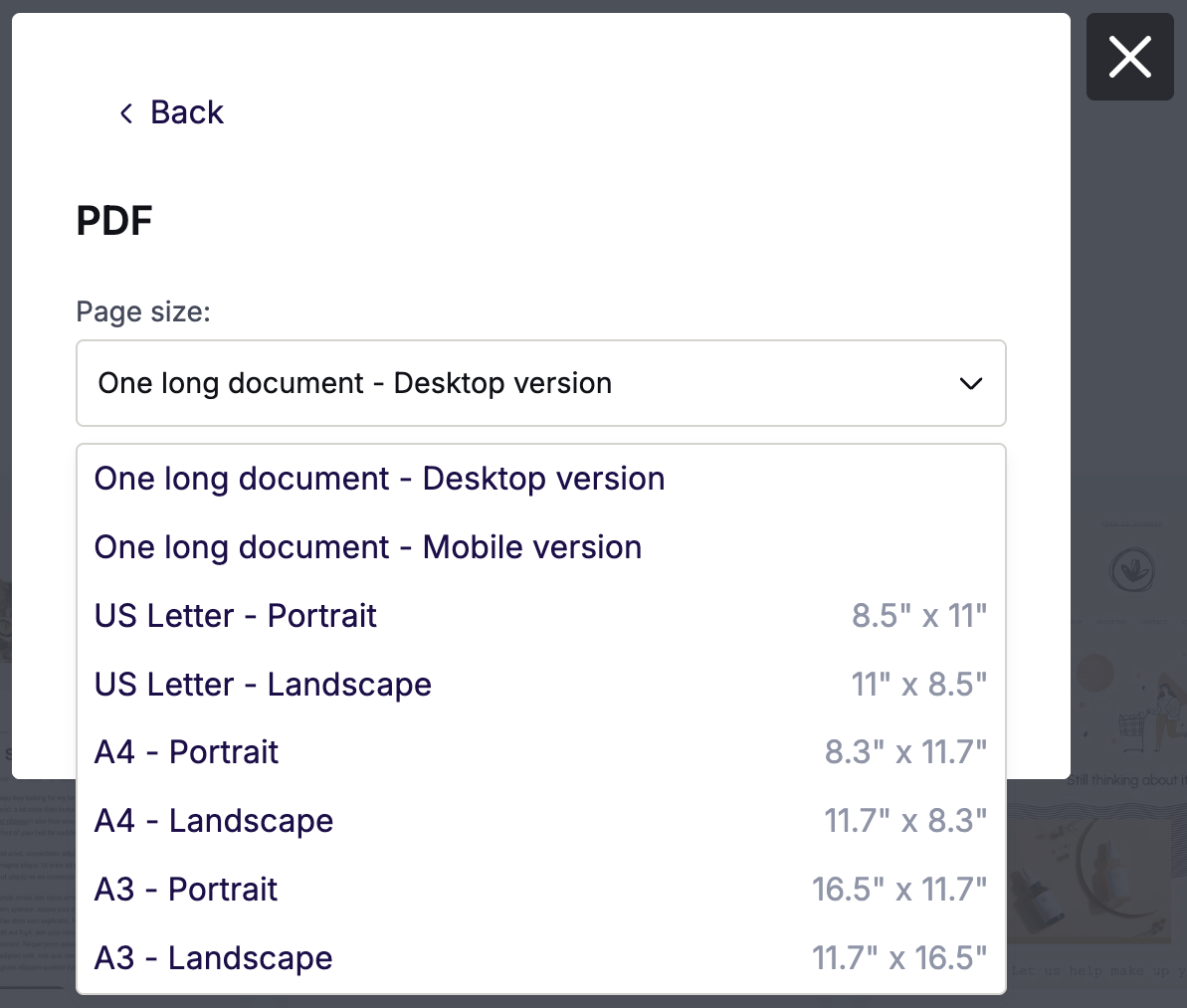
PDFs use a fixed layout rather than a responsive one. Choose One long document - Mobile version to match your design's mobile preview. All other options match the desktop preview.
You can include additional information on PDF exports, such as a subject and preheader. You'll find the included details at the top of your PDF document. To do this, enable the Add details to PDF toggle. You can manage these fields from the details page or directly from within the modal.
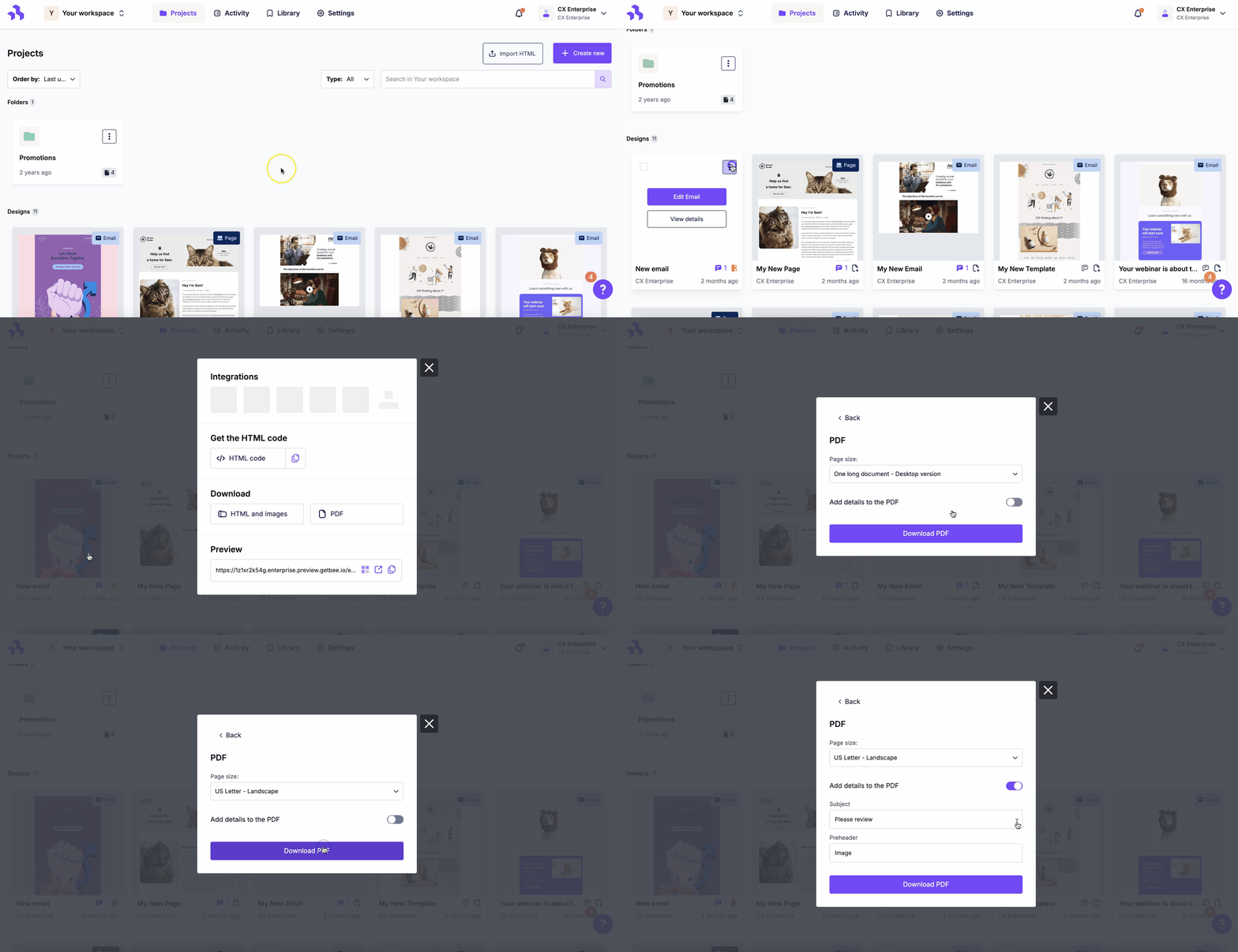
Click on Download your file to finish your export.
Current limitations
The PDF export supports standard fonts and characters. Custom fonts and emoji may not display as expected.
Preview
This feature is availabe on paid plans.
You can access the Preview URL from the Export modal. The Preview URL isn't an export option, except when used with the Gmail add-on. It's an efficient way to test your design without sending an email. Use the QR code icon to open the design on your mobile device.
Preview URLs are available in the export menu and above the design preview.
If you have any questions, feel free to contact us.
Comments
26 comments
I thought images were going to be saved in my Pro account so that they can be referenced there. Is that not the case?
Hi Steven, it's an email deliverability matter, as we have no control on what will be sent, to whom, and how.
In the HTML, I would expect the and <meta name="description"> tags to be filled with the title and description. However, <title> desperately remain defaulted to "BF-template" and description is simply ignored.
Isn't the HTML I download supposed to contains this?
For now I edit the HTML but I of course would prefer to do nothing after the HTML download.
(once sent, our emails have mirror pages that can be shared on social media, hence the necessity to have clean html containing the right tags and content)
Hi Aurelie, thanks for the note. Let us dig into this a bit with the rest of the team and we'll get back to you.
Hi Aurelie, I checked with the rest of the team. The main reason why that is the case is that the editor - as it is today - does not ask you to provide a name / description for the message. So it does not have anything meaningful to add to the tag.
This could change in the future. For now, what most applications that have integrated BEE do is the following:
* Upon saving the message, ask for Name (or Subject line) etc.
* Save those values in your DB, together with the HTML, JSON, etc.
* Use those values to automatically change the HTML of the message
We hope this helps!
Oops! ... I just realized that this thread is under BEE Pro, and not BEE Plugin. In BEE Pro, we do have the name/subject line, and therefore can fix this ourselves. We will do so in a future release for sure. I don't have an ETA for it yet, but we will let you know!
Hello. I created an email using your product and the test email shows up very bad when viewing test email via iPhone 6. Can someone help?
Hi Robert, are you using BeeFree or BEE Pro? It seems strange that your test email isn't rendering on iPhone. Please keep in mind that we can only provide very limited customer support for BeeFree.
Hi developers, a big hand for your easy to manage user surface. One problem though:
Personally, I use Outlook as an email provider and a special address program (cobra) for address management. So, in your trial version, I downloaded the created email as a zip document. Inside the document, there is an html-document and a folder with the picture material I used. Afterwards, I added the html document as a text to the email – but the images were lost when the email was received. Of course, I did obviously not send the pictures. Please advise me how to avoid that mistake the next time and explain the necessary steps for sending an email with picture material.
Hi Moritz, the ZIP folder is ready to be imported in a send platform that host the message images. To use other send methods check this article about using externally hosted images: https://support.beefree.io/hc/en-us/articles/360004496232-How-to-use-external-images-in-your-message
hey, with the plugin premium, can a user deploy a email via mailchimp or constant contact (both have API sending options)
thanks
Hi Hien, the plugin is just an embeddable editor. It's entirely up to you which features you decide to build around the editor. This article is about BEE Pro, which is an application that uses BEE Plugin. For a clarification on all BEE products, please see: https://beefree.io/find-your-product/
I foolishly emailed my test flyer to an inaccurate email address. Is it gone forever or saved somewhere?
Hi Michelle, thanks for your comment. From our side, there's nothing we can do when the message is sent.
Hello, I have problems when exporting to GMAIL and also when sending test emails. They look bad on iPhone. I am using iPhone 11. What to do to make them look good on iPhones also? I am using Bee Pro.
Hi All,
if i am sending mail without gmail using .com at email and my email is setup in outlook but images not display in emailer please help me out..
Hi Bojan and Aquib! Thanks for reaching out.
When sending emails designed in BEE Pro through Gmail, please remember that Gmail removes mobile responsiveness. If your design has multiple columns, this may be causing the issue. You can read more about this in our help center articles about the Gmail connector and the Gmail Add-on, but if you need further assistance, feel free to open a ticket!
Regarding issues with images in Outlook, this could be an inbox setting. Many Outlook inboxes disable external images by default. For information on how to change this, check out this Outlook documentation.
Why don't my links work when I (copy HTML code) export to Constant Contact. Visually, it looks the same, but none of the links work.
Please help!
Hey Cristina, I'm sorry to hear you are having this issue! In order to troubleshoot this we would need to issue a rendering test, which we do not provide to free users. Please note, for the best compatibility, we recommend using the Constant Contact connector.
I'm ready to export my email, I hit the "get HTML & images", then I get a message that says "your design was zipped and is ready to be saved to your computer". But there is nothing that allows me to "save it"?! I've also looked in my downloads folder (I'm on a Mac) and there is nothing there? Help?!
Hi Scott!
So sorry to hear you're having trouble here - I've gone ahead and created a support ticket on your behalf to see if we can troubleshoot this further! Looking forward to hearing back from you soon!
Hi there
For my emails I am currently creating them in BeFree, exporting as a PDF, cropping each section to be its own image, and then inputting the images with hyperlinks to Klaviyo.
Doing this to avoid Dark mode inverting colours.
My issue is that I can’t export the mobile optimized version as a PDF, is there anyway I’m able to do that that I’m missing?
Any help is greatly appreciated
Hello, Send Test email button has disappeared from the page. Upon reviewing the created email, now I can`t email it.
Please advise. mz@marvelzap.com
Thanks
John
Hello John! I see you posted a ticket where my colleague helped with the issue.
Happy designing!
Hello, I've designed the Template and sent Test EMail to my business E-Mail address: wladimir.korolew@wefra.life. Till now I did not receive the test Email (sent twice). What have I to do to get the the Test-EMail in my E-Mail Box to check how it looks like?
Specs: Desktop, Windows 11, Outlook Office 365. Your Assistannce would be appreciated.
Thanks Wlad
Hello Wlad, thanks for your comment. We replied about this topic in your ticket, we hope you get our reply. Cheers.
I'm having the same issues with sending test emails. We're currently evaluating BeFree for our organization, we've developed emails, but when I try to send a test email, nothing is delivered to my inbox?
Please sign in to leave a comment.