Saved Rows

Beefree App is now RGE Studio!
The email design suite you already know and love just leveled up. We’re working hard to update our help center, but you still may see some references to the old product name.
This article applies to all plans. However, some features may be limited or unavailable on the Starter plan.
Overview
Use Saved Rows to save any row from a design and reuse it in other designs. This feature is available on all plans. Starter plan limitations apply.
Find your saved rows in the builder's Rows tab under Saved Rows or a custom category.
This article covers standard saved rows. For information on synced rows, see Synced Rows.
Here are some common ways to use saved rows:
- Design a custom footer and reuse it whenever you need it.
- Update your set of templates with just a few clicks.
- Split a template into pieces that work across multiple layouts.
This article covers the basics. For more information, see:
For a visual walkthrough, see the RGE Studio Academy tutorial on Saved Rows.
Save a row
RGE Studio has two types of saved rows:
- Standard rows
- Synced rows
Standard rows let you edit a row without changing other designs that use the same row. Synced rows update content across multiple designs at once. The creation process is similar for both types, but their behavior differs once saved.
If your account has multiple users, you may want to know how user roles affect this feature. On Business or Enterprise, you may also want to know how saved rows interact with your workspaces.
Starter accounts can only have two saved rows at a time.
Find the icon
You will find a Save icon:
- In the Row actions toolbar.
- In the Row Properties panel when a row is selected.
This icon is available for all rows in any design.
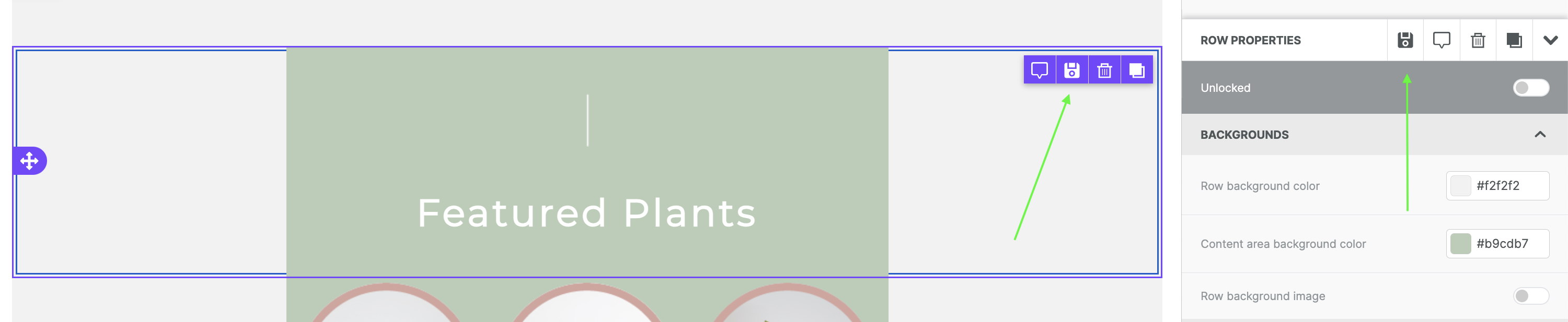
If you select a saved synced row, this icon is replaced by an edit icon. For more information, see Synced Rows.
Pick a name and save
After clicking the Save icon, pick a name, Category, and row type. Click Create to save your new row.
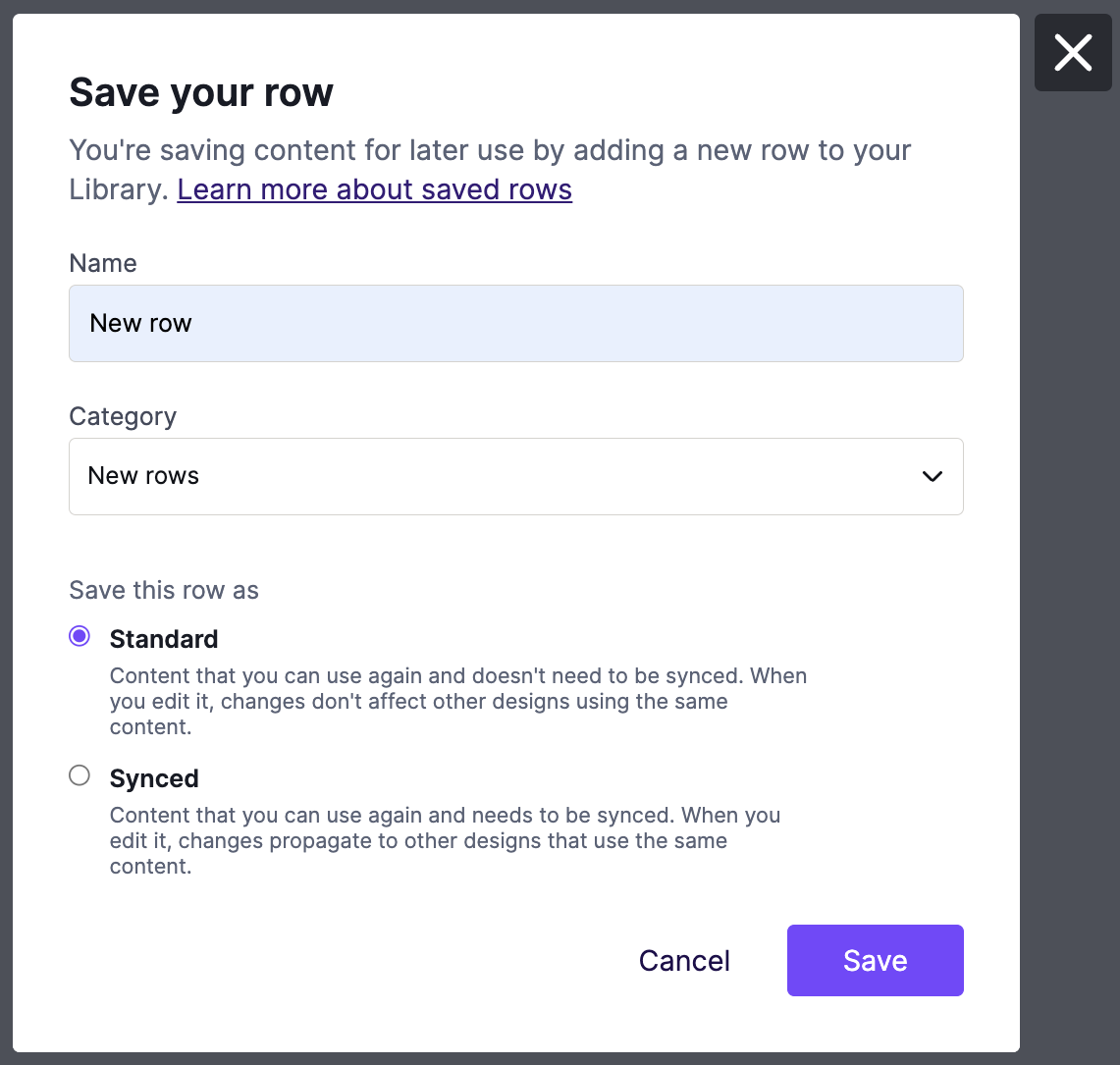
You can save up to 150 rows per category. On the Starter plan, only the Saved Rows category is available.
Reuse your saved row
Once a row is saved, find it in the builder's Rows tab under its associated Category. Rows are sorted from newest to oldest.
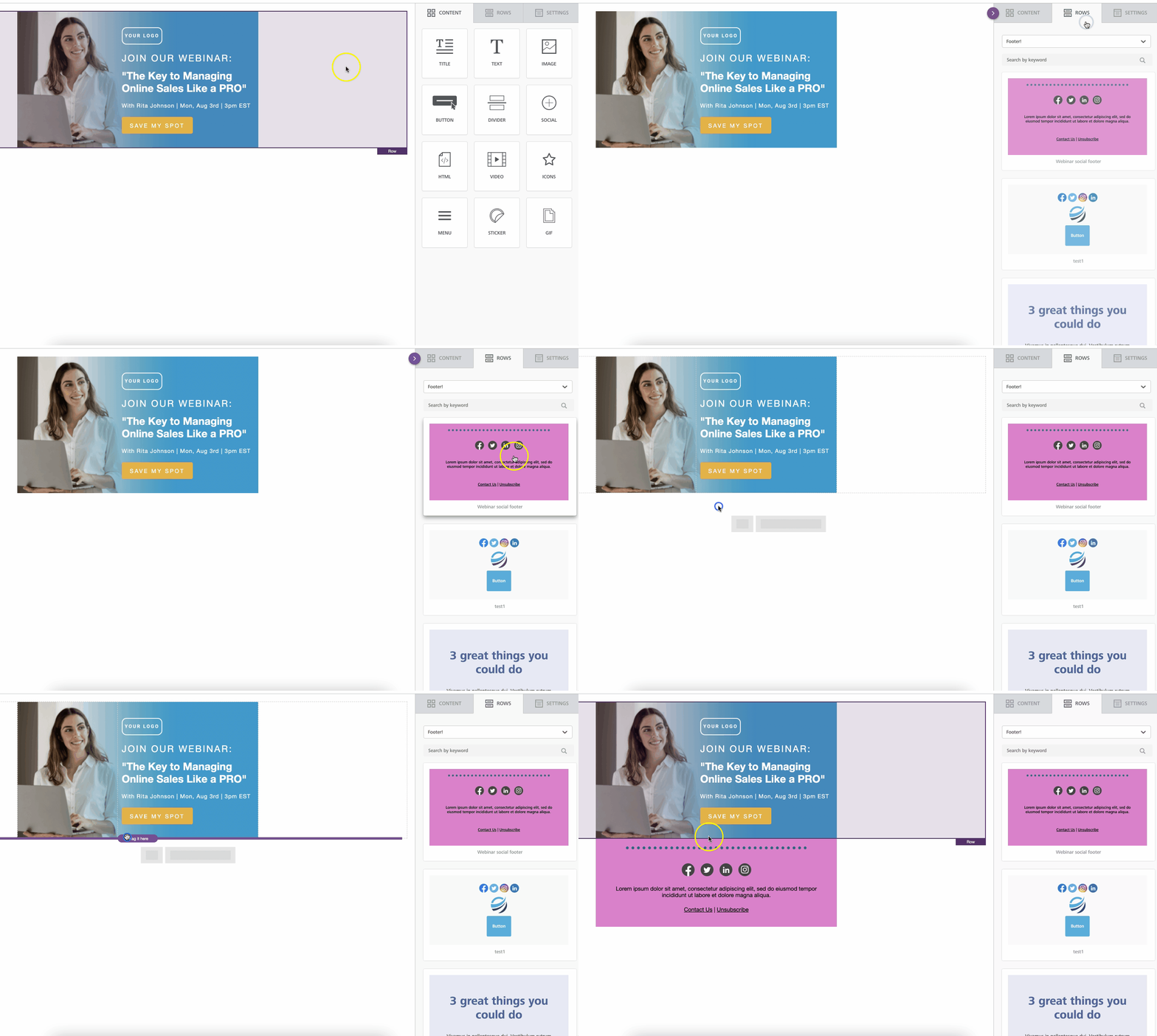
Only 50 rows display in the builder sidebar at a time. Use the Search by keyword field to find additional rows.
Roles and permissions
This feature is not available in the Starter plan.
All users can reuse a saved row. Only Owners, Admins, and Managers can save and manage rows. For more information, see User Roles and Permissions in RGE Studio.
| Owner | Admin | Manager | Editor | Contributor | |
| Save & manage rows |  |
|
|
||
| Use saved rows in the builder | |
|
|
|
|
How Workspaces Affect this Feature
On Business and Enterprise plans, Saved Rows are workspace-specific. When you save a new row, it's available only within that workspace. You can copy it to other workspaces from your Library. For more information, see Managing Saved Rows.
Enterprise customers can create Brand Kits to use saved rows across workspaces.
Next: Designing with Saved Rows
If you have any questions, feel free to contact us.
Comments
7 comments
GREAT!
Very Useful....
Yes! Soooo excited this feature finally rolled out! Makes creating emails so much easier and faster!
Thanks for your feedback!
Just checking there is no way currently to delete a custom/saved row?
Hi Micheal, with regards to your concern, our team is already working to provide the ability to rename, delete rows, create new categories, and much more.
We decided to go live with a minimal set of features to provide this highly requested functionality as quickly as possible and start receiving feedback. We are working on several improvements to this important feature.
I hope this clarifies,
Hi Team,
When are you releasing this:
"update the row in the templates where it's already used: that's a new feature that we'll work on later this year" ?
Please sign in to leave a comment.