Personalization Settings: Merge tags and Special links

Beefree App is now RGE Studio!
The email design suite you already know and love just leveled up. We’re working hard to update our help center, but you still may see some references to the old product name.
This article applies to all plans. However, some features may be limited or unavailable on the Starter plan.
Overview
Merge tags and special links add dynamic content to your emails. They let you customize an email for each recipient. Your email sending platform (ESP) may use a different name for this content.
Merge tags are placeholders for text. Your sending platform replaces them with real values when it sends the email. Some values are unique to each recipient, such as a first name. Others are the same for everyone, such as today's date.
Special links are placeholders for URLs. Your sending platform generates these URLs for a specific campaign or recipient. Common examples are unsubscribe links and links to a web version of the email.
This article describes how to use the Personalization Settings to manage this content. Once you’ve set up your merge tag and special links, you can use them in the builder. For more information, see Using Merge Tags and Special Links.
Personalization Settings
You manage merge tags and special links in the Personalization settings.
To open it, click Settings, then select the Personalization tab. Owners, admins, and managers can manage these settings. Learn more in User roles & permissions.
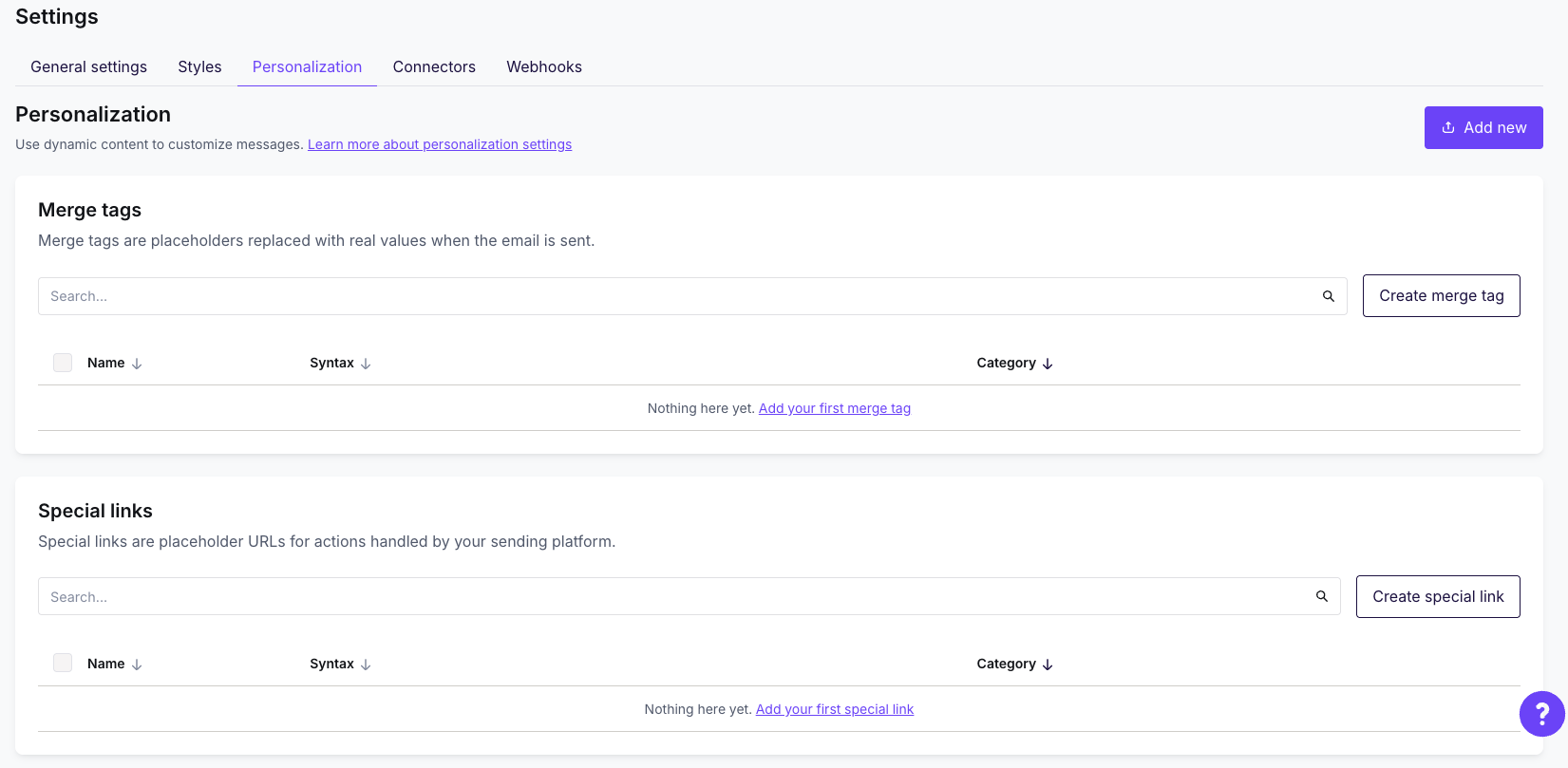
New workspaces start with no Personalization settings. To get started, add a preset for your ESP.
Merge tags and special links are added to your design as code. RGE Studio exports them exactly as you wrote them. This helps your ESP recognize and validate the syntax.
A merge tag or special link typed as plain text may be encoded during export. Encoding is common when your syntax uses special characters, such as < > { } &. Your sending platform may not recognize encoded syntax. Your dynamic content may then fail, or your ESP may show errors.
Creating your Personalization Settings
Start by setting up the merge tags and special links you know that you need. Select from one of the options described below:
-
Add new opens a dropdown with a couple options:
- From preset: Adds the standard and required merge tags and special links for your sending platform. Select your platform, then click Select. Add any custom fields manually.
- Sync with connectors: Syncs merge tags from an external account. This option is for merge tags only. Learn more in Connector Merge Tag Sync.
- Create merge tag or Create special link lets you add custom settings. You must add one at a time.
Presets are available on all RGE Studio plans. They are available for the following sending platforms:
- Mailchimp
- HubSpot
- Salesforce Marketing Cloud
- Account Engagement (Pardot)
- Marketo Engage
- Brevo (ex Sendinblue)
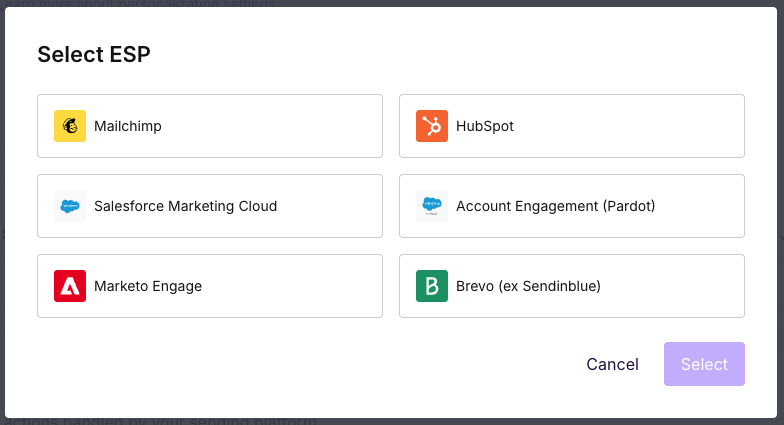
In this menu, you may also see an option for Bulk Import. It lets our team know you have a long list of data to import. Someone from the team will reach out to you to discuss your use case.
Custom Settings
Custom special links and merge tags require a paid subscription.
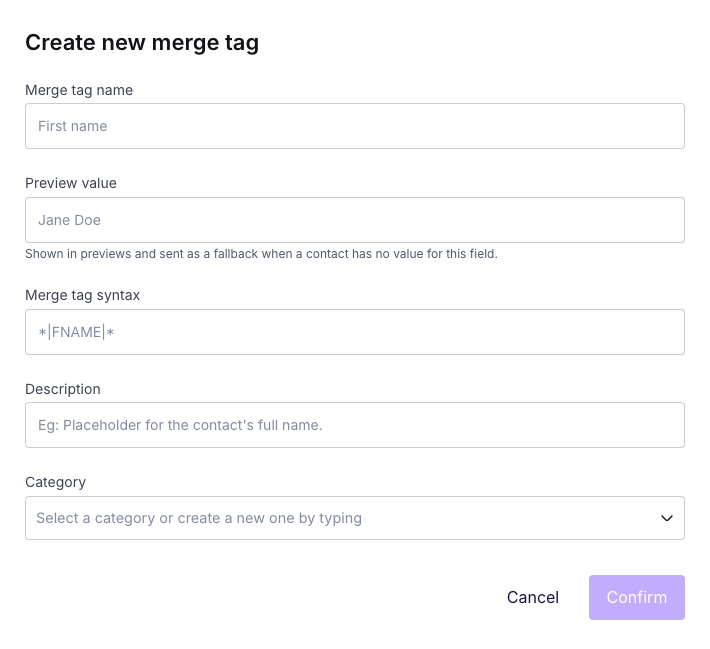
A merge tag has the following fields. Merge tag name, Merge tag syntax, and Category are required.
- Merge tag name: The name that identifies the merge tag in your settings, such as "First name." The builder also shows it when there is no preview value.
- Preview value: Example text shown in previews. It is also sent as a fallback when a contact has no value for this field.
- Merge tag syntax: The placeholder code your sending platform reads. Check your sending platform's documentation for the right syntax.
- Description: A short note about what the merge tag is for.
- Category: A group for your merge tag. Select a category, or type a name to create a new one.
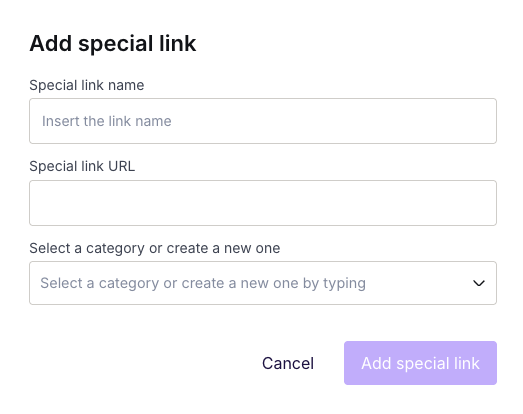
A special link has the following required fields:
- Special link name: The name that identifies the special link.
- Special link URL: The link syntax your sending platform reads.
- Special link category: A group for your special link. This works the same as a merge tag category.
For more information see, Using Merge Tags and Special Links.
Modify Settings
Take the following steps to edit or remove a merge tag or special link:
- Open the Personalization tab in Settings.
- Hover over the merge tag or special link.
- Click the pencil icon to edit it, or the trash can icon to remove it.
- Confirm the action.
You can also delete in bulk using the checkboxes to the left of the name column.
Additional Considerations
- You can add as many merge tags, special links, and categories as you need.
- RGE Studio does not verify your syntax. Test your merge tags and special links in your sending platform before you send.
- Each workspace has its own Personalization settings. A cloned workspace copies the merge tags and special links of the original. Learn more in Using Multiple Workspaces.
- For syntax details, check your sending platform's documentation. These resources can help:
- Mailchimp: All the Merge Tags Cheat Sheet
- HubSpot: Personalize your content
- Campaign Monitor: Personalize emails with subscriber custom fields
- SendGrid: Using Handlebars
- MailUp: How to Customize Emails Using Dynamic Fields
- Account Engagement: Personalize Content with Handlebars Merge Fields
- Salesforce Marketing Cloud: Personalization Strings
If you have any questions, feel free to contact us.
Comments
22 comments
I really welcome these changes! With these features, we could now use Campaign Monitor with Beefree Pro, without having to edit by hand the generated HTML to include tags.
Regrettably, it seems that the proposed "special links" for CM are not correct. By importing a HTML from BF Pro to CM, it finds the "webversion" tag does not find the unsubscribe tag.
Tags in CM are not "[unsubscribe]" but like this:
Is there a work-around, or a plan to fix this?
Introducing a custom HTML block in the editor (as well as in this post), all "custom tags" are removed. Here is a link to the documentation of CM
https://help.campaignmonitor.com/topic.aspx?t=40
In CM, the tags are like HTML "elements" for paragraphs or divs, i.e. it needs to be opened and closed. This enable to customise the content of the text linking to the unsubscribe page - which is nice.
It is not possible in this editor to introduce HTML Tags, these are removed.
The link to the CM documentation contains information under the chapter "Custom coded emails", i quote:
For custom coded HTML, the element automatically generates a personalized unsubscribe link for each recipient."
I tried to use the Special Links as well, but it does not generate the desired results. I tried also to introduce the tags with a "Custom HTML Block", but BeeFree Pro remove the tags - as not HTML Standard (like DIV, P, etc.)
Any other ideas? I subscribed to the new Team Edition mainly for this feature, as it would save me a lot of time editing the code manually after importing it to CM, but it does not work as I want.
Any update on this, i.e. the compatibility of the merge tags with Campaign Monitor? I upgraded to the Team Edition only for this feature, but I tested today again, and it is not stil working (unsubscribe tags not recognised as such in CM, requiring additional coding for each mailing developed with Beefree).
Otherwise, still the best editor available on the market - by far!
I'm not quite sure I'm doing this right. Can someone help me. Thanks.
Hi, thank you for your request. We sent you a ticket to check if your settings are ok. Cheers.
Guys, my company uses beeplugin in the Startup plan, can I add the function of special links?
Hi Luciana! You can definitely implement special links with a Startup plan for BEE Plugin. For more details, please refer to https://docs.beefree.io/special-links-merge-tags/. You can also open a support ticket through the developer portal if you need further assistance.
Is there a way to change an image based on the info from a merge tag? For example, I have 3 different hero images for our email (football/cricket/tennis). I send an email with %FavouriteSport% as a merge tag and then the image changes based on the customers fav sport.
Is this something that's possible?
Hello Max! This is possible, but this would be entirely dependent on the sending system you are using. You’ll need to figure out what merge tags/syntax can accomplish this in your sending system before you can implement anything in your BEE Pro account. This article can help with what to do on our side once you have more information from your sending system.
Hi Roisin, thanks for the info. I have the merge tags from our email sending tool (Adobe), but how do I upload multiple images into Bee?
I basically need to be able to set rules so that Bee knows which image to display, based on the merge tag.
Hope that makes sense!
Hello Max, you are most welcome.
To achieve what you'd like to do you do not need to upload the images here but they can be hosted externally or with your sensing system if it offers this service.
What you will have to do in your BEE account is set a placeholder image and then enable the Dynamic Image feature for it.
Then you can set there the link that your sending system provides you so that when sending the email the image will change based on that link.
is there a way to group merge tags?
Hello,
I'm using a rewards program that has a mailchimp integration. Will I be able to use those merge tags without issue?
Thanks
Hello Miguel.
Currently, it's not possible to group (nest) merge tags, but I will forward your comment to our product team as feedback to be considered.
Hello Andrea.
You shouldn't have any issues adding and using the merge tags in your Beefree account, you can read Here how to do so.
Currently I am using merge tags but when they are displayed items on the list appear with text aligned in the center. Is there a way to set a different alignment?
Hi Miguel,
Thanks for your response regarding your issue with implementing merge tags with your design. Have you attempted the following steps to change the alignment:
I hope that this helps solve your issue! Let us know if you continue to run into alignment issues, and we'll be happy to look further on our end.
Thanks for your response, but I am referring to the little modal that shows all the available merge tags, not the current inserted one, is there a way to align all merge tags displayed on pop up to any specific alignment?
Hi Miguel,
Are you referring to this modal? (see screenshot below)
For this modal, the alignment cannot be altered by the user, but we can certainly share your request as feedback to our Product team. If you want to share some more details on your use case or why you would like this feature, that would also be really helpful for us.
Why can't I add my own platform and create the merge tags? We use Pardot but if I click add merge tag, I can only add it to one of the preloaded platforms.
Hi Lauren,

Thanks for sharing your question with us!
You should certainly be able to add and use your own custom merge tags when designing, both from the Settings page and from inside the builder. When adding a new merge tag and you wish to create a new category for it that you don't already see by default in Beefree, you can simply type the name of the new category in the "category" field (as highlighted in the screenshot below), and the new category will be automatically created to store your merge tag.
I'm sorry if this wasn't clear. Please let me know if you encounter any further issues with adding the category for your merge tags!
Please sign in to leave a comment.