Creating a new design

Beefree App is now RGE Studio!
The email design suite you already know and love just leveled up. We’re working hard to update our help center, but you still may see some references to the old product name.
This article applies to the Email and Pages builder in all plans.
There are multiple ways to create new emails and pages in RGE Studio. In this article, we’ll describe the various options in more detail. Which method to choose depends on whether you want to start from scratch, reuse content, or leverage existing designs.
There are some options unique to creating a Page in RGE Studio. We cover those options in our Pages documentation.
Create a new design from scratch
You can quickly create a new email from scratch from the Projects overview page. Click on the Create new button in the upper right corner and select the Blank email option to open the RGE Studio builder with an empty layout, ready for your design.
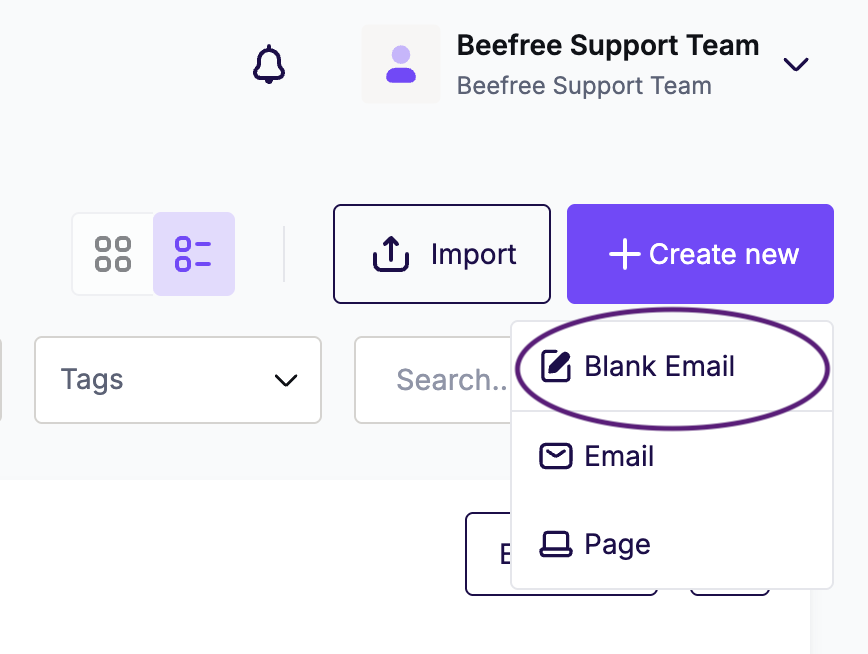
Alternatively, you can create an email or page design from scratch by clicking on the Create new button and selecting either the Email or Page option. From here, you will be able to choose whether to start your design from an existing template or from scratch.
Create a new design by copying an existing one
You can also create a new email or page by copying an existing one. To do so, select Make a copy from the actions menu for the design that you want to use as a starting point. When you copy a design, RGE Studio automatically adds a numbered label, such as [copy 1], [copy 2], etc., to the design name to easily tell your duplicates apart. You can rename it as needed at any time.
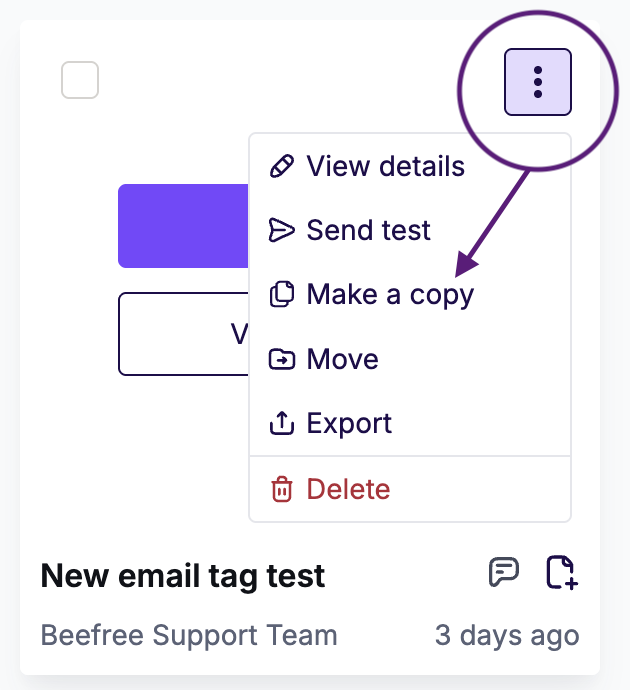
If you're trying to create a copy of a Page that you can turn into an email, or vice versa, select the View Details option instead. On that details page, you can find an option to Generate a page or an email from an existing design.
Create a new design from a template
When creating a new email or page from a template, you can choose to start from a custom template in your Library or use one of many professionally designed email templates in the RGE Studio template catalog.
To easily access the available templates, click the Create new button on the Projects overview page and select the Email or Page option, depending on the type of design you’re looking for. Once done, you will land in the templates catalog.
Use the search bar to narrow down your template selection, or click on the drop-down arrow for each category to see the different options. By the way, new templates are added to the catalog all the time!
Hover over the different templates to see the option to either Preview or Start designing from the template.
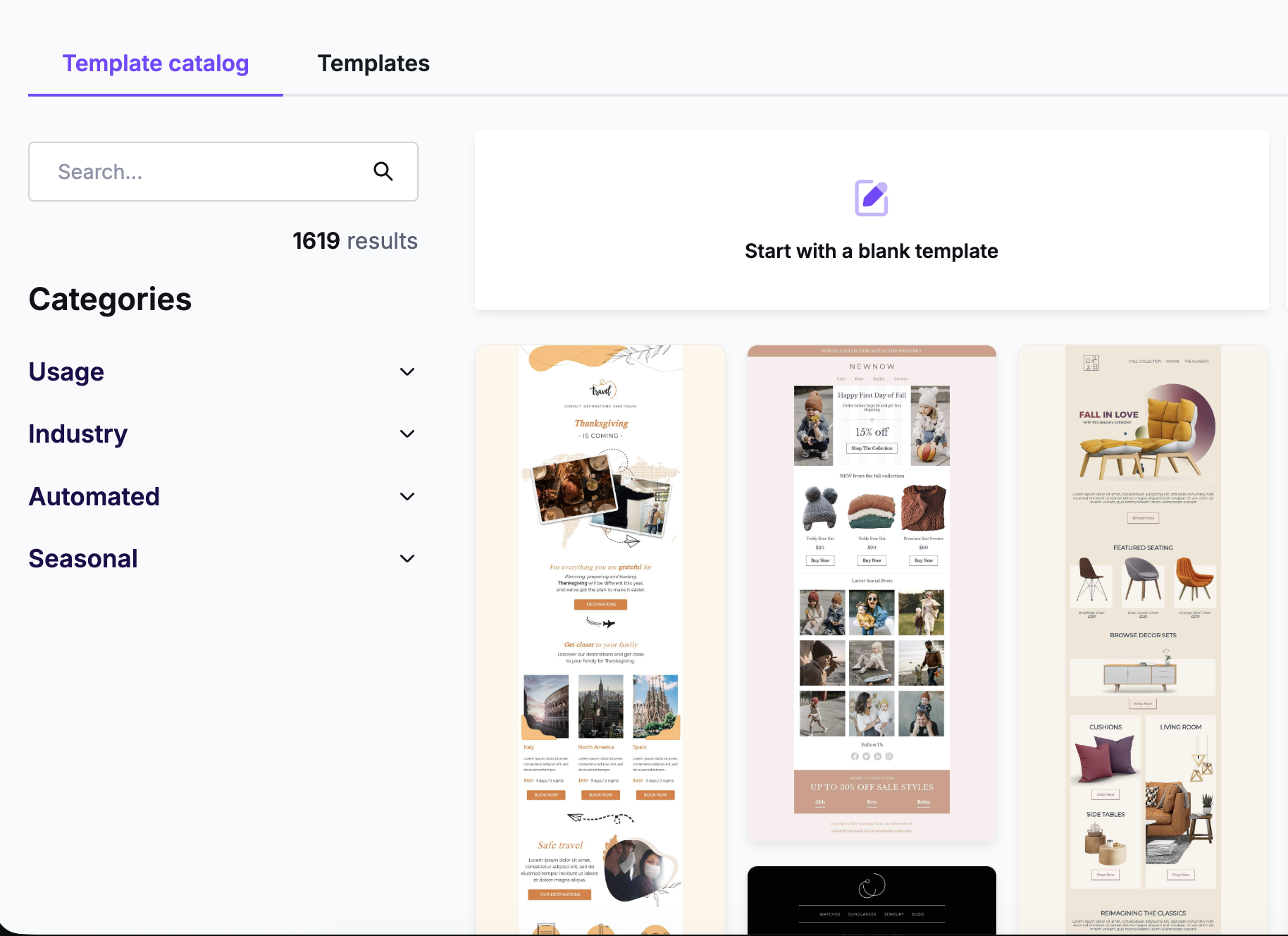
If you want to create a new email from one of your custom templates, navigate to the Templates tab. Here you will see an overview of your own templates. Hover over the template you want to use as a starting point and click Start designing to create your new design.
Please note that you can also access your templates from the Library, located in the top navigation bar menu. To create a new design from a template, click on the three vertical dots in the upper right corner when hovering over the preferred template and select View details. From the template details page, you can select the Generate email option to create a new email design based on the template. 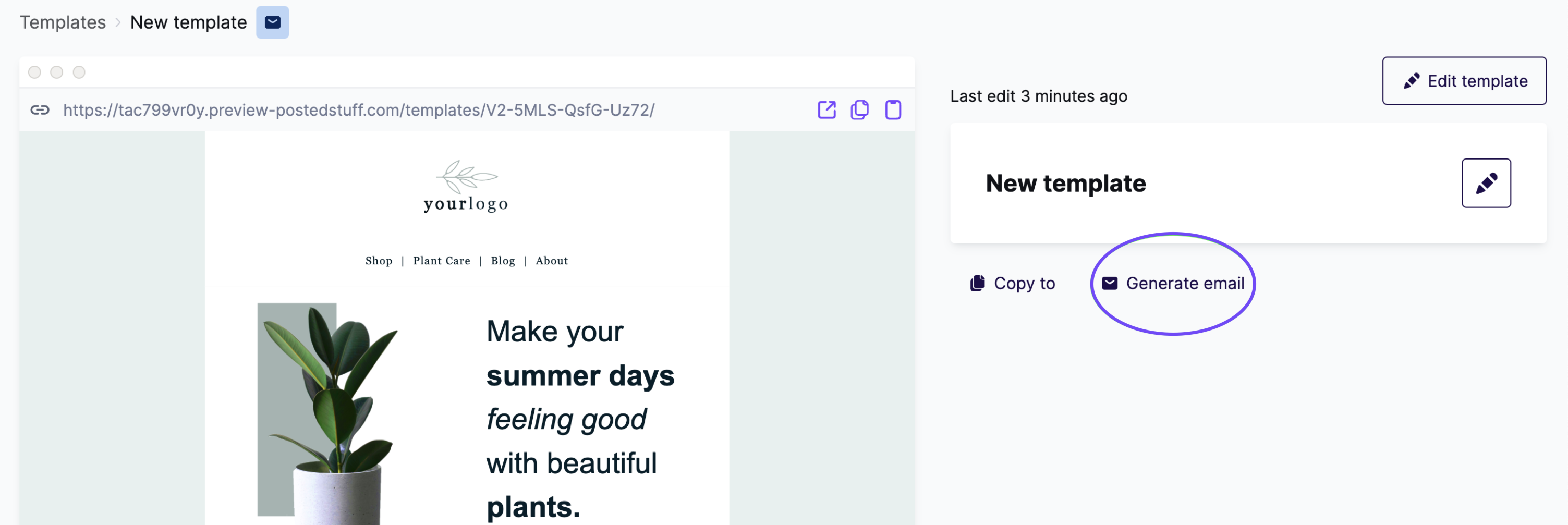
If you're using a free Starter plan, this will bring you to the email builder. If you're using a paid account, you will be asked to choose a destination project folder for your new email as a first step.
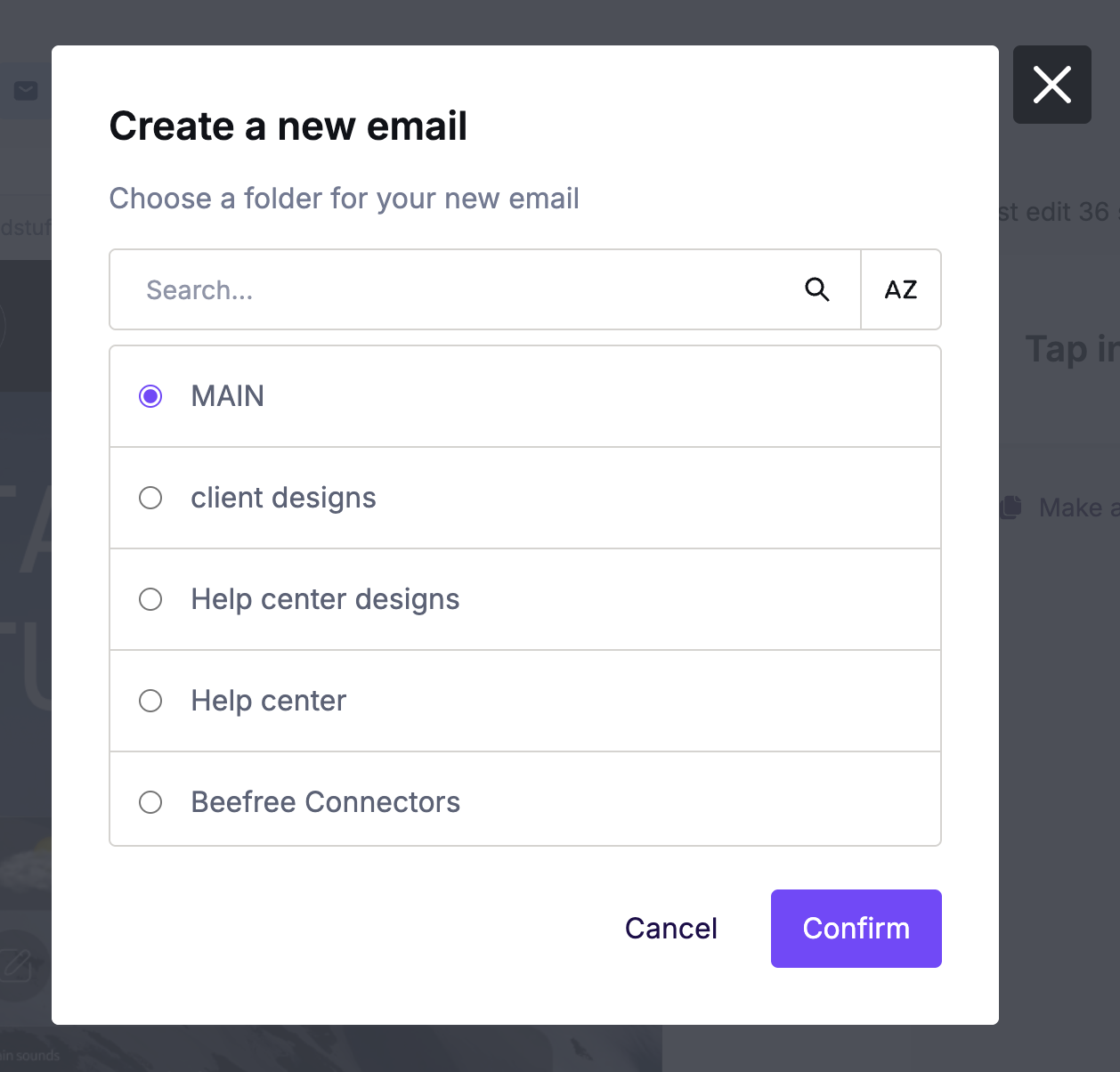
Once you've selected a folder and clicked Confirm, your email is saved.
Import Designs
If you already have content created outside of your RGE Studio account, there are two additional ways to bring it into your workspace and use it to create a new design in RGE Studio:
Using an import link
If someone shares a RGE Studio import link with you, you can use it to instantly add that design to your workspace.
Learn more about import links: Using import links in RGE Studio
Using the HTML importer (for emails only):
You can also import a design built elsewhere by uploading its HTML. This lets you edit the design directly in the RGE Studio builder.
Learn more about the HTML importer: HTML Importer
If you have any questions, feel free to contact us.
Comments
9 comments
any plans to enable book marking to have hyperlinks access a placeholder within the message?
Hi Steven, you can add anchor links using the custom HTML block in the BEE editor. You simply add a few lines of HTML code for the anchor name and then you can add the URL links. We'll be writing a tutorial on this very soon on our Email Design Workshop blog: http://emaildesign.beefree.io/. So, stay tuned!
Hi Sergio - do you know when they will make a tutorial on this? I would love to know how to do this. Many thanks!
Hi Lisa, here we go: https://emaildesign.beefree.io/2016/09/how-to-add-anchor-links-in-email/
Having serious issues with this. When I copy an old message it messes with the photos. (I.e. I created email A & send then copy email A to create email B. When I look back at email A it's showing email B's photos - which are completely wrong!) Can anyone help me?
Hi Jessika, what you describe is not an issue that we are aware of in BEE Pro, or that we can replicate. We just tried again:
* Created XYZ, a copy of message ABC
* Edited images in XYZ and saved the message
* Went back to messages page and opened message ABC: all the images are correct.
Could you provide more information on what you are seeing? Could you better detail the steps you are taking?
Where is the template catalogue in BEE Pro exactly? My "templates" area is completely empty. Thre's no link to the template catalogue visible on the FREE version. Do I keep switching back and forth between BEE Free and BEE Pro? If I want to add team members and client users, will I have to keep telling them to go to the FREE version to grab a new template from the pre-coded catalogue?
When I try to create a template from scratch, it's set to a page template. How do I create an email-specific template that uses the width set in settings for example?
Hello Ben, you can start a new email design from scratch by clicking on the Create New button on the Projects page; then, you will have the option to select which kind of design you want to work on.
Choose the Create a new email option and then the blank template.
This way, you will be able to build your email design.
Please sign in to leave a comment.