Exporting your emails to HubSpot Marketing

Beefree App is now RGE Studio!
The email design suite you already know and love just leveled up. We’re working hard to update our help center, but you still may see some references to the old product name.
This article applies to the Email builder in all plans.
Level Up Your Emails in HubSpot
You can easily design your emails in the RGE Studio builder and then push them to HubSpot for sending. Our connector allows you to export an email to HubSpot with only one click.
The HubSpot connector enables you to export the following from RGE Studio to HubSpot:
- Your email design
- The Name of the email you are exporting
- The Subject line of the email
- The Preheader of the email*
*Consider the following regarding Preheaders:
- If you export your design from RGE Studio to HubSpot and edit your Preheader text within HubSpot, this does not automatically sync with RGE Studio. If you export the same design from RGE Studio, the Preheader within RGE Studio will not override the Preheader text in HubSpot.
- If you do not include a Preheader for your design within RGE Studio, once you export it to HubSpot, you can manually add one to your email template.
For you to set up the HubSpot connector, your HubSpot account settings need to include:
- A Marketing Hub Professional or Marketing Hub Enterprise HubSpot account
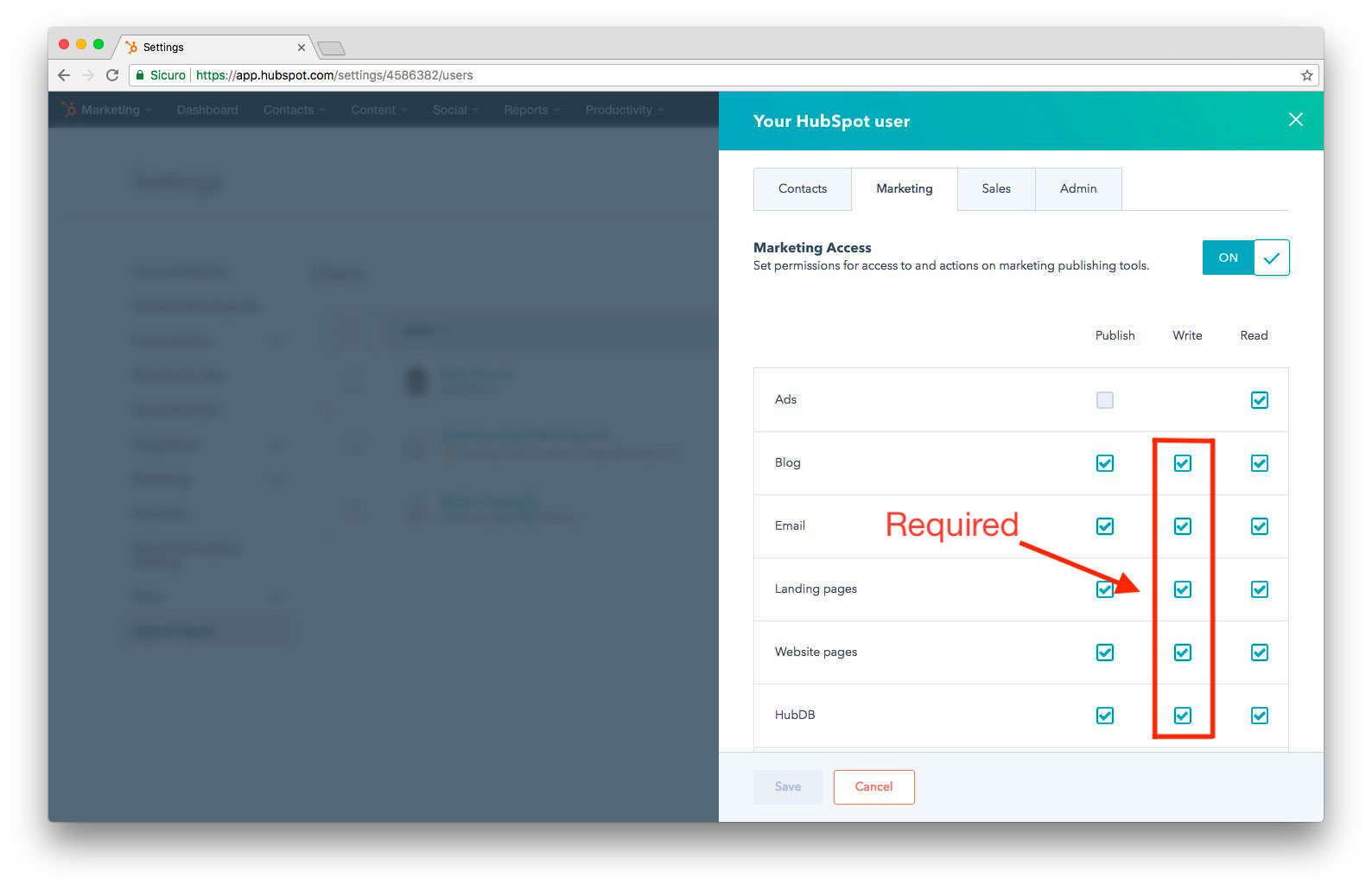
- All Admin permissions, as well as the following User permissions in Marketing Access:
- Read, write, and publish access to Email
- Edit code templates & modules
- All the other permissions in the screenshot below
All set? Now you can choose to connect your accounts in one of the following ways:
- From the Workspace Settings section: connect your HubSpot account before you start designing.
- From the Export options of your email.
Follow the steps below or watch our RGE Studio Academy tutorial.
1. Connect from Workspace Settings
Go to Settings > Connectors.
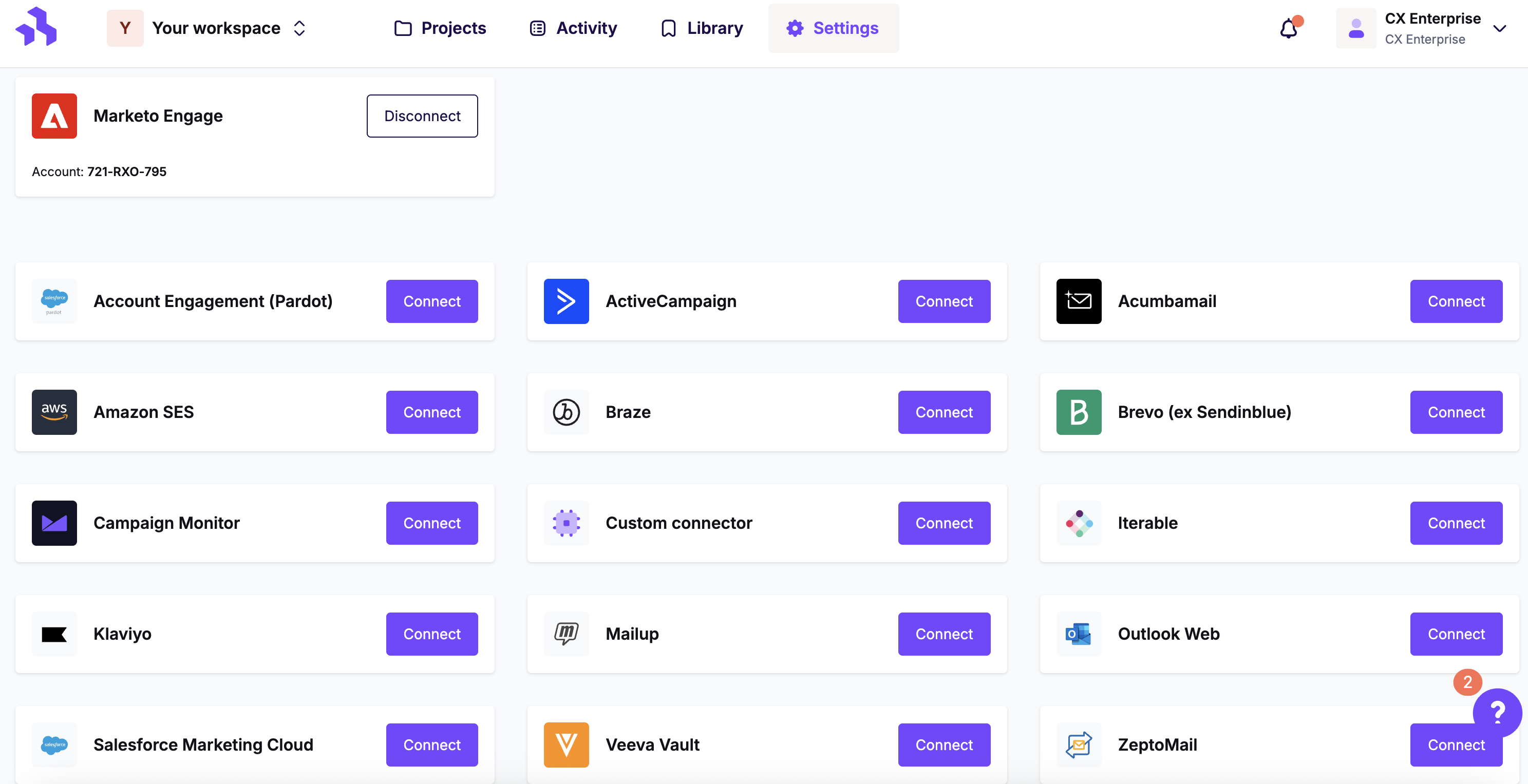
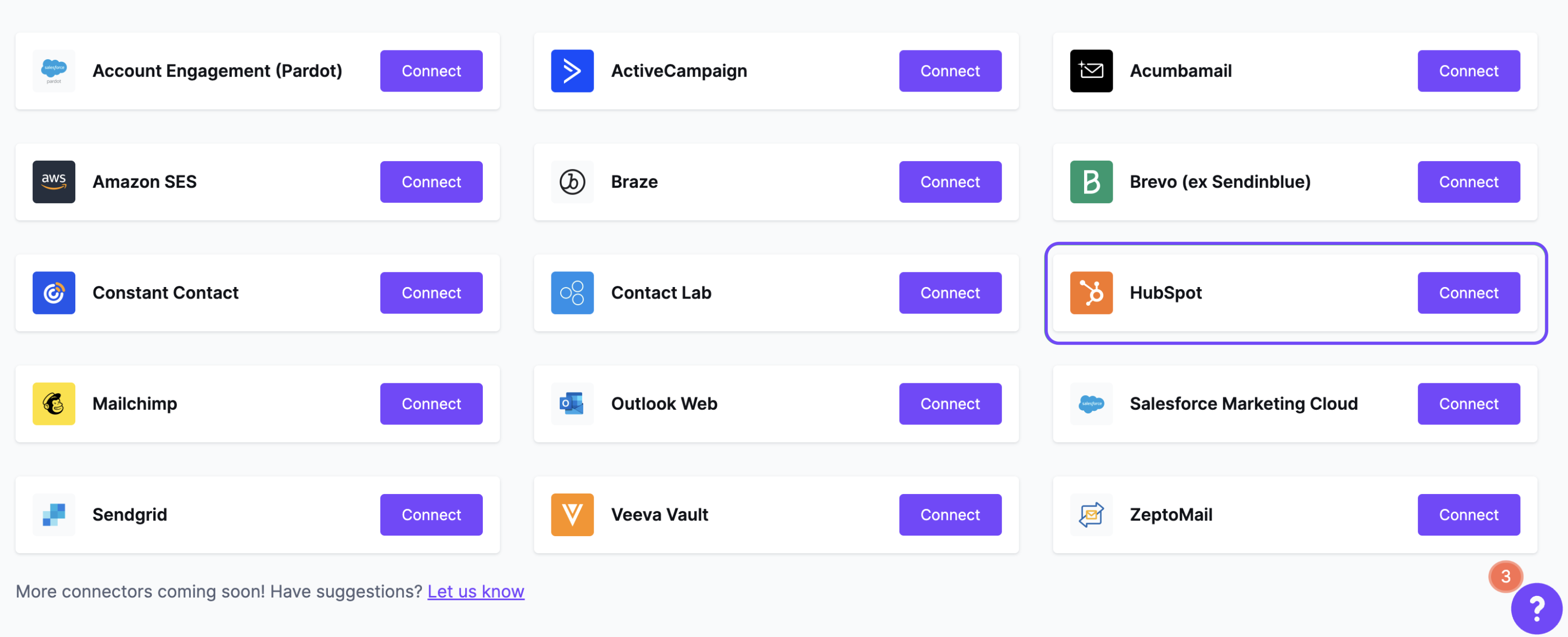
Click the Connect button for HubSpot.
If prompted, fill out the information in the modal to begin setting up the connector. Please note that your HubSpot credentials are not stored in RGE Studio. They are just used to connect your accounts.
While setting up the connector, you must authorize RGE Studio to access to the following content in your HubSpot account:
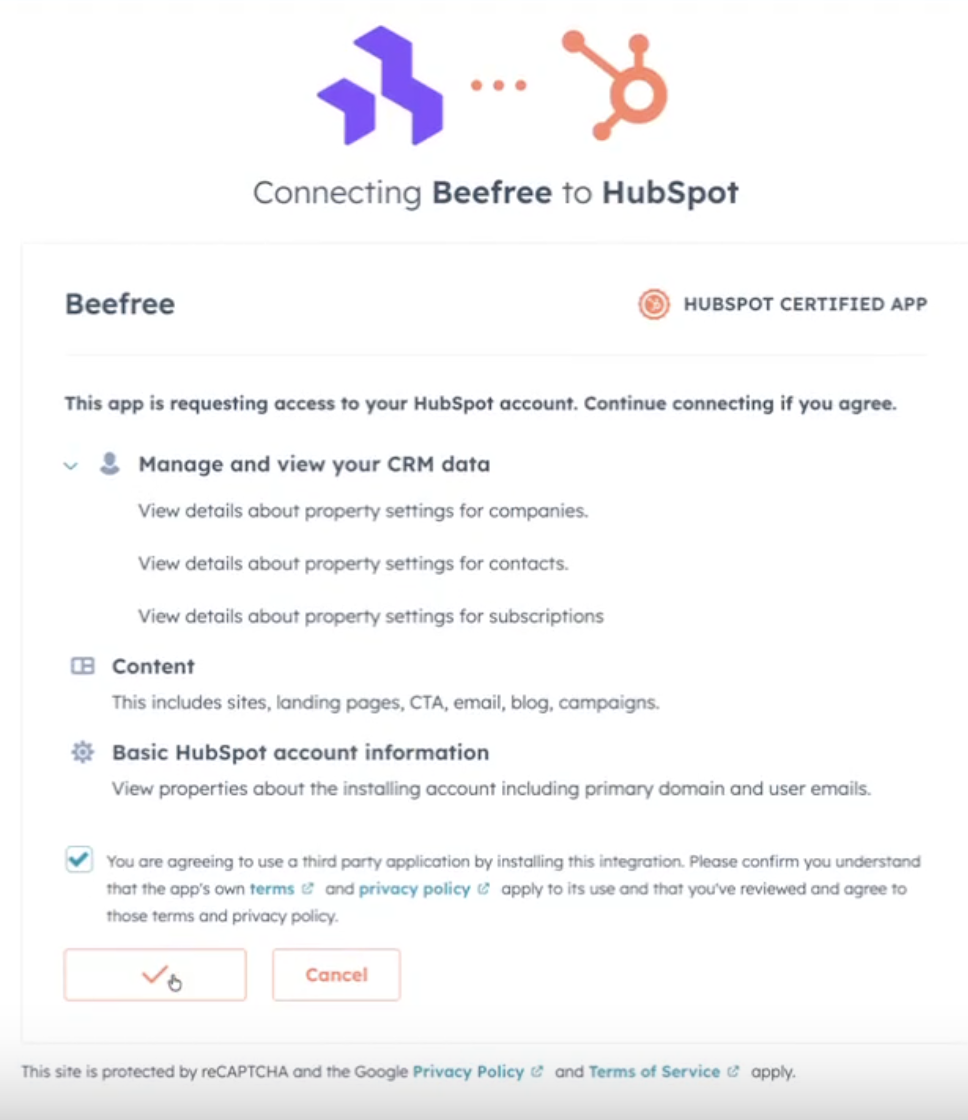
RGE Studio also requires viewing permissions for Business Units if enabled in your HubSpot account.
2. Connect from Export
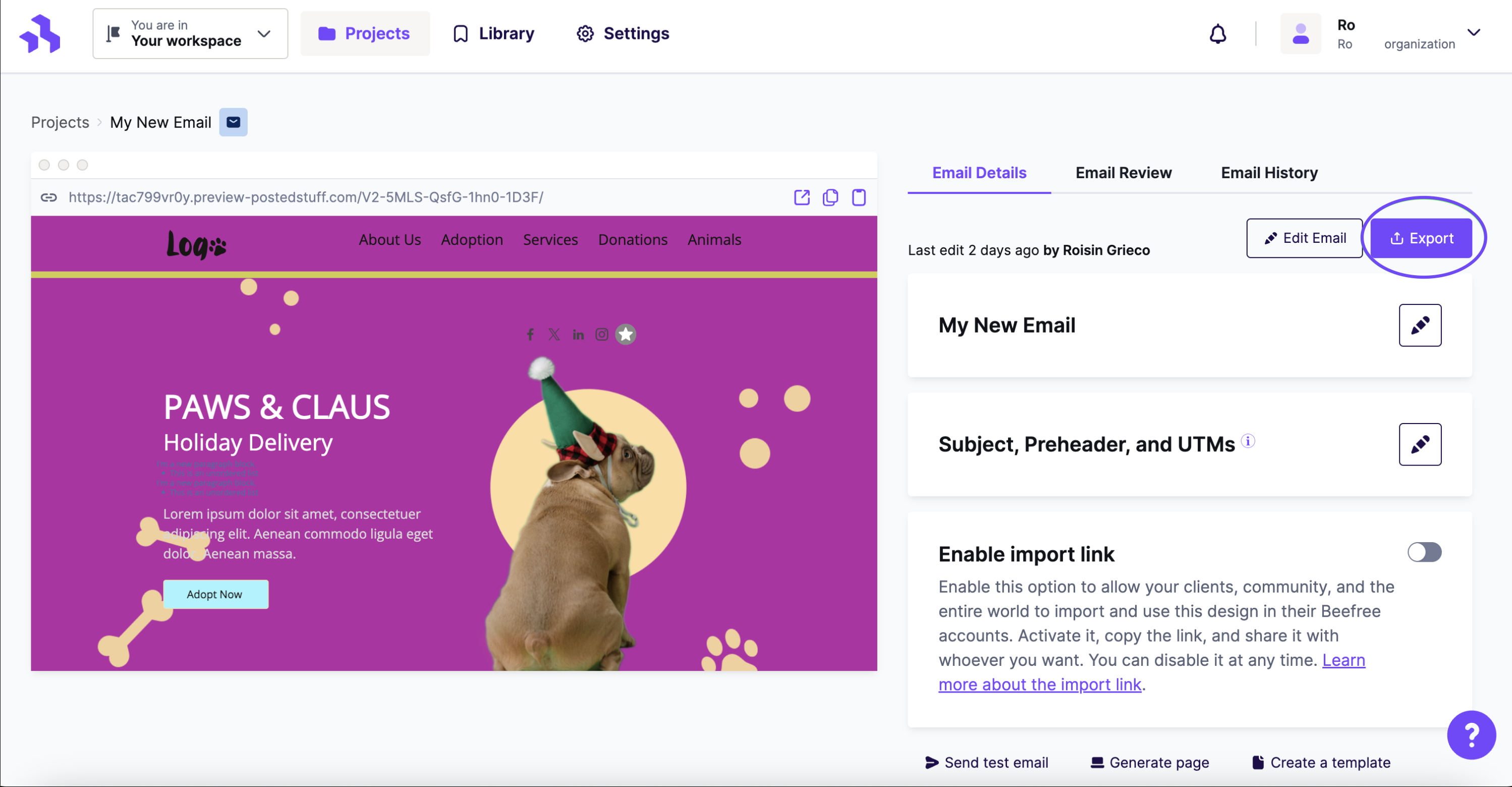
When your email is ready, click on the Export button on the Email Details page. This option is also available from the actions menu for your email.
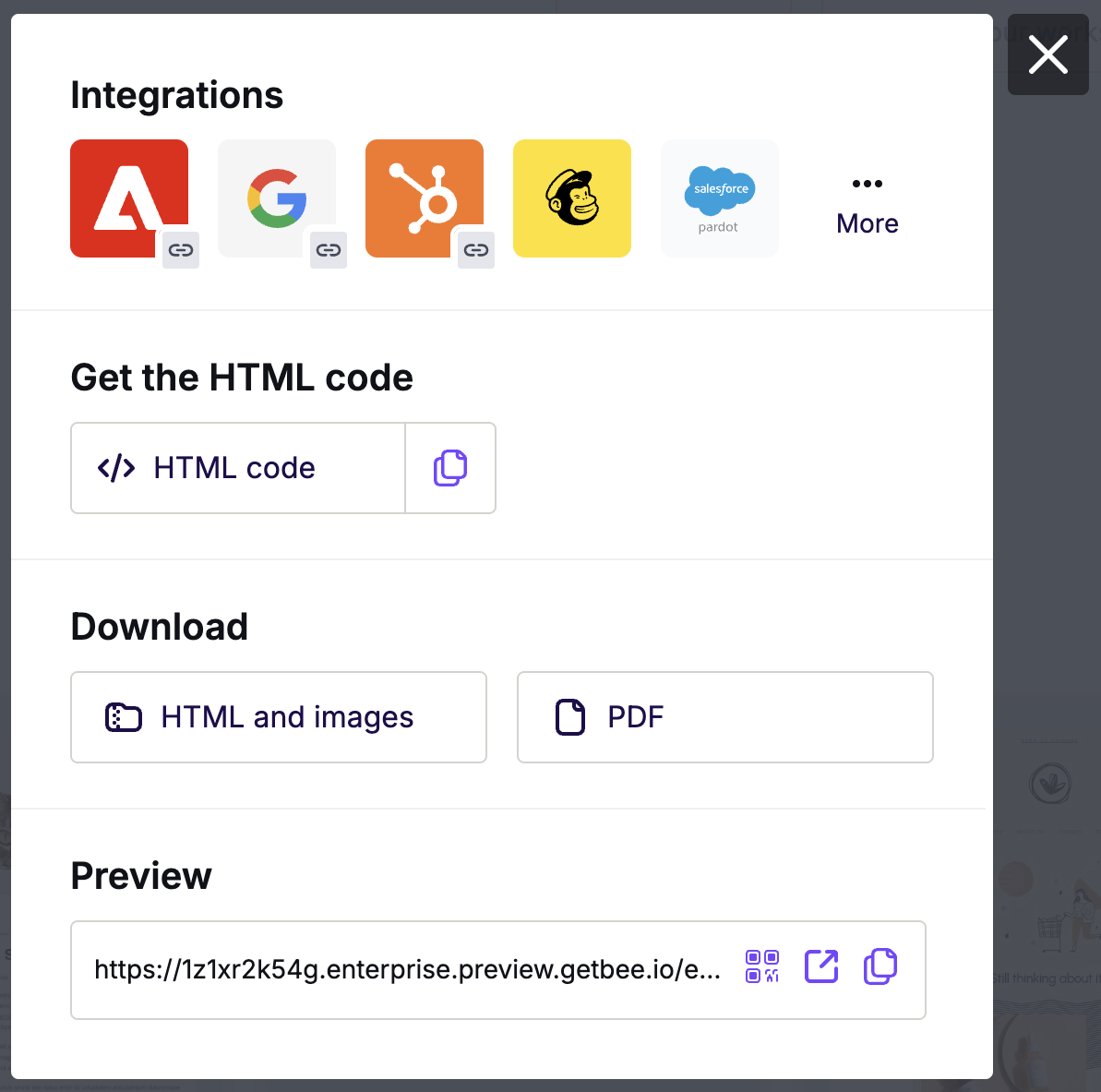
Click on the Integrations icon for HubSpot. If you don’t see it from this screen, click More to see all the connectors.
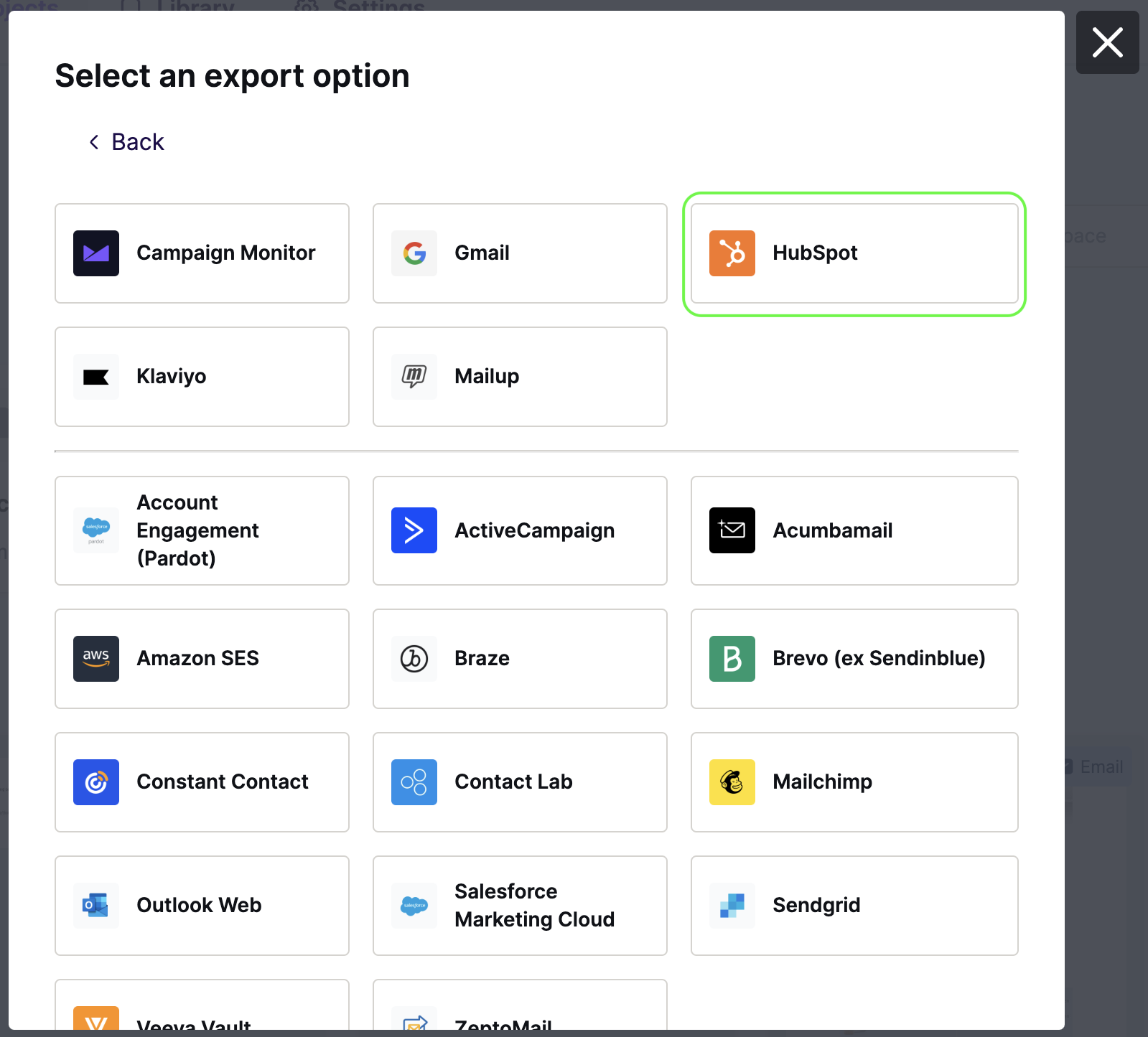
In the Integrations screen, scroll or search for HubSpot. Click on the icon and follow the steps to connect your accounts. If you have already connected, you will not be asked to do so again.
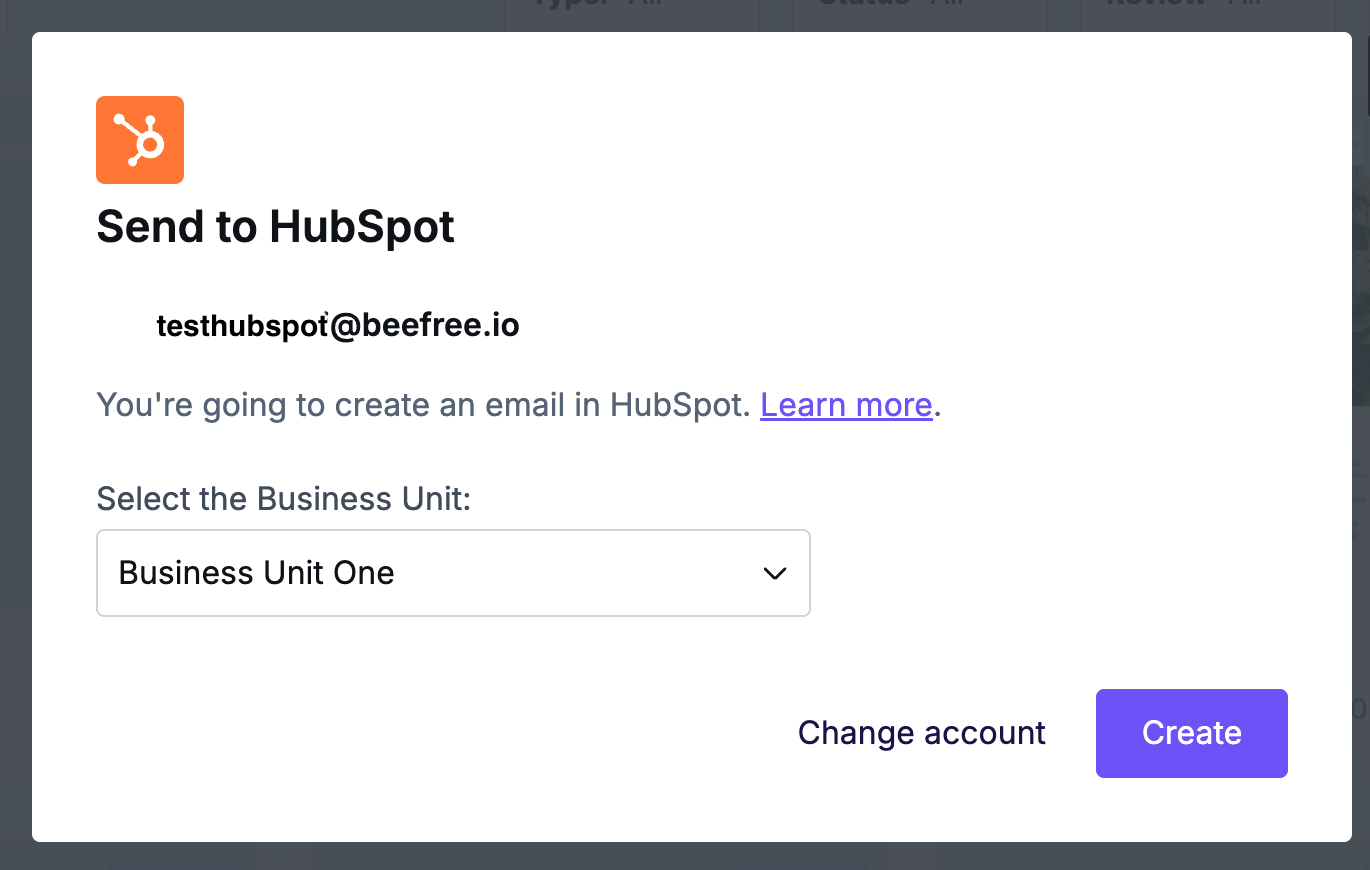
Next click Create to export your design to HubSpot. if you have multiple Business Units in HubSpot, you'll have the option to select one from a dropdown.
RGE Studio will confirm that the design has been successfully exported. You will see it appear in your HubSpot account. Log in to your HubSpot account, and your email will be available:
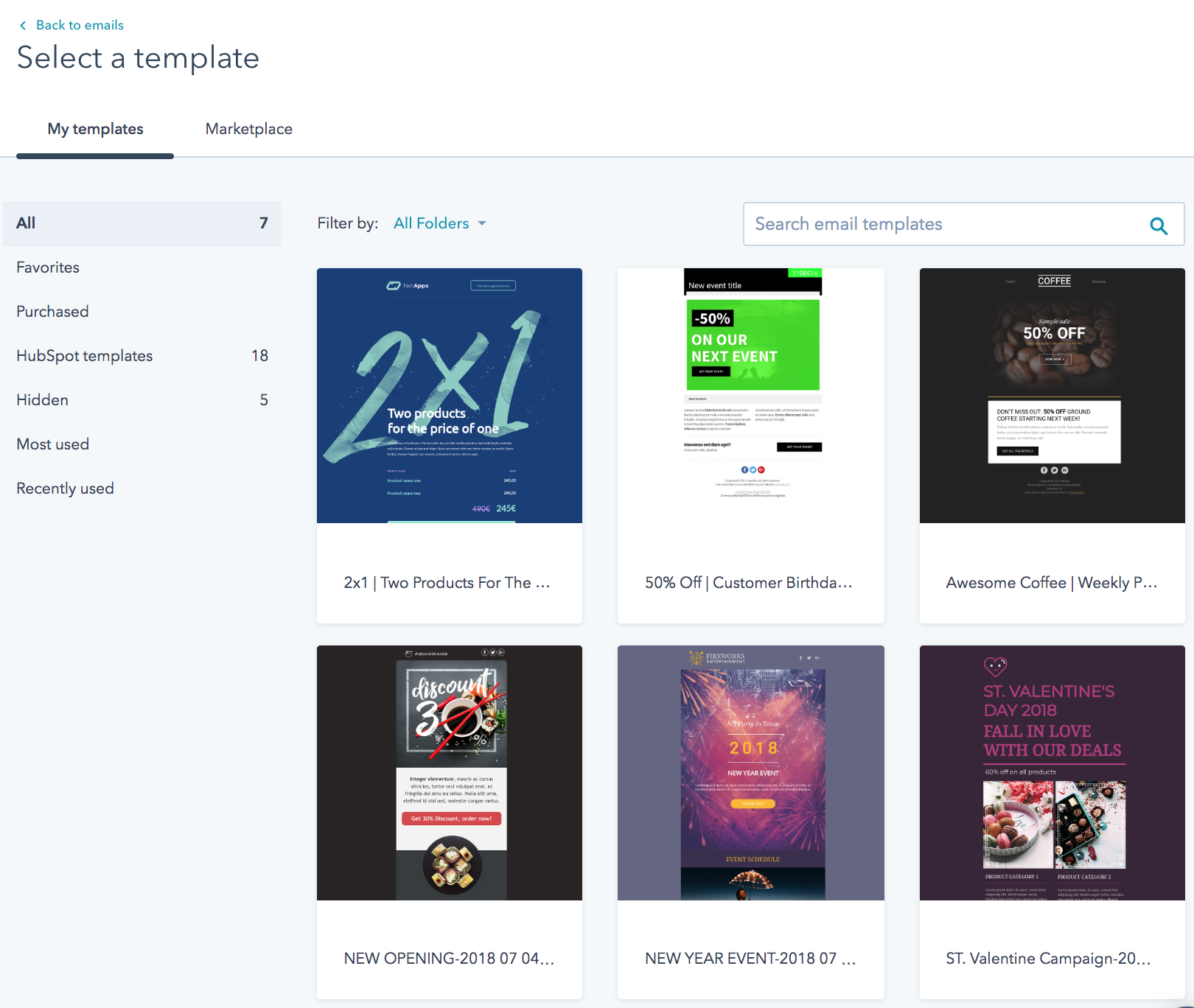
- As a template when creating a new email in Email > My templates
- As an HTML file in the HubSpot Design Manager, in a dedicated folder called RGE Studio.*
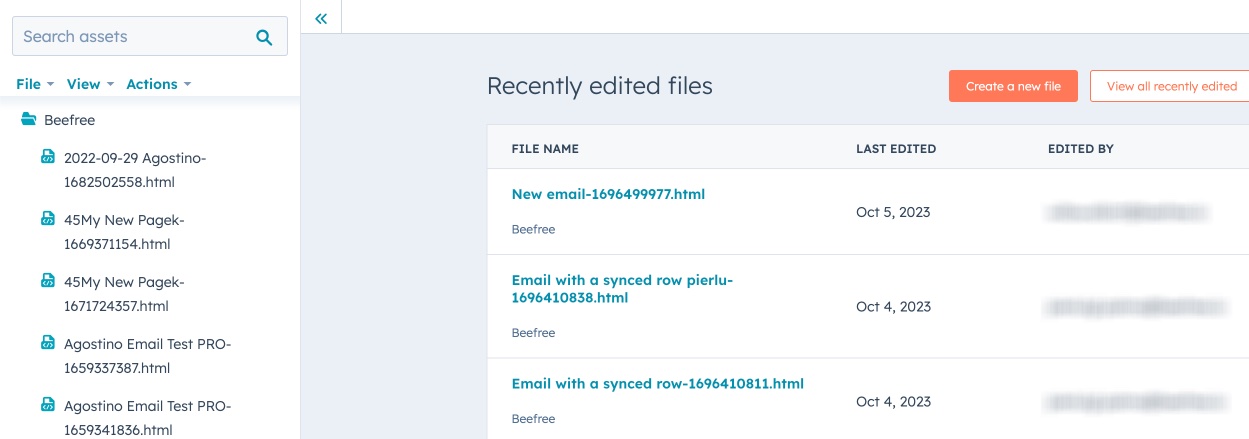
*Emails exported through this method can be edited manually within HubSpot. You will need to edit the HTML code of the email to apply changes. As a no-code alternative, we recommend applying your edits within RGE Studio and exporting the design to HubSpot again. This will update your existing design with your changes.
- As an HTML file in Marketing > Email.*
*Email templates available through this method can't be edited within HubSpot, they must be edited in RGE Studio. Once the changes are complete, you can export the email to HubSpot again to update the existing design.
Exporting Existing Designs
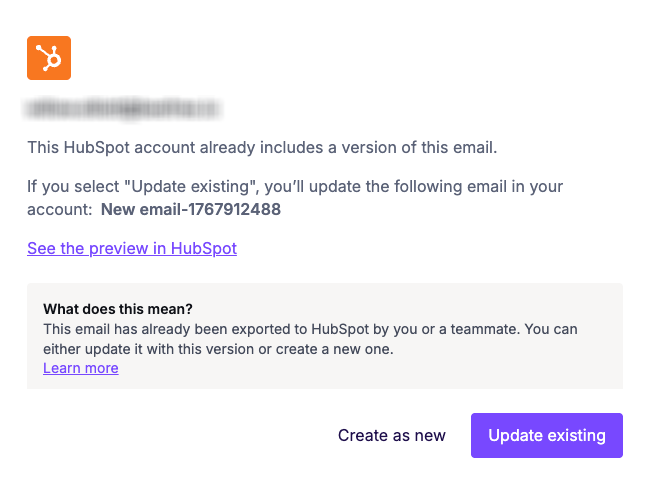
RGE Studio will recognize if you are exporting an Email that you've already pushed to HubSpot. You can update the existing version in HubSpot using the Update existing option. This export option will overwrite the existing version. If you want to export a new version of your email instead, use Create as new.
HubSpot Required Content
HubSpot requires that you include certain variables in your email template. If any of the following are missing, you will receive an error:
Prints the company city (set in Content Settings > Email > Footer Information).
Prints the company name (set in Content Settings > Email > Footer Information).
Prints the company state (set in Content Settings > Email > Footer Information).
Prints the company address (set in Content Settings > Email > Footer Information).
Prints the URL of the page that allows recipients to manage subscription preferences.
We've preloaded the builder with this syntax so you can access it by default.
- To add all the info in your footer, use a pre-defined footer under Rows > HubSpot Footers.
- To add only the company's info in a text block, select the desired position and open the merge tags menu. You can also use the @ shortcut on your keyboard.
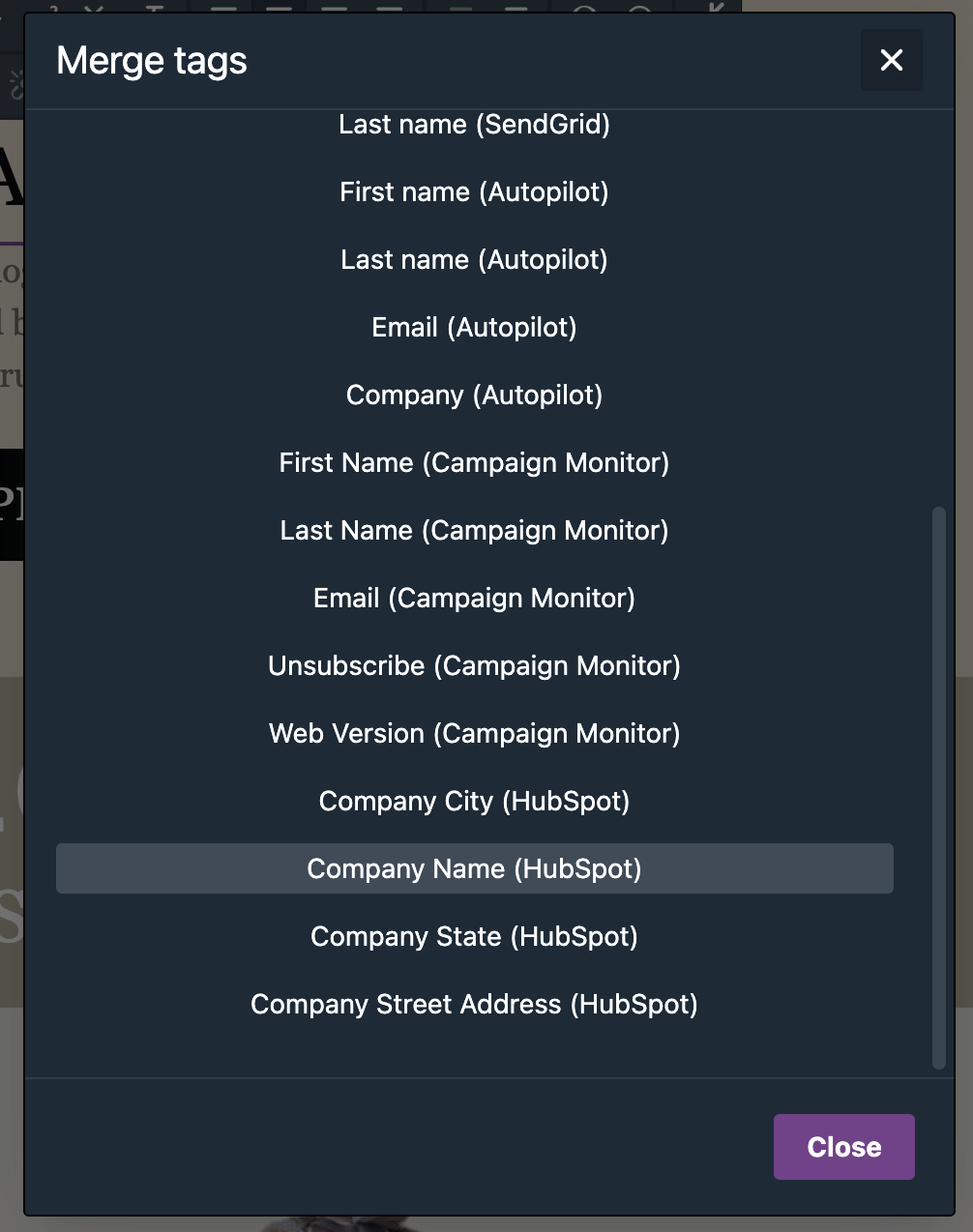
- To add only the unsubscribe link, first select the text that you want to use. Then click on Special links > HubSpot > Unsubscribe. Special links are also available in the sidebar when working with images and buttons. Note: If you add the unsubscribe link as a merge tag instead of a special link, you will see the entire URL inside your design once validated.
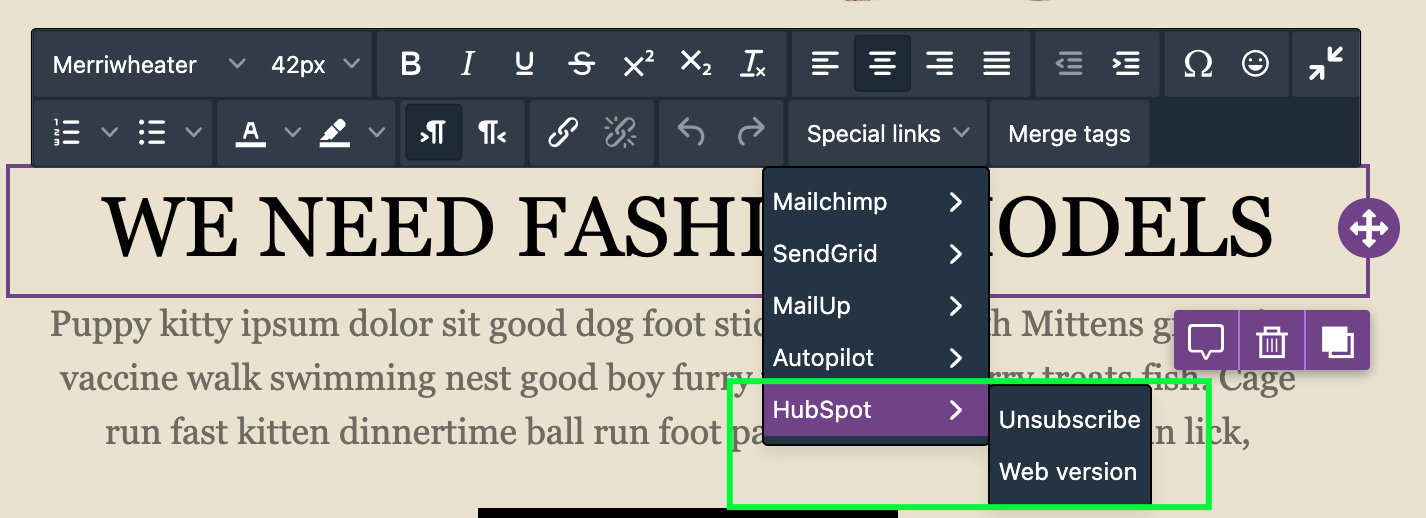
You can add new HubSpot variables by adding new merge tags and special links to your workspace settings.
Frequently Asked Questions
Which version of HubSpot do I need?
You need HubSpot Marketing Hub Professional or higher.
HubSpot Marketing Hub Free and Starter do not support the features needed for RGE Studio to be able to "push" designs to your HubSpot account.
Is RGE Studio listed in the HubSpot integrations directory?
Yes, RGE Studio is officially listed in the HubSpot integrations directory. You can find the official listing here.
I'm getting an error message saying I do not have the right permissions. What can I do?
You must be a HubSpot Admin or use Admin account credentials to set up the connector.
For more details about user account roles in HubSpot, check the HubSpot user permissions guide.
How do I uninstall the connector?
You can uninstall the HubSpot connector at any time from either RGE Studio or HubSpot. In RGE Studio, go to Settings > Connectors. Locate the HubSpot connector and press the Disconnect button. In HubSpot, go to Settings > Integrations > Connected apps. Use the Actions menu and select UninstalI.
What happens after uninstalling the connector?
RGE Studio's access to your HubSpot data is immediately revoked. Any designs that you exported from RGE Studio using the connector will remain available in HubSpot. You won't be able to export any new designs or update any existing designs already exported through the connector.
Multiple Workspace / Customers
Do you work with multiple brands or clients and need to easily manage all your emails and templates?
No problem! The Enterprise Version of RGE Studio allows you to set up different workspaces to better organize your email creation workflow. Enterprise allows you to specify different connectors for each workspace, so you never need to switch accounts.
For example, say you are a digital marketing agency with 10 clients that all use HubSpot. With Enterprise, you can create ten workspaces in RGE Studio and connect each of them to their specific HubSpot account.
Looking for a different sending platform? You can check our complete list of connectors — or request a new one!
If you have any questions, feel free to contact us.
Comments
2 comments
It is not clear whether HubSpot Starter users can install Beefree at all, or if it can be installed but requires a manual export/import process for emails.
Hello Holly, thank you for your comment.
To use our HubSpot connector, you need a HubSpot Professional or Enterprise account. If you want to use your design in the HubSpot Starter tier, you may be able to do so by copying/downloading the HTML and images and importing them into HubSpot.
Please sign in to leave a comment.