Exporting to Brevo (formerly Sendinblue)

Beefree App is now RGE Studio!
The email design suite you already know and love just leveled up. We’re working hard to update our help center, but you still may see some references to the old product name.
This article applies to the Email builder in all plans.
Overview
Design your emails in RGE Studio and export them to Brevo (formerly Sendinblue) for sending. The connector lets you export with one click.
There are two ways to connect your Brevo account:
- From Workspace Settings: connect your account before you start designing.
- From the Export options of your email.
You need a paid Brevo account to use this connector.
Follow the steps below or watch our RGE Studio Academy tutorial.
Connect from Workspace Settings
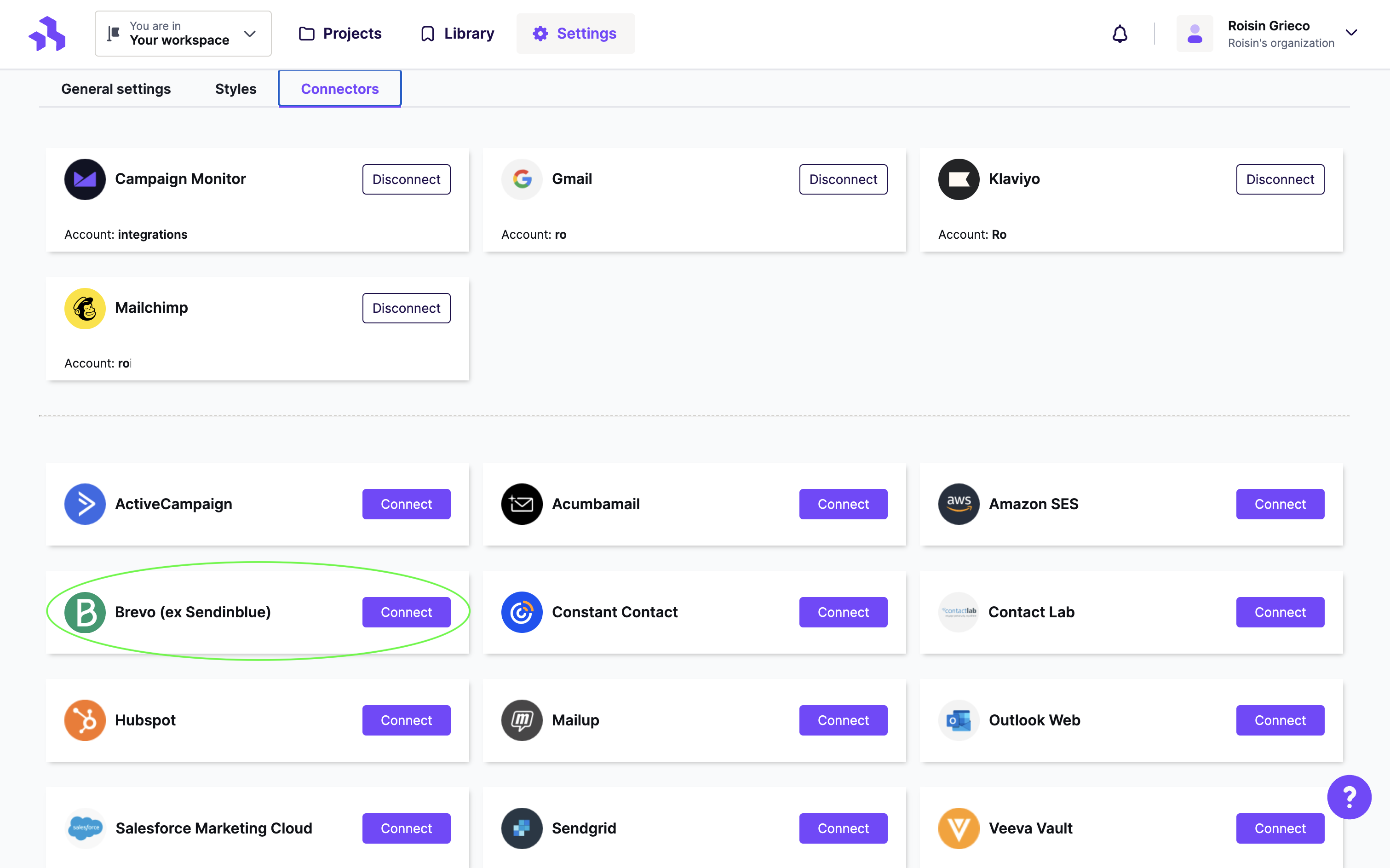
Go to Settings > Connectors.
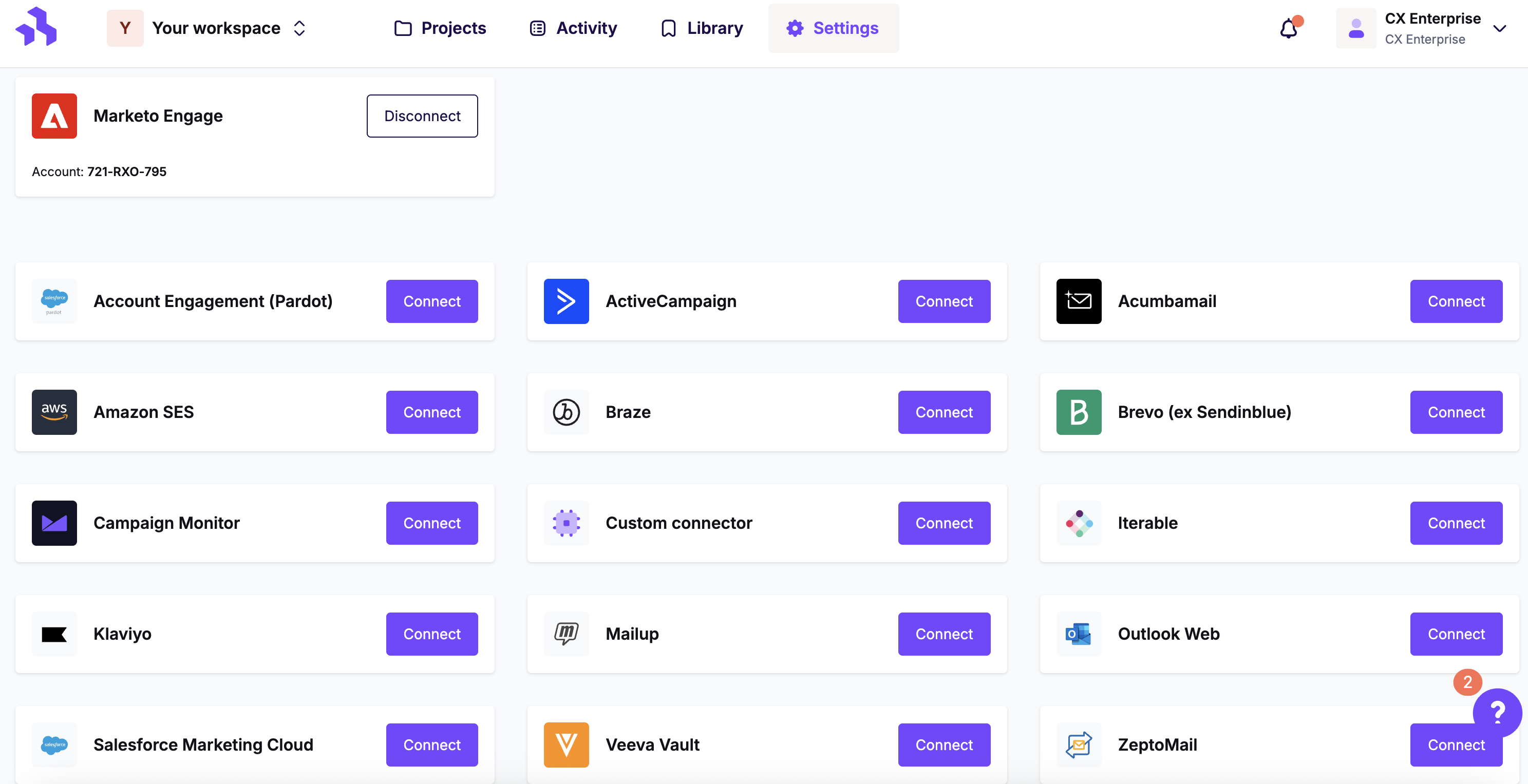
Click the Connect button for Brevo.
Fill out the information in the modal to begin setting up the connector.
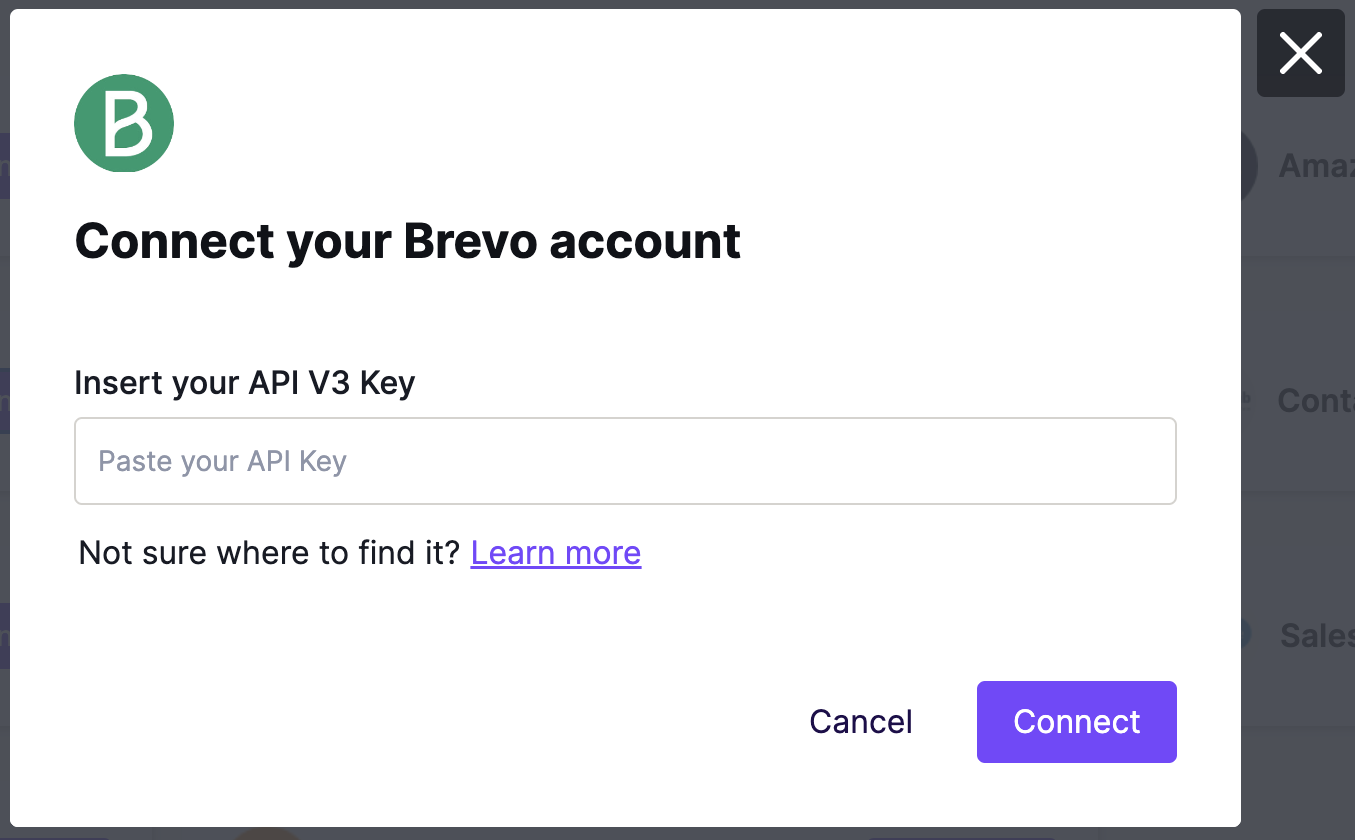
To find your Brevo API key, see this article from Brevo's documentation.
If you have multiple senders on your Brevo account, select the one you prefer from the dropdown menu after connecting.
Connect from Export
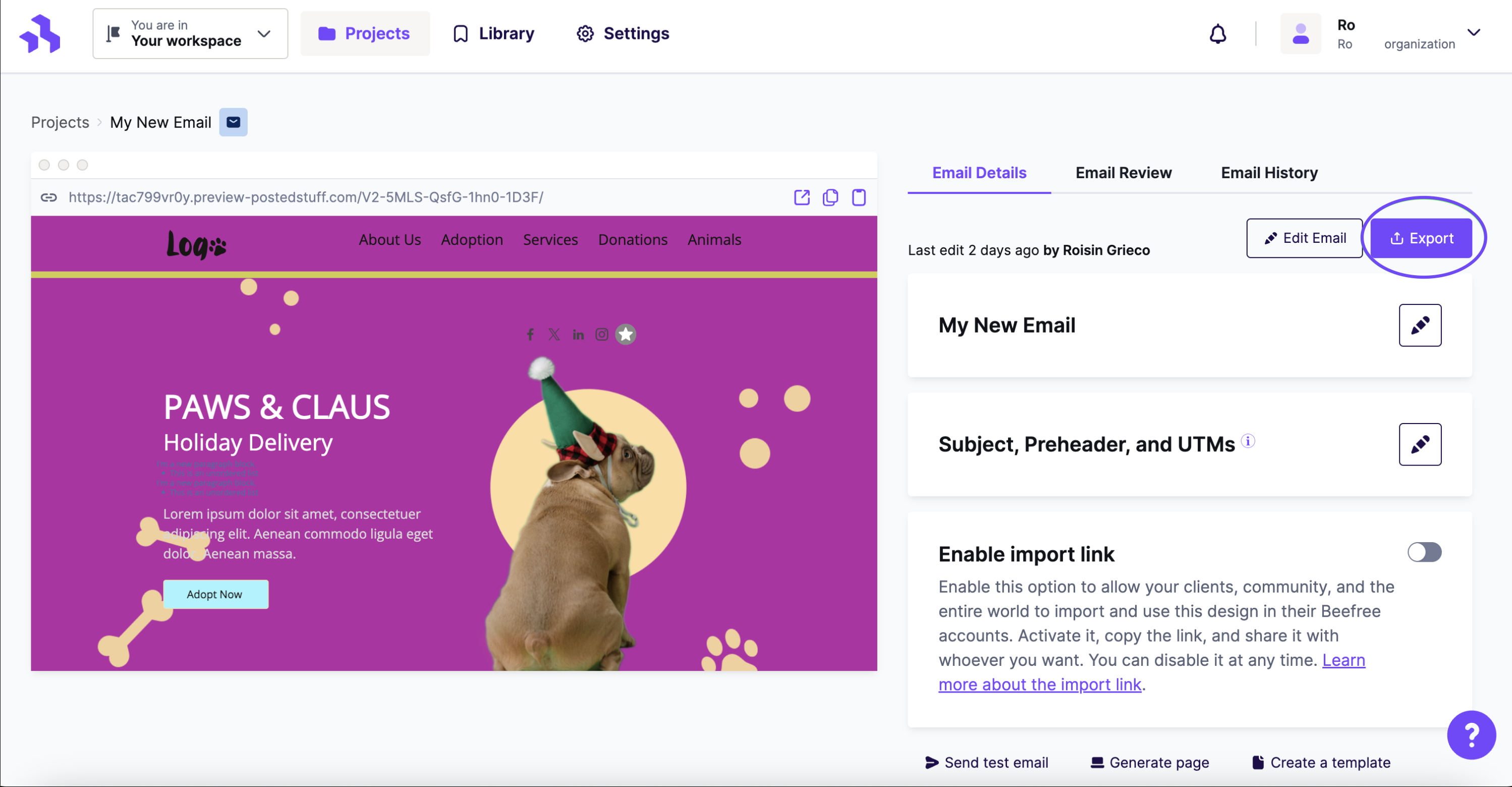
When your email is ready, click the Export button on the Email Details page. You can also access this from the actions menu.
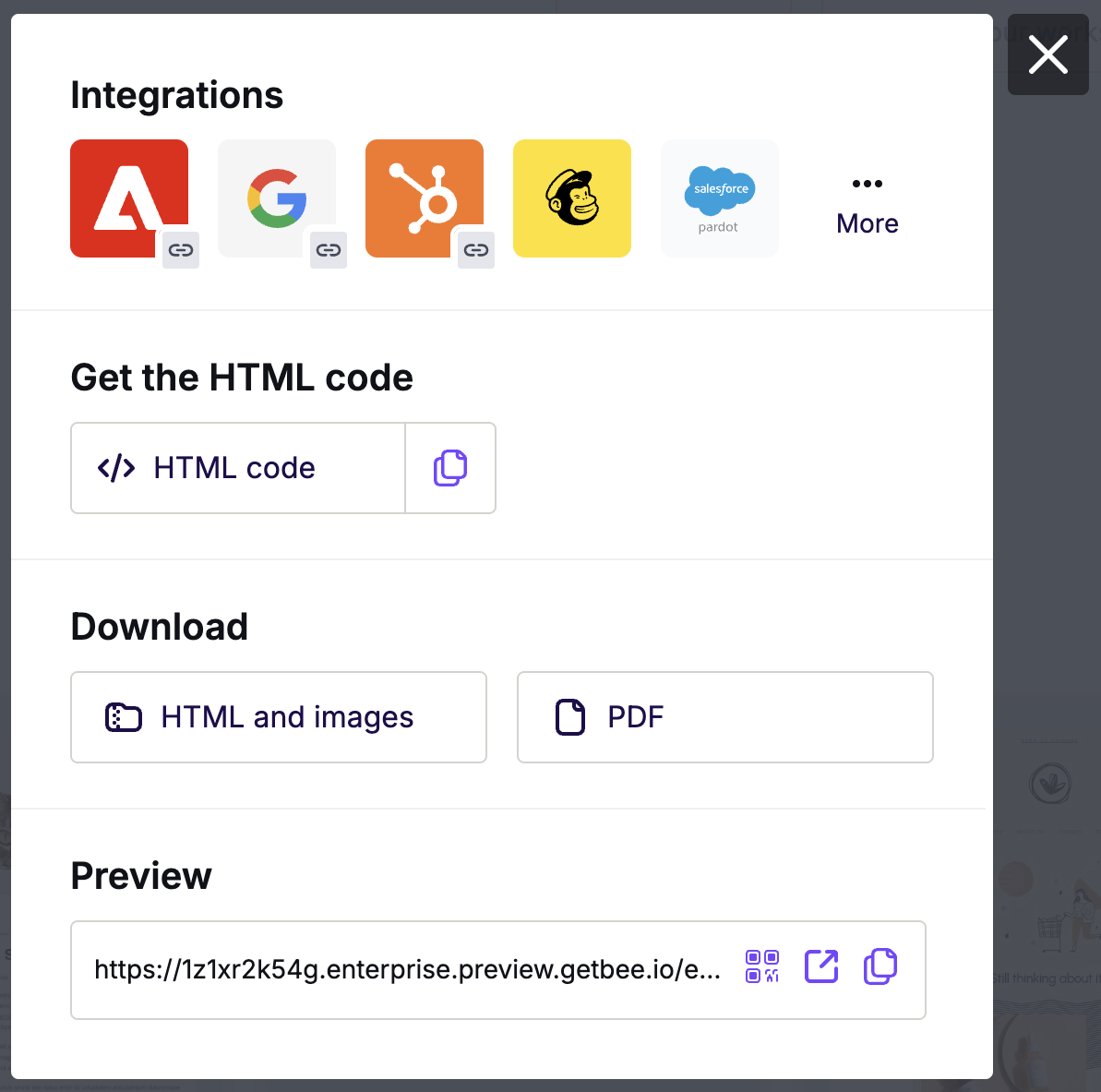
Find Brevo under Integrations on the export panel. If you don't see it, click More to open the full connector list.
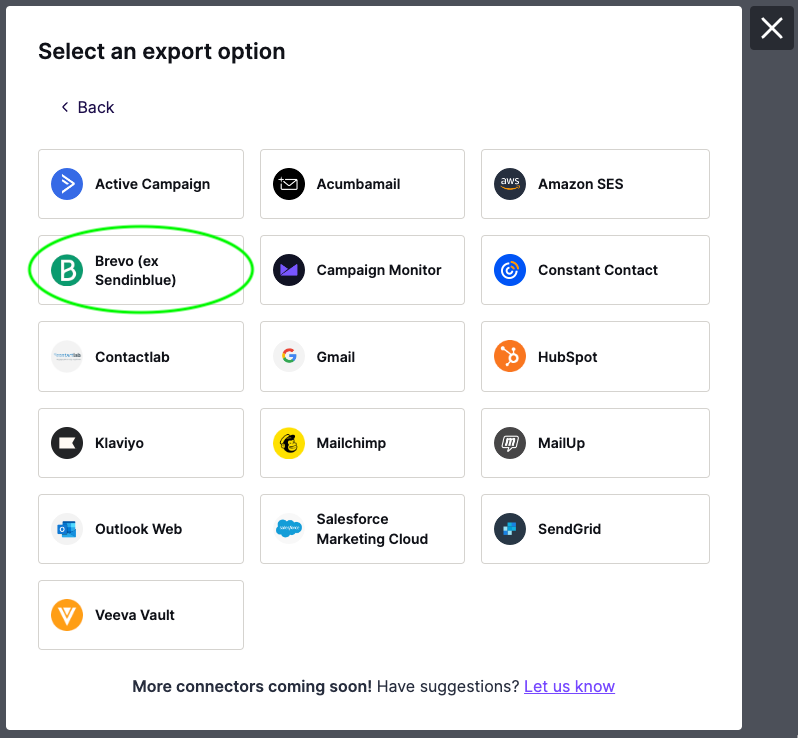
In the Integrations screen, scroll or search for Brevo. Click the icon and follow the steps to connect your account. If you have already connected, you will not be asked again.
RGE Studio will confirm when the export is complete. The design will appear in your Brevo account.
Exporting Existing Designs
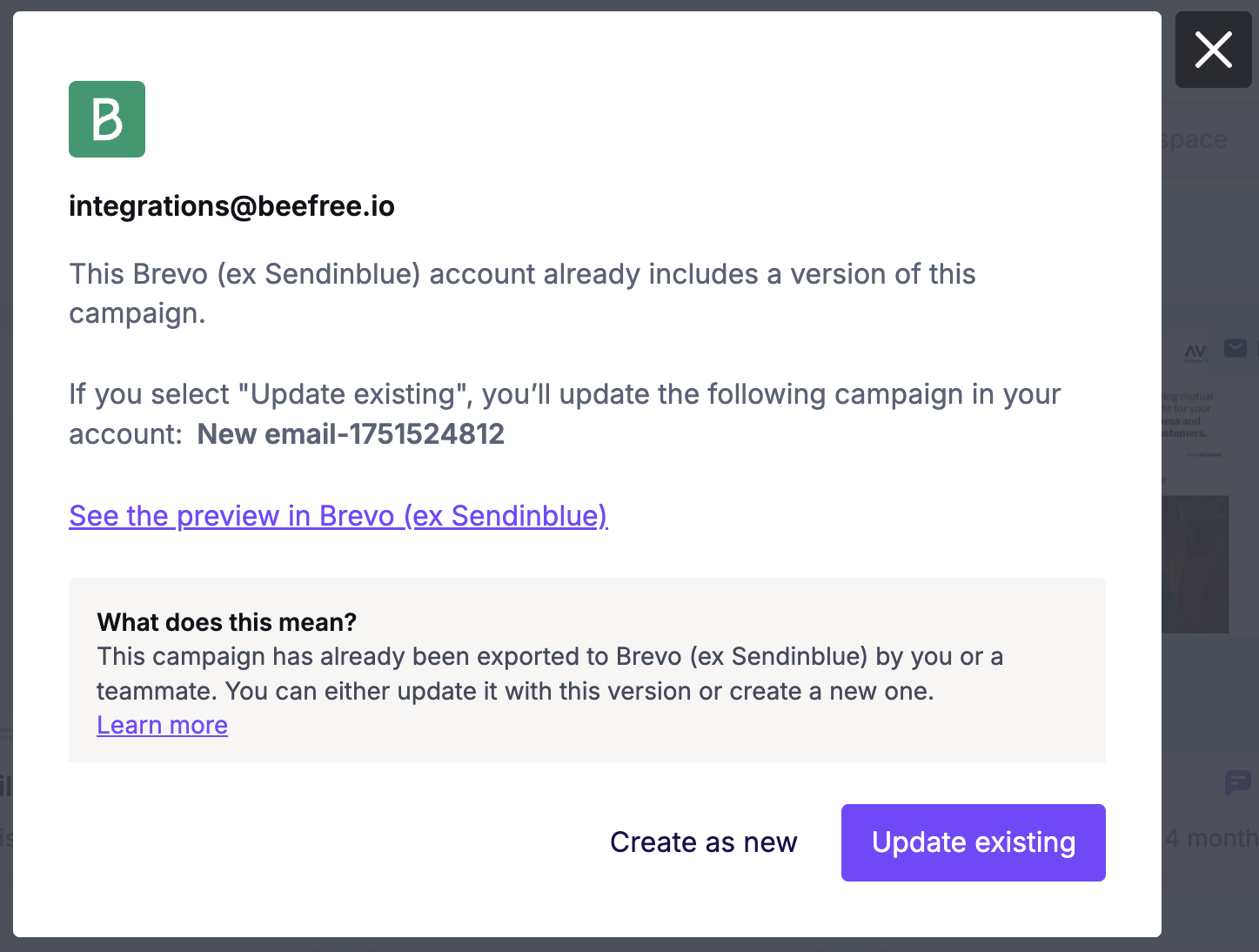
RGE Studio will recognize if you are exporting an email that you've already pushed to Brevo. You can update the existing version in Brevo using the Update existing option. This export option will overwrite the existing version. If you want to export a new version of your email instead, use Create as new.
Authorizing RGE Studio's IP Address
If your Brevo account blocks unknown IP addresses for security, you may need to authorize RGE Studio's IP address. Go to Settings > Security > Authorized IPs in Brevo to add it.
Brevo will show the IP address to authorize, dated the day you attempted the export. See Brevo's guide on blocking unknown IP addresses for more information.
Multiple Workspaces
If you work with multiple brands or clients, the Enterprise plan lets you create separate workspaces. Each workspace can have its own Brevo connector.
For example, if you have 10 clients who all use Brevo, you can create 10 workspaces. Each workspace connects to its own Brevo account.
Looking for a different sending platform? You can check our complete list of connectors — or request a new one!
If you have any questions, feel free to contact us.
Comments
0 comments
Please sign in to leave a comment.