Exporting to Amazon SES

Beefree App is now RGE Studio!
The email design suite you already know and love just leveled up. We’re working hard to update our help center, but you still may see some references to the old product name.
This article applies to the Email builder in all plans.
Overview
Design your emails in RGE Studio, then export them to Amazon SES for sending. The Amazon SES connector lets you push emails directly from RGE Studio.
Prerequisites
Before exporting to Amazon SES, you need:
- An RGE Studio account
- A configured Amazon SES IAM policy
Permission Policies
Follow these steps to configure the Amazon SES permission policies.
You need to create an IAM policy for your Amazon SES credentials. Use this JSON example to define the permissions:
- Go to the IAM Management Console.
- In the left navigation pane, click Policies, then click Create policy.
- Select the JSON tab and paste the following policy document:
{
"Version": "2012-10-17",
"Statement": [
{
"Effect": "Allow",
"Action": [
"ses:ListTemplates",
"ses:CreateTemplate",
"ses:GetTemplate"
],
"Resource": ""
}
]
}- Click Review policy.
- Provide a name and description, then click Create policy.
After creating the policy, attach it to the IAM user or role:
- Go to the IAM Management Console.
- In the navigation pane, click Users or Roles.
- Select the user or role you want to attach the policy to.
- Click the Permissions tab, then click Add permissions.
- Select Attach policies directly, then search for the policy you created.
- Select the policy and click Next: Review.
- Click Add permissions to attach the policy.
To learn more, see the Creating IAM policies guide.
Connect and Export
There are two ways to connect your Amazon SES account:
- From Workspace Settings: connect before you start designing.
- From the Export options on your email.
Setting up a connector does not sync your designs with external services. If you update a design after exporting it, you must re-export to see the updates. The export file will populate as a new design inside your ESP.
Connect from Settings
Go to Settings > Connectors.
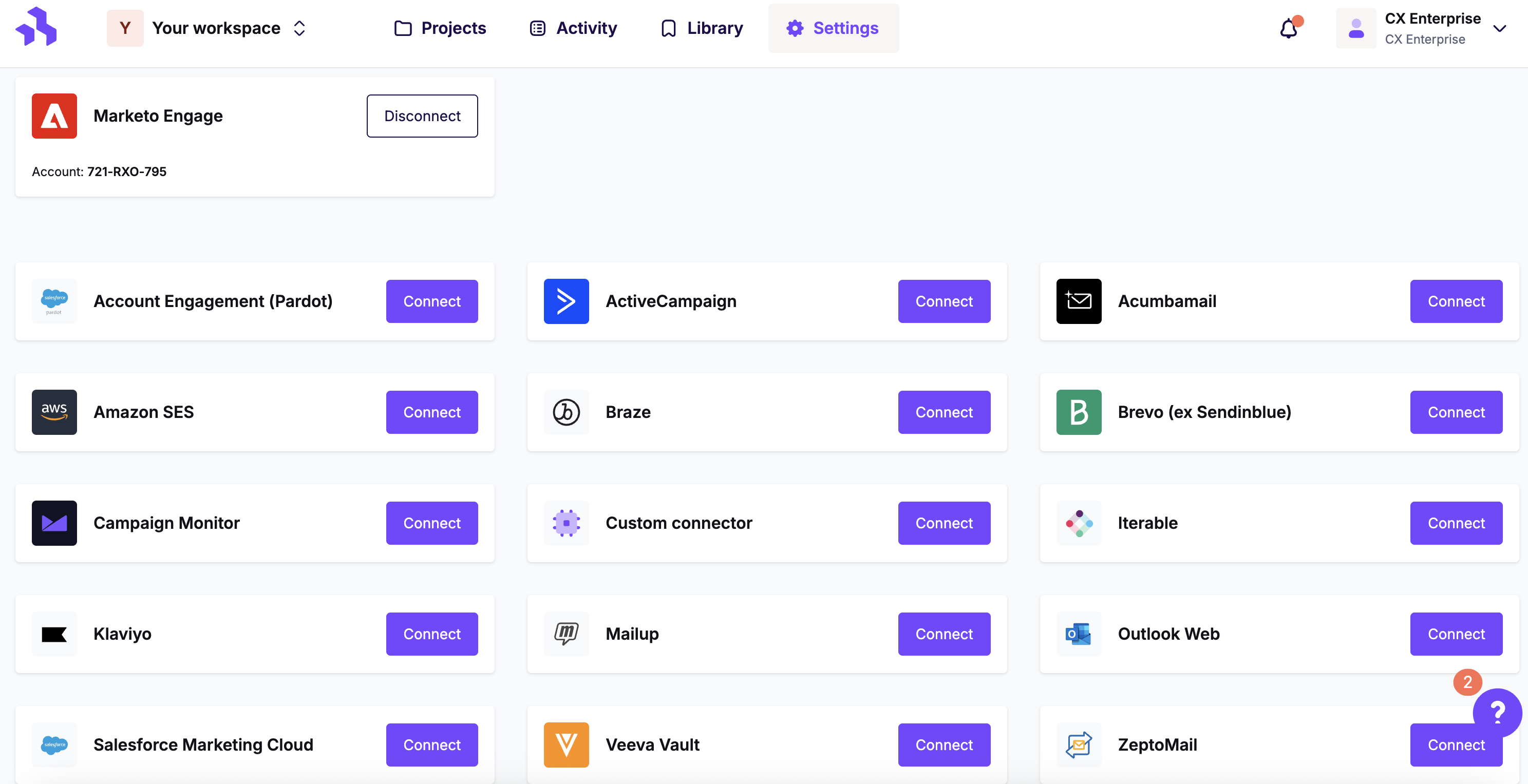
Click Connect for Amazon SES.
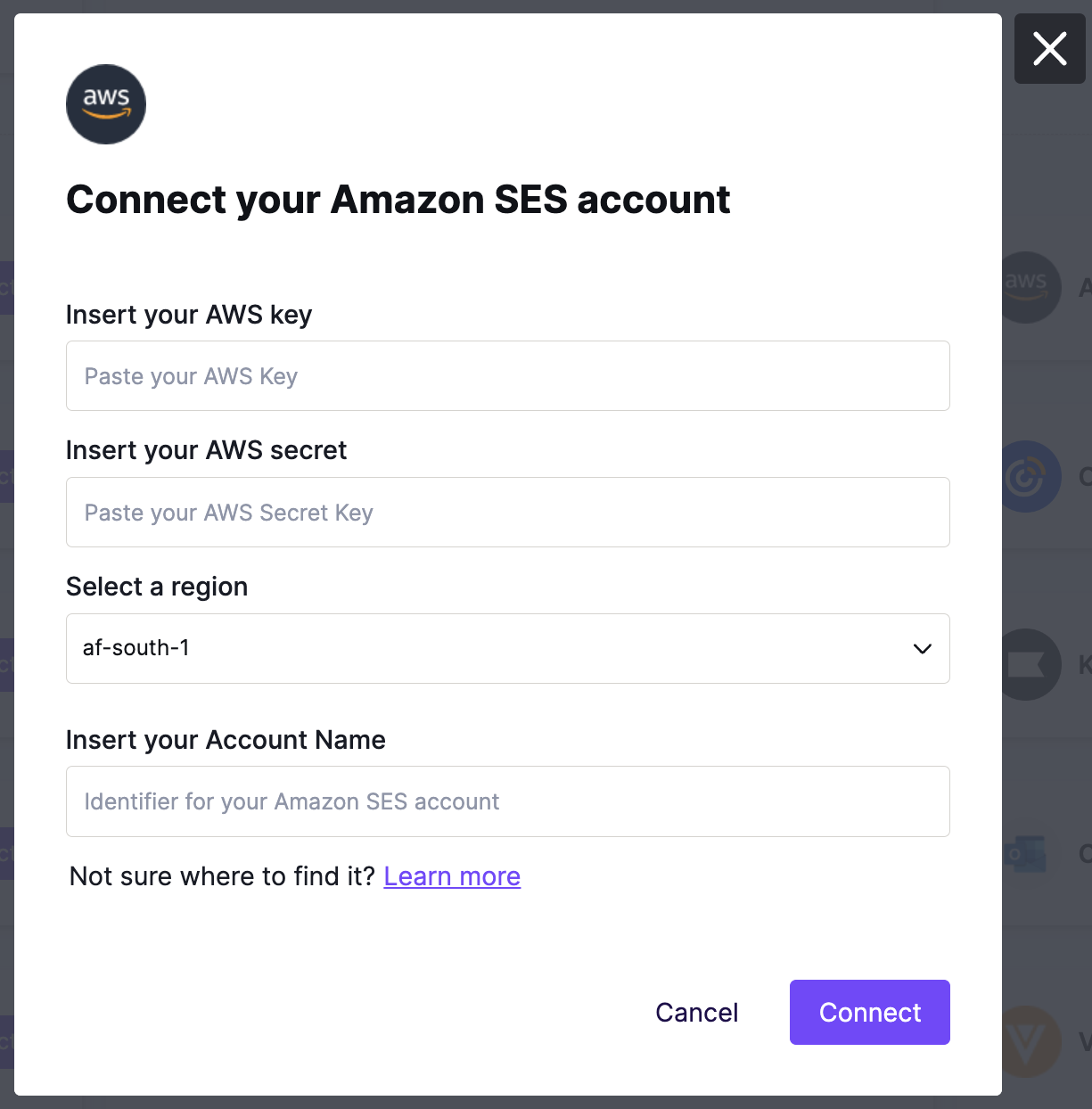
Fill out the modal to set up the connector:
- AWS Key and Secret To find these, see the AWS documentation on access keys.
- Region To find your region, see the AWS documentation on regions.
-
Account Name Optional. This helps identify which account you're exporting to.
Connect from Export
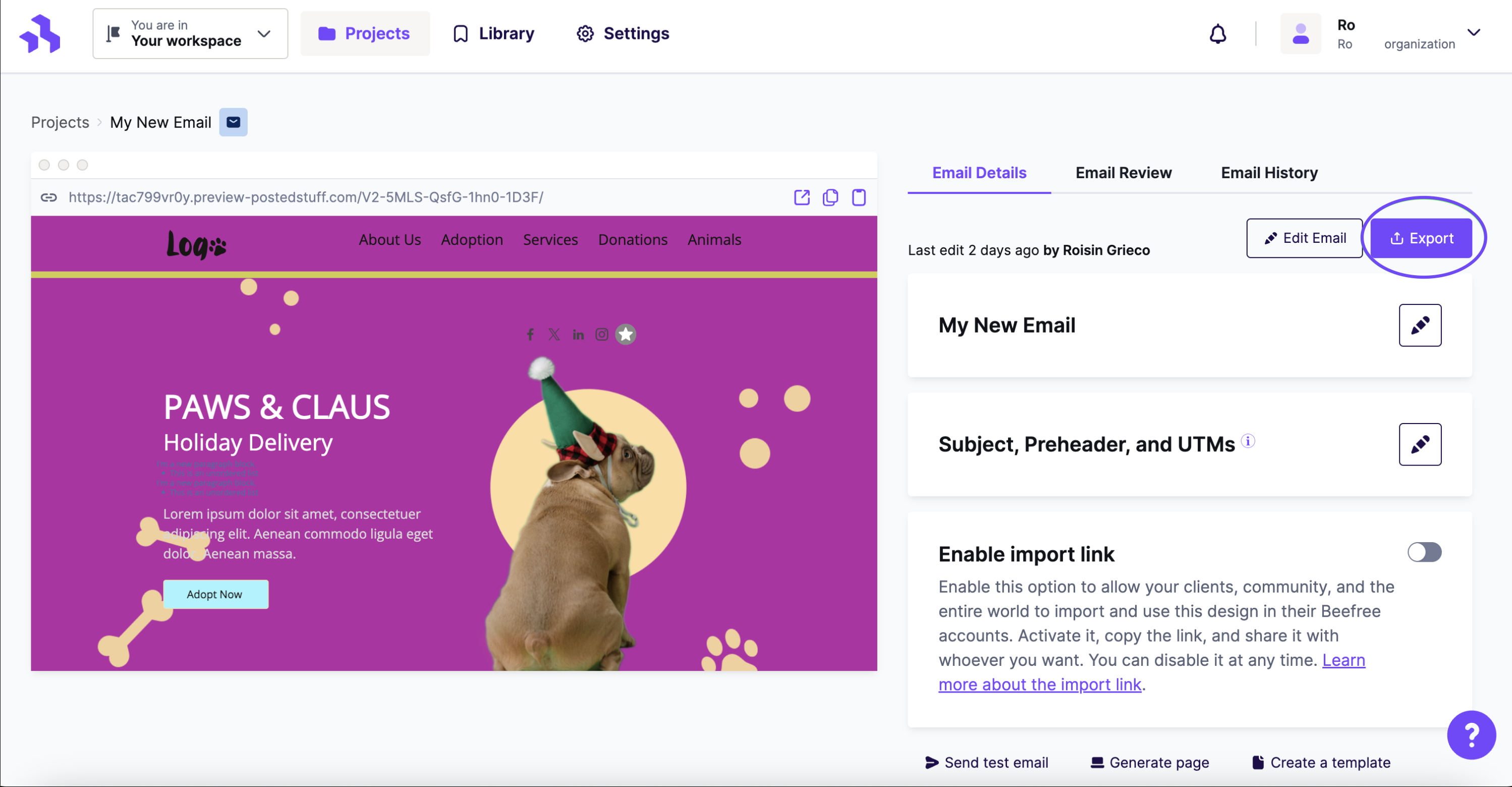
Click the Integrations icon for Amazon SES. If you don't see it, click More to view all connectors.
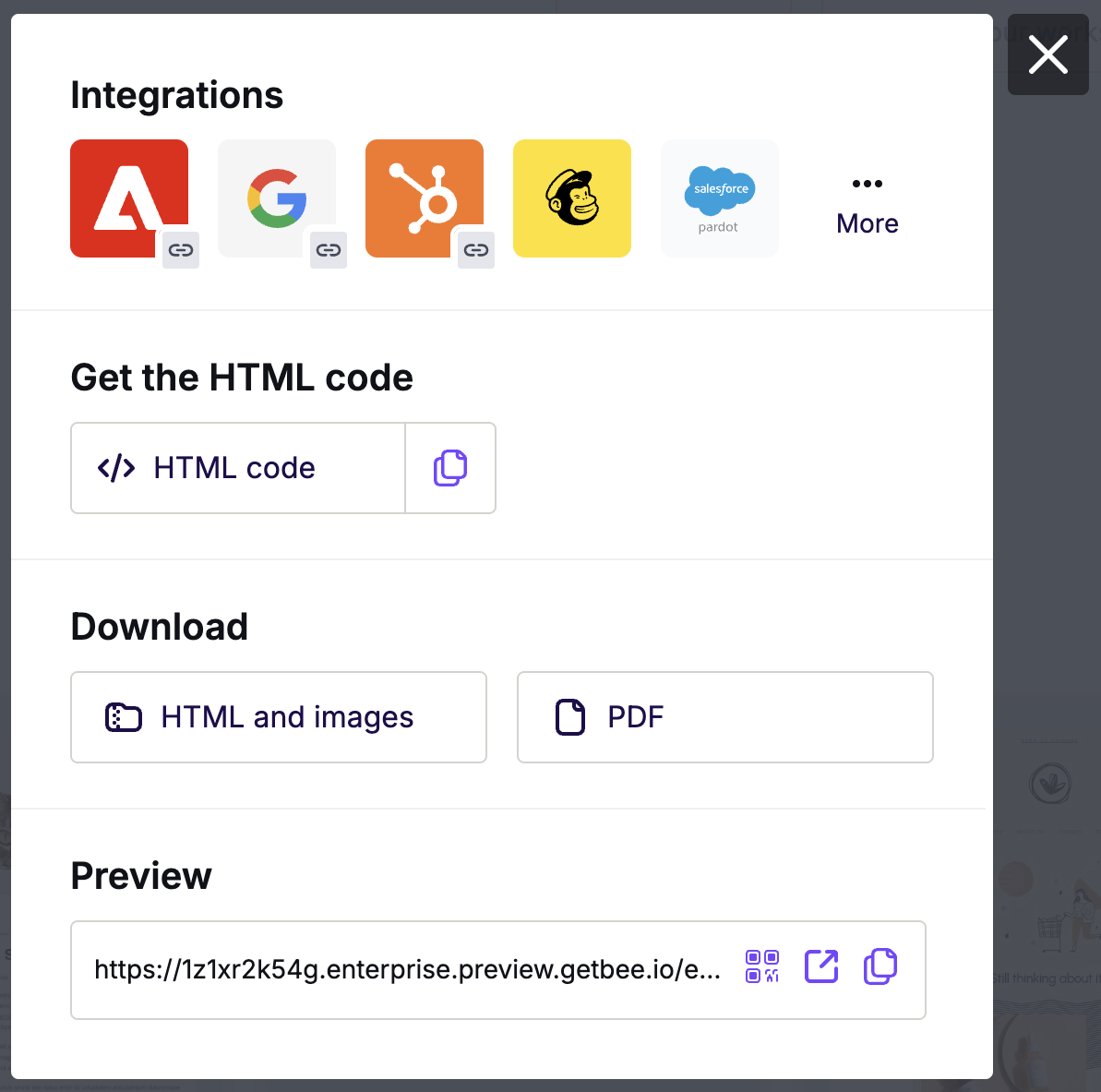
In the Integrations screen, scroll or search for Amazon SES. Click the icon and follow the steps to connect. If your account is already connected, you won't be asked again.
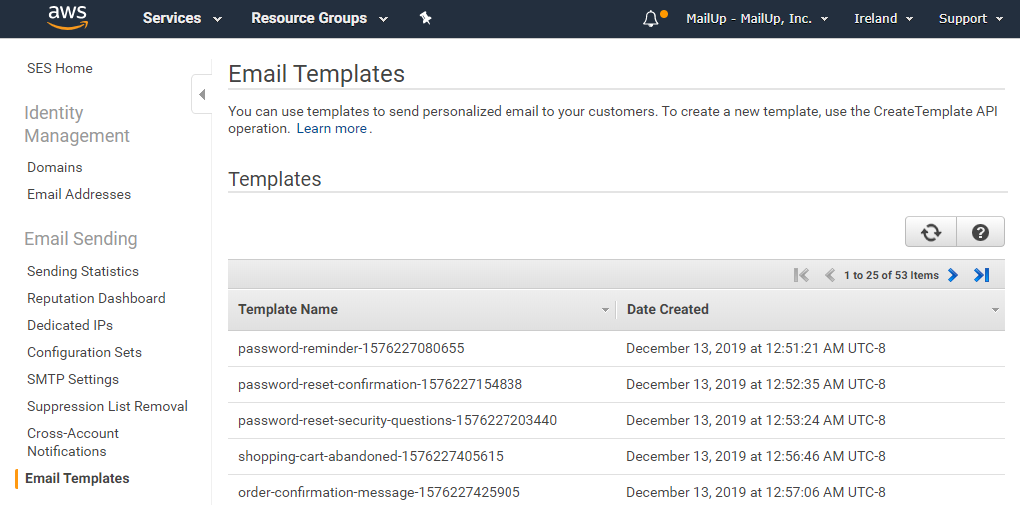
RGE Studio confirms when the export is complete. Your email appears in Amazon SES under Email Sending > Email Templates. Your design name becomes the Amazon SES template name. RGE Studio adds a unique identifier to the end. Here's an example:
Subject Lines
When you export emails to Amazon SES, consider the following:
- If your email includes a subject line, the export sends it to Amazon SES.
- If your email has no subject line, the export sends the email name instead.
To add a subject line, see Using Preheaders and UTMs.
Update Existing Designs
The Amazon SES connector lets you update existing email designs in Amazon SES. Once you've edited an email, use the Update Existing option to push changes. No new version is created.
This option requires the ses:UpdateTemplate permission. In Amazon SES, go to Permission Policies and add ses:UpdateTemplate.
Update an Email
Follow these steps to update and export an email to Amazon SES:
- Log in to RGE Studio.
- Open the email design you want to update.
- Make your changes.
- Click Export in the upper right corner.
- Select the Push to your sending system option.
- Choose Amazon SES from the list.
- Select Update existing to apply your changes.
RGE Studio updates the email and sends it to Amazon SES. No new version is created.
Updated Elements
When using Update Existing, the following elements are updated in Amazon SES:
- HTML
- Subject Line
- Preheader
- UTMs
Note: In Amazon SES, the preheader is part of the HTML. Preheader changes in RGE Studio appear in Amazon SES after export.
Additional Considerations
- Update Existing is only available for exports made after this feature's release. Previous exports are not supported. Their original template IDs were not saved.
- If you rename the email in Amazon SES, Update Existing won't appear. RGE Studio no longer recognizes the email. You can still export it as a new version.
- Amazon SES does not support non-ASCII characters in email names. RGE Studio removes these characters automatically during export.
Multiple Workspaces
The Enterprise plan lets you create separate workspaces for different brands or clients. Each workspace can have its own Amazon SES connector. You don't need to switch accounts between clients.
For example, with 10 Amazon SES clients, create one workspace per client. Connect each workspace to that client's Amazon SES account.
Looking for a different sending platform? You can check our complete list of connectors — or request a new one!
If you have any questions, feel free to contact us.
Comments
11 comments
Your region doesnt support Singapore.
Hey! Thanks for letting us know. I'm notifying our team about this, and we'll see if we can get that region added to the connector.
Any plans on letting users type themself the zone ? I would like to use AWS EU-WEST-3 (Paris). Thanks !
can you add us-west-1?
there's a special reason this field is not open? others providers leave this field open
Hi Stéphane and Uriel, sorry to hear that your regions are unavailable! I'm letting our Product team know about this. We'll see if we can add these in the future!
Hello ,
Is there any way we can update the existing template which we have already exported to SES?
Hello,
How can we we pass the subject? As of now we are getting Rendering Failure event as BeeFree is not sending subject to the SES.
we are receiving following error message.
"failure\":{\"errorMessage\":\"Attribute 'subject' is not present in the rendering data
Hey Sagar, it looks like you opened a support ticket about this! We'll address your question about the subject there. In terms of updating the design in Amazon SES, this is not possible. You need to export the updated version of your email if you're looking to update something.
Is there a way to remove the unique identifier in the template name when exported to SES ?
Having a random unique identifier means that we cannot work independently on our backend -- we have to first generate the name in Bee, and then go back to our backend to input the name, instead of picking a name from the outset.
Can you list what permissions this AWS access requires as I was getting 'Invalid Credentials' when I only gave it access to CreateTemplate and UpdateTemplate in SES? I do not want to give it wide permissions so need to know exactly what it requires.
Hi Alex,
Please try GetTemplate, CreateTemplate, UpdateTemplate, and ListTemplates. Thanks!
Please sign in to leave a comment.