Custom Workspace Styles

Beefree App is now RGE Studio!
The email design suite you already know and love just leveled up. We’re working hard to update our help center, but you still may see some references to the old product name.
This article applies to both versions of the builder in all plans. However, some features may be limited or unavailable on the Starter plan.
Overview
Your workspace palette lets you set custom values for the following:
- Colors
- Typography
- Headings
- Text
- Buttons
- Content widths
- Social Icons
To locate your custom workspace settings, go to Settings > Styles. You must be an Owner, Admin, or Manager to access these settings. Starter accounts have access to workspace colors only.
You can also import styles from your website automatically using Import Your Workspace Styles.
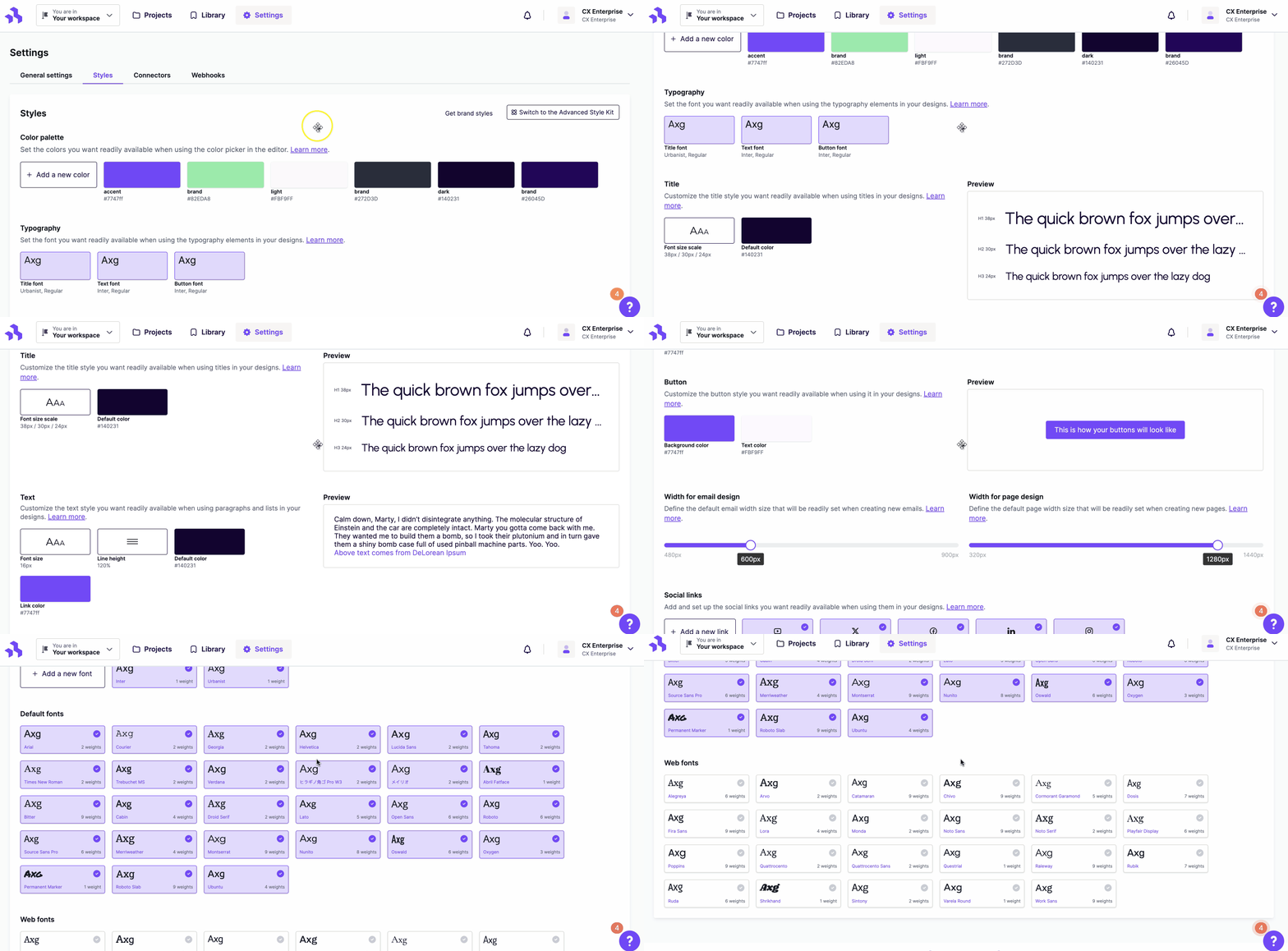
If you're on Business or Enterprise, see Advanced Style Kit for Workspace Styles.
Workspace Colors
Use workspace colors to create a custom color palette. A color palette can include, at most, 16 colors. These colors are available in any color picker inside the RGE Studio builder.
Adding colors
The custom color palette is at the top of your Workspace Styles.
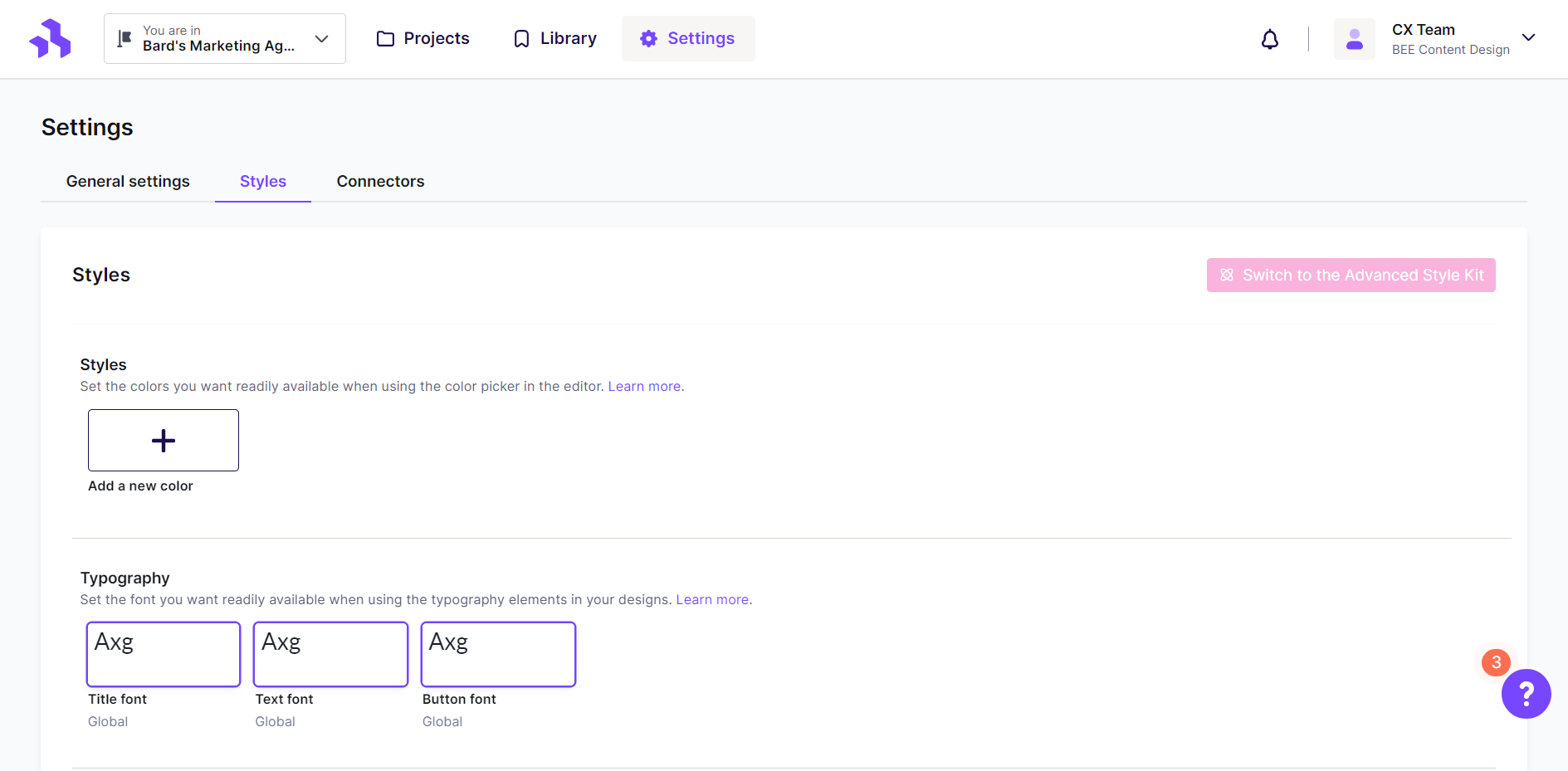
Press the + button to open the color picker.
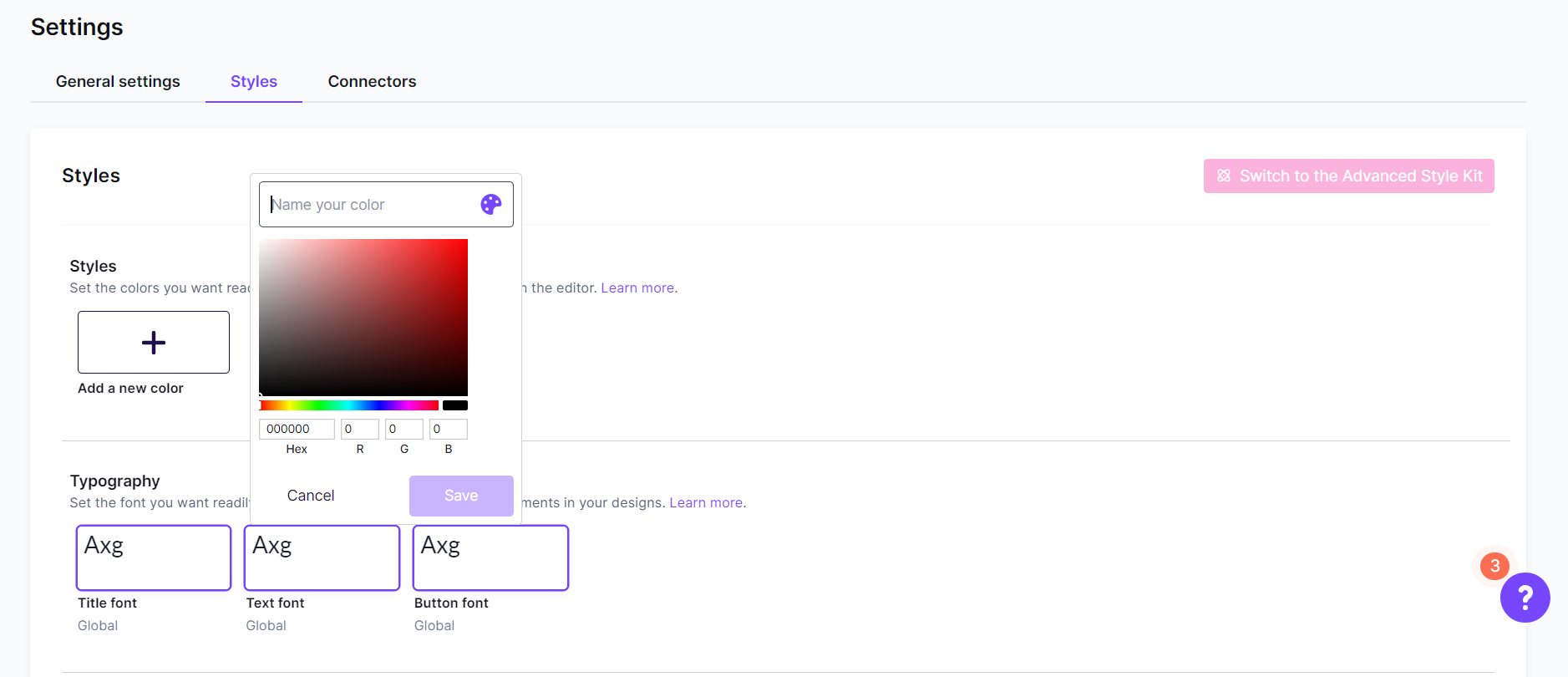
Use the Name your color field to assign a name to your custom color. Custom color names are visible in your workspace style settings but do not appear in the builder. Select a color using the picker, or enter a Hex code or RGB value. Click Save to add it to your palette. The Save button is not available until you've provided a name. A confirmation message appears in the lower right corner.
Removing colors
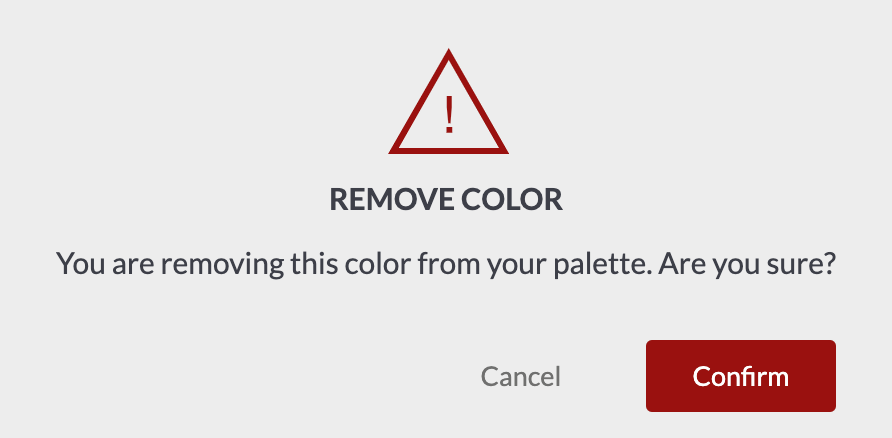
To remove a color, hover over it to reveal the delete icon.
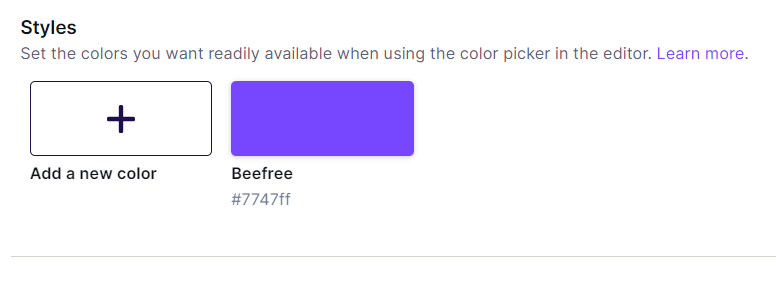
Click the delete icon and confirm the action to proceed.
Color Palette Control
Color editing permissions are available on Business and Enterprise plans.
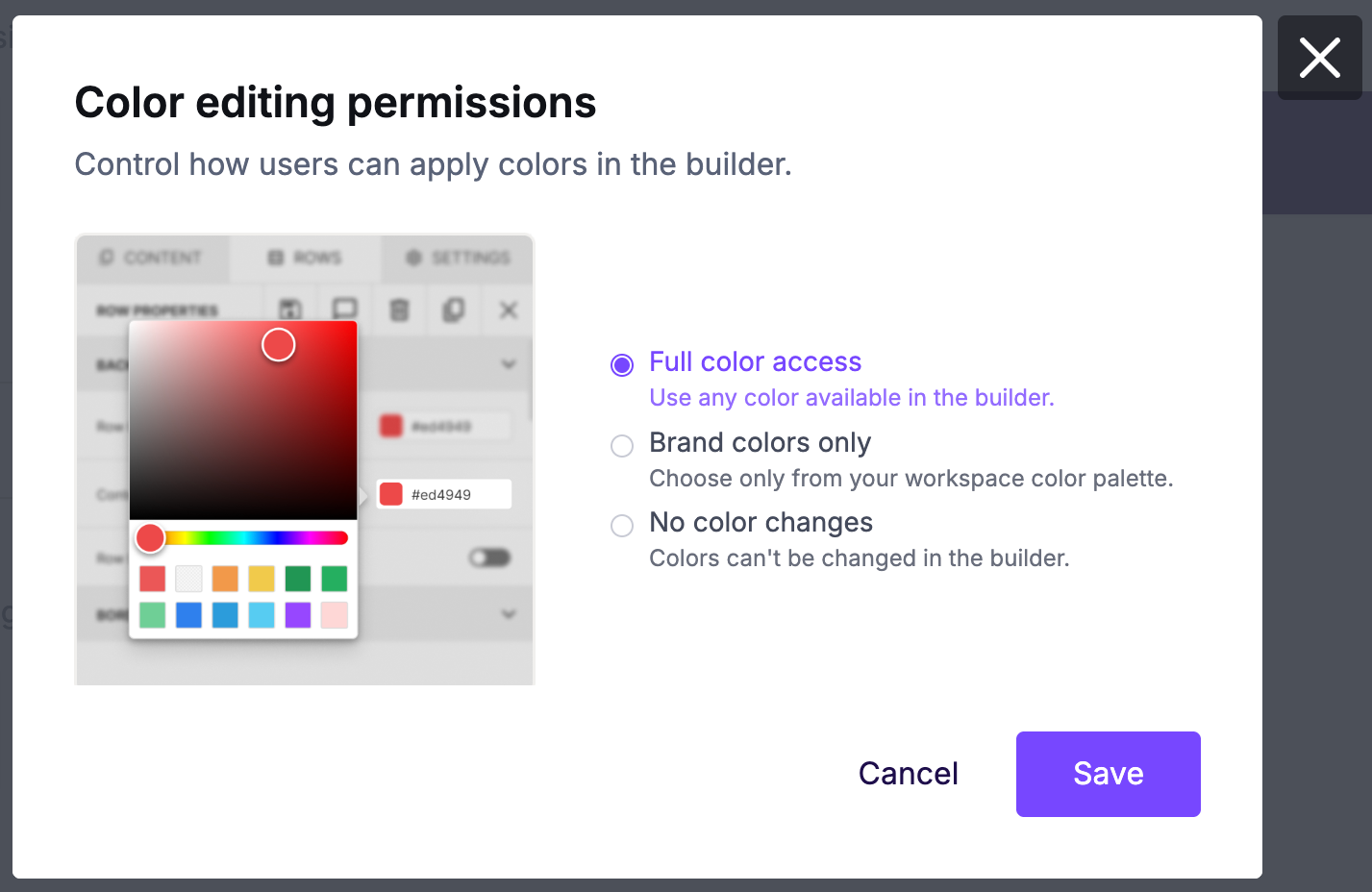
You can control whether your team can use colors outside of the workspace color palette. Owners, Admins, and Managers can edit the permissions. The selected permissions apply to all user roles inside the builder.
This provides two main benefits:
- Brand consistency at scale: Limiting access to custom colors keeps your team aligned and prevents off-brand mistakes.
- Simplified management: Permissions apply across the whole workspace. You don't need to set rules for individual users.
To modify permissions, click Edit under Color editing permissions. Choose from the following options:
- Full color access — Users can select any color while designing.
- Brand colors only — Users can only design with colors in the workspace color palette.
- No color changes — Users cannot modify color settings in the builder. Colors are determined by Workspace Styles.
Workspace Typography
The features in the rest of this article are not available in the Starter plan.
Set default fonts for the following content blocks:
- Headings
- Texts
- Buttons
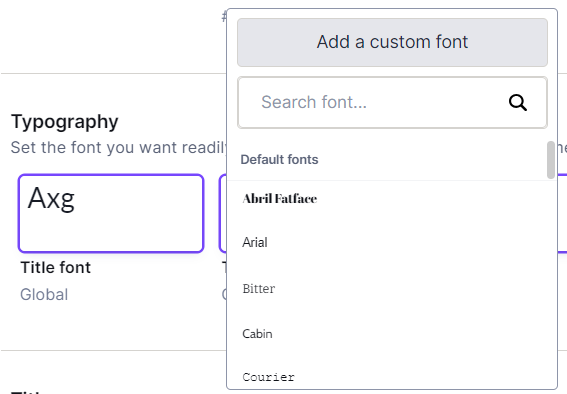
Click any font icon to choose from an existing font or add a custom font. When selecting a font, expand the list to see available font weights. All RGE Studio fonts include at least Regular and Bold styles. Select a font and weight for each default text value.
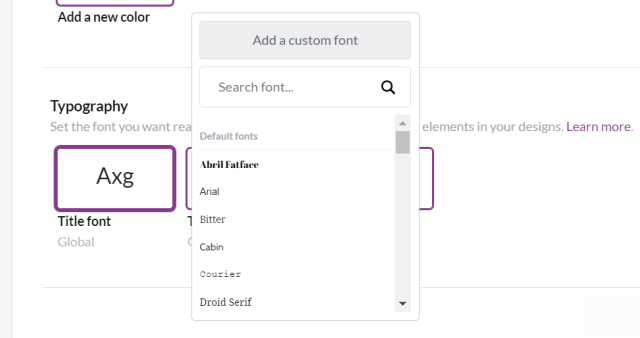
There is no dedicated preview for this section. The fonts you set appear in the previews for each associated content block type.
Workspace Titles
Set defaults for heading content if you have many designers working in your account. The workspace heading section lets you configure:
- Font size scale (H1, H2, H3)
- Major third (38px, 30px, 24px)
- Augmented fourth (64px, 44px, 32px)
- Golden ratio (110px, 68px, 42px)
- Default color

The font size scale sets default values for H1, H2, and H3. Use the color picker on the right to set a default heading color. You can preview all three title sizes based on the scale you select.
Workspace text settings
Set custom text and hyperlink colors, font size, and line height for paragraph and list content blocks.
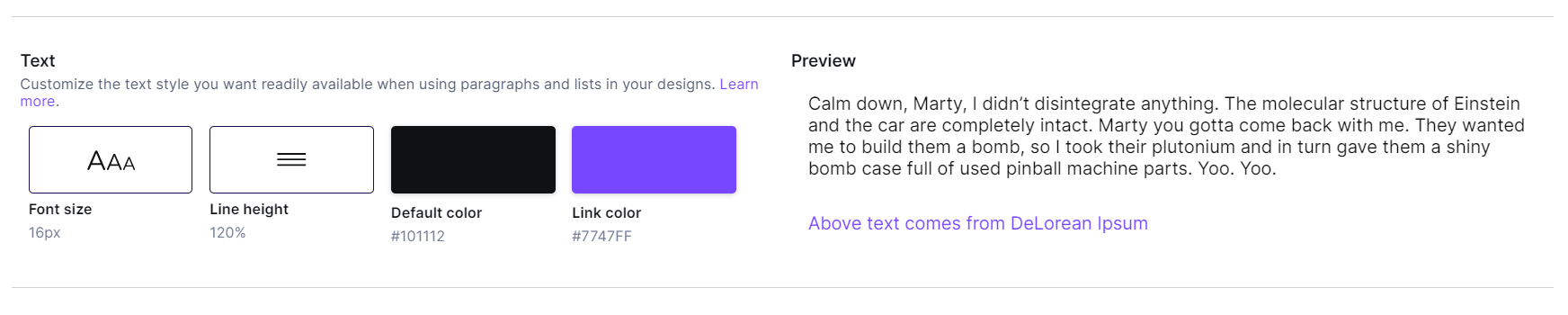
The font size button opens a modal with +/- controls to change the default text size. Only positive values are allowed. The line height option opens a modal matching what you see in the builder sidebar.
To change the color, click the color icon above the hex code to open the color picker. Click Save to confirm.
If you change your default text color to white (#FFFFFF), the preview text displays over a black background.

The preview shows all text workspace styles for paragraph and list blocks, including the default font set in Typography.
Workspace buttons
Set default button styles for your workspace. New button blocks you drag to the stage will use these styles automatically.
By default, your button will populate with RGE Studio colors. A preview of the button is also available. It updates in real time as you adjust the button values.
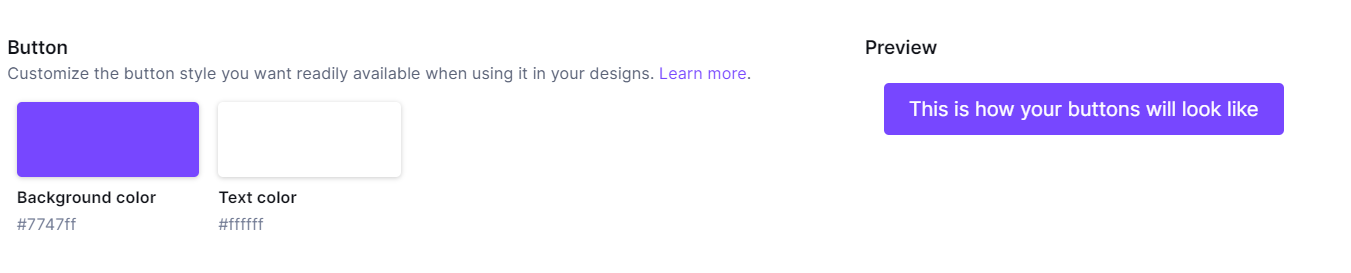
Change the background color and text color using the color icons to the left of each hex value. Click Save in the color picker to confirm.
If your button background is white (#FFFFFF), the preview displays over a dark background.

The button preview reflects the button font set in the Typography section above.
Workspace content widths
Set a default content area width for new emails or pages. You can set a different default for email and page designs. Click and drag to select a width. The available widths match the options in the Settings tab of the builder.

Workspace Social Icons
Set the social icons that appear by default when you add a social content block. You can also set URLs in your settings so they populate automatically in new designs.
By default, the social icon settings show Facebook, Instagram, Twitter, and LinkedIn.

Click an existing icon to customize it.
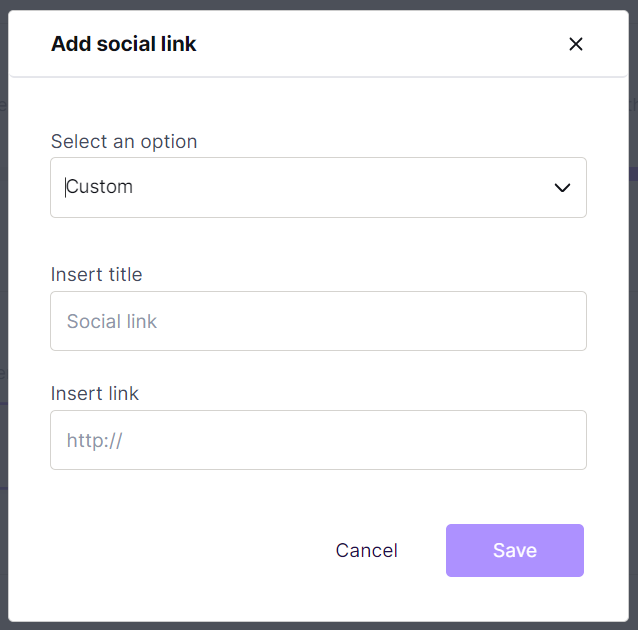
Edit the title and link for the icon. The dropdown at the top is locked in the edit modal. Click Save to confirm. A confirmation message appears in the lower right corner.
Click the + icon to add a new social icon. Select a platform from the Select an option dropdown. Enter a URL to activate the Save button. The title field is optional.
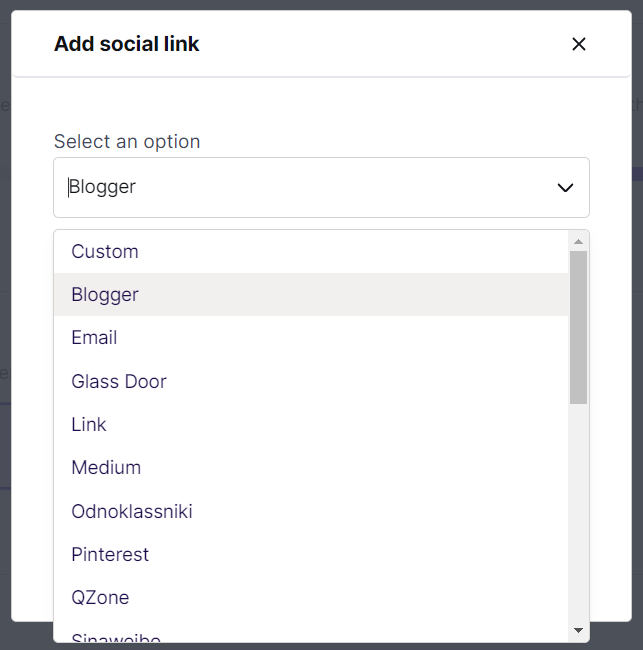
To delete an icon, hover over the checkmark so it becomes an X. Click it to delete.

A modal opens to confirm the action.
Up next: Designing with Workspace Styles
If you have any questions, feel free to contact us.
Comments
1 comment
Lovely update! Thanks for the information! It will be a great time saver.
Please sign in to leave a comment.