Search for free, high-quality stock photos and use the image editor in RGE Studio

Beefree App is now RGE Studio!
The email design suite you already know and love just leveled up. We’re working hard to update our help center, but you still may see some references to the old product name.
This article applies to the Email and Pages builder in all plans.
Searching for free stock photos
You can search for free stock photos inside the file manager. The photos come from Pexels and Pixabay. They are free to use under the Creative Commons Zero (CC0) license.
First, open the file manager. Accessing the File Manager section above explains how. Then click Search free photos in the top bar.
Adding a stock photo
-
Enter a search term, such as "pets." Each search result shows:
- The service the photo comes from
- A link to the original photo
- An Import button
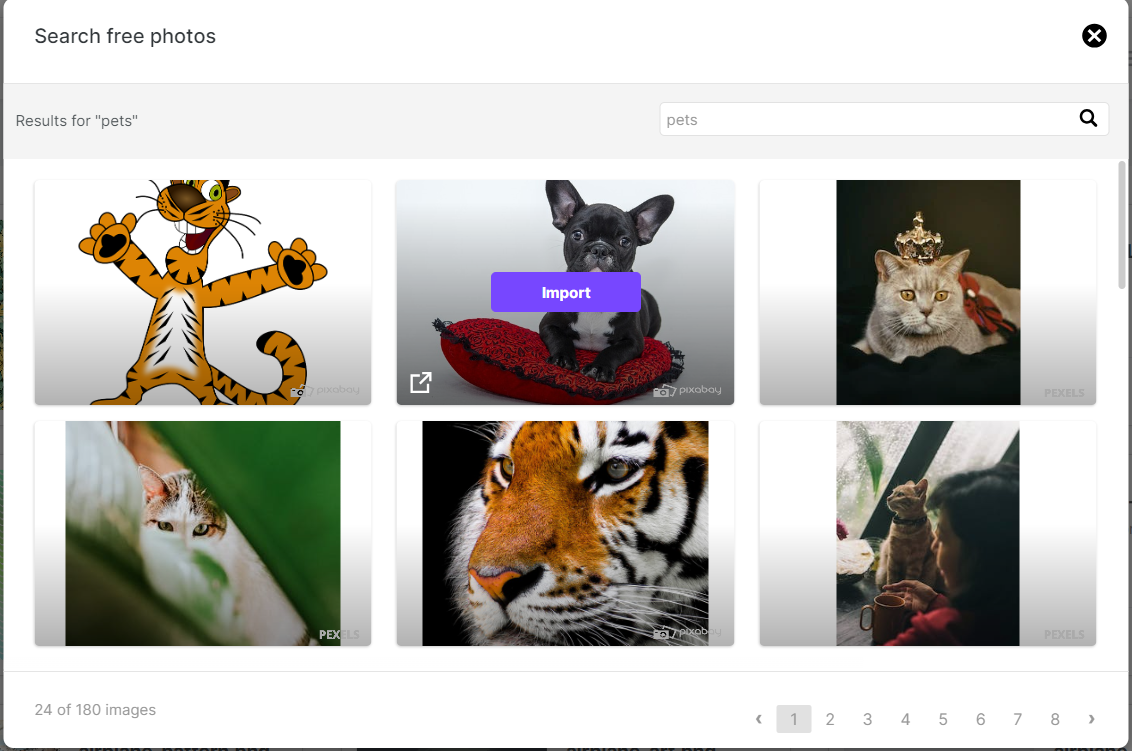
- Click Import on the photo you want. RGE Studio adds the photo to your file manager.
-
Click Insert to add the photo to your design.
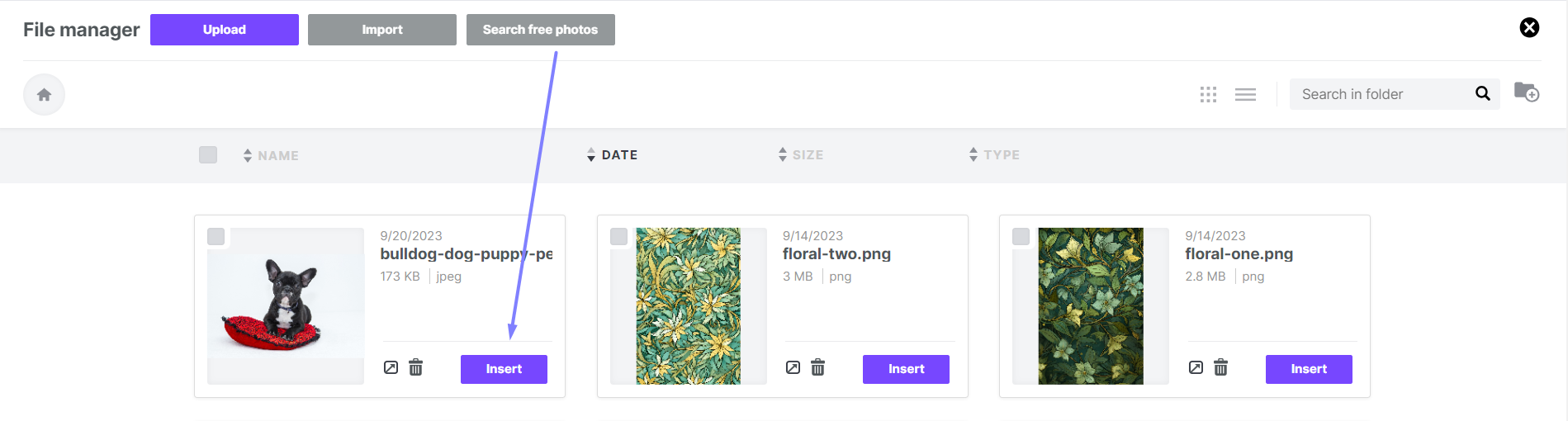
To edit the photo in your design, you can use the image editor.
Using the RGE Studio image editor
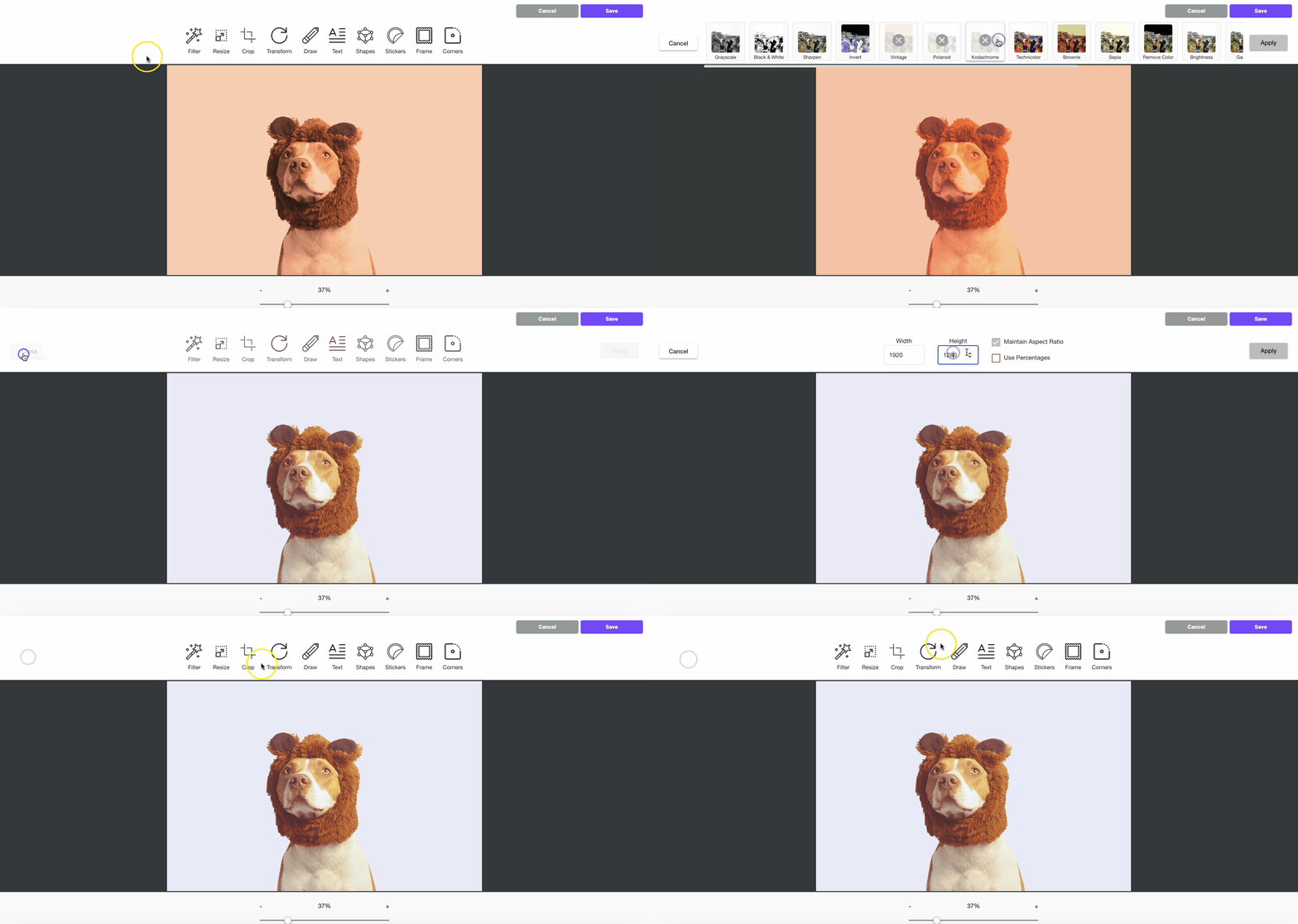
The RGE Studio builder includes an image editor. You can edit your images without leaving the builder. Use the image editor to:
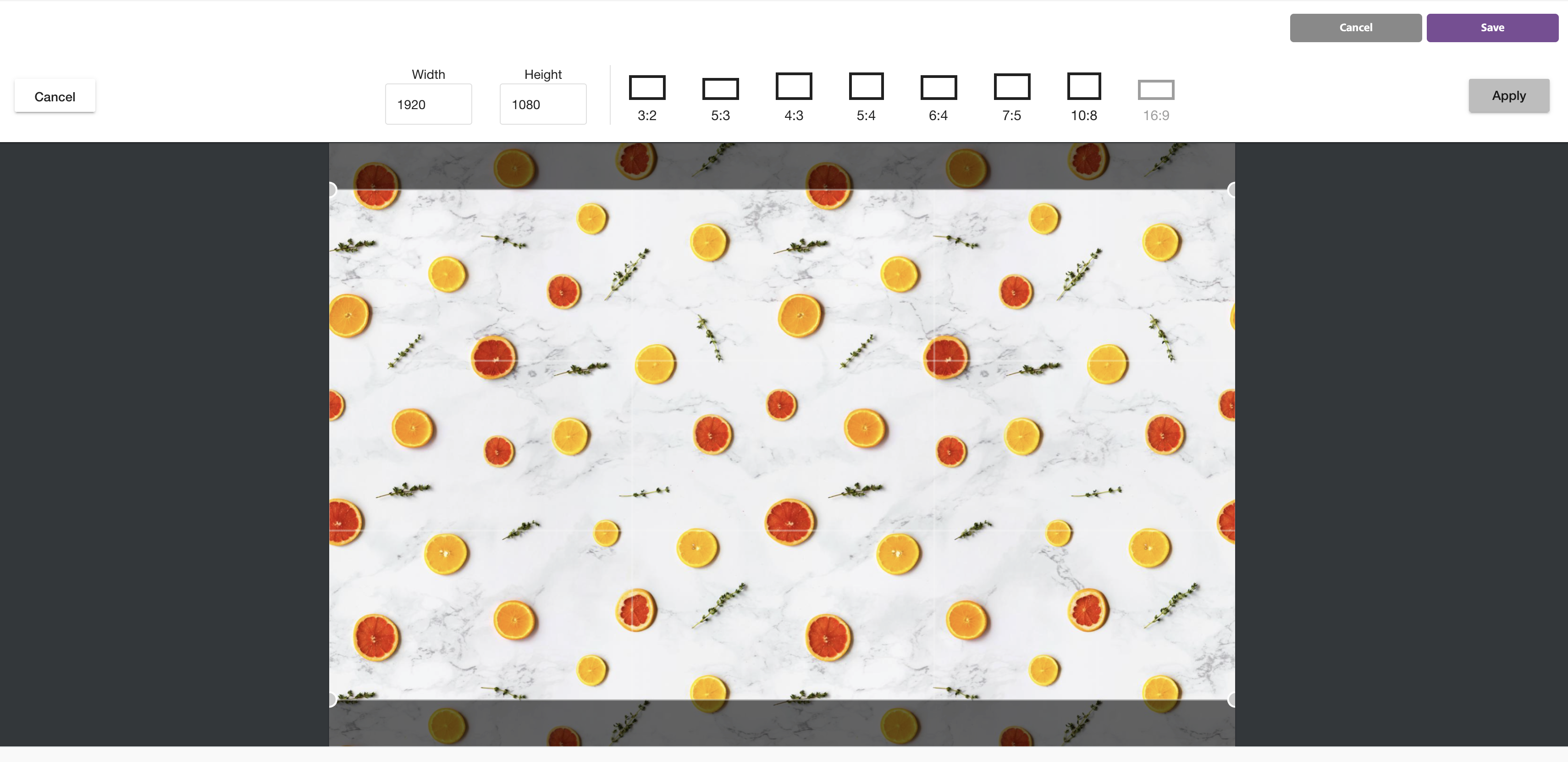
- Crop your image
- Rotate your image
- Resize your image
- Apply filters
- Add frames
- Add stickers
Access the image editor
Select an image in the builder. Click the Apply effects button in the sidebar.
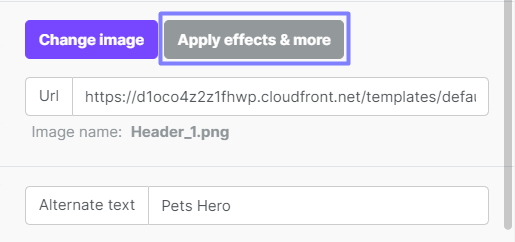
The image editor opens with all of its editing tools.
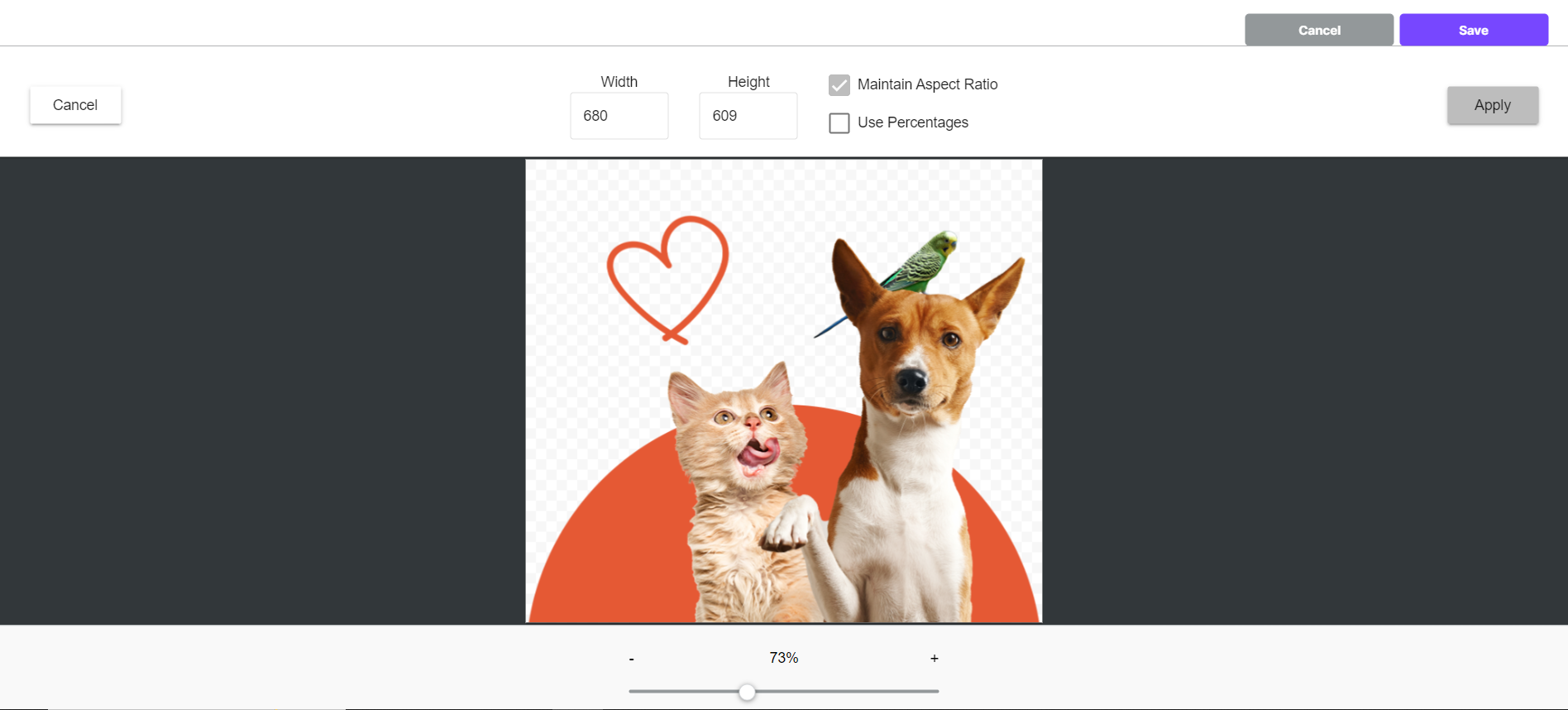
Resize your image
Use the resize tool to change your image size.
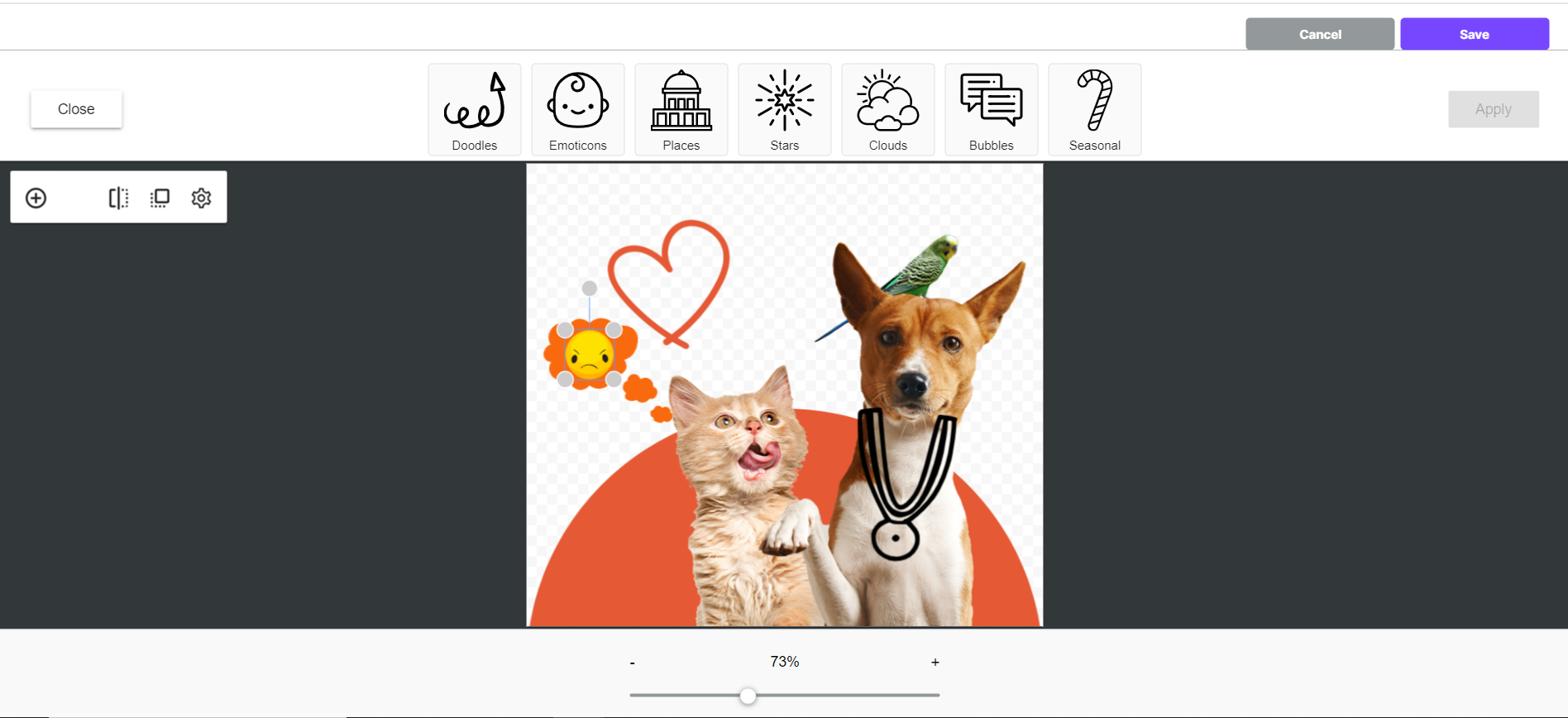
Add stickers
Add stickers to your image using the sticker tool.
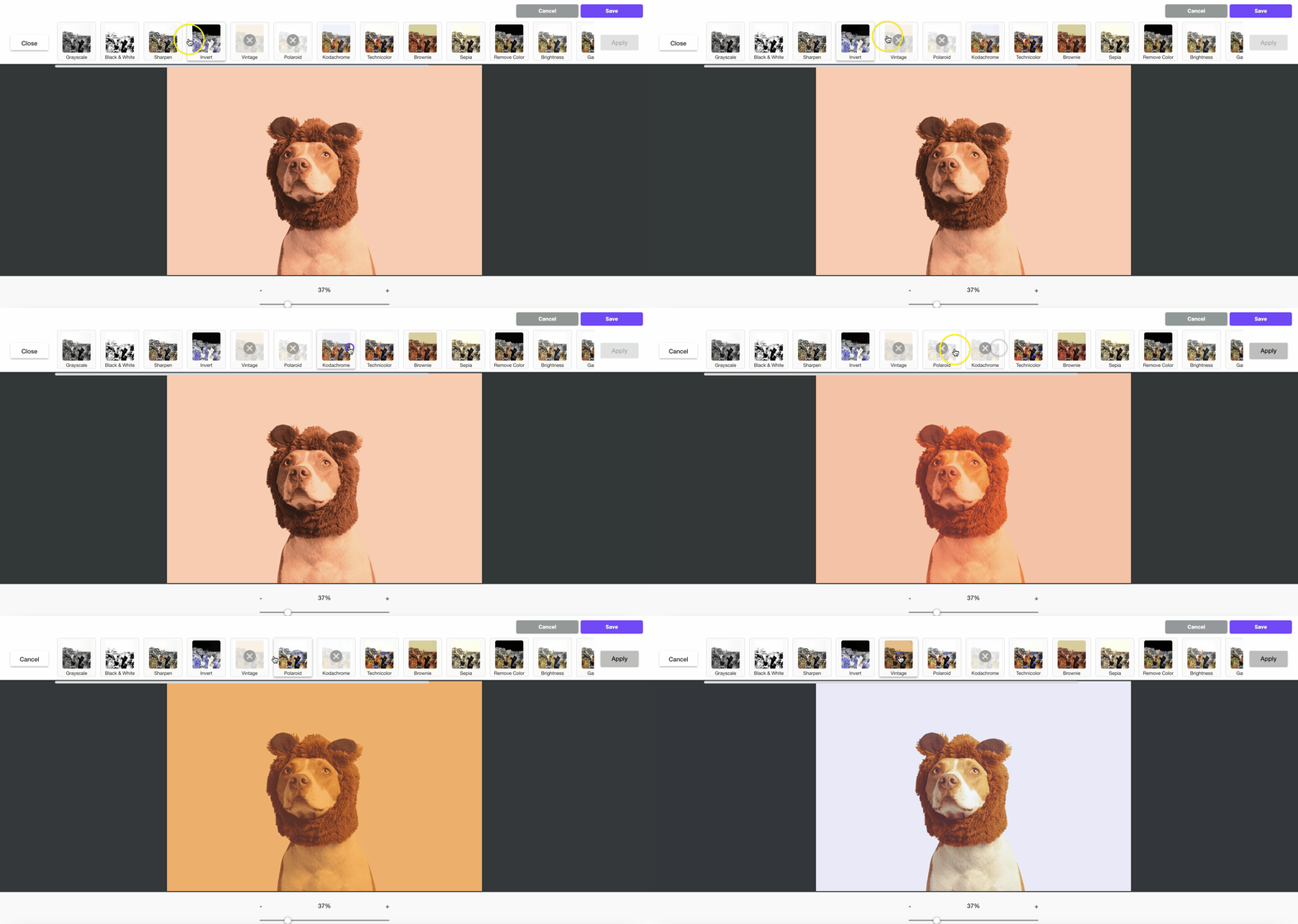
Apply filters
Choose from several predefined filters to change the look of your image.
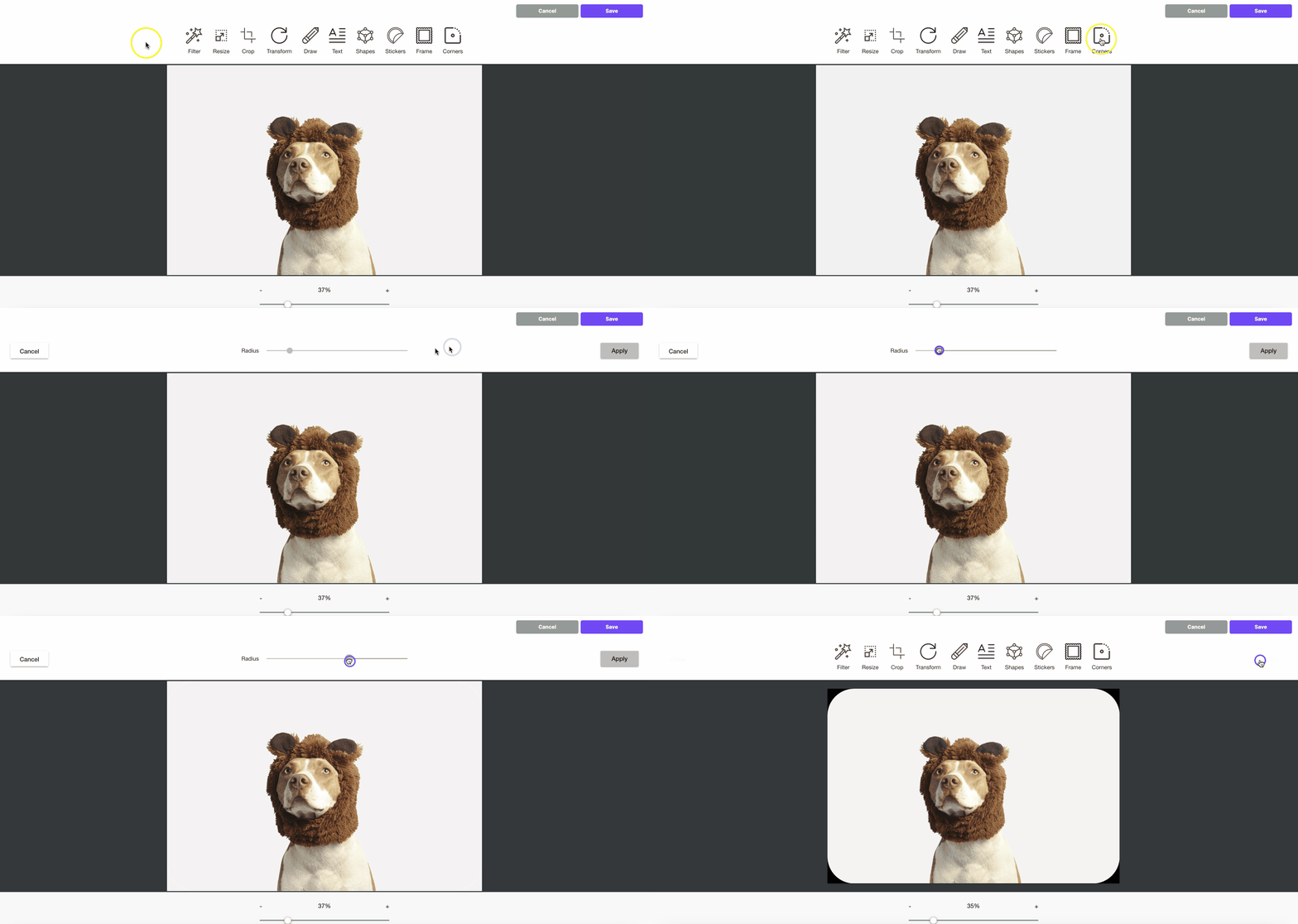
Round image corners
You can set round corners on your image. Save your image as a PNG file to keep the transparent background.
Additional considerations
RGE Studio saves every edited image to your file manager. This includes externally hosted images. When you edit one, RGE Studio uploads a new copy to your account. Charges may apply. To learn more, read Hosted image delivery (CDN) in RGE Studio.
If you have any questions, feel free to contact us.
Comments
2 comments
Hi,
"You can also edit your image to set round corners. Note that the image should be in PNG format to have a transparent background."
-> Is it possible to create an image in a circle row ?
Hi,
We appreciate your feedback. This is not yet a feature in the BEE Builder.
You can create a round image in a third-party platform and add it to your design in the BEE builder with the Image block as a workaround.
Thank you!
Please sign in to leave a comment.