Synced Rows

Beefree App is now RGE Studio!
The email design suite you already know and love just leveled up. We’re working hard to update our help center, but you still may see some references to the old product name.
This article applies to all plans. However, some features may be limited or unavailable on the Starter plan.
This article provides detailed information on synced rows only. If you're looking for tutorials on how to use saved rows, please check out one of our other Saved row articles:
Overview
Synced rows are a type of saved row. When you update the content of a synced row, the change updates every design where that row is used. For example, say you use the same header in every newsletter you create. If you need to update this header everywhere it's used, synced rows let you do this in a single edit.
In many ways, synced rows work the same way as standard saved rows. The workflow to create a standard or a synced saved row is the same. The saved row modal includes an option to select which type of row you want to create.
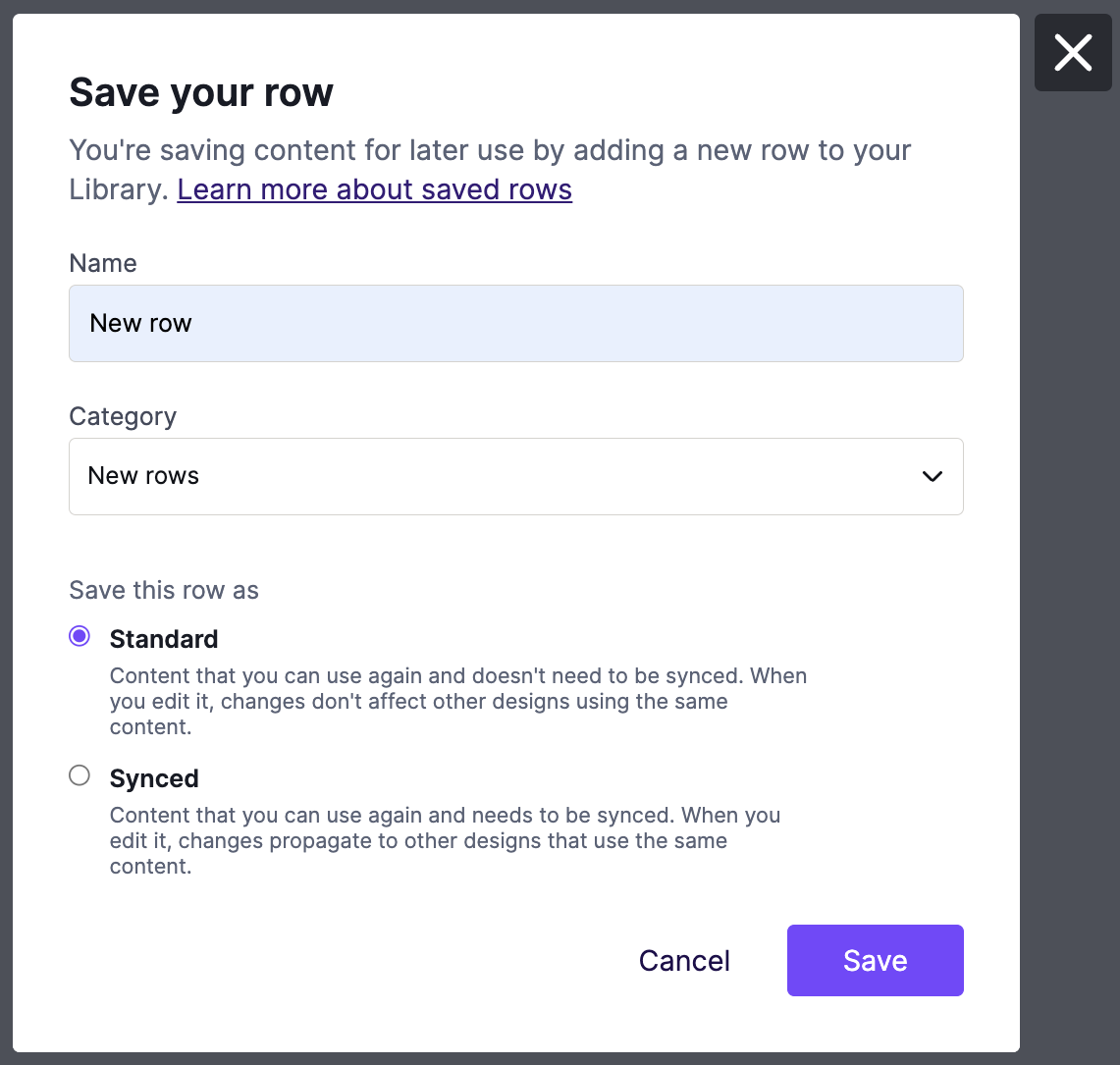
Working with synced rows looks slightly different from working with standard rows. In this article, we'll look at the options that are specific to synced rows.
Identifying Synced Rows
Let's start by looking at how you can identify synced rows in different places throughout RGE Studio.
In the builder
Identifying synced rows in the builder is simple. There are several indicators on both the builder stage and the sidebar.
Design Stage
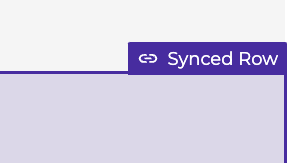
When you hover over design elements, a label populates to let you know whether it's a row or a content block. A content block label tells you which type of content block it is. When the label includes the icon pictured below, you're hovering over synced content.
When you select a row, several options populate in the upper right corner. Synced rows show a unique Edit icon as one of these options.
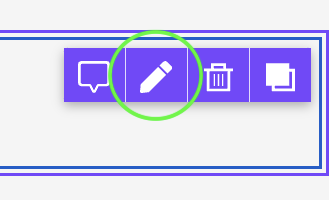
This icon only populates for synced rows. On every other type of row, you'll see the save icon instead.
Content blocks within a synced row appear locked. You can only modify synced row content in the row builder, which you can access from the sidebar or your Library.
Builder sidebar
You can see your synced rows in the builder sidebar's saved row list. They're displayed alongside your standard saved rows. Synced rows include the symbol pictured below so you can identify them easily.
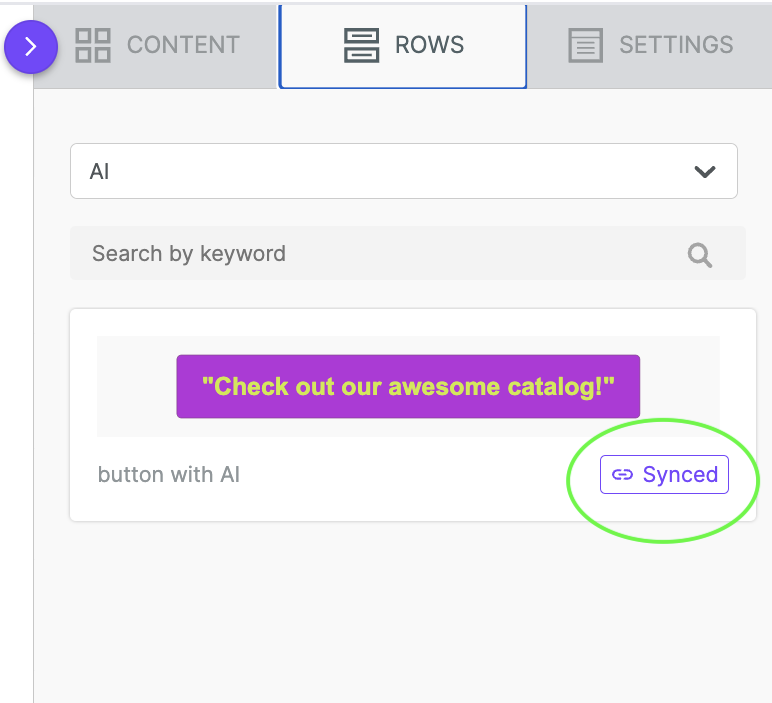
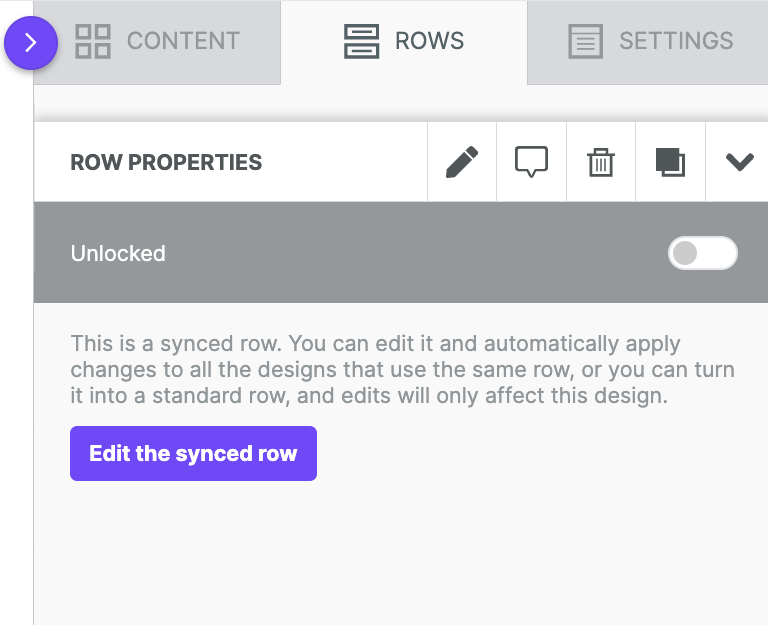
As mentioned above, if you select a synced row on the email or page builder stage, it's locked for editing. When you select a synced row, you'll see a disclaimer in the sidebar stating that this is a synced row. You'll also see a button allowing you to Edit the synced row, which brings you to the row builder to make changes.
In the Library
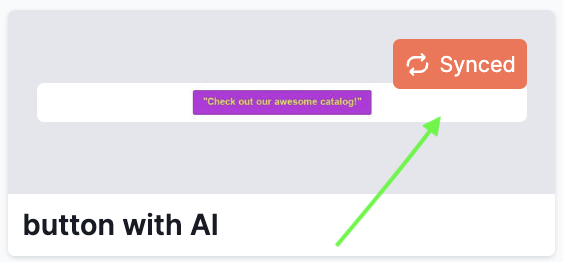
When you're in your rows library, synced rows display a special icon and label. This identifier appears in the lower left corner of the row thumbnail.
The workflows for updating and managing your synced and standard rows are similar. With just a few clicks, you can update and save your changes, or select all your synced rows and move them to their own category.
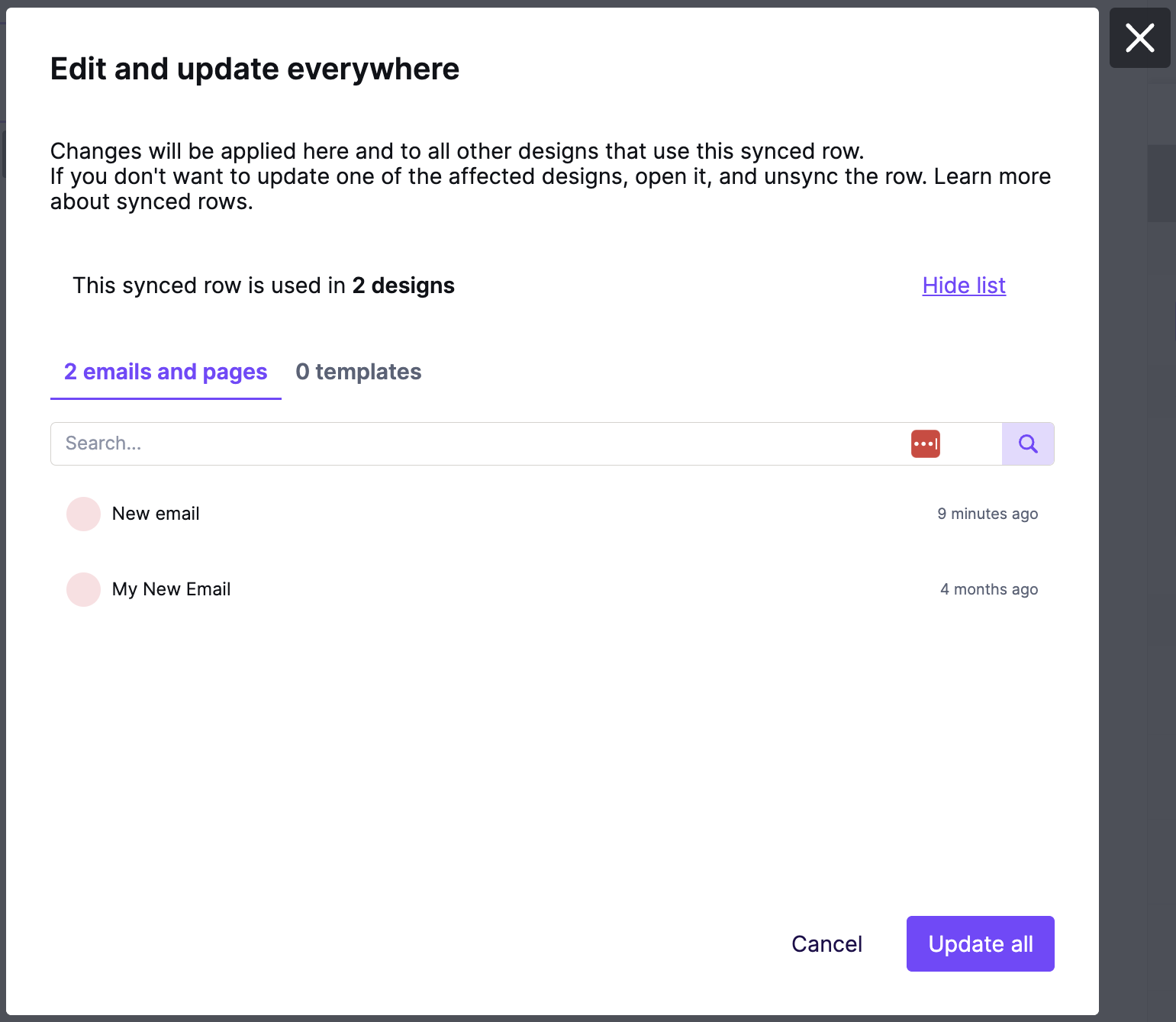
While editing synced rows in the row builder, the banner includes additional information. You'll see text stating how many designs contain this synced row.

When you save changes to a synced row, a modal displays the complete list of designs that include this row. This lets you know that any changes you make to this row will affect those designs.
Check out Designing with Saved Rows for more information on how this works. The Standard Rows section includes details on how to create a synced row from a standard row.
To delete a synced row, delete one row at a time from the library.
Collaborating with Synced Rows
There are some considerations to make when using collaboration features with synced rows.
Commenting
Commenting is only available for the entire synced row. This happens because the individual content blocks are locked. Apart from this, commenting on synced rows works the same as commenting anywhere else.
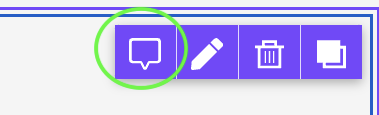
There may be situations where you turn a standard row into a synced row. If that row had comments tied to content blocks, they're no longer clickable once the row is synced. You can still view these comments at the row level in the sidebar.
Co-editing
This section applies only to the Enterprise plan.
If a synced row in a design changes during a co-editing session, it won't update in real time. This happens because you must exit the co-editing session to modify a synced row. If this happens, exit and resume the co-editing session to see the changes.
As a best practice, comment on the synced row after editing it. This lets other users in the co-editing session know about updates they haven't seen yet.
Unsyncing Rows
Say your business is growing, and you now have a second location for your ice cream shop. You need to change the address and contact information in your footer, which comes from a synced row. Because this is a second location, you wouldn't want to update any designs that refer to the original. You can use your synced row as a starting point to announce your new location. By using the unsync row option, you can do this without modifying any other designs.
When editing a synced row in the page or email builder, you can unsync it. As mentioned above, the email and page builder won't display row properties for synced rows. Instead, you get a disclaimer that you're about to edit a synced row, and an Edit the synced row button. Clicking this button opens a modal where you can choose to unsync the row.
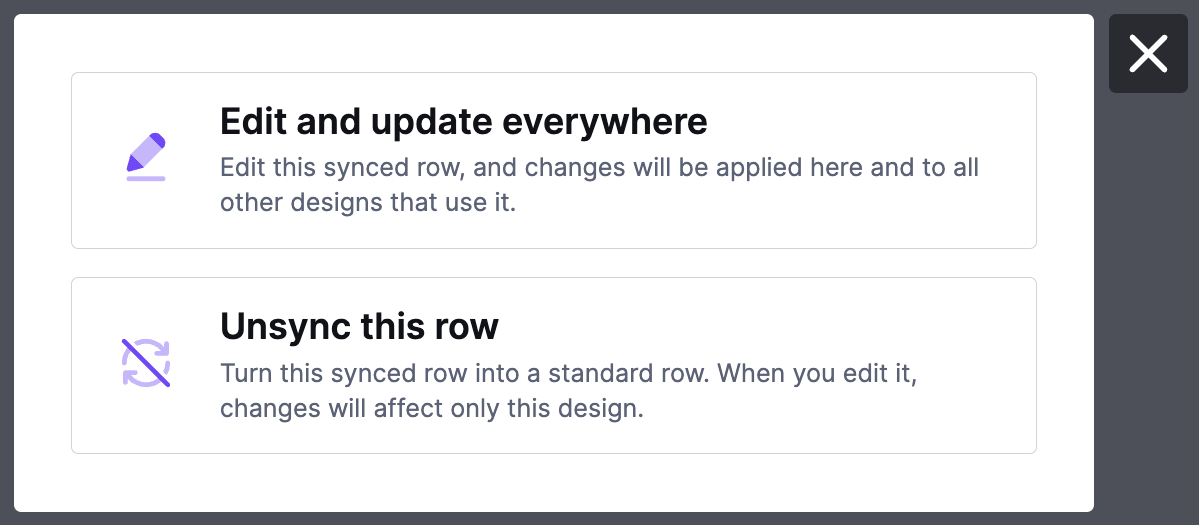
When you unsync a row, it becomes its own version, and any changes affect only that design. To add the new version to your library, save it again.
If you have any questions, feel free to contact us.
Comments
10 comments
One question regarding synced row, besides the person who created this synced row, is there a option can let the second person has rights to edit the synced row?
Hi Shi Chen,
Depending on the role, a second user can edit a synced row. Your admin, manager, editor, and contributor can edit the row in the builder, and your admin and manager save and manage these rows.
For more, please check out our Saved Rows article in our Help Center.
I copied and pasted a row and then changed the content. I tried to add a space between two rows and have been unsuccessful. Can you help me figure it out? Thanks
Hi Carol,
In general, you can use padding at the top or bottom of your row to create spacing, but you could also insert a spacer in either row to create more distance between them. Alternatively, you could add an entire new row between the two existing rows to get some space between them.
I see that you're associated with a paid Beefree account, so I've created a ticket on your behalf to ask for some more information about your specific design. This way, we should be able to give a more precise answer to your question. Please keep an eye on your inbox for an email from our Support team!
Hi!
Is there a way to restrict a sync row to be deleted from certain email template by a normal user?
Hello Matija!
At the moment, it is not possible to block a user with editing permissions from deleting a saved or synced row from a design.
The only user that does not have this permission is the Viewer user, who can only comment on designs or send a test email.
We offer four free Viewers with our Professional plan.
How to make a row synced after creating it? And how to change it from synced to unsynced?
is there a way to change an existing regular row to be a synced row?
If a row was created as STANDARD row is there a way to then swap it over to a be a SYNCED row?
It looks like a couple of people were wondering about how to switch a standard row to a synced row. In order to accomplish this, you need to create a new version of the row. Simply re-save the desired row on the builder stage for any email or page. If you select Save as new, you can save the new version as a synced row. We recommend giving it a unique name. For more information, see https://support.beefree.io/hc/en-us/articles/5872178483858-Designing-with-Saved-Rows#01GR4ZFKG0XZ13Y5TH6T0V4NQG.
The workflow for switching a synced row to a standard row is similar. If you re-save an existing saved row from inside the builder, you'll see the option to unsync it. For more information, see https://support.beefree.io/hc/en-us/articles/5872178483858-Designing-with-Saved-Rows#01GR4ZWFE1J7KTVP4BMXERBPGZ.
Please sign in to leave a comment.