Working with paragraph and list content blocks

Beefree App is now RGE Studio!
The email design suite you already know and love just leveled up. We’re working hard to update our help center, but you still may see some references to the old product name.
This article applies to the Email and Pages builder in all plans.
Overview
Use the Paragraph and List blocks to add and format text content in your emails and pages.
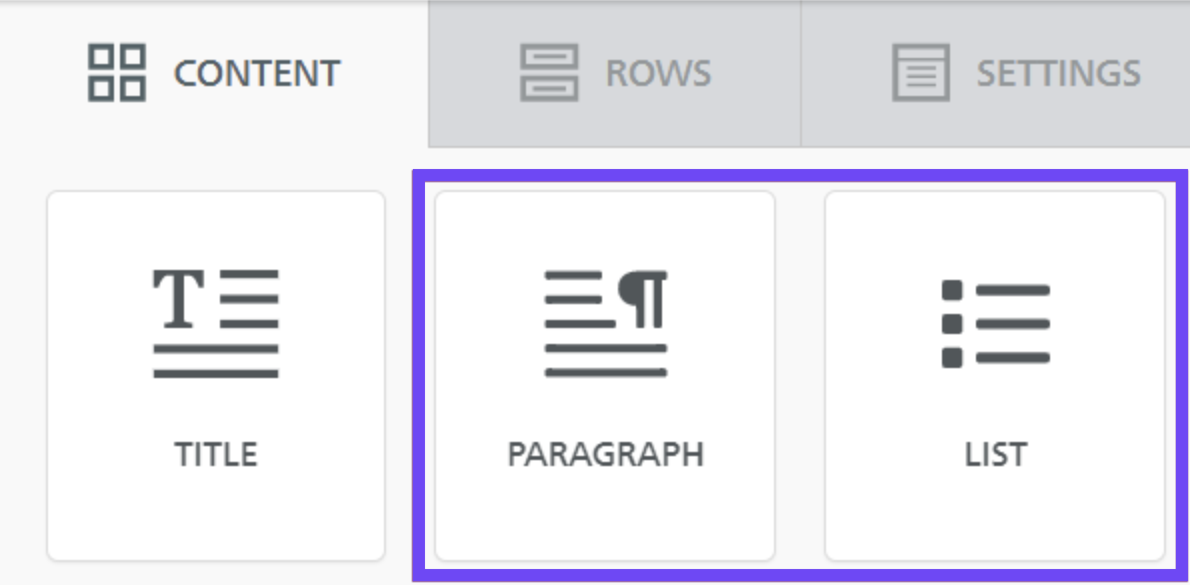
They share many formatting options with other text-based blocks, including:
Paragraph block
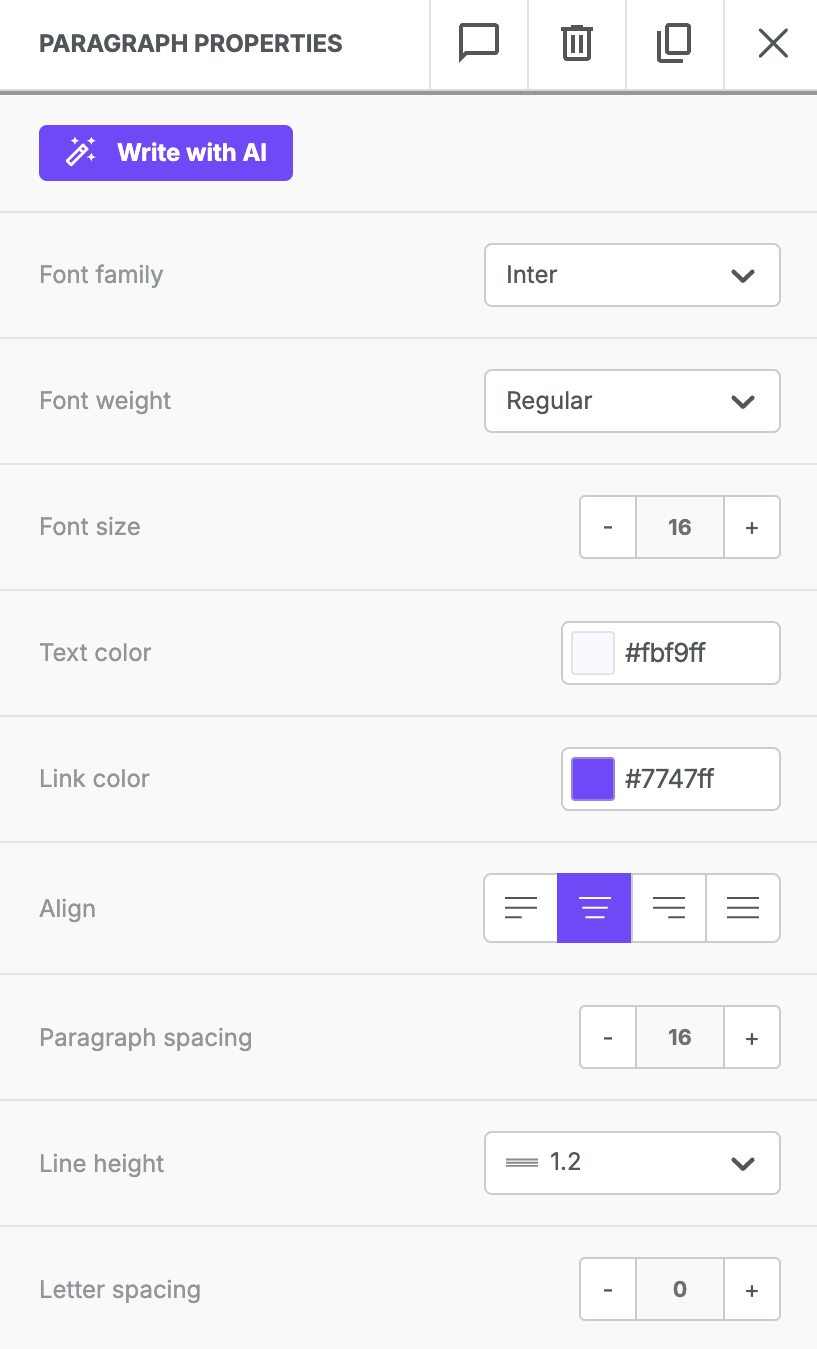
The Paragraph block includes typography options in the Content Properties sidebar: font family, weight, size, color, alignment, text direction, line height, and letter and paragraph spacing.
Toolbar
The toolbar includes a non-breaking space button next to the emoticon button. Use it to insert non-breaking spaces quickly when adding content.
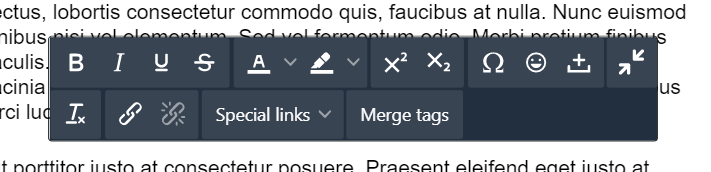
Use the text toolbar to format individual words or strings of text. Available options include:
- Rich text formatting: Apply bold, italics, underline, or strikethrough.
- Colors: Change text color or background (highlight) color.
- Superscript/subscript: Shift text slightly above or below the line.
- Special characters: Insert special characters, an emoji, or a non-breaking space.
- Clear formatting: Remove formatting from existing text, including text pasted from another tool.
- Links: Insert or remove hyperlinks. Control link underlining in the Insert link modal.
- Special links and merge tags: See our help center documentation for details.
AI Assistant
Use the AI assistant to help create content. Locate the Write with AI button in the sidebar. This feature works with Paragraph, Title, List, and Button blocks. For tips on using AI to write content, check out this article.
List block
The List block shares formatting options with the Paragraph block. It also includes list-specific features, such as:
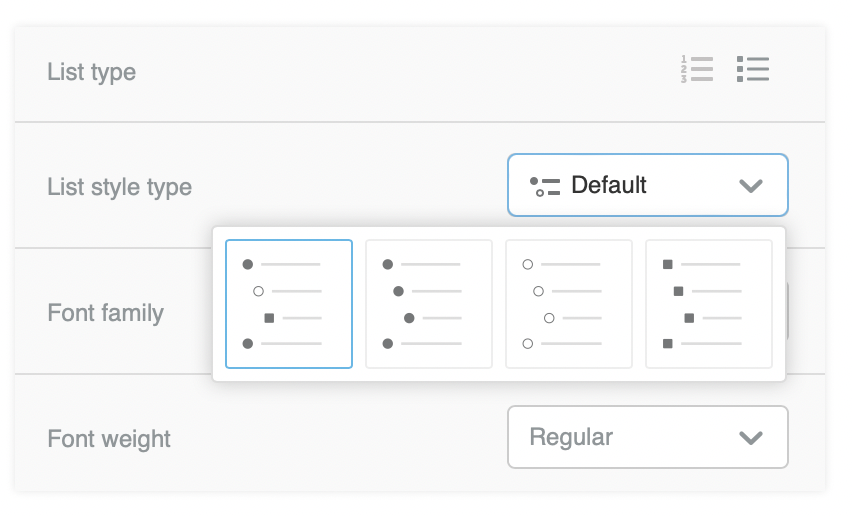
- List type: Choose an ordered or unordered list.
- List style type: Choose a basic style for your list.
- Start list from: Set a custom starting number for ordered lists.
- List items spacing: Adjust the space between list items.
- List items indent: Control how far subitems indent within your list.
Letter and paragraph spacing
Letter spacing and paragraph spacing help you fine-tune the readability of your text. You'll find both options in the sidebar for text-based content blocks.
Letter spacing
By default, letter spacing is set to 0 pixels. Use the - and + symbols in the sidebar to adjust it. You can also type a value directly.
Letter spacing values can be positive or negative. Use a positive value to increase the space between letters. Use a negative value to decrease it.
Paragraph spacing
Paragraph spacing applies only to the Paragraph block. By default, it's set to 16 pixels. This creates double-spaced paragraphs.
Use the - and + symbols in the sidebar to adjust it. You can also type a value directly.
Additional considerations
- Letter spacing ranges from -99 to 99.
- Paragraph spacing ranges from 0 to 99.
- Letter spacing and paragraph spacing rendering can vary across browsers and devices.
Existing text content blocks
The Paragraph and List blocks replaced the original Text content block in 2022. Some RGE Studio templates and saved rows still include the Text content block. This block keeps its original toolbar, sidebar, and formatting options.
You can keep using the Text content block anywhere it already exists, including in saved rows. To create new text content, use the Paragraph and List blocks on the Content tab.
If you have any questions, feel free to contact us.
Comments
40 comments
This is nice and all but you eliminated the JUSTIFY Text alignment. Which was part of the previous text block.
Perhaps I'm missing something but how do you edit the text size of a single word within the new Paragraph block without it changing the remaining words to the same size? This is something we were able to do with the Text content block.
I agree. You should leave the option to justify or be able to continue using the previous text widget, which had more options in the editor.
Thanks for the feedback, Humberto!
Our users are running into similar issues and find it a little confusing or more tedious. With the previous Text block you could format text with different sizes, create lists, etc. all within one block. Now if you want to create a list you have to end your paragraph block, insert the list block, and then reinsert a new paragraph block if you want to add more paragraph/text after it. You're also unable to change the font size in a paragraph for specific words withing a paragraph since it applies the change to all of them.
was searching here and there for justify text alignment. Just got to know that it has been removed and I am disappointed.. Why did you remove it? Bring it back pls
I also agree! I so miss the old formatting options, including the justify options. And I don't like that I have to create a new row in order to add a list - it's extra steps that aren't necessary. PLEASE bring the old text option back!!!
Am I missing something here? By using the paragraph block, it appears that ALL its text must be the same size, color and font. There no longer seems to be any text block which allows for mixed format text. If so, this is a huge loss, a giant step backward.
I agree. You should leave the option to justify or be able to continue using the previous text widget, which had more options in the editor.
Hi again! We added the justify option to these content blocks today. :)
Yes, thank you so much. Appreciate it.
Received some minor feedback regarding the font settings in the paragraph and list content blocks. In the general settings tab you can choose a Default font. Within the paragraph and list blocks the Font family is listed as Global font. Some of our users thought this was a little confusing and suggested to instead display the font name used from the settings tab or replace Global font with Default font.
I cant even put content blocks anywhere to make my own template! Help!
Hi Cadence, if you're still having trouble with this, could you open a community post and provide further information?
Thank you for solving my problem! I am using my ipad. I dont have a computer. I guess I’ll just log out and cancel my subscription :( i really liked bee pro :( thanks again.
Hi,
1. Can you add numerical values (100 to 900) on the font-weight dropdown select? Many times the design has different font-weight than normal (400) and bold (700) and we can't set this from the beefree email editor.
2. The font weights that we configure on the account settings > styles, are not propagated on the html export of the email. So we have to manually replace the HTML code. For example we change:
to
It would be great if the html export respects the "Font CSS URL" from the custom fonts settings.
Thank you, Aris.
Hi Aris! This section of the custom fonts article might better address your questions: https://support.beefree.io/hc/en-us/articles/360004546251-Using-custom-fonts-in-BEE-Pro#01FYF7AS2AGNK37MA2SDE4QJCR. Right now, the font-weight feature in BEE Pro is only programmed to recognize weights 400 and 700. You can use other font weights, but this requires some extra steps and a separate stylesheet.
With all this said, I'm happy to let our Product team know that you are requesting additional font weight options!
Pro Tip to anyone missing the old text options. If you have an old email, copy that into a template and duplicate a box that has the old text options. You can continue to duplicate, and they all contain the old options.
Devs... please leave this as is. The new options are less efficient.
Hello! Thanks for your comment. I'm going to forward your feedback to our Product Team.
I use the same method. Copy and paste the text element. I am using the templates in a Laravel application. The paragraph is not workable, while the text attribute works fine. My vote is bring the text attribute back.
We have several users that have been copying their same template that existed before the change to separate paragraph and list blocks. However it gets confusing when we onboard new users into new workspaces that have the updated features.
According to BEE, the new blocks were added:
With respect to separating paragraph from list content, our users' experience isn't better. It takes longer to create/format content compared to the previous method and it's not intuitive because users expect to find the list option within the paragraph block (similar to every other editor). Also, some formatting options in the paragraph content now apply to the entire paragraph and not individual words.
We always advise our users to never copy/paste directly from an external tool such as Microsoft Word, Outlook. etc. Microsoft content contains a lot of proprietary formatting tags that result in formatting/layout issues once our emails are sent through our CRM/marketing tools. Instead, our users are trained to strip out the formatting by "pasting as plain text" and then format their content natively within BEE.
We've found the previous set-up where you could incorporate lists directly into a text block much more user-friendly and intuitive. Hoping BEE goes back to this.
I am running into the issue where I lose the indent formatting in the bulleted list. If you have long texts on the bulleted list, the indent looks fine on the editing page, but if you click preview or export the html, the bulleted list indent formatting disappears. It's merely just a damn circle in front of each text line.
Hi Samantha! Thanks for pointing out the issue with the indent formatting when the text content extends beyond a single line of text. I've shared this with our dev team, who are currently investigating.
I love the convenience of the LIST block, but it doesn't work when viewed from DESKTOP OUTLOOK APP it's fine on the mobile app and online. I have to modify the code in a separate text editor to get it to work for OUTLOOK DESKTOP. Any way to look into this so I or anyone else doesn't have to do the same? I'm sure I'm not the only one.
Hello Gustavo,
We are aware of this issue tied to Outlook App and are working on a release that should help.
I have posted a ticket for you as we would like to troubleshoot the issue you are having and gather more information.
Is this discussion section moderated? I attempted to post yesterday and my comment didn't appear. Tried again a few hours later and still nothing.
Hey Kyle! This discussion section is moderated, I'm not sure why they were not going through but I checked with my team and all posts from yesterday were approved. I apologize, I'm not sure why they were not going through. Please feel free to try and post again and if you continue to have issues please open a ticket and let us know!
Hello, team!
I'm making a letter with the List, and it looks somewhat like this https://i.imgur.com/UiWvsQs.png
But in the preview there are no difference in the levels of the list, it just all goes right https://i.imgur.com/aq4avpd.png
The same thing happens when I send a litter - all the lines go to the right of the page, no matter what I do.
That happens only in the List block, while using simple Text block and list formatting within it, everything's fine
Hello Anna! We are sorry for the inconvenience this has caused.
We are aware of this List block bug and our developers have been working on a fix for it that will soon be released.
Please sign in to leave a comment.