Exporting your pages to HubSpot Marketing

Beefree App is now RGE Studio!
The email design suite you already know and love just leveled up. We’re working hard to update our help center, but you still may see some references to the old product name.
This article applies to the Page builder in all plans.
Overview
Design your pages in RGE Studio and export them to HubSpot for publishing. The HubSpot connector lets you export a page with one click.
There are two ways to connect your HubSpot account:
- From Workspace Settings: connect before you start designing.
- From the Export options of your page.
Already connected HubSpot for your emails? You can use the same connector for pages.
Setting up a connector does not sync your designs with external services. If you update a design after exporting it, you must re-export to see the updates.
Follow the steps below or watch our RGE Studio Academy tutorial.
Before You Connect
Your HubSpot account needs the following to set up the connector:
- A Marketing Hub Professional or Marketing Hub Enterprise account.
- All admin permissions.
- These user permissions under Marketing Access:
- Read, write, and publish access to Landing pages.
- Edit code templates & modules.
- All other permissions shown in the screenshot below.
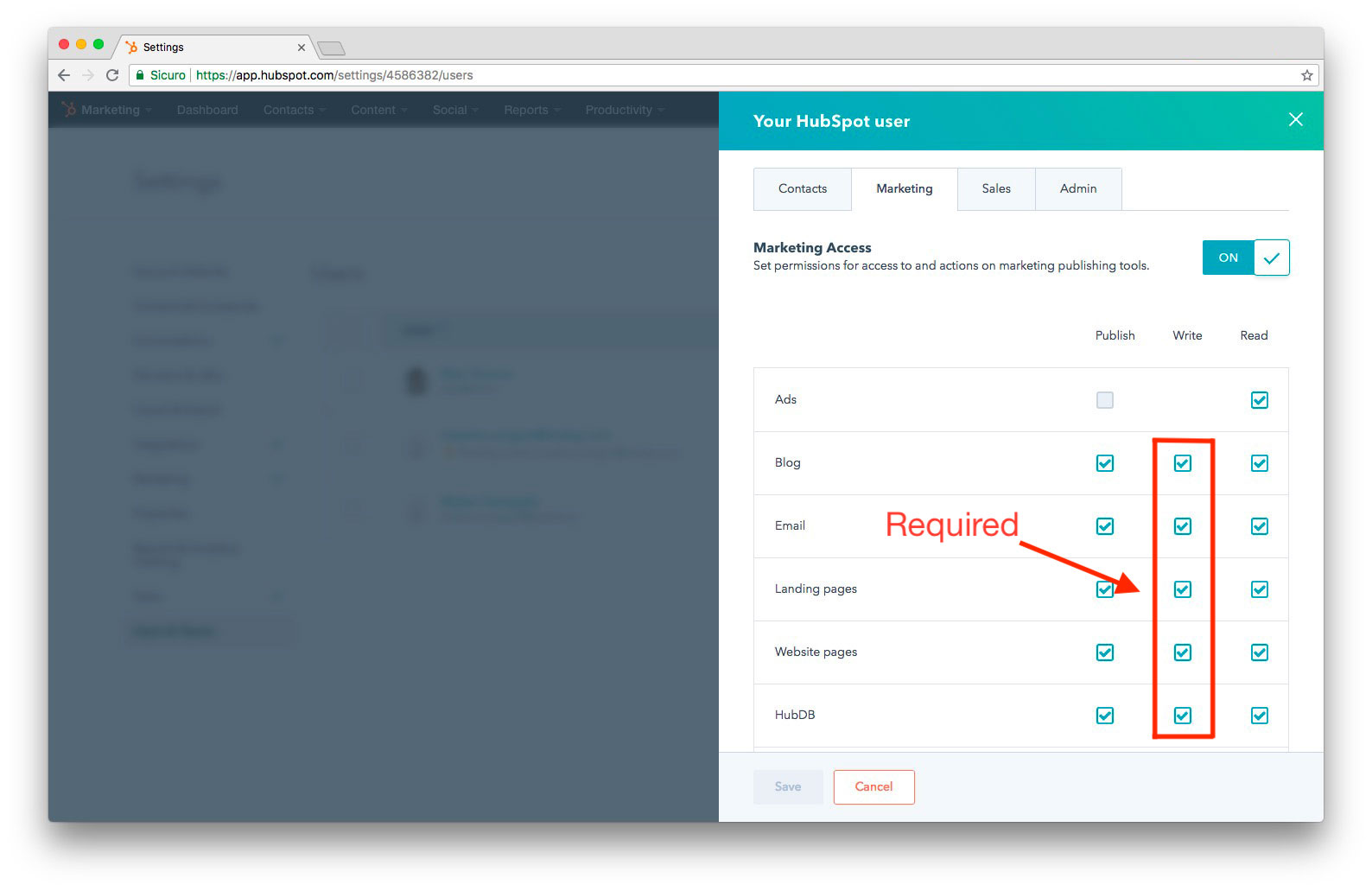
You need a HubSpot admin account to set up the connector. If you see a permissions error, check your user role. For details, see HubSpot's user permissions guide.
During setup, you authorize RGE Studio to access the content shown below.
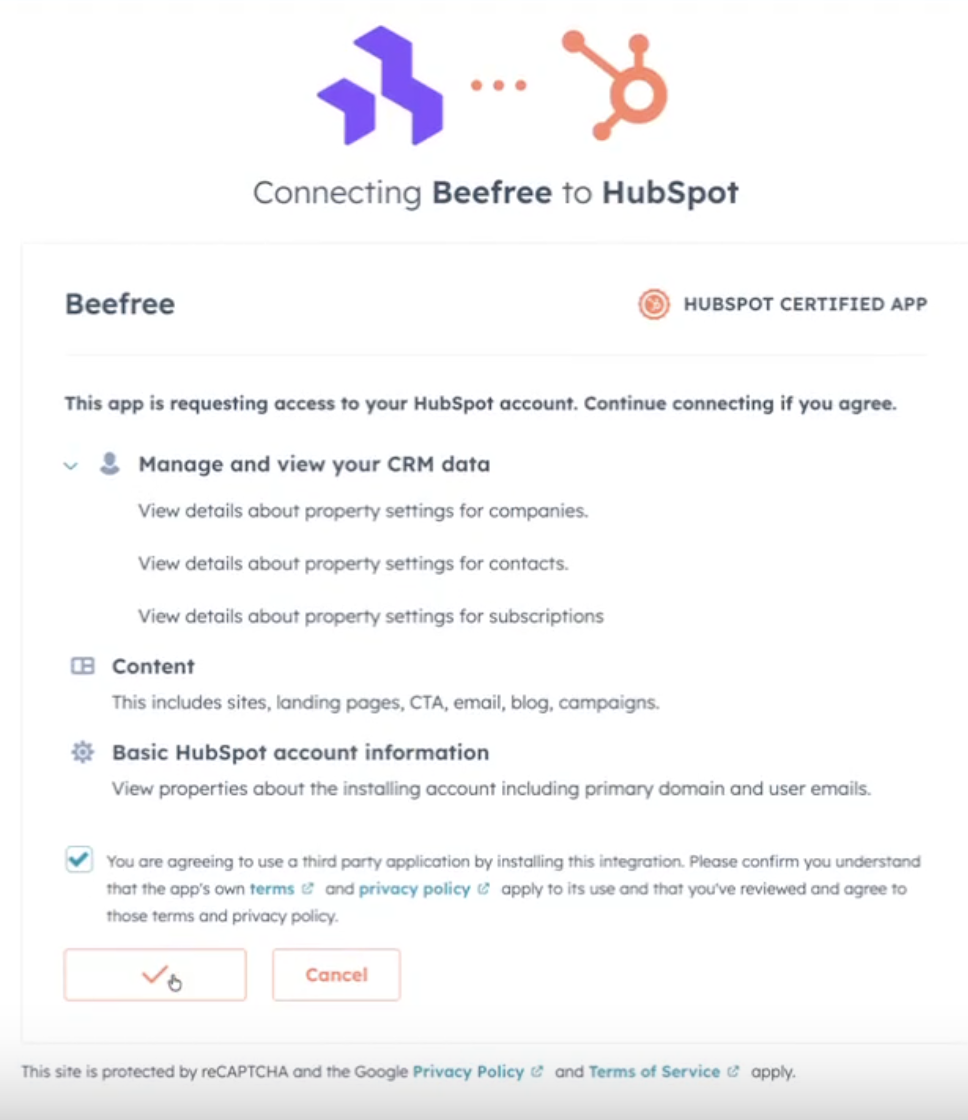
If you enabled Business Units in HubSpot, RGE Studio also needs permission to view them.
1. Connect from Workspace Settings
Go to Settings > Connectors.
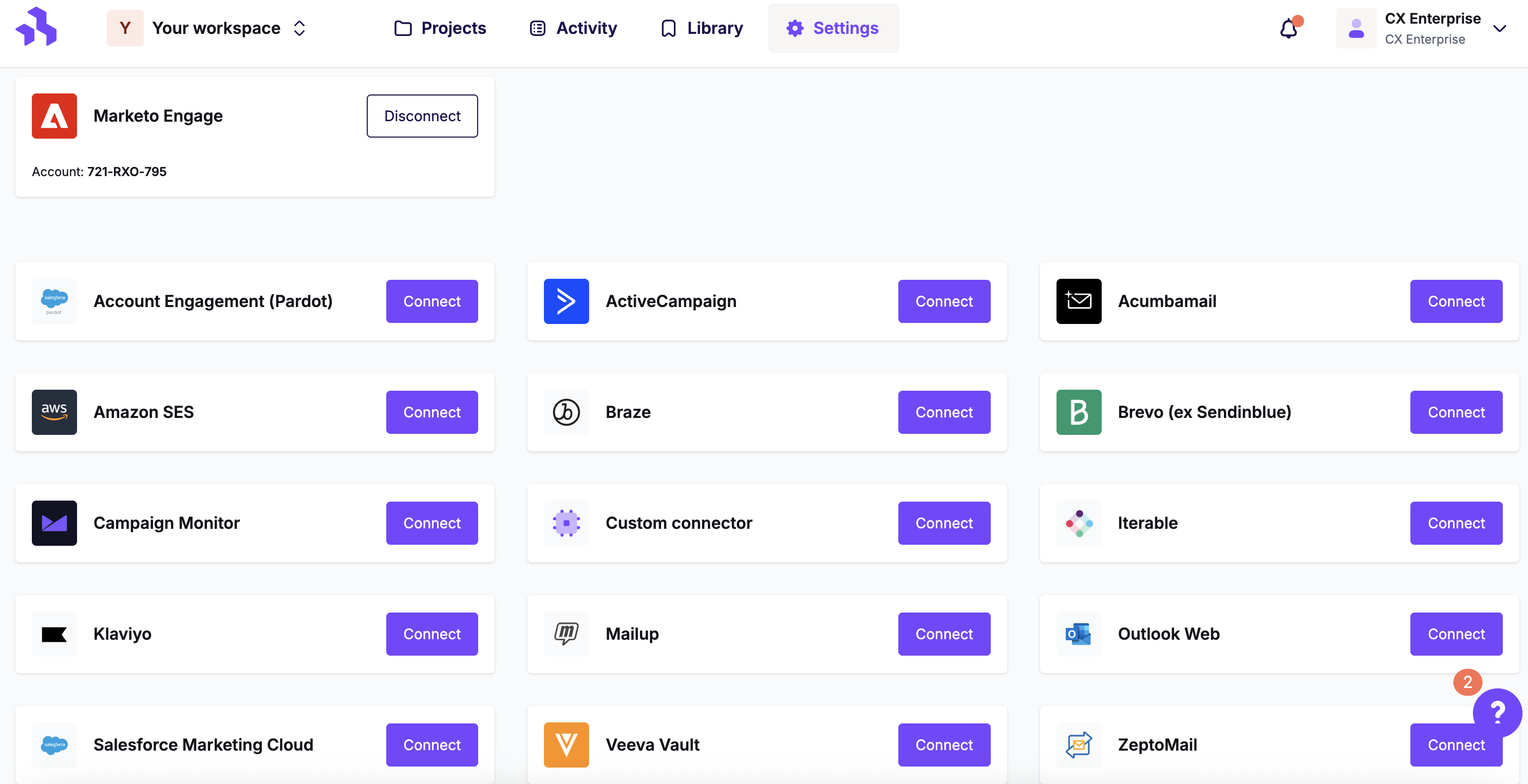
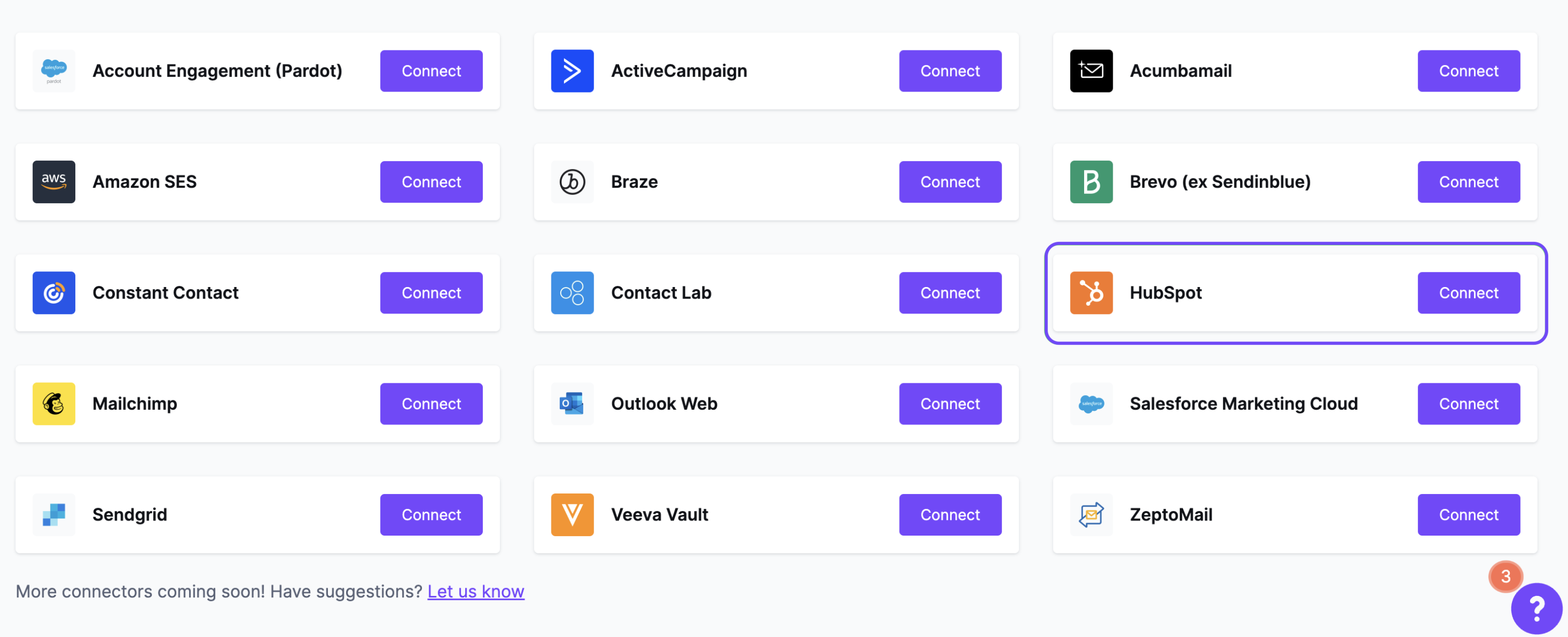
Click the Connect button for HubSpot.
If prompted, fill out the modal to start the setup. Your HubSpot credentials are not stored in RGE Studio. They are only used to link your accounts.
2. Connect from Export
When your page is ready, click the Export button on the Page Details page.

Under Integrations, click the HubSpot icon. Follow the steps to connect your account. If you already connected, RGE Studio skips this step.

If you added a page title and meta description in Page Details, they carry over to HubSpot. This happens on the first export only.
Exporting Existing Designs
RGE Studio recognizes when you export a page you already pushed to HubSpot. To overwrite the existing version in HubSpot, use Update the design. To export a separate version, use Create as new.

Updates apply to the page design only. To change the page name, title, or meta description, edit them directly in HubSpot.
The Update the design option is available for pages last exported on or after October 4, 2023. We changed the HubSpot folder name on that date.
Finding Your Page in HubSpot
After you export, log in to HubSpot. Your page is available in two places:
- As a template, when you create a landing page. Go to Landing Pages > Other Templates.

- As an HTML file in Files and Templates > Design Tools. Look for the RGE Studio folder.
Pages exported before October 4, 2023 may be in a folder called beepro.
Remove HubSpot's Default Styles
HubSpot may apply a default stylesheet to landing pages. This stylesheet can override your page design. To keep your page exactly as you built it, remove these default styles. Follow HubSpot's guide to disable the default stylesheet.
Disconnecting HubSpot
You can disconnect HubSpot at any time. Use either RGE Studio or HubSpot.
- In RGE Studio, go to Settings > Connectors. Find HubSpot and click Disconnect.
- In HubSpot, go to Settings > Integrations > Connected apps. Open the Actions menu and select Uninstall.
After you disconnect, RGE Studio loses access to your HubSpot data right away. Designs you already exported stay in HubSpot. To export or update designs again, reconnect HubSpot.
Multiple Workspaces
If you work with multiple brands or clients, the Enterprise plan lets you create separate workspaces. Each workspace can have its own HubSpot connector.
For example, if you have 10 clients who all use HubSpot, you can create 10 workspaces. Each workspace connects to its own HubSpot account.
Looking for a different sending platform? You can check our complete list of connectors — or request a new one!
If you have any questions, feel free to contact us.
Comments
1 comment
When this was first launched, each time I exported the page to Hubspot, it created a new page. This was a bit of a pain to be sure that the wrong page was removed and the URL was updated to reflect the new content. I put in a request to have the integration be able to just update the existing page. And I must say, the update was pretty quickly implement and done really well. I just did 6 exports of a single page and each time it seamlessly updated the Hubspot page. Great job for the development team in how they took the feedback and impemented a fabulous solution.
Please sign in to leave a comment.