Exporting to Outlook Web

Beefree App is now RGE Studio!
The email design suite you already know and love just leveled up. We’re working hard to update our help center, but you still may see some references to the old product name.
This article applies to the Email builder in all plans.
Overview
You can design emails in RGE Studio and export them to Outlook Web for sending. The connector exports your email to Outlook in one click.
There are two ways to connect your Outlook account:
- From Workspace Settings: connect your account before you start designing.
- From the Export options of your email.
This connector works with Outlook.com only. If you use the desktop version of Outlook, see Exporting to Outlook App instead.
We recommend sending HTML emails through a dedicated sending platform. Designs from RGE Studio might not render correctly in Outlook. Learn more in the Notes section.
Setting up a connector does not sync your designs with external services. If you update a design after exporting it, you must re-export to see the updates. The export file will populate as a new design inside your ESP.
Follow the steps below, or watch our RGE Studio Academy tutorial.
1. Connect from Workspace Settings
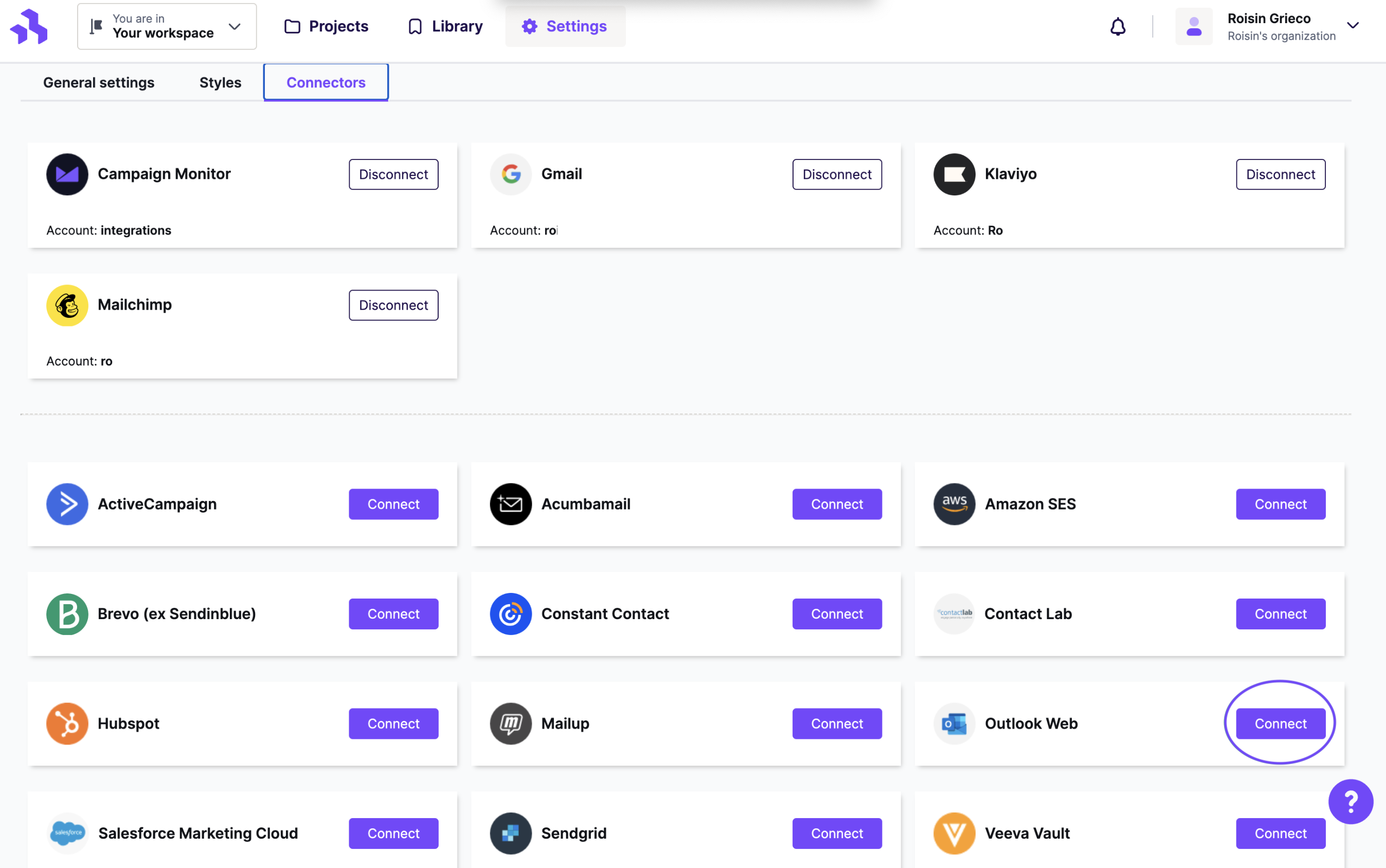
Go to Settings > Connectors.
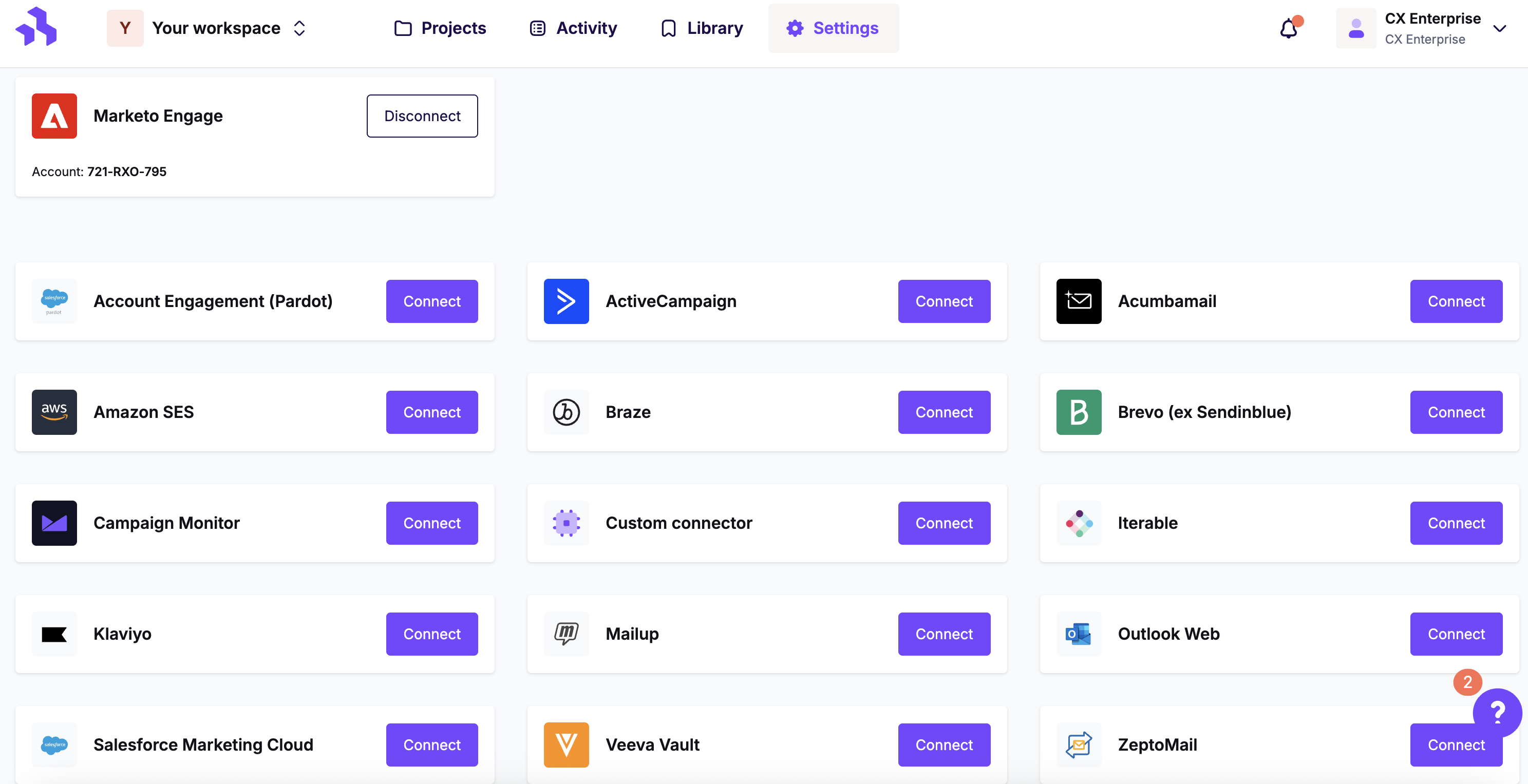
Click Connect for Outlook Web.
Fill out the information in the modal to set up the connector. RGE Studio doesn't store your Outlook credentials. We only use them to connect your accounts.
2. Connect from Export
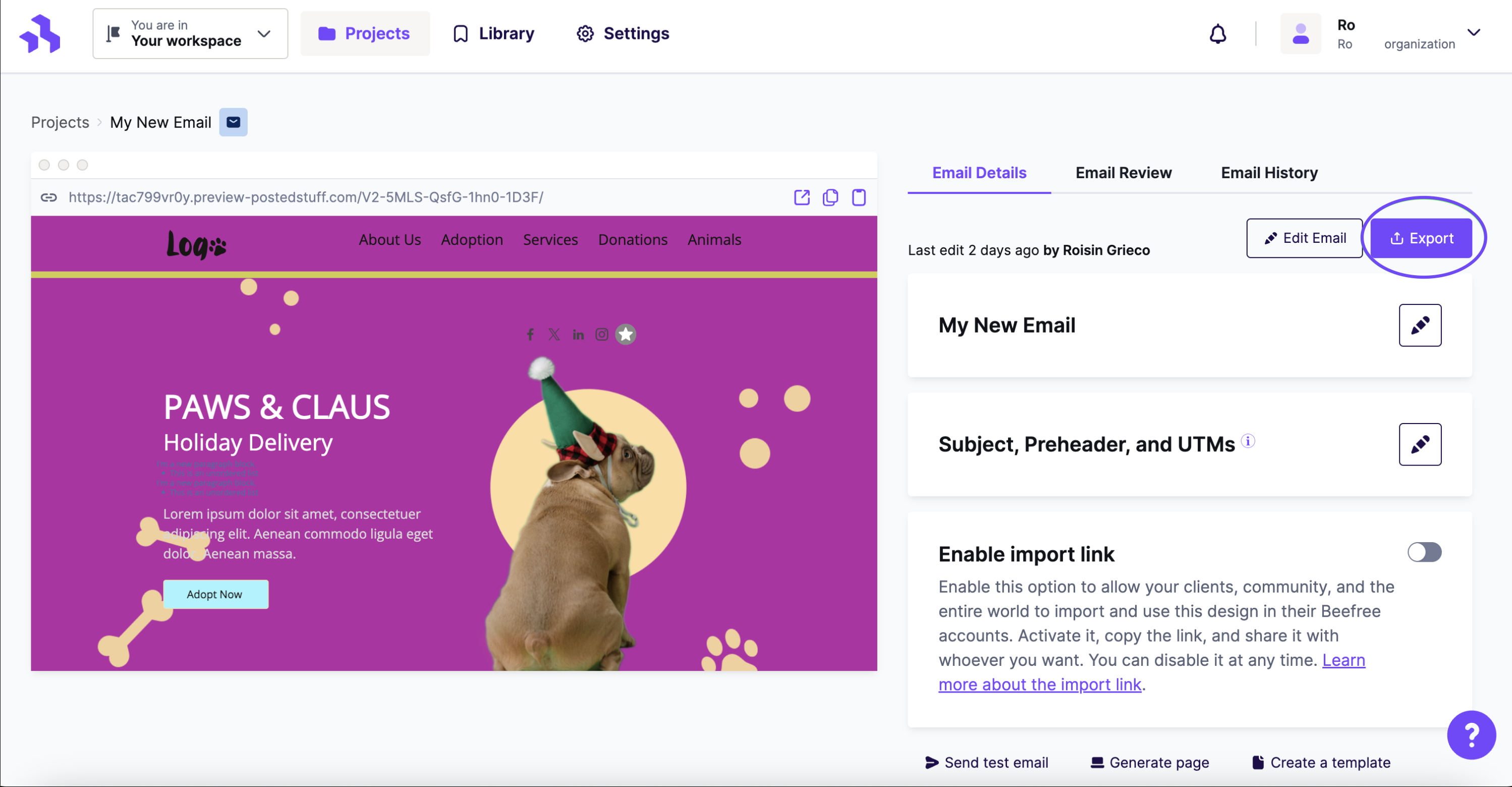
When your email is ready, click Export on the Email Details page. You can also find this option in your email's actions menu.
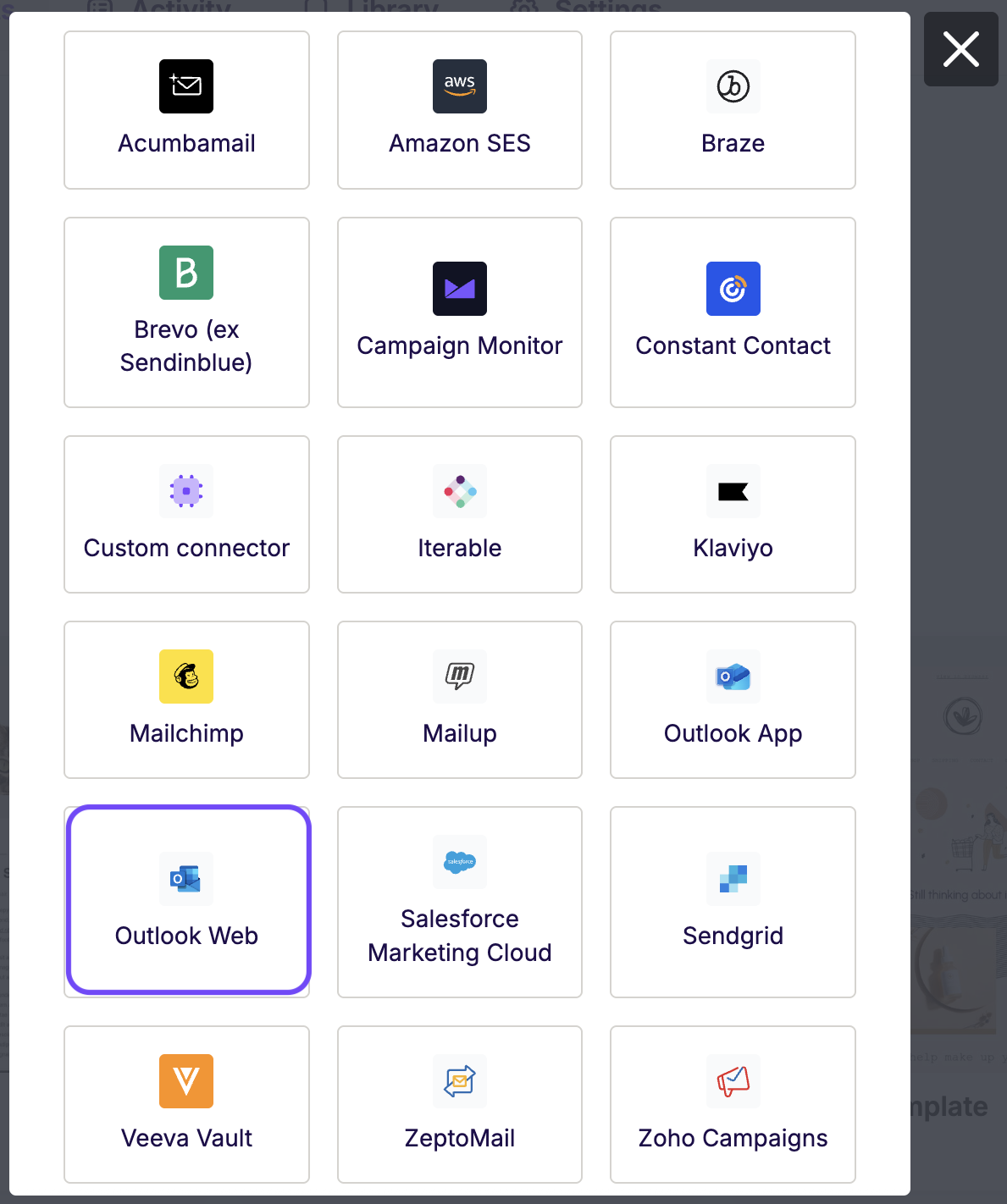
Click the Integrations icon for Outlook Web. If you don't see it, click More to see all connectors.
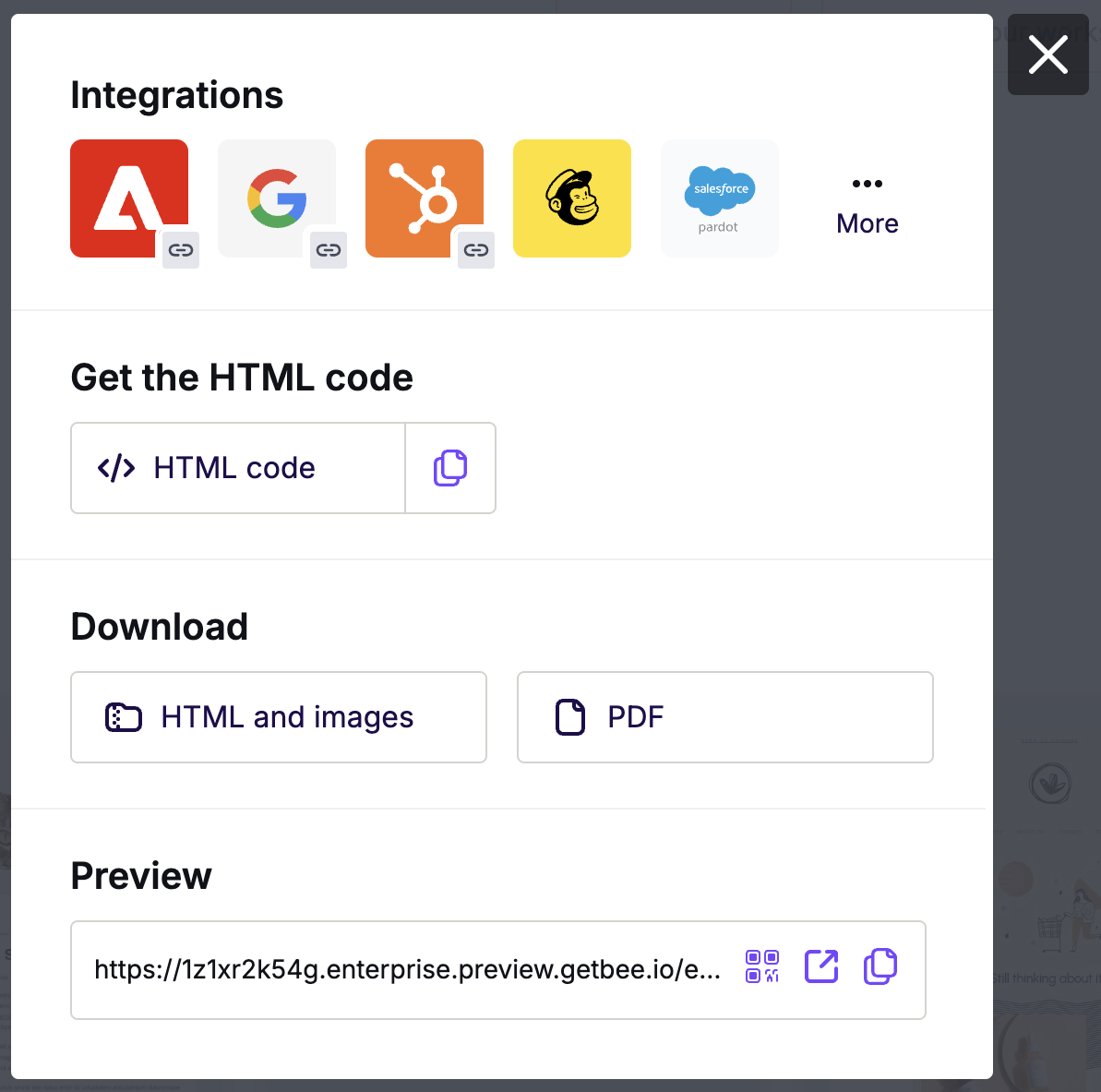
In the Integrations screen, search for Outlook Web. Click the icon and follow the steps to connect your account. If you're already connected, RGE Studio skips this step.
RGE Studio confirms the export. Find your exported design in the Drafts folder in your Outlook Web account.
Connect Your Outlook Corporate Email
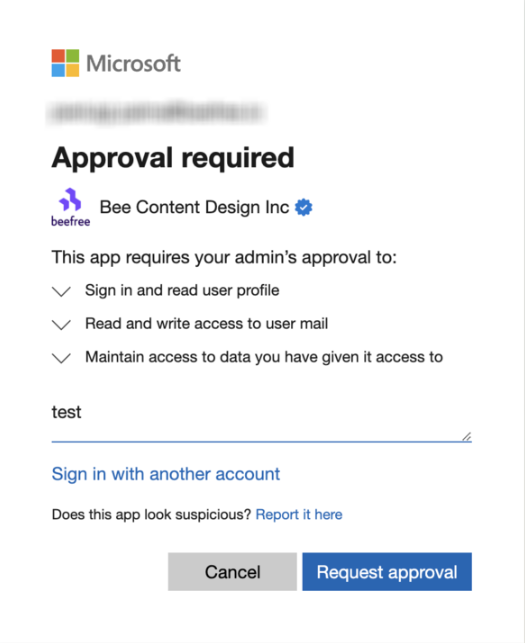
When you connect a corporate Outlook account, you may see an approval message. This message comes from your organization's Outlook permissions. To connect successfully, ask your Outlook admin to approve the request or update the permissions in your Outlook account.
Here's an example of this message:
Notes
Using buttons in your exported design? Make sure your button links start with http:// or https://. This keeps your button working as a link instead of plain text.
If you send emails through Outlook, design simple, single-column layouts. Outlook is an email client, not a sending platform. It may ignore, remove, or alter parts of our code. This can cause rendering issues we can't fix on our end.
Our tests show Outlook removes some of our code, including:
- Any <style> tags in the head, including our mobile-responsive media queries.
- Any conditional comments in our code. The only conditional code we use is VML, which targets Outlook clients. This can cause rendering issues specific to Outlook recipients.
For the best results, we recommend sending emails through a dedicated sending platform. We offer the Outlook connector as an option when that's not possible for you.
Looking for a different sending platform? You can check our complete list of connectors — or request a new one!
If you have any questions, feel free to contact us.
Comments
0 comments
Please sign in to leave a comment.